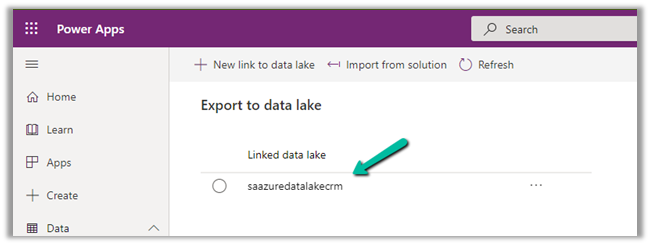
Fixed – Initial sync status – Not Started – Azure Synapse Link / Export to Data Lake


Recently while configuring the Export to Data Lake service, we observed the initial sync status being stuck for one of the tables at Not started.

Manage tables option also was not working

All changes for existing tables are temporarily paused when we are in the process of exporting data for new table(s). We will resume writing changes for existing table(s) after we complete exporting data for new table(s) to the Azure data lake.

As it was seemed to be stuck forever, we tried Unlinking the data lake and linking it back.

Select Yes

We left the Delete data lake file system unchecked.

Created a New link to data lake with the same storage account.

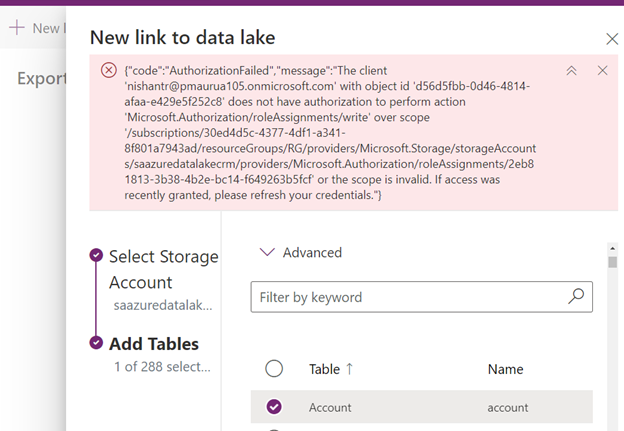
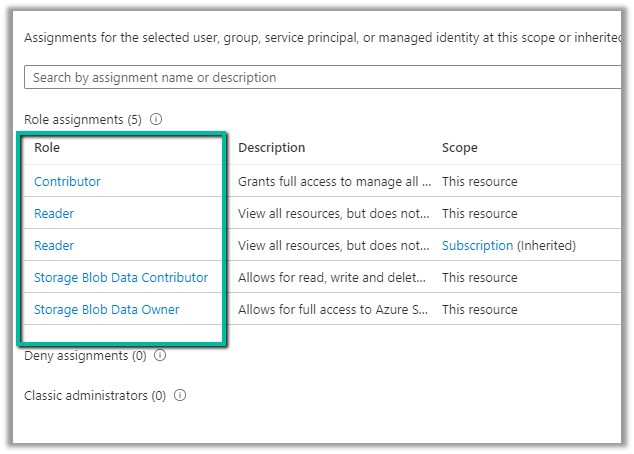
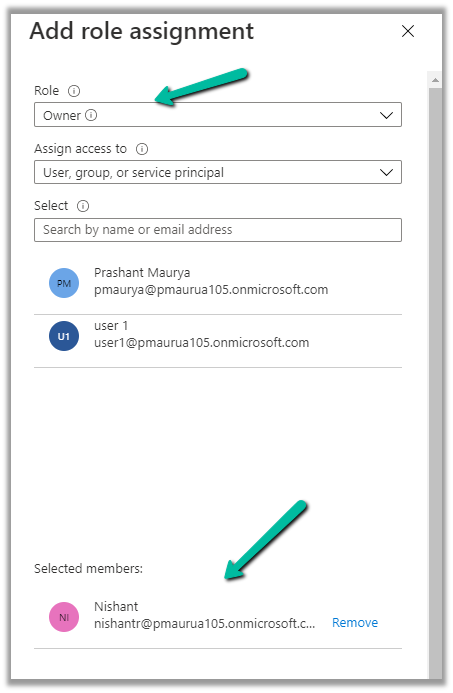
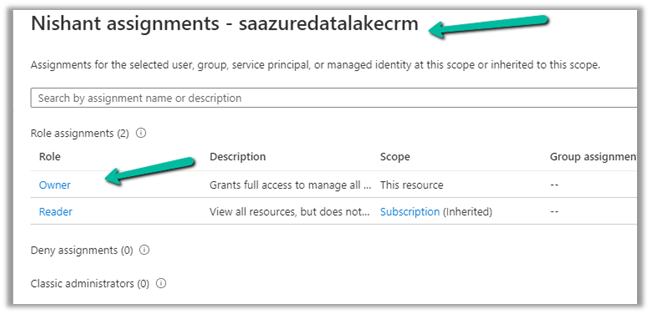
We would get the below error à

An error occurred: Container: dataverse-pmaurya105-unqdc8ed1c1df824188bbe2225de96f0 already existed with files for storage account: saazuredatalakecrm. Please clean dataverse-pmaurya105-unqdc8ed1c1df824188bbe2225de96f0

Basically, if we are using the same storage account for linking, we need to first delete or clean the container.

We cleaned the container.

And tried again.

This time it worked

Here we can check the Delete data lake file system option while Unlinking the data lake

This will perform the same step – deleting the files within the container.

If that doesn’t work or is not feasible, we should raise Microsoft Support Ticket.

https://powerusers.microsoft.com/t5/Microsoft-Dataverse/Added-new-Table-to-Export-to-Data-Lake-Now-Sync-is-blocked/m-p/924560#M11400

Check other posts on Azure Data Lake and Dynamics 365 – 

https://nishantrana.me/2020/12/10/posts-on-azure-data-lake/

Hope it helps..

Advertisements

Now Maximum of 10 alternate keys can be defined for an entity/table – 2021 Release Wave 1 – Dynamics 365


Previously, a maximum of 5 alternate keys could be defined for an entity.

https://docs.microsoft.com/en-us/dynamics365/customerengagement/on-premises/developer/define-alternate-keys-entity#create-alternate-keys

With 2021 Release Wave 1, the limit has been increased to 10.

https://docs.microsoft.com/en-us/power-platform-release-plan/2021wave1/data-platform/increased-alternate-key-limits

While trying to create the 11th key we will get the below error message as shown below

The table could not be updated: Maximum 10 EntityKeys are supported per Entity.

Check other posts on 2021 Release Wave 1  –

Blog posts on 2021 Release Wave 1 – Dynamics 365

Hope it helps..

Advertisements
Advertisements

How to – Customize Quick Actions in Dynamics 365 CE / Model-driven Power Apps


As part of the enhanced Search Experience, contextual quick actions were introduced in the platform :- https://nishantrana.me/2021/02/09/improved-search-experience-now-adds-quick-actions-2021-release-wave-1-dynamics-365/

E.g. we have Assign, Share, Email quick actions available for Contact, Account, and other entities for the relevance search results.

There can be a maximum of 5 quick actions per entity/table.

The quick actions are a subset of commands available for an entity/table at the Home grid level.

Below are the new rules (Enable Rule) introduced through which these contextual quick actions/commands can be shown or hidden.

  • ShowOnQuickAction – Command will only appear as a Quick Action within Search and will be hidden from the home grid.
  • ShowOnGridAndQuickAction – Command will appear for both Grid and as a quick action.
  • ShowOnGrid – command will only appear for the grid.

To apply these rules, we can use our favorite Ribbon Workbench tool.

Select Customize Command option for the respective command/button within the Home.

Add a new Enable Rule for the command.

Select IsCore as true.

Apply the Enable Rule for the other commands as shown below.

Here we have used the Contact entity/table.

Assign

ShowOnQuickAction

Share

ShowOnGridAndQuickAction

Email a link

ShowOnGrid

Follow

ShowOnGridAndQuickAction

On successful publishing of the above rules, as expected we can see – Assign command hidden and Share, Email a Link and Follow available in the Home grid

And with the quick actions, we can see Assign, Share and Follow available and Email a link command hidden.

Get the details – https://powerapps.microsoft.com/en-us/blog/search-quick-actions-are-now-customizable-in-model-driven-power-apps/

Other posts on 2021 Release Wave 1

https://nishantrana.me/2021/04/21/blog-posts-on-2021-release-wave-1-dynamics-365/

Hope it helps..
 

Advertisements

How to Export the Audit History Values from Dynamics 365


Requirements for Audit with Compliance Center

https://docs.microsoft.com/en-us/power-platform/admin/enable-use-comprehensive-auditing#requirements

Requirements

  • A Microsoft 365 Enterprise E3 or E5 subscription is required to do Activity Logging.
  • Available for production and not sandbox environments.

Also check

Use SQL 4 CDS XrmToolbox tool to run query again Audit table –

https://markcarrington.dev/sql-4-cds/

Frank Lee's avatarMicrosoft Dynamics 365 CRM Power Apps Blog

Microsoft Dynamics 365 supports Audit Logging of various events. Authorized users can view the Audit History on any Dynamics 365 tables enabled for Auditing.

However, there is NO Export audit data function available from the Dynamics 365 Audit History or Audit Summary View.

The good news is that there is an out of the box option via Microsoft 365 Compliance’s Audit to Export the Dynamics 365 audit data including the Changed Values.

Here is an example from the Microsoft Dynamics 365 Audit History showing a Create and two Updates for “Test Contact 210409” record: Notice that there is NO option to export this data from the Dynamics 365 Contact’s Audit History view.

Now let’s look at this result from the Microsoft 365 compliance Audit Search on Dynamics 365 activities. Notice that there is the option to Download all results!

The Download is a CSV file. Notice that column D “AuditData”…

View original post 135 more words

EWS Editor for Dynamics 365


Marcello Tonarelli's avatarMarcello Tonarelli Blog

EWS Editor for Dynamics 365 is based off the original EWS Editor source and is designed to provide troubleshooting tools to help resolve Exchange server integration issues related to Server Side Synchronization and the E-mail Router. Below are the features available in the Alpha release:

  • Natively inspect Dynamics 365 Extended Properties (crmid, crmLinkState, etc) in any EWS Editor grid that contains items linked to Dynamics 365.
  • Retrieve ExchangeSyncIdMapping records for any given Appointment, Contact, or Task in any EWS Editor Grid that contains items linked to Dynamics 365.
  • Validate e-mails for promotion to Dynamics 365 by performing the CheckIncomingEmailRequest API.
  • Inspect the Mailbox Synchronization State, Mailbox Alerts, and other details in a thematically grouped interface.
  • Perform Mailbox diagnostics to check for misconfigured or stuck mailboxes with Server Side Synchronization.
  • Troubleshoot and anticipate ACT Synchronization issues between Dynamics 365 and Exchange Server.
  • Simulate various Exchange Web Service APIs commonly used by Dynamics 365.

View original post 28 more words

Duplicate Detection limitations – Dynamics 365


Some time back, had reblogged about Duplicate detection limitations.

The original post – https://crmfunda.wordpress.com/2018/09/26/d365-limitations-of-duplicate-detection-rules/, talks about the below limitations

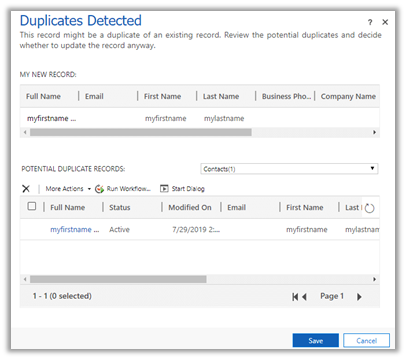
Let us check each one of them with the enhanced experience that we now have in the platform

  • Duplicate Detection works seamless for Dynamics 365 for Phone app also as shown in the screenshot below.

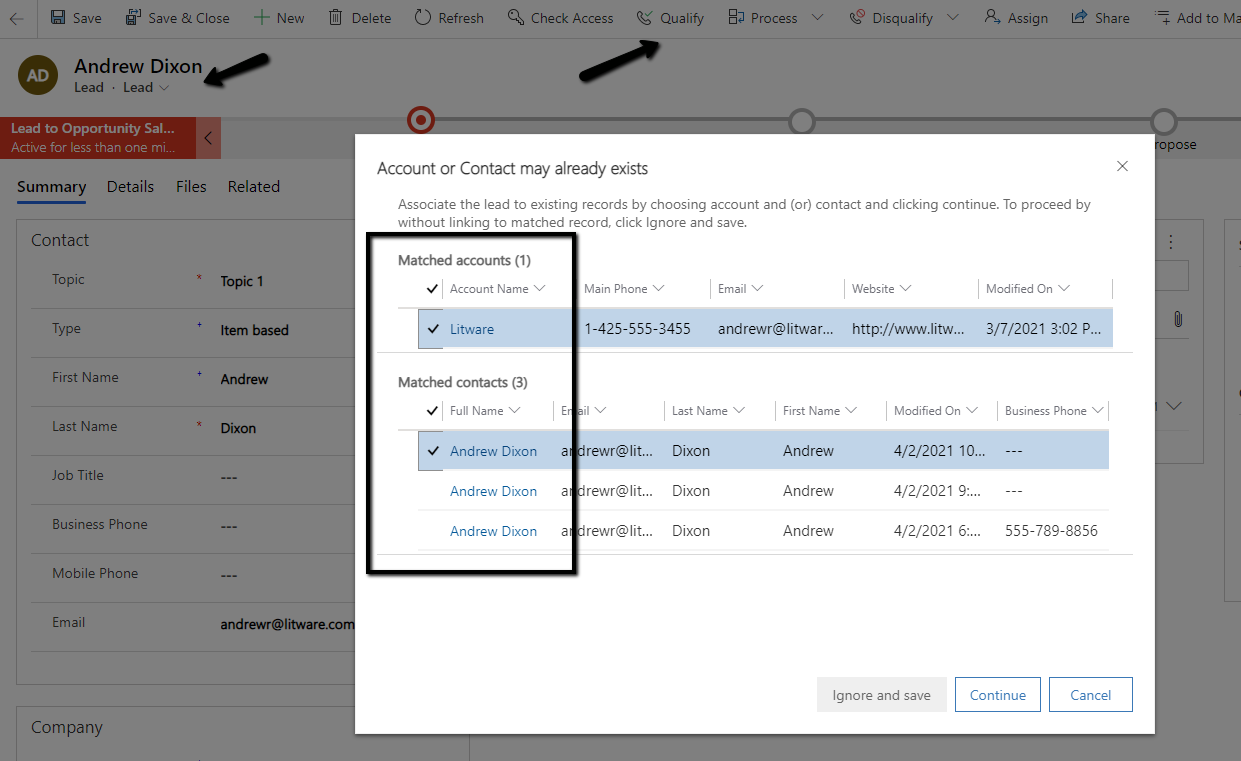
  • Duplicate detection check kicks in when we qualify the lead

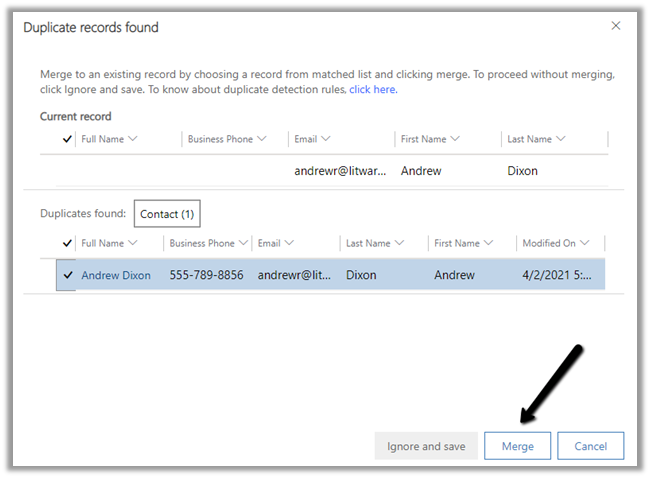
Here, qualifying the lead, pops up Duplicate Detection dialog box listing both the matching Account and Contact record.

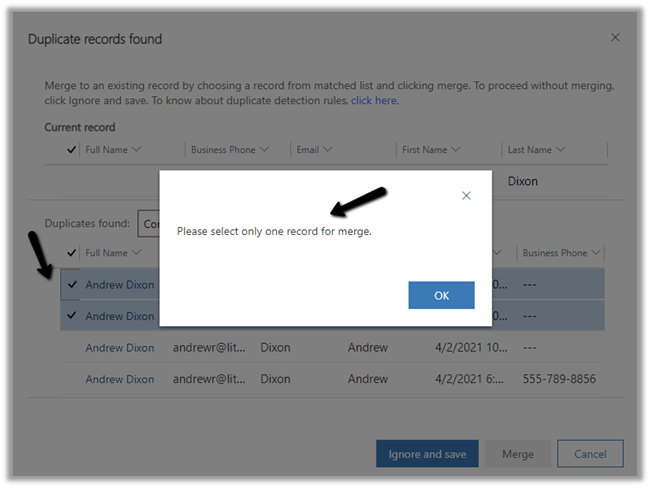
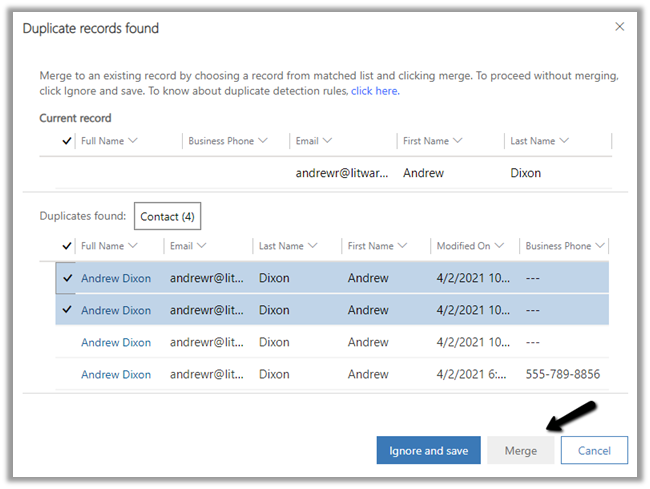
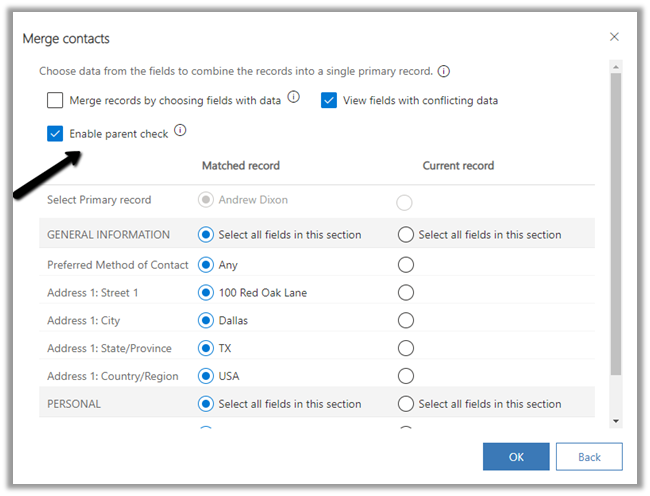
We can either choose ignore and save to create a new record or click on continue to merge the record with the selected record(s).

  • On activating a matching inactive contact record,

Duplicate Detection is not triggered.

Duplicate detection can be setup to run on the following events – 

dd

  • While trying to publish 6th Duplicate Detection rule for Account entity,

we get the below exception

System.Web.HttpUnhandledException: Exception of type ‘System.Web.HttpUnhandledException’ was thrown. —> Microsoft.Crm.CrmException: The selected record type already has the maximum number of published rules. Unpublish or delete existing rules for this record type, and then try again.

Thus maximum 5 duplicate detection rules can be published per entity.

More on Duplicate Detection

Hope it helps..
Advertisements

Nishant Rana's Weblog

Everything related to Microsoft .NET Technology

Skip to content ↓