Fixed – Unified routing was unable to provision error while trying to configure Unified routing


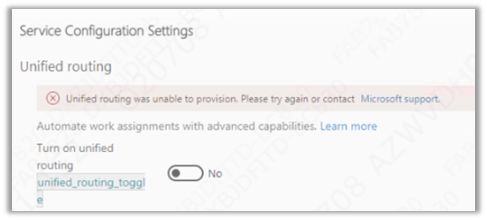
Recently while trying to set up Unified Routing, we got the below error.

“Unified routing was unable to provision. Please try again or contact Microsoft Support”

The user had the system administrator role and we already had the global administrator’s consent, which should be good enough to set up unified routing.

We tried with different system administrator users but that doesn’t resolve that error.

Eventually, we tried the setup with the same user but in a different VDI (Virtual Desktop Infrastructure), and the setup worked properly without any error. One probable reason could be, that the appropriate URLs being accessed during setup were already whitelisted in the other VDI, which wasn’t the case in the first VDI where we were trying.

Hope it helps..

Advertisements

Fixed – We couldn’t load your user roles from the selected Dynamics 365 Organization error while trying to set up Microsoft Dynamics 365 Marketing


Recently while trying to set up Microsoft Dynamics 365 Marketing on an existing Dataverse environment, we got the below error.

“We couldn’t load you user roles from the selected Dynamics 365 Organization. Please try again”

The user had the system administrator role, which is good enough to set up marketing.

We tried replicating the same in other trial environments but were not able to replicate the above error.

Eventually, we tried the setup with the same user but in a different VDI (Virtual Desktop Infrastructure), and the setup worked properly without any error. One probable reason could be, that the appropriate URLs being accessed during setup were already whitelisted in the other VDI, which wasn’t the case in the first VDI where we were trying earlier.

Hope it helps..

Advertisements

Transform your Model-driven app to a multi-session app using settings solution component


Another awesome “settings” trick from the author..thanks Mehdi

Mehdi El Amri's avatarXRM Tricks (Power Platform & Dynamics CRM )

This blog will discuss new component added to Power Apps. It is about the “Settings” component. Indeed, this component allows adding a configuration layer for a model-driven application. This allows to easily activate or deactivate a feature for a model-driven app.

For more information on this component, I invite you to read this excellent blog from Power Apps team


Scenario:

Enable app makers to transform a classic model-driven app into a multi-session one using the settings components. You can check out the demo at the end of the blog before continuing reading.

Step 1: Create the Setting Definition

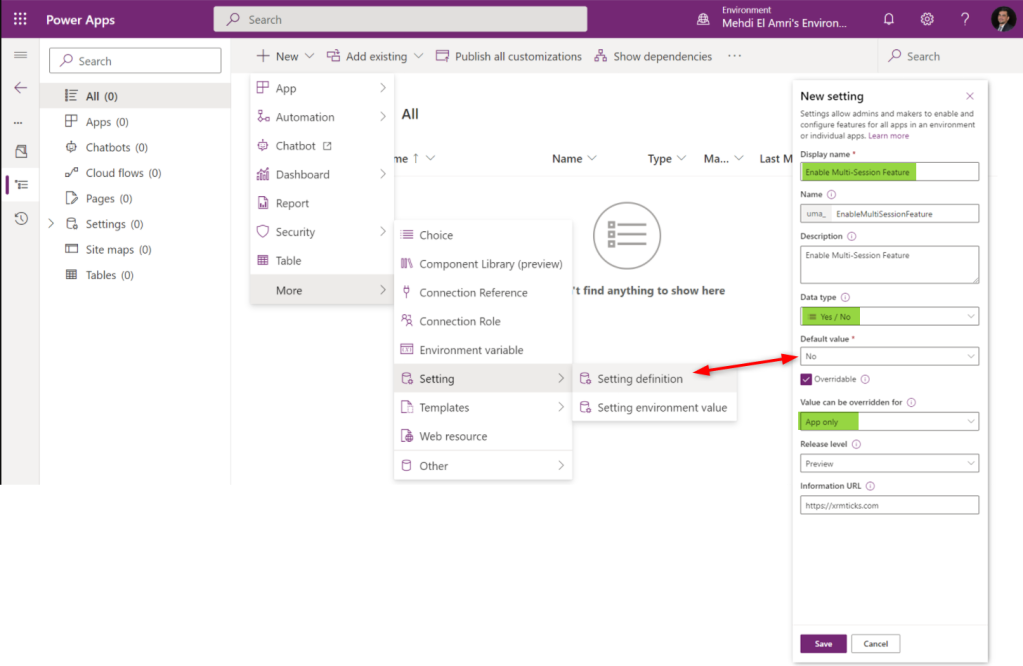
First, create a solution through make.preview.powerapps.com. Yes, we will implement everything on the preview version of PowerApps. Then, create a new setting definition. In my case I named it “Enable Multi-Session Feature” and applied the following values:

Step 2: Implement the logic

Let’s go back to the initial needs. The goal is…

View original post 271 more words

Dynamics CRM: Create Custom Autonumber Plugin Using Azure SQL Sequence


temmyraharjo's avatarTemmy Wahyu Raharjo

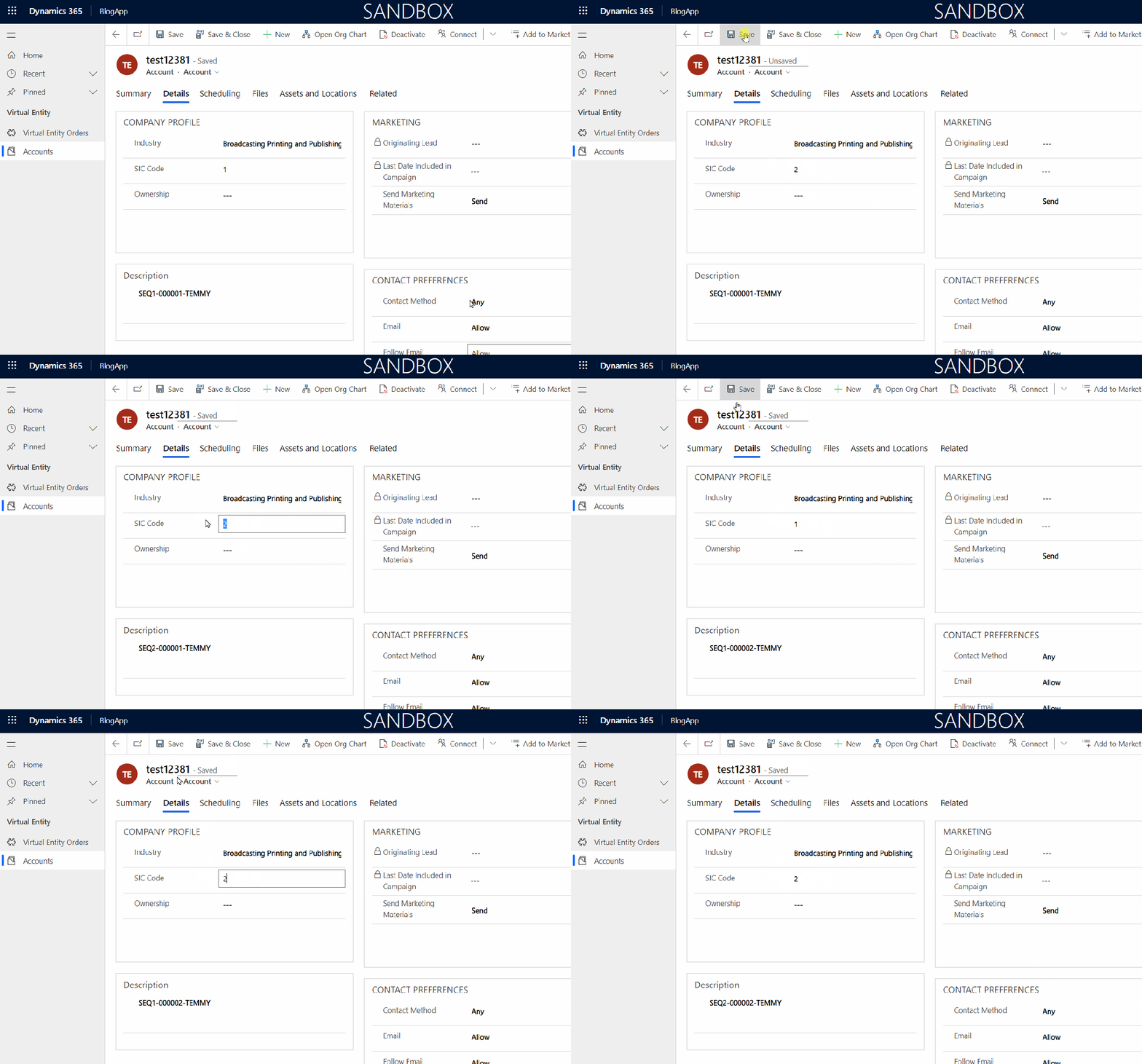
In this blog post, I reviewed the Auto Number attribute that already can handle the common scenario. There is a way to give a simple conditional Auto Number from Nishant Rana that you can read here. But what if we want to implement a more complex scenario to generate the Auto Number part for instance we want to generate Auto Number based on Type? For example, if Order Type A, generate A001. If Order Type B needs to generate B001? The possible solution is to create our own code. So today we will try to create auto number code using Azure SQL Sequence (Sequence can ensure every call will get unique value).

Create Azure SQL Database

You can go to your portal.azure.com >SQL databases> hit+ Createbutton > fill theSubscription,Resource Group, fill theDatabase name, createServer.

For…

View original post 876 more words

How to – Use the new command designer to customize the command bar – Dynamics 365 / Power Apps


Using the modern app designer either open an existing model-driven app or create a new model-driven app in https://make.powerapps.com/

Select Edit >> Edit in preview

Select any entity/table and select the Edit command bar (preview)

The different command bars that can be edited are the Main grid, main form, subgrid view, and the associated view.

  • Main Grid view

  • Main Form view –

  • Subgrid view–

  • Associated view –

The legacy / classic button is not supported currently.

Check out all the known limitations

https://docs.microsoft.com/en-gb/powerapps/maker/model-driven-apps/command-designer-limitations

limi

Let us try adding a new command/button in the Main Form, and see what options do we get there.

Select + New command or the + New option

It adds a new button with the label NewCommand with options to duplicate, hide, move up and down, etc.

The different properties that can be configured for the new command –

Property

Description


Label

To set the label

Icon

To set the icon either using icon or web resource

Tooltip

Set tooltip title and its description.

Order Number

Customize the Order of the command

Action

Either run formula or run javascript


Open Formula Bar


Library for Run JavaScript

Visibility


Open Formula Bar for Show on Condition

Let us Save and Publish

Click on Play and open a lead form.

We can see the new command added.

Get all the details here –

https://docs.microsoft.com/en-gb/powerapps/maker/model-driven-apps/command-designer-overview

Hope it helps..

Advertisements

Dynamics CRM: Proving Auto Number Data Type Is Legit!


temmyraharjo's avatarTemmy Wahyu Raharjo

I just saw Nishant Rana’s post about the auto-number data type that you can check here. And to be honest, I just knew about it and felt intrigued to test it. My expectation was pretty low about this data type (to handle lots of requests and result to duplicate numbers in the end). TL;DR (Too Long; Didn’t Read), IT’S NOT!

For the testing purpose, I created the below Table with auto-number attribute with the name new_autonumber:

new_test and the auto-number attribute

You can create the auto-number attribute, usingAuto Number Manager by Jonas Rapp (XrmToolbox Tool)/via new Solution UI (I’m using XrmToolbox):

Auto Number Manager by Jonas Rapp

For generating the entities inside the c# code, I used the below code:

using System; using System.Collections.Generic; using System.Threading.Tasks; using System.Web.Configuration; using Microsoft.Xrm.Sdk; using Microsoft.Xrm.Tooling.Connector; namespace CrmCheck { class Program { static void Main(string[] args) { var connectionString = WebConfigurationManager.AppSettings["connectionString"]…

View original post 154 more words