

A common requirement with Business Process Flows is this: the user must capture all the required details on the form before they are allowed to move to the next stage of the BPF.
The BPF can make individual fields required, but it has no idea about all the other fields sitting on the main form. So how do we make the BPF block the Next Stage button until everything is filled in?
One way is to use JavaScript: register a handler using addOnPreStageChange and call preventDefault() on the event arguments to stop the stage change whenever our conditions are not met. We have covered this approach in an earlier post here.
However, there is one more method to achieve this, where we don’t have to intercept the stage change ourselves and let the BPF do the blocking for us.
In this post we will see how we did it using a Boolean field, kept it read-only in the BPF, and set it through JavaScript.
Scenario
Let us look at it by taking an example of the Opportunity BPF. At the Qualify stage the user has to capture a set of details on the main form (contact, account, budget, and so on) before moving on to Develop.
We want:
- The user cannot move to the next stage until all the details are captured.
- The user should not be able to simply tick a box and bypass the check.
The Approach
We created a Boolean (Two-Option) field, Qualification Details Captured, with a default value of No, and added it to the Qualify stage of the BPF as a required step.
- While the value is No, the BPF blocks the stage change and shows “Required fields must be filled in.”
- Once all the required data is filled in on the form, we can write JavaScript, as per our specific requirement, to set the field to Yes.
- With the value at Yes, the user can click Next Stage.
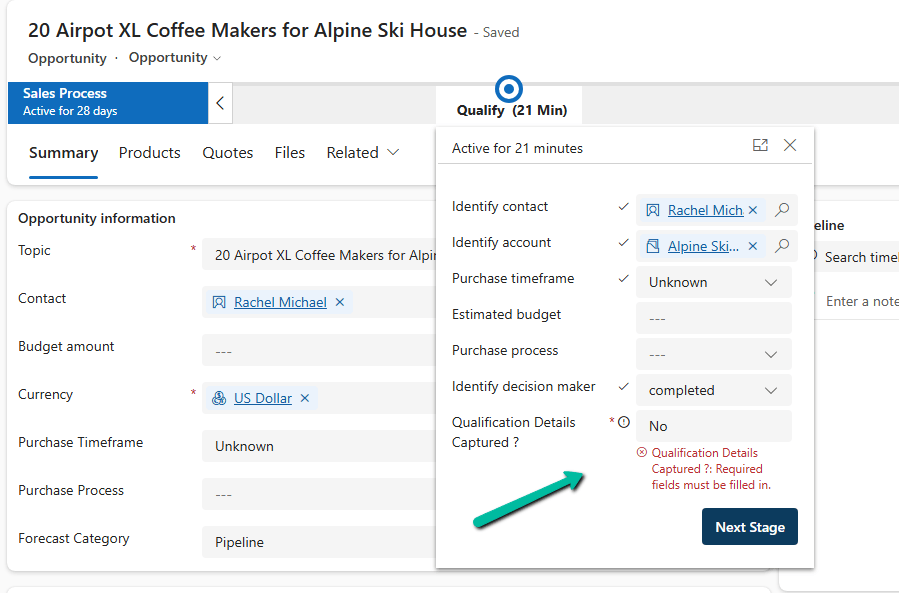
This works because, as we saw in an earlier post, a required Boolean field in a BPF treats only Yes as a valid value, and No is treated as not filled in. Here we are using that behavior to our advantage.
Reference: Boolean Fields in Business Process Flows: Required Field Behavior Explained
Why Make the Field Read-Only?
If the field is editable, the user can just change No to Yes in the BPF flyout and move ahead without filling in anything. That defeats the whole purpose.
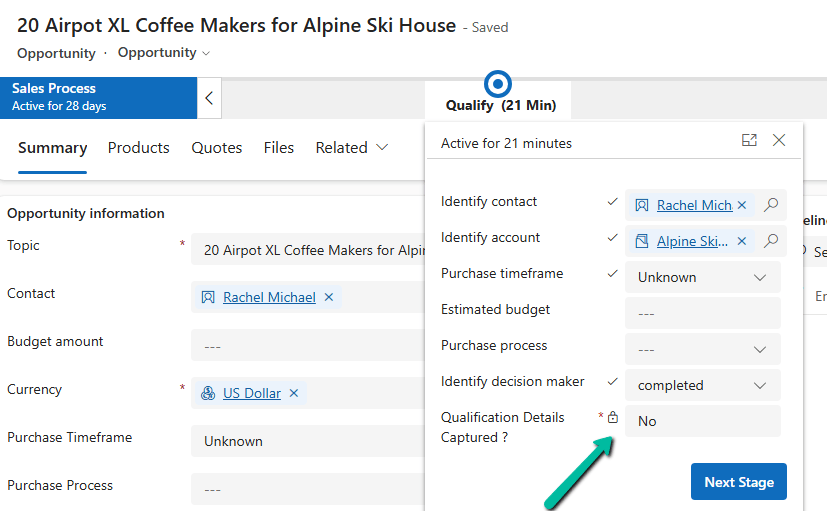
The field should be driven by the data, not by the user. So we made it read-only in the BPF, and only the script is allowed to flip the value.
How to Make a Field Read-Only in BPF
The easiest way is through configuration, without any script.
When we create a BPF, Dataverse creates a table for that BPF (named after the BPF). The fields we add to the stages are rendered from the form of this BPF table, so we can control them there like we do for any other column.
- Go to Tables, select All (or show all tables), and search for the table with the same name as your BPF.
- Open its Forms and select the main form.
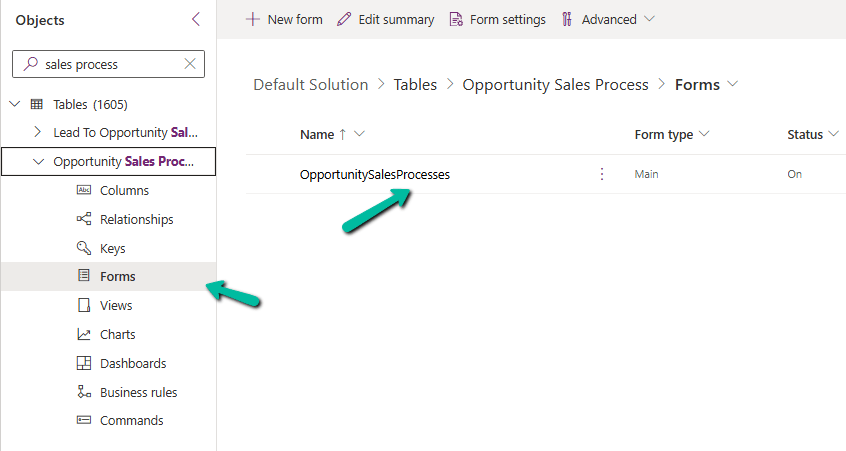
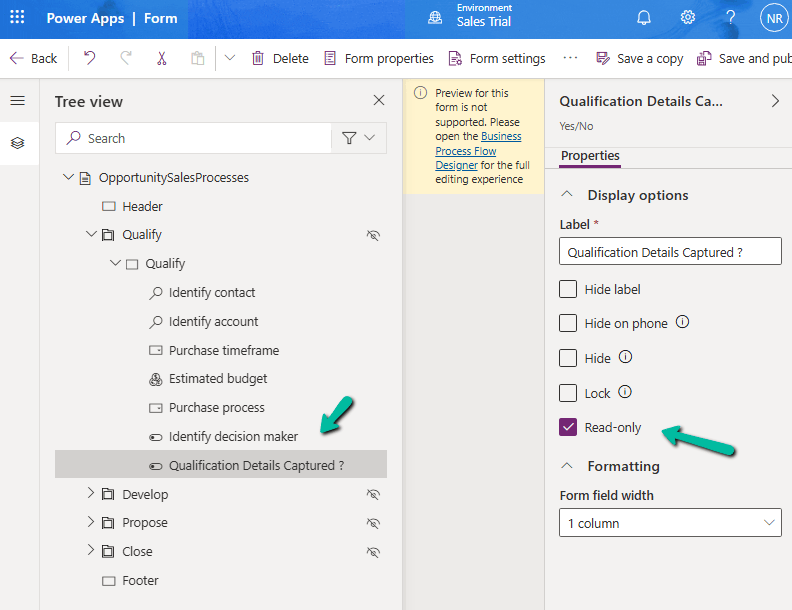
- Open the Tree view, expand the stage section, and select the field.
- Under Display options, check Read-only.
- Save and publish.
Now in the BPF flyout the field is greyed out, and the user cannot change it.
Setting the Value Using JavaScript
Now the field needs to be set to Yes at the right time. For this, we can write JavaScript on the main form as per our specific requirement, which checks that all the required details are captured and then sets the field to Yes.
Until that happens, the field stays at No, and the user will not be able to move to the next stage by clicking Next Stage.
Result
- Fields are incomplete: flag is No, read-only, and Next Stage is blocked.
- User fills in all the required details: our JavaScript sets the flag to Yes, and the user can move to the next stage.
- The user cannot bypass the check by changing the flag manually.
Key Takeaway
To make a field read-only in a BPF, open the form of the BPF table and check Read-only on the field. Combined with a required Boolean field and a little JavaScript, it gives us a simple way to make the BPF wait until all the required data on the form is captured.
Hope it helps..
Discover more from Nishant Rana's Weblog
Subscribe to get the latest posts sent to your email.
Share It -


