Making a Field Read-Only in Business Process Flow (BPF) – Dataverse / Dynamics 365


A common requirement with Business Process Flows is this: the user must capture all the required details on the form before they are allowed to move to the next stage of the BPF.

The BPF can make individual fields required, but it has no idea about all the other fields sitting on the main form. So how do we make the BPF block the Next Stage button until everything is filled in?

One way is to use JavaScript: register a handler using addOnPreStageChange and call preventDefault() on the event arguments to stop the stage change whenever our conditions are not met. We have covered this approach in an earlier post here.

However, there is one more method to achieve this, where we don’t have to intercept the stage change ourselves and let the BPF do the blocking for us.

In this post we will see how we did it using a Boolean field, kept it read-only in the BPF, and set it through JavaScript.

Scenario

Let us look at it by taking an example of the Opportunity BPF. At the Qualify stage the user has to capture a set of details on the main form (contact, account, budget, and so on) before moving on to Develop.

We want:

  • The user cannot move to the next stage until all the details are captured.
  • The user should not be able to simply tick a box and bypass the check.

The Approach

We created a Boolean (Two-Option) field, Qualification Details Captured, with a default value of No, and added it to the Qualify stage of the BPF as a required step.

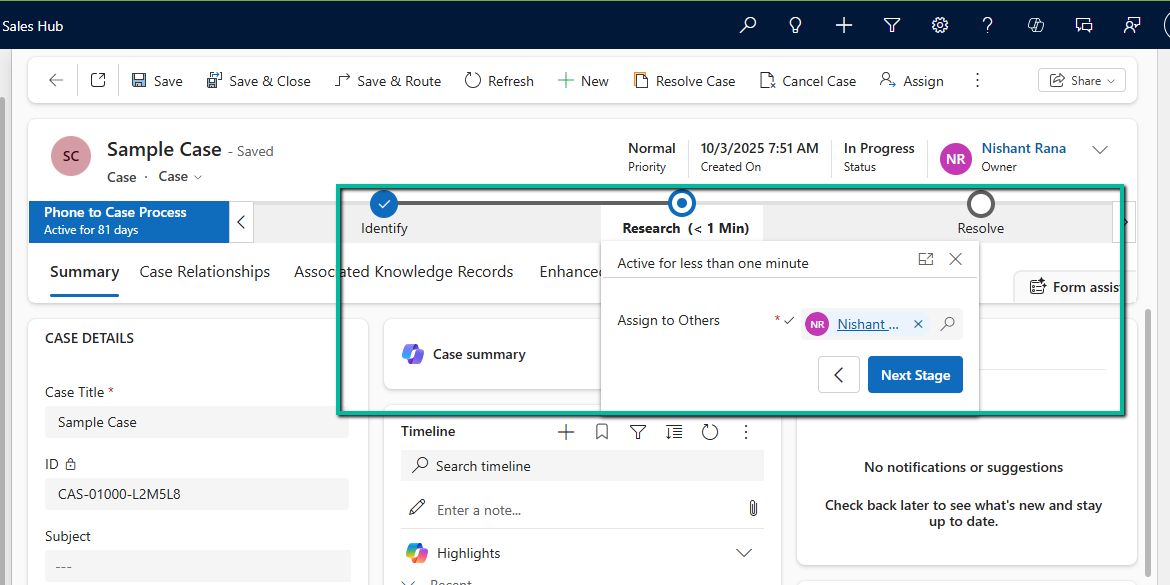
  • While the value is No, the BPF blocks the stage change and shows “Required fields must be filled in.”
  • Once all the required data is filled in on the form, we can write JavaScript, as per our specific requirement, to set the field to Yes.
  • With the value at Yes, the user can click Next Stage.
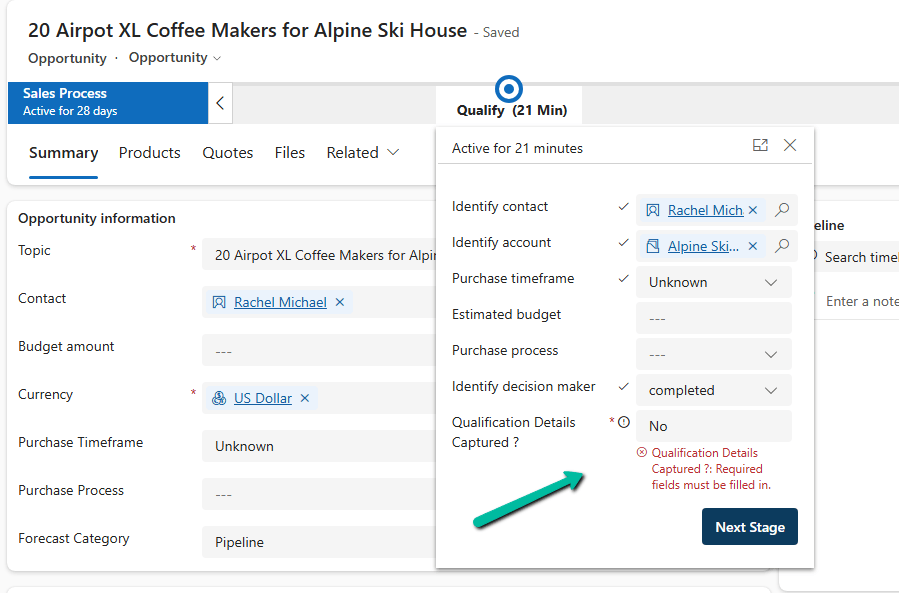
This works because, as we saw in an earlier post, a required Boolean field in a BPF treats only Yes as a valid value, and No is treated as not filled in. Here we are using that behavior to our advantage.

Reference: Boolean Fields in Business Process Flows: Required Field Behavior Explained

Why Make the Field Read-Only?

If the field is editable, the user can just change No to Yes in the BPF flyout and move ahead without filling in anything. That defeats the whole purpose.

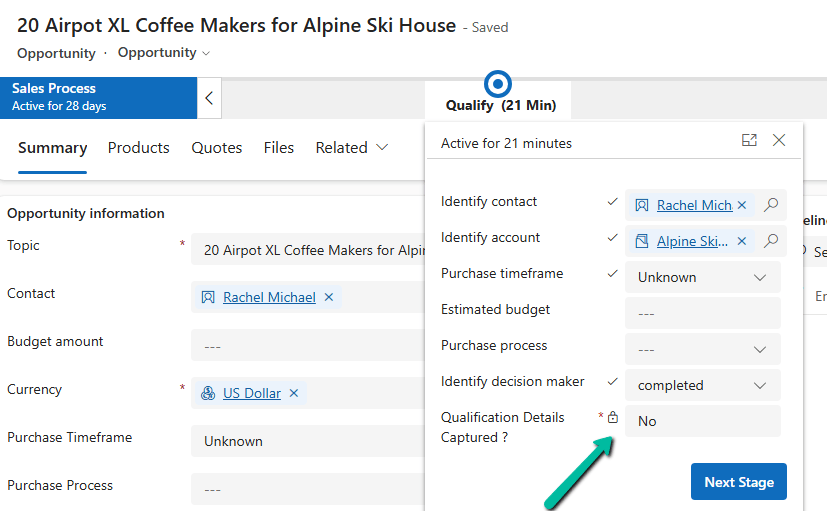
The field should be driven by the data, not by the user. So we made it read-only in the BPF, and only the script is allowed to flip the value.

How to Make a Field Read-Only in BPF

The easiest way is through configuration, without any script.

When we create a BPF, Dataverse creates a table for that BPF (named after the BPF). The fields we add to the stages are rendered from the form of this BPF table, so we can control them there like we do for any other column.

  1. Go to Tables, select All (or show all tables), and search for the table with the same name as your BPF.
  2. Open its Forms and select the main form.
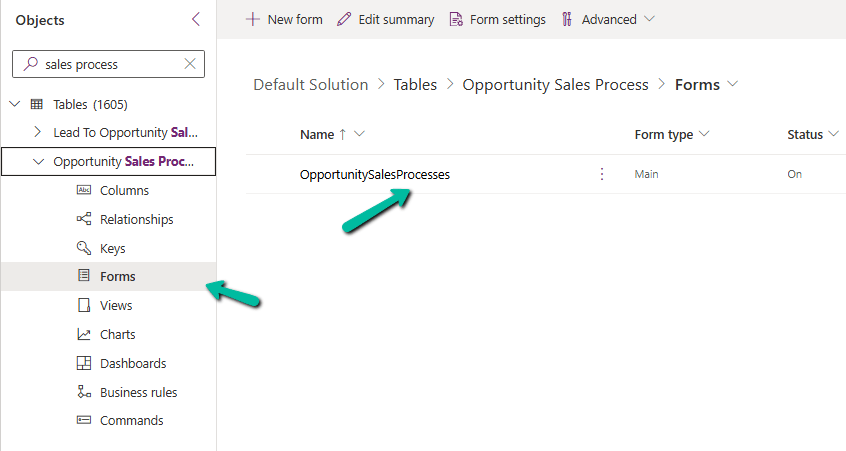
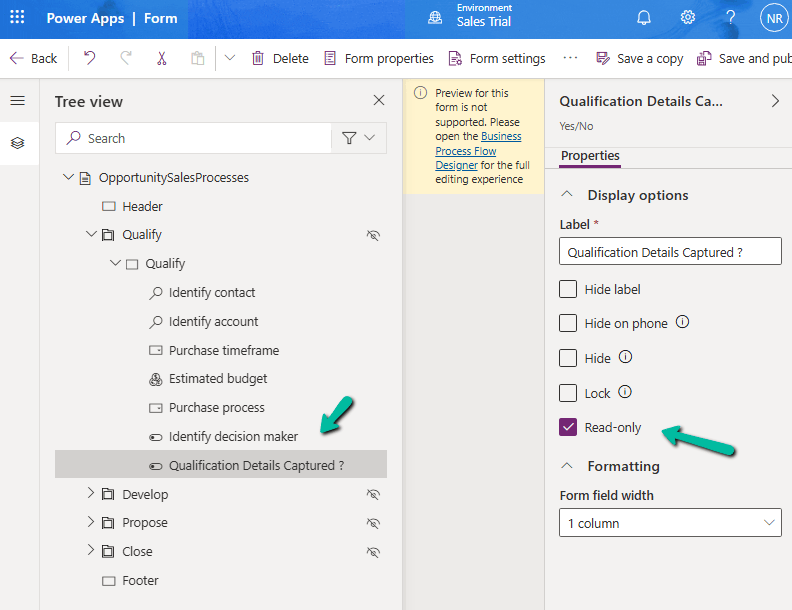
  • Open the Tree view, expand the stage section, and select the field.
  • Under Display options, check Read-only.
  • Save and publish.

Now in the BPF flyout the field is greyed out, and the user cannot change it.
Setting the Value Using JavaScript

Now the field needs to be set to Yes at the right time. For this, we can write JavaScript on the main form as per our specific requirement, which checks that all the required details are captured and then sets the field to Yes.

Until that happens, the field stays at No, and the user will not be able to move to the next stage by clicking Next Stage.

Result

  • Fields are incomplete: flag is No, read-only, and Next Stage is blocked.
  • User fills in all the required details: our JavaScript sets the flag to Yes, and the user can move to the next stage.
  • The user cannot bypass the check by changing the flag manually.

Key Takeaway

To make a field read-only in a BPF, open the form of the BPF table and check Read-only on the field. Combined with a required Boolean field and a little JavaScript, it gives us a simple way to make the BPF wait until all the required data on the form is captured.

Hope it helps..

Advertisements

Advancing and Finishing a BPF Using RetrieveProcessInstancesRequest and RetrieveActivePathRequest (Dataverse / Dynamics 365)


In earlier posts, we looked at how to move a Business Process Flow (BPF) stage and finish the process by directly updating the BPF entity instance. In this post, we’ll use RetrieveProcessInstancesRequest and RetrieveActivePathRequest to move a Business Process Flow to its final stage and finish it, using the Phone to Case Process as a reference.

A Business Process Flow defines not just stages, but also valid paths through those stages. Instead of assuming which stage comes next, we can ask Dataverse for the active path of the current process instance. This makes the logic more resilient to future changes, such as reordering stages or adding conditional paths.

By using the active path:

  • We avoid hard-coding stage IDs
  • We ensure the stage we move is to valid for the process
  • We can construct a correct traversed path directly from platform metadata.

Step 1: Retrieve the Active BPF Instance

The first step is to identify the active Business Process Flow instance for the Case. We do this using RetrieveProcessInstancesRequest, which returns all BPF instances associated with the record, ordered based on modifiedon. The most recently modified bpf instance will be the one active in the record.

RetrieveProcessInstancesRequest processInstanceRequest =
    new RetrieveProcessInstancesRequest
    {
        EntityId = caseId,
        EntityLogicalName = "incident"
    };

RetrieveProcessInstancesResponse processInstanceResponse =
    (RetrieveProcessInstancesResponse)orgService.Execute(processInstanceRequest);

Step 2: Retrieve the Active Path and Build the Traversed Path

Instead of guessing stage progression, we retrieve the active path using RetrieveActivePathRequest.

RetrieveActivePathRequest pathReq =
    new RetrieveActivePathRequest { ProcessInstanceId = processInstanceId };

RetrieveActivePathResponse pathResp =
    (RetrieveActivePathResponse)orgService.Execute(pathReq);

The response contains all stages in the active path, in the correct order. From this data, we build the complete traversed path by iterating through every stage returned and collecting their processstageid values.

var traversedPathList = new List<string>();
foreach (var stage in pathResp.ProcessStages.Entities)
{
    traversedPathList.Add(
        ((Guid)stage.Attributes["processstageid"]).ToString()
    );
}

string completeTraversedPath = string.Join(",", traversedPathList);

This approach guarantees that the traversedpath reflects the exact path defined by the process configuration, rather than a manually constructed sequence.

Step 3: Move the BPF to the Final Stage

We then get the last stage’s GUID and use it to update activestageid of the BPF instance along with the traversed path.

Guid finalStageId =
    (Guid)pathResp.ProcessStages.Entities.Last()
        .Attributes["processstageid"];

var updateBpf = new Entity("phonetocaseprocess", processInstanceId)
{
    ["activestageid"] = new EntityReference("processstage", finalStageId),
    ["traversedpath"] = completeTraversedPath
};

orgService.Update(updateBpf);

Step 4: Finish (Deactivate) the Business Process Flow

Reaching the final stage does not automatically complete the process. To mirror the Finish button in the UI, we explicitly mark the BPF instance as inactive and finished.

var finish = new Entity("phonetocaseprocess", processInstanceId)
{
    ["statecode"] = new OptionSetValue(1),   // Inactive
    ["statuscode"] = new OptionSetValue(-1)  // Finished
};

orgService.Update(finish);

After this update, the Business Process Flow appears as Completed in the UI and can no longer be progressed.

Helper method –

public static void MoveBpfToFinalStageAndFinish(
    IOrganizationService service,
    Guid primaryRecordId,
    string primaryEntityLogicalName,
    string bpfSchemaName,
    string expectedBpfName)
{
    // Step 1: Retrieve active BPF instance
    var processInstanceRequest = new RetrieveProcessInstancesRequest
    {
        EntityId = primaryRecordId,
        EntityLogicalName = primaryEntityLogicalName
    };

    var processInstanceResponse =
        (RetrieveProcessInstancesResponse)service.Execute(processInstanceRequest);

    if (!processInstanceResponse.Processes.Entities.Any())
        return;

    var bpfInstance = processInstanceResponse.Processes.Entities.First();
    var processInstanceId = bpfInstance.Id;

    // Optional safety check – ensure correct BPF
    if (!bpfInstance.Attributes.Contains("name") ||
        bpfInstance["name"].ToString() != expectedBpfName)
        return;

    // Step 2: Retrieve active path
    var pathRequest = new RetrieveActivePathRequest
    {
        ProcessInstanceId = processInstanceId
    };

    var pathResponse =
        (RetrieveActivePathResponse)service.Execute(pathRequest);

    if (pathResponse.ProcessStages.Entities.Count == 0)
        return;

    // Step 3: Build traversed path from active path
    var traversedPathList = new List<string>();
    foreach (var stage in pathResponse.ProcessStages.Entities)
    {
        traversedPathList.Add(
            ((Guid)stage["processstageid"]).ToString()
        );
    }

    string traversedPath = string.Join(",", traversedPathList);

    // Final stage = last stage in active path
    Guid finalStageId =
        (Guid)pathResponse.ProcessStages.Entities.Last()["processstageid"];

    // Step 4: Move BPF to final stage
    var updateBpf = new Entity(bpfSchemaName, processInstanceId)
    {
        ["activestageid"] = new EntityReference("processstage", finalStageId),
        ["traversedpath"] = traversedPath
    };

    service.Update(updateBpf);

    // Step 5: Finish (deactivate) the BPF
    var finishBpf = new Entity(bpfSchemaName, processInstanceId)
    {
        ["statecode"] = new OptionSetValue(1),   // Inactive
        ["statuscode"] = new OptionSetValue(2)  // Finished (verify in org)
    };

    service.Update(finishBpf);
}

Get all the details here

Hope it helps..

Advertisements

Finishing (Deactivating) and Reopening a Business Process Flow Using C# Console App (Dataverse / Dynamics 365)


In the previous post, we explored how to move a Business Process Flow (BPF) to the next stage using a console application, with the Phone to Case Process as a working example. Advancing the BPF stage, however, is only part of the lifecycle. Even after the flow reaches its final stage, it remains active until it is explicitly finished. In the Dynamics 365 UI, this is done by clicking the Finish button. In this post, we’ll continue from where the previous one left off and look at how to finish (deactivate) and reactivate the same Phone to Case Business Process Flow programmatically using C#.

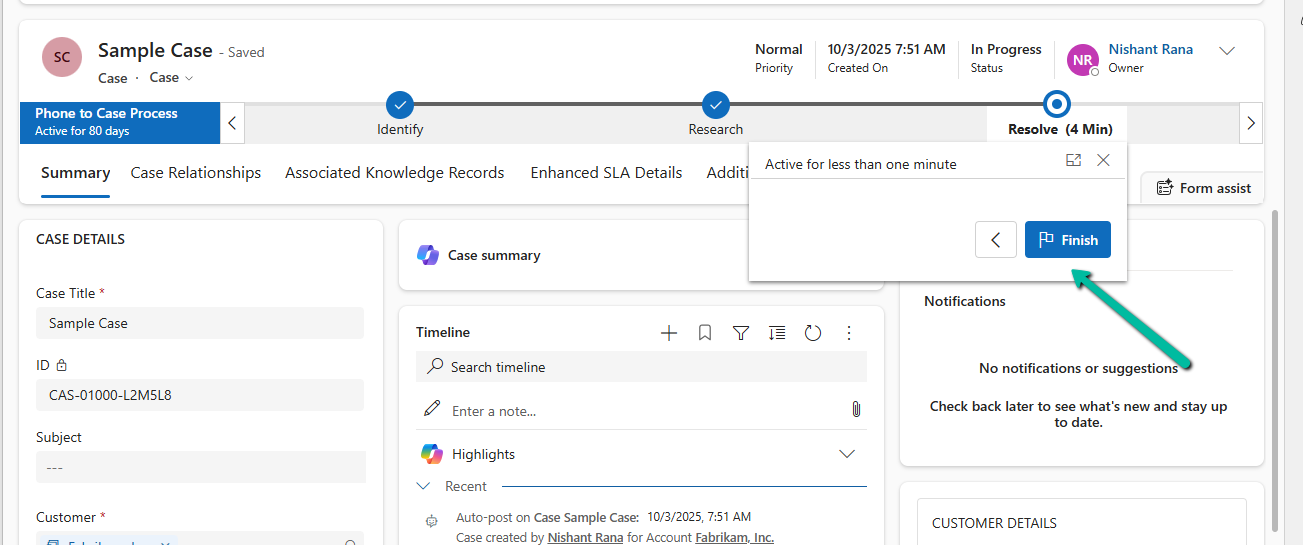
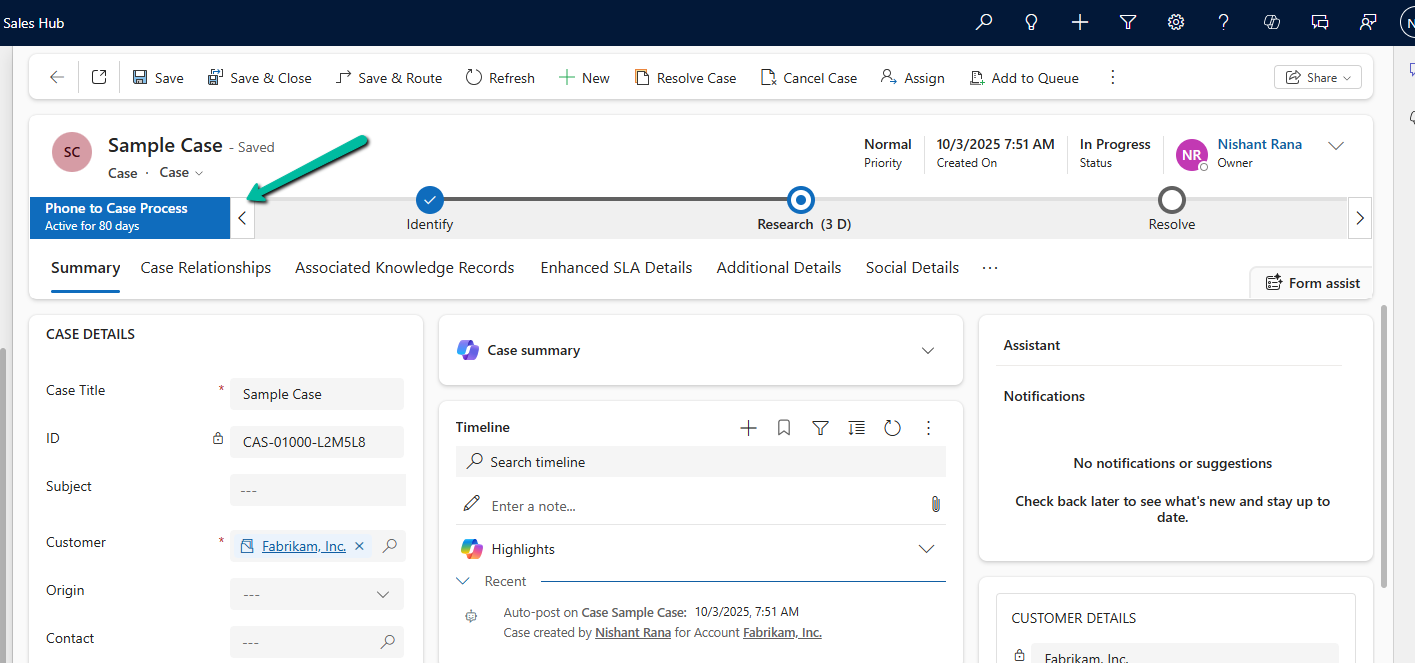
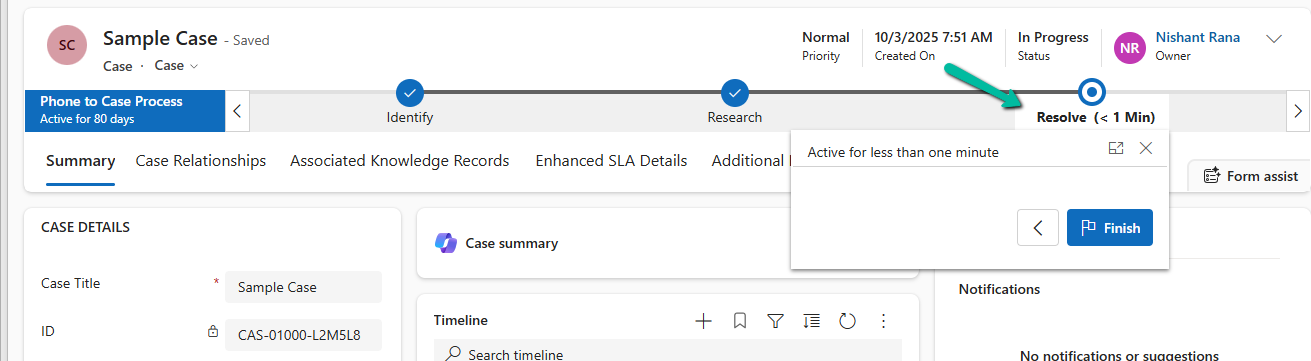
Below we can see the BPF in the last stage Resolve but not yet finished.

Each Business Process Flow is backed by its own Dataverse table. For the Phone to Case Process, this table is phonetocaseprocess. When a Case enters the BPF, a corresponding record is created in this table, representing the BPF instance. This record has its own lifecycle, independent of the Case itself. Finishing a BPF means setting this instance to an Inactive state. Simply moving the BPF to the Resolve stage does not finish the process; the instance remains active until its state is explicitly updated.

var processInstanceId = bpfInstance.Id;
var processEntityLogicalName = "phonetocaseprocess";

// Finish (Deactivate) the BPF
var finishBpf = new Entity(processEntityLogicalName, processInstanceId)
{
    ["statecode"] = new OptionSetValue(1),   // Inactive
    ["statuscode"] = new OptionSetValue(-1)  // Finished (verify value in your org)
};

service.Update(finishBpf);

After this update, the Business Process Flow is marked as Completed in the UI, and the Finish button is no longer available. This mirrors the result of clicking Finish manually.

In certain scenarios—such as testing, data correction, or reprocessing a record—we may need to reactivate a finished Business Process Flow. This can be done by setting the BPF instance back to an Active state.

var reactivateBpf = new Entity(processEntityLogicalName, processInstanceId)
{
    ["statecode"] = new OptionSetValue(0),   // Active
    ["statuscode"] = new OptionSetValue(-1)
};

service.Update(reactivateBpf);

Reusable Helper Method to Move Next, Finish and Reactivate a BPF –

public static void UpdateBpfStageAndState(
    IOrganizationService service,
    string bpfSchemaName,
    string primaryEntityLookupField,
    Guid primaryRecordId,
    Guid targetStageId,
    bool finishBpf = false,
    bool reactivateBpf = false)
{
    // 1. Retrieve the BPF instance
    var query = new QueryExpression(bpfSchemaName)
    {
        ColumnSet = new ColumnSet("activestageid", "traversedpath", "statecode")
    };
    query.Criteria.AddCondition(primaryEntityLookupField, ConditionOperator.Equal, primaryRecordId);

    var instances = service.RetrieveMultiple(query);
    if (!instances.Entities.Any())
        return;

    var bpfInstance = instances.Entities.First();

    // 2. Move the BPF to the target stage
    var updateStage = new Entity(bpfSchemaName, bpfInstance.Id);

    updateStage["activestageid"] =
        new EntityReference("processstage", targetStageId);

    var traversedPath = bpfInstance.GetAttributeValue<string>("traversedpath");
    updateStage["traversedpath"] = string.IsNullOrEmpty(traversedPath)
        ? targetStageId.ToString()
        : $"{traversedPath},{targetStageId}";

    service.Update(updateStage);

    // 3. Finish (Deactivate) the BPF if requested
    if (finishBpf)
    {
        var finish = new Entity(bpfSchemaName, bpfInstance.Id)
        {
            ["statecode"] = new OptionSetValue(1),   // Inactive
            ["statuscode"] = new OptionSetValue(-1)  // Finished (verify in your org)
        };

        service.Update(finish);
    }

    // 4. Reactivate the BPF if requested
    if (reactivateBpf)
    {
        var reactivate = new Entity(bpfSchemaName, bpfInstance.Id)
        {
            ["statecode"] = new OptionSetValue(0),   // Active
            ["statuscode"] = new OptionSetValue(-1)
        };

        service.Update(reactivate);
    }
}

Hope it helps..

Advertisements

Advancing a Business Process Flow Stage Using a C# Console App (Dataverse / Dynamics 365)


In Dynamics 365, Business Process Flows are usually progressed by users through the UI. However, in scenarios like data migration, bulk remediation, or backend automation, we may need to move a BPF stage programmatically. Here we will cover one of the ways we can advance the Business Process Flow to the next stage using a C# console application, with a Case example used only as a reference.

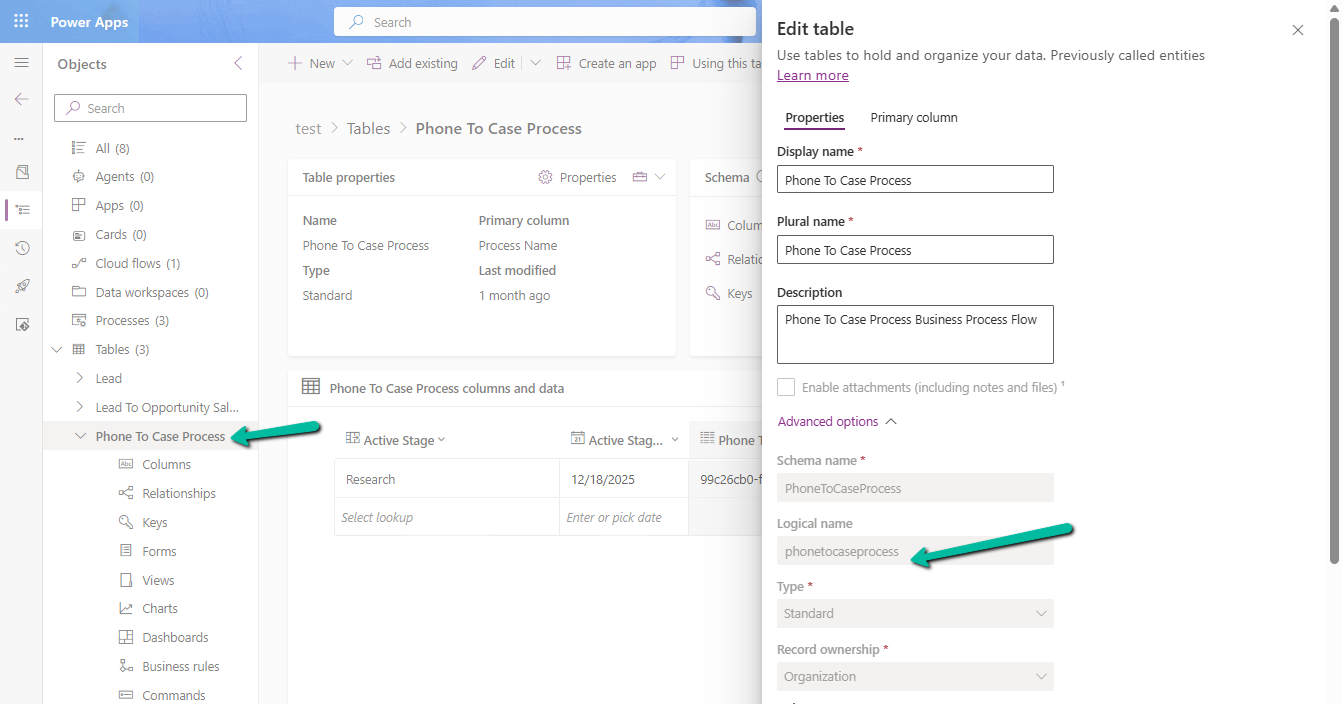
Every Business Process Flow in Dataverse is backed by its own table, created when the process is published. The table name is derived from the process schema name and stores one record per entity instance participating in the flow.

Below is the table for the Phone To Case Process with schema name – phonetocaseprocess

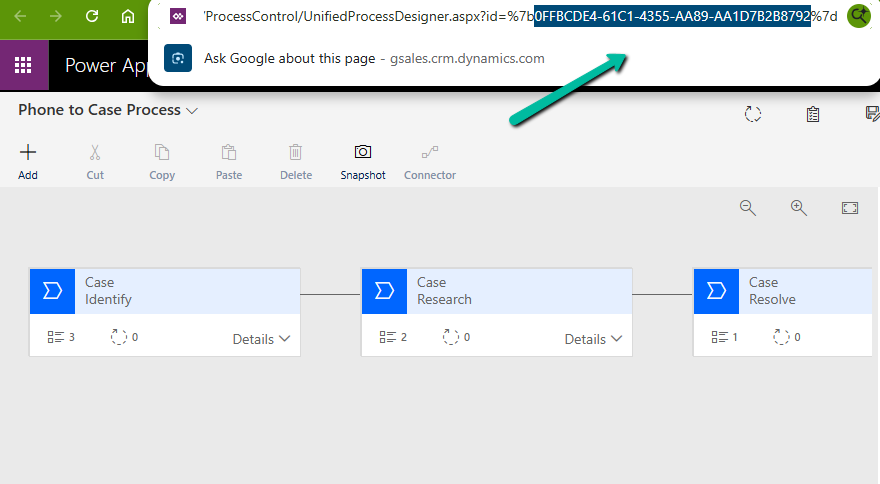
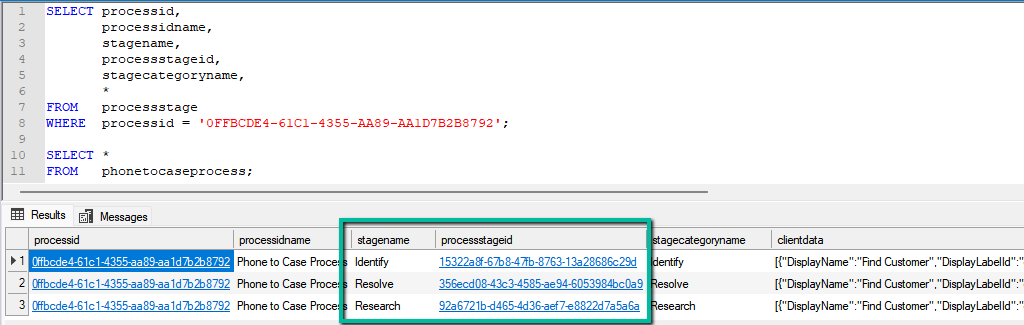
We can get the stagename and the processstageid for the business process flow from the processstage table, passing the GUID of the business process flow.

SELECT processid,
       processidname,
       stagename,
       processstageid,
       stagecategoryname,
       *
FROM   processstage
WHERE  processid = '0FFBCDE4-61C1-4355-AA89-AA1D7B2B8792';

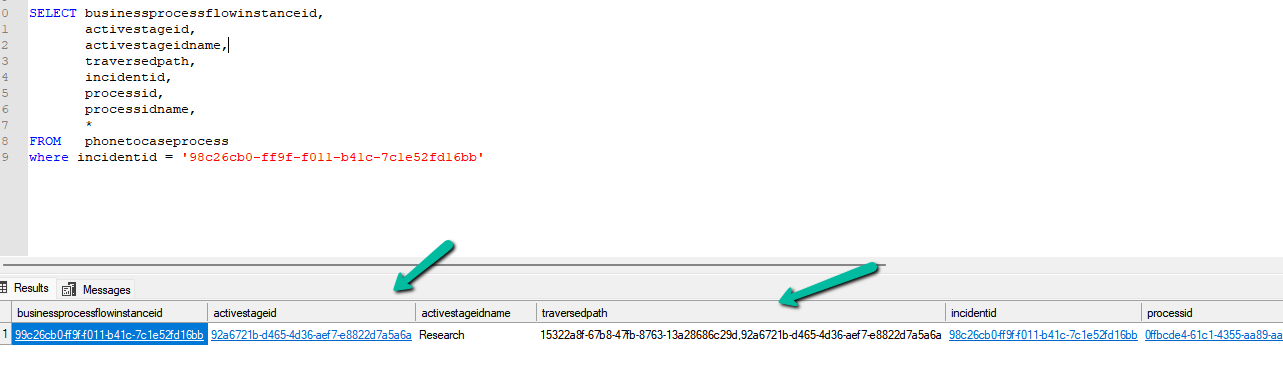
Regardless of the entity, two columns control stage movement: activestageid, which represents the current stage, and traversedpath, which stores a comma-separated list of all stage IDs the record has passed through. When moving a BPF programmatically, both values must be updated together to ensure the UI reflects the change correctly. The table will also include the column referring to the record it is associated with; in our example, it is incidentid.

The traversedpath value must be constructed as a comma-separated list of processstageid values, preserving the exact order in which stages are completed, with each newly reached stage appended to the end of the existing path.

SELECT businessprocessflowinstanceid,      
       activestageid,
       activestageidname,
       traversedpath,
       incidentid,
       processid,
       processidname,
       *
FROM   phonetocaseprocess
where incidentid = '98c26cb0-ff9f-f011-b41c-7c1e52fd16bb'

At a high level, the process is always the same. We first identify the correct BPF table, then retrieve the BPF instance associated with the primary record. Next, we update the activestageid to point to the next stage and append that stage ID to the existing traversedpath. Finally, we persist the update back to Dataverse. Because this logic runs outside the UI, it bypasses stage validations and required-field enforcement, making it ideal for backend utilities but something that should be used carefully.

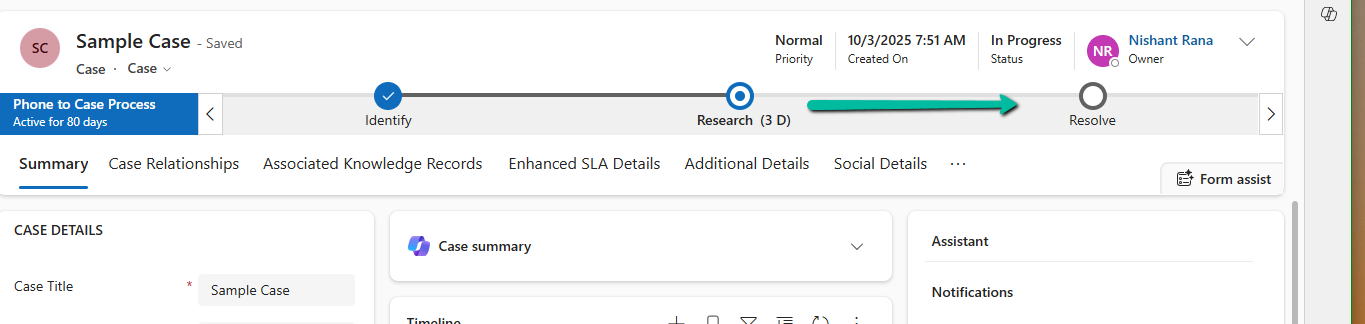
Below is our sample code that moves the case record from the Research stage to the Resolve stage.

Sample Code

 static void Main(string[] args)
        {
            Console.WriteLine("MoveCaseBpfToResolve started.");
            // CRM connection
            string connString = @"AuthType=OAuth;
            Username=abc.onmicrosoft.com;
            Password=xyz;
            Url=https://abc.crm.dynamics.com/;
            AppId=51f81489-12ee-4a9e-aaae-a2591f45987d;
            RedirectUri=app://58145b91-0c36-4500-8554-080854f2ac97/";

            var service = new CrmServiceClient(connString);

            var bpfSchemaName = "phonetocaseprocess";

            var caseId = "98c26cb0-ff9f-f011-b41c-7c1e52fd16bb";
            var resolveStageId = new Guid("356ecd08-43c3-4585-ae94-6053984bc0a9");

            // Query the BPF instance for the Case
            var query = new QueryExpression(bpfSchemaName)
            {
                ColumnSet = new ColumnSet("activestageid", "traversedpath")
            };
            query.Criteria.AddCondition("incidentid", ConditionOperator.Equal, caseId);

            var instances = service.RetrieveMultiple(query);

            if (!instances.Entities.Any())
            {
                Console.WriteLine("No BPF instance found for the Case. Exiting.");
                return;
            }

            var bpfInstance = instances.Entities.First();        
         

            var updateBpf = new Entity(bpfSchemaName)
            {
                Id = bpfInstance.Id
            };
            // Set active stage to Resolve
            updateBpf["activestageid"] = new EntityReference("processstage", resolveStageId);
            // Update traversed path
            var traversedPath = bpfInstance.GetAttributeValue<string>("traversedpath");
            updateBpf["traversedpath"] = $"{traversedPath},{resolveStageId}";
            service.Update(updateBpf);

            Console.WriteLine("BPF successfully moved to Resolve stage.");
            Console.WriteLine("MoveCaseBpfToResolve completed.");
        }

Result –

Hope it helps.

Advertisements

What are Partial Merges in Business Process Flow (BPF), and what can we do about it – Dataverse / Dynamics 365


Let’s take an example.

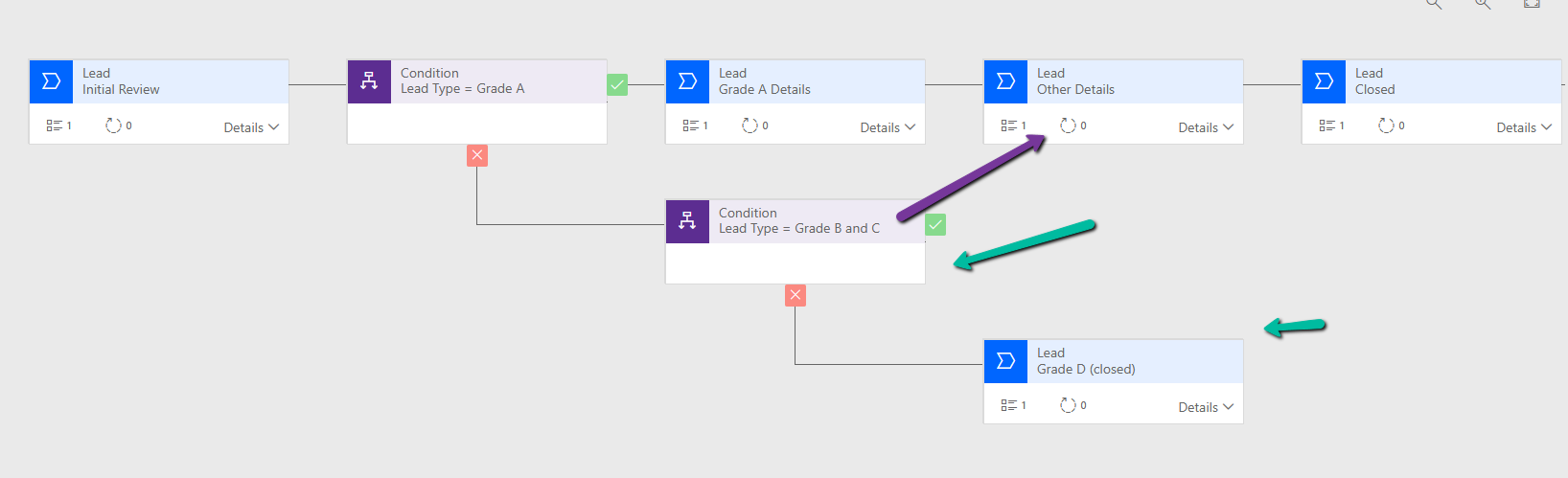
Suppose we have the following Business Process Flow (BPF) for Leads:

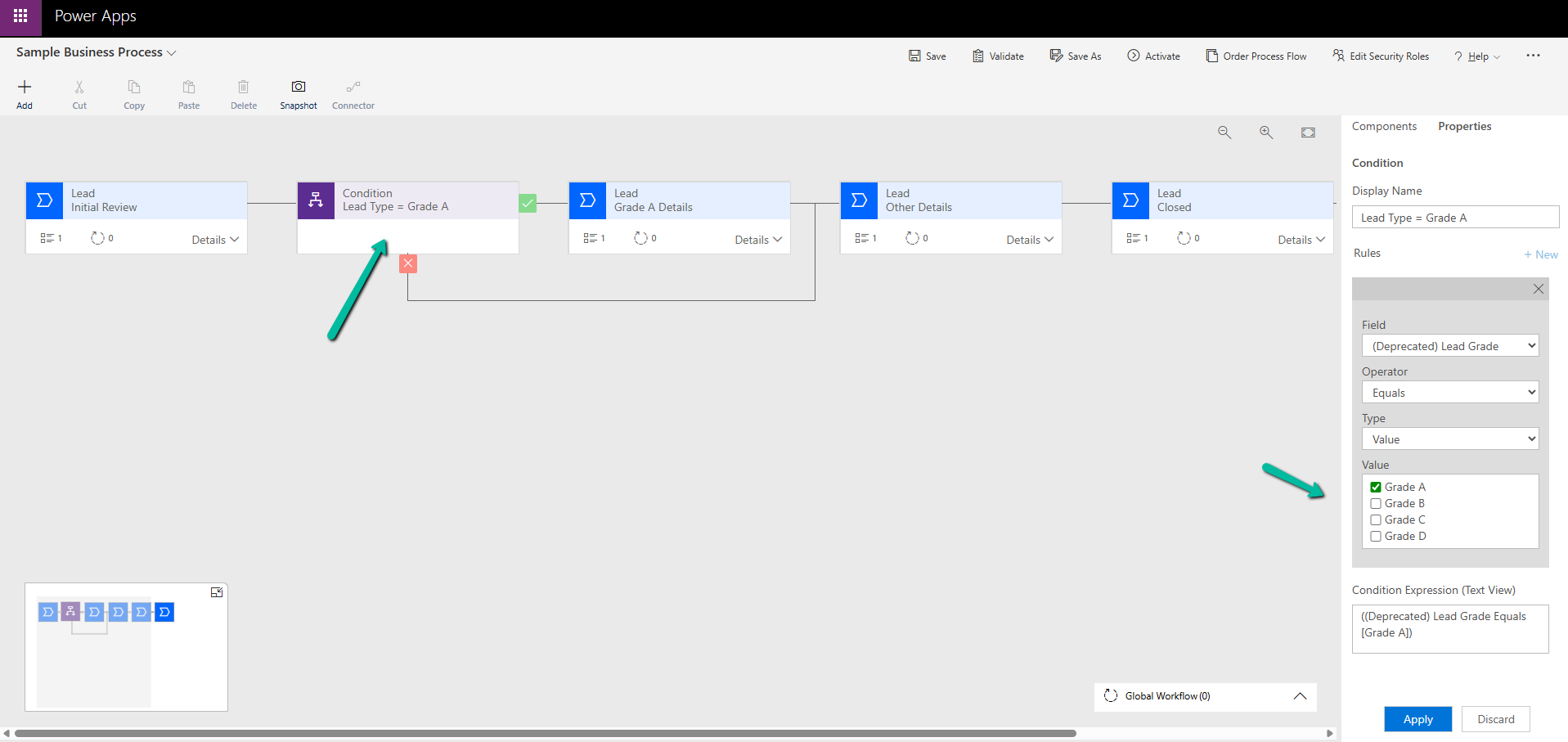
If the Lead Type = Grade A, we want the Grade A Details stage to appear. For other grades (B, C, D), we skip that stage and continue. So far, this is simple.

A screenshot of a computer

AI-generated content may be incorrect.

Now, say we have a new business requirement :

For Grade D, the process should only have the Initial Review and its own Closed stage. For Grades B and C, the process should follow Other Details + Closed.

To handle this, we added a condition:

If Lead Type = B or C → go to Other Details

Else (Grade D) → go directly to Grade D (Closed)

A computer screen shot of a computer

AI-generated content may be incorrect.

However, when we try to connect the B/C path to Other Details, the D path (Closed) also gets merged into it.

A screenshot of a computer
AI-generated content may be incorrect.
This is because of the way branching works in BPF.

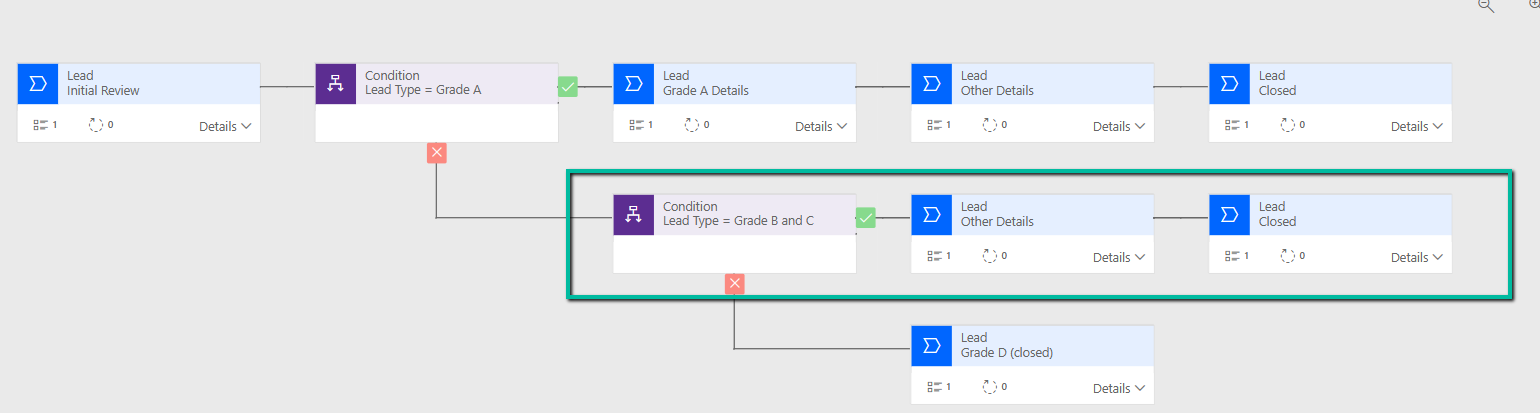
Dataverse does not support “partial merges.” That means we can’t end one branch early and merge another branch later. If we merge one branch, Dataverse forces all branches to merge into the same stage.

A screenshot of a computer

AI-generated content may be incorrect.

One Branch Ends, One Branch Merges (Not Supported) – If we try to design a BPF where one branch terminates in its own last stage while the other continues and merges into a later stage, the platform will not allow it.

There are two ways to solve this:

Option 1: Repeat the stages : Instead of trying to merge one path and end another, duplicate the stages where needed.

For example, create a separate Other Details and Closed stage for Grades B and C.

A computer screen shot of a computer

AI-generated content may be incorrect.

Option 2: Simplify with fields / scripts

If we don’t want to repeat too many stages, we can:

Move the Lead Type field and Grade A Details fields into the Initial Review stage. Use business rules or form logic to show/hide those fields based on Lead Type. Delete the extra Grade A Details stage.

Update the condition so that the flow only needs one condition (A/B/C vs D).

A computer screen shot of a computer screen

AI-generated content may be incorrect.

Key Takeaway –

In Dataverse BPF:

One branch ending while another merges is not supported.

Either all branches merge or each branch must have its own end stage.

The solution is to repeat stages where needed, or simplify the design using fields and conditions.

Hope it helps..
Advertisements

Update Business Process Flow Stage using Excel Import with Power Automate – Dataverse / Dynamics 365


In some business scenarios, we might need to update the Business Process Flow (BPF) stage of a record during an Excel import — especially during data migration or bulk record manipulation. In this blog post, we’ll walk through how to set a desired BPF stage (based on the stage name) and automatically move the record to that stage using Power Automate.

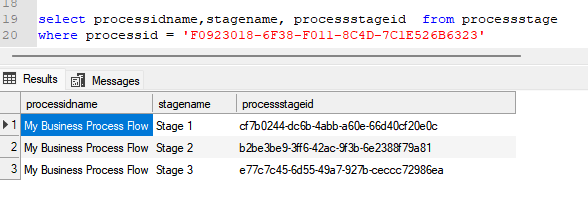
We’re working with a custom Dataverse table called Test(cr1a7_test) and a Business Process Flow named My Business Process Flow, which includes the following stages:

“select processidname,stagename, processstageid from processstage where processid = [processGUID]”

A screenshot of a computer

AI-generated content may be incorrect.

Our goal is to allow users to specify the stage name (e.g., “Stage 2”) through Excel import, and have a Power Automate flow update the record’s BPF instance to the corresponding stage automatically.

For this –

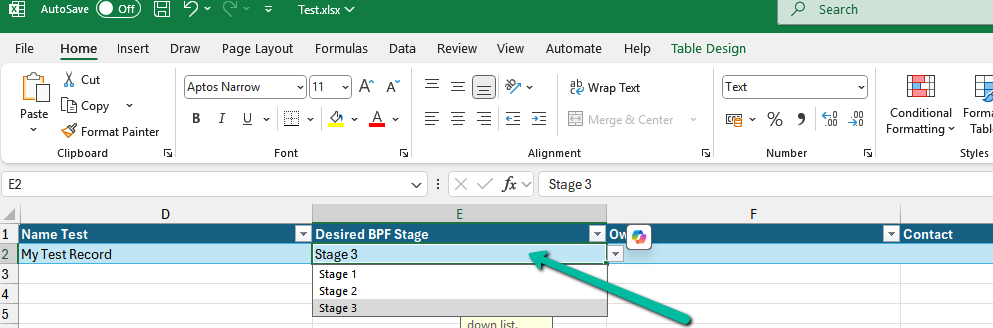
  • We’ll add a field called the Desired BPF Stage choice field on our table to store the desired stage name.
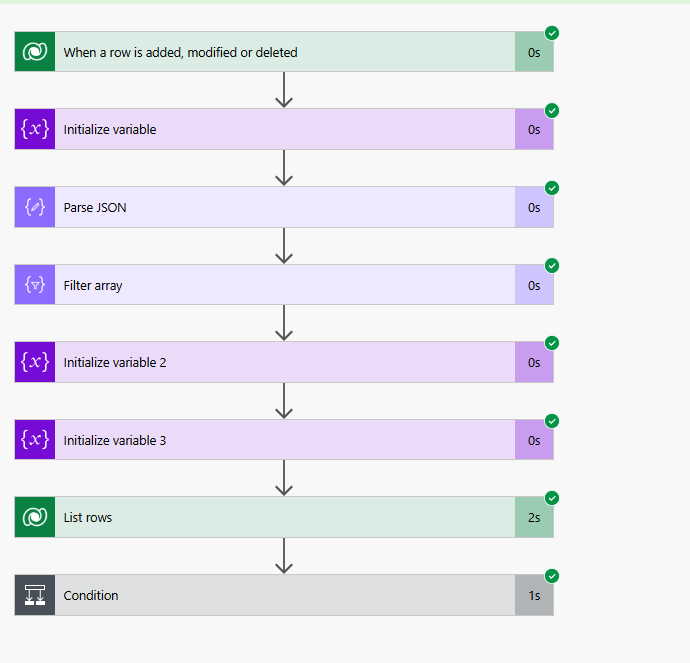
  • We’ll create a Power Automate flow that triggers on create or update.
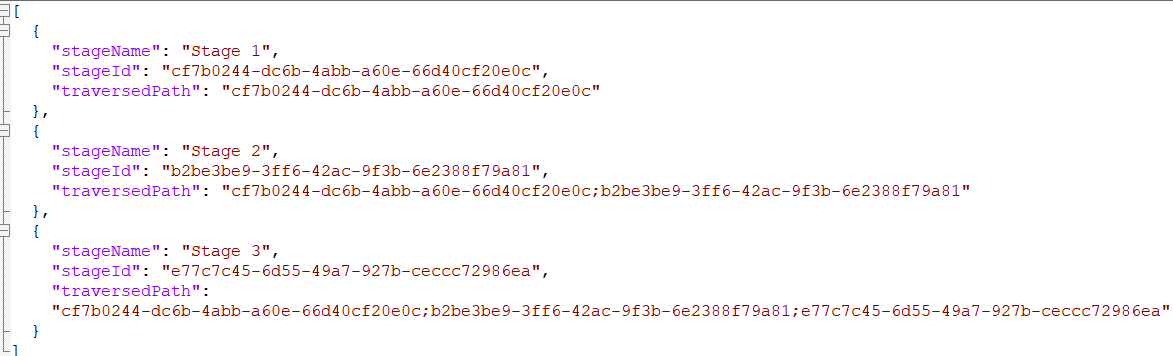
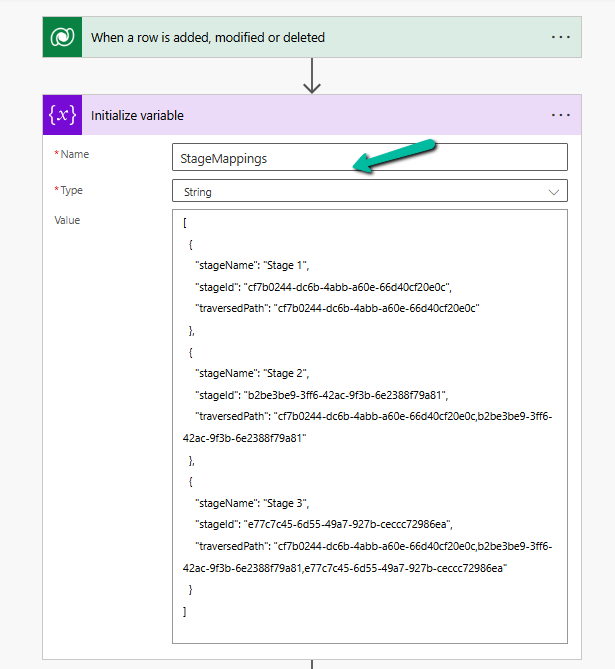
  • We’ll maintain a static JSON mapping of stage names to stage IDs and their traversed paths.
  • We’ll look up the corresponding stage ID and traversed path from the JSON.
  • We’ll fetch the BPF instance for the record.
  • We’ll update the BPF instance with the new active stage and traversed path.

Below is how we can define our JSON structure for mapping, which we will store either in a variable inside Power Automate or save as an environment variable.

A computer code on a white background

AI-generated content may be incorrect.

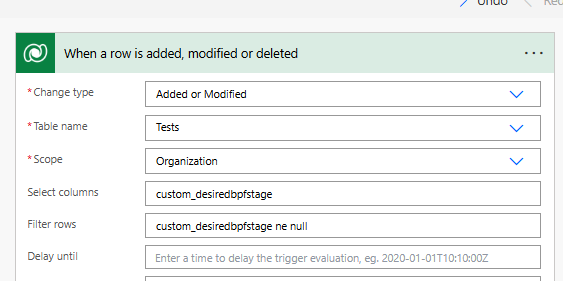
Trigger – When a row is added or modified.

A screenshot of a computer

AI-generated content may be incorrect.

Initialize Variable with JSON mapping

A screenshot of a computer

AI-generated content may be incorrect.

Parse JSON – using the sample data

A screenshot of a computer

AI-generated content may be incorrect.

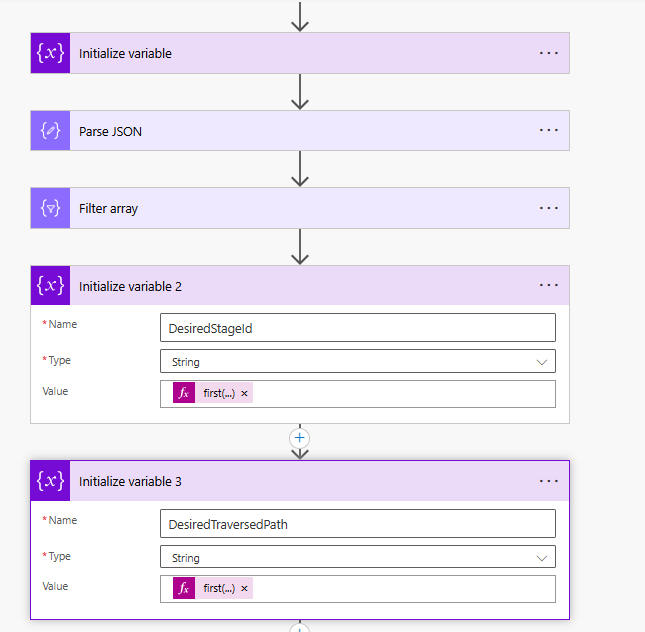
Use a “Filter array” action to find the object where stageName matches custom_desiredbpfstage.

A screenshot of a computer

AI-generated content may be incorrect.

Initialize variables to store the Stage ID and traversed path.

  • first(body(‘Filter_array’))?[‘stageId’]
  • first(body(‘Filter_array’))?[‘traversedPath’]
A screenshot of a computer

AI-generated content may be incorrect.

Use List Rows to check if BPF Instance exists or not, if not we will create it or update it.

  • length(outputs(‘List_rows’)?[‘body/value’]) > 0
A screenshot of a computer

AI-generated content may be incorrect.

Update or Create a new BPF instance associated with the record.

A screenshot of a computer

AI-generated content may be incorrect.

Below we can see the user specifying the Stage 3 value for the Desired BPF Stage column in the Excel to be imported.

A screenshot of a computer

AI-generated content may be incorrect.

We can see the Excel imported successfully.

A screenshot of a computer

AI-generated content may be incorrect.

Below we can see our flow running successfully.

A screenshot of a computer

AI-generated content may be incorrect.

And the record in Stage 3 of the BPF.

A screenshot of a computer

AI-generated content may be incorrect.

Hope it helps..

Advertisements