How to – Upload a file by URL to SharePoint (Power Automate / Dataverse)


Recently we had a requirement to upload a document (pdf) to a SharePoint folder.

We had the URL of the field saved in one of the fields of the Contact table in Dynamics 365 / Dataverse.

Below is our field and the URL in it. (the URL points to the Manual of Fulla 2, one among many awesome products by Schiit)

Below is how our flow looks like

Here we already have Server-Based SharePoint integration enabled. https://nishantrana.me/2023/07/28/based-on-entity-behavior-for-sharepoint-folder-dynamics-365-dataverse/

The flow triggers when there is an update in the File URL field of the contact record.
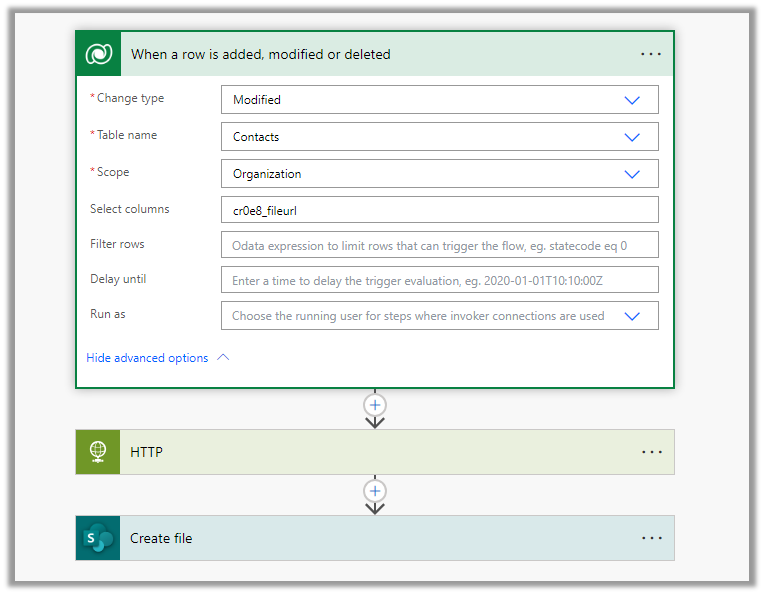
Next, we are using HTTP action to use the GET method to get the content of the file. As it is a public URL we haven’t specified any Authentication.

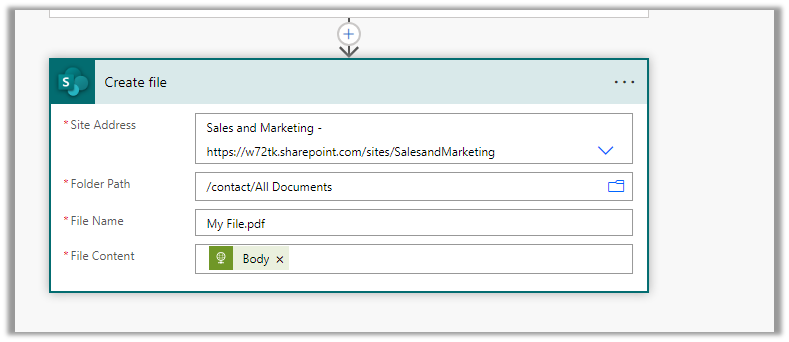
Next, we are using Create File action of SharePoint, we have specified the Site Address, Folder Path, File Name, and most importantly the Body of the HTTP action to the File Content property.
On the successful run of the flow,

we can see the document (pdf) uploaded in the SharePoint folder.

Hope it helps..


Advertisements

Date Time Fields (Date Only and User Local – Behaviour) in Power Automate (Dataverse)


Recently we faced an issue in our flow that was showing a different date that the date entered by the user for a date time field.

Let us look at the below scenario to understand it.

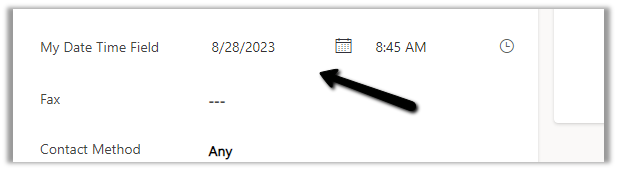
Say we have the below field Date and Time with Time Zone Adjustment as User Local created in CRM / Dataverse.

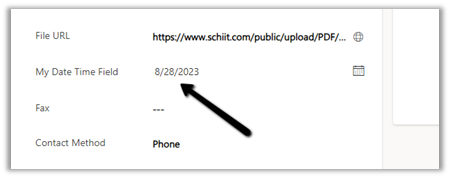
Now user enters the below value in in the field and saves the record which triggers the flow.

The user’s time zone is set as below

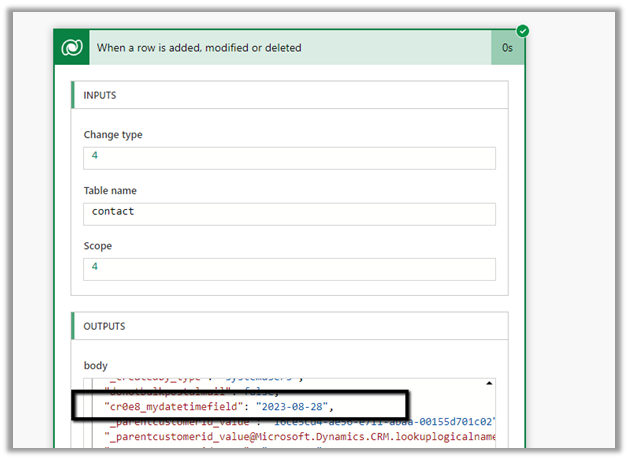
Now in our Power Automate flow, we can see the UTC date for it.

2023-08-27T20:00:00Z

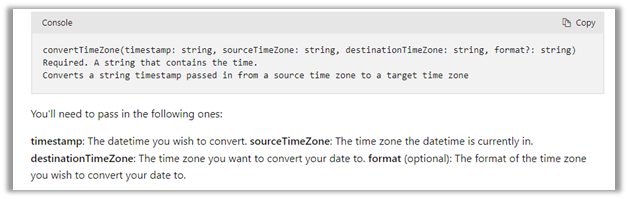
Now to convert to the user’s New Zealand Time Zone we can make use convertTimeZone function here

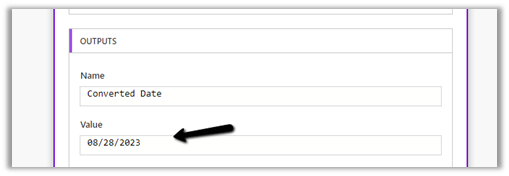
convertTimeZone(triggerOutputs()?[‘body/cr0e8_mydatetimefield’],’UTC’, ‘New Zealand Standard Time’, ‘MM/dd/yyyy’)

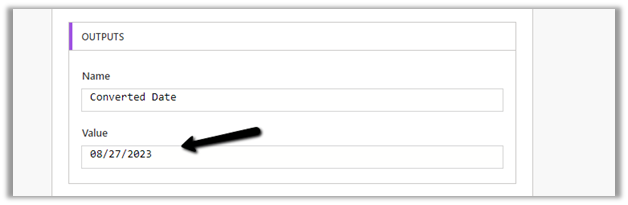
We get the date as expected i.e. 28th

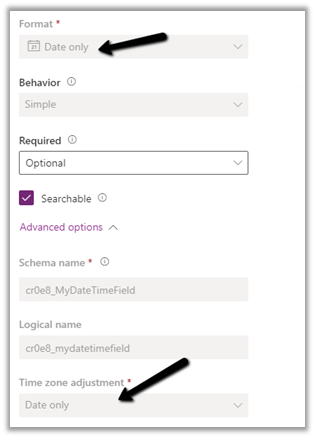
Now let us change the Format of the field to Date Only, and we keep the Time zone adjustment as User Local only.

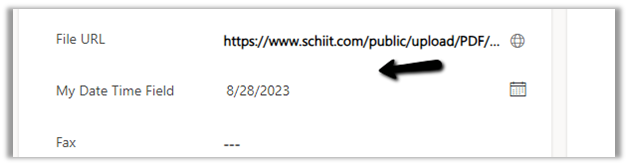
Let us trigger the flow again. (now we don’t have the time part)

We get the date without time part as expected.

But this time the convertTimeZone
function doesn’t work, as we only have the Date part and it is not in the UTC format.

convertTimeZone(triggerOutputs()?[‘body/cr0e8_mydatetimefield’],’UTC’, ‘New Zealand Standard Time’, ‘MM/dd/yyyy’)


Check this thread that talks about it –
https://powerusers.microsoft.com/t5/Building-Flows/Dataverse-Date-only-field-is-set-1-day-off-from-original-value/td-p/805859

Here one quick fix could be to change the Time zone adjustment to Date Only or Time zone independent for that field(i.e. no time zone conversion).

https://learn.microsoft.com/en-us/power-apps/maker/data-platform/behavior-format-date-time-field#date-and-time-column-behavior-and-format

Now triggering the flow again, we get the below values –

as now there is no time zone conversion for that field.

Hope it helps..

Advertisements

Fixed – URL was not parsed due to an ODataUnrecognizedPathException or Bad Request – Error in query syntax (Power Automate)


We got the below error while trying to set a lookup field because of the incorrect syntax.

or

The incorrect syntax / formula –

It should be either logicalcollectionname(GUID)

Or logicalcollectionname/GUID

https://nishantrana.me/2022/06/20/fixed-resource-not-found-for-the-segment-in-power-automate/

After setting it correctly, the flow ran successfully.

Hope it helps..

Advertisements

Fixed – Power Automate flow not getting triggered


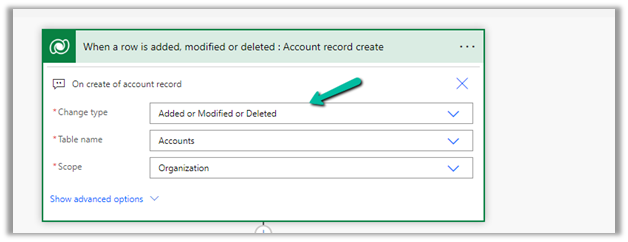
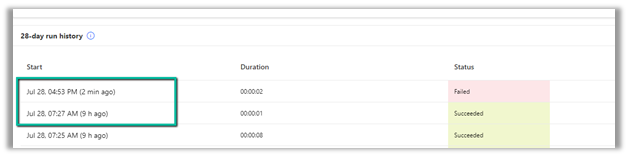
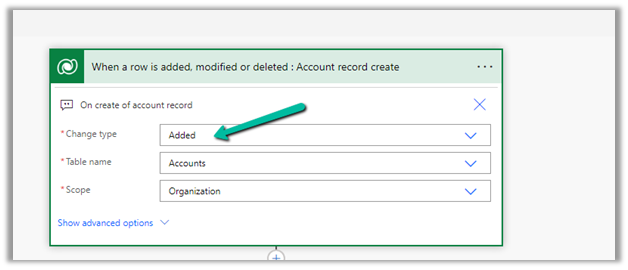
We had one flow on the creation of an account record, our flow was running fine, and then we made a few changes to it and saved it, after which it stopped getting triggered.

We could not figure out why it was not getting triggered so eventually we tried changing the Trigger Type to Added or Modified or Deleted, just to see if that will trigger it.

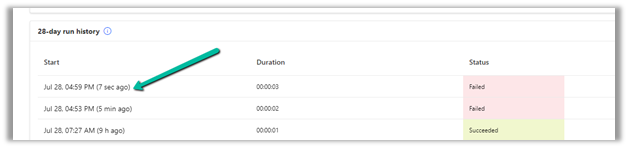
It ran this time on create of account record.

After which we changed it back to Added, the original definition.

And from that point onwards it was getting triggered as expected.

Also make sure if the Admin mode is turned off.

https://learn.microsoft.com/en-us/power-automate/triggers-troubleshoot#verify-if-admin-mode-is-turned-on

Hope it helps..

Advertisements

Get RequiredAttendee (Required) from the Meeting (appointment) table – Power Automate / Dataverse


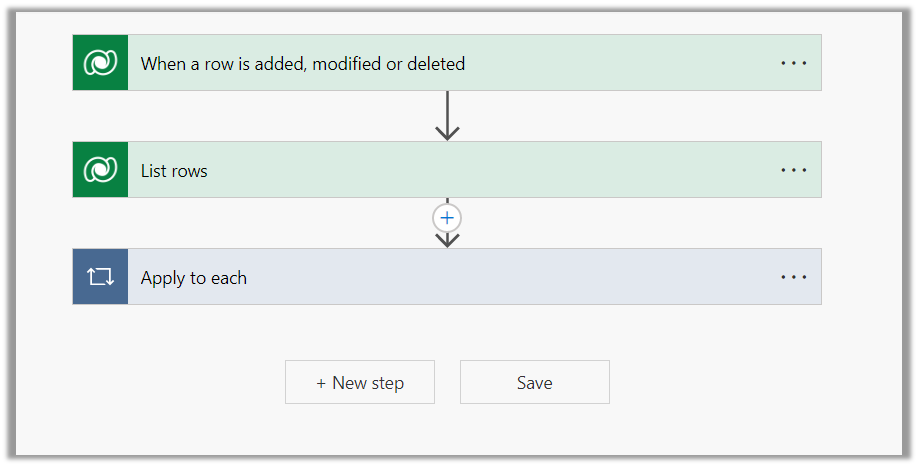
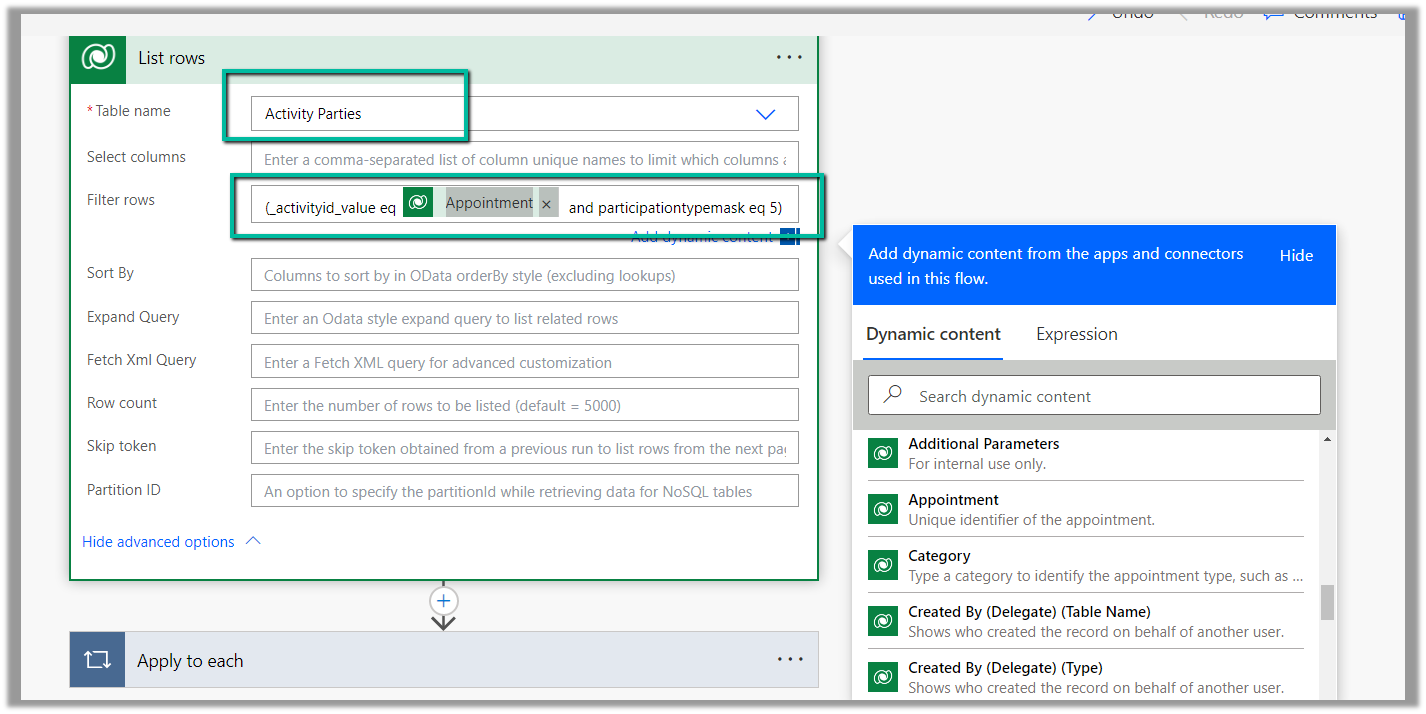
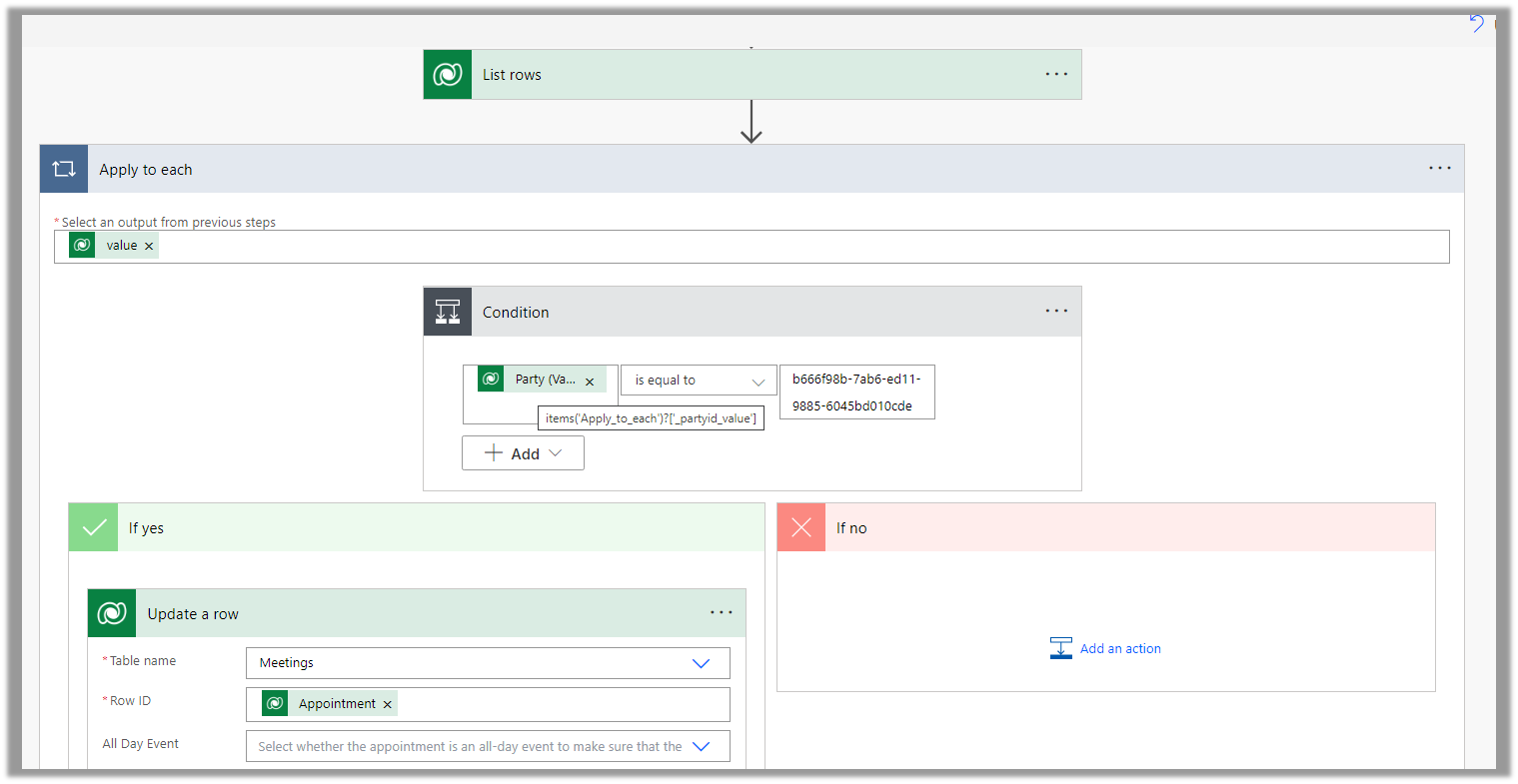
Below is the sample flow we can use to retrieve the Required (requiredattendees) field’s value from the Meeting table (on the update of the record).

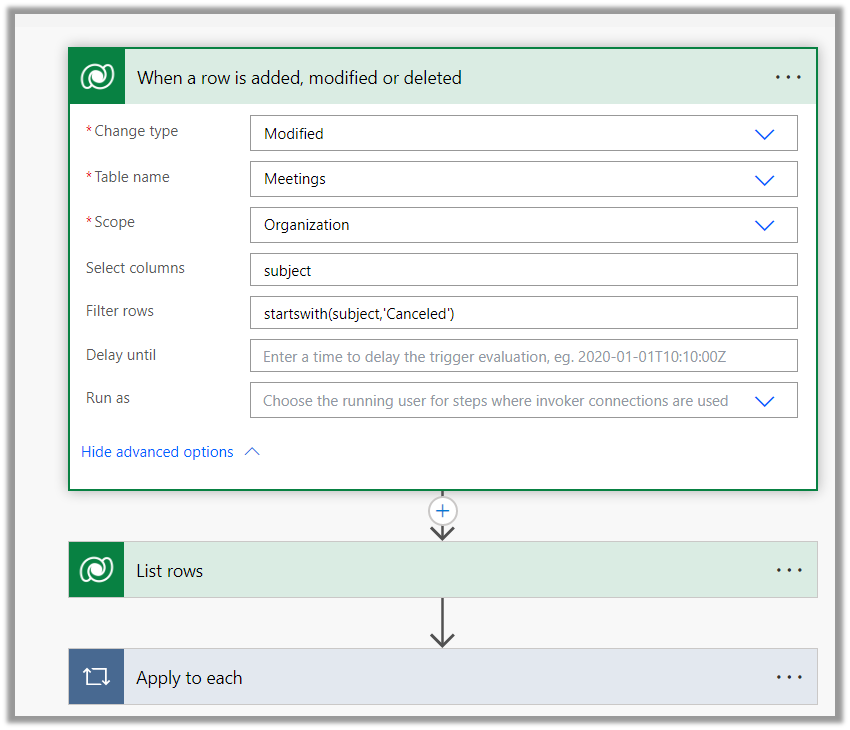
Here we are triggering the flow, if there is an update in the subject field of the meeting record.

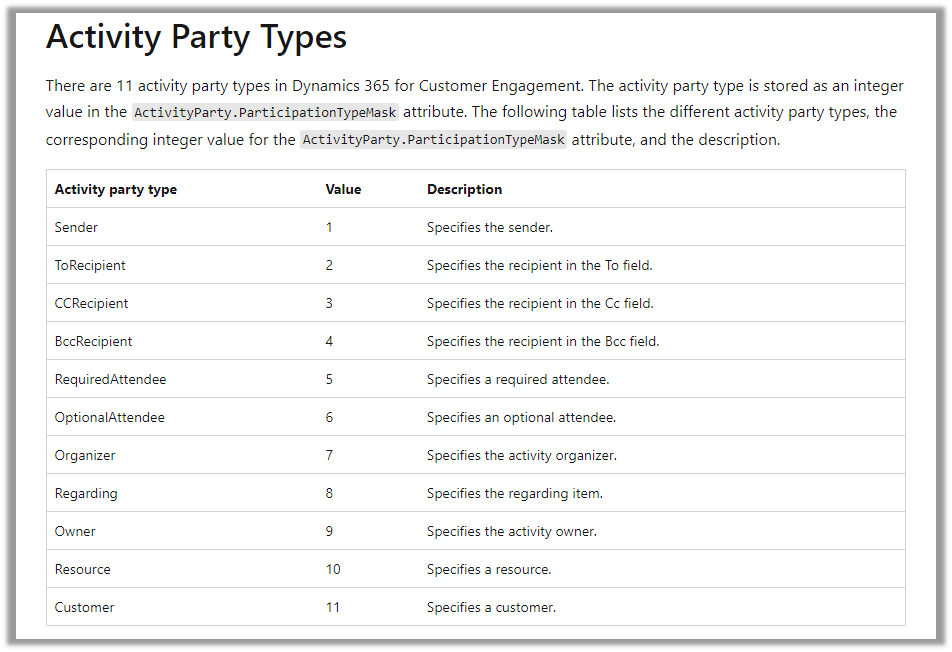
Then using the List rows action we are fetching the Activity Parties record associated using the Appointment’s unique identifier and participation mask as 5.

More on participation type mask

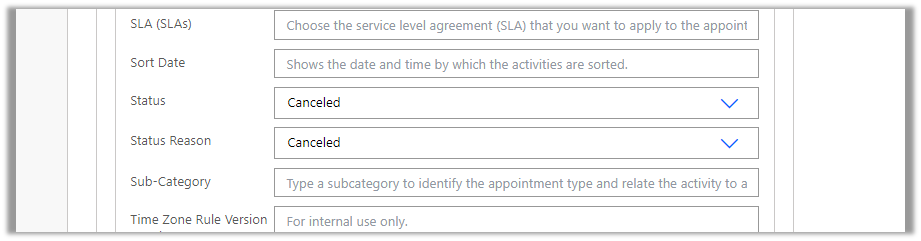
And in the last step, we are checking for all the associated Activity Party GUIDs for a specific GUID and then update the record or cancel the record.

Hope it helps..

Advertisements

Filter rows using contains, startswith and endwith Power Automate – Dataverse


Recently in one of our projects, we were using the Microsoft Bookings App for the users to book an appointment(outlook) and then were syncing this appointment back to Dynamics 365 through the category “Tracked to Dynamics 365” (Server Side Synchronization)

Get more details on it here – https://nishantrana.me/2022/03/22/how-to-synchronize-appointments-between-dynamics-365-and-outlook-using-server-side-synchronization/

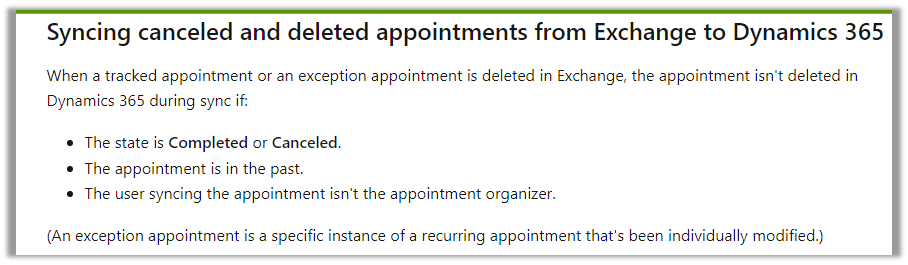
Here if the users were canceling the tracked appointment in Outlook, it will update the subject of the appointment record with the prefix – Canceled but will not cancel the record i.e. update the status of the record.

This would happen if the user canceling the appointment is not the organizer.

https://learn.microsoft.com/en-us/power-platform/admin/sync-logic#syncing-canceled-and-deleted-appointments-from-exchange-to-dynamics-365

So here we were implementing a flow to check for updates in the Subject column with the word canceled and then updating the status of the appointment as canceled.

Here we can specify our select columns and filter conditions as follows – contains

Or startswith

https://learn.microsoft.com/en-us/power-apps/developer/data-platform/webapi/query-data-web-api#standard-query-functions

Hope it helps..

Advertisements