AB-100 Last-Minute Revision Cheat Sheet (Microsoft Agentic AI Business Solutions Architect)


Recently, I cleared the Microsoft Certified: Architecting Agentic AI Business Solutions (AB-100) exam.

While preparing, I ended up creating this one-page Architect’s Compass for my last-minute revision. Instead of memorizing every Microsoft service, I grouped similar services so I could quickly decide which one fits a business scenario.

I’m sharing it here in case it helps someone preparing for AB-100.

Get it here !

How to Read the Architect’s Compass

Don’t read it from left to right like a textbook. Start by identifying what the question is asking you to do, then jump to the matching section.

1. Cost & Business Value

Estimate → Pricing Calculator. Ownership → TCO Calculator. Actual Spend → Cost Management.

2. Knowledge Retrieval

Dataverse = Single Source of Truth. Azure AI Search = Search across multiple sources.

3. Prompt & Model Quality

Prompt Flow builds. Evaluation grades.

4. Microsoft 365

Entra ID = Identity. Microsoft Graph = Microsoft 365 data.

5. Security & Governance

Purview = Data governance. Azure Policy = Infrastructure governance.

6. Copilot Studio

Fallback = Unknown intent. Escalate = Human handoff.

7. Azure AI Foundry

Hub shares. Project builds. Endpoint serves.

8. Monitoring

Analytics = Business. Application Insights = Technical. Log Analytics = Cross-agent. Azure Monitor = Infrastructure.

Don’t Memorize. Recognize.

The biggest takeaway from my preparation was recognizing decision patterns instead of memorizing isolated features.

My Last-Minute Checklist

  • Dataverse = SSOT
  • Managed Solution = Production
  • Entra ID = Identity
  • Graph = Microsoft 365 Data
  • Purview = Data Governance
  • Hub → Project → Endpoint
  • Pricing vs TCO vs Cost Management
  • Fallback ≠ Escalate

Hope it helps..

Fixed- Flow not getting triggered (Callback Registration)– Power Automate / Dataverse


Recently in one of our test environments, the out the box flow – “Deserialization of Inspection Definition” wasn’t getting triggered even when it was in the On state.

This was because the “CallbackRegistrationExpanderFilter” operation was failing with the below error.

Unexpected failure during ValidateUserAccessCached. Ex: System.ServiceModel.FaultException`1[Microsoft.Xrm.Sdk.OrganizationServiceFault]: The specified user(Id) is disabled. Consider enabling this user. Additional Details: User IsDisabled=True, IsLicensed=True. ImpersonatingSystemUserId. (Fault Detail is equal to Exception details:

ErrorCode: 0x80040225

Message: The specified user(Id = xxxx-xxxx-xxxx-xxx-xxxxxx) is disabled. Consider enabling this user. Additional Details: User IsDisabled=True, IsLicensed=True. ImpersonatingSystemUserId=xxxx-xxxx-xxxx-xxx-xxxxxx)

TimeStamp: 2024-05-20T21:50:42.6724270Z

More on Callback Registration Expander Job – https://rajeevpentyala.com/2021/01/30/callback-registration-expander-system-jobs-waiting-for-resources/

This was because the flow’s corresponding Callback Registration record’s Owner was a user whose account was now disabled in CRM.

So the option to fix was to Turn off and Turn On the flow, which will delete the old callback registration record and will create a new one with the user who is turning off / on the flow. Updating the owner of the flow will not work here, as it won’t update the existing callback registration record.

Also we had another observation, if a callback registration is owned by a user who is a proper / enabled user in CRM, simply turning off and on the flow using a different user account will not delete the existing callback registration record and create a new one with that particular user as the owner. In this case we will have to explicitly delete the existing callback registration record.

Hope it helps..

Advertisements

Pin Activities in Timeline – Dynamics 365


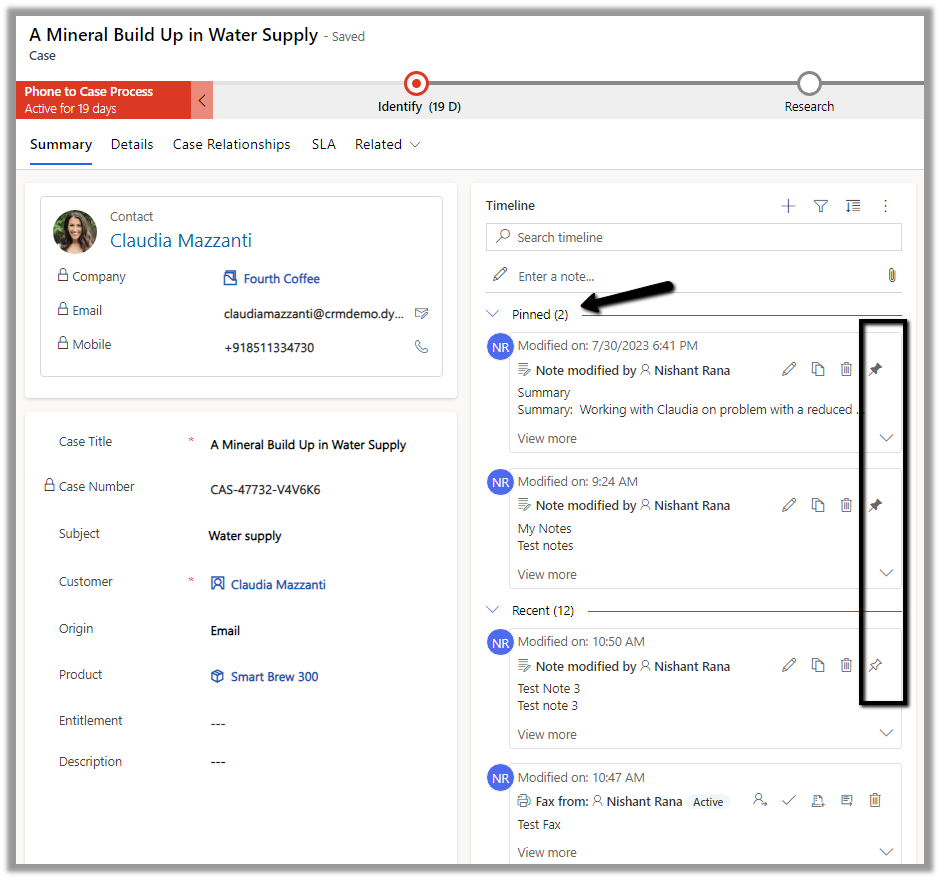
With the 2023 Release Wave 2, as per Microsoft Documentation, we can pin activities such as records to the top of the timeline.

We could see that option available for the Notes in the timeline.

It also shows the number of records pinned.

To unpin it, we need to click the icon again, and the record will move to its original position.

Hope it helps..

Advertisements

Using Customer Lookup in Canvas Apps (Dataverse)


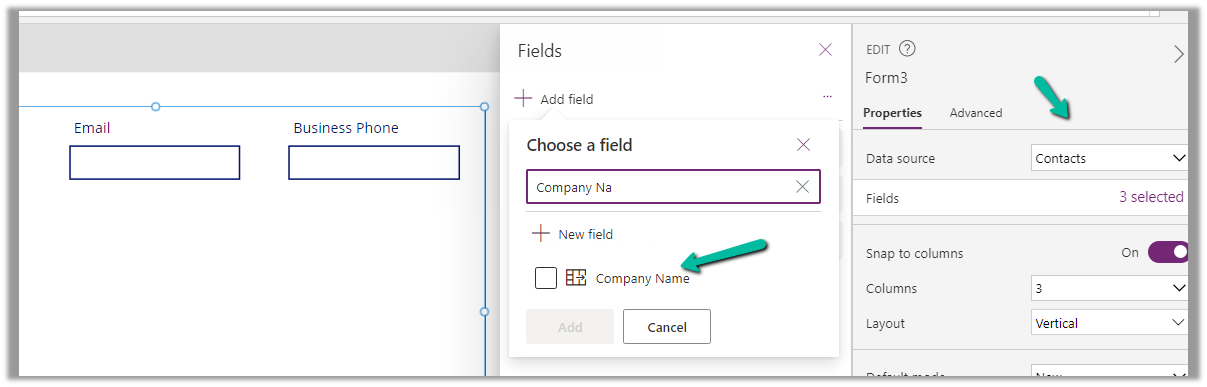
For this example, we are taking the Company Name customer lookup column of the contact table.

We start by adding the Customer Name field to the form.

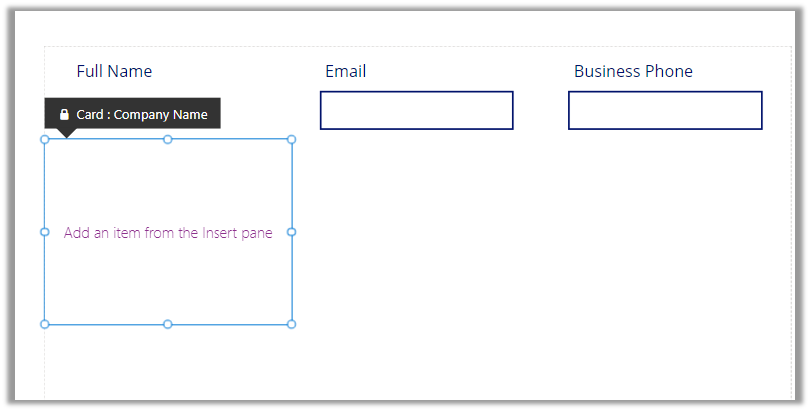
That adds a card to the form, let us add the required controls to get it working

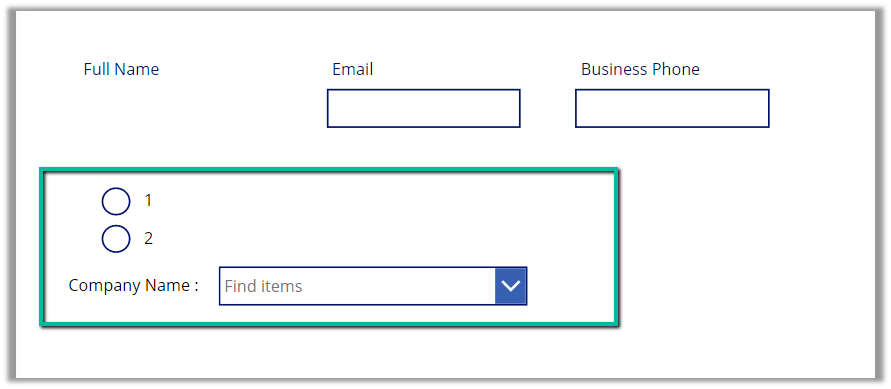
Radio Button, Combo box, and Text Label for the combo box.

Change the Items property of the radio button to show the contact and account option.

Also, change the Layout to Horizontal and Default as Contact.

And set the Items property of the Combo box as below –
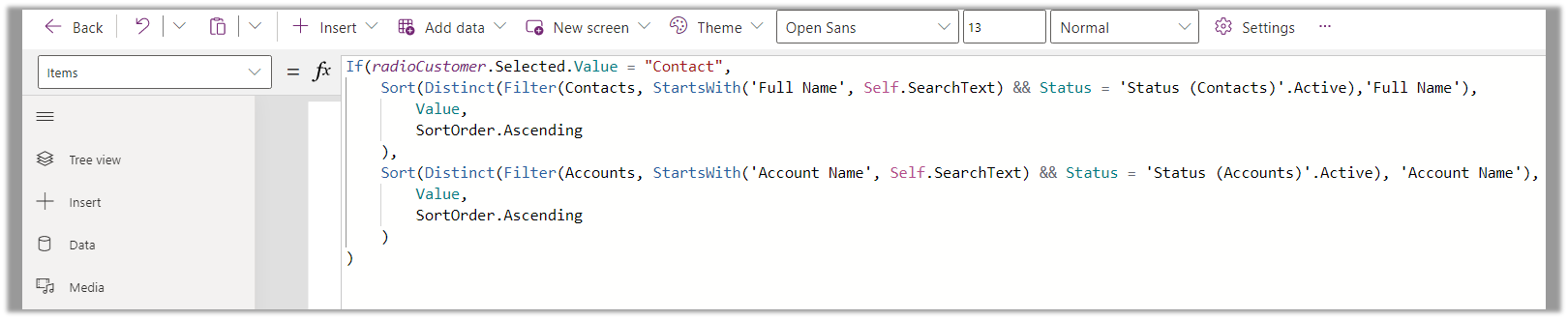
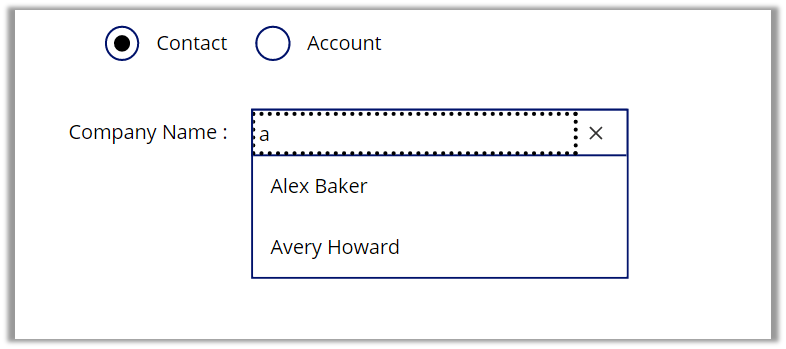
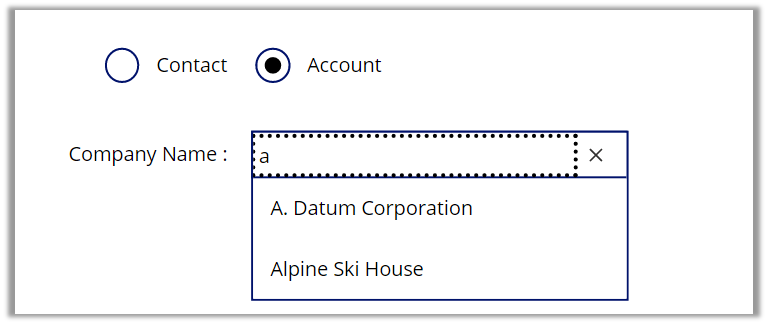
Based on the value selected in the radio button, we are setting the Data Source and also applying the Sort and Distinct function to it, along with StartsWith for delegation.

We have also set Allow searching as On for the combo box.

For the Contact option selected –

For the Account option selected –

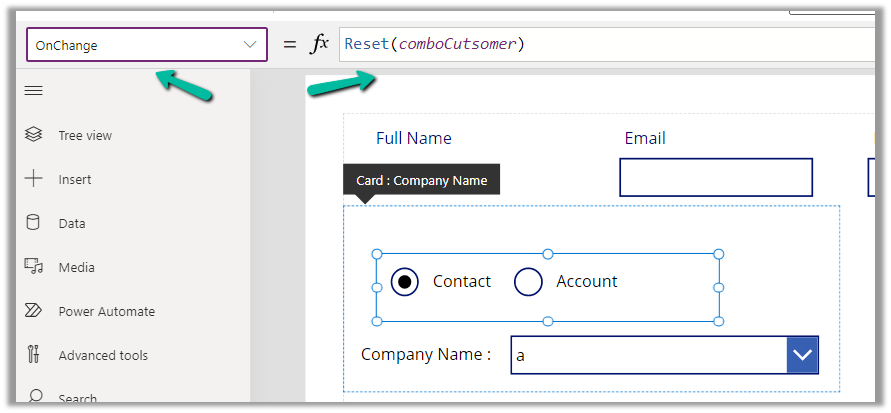
Also, we can set the OnChange property of the radio button to Reset(comboControl) to clear the selection when the user switches between Contact and Account options.

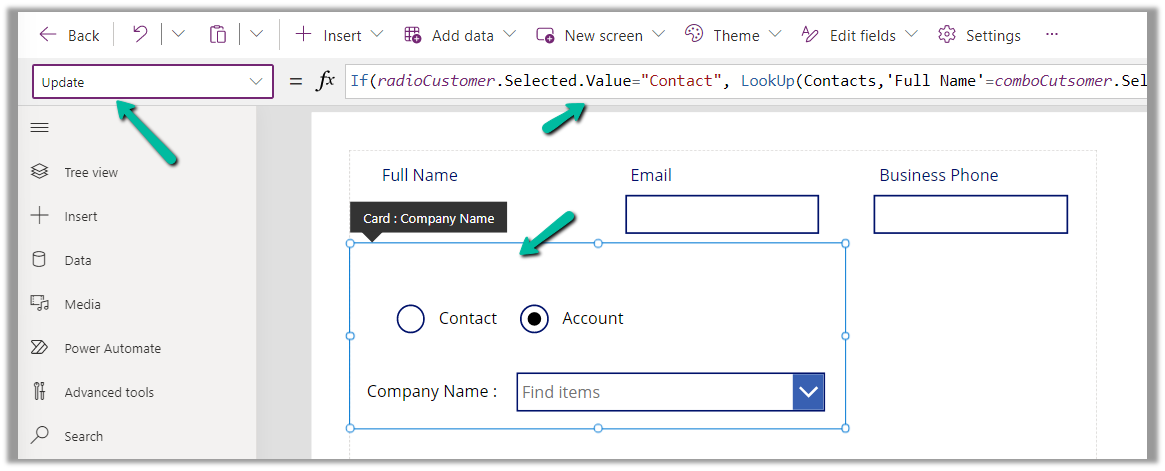
Now to have this value saved back we can specify the Update property of the custom data card in which we have placed these controls.

References –

https://www.youtube.com/watch?v=y-VvNDwy_Jw&t=1191s

https://debajmecrm.com/configure-customer-lookup-to-show-either-contacts-or-accounts-in-canvas-apps/

https://learn.microsoft.com/en-us/power-apps/maker/canvas-apps/working-with-references#show-the-columns-of-a-customer

Hope it helps..

Advertisements

Fixed – Canvas App / Custom Page not showing data (Dataverse / PowerApps)


Recently we faced an issue wherein the custom page was not loading any data, however, it was working for users with the System Administrator role.

The gallery control shows the Product details.

There were no errors in the Developer Tools, we tried by giving all Organization level rights to the users on the tables involved etc. but that didn’t help.

Eventually, it all came down to this particular line in the formula used for the Items property of the Gallery Control i.e. Asset Status field (custom field).

We had a field security profile created which had Read set as No and the users were part of that security profile, which explained why it was only working for System Admin users.

Changing the Read access to Yes for that column fixed the issue for us.

Hope it helps..

Advertisements

Filter rows using contains, startswith and endwith Power Automate – Dataverse


Recently in one of our projects, we were using the Microsoft Bookings App for the users to book an appointment(outlook) and then were syncing this appointment back to Dynamics 365 through the category “Tracked to Dynamics 365” (Server Side Synchronization)

Get more details on it here – https://nishantrana.me/2022/03/22/how-to-synchronize-appointments-between-dynamics-365-and-outlook-using-server-side-synchronization/

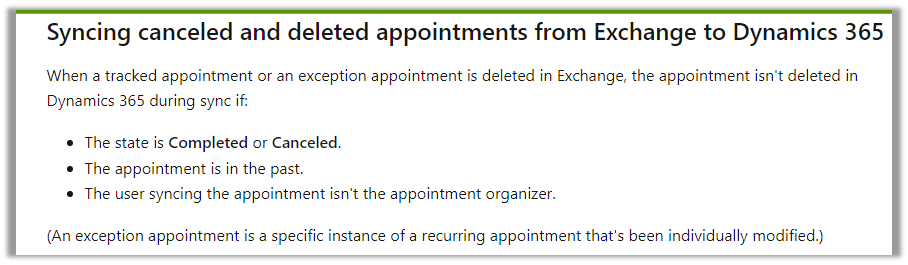
Here if the users were canceling the tracked appointment in Outlook, it will update the subject of the appointment record with the prefix – Canceled but will not cancel the record i.e. update the status of the record.

This would happen if the user canceling the appointment is not the organizer.

https://learn.microsoft.com/en-us/power-platform/admin/sync-logic#syncing-canceled-and-deleted-appointments-from-exchange-to-dynamics-365

So here we were implementing a flow to check for updates in the Subject column with the word canceled and then updating the status of the appointment as canceled.

Here we can specify our select columns and filter conditions as follows – contains

Or startswith

https://learn.microsoft.com/en-us/power-apps/developer/data-platform/webapi/query-data-web-api#standard-query-functions

Hope it helps..

Advertisements