Fixed – Unified routing was unable to provision error while trying to configure Unified routing


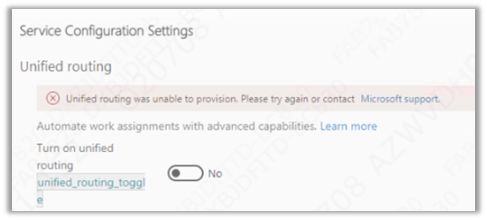
Recently while trying to set up Unified Routing, we got the below error.

“Unified routing was unable to provision. Please try again or contact Microsoft Support”

The user had the system administrator role and we already had the global administrator’s consent, which should be good enough to set up unified routing.

We tried with different system administrator users but that doesn’t resolve that error.

Eventually, we tried the setup with the same user but in a different VDI (Virtual Desktop Infrastructure), and the setup worked properly without any error. One probable reason could be, that the appropriate URLs being accessed during setup were already whitelisted in the other VDI, which wasn’t the case in the first VDI where we were trying.

Hope it helps..

Advertisements

Use ExecuteWorkflowAction to call Action and Workflow in CDS Destination KingswaySoft – Dynamics 365 / Dataverse


We can use ExecuteWorkflowAction in the CDS/CRM Destination Component of KingswaySoft’s SSIS Integration Toolkit for Dynamics 365 to execute workflow and custom action.

If there is no Destination Entity defined (left blank), Workflow/Action options will list down all the global action available


On selecting a specific entity/table e.g. lead entity, it is listing down the actions tied to the lead entity and the on-demand workflows created for the lead.

Here new_TestLeadAction is a custom action and Test Lead Workflow On-Demand is an On-Demand Workflow.


Suppose we have the following input and output parameters defined in the custom action.


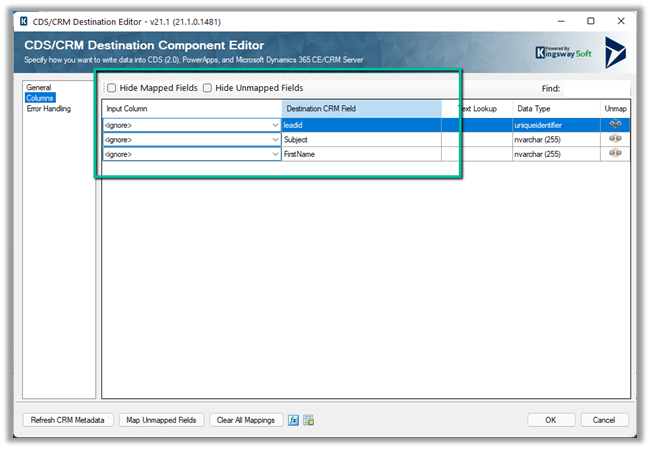
Within the CRM Destination Component, we can see the input fields listed for mapping along with the LeadId field where it expects the GUID of the lead record to be passed, against which action has to be executed.

Let us create a custom Global Action – Test Global Action and see if it is listed there or not.
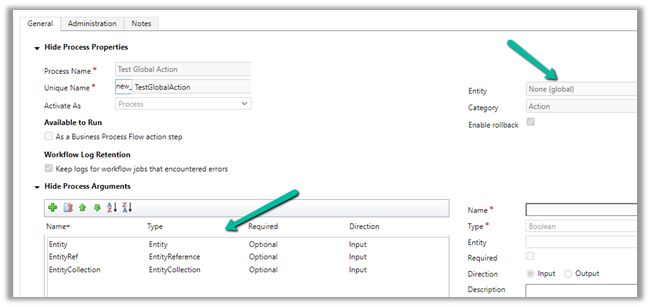

We can see the custom global action listed when there is no destination entity selected as we saw earlier.

However, we also get the error that the Entity as input argument is not supported.
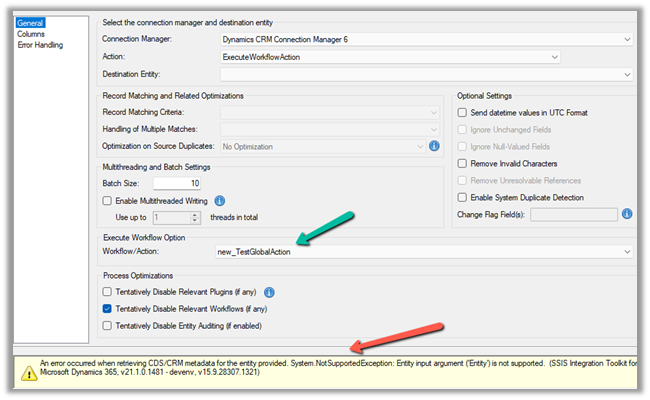

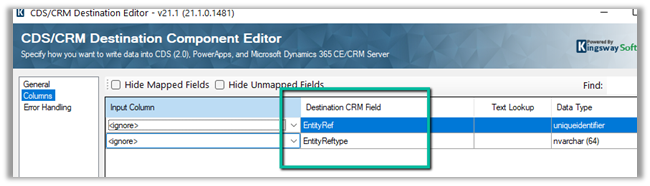
We get the same error for the input parameter of type Entity Collection.


For Entity Reference input it works properly and expects Entity Ref and Entity Ref Type to be passed.
We have removed the input parameter of type Entity and Entity Collection and added an output parameter named SampleOutput.
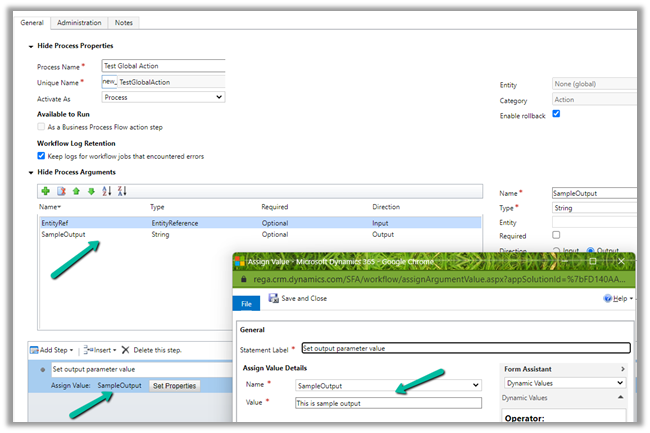
Surprisingly within our SSIS package, we could not figure out to get the output parameter’s value back from the Action.
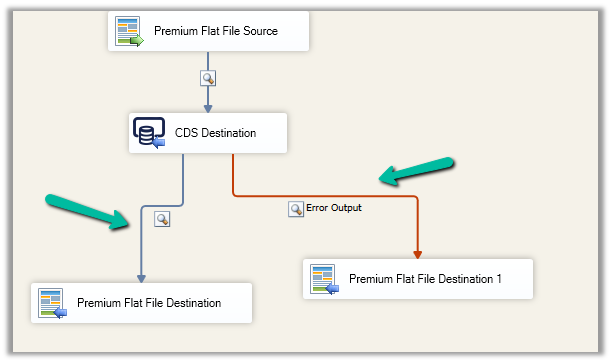

We asked KingswaySoft Technical Support (support@kingswaysoft.com), and as usual, within a couple of hours the experts there were able to confirm our understanding that output parameters are not supported in the CDS Destination component for now.

Check other posts on KingswaySoft and Dynamics 365 / CRM https://nishantrana.me/2020/10/16/ssis-kingswaysoft-and-dynamics-365/

Hope it helps.

Advertisements

Set Auto Number field value conditionally in Dynamics 365 / Dataverse


Recently we had a requirement to use auto numbers for lead records.

However, based on where the lead records are being created from, we wanted to specify a different prefix to it.

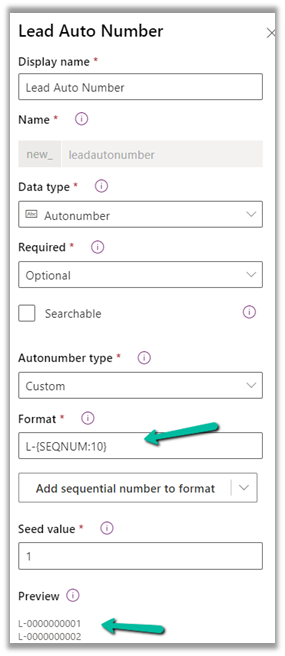
For leads created manually, the format should be prefixed “L” followed by “– “and then 10 digit sequence number.

L-{SEQNUM:10}

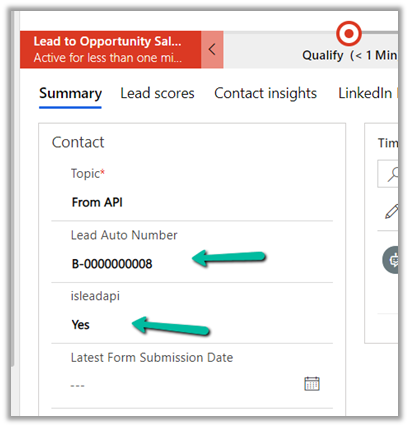
And if created through API the prefix should be B.

B-{SEQNUM:10}

To achieve this, we can define an auto-number field with the following format.


Next, we can have a bool field (default – false) in the lead table, to identify if it is being created from the API, which we can set while creating the lead record through API.

And a Pre Create Plugin on Lead to check the value of that field.

If it is set (true), that we can replace the Prefix from L to B in the auto-number field within the context.

In the Pre Create plugin, we get the next sequence in the auto-number field, so simply replacing/setting the value of the auto numbering field did the trick.

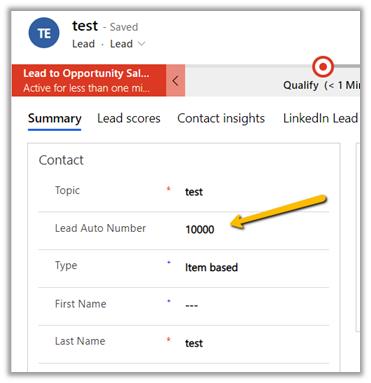
Lead created through Web Application –

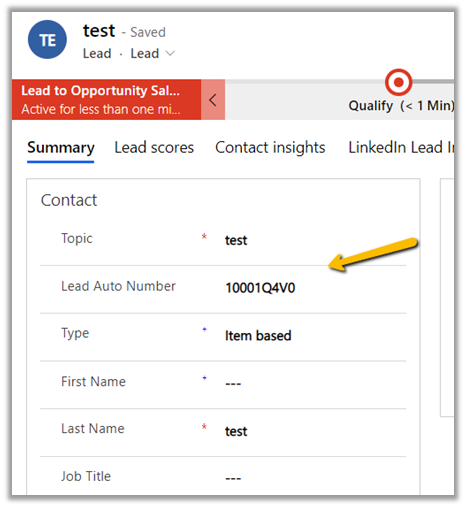
Lead created through API –

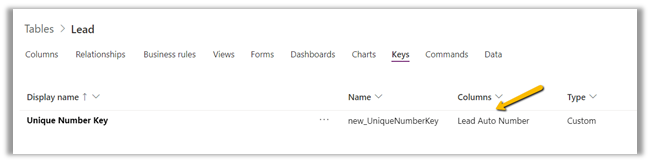
Here uniqueness was more important than the next sequence of the lead record so this solution worked.

Also check –

https://jonasr.app/2020/03/anm-unique-seq/

https://nishantrana.me/2021/11/09/few-key-points-auto-number-field-in-dataverse-dynamics-365-ce-crm/

Hope it helps..

Advertisements

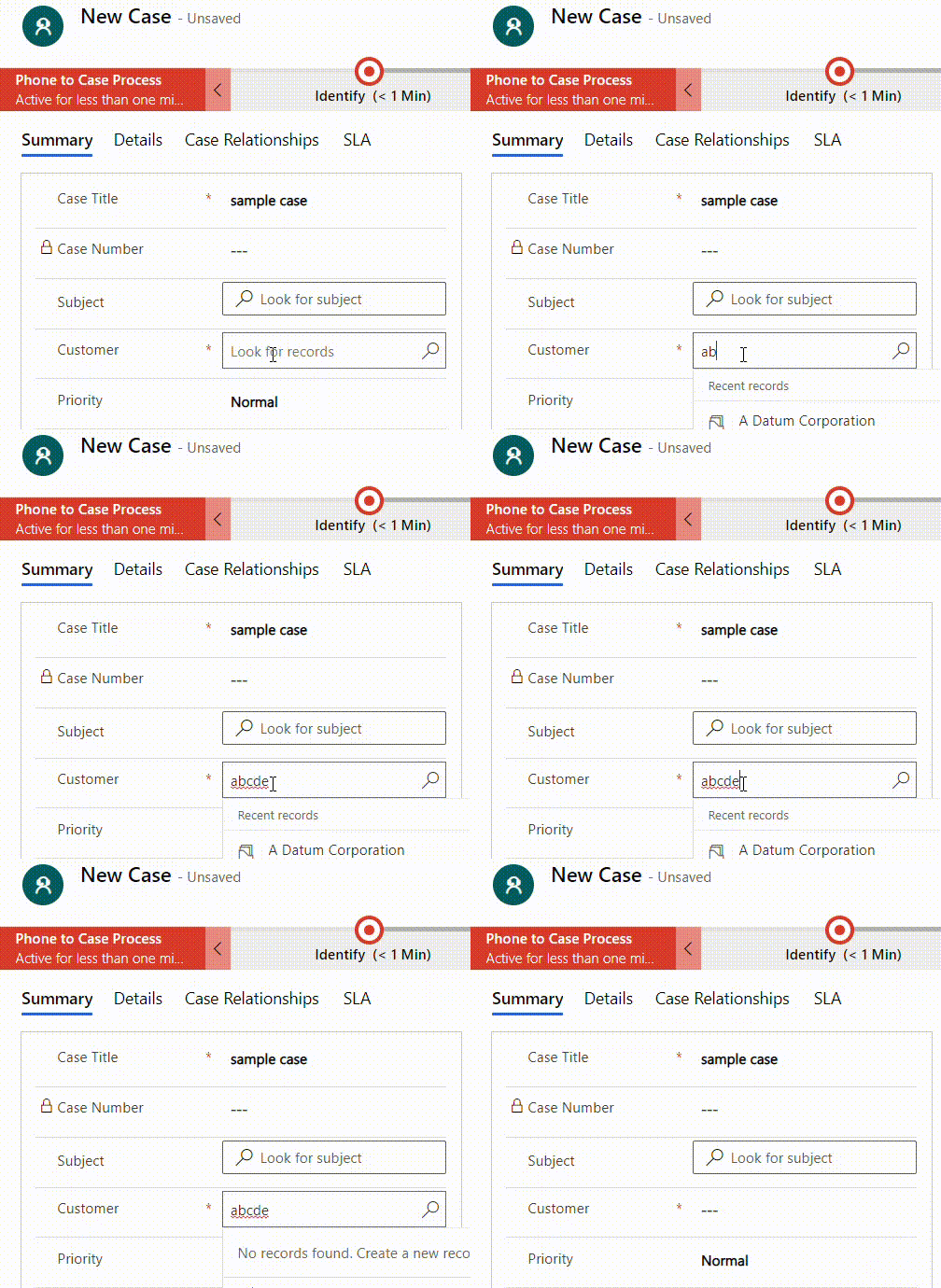
Lookup Behavior – Minimum character to trigger search and delay between trigger – Dynamics 365


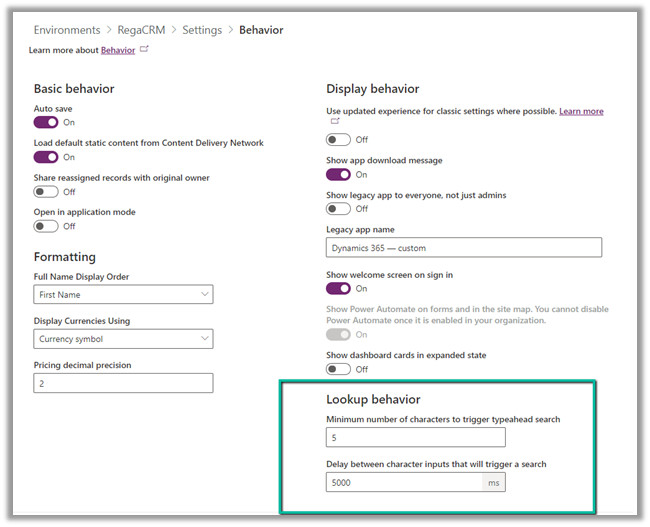
Within Power Platform Admin Center – (https://admin.powerplatform.microsoft.com/)  through Environments >> [Name] >> Settings >> Behavior >> Lookup Behavior settings we can control the minimum number of characters entered before triggering the search in the and delay before the search is triggered for the lookups.

  • Minimum number of characters to trigger typeahead search – Default (2)
  • Delay between character inputs that will trigger a search – Default (250ms)

Here we have updated the value to 5 and 5000 respectively for our testing.

The result –

Lookup Behaviour

After 5 characters are entered, it waits for 5 seconds before searching (loading..)

Also check –

https://nishantrana.me/2021/06/22/advanced-lookup-in-model-driven-power-apps-dynamics-365/

https://docs.microsoft.com/en-us/power-platform/admin/settings-behavior

Hope it helps ..

Advertisements

Fixed – You do not have a license to use Microsoft Dynamics 365


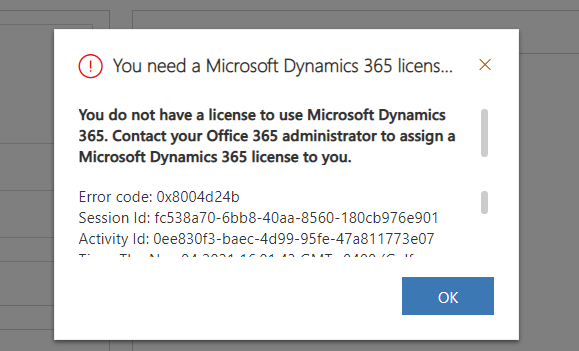
Recently we started getting the below error  suddenly in one of our environments for all the users.

You need a Microsoft Dynamics 365 license to continue. You do not have a license to use Microsoft Dynamics 365. Contact your Office 365 administrator to assign a Microsoft Dynamics 365 license to you.”

The users had the required CRM licenses and this error was only coming for the case entity.

Eventually, we realized that a Plugin / Workflow was running under the context (owner for Workflow) of a user who had recently left the organization and had his account disabled inside CRM.

Updating the context and owner of the workflow to run under the Service Account (with appropriate roles) fixed the issue.

Hope it helps..


Few key points – Auto Number field in Dataverse (Dynamics 365 CE / CRM)


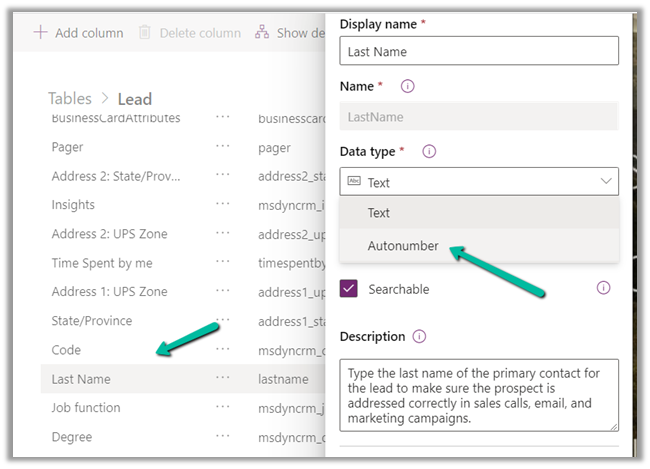
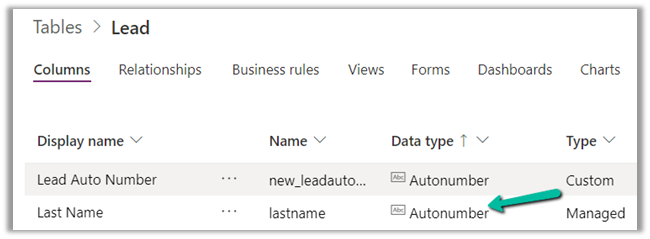
  • Can we convert the existing text field to the Auto Number field?

Yes, e.g. we can update the Last Name attribute of the lead’s data type to be of Auto number from Text.

  • Can we convert the auto number field back to the normal text field?

Yes


  • Can the auto number field have duplicate values?

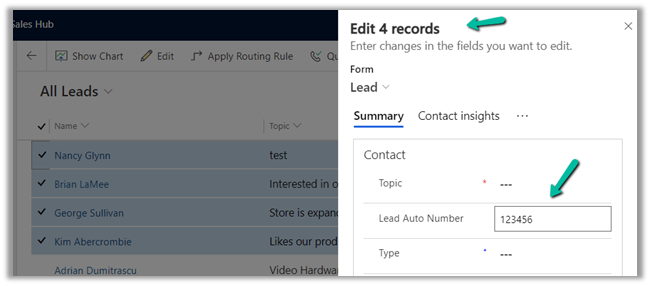
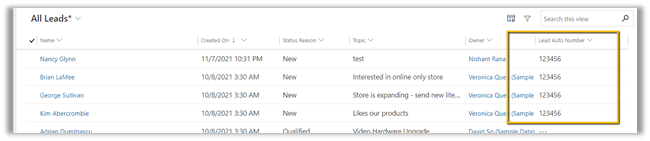
Yes, the platform allows having more than one record to have the same value. It doesn’t throw an error.

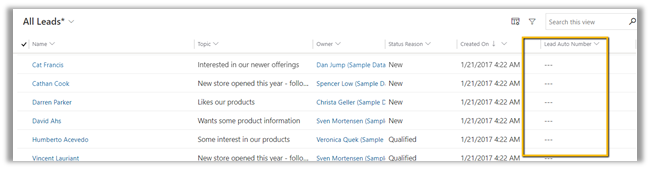
Multiple lead records have null values for the auto number field as shown below.

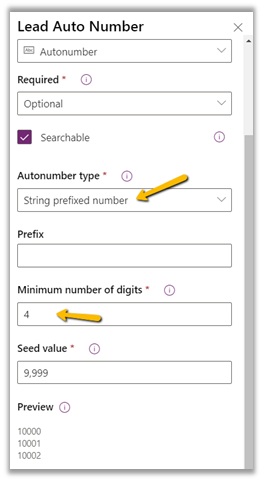
  • What if the Seed value increases than the digits specified?

The platform will assign the next value and will not throw an exception.

  • Can we change the format of the existing auto number field?

Yes

It will affect any new records created.

  • What other things we can do with the auto number fields?

We can make the field readonly in the form so that users do enter the values manually, we make the field required and for uniqueness, we can enable alternate keys on it.


  • What is the min and max length of the RANDSTRING placeholders?

Between 1-6

  • What about maximum seed value?

The auto number field is similar to a text field, it is different in that it generates a unique number when there is no value specified for it.

Get all details here –

https://docs.microsoft.com/en-us/powerapps/developer/data-platform/create-auto-number-attributes

https://jonasr.app/2017/10/anm/

Hope it helps..

Advertisements