Binding Choice / OptionSet (multiselect) with Combo box in Canvas Apps / Power Apps (DataVerse)


Instead of hardcoding Combo box , we can bind it to the Choice / Option Set field of Dynamics 365 / Dataverse.

Format – Choices(DataSource[@columnname])

Check out the post that explains it – https://debajmecrm.com/how-to-bind-a-multiselect-choice-of-dataverse-to-a-combobox-in-canvas-apps/

Also check out – how to bind and do filter on multiselect combo box – https://youtu.be/5dSk5iOgT68?t=286

To learn about all the properties of Combo box refer – https://www.spguides.com/powerapps-combobox-control/

Hope it helps..

Advertisements

Fix- Multiple levels of many-to-one relationship expansion aren’t supported in PowerApps


We would get this error while trying to get the value of a related entity (lookup) through a related entity (lookup) in the current record using the incorrect formula.

For e.g. here Region is a lookup in the Village, which in turn is a lookup in the Product record (ThisItem).

The solution here is to use the LookUp function

Before

After

ThisItem.Village.Region.Name

LookUp(Villages, Village = ThisItem.Village.Village).Region.Name


Search the Villages table, using the GUID of the Village, and fetch the name of the region lookup field in it.

Hope it helps..

Advertisements

Import from Excel / Import Wizard updates Record Created On (overriddencreatedon) – Dynamics 365


When we are creating new records and need the created on field to take the value provided instead of system generated, we can map it to the Record Created On field during Import from Excel option.

In fact in the Import Data Wizard also, although it doesn’t show the Record Created On field for mapping, we can map to Created On field and the behavior will be same. (and in the case of the Import from Excel in the Grid, we do not get the Created On field for mapping)

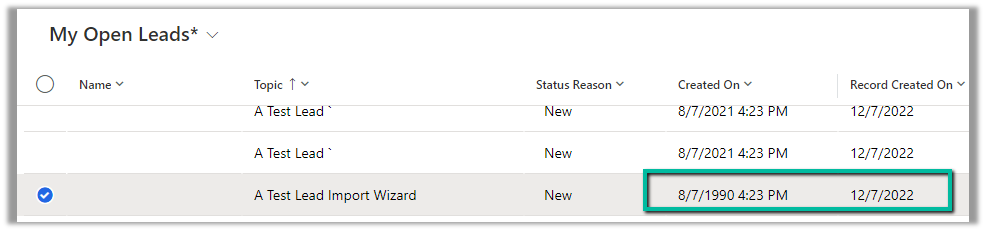
Below is the record we have created through Import Data Wizard, and we can see the values of Created on and Record Created On for it.

Read more –

https://debajmecrm.com/override-createdon-modifiedon-createdby-modifiedby-in-dynamics-365-crm-crm-tips-from-the-vault/

https://nishantrana.me/2018/10/16/using-overriddencreatedon-or-record-created-on-field-to-update-created-on-field-in-dynamics-365/

Hope it helps..


Advertisements

How to – Use Personalized page content in Dynamics 365 Marketing


Continuing our previous post – https://nishantrana.me/2022/11/17/how-to-use-page-personalization-in-dynamics-365-marketing-2/, in this post we’d see the personalized page content works across the pages in the site.

Suppose we have the following embedded marketing form, submitted by the user with Remember Me checked (required for Personalized Page as well as Prefill to work)

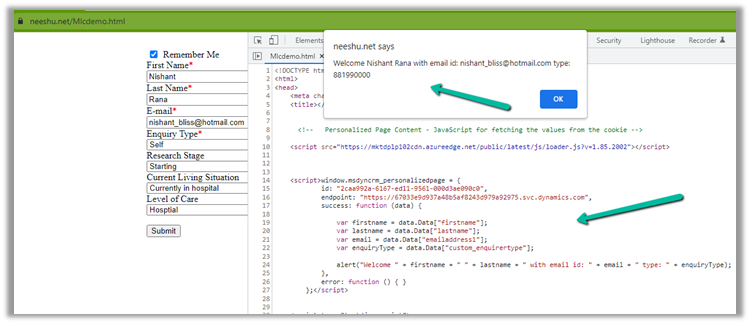
Next time when the user visits the page, using the Personalized Page’s Script, we can have this value fetched from the cookie as shown below.

Here we can use the same personalized page script on other pages in the same authenticated domain/website to retrieve the values from the cookie.

For that, we just need to have the website’s div tag to be placed on that page, as shown below. We can get from that from the website record created and it will track the visit as well.

divweb

Hope it helps..

Advertisements

How to – Hide, Submit and perform validation in Dynamics 365 Marketing Form


Continuing our previous post on setting hidden field’s value using JavaScript in Embedded Marketing Form,

https://nishantrana.me/2022/11/23/how-to-use-dynamics-365-marketing-javascript-api-to-set-hidden-fields-value/

below are a few more points that could help –

  • To hide the Marketing form on the host page – we can use afterFormRender
  • To submit the Marketing form on the host page –

  • If we are setting a non-existing value for an option set field in the formSubmit event, it will be treated as blank before submission and the blank value will be passed. However if the field is Required then validation will kick in and the form will not get submitted.

Get more details – Extend marketing form using code

Also check – https://community.dynamics.com/365/marketing/f/dynamics-365-for-marketing-forum/384055/integrate-external-marketing-form


var xhttp = new XMLHttpRequest(); 

xhttp.open("POST", formUrl + "/formpage/” + formId + “/correlation/” + correlationId, true); 

xhttp.setRequestHeader("Content-Type", " application/x-www-form-urlencoded"); 

xhttp.send("7d58e055-d1c2-4bb3-a42f-faf6762e0acc=FirstName&3cdeebb-7c54-4cff-a1bc-772562d25c38=firstname.lastname%40sample.com&submit=");
Advertisements

Hope it helps..

How to enable prefill for marketing forms


Check the previous posts on hosting marketing forms for more details

How to – embed marketing form on an external page

Here we will see Prefill in action.

https://learn.microsoft.com/en-us/dynamics365/marketing/form-prefill#create-a-landing-page-form-with-prefill-enabled

We have created the below marketing form (type – Landing Page) right now (currently Pre-fill is set as default false for the form/fields)

Submit the form –

We can see the contact / lead records created as part of submission.

The contact has Do not allow for Prefill marketing form field

Opening the website we don’t see any pre-fill information as expected.

Now let us enable prefill for the fields and for the form.

Enabling Prefill for form automatically adds the Remember me element to the form. It is tied to Prefill marketing form field on the contact record as we saw earlier and required for prefilling to work.

Let us submit the form, this time with Remember me as true.

We can see Prefill marketing form field set as Allow for the contact.

Load the marketing form page again and we can see the value already pre-filled or populated for the user.

We saw how we can enable prefilling for Landing Page type form, by enabling prefill as true at form and field level and adding the remember me element.

For form type – Subscription Center, pre-filling is already enabled for all the fields regardless of their prefill setting, and at the form level also it is set as true and the field is read-only.

Here we do not have to add a remember-me element.

Here we must include the Do not email element.

Prefill in the case of subscription form

Hope it helps..

Advertisements