In the previous posts, we covered the Overview and Key Features of Kupp Code Analytics, the installation and setup process of the extension, and its Intellisense capabilities.
Here we’d have a quick look at the analytics capabilities of the extension.
To enable it, inside Visual Studio, navigate to Tools >> Options >> Kupp Code Analytics >> General or Extensions >> Kupp Code Analytics >> Analytics >> Configure Analytics
Set “Enable C# Code Analyzer” to “True”. Requires Visual Studio to be restarted on change.

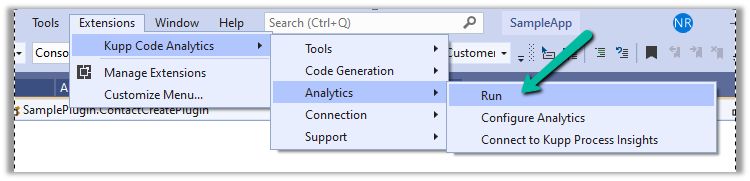
To run the analytics, select Extensions >> Kupp Code Analytics >> Analytics >> Run
Below we can see the results of running the analytics on our sample plugin class.
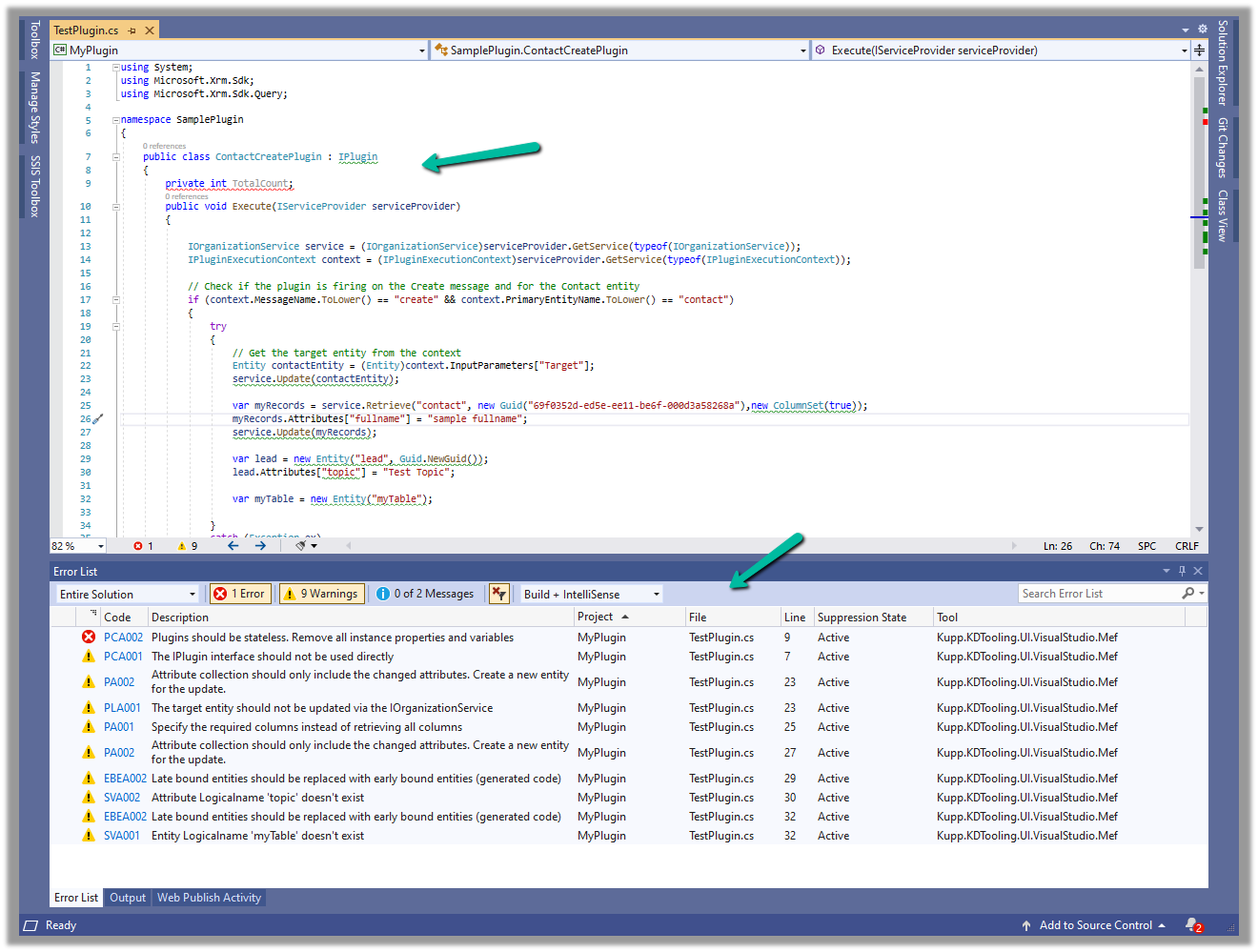
Let us see the code analysis rules one be one.
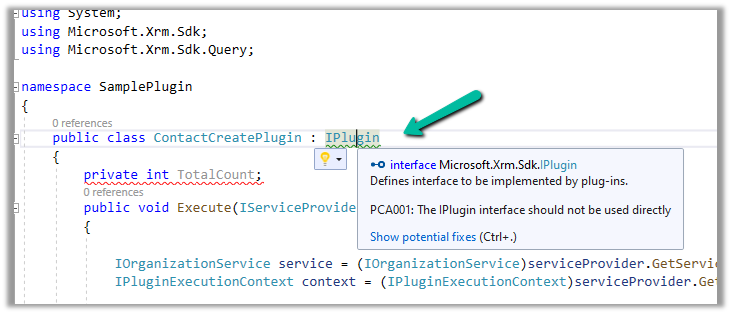
PCA001: The lPlugin interface should not be used directly.
The suggestion is to use a custom base class instead to handle the call delegation, using the context information of the plugin.
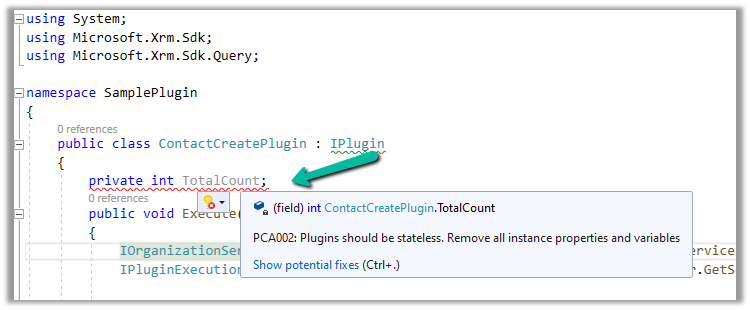
PCA002: Plugins should be stateless. Remove all instances properties and values.
Plugins are instantiated on a per-request basis and handle specific execution contexts. The plugin instances are short-lived and should not be assumed to persist across multiple requests. Also if multiple plugin instances execute especially in the case of bulk operations, it could lead to concurrency issues.
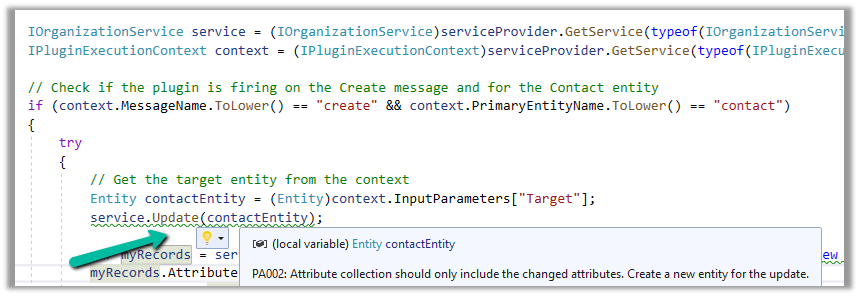
PA002: Attribute collection should only include the changed attributes. Create a new entity for the update
While updating the table or entity, create a new Entity instance and only include those attributes that are changed.
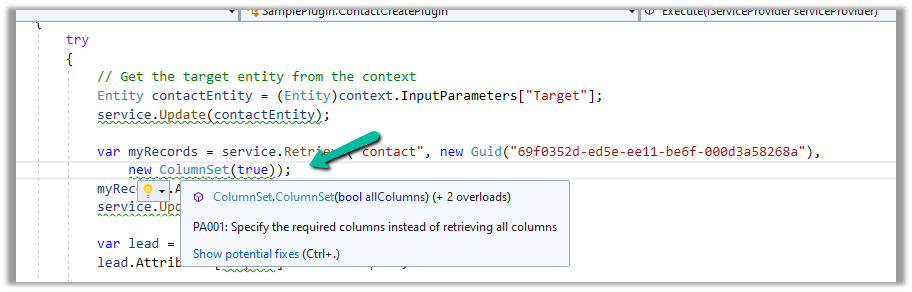
PA001: Specify the required columns instead of retrieving all columns.
Specify the required attributes to be retrieved instead of all columns as this would impact the performance.
EBEA002: Late bound entities should be replaced with early bound entities.
SVA001: Entity Logicalname ‘myTable’ doesn’t exist.
It is suggested to use early bound entities as they provide Type Safety and IntelliSense Support decreasing the likelihood of runtime errors and can enhance productivity through auto-completing and context-aware suggestions.

These were a few of the examples, that show the key capabilities of the extension, for the complete list, please refer to the product documentation
Hope it helps..