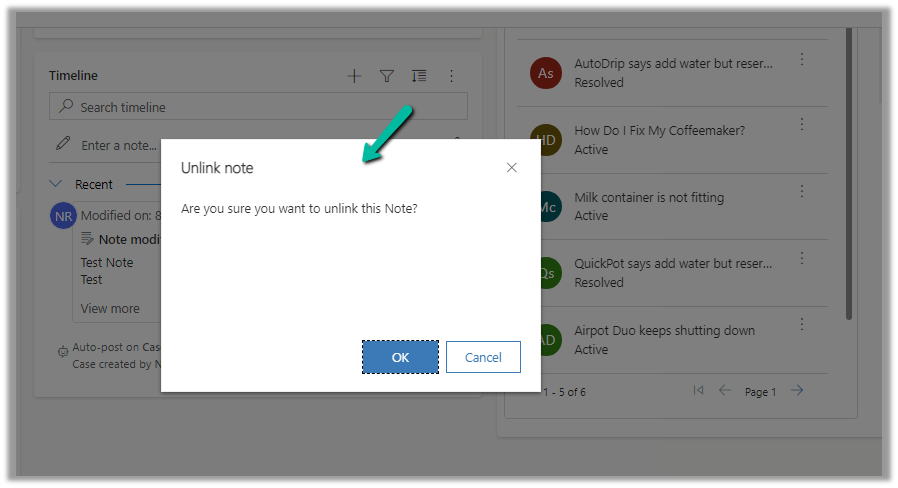
While trying to import the solution (patch), we were getting the below error.
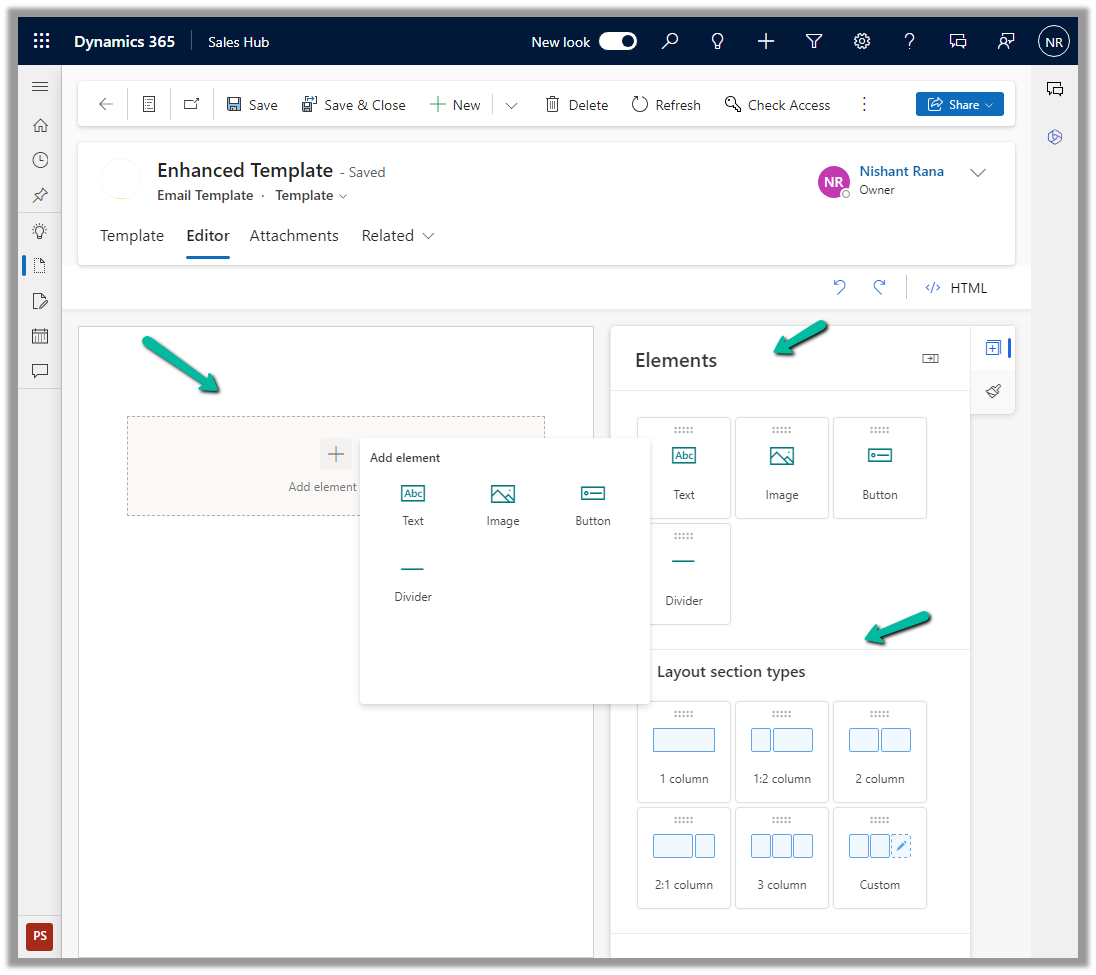
“Expected non-empty Guid”
There was hardly any detail in the log file also
We tried removing the solution component one by one in our source environment and trying the import again in the target environment.
Eventually removing the Pages (custom page) allowed us to import the solution successfully into the target environment.
We then compared the customization.xml of the current solution with the backup solution of the Target and see the information missing in the current solution.
Left is – Current solution (giving error) and Right is the backup solution of the target.
Interestingly next time when we extracted the new patch after a couple of days, we could see the tag there and so no issues that time.
Next either add an existing page or create a new one and then add the newly created page in the Messenger >> Settings
Here we created a new page and have added that page.
We can also Generate token for the page, which we will use while configuring Facebook Channel in Dynamics 365.
Click on Generate token and copy the token. Also, save the Page Id below the name of the page.
We will also need App ID and App Secret, which we can get from – Settings >> Basic
Next, we add a few test accounts to the app for testing/using the app. (we are not making the app publicly available or live, which would require and approval process)
Navigate to App Roles >> Roles >> Testers (Add Testers)
Back in Customer Service Admin Center, navigate to Customer Support >> Channels >> Messaging Accounts (Manage)
Add a New Account
Click Next and provide the App ID and Application Secret
Add Facebook Page to the account
Provide the Page name, Page ID, and the Page access token.
With the page successfully added, click on Next
Copy the Callback URL and the Token.
Paste this information in the Messenger product added.
Click on Add Callback URL.
Click on Verify and save
This adds the Webhooks details, click on Add Subscriptions for the Page added.
Select messages
We can see the account added.
Open the record, and navigate to the Facebook Pages tab, there we can see the Provisioning state as Running.
Next, we will create a Channel for this Facebook Account.
Navigate to Customer Support >> Channels >> Messaging (Manage) >> Add Channel
Select Channel as Facebook.
Add an existing workstream or create a new workstream.
Next, select the Facebook Page configured in the previous steps.
Language as English.
We can specify custom automated messages and Post Conversation survey settings here.
Specify the File attachments setting and message tag.
Review and if required edit the details and finally click on Create channel to create the Facebook channel
Next open the workstream created, to specify routing rules, work distribution, bot, etc. to route the customers to the queues/agents.
Here we can create a Route to Queue ruleset to route the messages on the Facebook page to a specific Queue.
Create the ruleset record.
Next, Create a rule. We can define the conditions here (right now we are keeping it blank) and routing to the Default messaging Queue (we can create a specific queue and add only the required users).
Make sure you have added users to the Queue and assigned Omnichannel Agent security roles.
We can update the default Work distribution properties.
Now sending the message from the Facebook Messenger, will pop up the notification for the agent logged into Customer Service Workspace.
Accept the notification to start the conversation.
Recently while importing the solution in our UAT we got the below error –
It was showing the above entity relationships missing in the solution. We could not find them inside the Power Apps Maker Portal, to add them in the source solution.
Interestingly enough we were able to find them from the classic solution explorer.
Adding them to the source solution and trying the import fixed the issue for us.
Enhance Case Experience is currently available only for the Customer Service Workspace app which targets to increase the productivity of the agent.
To enable it, navigate to Customer Service Admin Center >> Customer Support >> Case Settings >> Enhanced case experience (Manage)
Enable the options – Here we have enabled the Full case form experience.
The new case form will show up while creating a new record from an existing case or the case grid.
Clicking on Configure opens the form in the Maker Portal.
The new Full Case form has the following new components added to it –
Grid Control – Case Associations (showing associated knowledge articles, similar cases, merged cases, and child cases)
Attachment Control – For the Case table, the new attachment control gives the option to directly upload the attachment as well as shows all the attachments either uploaded directly or associated with the notes or emails of the case record.
Kupp Software, Microsoft Partner, based in Austria, last year released their product Kupp Code Analytics (Code Analytic Tool) for Microsoft Dynamics 365, intending to help the teams to be more proficient through automating manual tasks, provide IntelliSense, code analysis, performance analysis, etc.
In this blog post, we’d have a brief look at Kupp Code Analytics. Kupp Code Analytics is a powerful Visual Studio Extension, for Microsoft Dynamics 365 and Power Platform (Dataverse). The technical team can use the tool to code faster, easier, and more efficiently, and at the same time can use the tool to analyze and get insights and adhere to best practices.
There are 2 versions of the products, the Community Version which is free, and other is Premium Version with additional capabilities.
The community version provides key features like
IntelliSense
Below we can see IntelliSense in work, we get the name of the table suggested while writing the code.
Also, we can see it listed down the corresponding attributes of the table in the context.
It also filters the suggestion based on the attribute or column type as shown below. We can see only the OptionSet type attributes being listed down.
IntelliSense is not limited to C# code but also applies to OData. (Retrieve operations)
Below we can see it listing down different Query Options
This allows us to write our OData queries that use the filter
Or any Query Functions
It also provides IntelliSense for some complex scenarios as well both, which we’d cover in detail in the forthcoming posts.
Deploy Assemblies and Web Resource
The developers can also quickly deploy/update plugins and web resources from within Visual Studio.
To deploy the plugin, right-click on the project and select Deploy to D365 option.
For the Web resource file, right-click and select the Deploy to D365 option.
Generate Early Bound Code and Convert Late Bound code to Early Bound
Developers can configure and quickly generate Early Bound Entities using the Code Generation feature of the tool.
Below is the code generation dialog for C#.
Similarly, early bound classes can be generated for TS/JS
The users can also convert the late bound code to early bound with just one click.
In the premium version of the tool, the users get the below additional capabilities.
Code and Performance Analytics
The tool has a custom code analysis rule set defined that guides the developers while writing the code.
Below we can some of the rules like usage of early bound entity, specifying only required columns instead of all columns, in action. There are other rules also which we will cover in later posts.
Debug Plugin
Another feature that is available in the premium version of the tool is the option to debug the plugin.
Selecting the options Tools >> Debug Plugin generates a ready-to-use Unit test project to test the plugin with the required plugin context generated.
Here we covered some of the key capabilities of Kupp Code Analytics, check the below links to download it and learn more about it.