Moving Marketing Email, Journey, Events, etc. between environments – Dynamics 365 Marketing


To move Marketing configurations/data from one environment to another we can make use of the Configuration Migration Tool.

Open the tool, and create the schema file. Connect to the source environment.

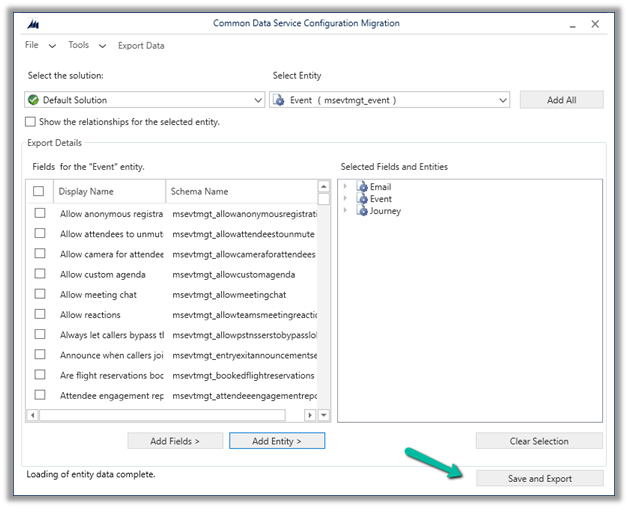
Select and add the real-time marketing email table – msdynmkt_email Soure email.

Next, we are going to select the real-time marketing Journey table – msdynmkt_journey

Source Journey.

Lastly events – msevtmgt_event
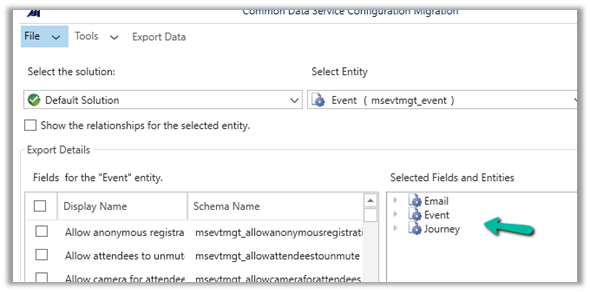
Source events.

Click on Save and Export

Save the schema file and click on yes.

Click on Export data to generate the data to be exported.
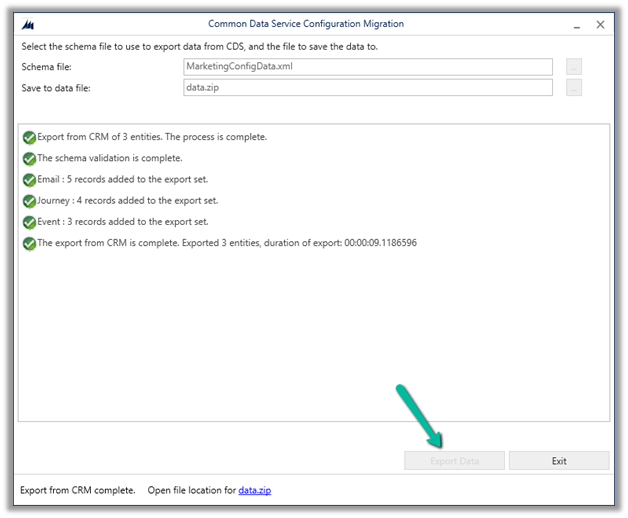
Next with the schema and data exported, select Import Data to start the import and select destination organization.

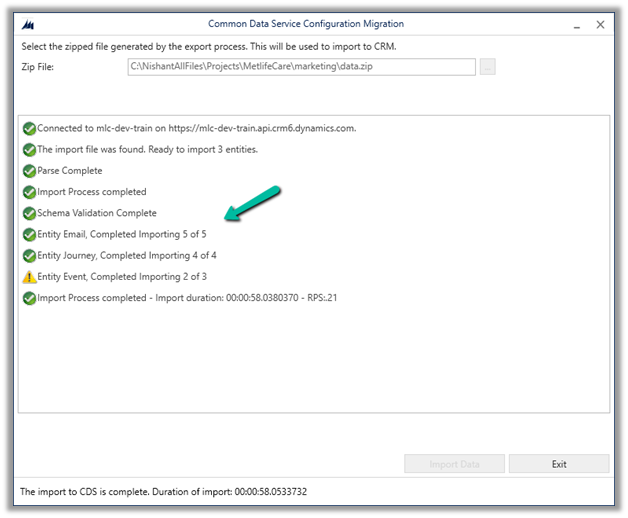
Select the data file exported earlier and start the import process.

The import process gets completed with a warning for the table Event for one of the records.
Let us now check the destination environment.

We can see 4 Email records created and 1 updated, all in Draft Status.

We can see all 4 journey records created.

And 2 event records were created.

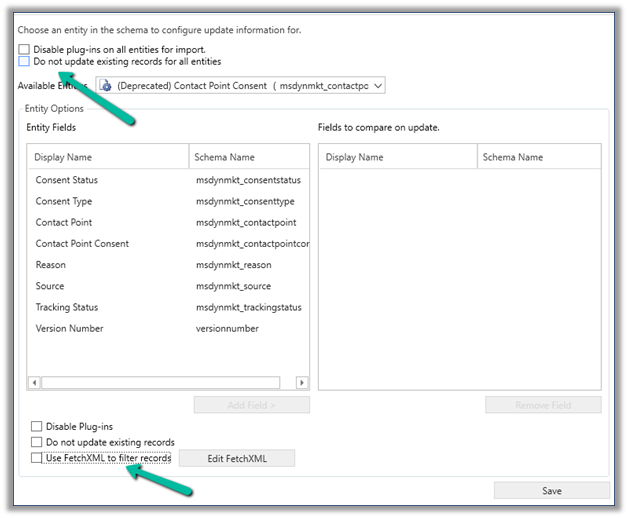
In case we want to filter the records or want to make sure records are not updated in the destination, we can select Tools >> Configure Import Settings

And use Do not update existing records for all entities and specify Fetch XML for it for filtering.
Also, checkPrerequisites for the export/import process

Hope it helps..

Advertisements

Marketing Form and required (mandatory) fields in Lead and Contact – Dynamics 365 Marketing


Let us take one of the out-of-the-box marketing forms available in Dynamics 365 Marketing.

It has only an Email field marked as required and creates / updates both contacts and leads.

If we click on Check for errors we will get the below notifications.

  • To create a Contact, the Last Name (lastname) field should be included in your form and marked as required.
  • To create a Lead, the Last Name (lastname) field should be included in your form and marked as required.

Now let us host this form and try submitting it.

Click on Go Live, and create a new related marketing form page for it. Make sure you have the domain already authenticated.

Authenticate Domainhttps://nishantrana.me/2022/11/09/how-to-authenticate-domain-in-dynamics-365-marketing/

Embed Marketing Form on the external pagehttps://nishantrana.me/2022/11/10/how-to-embed-marketing-form-on-an-external-page/

Open the Form page and copy the script to host the form.

On the host page, let us submit the details.

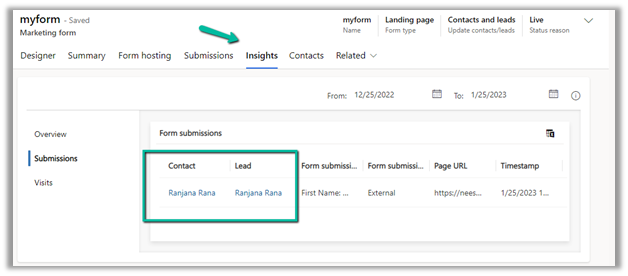
Back in our Marketing form, we can see the submission.

And also, both the lead and contact records created.

Now let us try one more submission without specifying a value for the lastname field (which it was showing in the notification, as a required field to be added on the form, for both the lead and contact table).

We can see the submissions in the Marketing Form.

And both the lead and contact records were created.

So although it shows the notification for all the mandatory fields which are not added in the form and marked as required, it still allows the record to be created.

Hope it helps..

Advertisements

How to – configure Facebook Webhook Validation with Power Automate Flow (Dataverse / Dynamics 365)


Recently we were working on Facebook Leads integration with Dynamics 365. Webhook for Leads can be configured to send real-time notifications of the Leads ads changes.

The first step of setting up Webhook requires creating an HTTPS endpoint that can process 2 types of HTTP Requests – Verification and Event notifications.

Here we will see how to configure the Power Automate flow for verification.

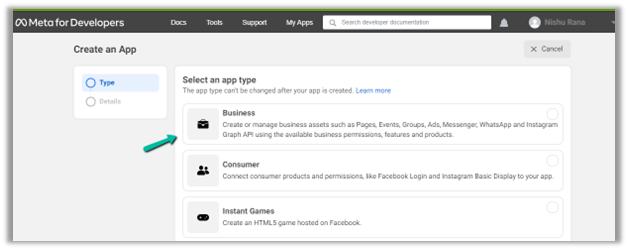
Login to Meta for Developers – Facebook and create an app.

https://developers.facebook.com/

Select Business for the app type.

After the App is created, select Webhooks to be added to the app. Click on Set up.

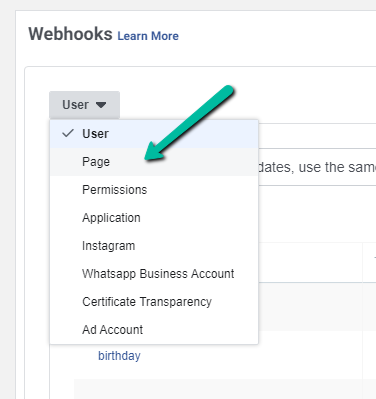
Next click Subscribe to this object. Here we have User selected.

For getting leads notification we need to select Page 

FBPagePreview in new tab

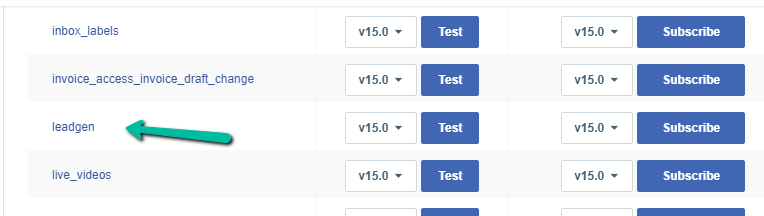
And subscribe to leadgen object

leadgen

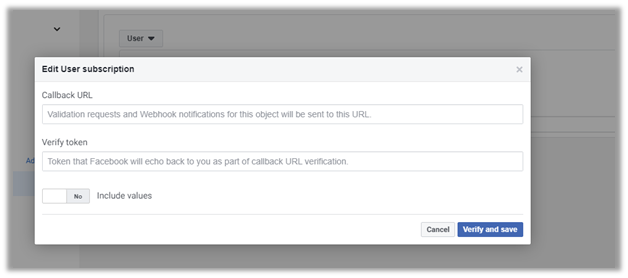
It asks us to specify the Callback URL and Verify token.

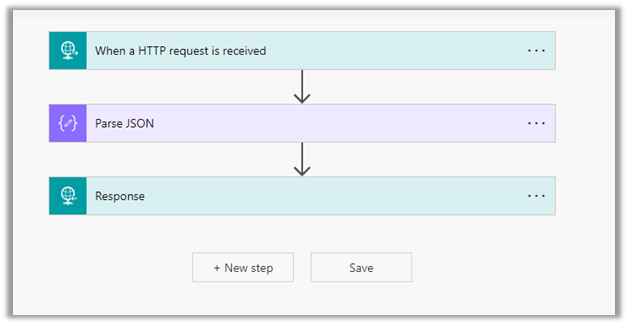
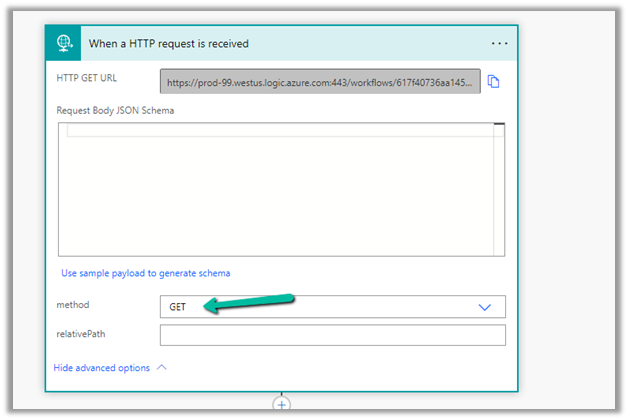
Back in Power Automate create a Flow with Request type Trigger, followed by Parse JSON and Response actions.

For HTTP Request, select GET as the method, as FB will send a GET request to the endpoint URL, with the verification requests included in the endpoint of the URL.

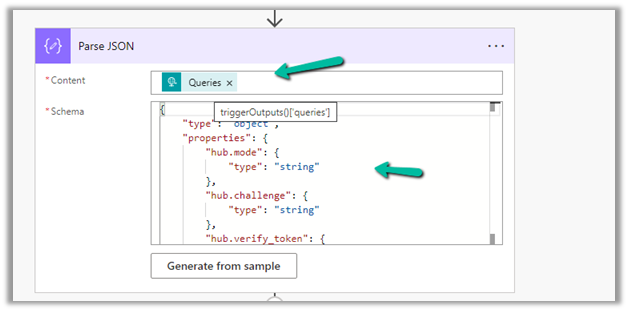
Next, Parse the JSON and specify the Content and Schema

Content – 

 triggerOutputs()['queries']

Schemajson


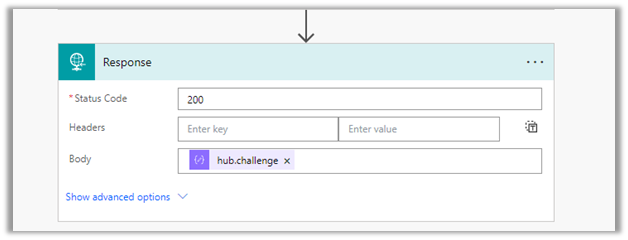
Lastly in Response, set Status Code as 200 and Body as hub.challenge.

Here FB expects the Endpoint to verify the hub.verify_token (which we haven’t set up yet) and respond with hub.challenge value after verification.

Save the Flow, and copy the URL generated for the HTTP Request trigger.

Back in Meta for Developers, in edit user subscription paste the Callback URL and for now in place of token specify any value and click on Verify and Save.

We should now have a Webhook endpoint (Flow) successfully configured

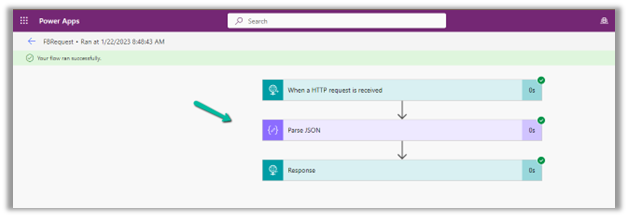
We can also see our Flow ran successfully.

Here in the example we configured the webhook validation for User events, for Facebook Lead we need to configure it for Page, the other options available are Permissions, Application, Instagram etc.

Please check – 

https://powerautomate.microsoft.com/nl-nl/blog/connect-facebook-workplace-to-sharepoint/


Hope it helps..

{
    "type": "object",
    "properties": {
        "hub.mode": {
            "type": "string"
        },
        "hub.challenge": {
            "type": "string"
        },
        "hub.verify_token": {
            "type": "string"
        }
    }
}
Advertisements

Fixed – Omnichannel authentication failed. Contact your administrator in Omnichannel Ongoing Conversations Dashboard


Recently we were getting the below error on the Omnichannel Ongoing Conversations Dashboard.

As the user was having an Omnichannel Administrator role, we expected it to work for the user. We raised a support ticket for the same and got to know that we need to assign the Omnichannel supervisor role for it to work for the user.

After assigning the Omnichannel supervisor role, the report started working for the user. Try it in incognito mode or clear the cache after assigning the role.

Get more details –  Omnichannel Ongoing Conversations dashboard

Hope it helps..
 

Advertisements

Fixed – The product cannot be added because it is not active while creating Quote Product – Dynamics 365 / Dataverse


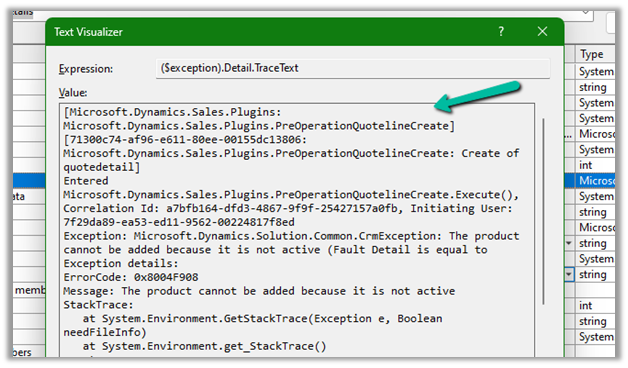
We got the below error while trying to create a quote product programmatically.

As the error message specifies, this is because we are trying to add/associate a DRAFT product to the Quote Product.

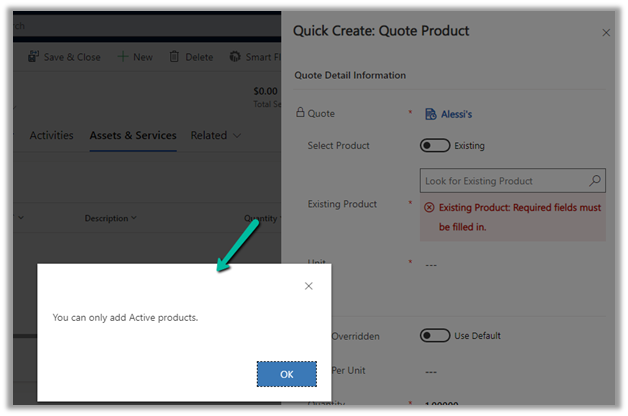
We will get a similar error from the application as well if we try adding a draft product as an existing product to either a quote product or an opportunity product.

Below is the product in the Draft status.

Publish the product to make it Active.

Hope it helps..
 

Advertisements

Fixed – sdkmessageprocessingstep With Id = {GUID} Does Not Exist – Plug-in Profiler – Dynamics 365 / Dataverse


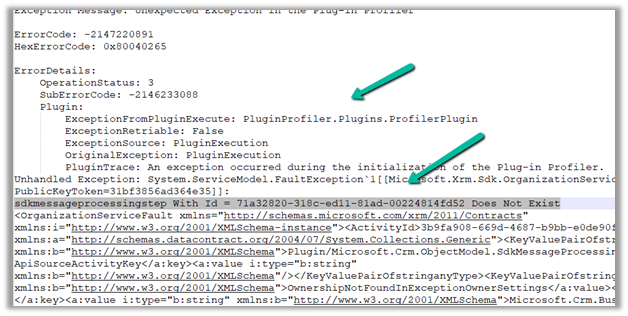
Recently we got the below issue while saving the contact record. It was throwing this for one of our plugin steps registered on the update, for which we had already removed the profiling.

The profiling was already removed from the step.

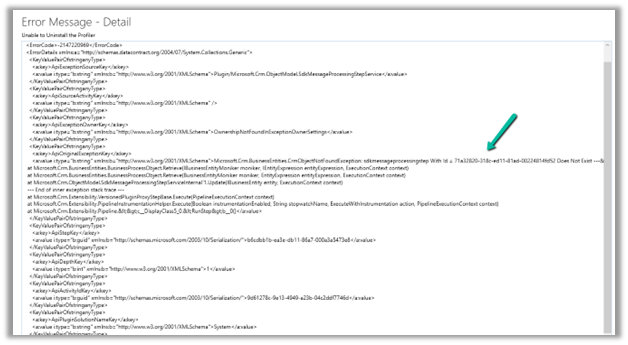
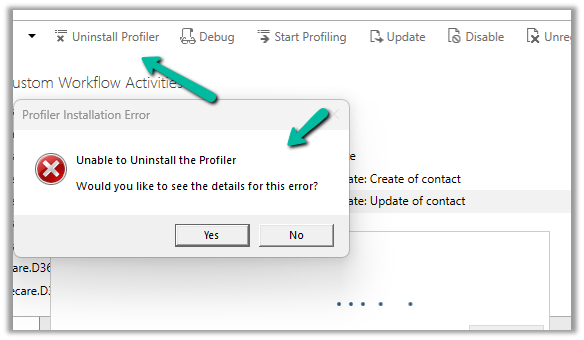
It was the same error while trying to uninstall the profiler.

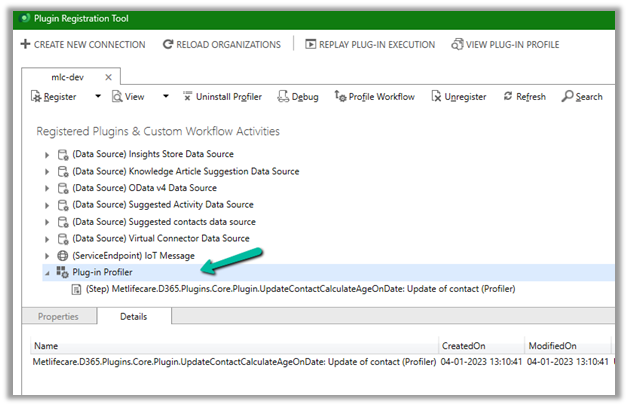
As mentioned in the error message we checked the Plug-in Profiler assembly in the Plugin Registration tool and could find the reference to the step there.

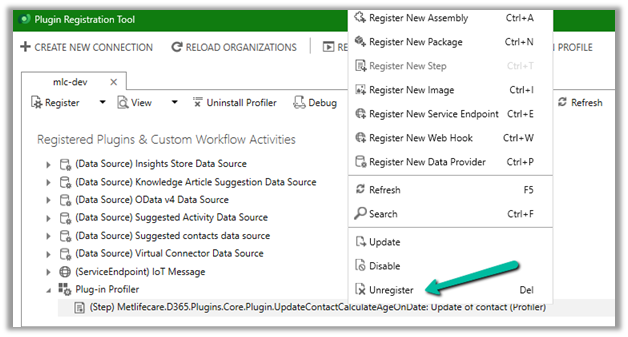
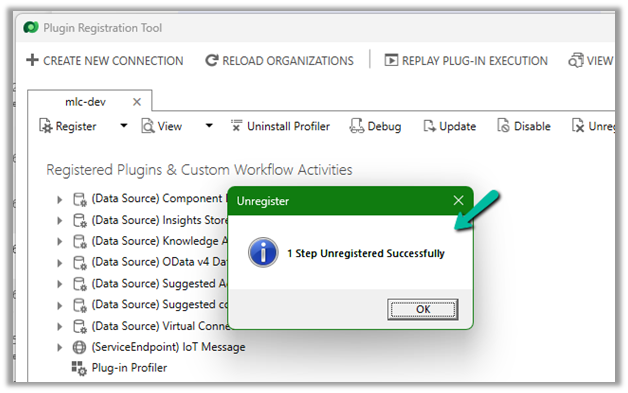
We unregistered the step there

This fixed the issue for us.

Hope it helps..
 

Advertisements