Update Personal Options / Personalization Settings using UpdateUserSettingsSystemUser Request – Dynamics 365


Recently we had a requirement to update the “Negative Currency Format” – Regional Options for all the users.
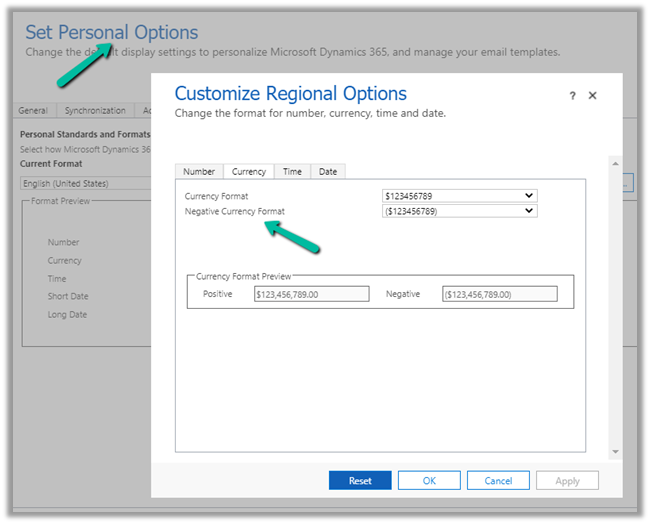
We could not find this option in our favorite plugin – User Settings Utility.

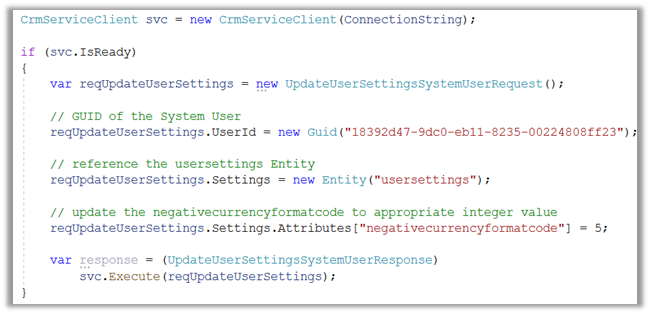
So to programmatically update it we use the below code.
Or using our most favorite plugin – SQL 4 CDS

Updating it to the required format – 5
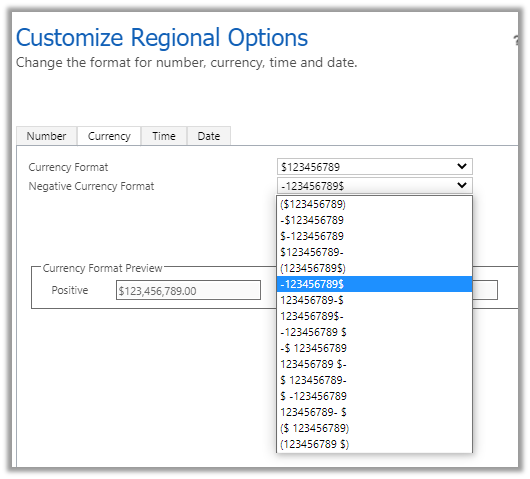
The Result –
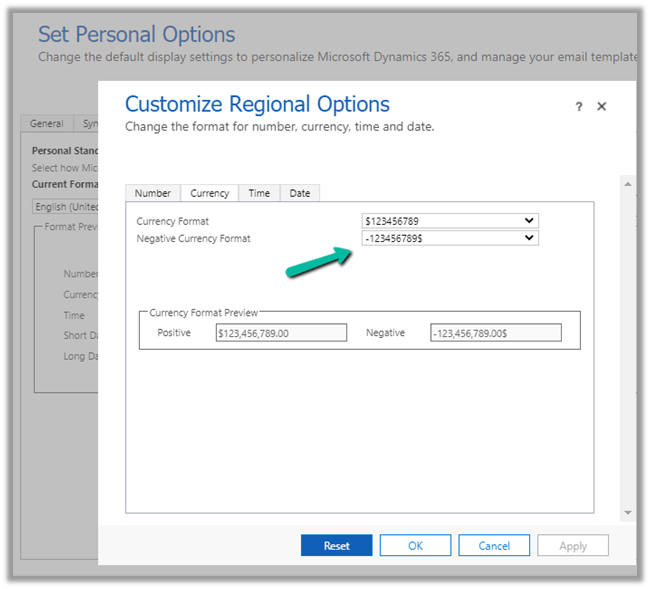
Get more details here-

https://docs.microsoft.com/en-us/dynamics365/customer-engagement/web-api/usersettings?view=dynamics-ce-odata-9

Hope it helps..

C# Code –

  CrmServiceClient svc = new CrmServiceClient(ConnectionString);
            
            if (svc.IsReady)
            {
                var reqUpdateUserSettings = new UpdateUserSettingsSystemUserRequest();

                // GUID of the System User
                reqUpdateUserSettings.UserId = new Guid("18392d47-9dc0-eb11-8235-00224808ff23");

                // reference the usersettings Entity
                reqUpdateUserSettings.Settings = new Entity("usersettings");

                // update the negativecurrencyformatcode to appropriate integer value
                reqUpdateUserSettings.Settings.Attributes["negativecurrencyformatcode"] = 5;

                var response = (UpdateUserSettingsSystemUserResponse)
                    svc.Execute(reqUpdateUserSettings);
            }

SQL –

update usersettings 
set negativecurrencyformatcode = 5
where systemuserid = '18392d47-9dc0-eb11-8235-00224808ff23'
Advertisements


Interactive login option in CDS/CRM Connection Manager in KingswaySoft Dynamics 365 Integration Toolkit


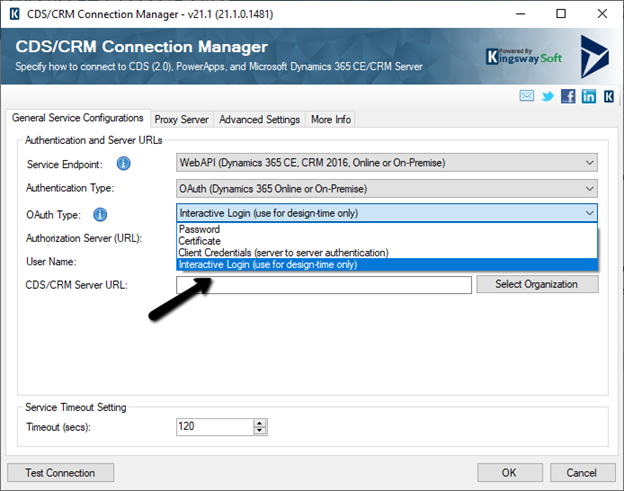
With the new release, the CDS/CRM connection manager adds a new Interactive Login option in the CDS/CRM Connection Manager for Authentication Type as OAuth.

Interactive login allows the user to log in using his account details (to establish the connection with CRM) without the need for registering the application in the Azure Active Directory.

This is supposed to be used only during design time.

Enter User Name and the CDS/CRM URL and click on Test Connection.

The login screen pops up, where we can enter the credentials and sign in.

We’d receive the Test connection succeeded message.

Now we are ready to use the CRM Connection.

Now when we will run the package from within the Visual Studio (SSDT), it will again ask for entering the credentials.

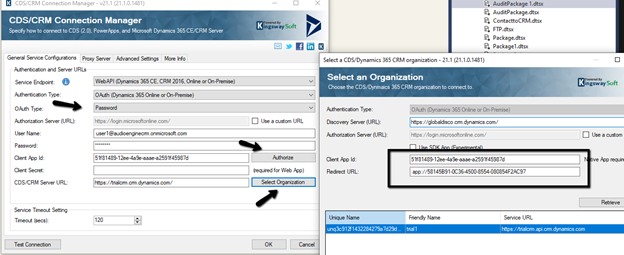
The other option is to use the OAuth Type Password along with default Client App ID and Redirect URL

https://docs.microsoft.com/en-us/powerapps/developer/data-platform/xrm-tooling/use-connection-strings-xrm-tooling-connect

Hope it helps..

Advertisements
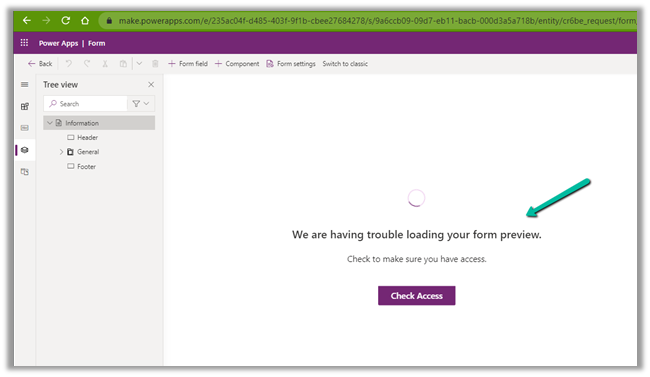
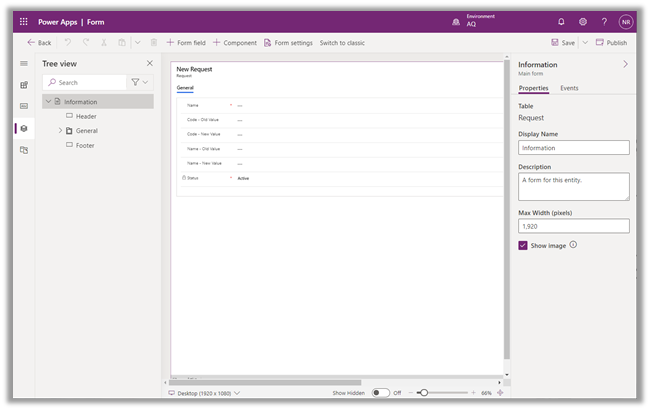
Fixed – We are having trouble loading your form preview. Check to make sure you have access error in Power Apps


While trying to open a form for customization for a custom entity we were getting below error within the maker portal.

The user was an admin user.

The same was the case in both Chrome and Edge browsers.

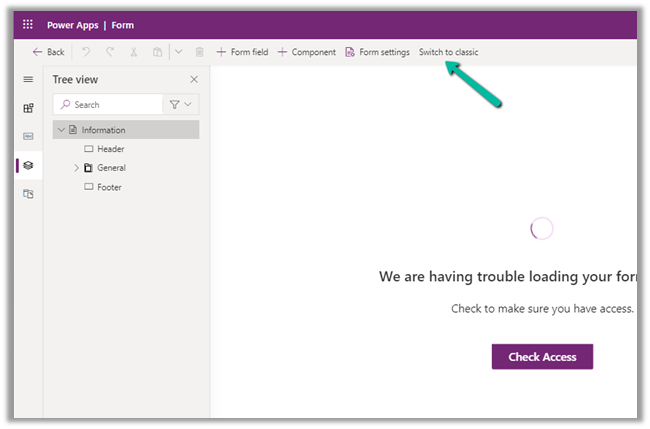
The only way we could proceed was by switching to classic experience.

Switching to Classic worked

After updating the form in classic and publishing the changes, the form started working properly in the maker portal also.

We were able to customize the form in both Chrome and Edge.

Hope it helps..

How to – Use Advanced lookup in Model-driven Power Apps / Dynamics 365


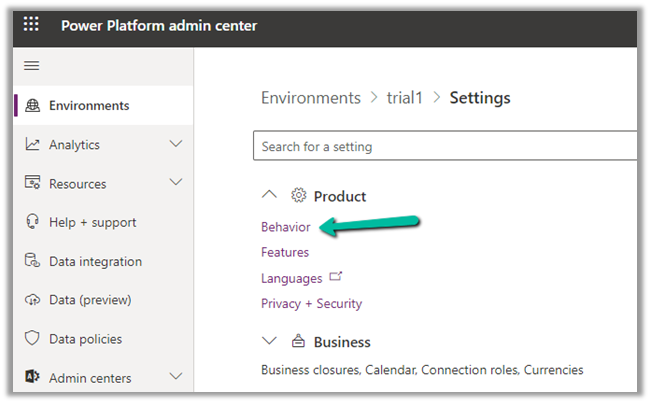
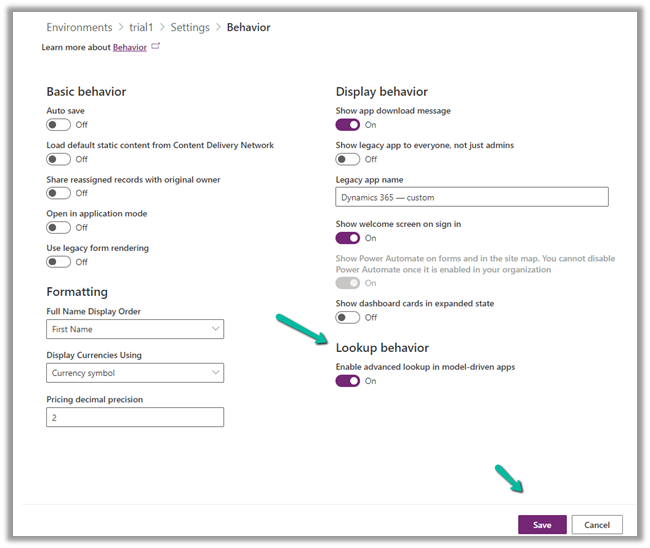
To enabled Advanced Lookup, log into to Power Platform Admin Center, navigate to

Environment >> [Select Environment] >> Settings >> Behavior

Enable the Lookup behavior and Save.

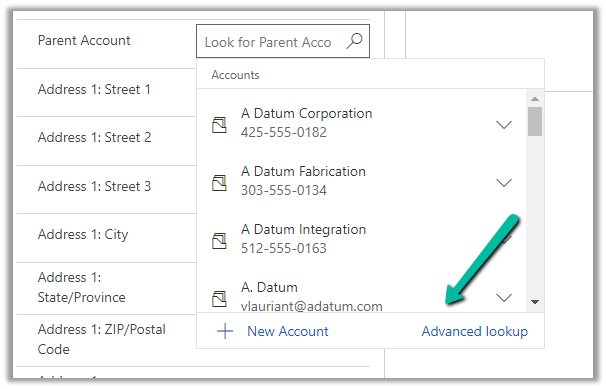
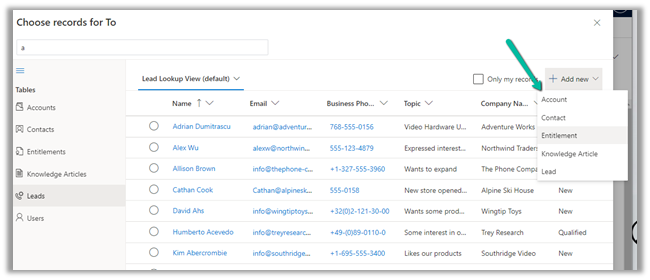
This adds the Advanced Lookup option in the Lookup dialog.


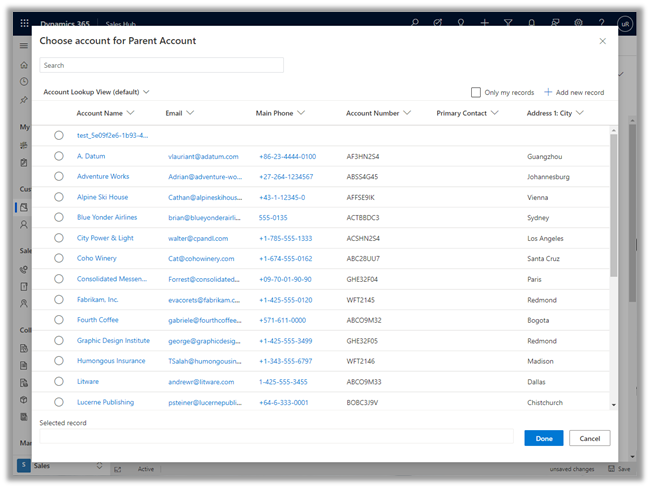
Clicking on it opens the Advanced Lookup Grid 


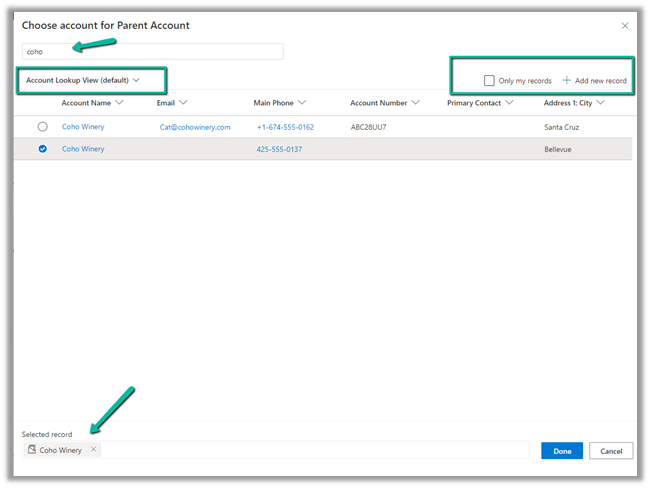
We can perform SEARCH within a selected View, CHANGE a view, can FILTER it the results further to show only records owned, ADD a new record, SORT the grid.


The best part is we can open/edit an existing record as well as add new ones without losing the existing context.

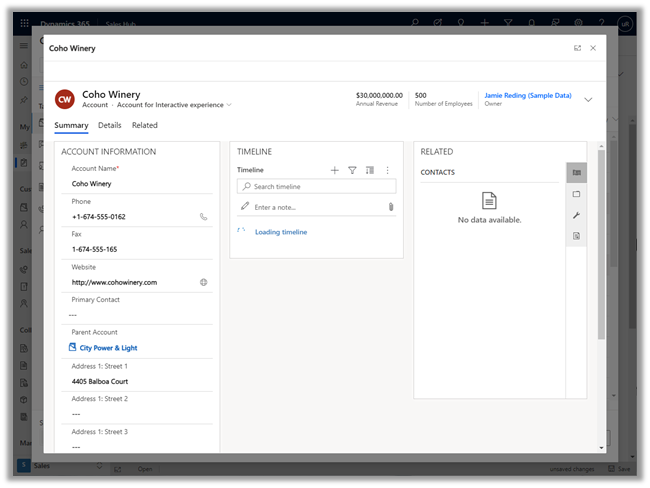
Opening an existing record from the result opens the record in the new pop-up window as shown below.

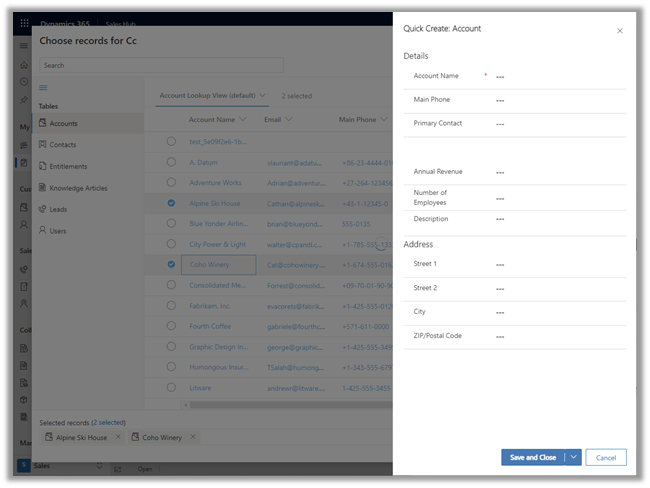
Similarly, the Add new option opens the Quick Create form.

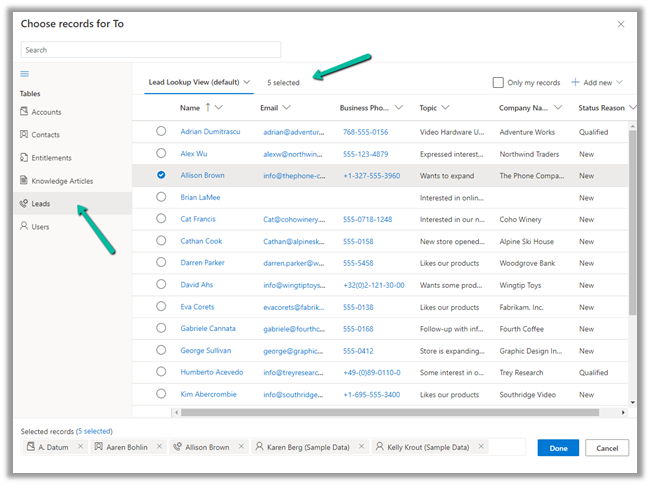
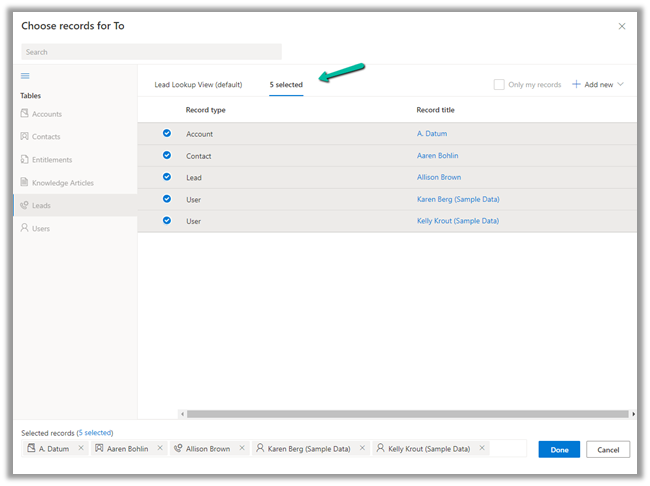
In case of special data type like Party List or Regarding, we can select multiple records of different entities we are presented with.

Similar the option to Add new records list all the tables/entities applicable to that lookup.

Thus the new advanced lookup makes working with Lookup much simpler and effective and we should start adapting / using it.

Blog posts on 2021 Release Wave 1 – Dynamics 365

Hope it helps..

Advertisements
How to setup – Azure Synapse Link – Microsoft Dataverse


Azure Synapse Link (earlier known as Export to Data Lake Service) provides seamless integration of DataVerse with Azure Synapse Analytics, thus making it easy for users to do ad-hoc analysis using the familiar T-SQL with Synapse Studio, build Power BI Reports using Azure Synapse Analytics Connector or use Azure Spark in Azure Synapse for analytics.

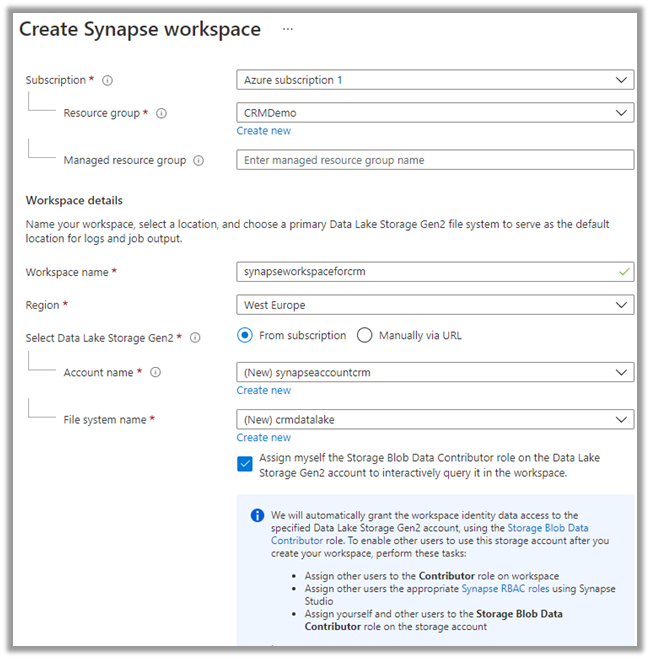
As a first step, we need to create the Azure Synapse Workspace.

Login to Azure Portal (https://portal.azure.com/ ) with appropriate roles and create a Synapse workspace.

https://docs.microsoft.com/en-us/azure/synapse-analytics/get-started-create-workspace

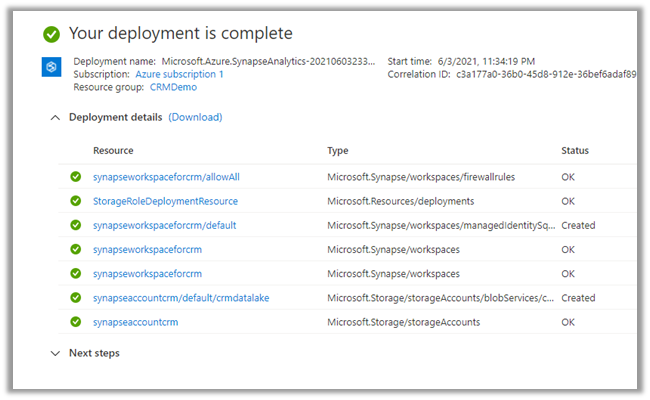
Wait for the deployment to be complete. Below are the resources created as part of the deployment.

Login to the maker portal (https://make.powerapps.com/ ) and select the appropriate environment

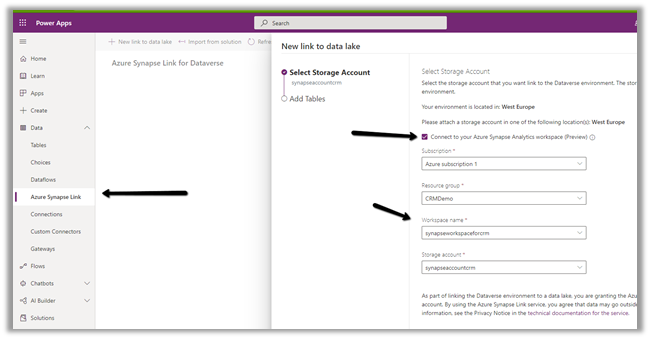
Click on Azure Synapse Link and check the Connect to your Azure Synapse Analytics workspace (preview) and specify the storage account created in the previous step

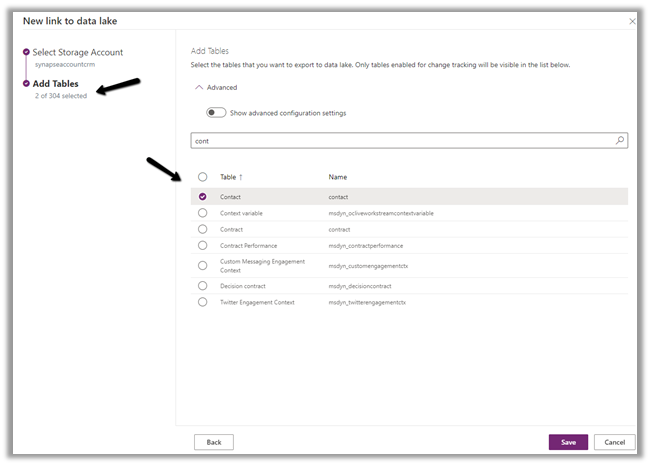
Here we have selected the Contact and System User table for export.

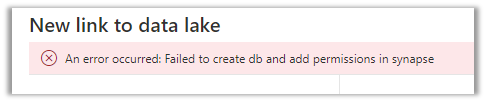
On clicking Save, we got this error couple of times, even though the account being used was Owner across the Azure resources. Trying save 3-4 times more, allowed the link to be created.

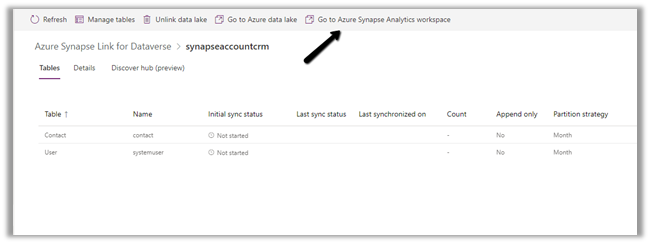
Click on Go to Azure Synapse Analytics workspace, opens the Azure Synapse Studio

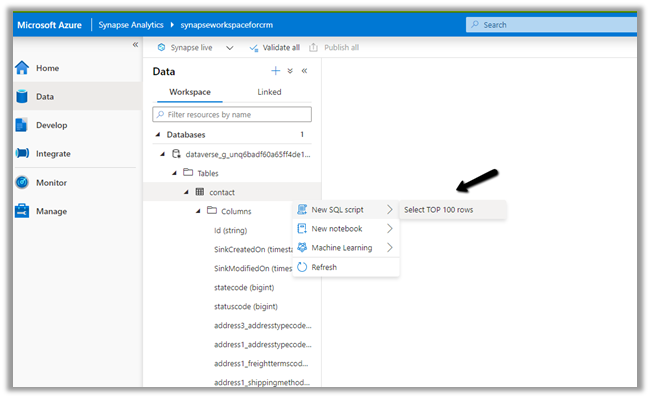
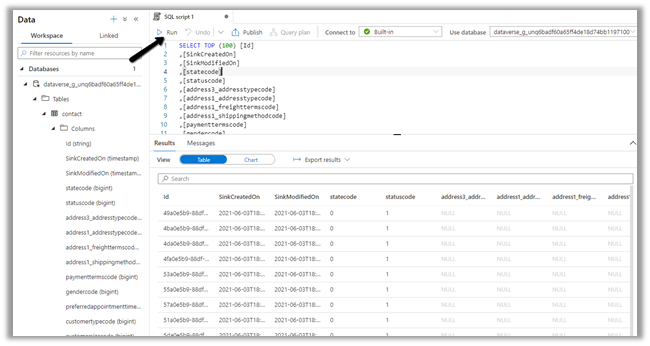
Within Synapse Studio we can see our Dataverse Database and run query.

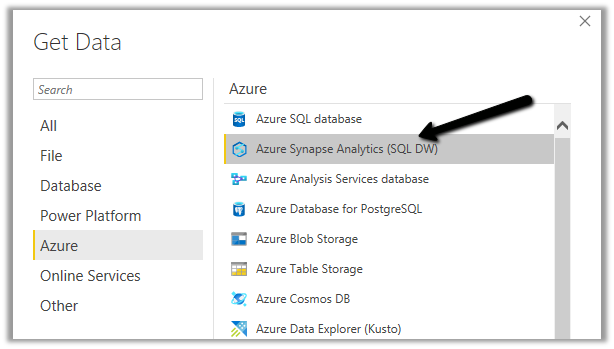
Similarly, we create a Power BI report with Azure Synapse Analytics (SQL DW) connector.

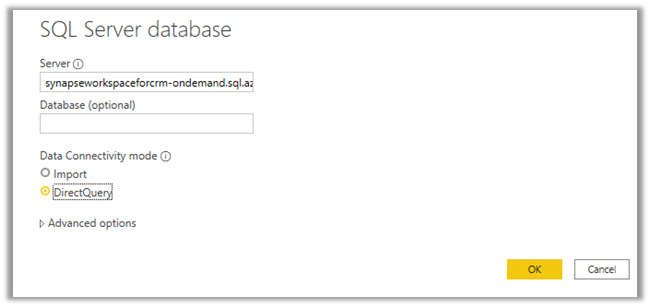
Copy the Serverless SQL endpoint of the Synapse workspace.

Select the Direct Query option.

https://azure.microsoft.com/en-gb/blog/power-your-business-applications-data-with-analytical-and-predictive-insights/

Hope it helps..

Advertisements
How to – improve data migration performance – SSIS & Azure Data Factory (Dataverse / Dynamics 365)


In one of our projects, we were executing SSIS Packages (KingswaySoft’s Dynamics 365 SSIS Integration Toolkit) under Azure-SSIS Integration Runtime in Azure Data Factory.

Check out –

Deploy and run SSIS Package in Azure Data Factory

Deploy and run SSIS Packages that use KingswaySoft’s SSIS Integration Toolkit on Azure Data Factory.

After trying out different combinations, we eventually settled with batch size as 10 and thread as 15.

https://nishantrana.me/2021/06/08/data-migration-optimum-batch-size-and-threads-for-maximum-throughput-microsoft-dataverse-dynamics-365/

Also, we used multiplexing – running the CRM Destination Component under different application users.

To be precise, 4 in our case and we can increase it get further  improvement in the throughput.

And also based on the recommendation of our Microsoft’s Fast Track Architect we raised a Microsoft ticket to increase the number of web servers allocated from 2 to 3.

Below were our findings,

the earlier run was using batch size as 100 and thread as 20 with the number of servers as 2.

On updating the batch size to 10 and thread as 15 and with the number of servers allocated increased to 3, there was a huge performance gain.

Check the table below – 

The above table is sample run in the sandbox environment, during the final run in production we got the number of servers allocated, increased to 6, gaining further improvement.

Also, check out the below blog post to understand about the affinity cookie and its affect on performance, in case if we doing migration using custom code –

https://markcarrington.dev/2021/05/26/improving-bulk-dataverse-performance-with-enableaffinitycookie/

Hope it helps..

Advertisements