Fix- Multiple levels of many-to-one relationship expansion aren’t supported in PowerApps


We would get this error while trying to get the value of a related entity (lookup) through a related entity (lookup) in the current record using the incorrect formula.

For e.g. here Region is a lookup in the Village, which in turn is a lookup in the Product record (ThisItem).

The solution here is to use the LookUp function

Before

After

ThisItem.Village.Region.Name

LookUp(Villages, Village = ThisItem.Village.Village).Region.Name


Search the Villages table, using the GUID of the Village, and fetch the name of the region lookup field in it.

Hope it helps..

Advertisements

Import from Excel / Import Wizard updates Record Created On (overriddencreatedon) – Dynamics 365


When we are creating new records and need the created on field to take the value provided instead of system generated, we can map it to the Record Created On field during Import from Excel option.

In fact in the Import Data Wizard also, although it doesn’t show the Record Created On field for mapping, we can map to Created On field and the behavior will be same. (and in the case of the Import from Excel in the Grid, we do not get the Created On field for mapping)

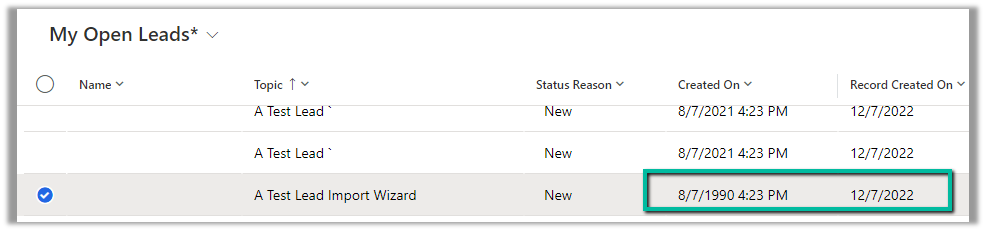
Below is the record we have created through Import Data Wizard, and we can see the values of Created on and Record Created On for it.

Read more –

https://debajmecrm.com/override-createdon-modifiedon-createdby-modifiedby-in-dynamics-365-crm-crm-tips-from-the-vault/

https://nishantrana.me/2018/10/16/using-overriddencreatedon-or-record-created-on-field-to-update-created-on-field-in-dynamics-365/

Hope it helps..


Advertisements

How to – add Contact Insights / Account Insights to the form – Dynamics 365 Marketing


We can see the Account Insights / Contact Insights tab added along with LinkedIn Lead Info on the default lead form (as well as contact/account) after we install Dynamics 365 Marketing.
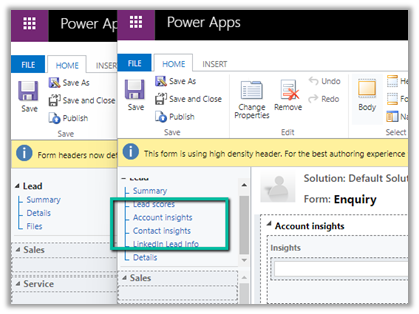
These tabs will be added if you try creating a new form (Main).

But if we have other existing forms (Main), these tabs won’t be added and won’t be available for us to add.

In that case, we need to edit the Form XML to add these sections.

Here we will be adding the Contact Insights tab to one of the existing forms to the Lead.

Using the Form XML Manager (XrmToolBox plugin – developed by my friend Rasheed), get the Form XML of the form where we have the contact insights tab added.

Copy the below details –

Tab – Contact Insights

And the below controlDescription
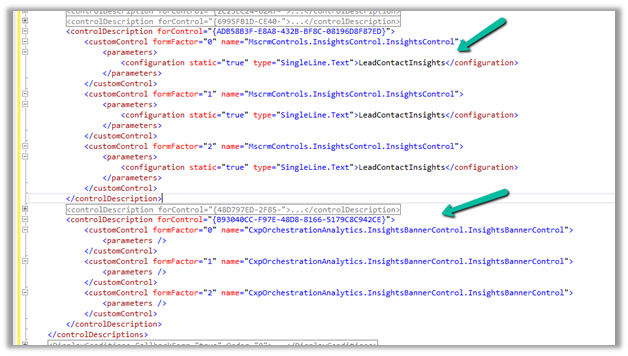
Going back to Form XML Manager, select the form where we want to add the contact insight tab, get its Form XML and add the above details and publish.

We can see the Contact Insights tab added

Similarly, we can Account Insights, and the LinkedIn Lead Info tab as well.

Hope it helps..

	<tab name="contactInsights" id="{AC28F8C9-4498-47C7-8D9B-2FE028CFBDAC}" IsUserDefined="0" locklevel="0" showlabel="true" expanded="true" labelid="{6905336d-985b-4137-a106-31b1dd4e1560}">
			<labels>
				<label description="Contact insights" languagecode="1033" />
			</labels>
			<columns>
				<column width="100%">
					<sections>
						<section name="insights_section" showlabel="false" showbar="false" locklevel="0" id="{2328D81F-CA70-4A20-8B62-DA36756DA7D8}" IsUserDefined="0" layout="varwidth" columns="1" labelwidth="115" celllabelalignment="Left" celllabelposition="Left" labelid="{29474d06-89ea-41ad-a999-9d96dd95c938}">
							<labels>
								<label description="Insights" languagecode="1033" />
							</labels>
							<rows>
								<row>
									<cell rowspan="1" id="{37367a00-f45e-4ae4-a4a4-5ba1023fdc11}" colspan="1" labelid="{e971ab6b-ea22-4543-bbd5-06e50f11f9f1}">
										<labels>
											<label description="" languagecode="1033" />
										</labels>
										<control id="msdynmkt-lead-insights-banner-control" classid="{F9A8A302-114E-466A-B582-6771B2AE0D92}" disabled="false" uniqueid="{B93040CC-F97E-48D8-8166-5179C8C942CE}" isunbound="true">
											<parameters />
										</control>
									</cell>
								</row>
								<row>
									<cell id="{58B703D6-BBA5-4078-9499-1D5A1FB35932}" showlabel="false" locklevel="0" labelid="{db0b8895-c098-45e5-b95f-f85df882f96d}">
										<labels>
											<label description="Insights" languagecode="1033" />
										</labels>
										<control id="LeadContactInsightsCtrl" classid="{F9A8A302-114E-466A-B582-6771B2AE0D92}" datafieldname="msdyncrm_insights_placeholder" disabled="false" uniqueid="{ADB58B3F-E8A8-432B-BF8C-08196D8F87ED}" />
									</cell>
								</row>
							</rows>
						</section>
					</sections>
				</column>
			</columns>
		</tab>
	<controlDescription forControl="{ADB58B3F-E8A8-432B-BF8C-08196D8F87ED}">
			<customControl formFactor="0" name="MscrmControls.InsightsControl.InsightsControl">
				<parameters>
					<configuration static="true" type="SingleLine.Text">LeadContactInsights</configuration>
				</parameters>
			</customControl>
			<customControl formFactor="1" name="MscrmControls.InsightsControl.InsightsControl">
				<parameters>
					<configuration static="true" type="SingleLine.Text">LeadContactInsights</configuration>
				</parameters>
			</customControl>
			<customControl formFactor="2" name="MscrmControls.InsightsControl.InsightsControl">
				<parameters>
					<configuration static="true" type="SingleLine.Text">LeadContactInsights</configuration>
				</parameters>
			</customControl>
		</controlDescription>
		<controlDescription forControl="{48D797ED-2F85-4D89-A329-69C2A1A0E1DD}">
			<customControl formFactor="0" name="MscrmControls.InsightsControl.InsightsControl">
				<parameters>
					<configuration static="true" type="SingleLine.Text">LeadAccountInsights</configuration>
				</parameters>
			</customControl>
			<customControl formFactor="1" name="MscrmControls.InsightsControl.InsightsControl">
				<parameters>
					<configuration static="true" type="SingleLine.Text">LeadAccountInsights</configuration>
				</parameters>
			</customControl>
			<customControl formFactor="2" name="MscrmControls.InsightsControl.InsightsControl">
				<parameters>
					<configuration static="true" type="SingleLine.Text">LeadAccountInsights</configuration>
				</parameters>
			</customControl>
		</controlDescription>
		<controlDescription forControl="{B93040CC-F97E-48D8-8166-5179C8C942CE}">
			<customControl formFactor="0" name="CxpOrchestrationAnalytics.InsightsBannerControl.InsightsBannerControl">
				<parameters />
			</customControl>
			<customControl formFactor="1" name="CxpOrchestrationAnalytics.InsightsBannerControl.InsightsBannerControl">
				<parameters />
			</customControl>
			<customControl formFactor="2" name="CxpOrchestrationAnalytics.InsightsBannerControl.InsightsBannerControl">
				<parameters />
			</customControl>
		</controlDescription>
	</controlDescriptions>
Advertisements

How to – Access Dataverse environment storage using SAS Token


We can access our environment’s storage using a SAS token. 

Download – Azure Storage Explorer – https://azure.microsoft.com/features/storage-explorer/#overview

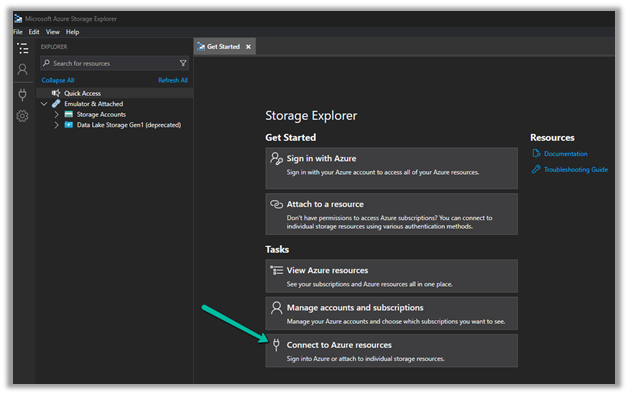
Select Connect to Azure resources option

Select ADLS Gen2 container or directory for the Azure storage type.

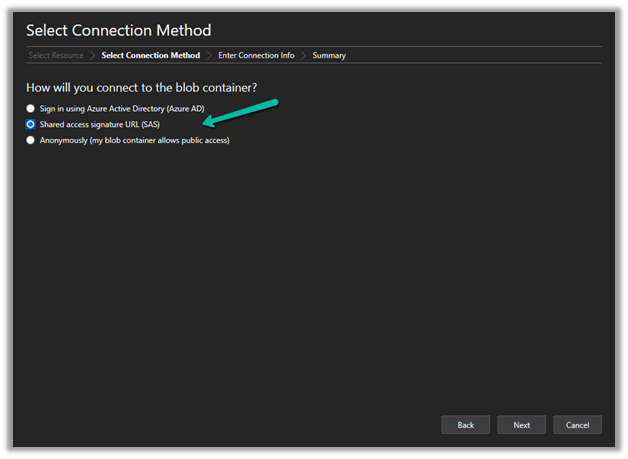
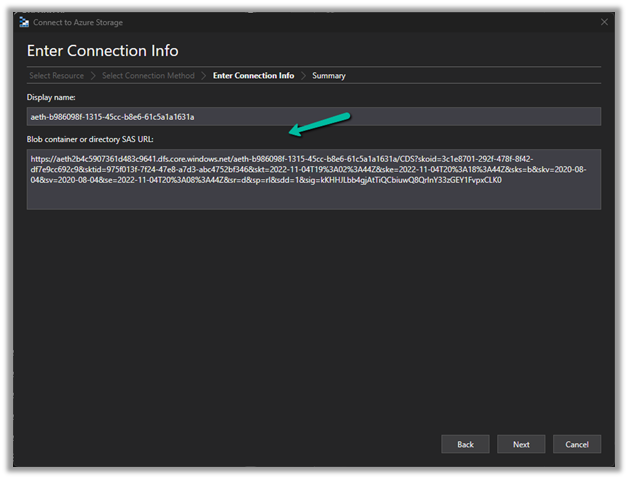
Select the Shared access signature URL for the connection

To get the SAS URL – https://[ContainerURL]/CDS?[SASToken],

we need ContainerURL and SASToken.

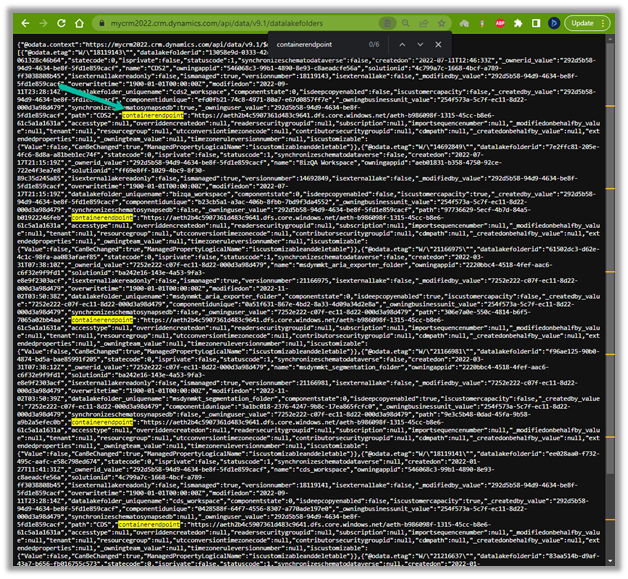
To get Container URL use the below link –

ContainerURL = <a href="https:///api/data/v9.1/datalakefolders”>https://&lt;EnvironmentURL>/api/data/v9.1/datalakefolders

In our case – https://mycrm2022.crm.dynamics.com/api/data/v9.1/datalakefolders

The containerendpoint = https://aeth2b4c5907361d483c9641.dfs.core.windows.net/aeth-b986098f-1315-45cc-b8e6-61c5a1a1631a

Copy the value of containerendpoint (ContainerURL)


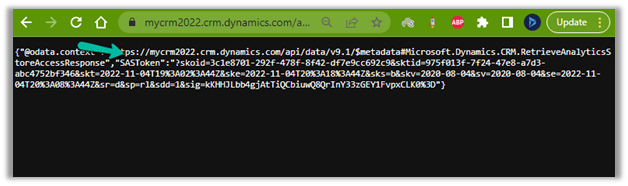
Navigate to the below URL by replacing the value of the Environment URL and Container URL

<a href="https:///api/data/v9.1/RetrieveAnalyticsStoreAccess(Url=@a,ResourceType=’Folder&#8217;,Permissions=’Read,List’)?@a=’/CDS”>https://&lt;EnvironmentURL>/api/data/v9.1/RetrieveAnalyticsStoreAccess(Url=@a,ResourceType=’Folder’,Permissions=’Read,List’)?@a='<ContainerURL>/CDS’

i.e.

https://mycrm2022.crm.dynamics.com/api/data/v9.1/RetrieveAnalyticsStoreAccess(Url=@a,ResourceType=’Folder’,Permissions=’Read,List’)?@a=%27https://aeth2b4c5907361d483c9641.dfs.core.windows.net/aeth-b986098f-1315-45cc-b8e6-61c5a1a1631a/CDS%27

to get the SAS token (the SAS Token will expire after 1 hour)


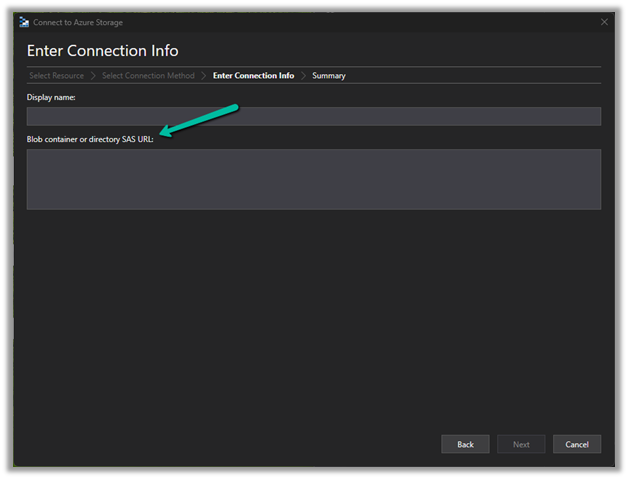
Construct the SAS URL which we will use in the Azure Explorer’s connection info  <a href="https:///CDS?https://<ContainerURL>/CDS?<SASToken&gt;

https://aeth2b4c5907361d483c9641.dfs.core.windows.net/aeth-b986098f-1315-45cc-b8e6-61c5a1a1631a/CDS?skoid=3c1e8701-292f-478f-8f42-df7e9cc692c9&sktid=975f013f-7f24-47e8-a7d3-abc4752bf346&skt=2022-11-04T19%3A02%3A44Z&ske=2022-11-04T20%3A18%3A44Z&sks=b&skv=2020-08-04&sv=2020-08-04&se=2022-11-04T20%3A08%3A44Z&sr=d&sp=rl&sdd=1&sig=kKHHJLbb4gjAtTiQCbiuwQ8QrInY33zGEY1FvpxCLK%03D0

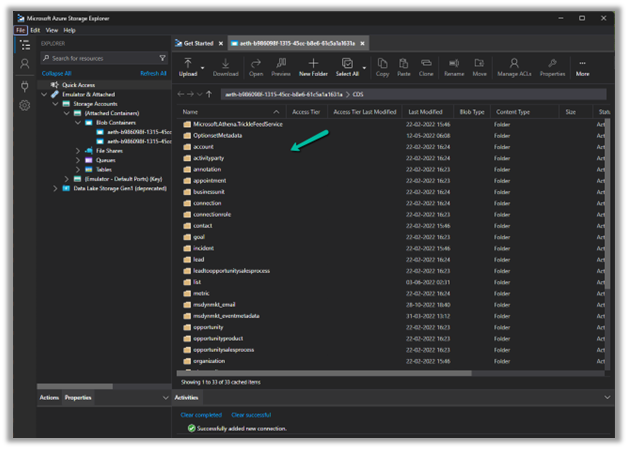
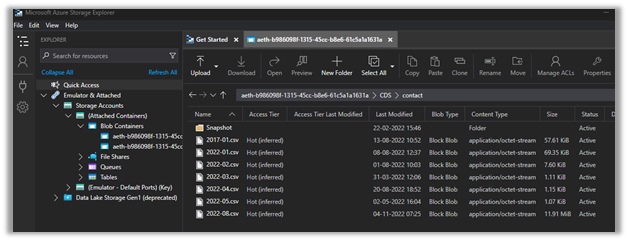
Now we have access to the storage

Here we have opened the contact folder just as an example


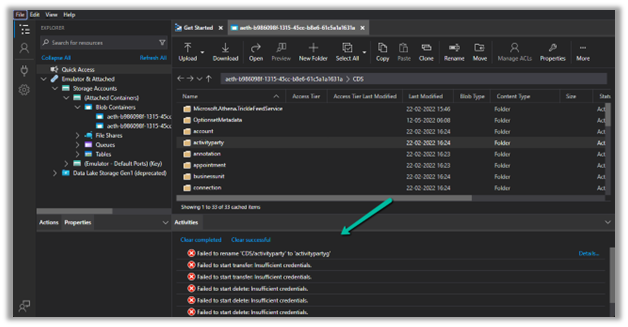
We only have read-only access, any other access like delete, rename, upload, etc. will fail


Get all the details here – https://learn.microsoft.com/en-us/power-platform/admin/storage-sas-token

Hope it helps..

Advertisements

How to – Clone a record in Dataverse / Dynamics 365 (C#)


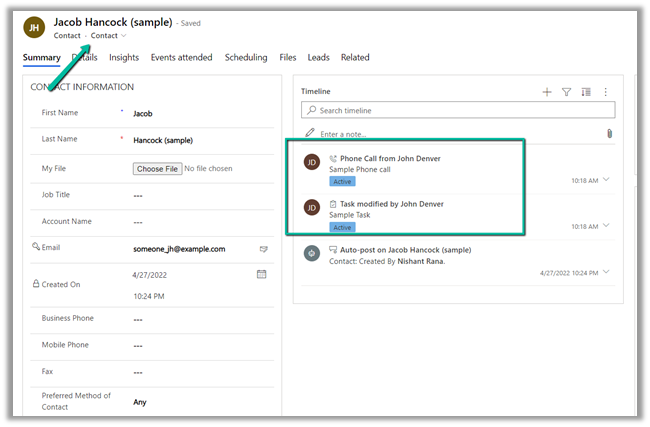
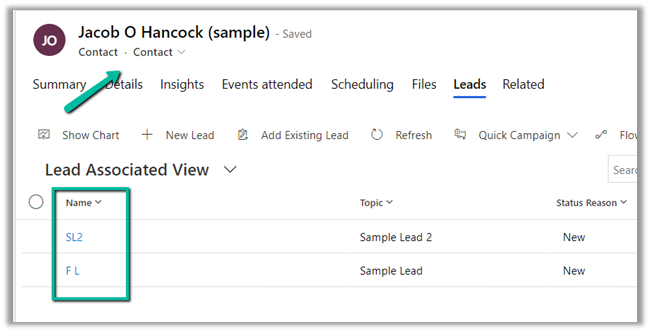
Here we will be cloning the below contact record –

For it, we can make use Clone method of EntityExtensions class

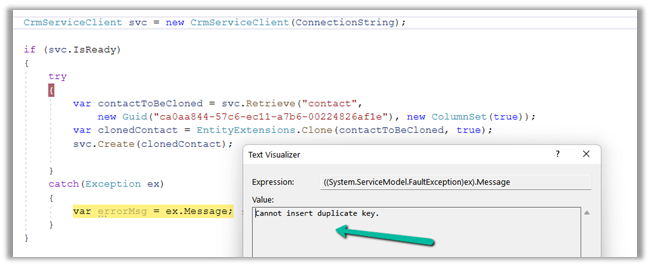
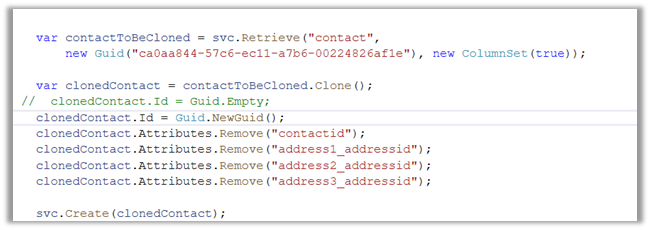
If we run the below code, we will get the “Cannot insert duplicate key” exception.

Because we need to set the ID for the newly cloned record to either empty or a new GUID.

Also, we need to remove the contactid attribute or entity’s id field else we will get the below exception – “Entity Id must be the same as the value set in property bag“

Also if we are retrieving all the attributes we need to make sure we remove those attribute which can cause below unique constraint errors.

Sql error: The operation attempted to insert a duplicate value for an attribute with a unique constraint. CRM ErrorCode: -2147012606 Sql ErrorCode: -2146232060 Sql Number: 2627

In case of contact, we had to remove the address id attributes, to get the record cloned.

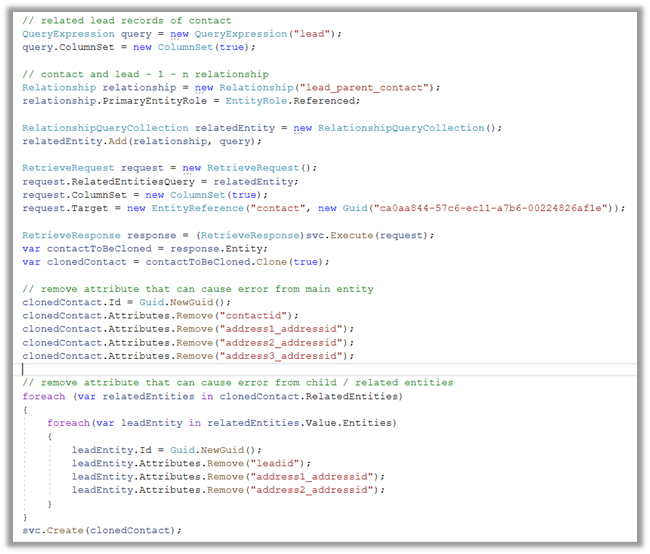
Now let us clone the same contact record with its related leads.

  • Here first we need to retrieve contact along with its associated lead record.
  • Then remove the id attribute that could duplicate issues in the child lead records also.

Please refer the helpful posts –

https://debajmecrm.com/clone-record-dynamics-crm-clone-method/

https://www.inogic.com/blog/2014/08/clone-records-in-dynamics-crm/

https://dyncrmexp.com/2017/10/24/retrieve-primary-entities-along-with-related-entities-with-one-queryexpression/comment-page-1/

https://dynamict.eu/2016/08/09/create-record-with-related-records-in-a-single-request-using-c/

Hope it helps..

 // related lead records of contact
                    QueryExpression query = new QueryExpression("lead");                    
                    query.ColumnSet = new ColumnSet(true);

                    // contact and lead - 1 - n relationship
                    Relationship relationship = new Relationship("lead_parent_contact");
                    relationship.PrimaryEntityRole = EntityRole.Referenced;

                    RelationshipQueryCollection relatedEntity = new RelationshipQueryCollection();
                    relatedEntity.Add(relationship, query);

                    RetrieveRequest request = new RetrieveRequest();
                    request.RelatedEntitiesQuery = relatedEntity;
                    request.ColumnSet = new ColumnSet(true);
                    request.Target = new EntityReference("contact", new Guid("ca0aa844-57c6-ec11-a7b6-00224826af1e"));

                    RetrieveResponse response = (RetrieveResponse)svc.Execute(request);
                    var contactToBeCloned = response.Entity;                   
                    var clonedContact = contactToBeCloned.Clone(true);

                    // remove attribute that can cause error from main entity             
                    clonedContact.Id = Guid.NewGuid();
                    clonedContact.Attributes.Remove("contactid");                    
                    clonedContact.Attributes.Remove("address1_addressid");
                    clonedContact.Attributes.Remove("address2_addressid");
                    clonedContact.Attributes.Remove("address3_addressid");

                    // remove attribute that can cause error from child / related entities
                    foreach (var relatedEntities in clonedContact.RelatedEntities)
                    {
                        foreach(var leadEntity in relatedEntities.Value.Entities)
                        {
                            leadEntity.Id = Guid.NewGuid();
                            leadEntity.Attributes.Remove("leadid");
                            leadEntity.Attributes.Remove("address1_addressid");
                            leadEntity.Attributes.Remove("address2_addressid");
                        }
                    }
                    svc.Create(clonedContact);
Advertisements

Environment Variable referencing Azure Key Vault secrets (Dataverse / Power Platform)


Check out the below articles –

https://docs.microsoft.com/en-us/power-apps/maker/data-platform/environmentvariables#use-azure-key-vault-secrets-preview

Within plugin – https://itmustbecode.com/azure-key-vault-secrets-in-dataverse/

Within Power Automate – https://www.msautomate.com/2022/06/16/azure-keyvault-and-power-automate/

https://powerapps.microsoft.com/en-us/blog/how-to-use-environment-variables-with-akv-secrets-in-the-ci-cd-pipeline-when-deploying-applications/

https://blog.yannickreekmans.be/environment-variable-secrets-azure-key-vault-improvement/

Advertisements