Use Command checker (ribbondebug=true) to identify the Ribbon Customizations Issue – Dataverse / Dynamics 365


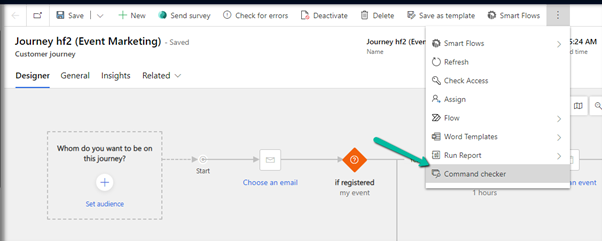
Appending ribbondebug=true to the record’s URL adds the new Command checker button in the command bar, which could help us in troubleshooting any unexpected behavior with ribbon.

More on this – https://powerapps.microsoft.com/en-us/blog/introducing-command-checker-for-model-app-ribbons/

Recently we added one enable rule to an existing button (Go Live) in the Customer Journey table. The rule was calling a JavaScript web resource based on the security role assigned to the user hiding or showing the button on the form.

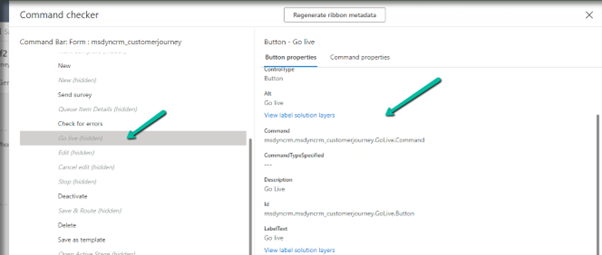
Click on the Command checker to open the window on the side pane, where we can then select our button.

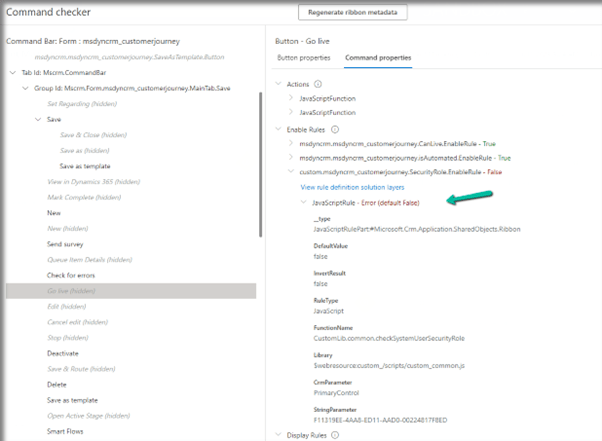
In the command properties tab, we can see our custom enable rule showing an error.

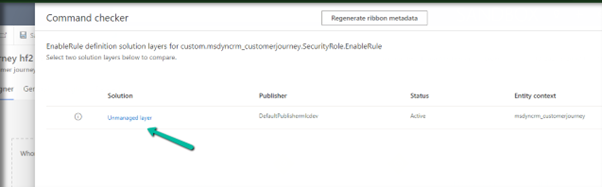
Also here clicking in View rule definition solution layers provides us the detail that this rule has been added as part of an unmanaged layer.

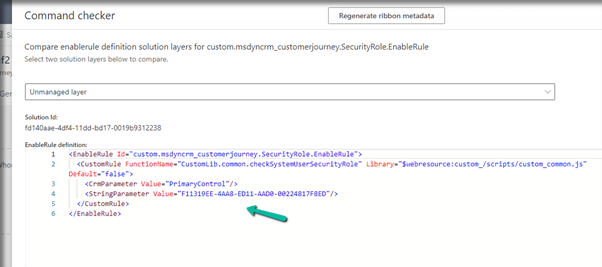
Clicking on the Unmanaged layer further provides us with the definition of the enable rule.

Going back to the error, we figured out that the function was missing from the web resource, and adding the function fixed the issue for us.

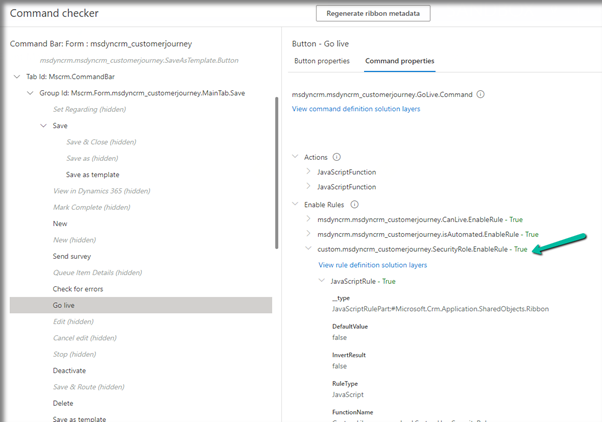
Back in the Command checker, we can see the custom Enable Rule getting evaluated correctly.

Check the Troubleshooting Guide

Hope it helps..

Advertisements

Fixed – The product cannot be added because it is not active while creating Quote Product – Dynamics 365 / Dataverse


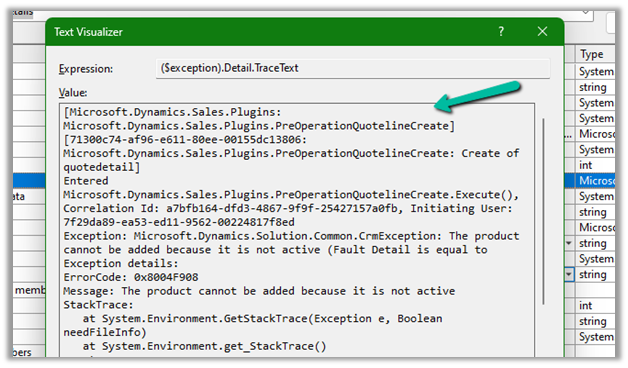
We got the below error while trying to create a quote product programmatically.

As the error message specifies, this is because we are trying to add/associate a DRAFT product to the Quote Product.

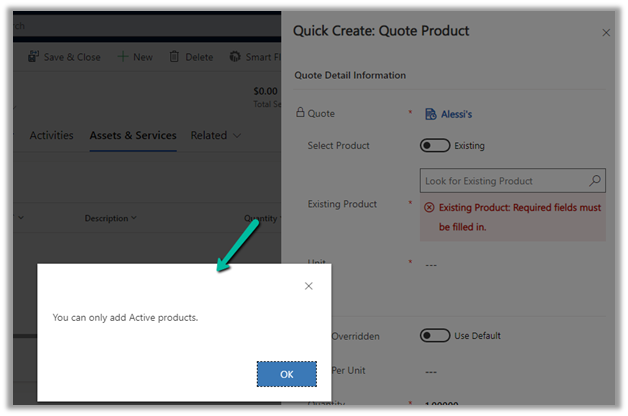
We will get a similar error from the application as well if we try adding a draft product as an existing product to either a quote product or an opportunity product.

Below is the product in the Draft status.

Publish the product to make it Active.

Hope it helps..


Advertisements
Retrieve primary entities along with related entities with one QueryExpression


Retrieve related records for a parent record

It’s possible to get related records of  a relationship when we retrieve a parent record using RelatedEntitiesQuery property in the RetrieveRequest. That means you have to construct the RetrieveRequest not using the Retrieve method from the OrganizationServiceProxy class.

https://dyncrmexp.com/2017/10/24/retrieve-primary-entities-along-with-related-entities-with-one-queryexpression/comment-page-1/

by Khoa Nguyen
Advertisements

InvalidPluginExecutionException error dialog not showing up – Dynamis 365 / Dataverse


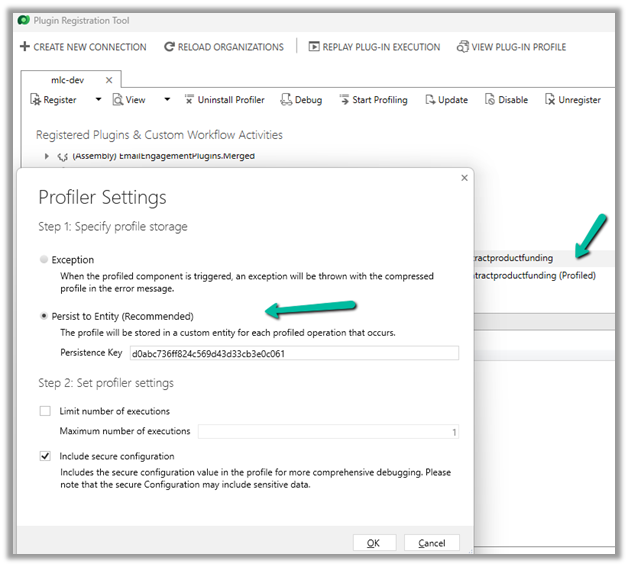
One of the reasons why throwing the InvalidPluginExecutionException doesn’t show up error dialog could be that you would have Profiled that step with profile storage as Persist to Entity.


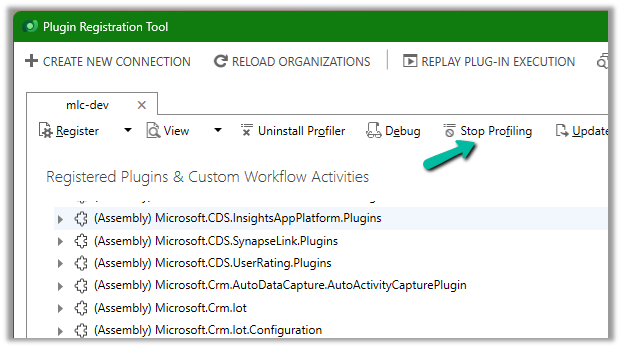
Stop Profiling and it should work as expected.

error

Check for more details on InvalidPluginExecutionException

https://learn.microsoft.com/en-us/power-apps/developer/data-platform/handle-exceptions#cancelling-the-current-operation

https://learn.microsoft.com/en-us/power-apps/developer/data-platform/best-practices/business-logic/use-invalidpluginexecutionexception-plugin-workflow-activities

Hope it helps..

Advertisements

Fixed –Web resource method does not exist in Dynamics 365 / Dataverse


We might get this error while working with Web resource of type JavaScript.

Either it could be because the method doesn’t exist or it could be because of the incorrect syntax.

For a small file, it is easy to figure out, but for a large file, we could use online validator tools like

Fix the syntax error, upload and publish the file and the error should get fixed.

Hope it helps..

Advertisements
Fix- Multiple levels of many-to-one relationship expansion aren’t supported in PowerApps


We would get this error while trying to get the value of a related entity (lookup) through a related entity (lookup) in the current record using the incorrect formula.

For e.g. here Region is a lookup in the Village, which in turn is a lookup in the Product record (ThisItem).

The solution here is to use the LookUp function

Before

After

ThisItem.Village.Region.Name

LookUp(Villages, Village = ThisItem.Village.Village).Region.Name


Search the Villages table, using the GUID of the Village, and fetch the name of the region lookup field in it.

Hope it helps..

Advertisements