How to – Extend (Recover) the trial environment (Dataverse / Dynamics 365)


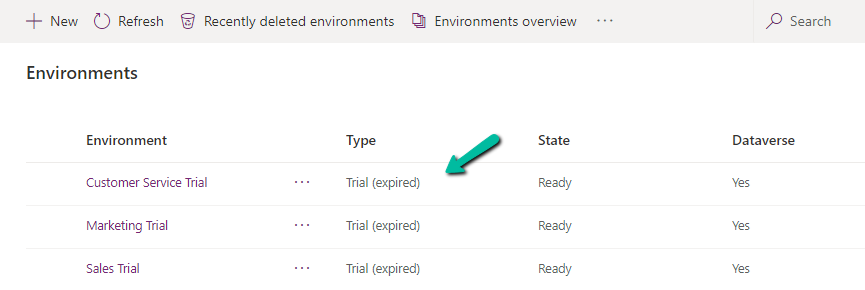
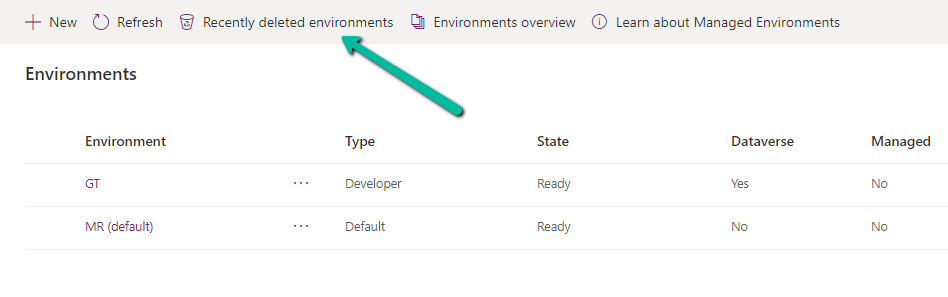
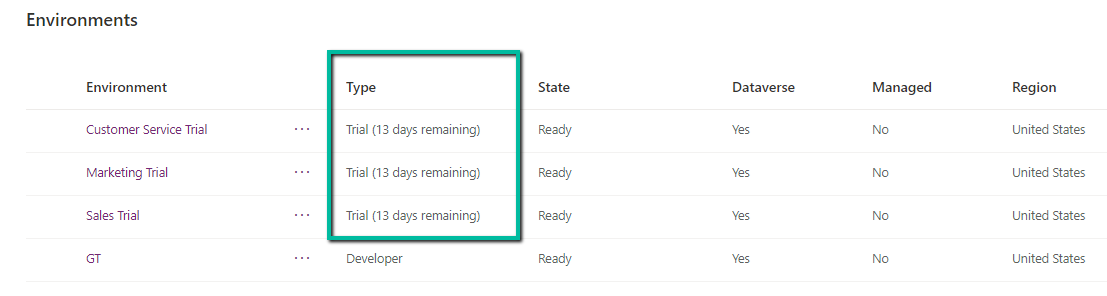
On logging into Power Platform Admin Center, we would see our trial environment as expired

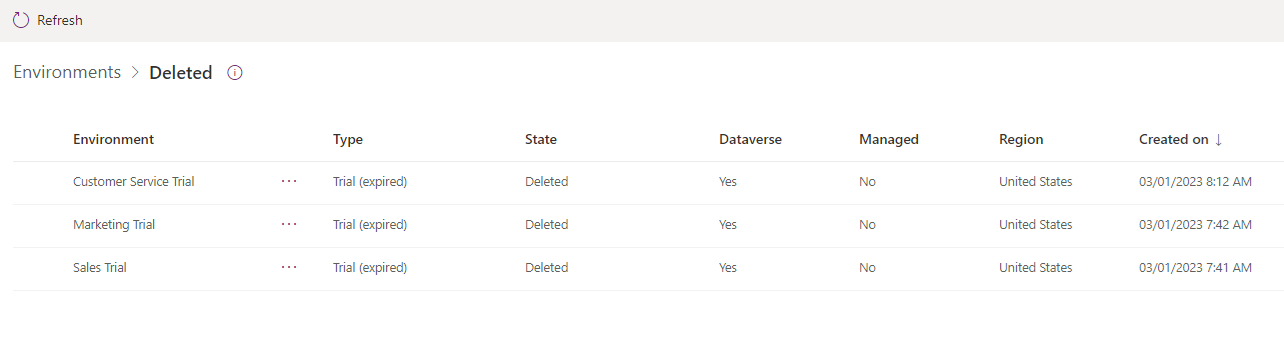
And then within one day or so, we would see them deleted inside Recently deleted environments

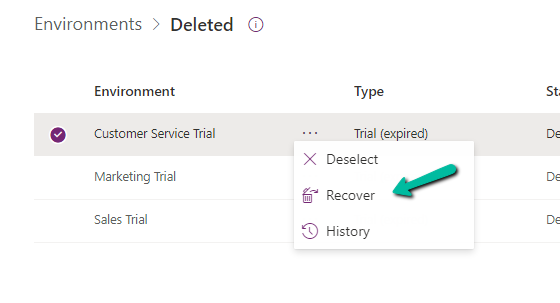
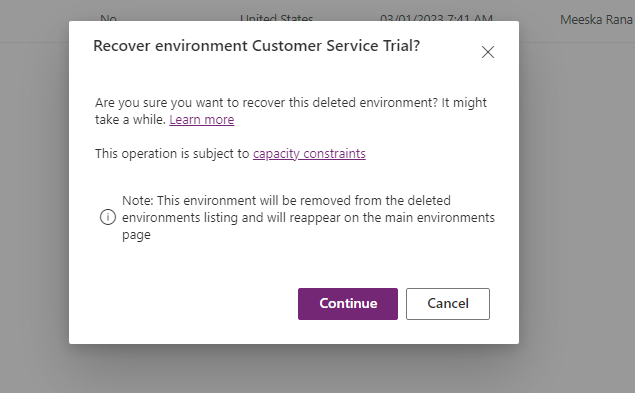
Select the deleted environment and Select Recover

Within 10 -15 minutes we can see the environment recovered with the trial extended for 13 more days.

Hope it helps..
Manage Security Roles using the new modern UI (preview) – Power Platform Admin Center


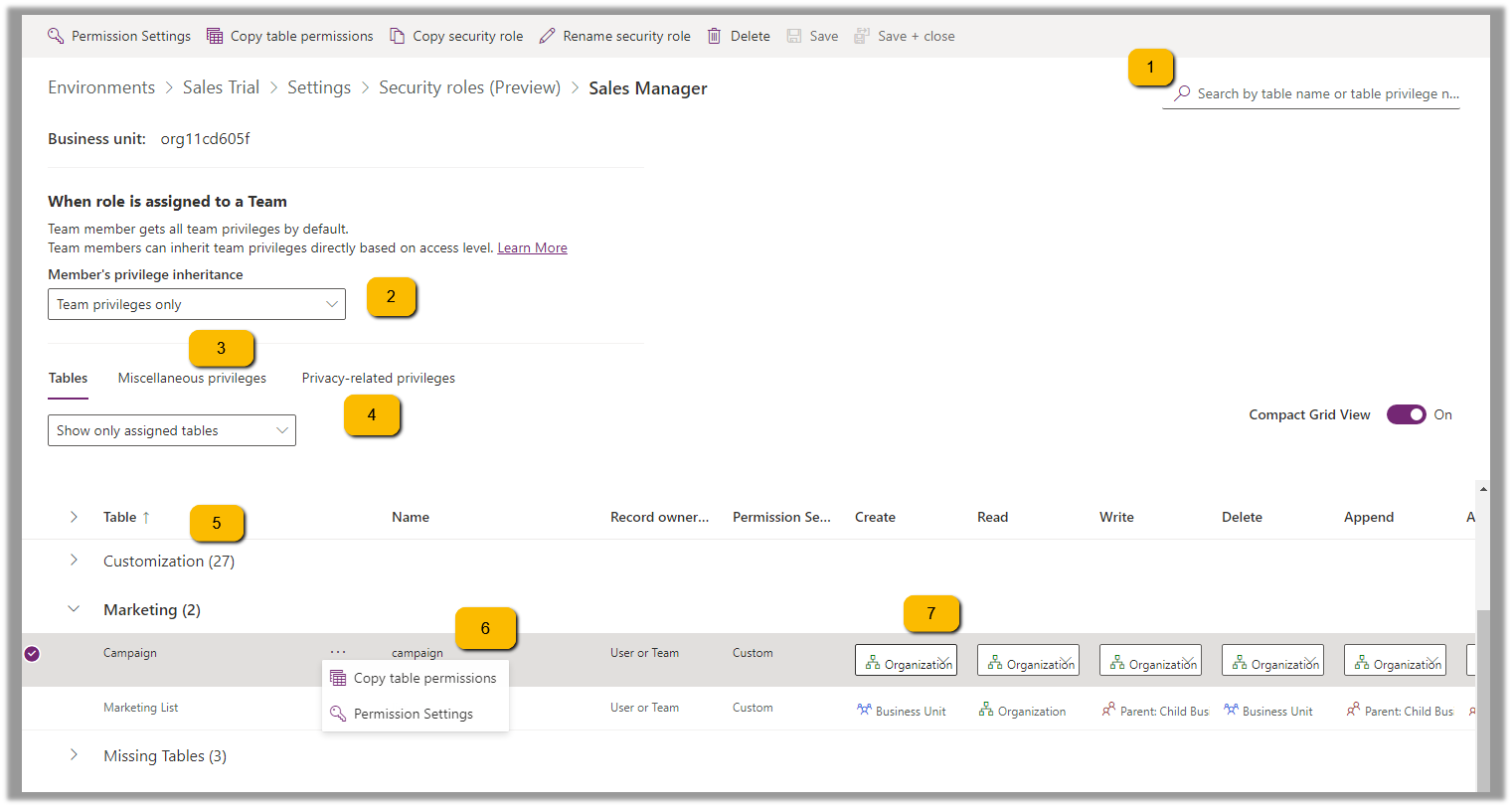
Security roles can be now managed using the new modern UI (preview).

Select Security Roles (See all) for an environment, within Power Platform Admin Center.

Select Edit for a security role.

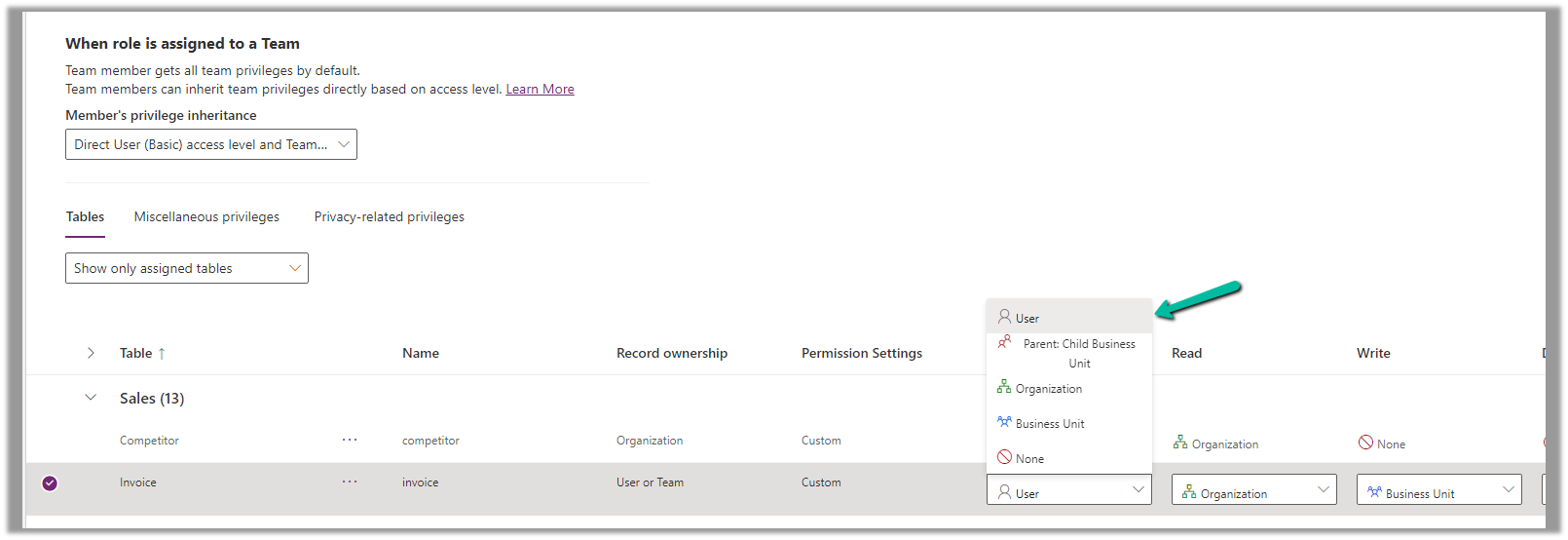
We can see here Display only parent security roles option is On by default.

We can see the different options.

  1. Filter based on table or privileges

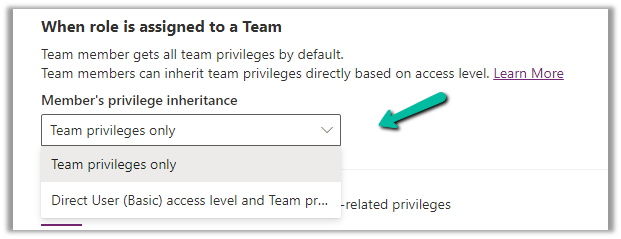
2. Specify Member’s privilege inheritance option

https://learn.microsoft.com/en-us/power-platform/admin/security-roles-privileges#define-the-privileges-and-properties-of-a-security-role

Nicely explained here –

https://debajmecrm.com/team-members-privilege-inheritance-what-is-this-doing-in-security-role-screen-of-dynamics-365/

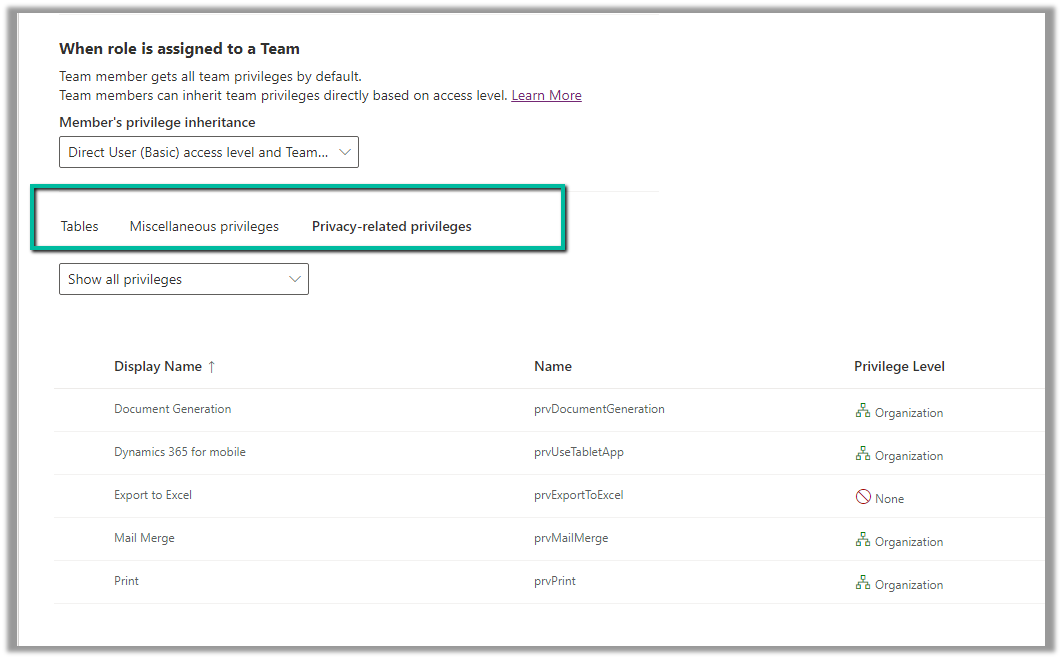
3. Tabs for Table specific, Miscellaneous, and Privacy-related privileges

4. Filter privileges further by all, assigned or unassigned.

5. Collapsible

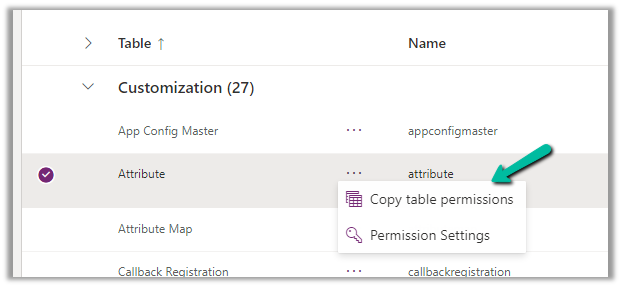
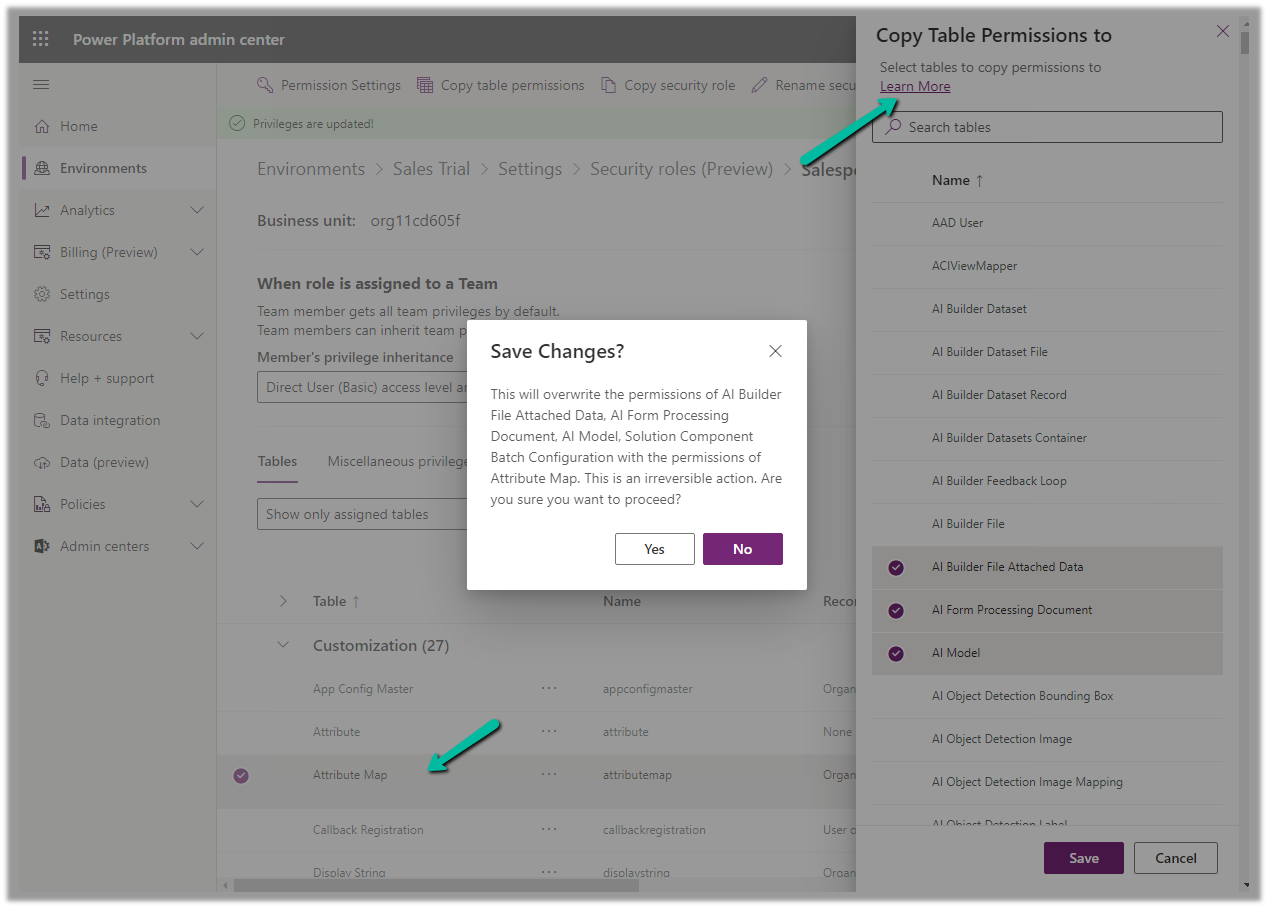
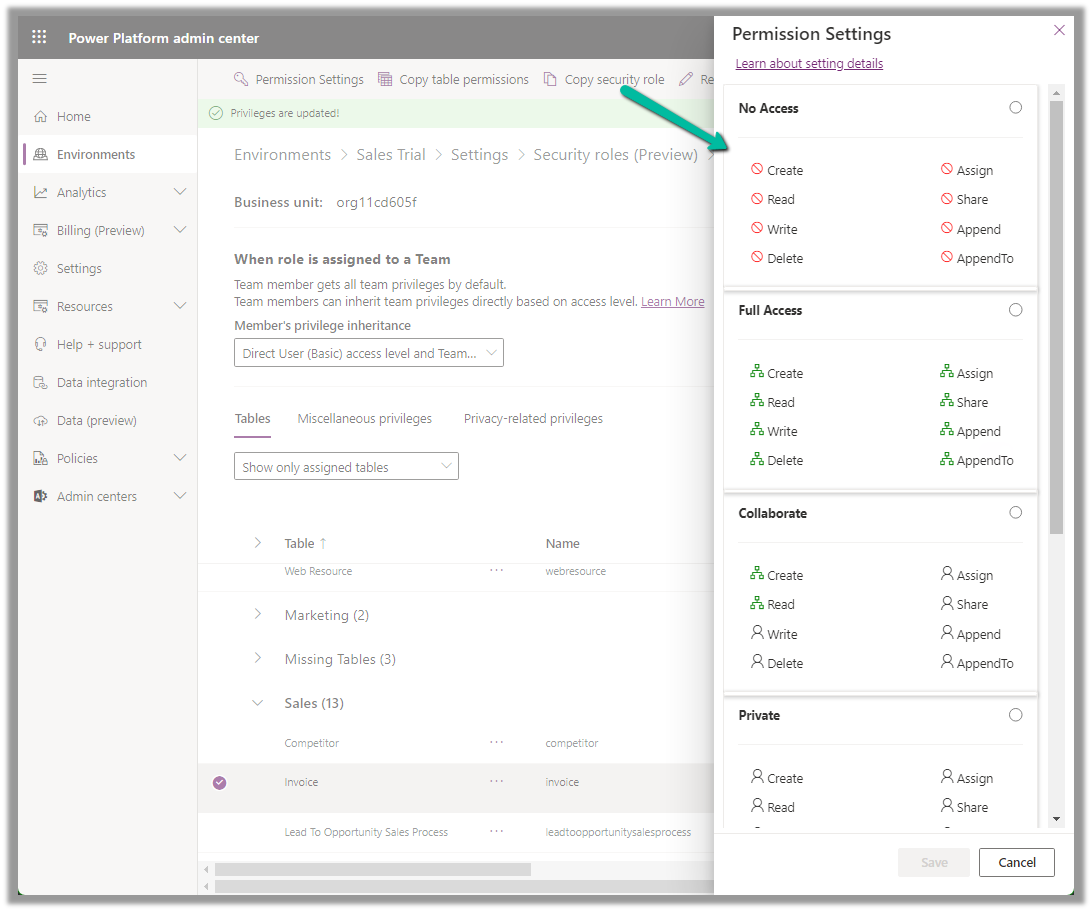
6. Option to Copy Table Permission to another table(s) and apply predefined Permission Settings i.e. Access Levels.

Copy table permissions to multiple tables

Permission Settings (Access Levels)

7. Specify Access Level for Privileges

Get all the details here – Security Roles and new modern UI

Hope it helps..

Advertisements

Calculated Column inside Plugin? – Dataverse / Dynamics 365


Recently while working on a plugin, we realized that for a particular column, we were not getting value in the context (on Post Create), the same was the case for Post Update and Post Image.

Also using Retrieve and RetrieveMultipleto fetch its value inside the Plugin didn’t work

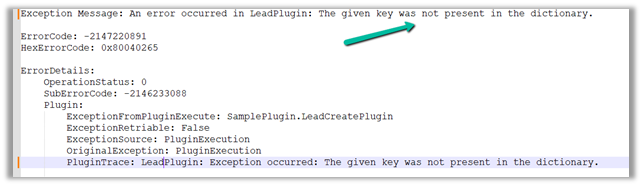
Eventually, we realized it was a calculated column, which doesn’t give value inside the Plugin.

If we do RetrieveMultiple and RetrieveMultiple from a console app, outside Plugin, we get the value for that field.

Hope it helps..

 

Advertisements

Unable to install the Profiler. Unhandled Exception: System.InvalidCastException: Unable to cast object of type ‘Microsoft.Xrm.Sdk.Entity’ to type ‘CrmSdk.PluginType’ in Dynamics 365 / Dataverse


We might get the below error while trying to install the profiler in the Plugin Registration Tool.

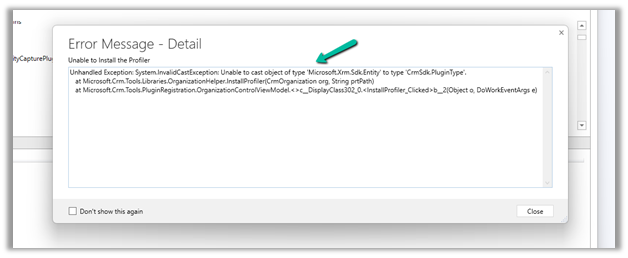
“Unable to Install the profiler”

“Unhandled Exception: System.InvalidCastException: Unable to cast object of type ‘Microsoft.Xrm.Sdk.Entity’ to type ‘CrmSdk.PluginType’. at Microsoft.Crm.Tools.Libraries.OrganizationHelper.InstallProfiler(CrmOrganization org, String prtPath) at Microsoft.Crm.Tools.PluginRegistration.OrganizationControlViewModel.<>c__DisplayClass302_0.<InstallProfiler_Clicked>b__2(Object o, DoWorkEventArgs e)”

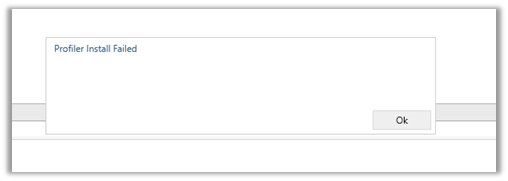
On closing the window we will get the below message “Profiler install failed”

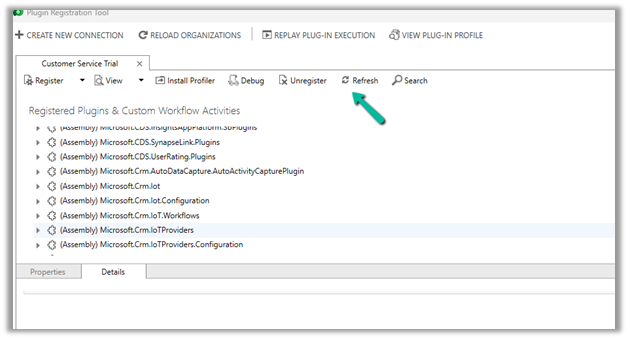
Well we can ignore this error, just click on Refresh

After the refresh is completed,

we can see that the profiler has got installed successfully, even though we got the error.

Hope it helps..
 

Advertisements

Plugin registration profile record not getting created – Dataverse / Dynamics 365


Recently while trying to debug a plugin with Persist to Entity mode on the update step, we didn’t find any profile record getting created.

One option is to try to reinstall the profiler. This could happen when we are using a different version of the plugin registration tool and it has the Profiler already installed/configured from the other version of the tool.

If that doesn’t help, then opt for Exception mode, that has always worked.

Hope it helps..

Advertisements

How to – enable marketing interactions in lead and contact timeline – Dynamics 365 Marketing


To view marketing interactions, we need to add a custom connector to the timeline of the lead and the contact form. This step is only required if we are using custom forms and not the out-the-box marketing forms for lead and contact.

The OOB Form already has this connector defined.

Open the form for customization, select the timeline control, scroll down to Advanced >> Additional Settings >> Custom connectors, and click on Add connector.

Specify Constructor and Resource Path and save the record.

  • Constructor: msdynmkt_DynamicsMktTimelineInteractionAnalytics.TimelineInteractionAnalyticsResource
  • Resource path: msdynmkt_DynamicsMktTimelineInteractionAnalytics

Save the form and publish it.

We can see the marketing interactions being displayed in the timeline.

Hope it helps..

Advertisements