InvalidPluginExecutionException error dialog not showing up – Dynamis 365 / Dataverse


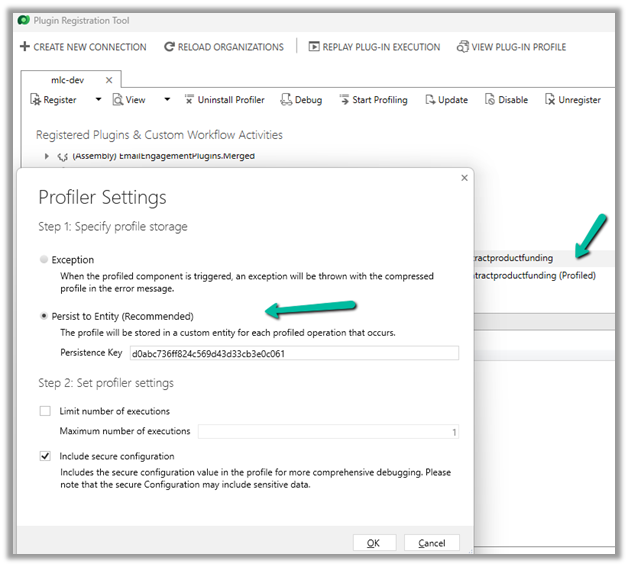
One of the reasons why throwing the InvalidPluginExecutionException doesn’t show up error dialog could be that you would have Profiled that step with profile storage as Persist to Entity.


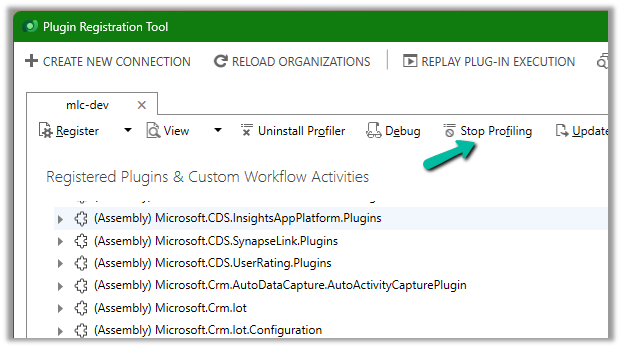
Stop Profiling and it should work as expected.

error

Check for more details on InvalidPluginExecutionException

https://learn.microsoft.com/en-us/power-apps/developer/data-platform/handle-exceptions#cancelling-the-current-operation

https://learn.microsoft.com/en-us/power-apps/developer/data-platform/best-practices/business-logic/use-invalidpluginexecutionexception-plugin-workflow-activities

Hope it helps..

Advertisements

Fixed –Web resource method does not exist in Dynamics 365 / Dataverse


We might get this error while working with Web resource of type JavaScript.

Either it could be because the method doesn’t exist or it could be because of the incorrect syntax.

For a small file, it is easy to figure out, but for a large file, we could use online validator tools like

Fix the syntax error, upload and publish the file and the error should get fixed.

Hope it helps..

Advertisements

Fix- Multiple levels of many-to-one relationship expansion aren’t supported in PowerApps


We would get this error while trying to get the value of a related entity (lookup) through a related entity (lookup) in the current record using the incorrect formula.

For e.g. here Region is a lookup in the Village, which in turn is a lookup in the Product record (ThisItem).

The solution here is to use the LookUp function

Before

After

ThisItem.Village.Region.Name

LookUp(Villages, Village = ThisItem.Village.Village).Region.Name


Search the Villages table, using the GUID of the Village, and fetch the name of the region lookup field in it.

Hope it helps..

Advertisements

Import from Excel / Import Wizard updates Record Created On (overriddencreatedon) – Dynamics 365


When we are creating new records and need the created on field to take the value provided instead of system generated, we can map it to the Record Created On field during Import from Excel option.

In fact in the Import Data Wizard also, although it doesn’t show the Record Created On field for mapping, we can map to Created On field and the behavior will be same. (and in the case of the Import from Excel in the Grid, we do not get the Created On field for mapping)

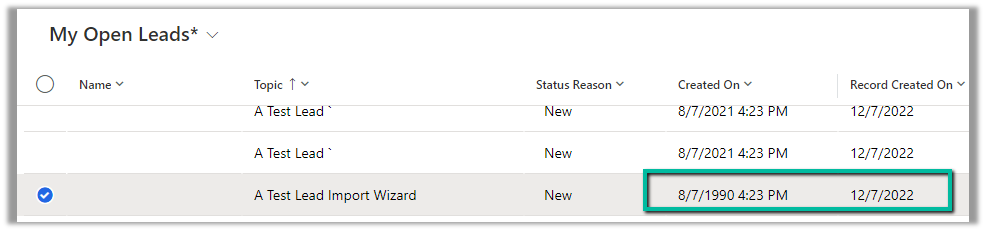
Below is the record we have created through Import Data Wizard, and we can see the values of Created on and Record Created On for it.

Read more –

https://debajmecrm.com/override-createdon-modifiedon-createdby-modifiedby-in-dynamics-365-crm-crm-tips-from-the-vault/

https://nishantrana.me/2018/10/16/using-overriddencreatedon-or-record-created-on-field-to-update-created-on-field-in-dynamics-365/

Hope it helps..


Advertisements

How to – add Contact Insights / Account Insights to the form – Dynamics 365 Marketing


We can see the Account Insights / Contact Insights tab added along with LinkedIn Lead Info on the default lead form (as well as contact/account) after we install Dynamics 365 Marketing.
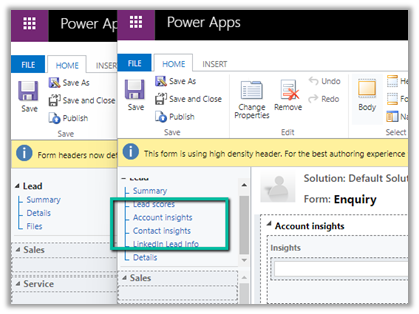
These tabs will be added if you try creating a new form (Main).

But if we have other existing forms (Main), these tabs won’t be added and won’t be available for us to add.

In that case, we need to edit the Form XML to add these sections.

Here we will be adding the Contact Insights tab to one of the existing forms to the Lead.

Using the Form XML Manager (XrmToolBox plugin – developed by my friend Rasheed), get the Form XML of the form where we have the contact insights tab added.

Copy the below details –

Tab – Contact Insights

And the below controlDescription
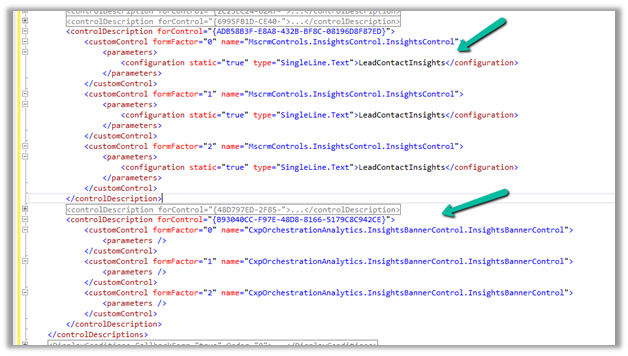
Going back to Form XML Manager, select the form where we want to add the contact insight tab, get its Form XML and add the above details and publish.

We can see the Contact Insights tab added

Similarly, we can Account Insights, and the LinkedIn Lead Info tab as well.

Hope it helps..

	<tab name="contactInsights" id="{AC28F8C9-4498-47C7-8D9B-2FE028CFBDAC}" IsUserDefined="0" locklevel="0" showlabel="true" expanded="true" labelid="{6905336d-985b-4137-a106-31b1dd4e1560}">
			<labels>
				<label description="Contact insights" languagecode="1033" />
			</labels>
			<columns>
				<column width="100%">
					<sections>
						<section name="insights_section" showlabel="false" showbar="false" locklevel="0" id="{2328D81F-CA70-4A20-8B62-DA36756DA7D8}" IsUserDefined="0" layout="varwidth" columns="1" labelwidth="115" celllabelalignment="Left" celllabelposition="Left" labelid="{29474d06-89ea-41ad-a999-9d96dd95c938}">
							<labels>
								<label description="Insights" languagecode="1033" />
							</labels>
							<rows>
								<row>
									<cell rowspan="1" id="{37367a00-f45e-4ae4-a4a4-5ba1023fdc11}" colspan="1" labelid="{e971ab6b-ea22-4543-bbd5-06e50f11f9f1}">
										<labels>
											<label description="" languagecode="1033" />
										</labels>
										<control id="msdynmkt-lead-insights-banner-control" classid="{F9A8A302-114E-466A-B582-6771B2AE0D92}" disabled="false" uniqueid="{B93040CC-F97E-48D8-8166-5179C8C942CE}" isunbound="true">
											<parameters />
										</control>
									</cell>
								</row>
								<row>
									<cell id="{58B703D6-BBA5-4078-9499-1D5A1FB35932}" showlabel="false" locklevel="0" labelid="{db0b8895-c098-45e5-b95f-f85df882f96d}">
										<labels>
											<label description="Insights" languagecode="1033" />
										</labels>
										<control id="LeadContactInsightsCtrl" classid="{F9A8A302-114E-466A-B582-6771B2AE0D92}" datafieldname="msdyncrm_insights_placeholder" disabled="false" uniqueid="{ADB58B3F-E8A8-432B-BF8C-08196D8F87ED}" />
									</cell>
								</row>
							</rows>
						</section>
					</sections>
				</column>
			</columns>
		</tab>
	<controlDescription forControl="{ADB58B3F-E8A8-432B-BF8C-08196D8F87ED}">
			<customControl formFactor="0" name="MscrmControls.InsightsControl.InsightsControl">
				<parameters>
					<configuration static="true" type="SingleLine.Text">LeadContactInsights</configuration>
				</parameters>
			</customControl>
			<customControl formFactor="1" name="MscrmControls.InsightsControl.InsightsControl">
				<parameters>
					<configuration static="true" type="SingleLine.Text">LeadContactInsights</configuration>
				</parameters>
			</customControl>
			<customControl formFactor="2" name="MscrmControls.InsightsControl.InsightsControl">
				<parameters>
					<configuration static="true" type="SingleLine.Text">LeadContactInsights</configuration>
				</parameters>
			</customControl>
		</controlDescription>
		<controlDescription forControl="{48D797ED-2F85-4D89-A329-69C2A1A0E1DD}">
			<customControl formFactor="0" name="MscrmControls.InsightsControl.InsightsControl">
				<parameters>
					<configuration static="true" type="SingleLine.Text">LeadAccountInsights</configuration>
				</parameters>
			</customControl>
			<customControl formFactor="1" name="MscrmControls.InsightsControl.InsightsControl">
				<parameters>
					<configuration static="true" type="SingleLine.Text">LeadAccountInsights</configuration>
				</parameters>
			</customControl>
			<customControl formFactor="2" name="MscrmControls.InsightsControl.InsightsControl">
				<parameters>
					<configuration static="true" type="SingleLine.Text">LeadAccountInsights</configuration>
				</parameters>
			</customControl>
		</controlDescription>
		<controlDescription forControl="{B93040CC-F97E-48D8-8166-5179C8C942CE}">
			<customControl formFactor="0" name="CxpOrchestrationAnalytics.InsightsBannerControl.InsightsBannerControl">
				<parameters />
			</customControl>
			<customControl formFactor="1" name="CxpOrchestrationAnalytics.InsightsBannerControl.InsightsBannerControl">
				<parameters />
			</customControl>
			<customControl formFactor="2" name="CxpOrchestrationAnalytics.InsightsBannerControl.InsightsBannerControl">
				<parameters />
			</customControl>
		</controlDescription>
	</controlDescriptions>
Advertisements

How to – Access Dataverse environment storage using SAS Token


We can access our environment’s storage using a SAS token. 

Download – Azure Storage Explorerhttps://azure.microsoft.com/features/storage-explorer/#overview

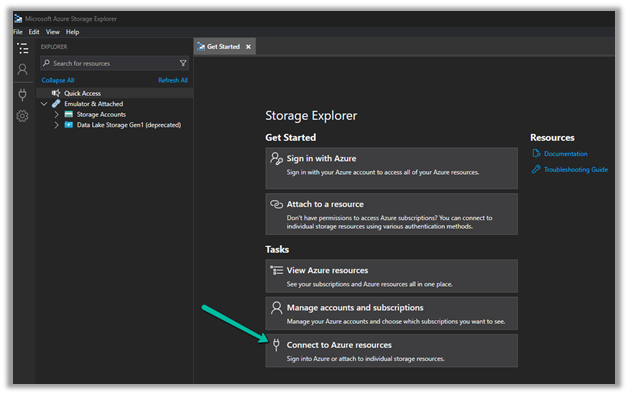
Select Connect to Azure resources option

Select ADLS Gen2 container or directory for the Azure storage type.

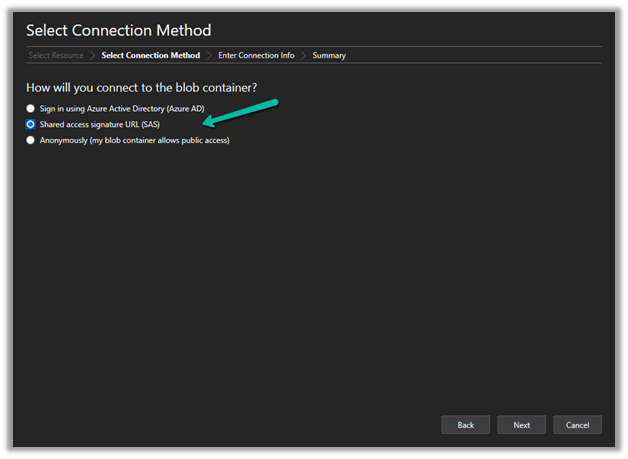
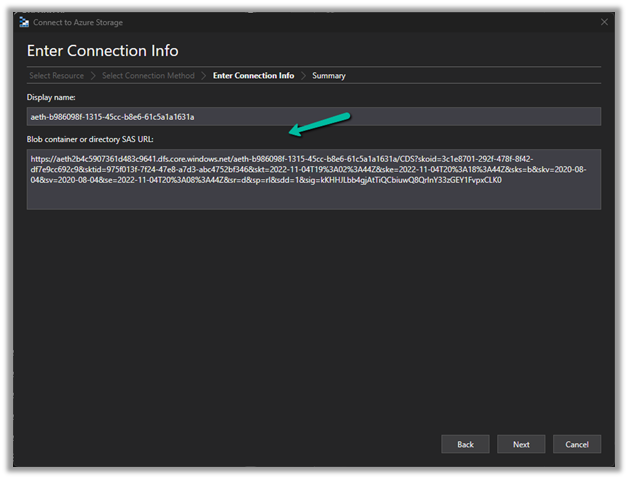
Select the Shared access signature URL for the connection

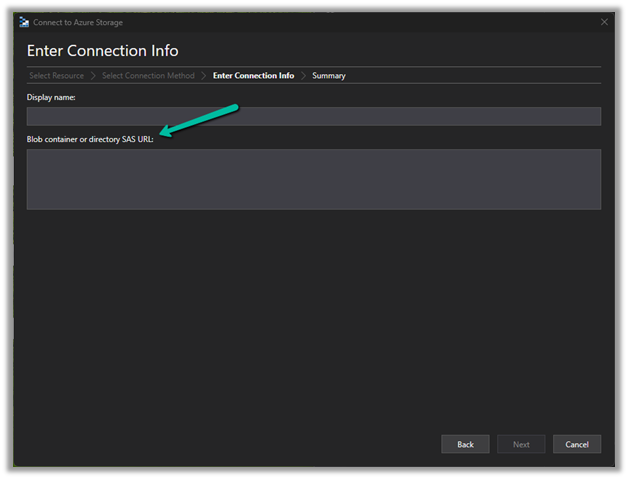
To get the SAS URLhttps://[ContainerURL]/CDS?[SASToken],

we need ContainerURL and SASToken.

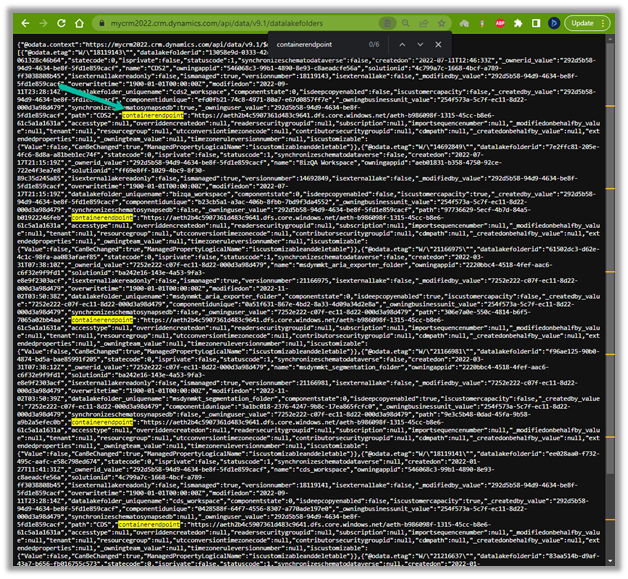
To get Container URL use the below link –

ContainerURL = <a href="https:///api/data/v9.1/datalakefolders”>https://&lt;EnvironmentURL>/api/data/v9.1/datalakefolders

In our case – https://mycrm2022.crm.dynamics.com/api/data/v9.1/datalakefolders

The containerendpoint = https://aeth2b4c5907361d483c9641.dfs.core.windows.net/aeth-b986098f-1315-45cc-b8e6-61c5a1a1631a

Copy the value of containerendpoint (ContainerURL)


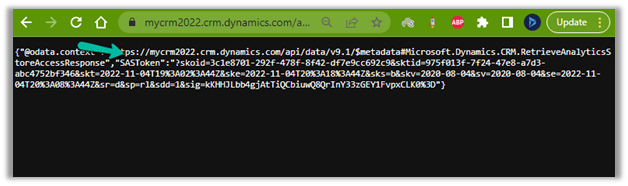
Navigate to the below URL by replacing the value of the Environment URL and Container URL

<a href="https:///api/data/v9.1/RetrieveAnalyticsStoreAccess(Url=@a,ResourceType=’Folder&#8217;,Permissions=’Read,List’)?@a=’/CDS”>https://&lt;EnvironmentURL>/api/data/v9.1/RetrieveAnalyticsStoreAccess(Url=@a,ResourceType=’Folder’,Permissions=’Read,List’)?@a='<ContainerURL>/CDS’

i.e.

https://mycrm2022.crm.dynamics.com/api/data/v9.1/RetrieveAnalyticsStoreAccess(Url=@a,ResourceType=’Folder’,Permissions=’Read,List’)?@a=%27https://aeth2b4c5907361d483c9641.dfs.core.windows.net/aeth-b986098f-1315-45cc-b8e6-61c5a1a1631a/CDS%27

to get the SAS token (the SAS Token will expire after 1 hour)


Construct the SAS URL which we will use in the Azure Explorer’s connection info  <a href="https:///CDS?https://<ContainerURL>/CDS?<SASToken&gt;

https://aeth2b4c5907361d483c9641.dfs.core.windows.net/aeth-b986098f-1315-45cc-b8e6-61c5a1a1631a/CDS?skoid=3c1e8701-292f-478f-8f42-df7e9cc692c9&sktid=975f013f-7f24-47e8-a7d3-abc4752bf346&skt=2022-11-04T19%3A02%3A44Z&ske=2022-11-04T20%3A18%3A44Z&sks=b&skv=2020-08-04&sv=2020-08-04&se=2022-11-04T20%3A08%3A44Z&sr=d&sp=rl&sdd=1&sig=kKHHJLbb4gjAtTiQCbiuwQ8QrInY33zGEY1FvpxCLK%03D0

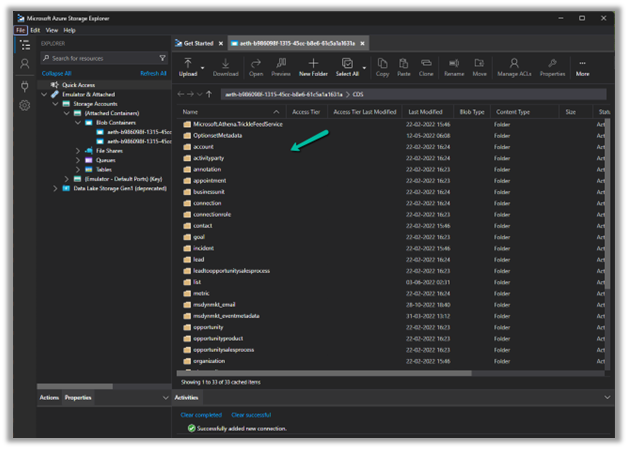
Now we have access to the storage

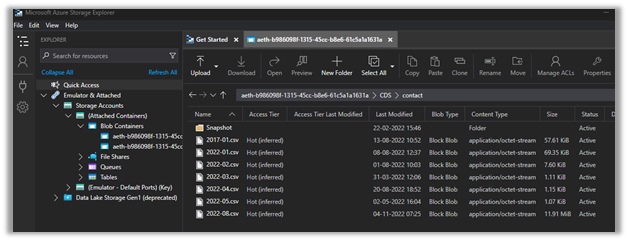
Here we have opened the contact folder just as an example


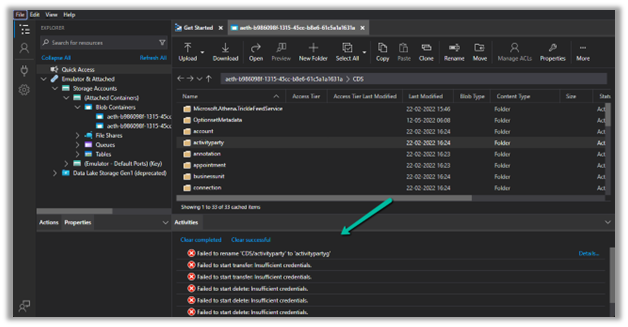
We only have read-only access, any other access like delete, rename, upload, etc. will fail


Get all the details here – https://learn.microsoft.com/en-us/power-platform/admin/storage-sas-token

Hope it helps..

Advertisements