Key points – Copying environment in Dynamics 365 Marketing


Few key points for quick reference, if we plan to copy Dynamics 365 Marketing environment.

You could find all the details here –

https://learn.microsoft.com/en-us/dynamics365/marketing/manage-marketing-environments

Copy procedure will –

  • Delete the target environment
  • Uninstall the Dynamics 365 Marketing on the target environment (if the target environment already has the marketing license it will take over the same license).
  • Delete all the interactions records – email clicks, website visits, etc. and images used in Email and Marketing Pages (they need to be backed up in separate storage, the marketing environment backup will not have that data as it is managed separately / differently by Marketing Service including Marketing Insight Service).

After Copy

  • We need to re-run the Marketing Setup as the email sending and insights services will not work.
  • The marketing setup will create a new set of marketing services, therefore new interaction data will be created.
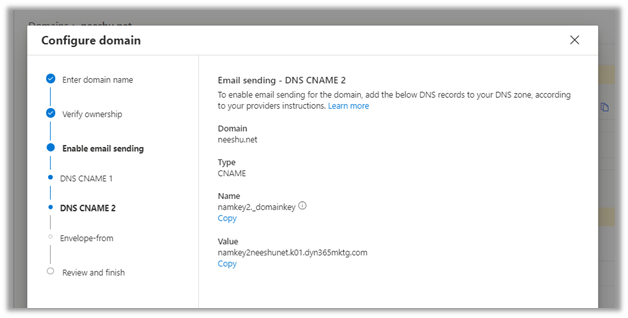
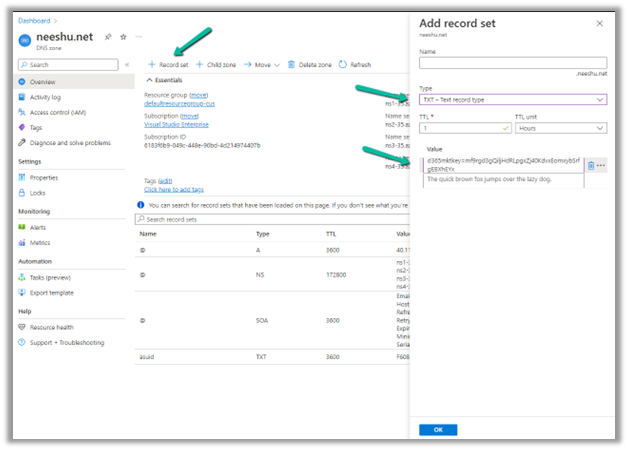
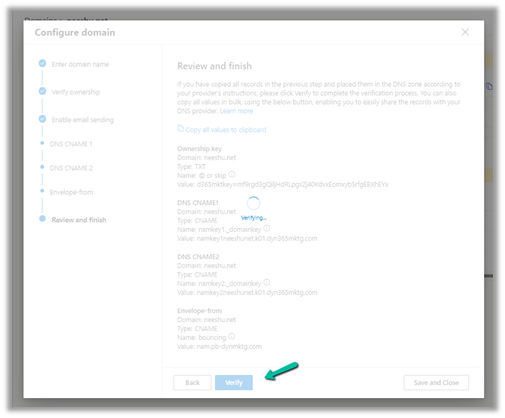
  • We need to again Authenticate Domain and update the DNS records.
  • Images used in Email and Marketing pages in Source Environment will have to be uploaded again in the Target Environment, else they will keep referring to the images hosted in the source environment.
  • All the emails, customer journeys, lead-score records, and more will be in the draft stage after copy, they need to be updated to the go-live status in the target environment.
  • All real-time journeys will be in the stopped stage, to restart them the journey must be duplicated before it can be executed.
  • In case Power App portals are being used, they need to reset first in the target environment to release the license and need to be configured again after copy

Also,

We can use the Configuration Migration Utility to move data between environments – marketing pages, journeys, emails, etc.

Interaction data cannot be to transferred to the target environment.

Solution export and import procedure can be used to move the customizations between different environments.

For extracting marketing interactions – https://community.dynamics.com/365/dynamics-365-fasttrack/b/dynamics-365-fasttrack-blog/posts/extracting-marketing-interactions-in-dynamics-365-marketing

Below is our marketing app showing configured before copy –

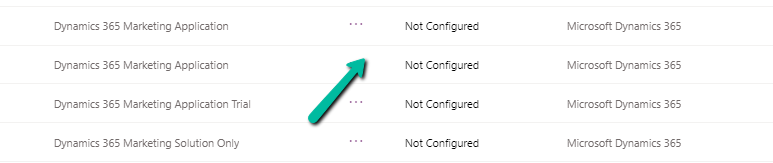
and after copying the environment, as expected, shows Not configured.

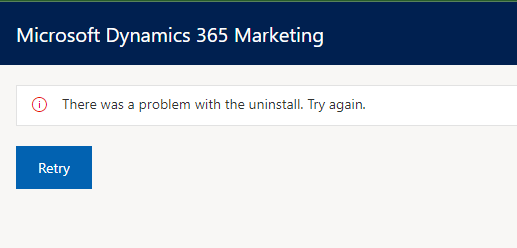
On trying to re-run the marketing setup we got the below error –

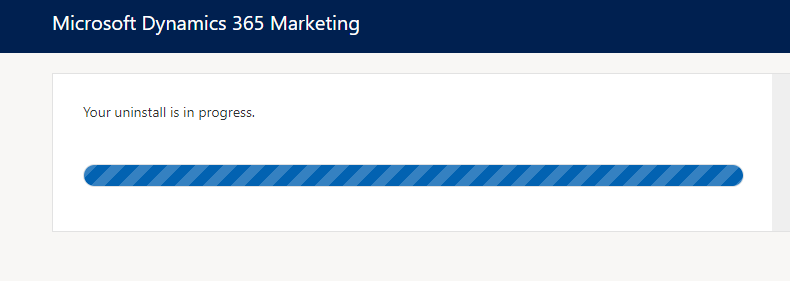
Click on Retry starts the uninstall process

We had to raise the Microsoft Support which eventually fixed the issue at their end with the help of Product Group team.

Hope it helps..
Advertisements

Few key points – Dynamics 365 Marketing Licensing / Apps


Below are a few key points and links for quick reference –

Core Marketing License

Dynamics 365 Marketing – For organizations without any other Dynamics 365 Application.

Dynamics 365 Marketing Attach – For organizations with qualifying Dynamics 365 Applications (minimum 10 users of the following apps – Dynamics 365 Sales, Customer Service, Field Service, Supply Chain Management, Finance or Commerce)

Additional Marketing Licenses – that can be purchased apart from the core license –

Production License – Used for the production environment. Fully functional and includes both solutions and services. It is licensed per tenant and includes a default capacity allotment of 10K Marketing contacts (contact, lead, account, customer insights B2C profile, etc) and 100K marketing interactions (email, SMS, push notifications) per month.

Non-Production License – Used for the test environment to try out new features or customizations. Fully functional and includes both solutions and services but has strict quotas and cannot be used to run production campaigns.

Solution Only License – Used for development or test environment for customizations, importing or exporting solutions, non-functional testing, other development, etc. Only includes solutions and entities and doesn’t include any services. Included with Paid Licenses. To convert a solution-only environment to production or non-production, we will need to purchase either production or non-production license and do the configuration using the marketing setup wizard.


Another Tenant example –

Picture1

A configured Marketing Application app will have the unique id of the organization / env. appended to it, on which it has been configured as shown above.

Dynamics 365 Marketing Application App: This is a fully functional Dynamics 365 Marketing application, including both solutions and services. Mainly for production but can be used for another environment for testing the functionalities.

Dynamics 365 Marketing Solution Only App: This application includes all the marketing solutions/entities but doesn’t include any services. It can be installed on as many test or development environments as needed for no additional charge.

Other points –

We can only have one Dynamics 365 marketing app per environment i.e. each Dynamics 365 Marketing App can be tied to only one environment.

To add more marketing apps to the tenant, we need to purchase an additional license. On purchase of the license, we can see an unconfigured Dynamics 365 Marketing app added in the tenant.

We can have n number of marketing apps available in the tenant, which can be assigned to any of the Dynamics 365 environments not being used for marketing earlier.

We can also set up a marketing trial – https://learn.microsoft.com/en-us/dynamics365/marketing/trial-signup which can be later purchased – https://learn.microsoft.com/en-us/dynamics365/marketing/direct-purchase#purchase-a-license-within-a-trial

Adding Marketing capacities – We can buy additional marketing contacts and interactions as below

Dynamics 365 Marketing Pricinghttps://dynamics.microsoft.com/en-us/marketing/pricing/

Step by step – Configure Dynamics 365 Marketing in a Dataverse Environment

Hope it helps..
Advertisements

Personalization Comparison –Marketo and Dynamics 365 Marketing


Marketo

Dynamics 365 Marketing

In Marketo, a token is a variable that can be used in email, landing pages, snippets, web campaigns.

{{lead.First Name}}

With default value: {{lead.First Name : default :earthling}}

In Dynamics 365 Marketing, we can add Dynamic or Static Content,

Dynamic Text –

e.g. {{contact.firstname}}

Different types of Tokens: –

  • Person Tokens – {{lead.Salutation}}
  • Company Tokens – {{Company.Company Name}}
  • Campaign Tokens – {{campaign.name}}
  • System Tokens – {{system.dateTime}}
  • Trigger Tokens – {{trigger.Trigger Name}}
  • Program Tokens – {{program.Name}}
  • Member Token – {{member.webinar url}}
  • My Tokens – are custom variables that users can create for adding content quickly.


Pre-defined dynamic text (Token) (Real time marketing) –

Users can create and share pre-defined dynamic text, making it easy for users to personalize emails without knowing the underlying structure required for using dynamic text.

Accessing existing pre-defined dynamics text in email –

Creating and adding a new Pre-defined dynamic text.

Content Settings – Set of standard and required values for use in marketing email messages like subscription centre link, social media links, address etc.

To use the Content Settings fields inside Email – Personalization >> Dynamic Content >> Content Settings.

Snippet – dynamics content blocks that can be used in email and landing pages.

Content Blockpremade reusable pieces of content that can be used while designing emails, forms, and pages.

Can be used for boilerplate texts – terms and conditions, introduction.

For generic sections like Headers and Footers. It can include Dynamic Text as well as code, which can be used to create reusable content, which the team can use without knowing the dynamics text or data model of CRM. Outbound marketing and Real-Time Marketing use their own content blocks.

Select Content blocks while designing email to add them.

   
Advertisements

Fixed – The reference assemblies for. NETFramework,Version=v4.6.2 were not found. To resolve this, install the Developer Pack (SDK/Targeting Pack) for this framework version or retarget your application


Recently while trying to use the Power Platform Toolshttps://learn.microsoft.com/en-us/power-apps/developer/data-platform/tools/devtools-install , got the below error in Visual Studio 2019. (not supported for VS 2022)


To fix it either you can, open Visual Studio Installer and select Modify and select the appropriate developer pack.


Or as specified in the error message, open https://aka.ms/msbuild/developerpacks, and download the appropriate Developer pack from there.


This fixed the issue –


Hope it helps..

Advertisements

Power Apps Component Life Cycle – Quick look


We can read about the architecture and the life cycle of the Power Apps component here.

Check the screencast – PowerApps Component Life Cycle

Let us see it in action using a sample project.

Launching the test harness, we can see the init executed followed by updateView.

Making any change in the component’s form factor, width, height, or Data Inputs property triggers the updateView method.

Now let us update the index.ts and add a textElement along with an event listener for its change event.

Inside the test harness, when we change the Value of the sampleProperty, if we want the value of the textElement to be updated, we need to use the updateView method to fetch the changed value from the bound sample property field and reflect this new data in the UI.

We can get the value of the sampleProperty from the context and use it to set the textElement value as shown below.

Now let us do the opposite, let us change the value inside the textElement. Here as expected none of the methods triggers.

Here we need to call the notifyOutputChanged method, to notify the host that the component’s output has changed.

On calling notifyOutputChanged, the framework runtime will first call getOutputs to get the value of the bound properties of the component, and then notifies the host.

The host will perform the validation and if the output received is valid it will call the updateView.

But before we do that let us first try setting the value of the sampleProperty in the change event handler of the textElement. Here on changing the value inside the text box, we can see only the change event handler is triggered. No other methods are triggered here as expected.

There is no update in the value of the bound sampleProperty.

This is because we need to call the notifyOutputChanged method to let the host know about the changes made in the value inside the text box.

On calling the notifyOutputChanged and changing the text value this time, we can see the getOutputs being called.

The value remains the same for the bound property and updateView method is not called as our getOutputs method was not returning anything.

Let us update the getOutputs method to return the sampleProperty having the text value.

On changing the textElement value this time getOutputs is called, followed by updateView.

To summarize,

  • To notify the host, about the user changes in the UI                                                ècall notifyOutputChanged
    è the framework will call the getOutputs
    è followed by èupdateView
  • Host changes the data/properties                                                               èupdateView will be called è context passed è we can update the UI as per our requirements

Check the following links to understand more about the life cycle –

https://dianabirkelbach.wordpress.com/2020/03/29/pcf-when-is-updateview-called/

https://dianabirkelbach.wordpress.com/2022/02/28/async-requests-inside-pcf-init-and-updateview/

To learn about PCF –

Getting started with PCF Custom Controls by Danish Naglekar

https://www.youtube.com/watch?v=ZYOHaHUf83Y

https://www.youtube.com/watch?v=o3OW6UW-RMI&list=PLqJfvq4Fy1P5TgPGm8Ny_legkZUk5BfyV&index=2

PCF Academy by Andrew Butenkohttps://www.youtube.com/watch?v=YJ9hrKxAhTU&list=PL0WiRFWRFGlQr5tGZdUGUlyTl7Gi1Wb_K

https://bgx.blob.core.windows.net/files/powerplatform/PCFControlGuide.pdf

Hope it helps..

Advertisements

How to – Set up Omnichannel Voice using Azure Communication Service (ACS)


To add Voice Calling (PSTN – Public Switched Telephone Network) connectivity to an app or service, we can buy a number from Microsoft, which acts as a PSTN carrier (based on availability in the region).

https://learn.microsoft.com/en-us/dynamics365/customer-service/voice-channel-region-availability#azure-direct-routing

This is the easiest way to connect ACS (Azure Communication Services) to PSTN, managed by Microsoft. Here Microsoft will provide the numbers, and there is no deployment or maintenance of the on-premises deployment required for PSTN (Voice Calling).

If Voice Calling (PSTN) is not available in the region or if we want to use a different PSTN carrier we can opt for Azure direct routing. The advantage of Azure direct routing is that we can use a telephony carrier of our choice, by connecting Azure Communication Services to the supported SBC – Session Border Controller.

A session border controller (SBC) is a dedicated hardware device or software application that governs how phone calls are initiated, conducted, and terminated on a voice-over-Internet Protocol (VoIP) network.

For Direct Routing to work, we could configure products from the certified SBC Vendors, one such example is AudioCodesMediant VE Session Border Controller (SBC) from Azure Marketplace.

List of certified SBC Vendors

https://learn.microsoft.com/en-us/azure/communication-services/concepts/telephony/certified-session-border-controllers#certified-sbc-vendors

SIP stands for Session Initiation Protocol, and is essentially a way to make end connections for data and voice transfers over the internet, similar to HTTP functions for pages on the internet, provides a way to convert voice signals into data that can be decoded by devices used by the caller. The trunk is used to refer to a bundle of phone lines shared between users.

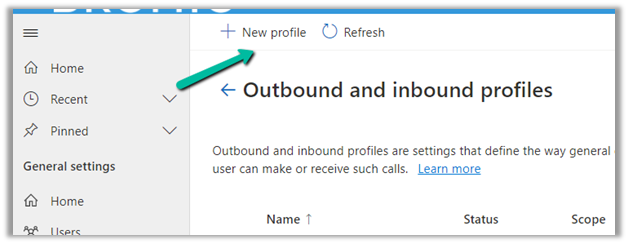
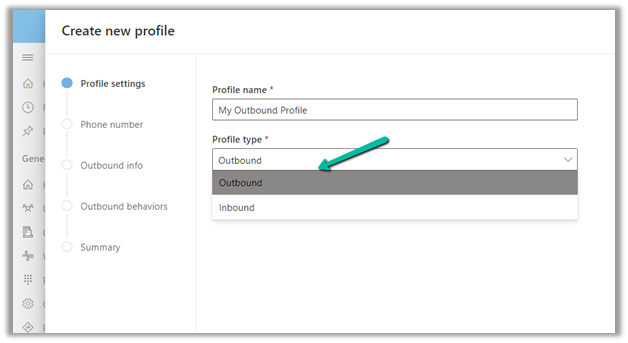
To configure the Omnichannel’s voice configuration using the ACS, navigate to Phone Numbers in the Omnichannel admin center and click on Get started.

The Get started option gives us the option to create and deploy a new ACS resource or select an existing ACS resource.

Get started option will only appear if we have trial has ended, or we have ended it manually or disconnected any existing ACS connection.

https://learn.microsoft.com/en-us/dynamics365/customer-service/voice-channel-connect-existing-resource?tabs=customerserviceadmincenter#prerequisites

https://learn.microsoft.com/en-us/dynamics365/customer-service/voice-channel-acs-resource

With Create new resource option, we can create a new Azure
Subscription, Azure
Resource Group, provide a Resource Name, and can select Deploy to create and deploy the required resource.

For the Use existing resource option, we need to specify the following details.

Note – To enable call recording and SMS service using Azure Event Grid – https://learn.microsoft.com/en-us/dynamics365/customer-service/voice-channel-connect-existing-resource?tabs=customerserviceadmincenter#enable-call-recording-and-sms-services

To create ACS Resource, login to Azure Portal and search for Communication Services.

Once the ACS resource is created, we have the option to configure the Phone Numbers (if we are using the numbers provided by Microsoft) or Direct Routing (for other carriers) as specified earlier.

We’d get the following options while adding Phone numbers –

  • Country or Region
  • Use Case – application or person.
  • Number Type – local or toll free.
  • Calling and SMS.

In the Numbers tab, we can find and purchase the number.

For Direct Routing

In the Session Border Controllers tab, will be specifying the FQDN
Fully Qualified Domain Name of the SBC along with the signal port number.

In the Voice Routes tab, we’d specify the number pattern and the corresponding session border controller that allows a call to be sent to a specific SBC based on the called or dialed number pattern.

https://learn.microsoft.com/en-us/azure/communication-services/concepts/telephony/direct-routing-provisioning#voice-routing-considerations

On saving the details, it will validate the information entered.

Once we have set up the ACS, next we’d register an application in Azure, these are required details inside Omnichannel Administration App while configuring the ACS in the Event grid app id and Event grid app tenant id.


The remaining ACS details required, we’d get from the ACS resource created earlier.

Enter the details and click on Connect.

Once the connection is successful, select Advanced.acsad

For Direct Routing, select Add number for Bring your own number via Azure Direct Routing (preview)

Note – SMS is not supported with Azure direct routing

https://learn.microsoft.com/en-us/dynamics365/customer-service/voice-channel-bring-your-own-number?tabs=customerserviceadmincenter

bron

Specify details of the required details –

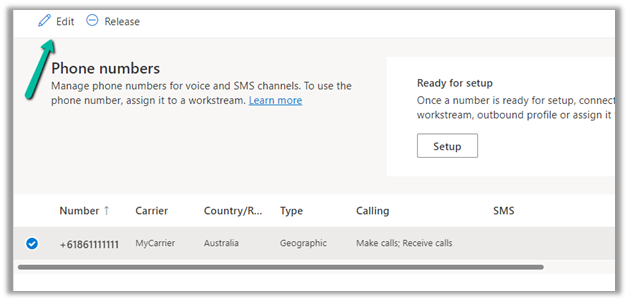
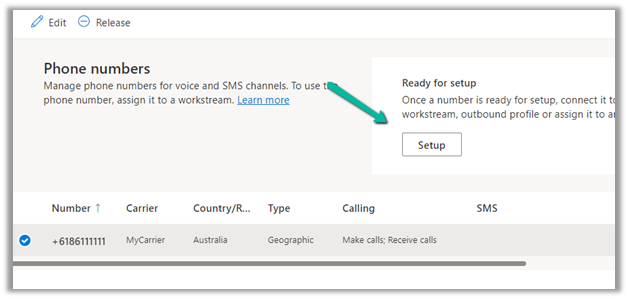
This adds the number to the phone number list and is ready for setup.

Next click on Setup

Select the Setup workstream option there.

Specify other required details like phone number, language, behaviors, etc.

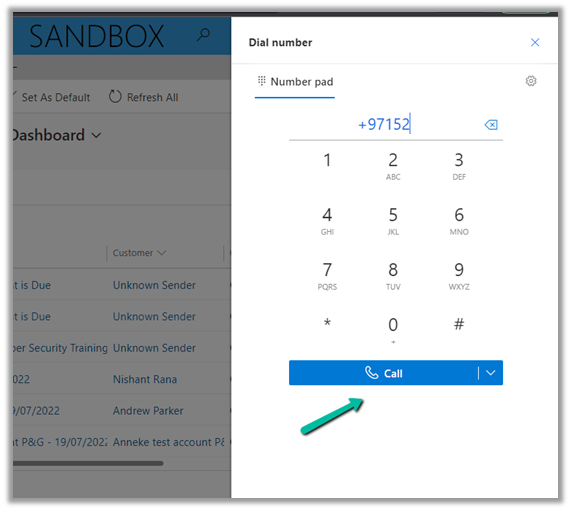
After we have configured the workstream successfully, we can call the number configured to see the Voice Channel in action.

So, for Omnichannel voice to work, we can either use Voice Calling (PSTN) provided by Microsoft or if it is not available or we want a different carrier, we can do it via Azure Direct Routing, which requires appropriate infrastructure in place along with certified Session Border Controller (SBC) and a working connection between SBC to Azure Communication Services.

Helpful links –

https://learn.microsoft.com/en-us/azure/communication-services/concepts/telephony/direct-routing-infrastructure

https://triciasinclair.com/2022/04/25/setting-up-omnichannel-voice-using-azure-communication-service/

https://neilparkhurst.com/2022/02/09/omnichannel-for-customer-service-voice-channel/

https://learn.microsoft.com/en-us/dynamics365/customer-service/voice-channel-connect-existing-resource?tabs=customerserviceadmincenter#enable-call-recording-and-sms-services

Hope it helps..

Advertisements