Manage Security Roles using the new modern UI (preview) – Power Platform Admin Center


Security roles can be now managed using the new modern UI (preview).

Select Security Roles (See all) for an environment, within Power Platform Admin Center.

Select Edit for a security role.

We can see here Display only parent security roles option is On by default.

We can see the different options.
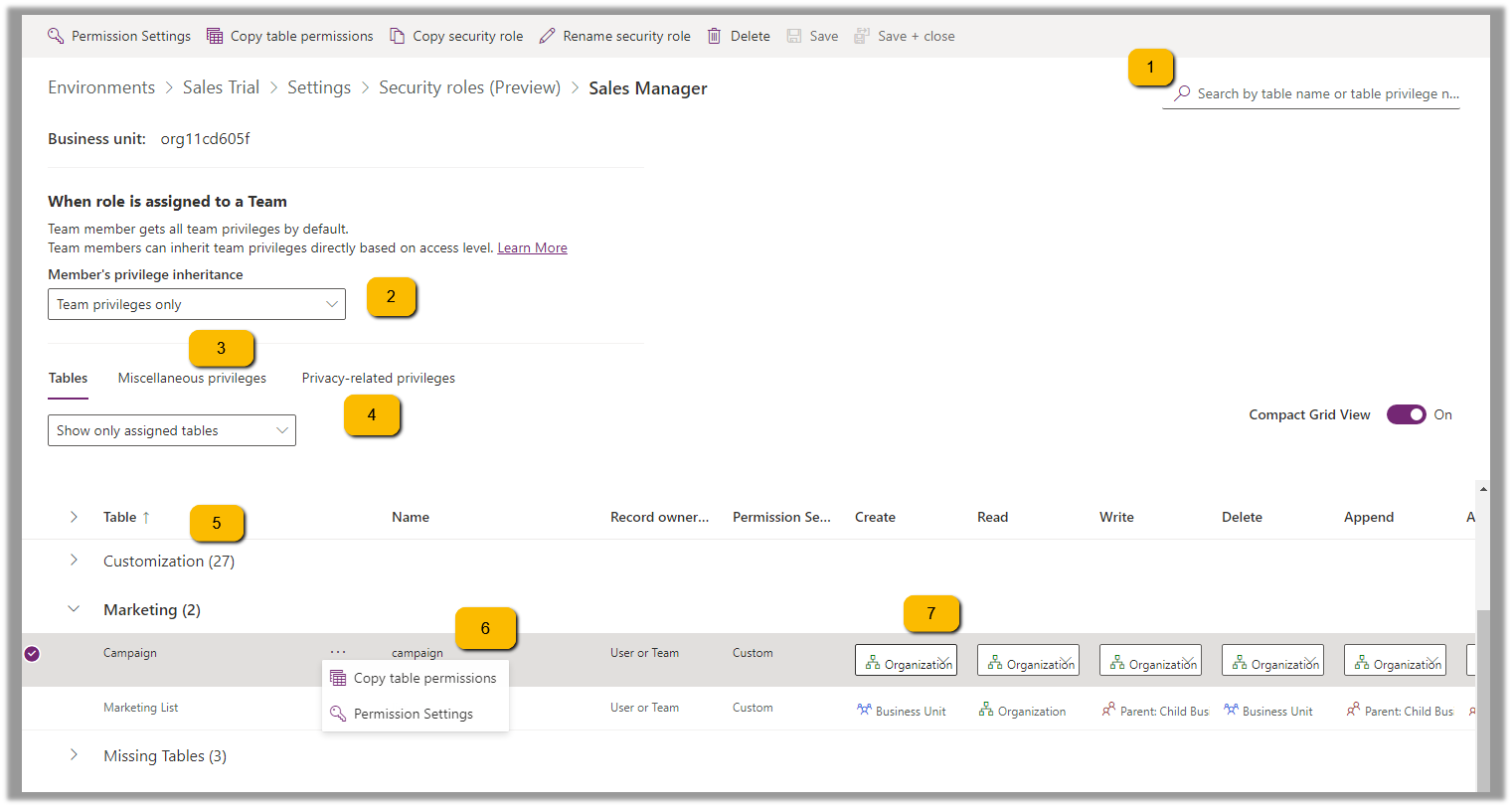
  1. Filter based on table or privileges

2. Specify Member’s privilege inheritance option
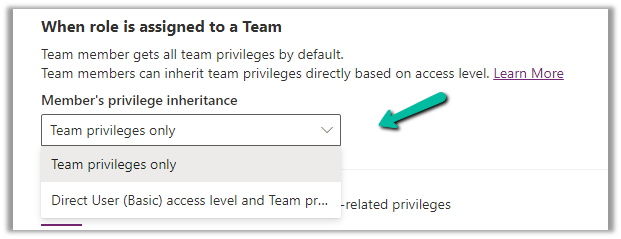
https://learn.microsoft.com/en-us/power-platform/admin/security-roles-privileges#define-the-privileges-and-properties-of-a-security-role

Nicely explained here –

https://debajmecrm.com/team-members-privilege-inheritance-what-is-this-doing-in-security-role-screen-of-dynamics-365/

3. Tabs for Table specific, Miscellaneous, and Privacy-related privileges
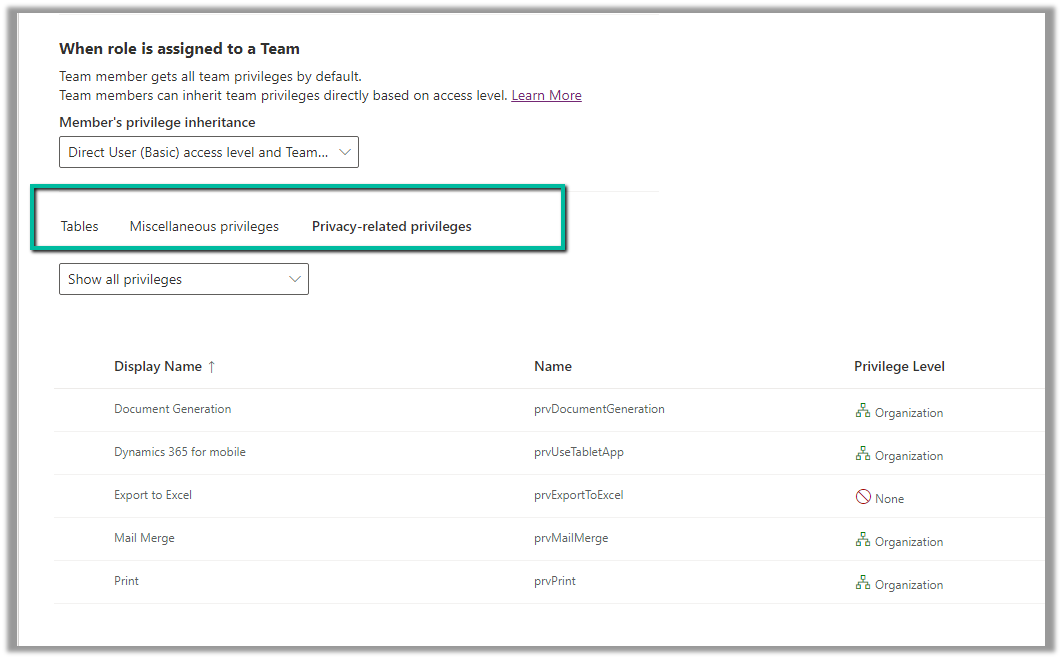
4. Filter privileges further by all, assigned or unassigned.

5. Collapsible

6. Option to Copy Table Permission to another table(s) and apply predefined Permission Settings i.e. Access Levels.
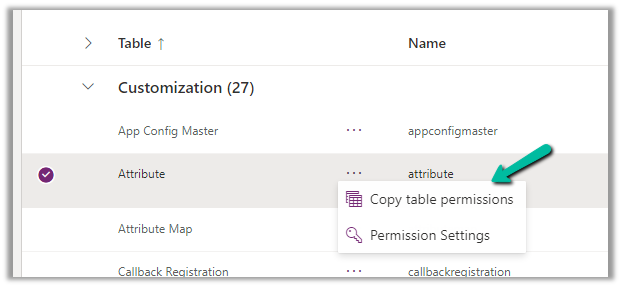
Copy table permissions to multiple tables
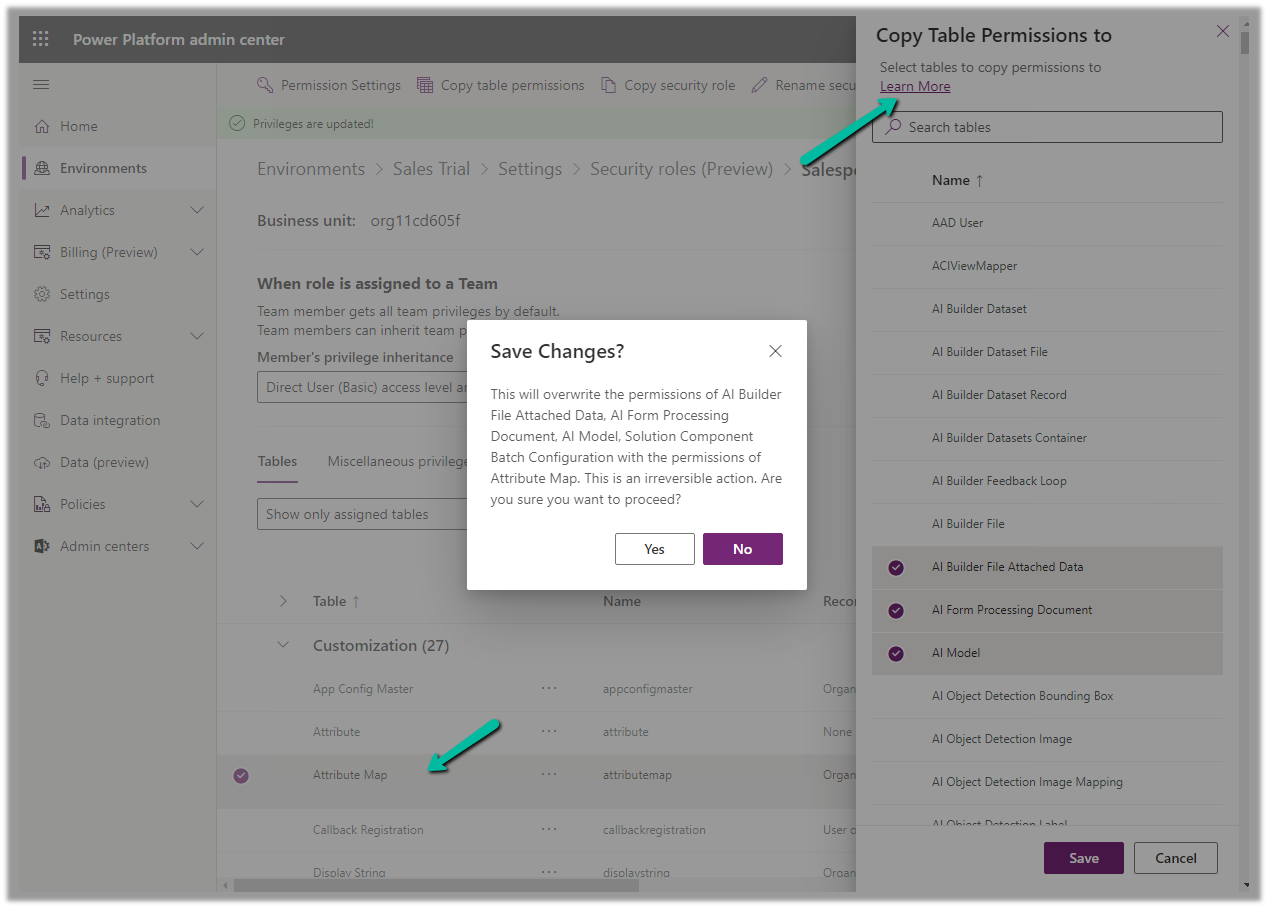
Permission Settings (Access Levels)
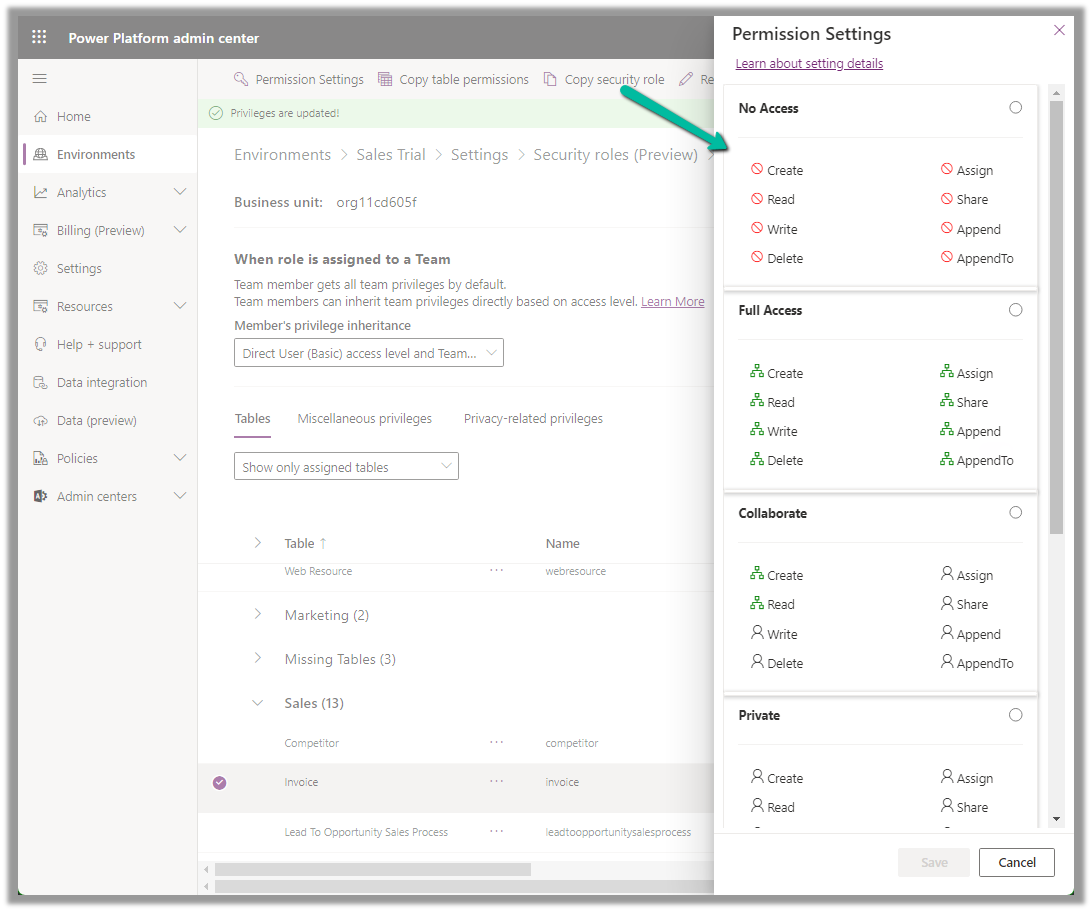
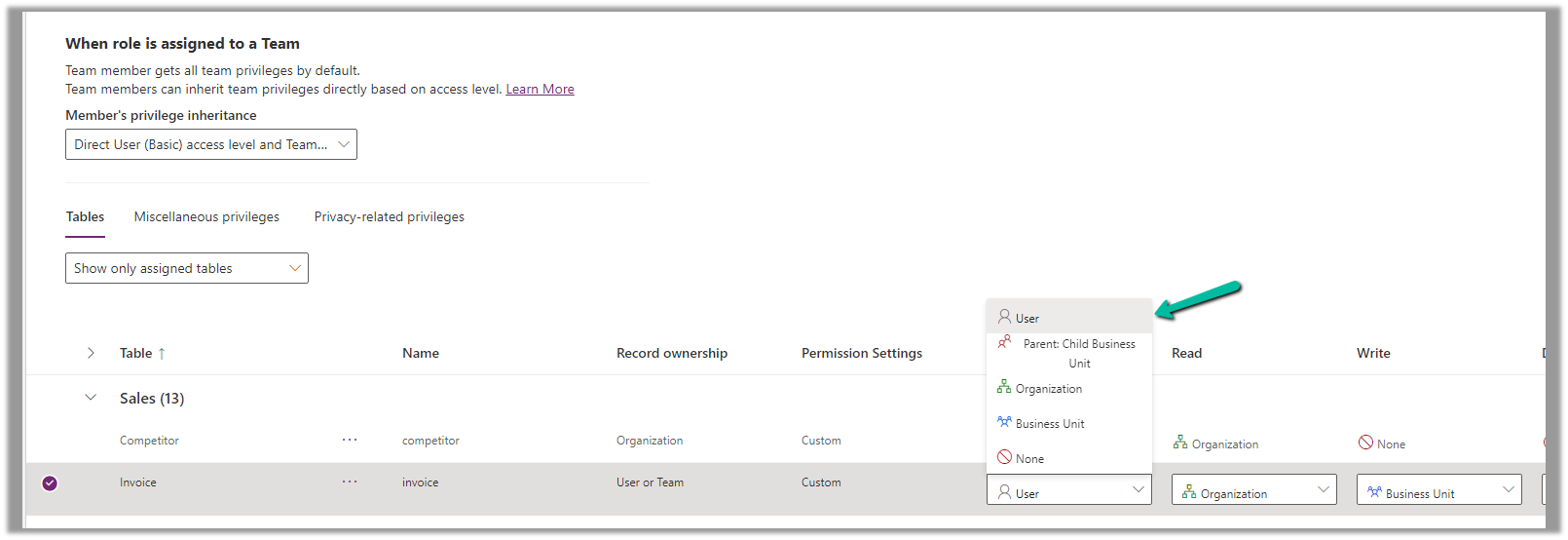
7. Specify Access Level for Privileges
Get all the details here – Security Roles and new modern UI

Hope it helps..

Advertisements

Get RequiredAttendee (Required) from the Meeting (appointment) table – Power Automate / Dataverse


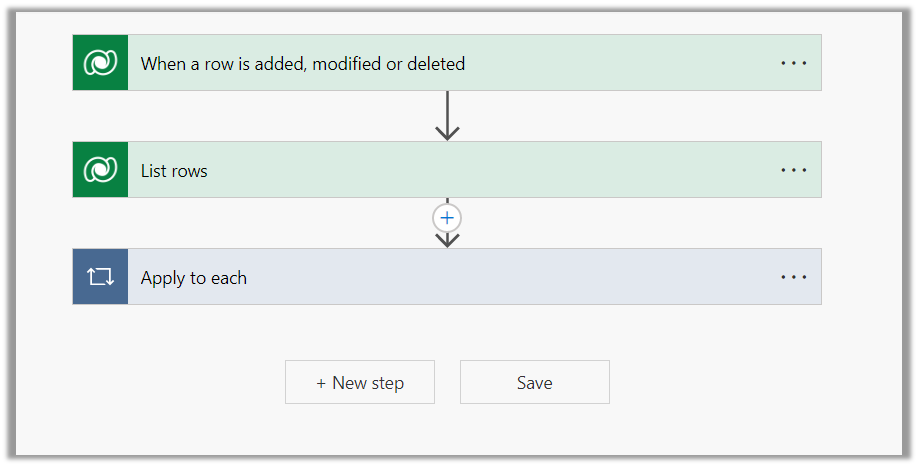
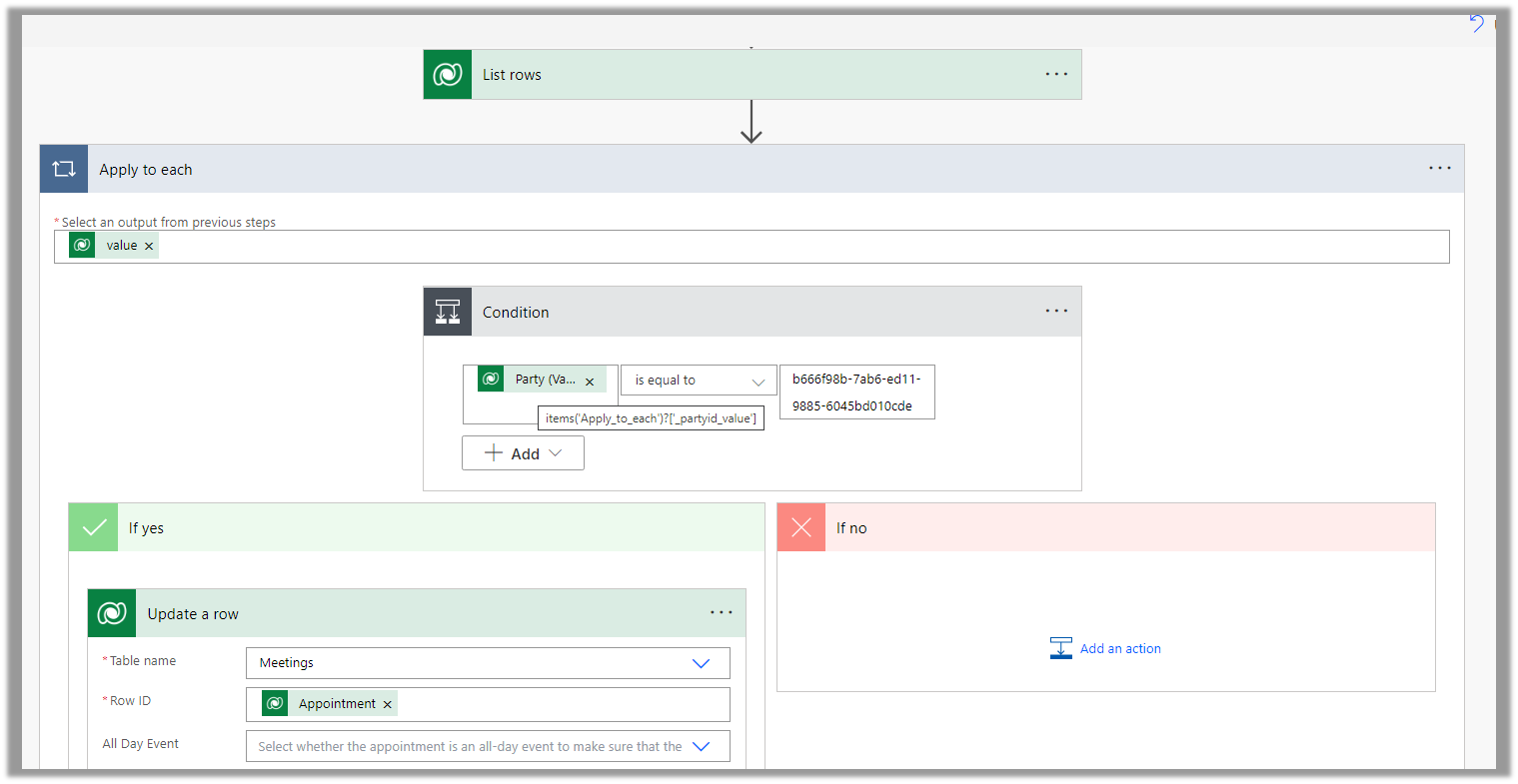
Below is the sample flow we can use to retrieve the Required (requiredattendees) field’s value from the Meeting table (on the update of the record).

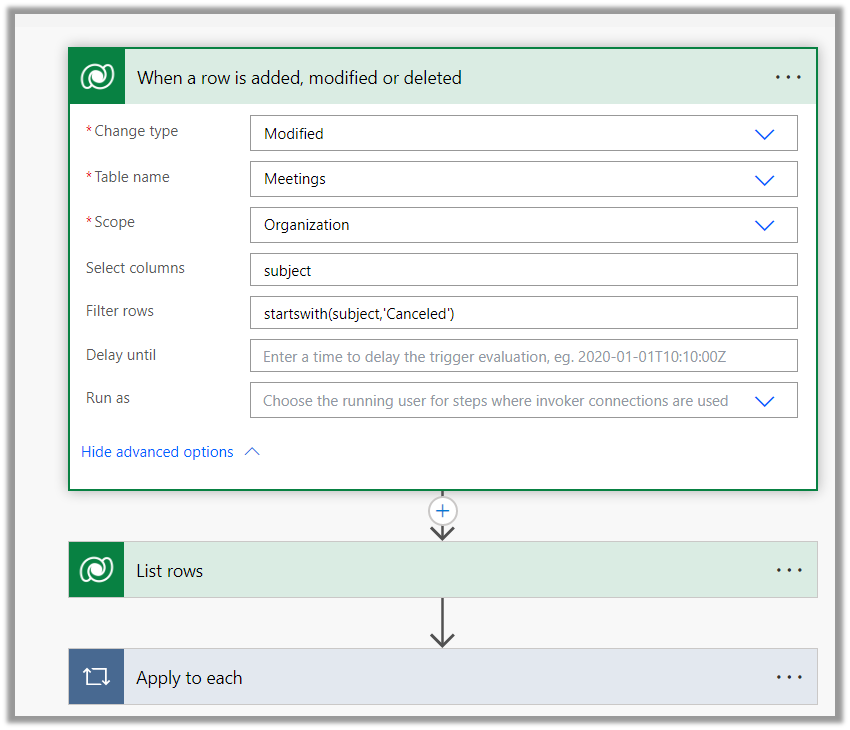
Here we are triggering the flow, if there is an update in the subject field of the meeting record.

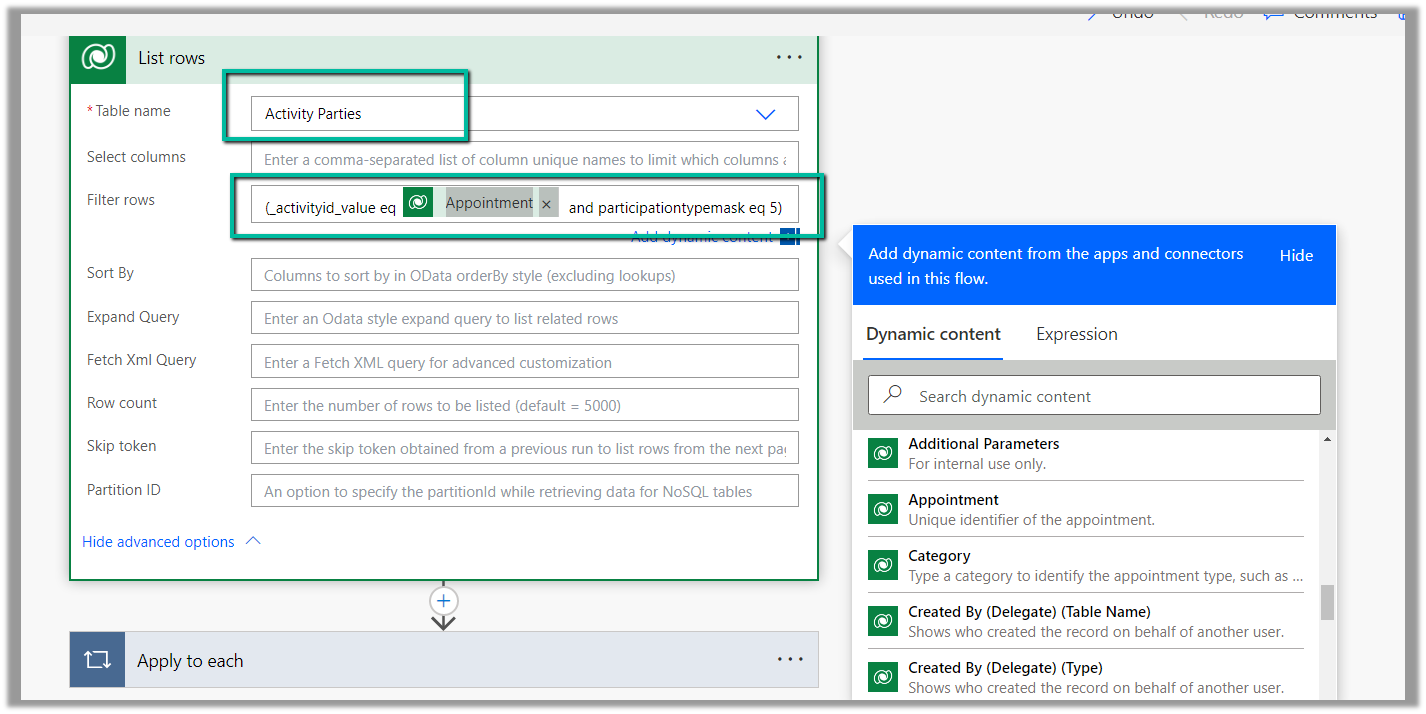
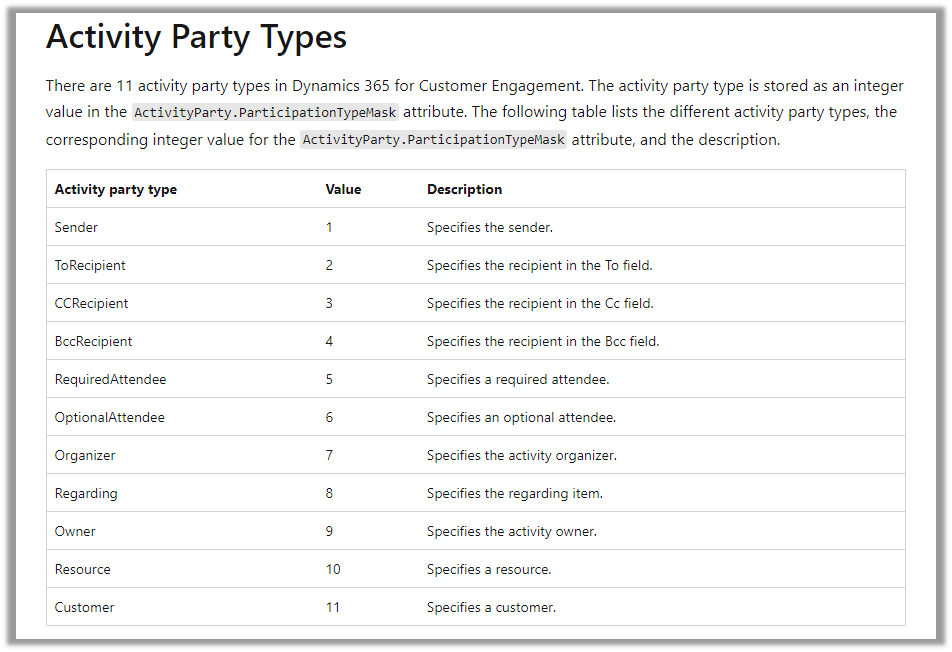
Then using the List rows action we are fetching the Activity Parties record associated using the Appointment’s unique identifier and participation mask as 5.

More on participation type mask –

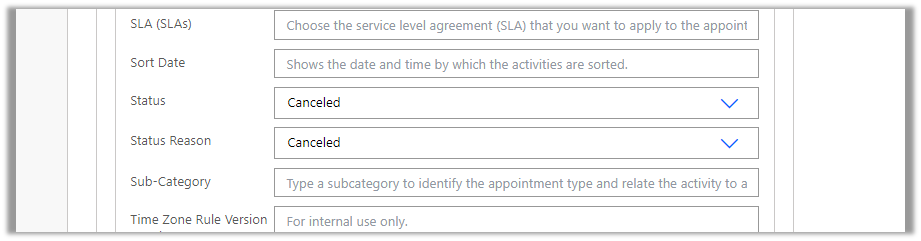
And in the last step, we are checking for all the associated Activity Party GUIDs for a specific GUID and then update the record or cancel the record.

Hope it helps..

Advertisements

Hide Show Button in Command Bar / Ribbon in Dynamics 365 / Model-Driven App (For Quick Reference)


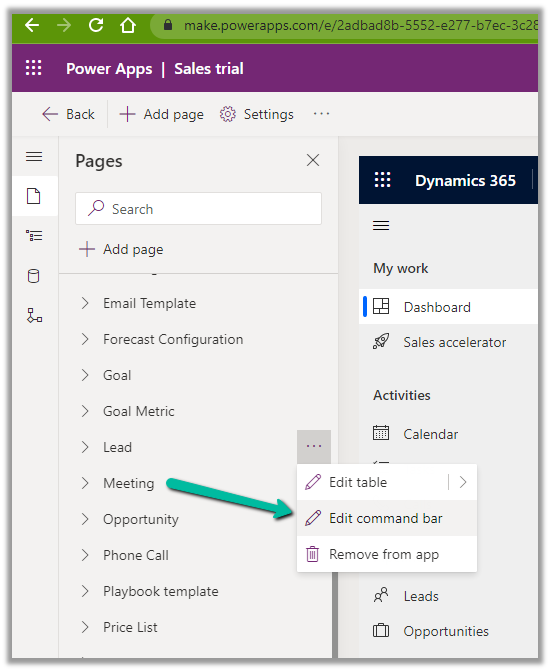
Open the App in the App Designer, select the Edit Command Bar for the table

Also, check the limitations of the Command designer, the important one being that the pre-existing classic commands cannot be customized with the new command designer.

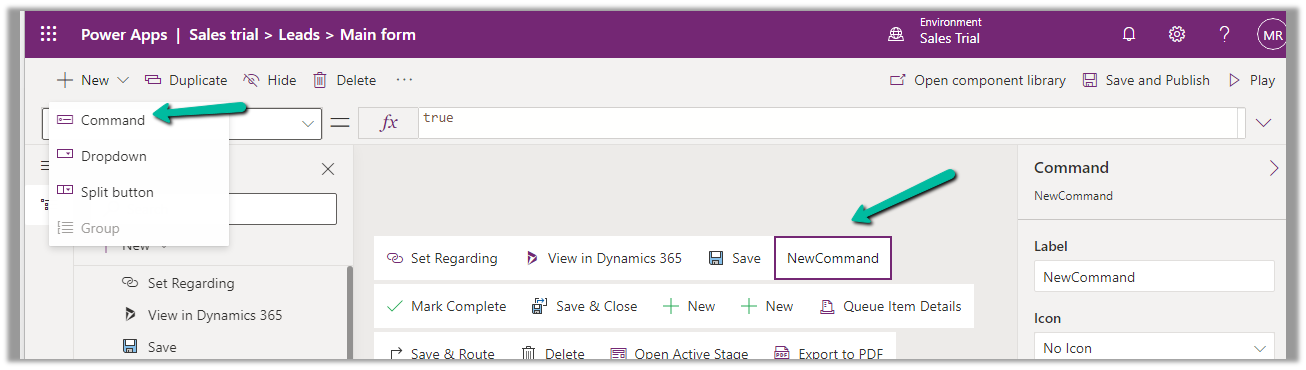
For the new Command added, set its Visible property based on the status of the current selected item/record.

More on Power Fx

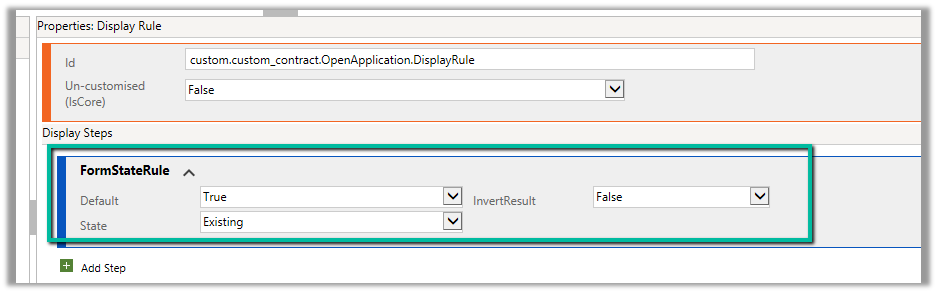
Now similarly if we want to show the button only for an existing record by updating the RibbonDiffXML, we can write the following DisplayRule based on FormStateRule


Hope it helps..


Advertisements

Error with Global Choice / Optionset with the same display name and In operator – Power Apps / Dataverse


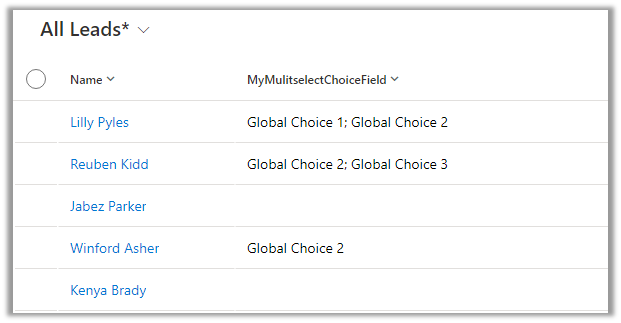
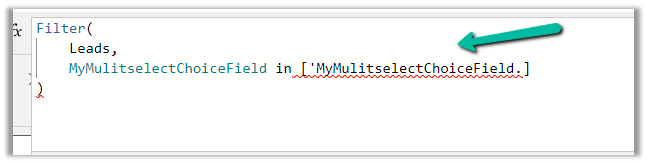
Recently while trying to filter the Combo box Items using the value of the Global Multi-choice field, we were getting issues in the formula.

It was because the optionset / choice field in the table and the global optionset / choice, it was referring to, both were having the same display name.

Issue –

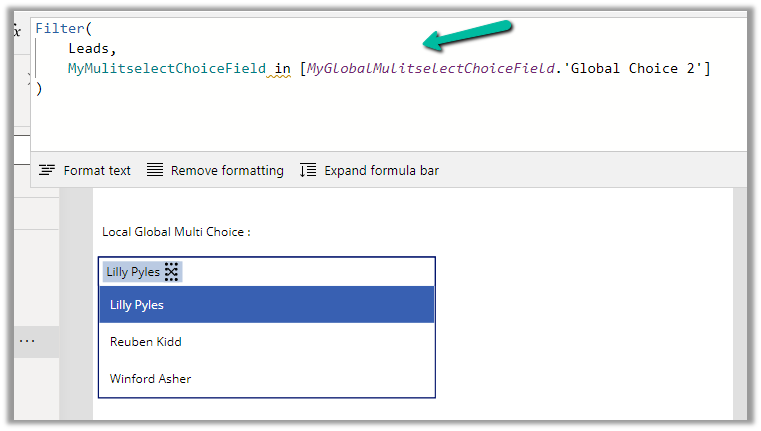
To get it working we renamed the display name of the Global Choice column.

After which we were able to get our formula working.

Same is the case for the single choice field which is referring to global choice.

Gender is the display name of the field in Lead and Global Gender is the display name of the global choice field.

LocalOptionset

Hope it helps..


Advertisements

Using Sort, Distinct, Filter together for combo box Items– Canvas Apps (Dataverse)


Just sharing a simple example of applying a formula to the Combo box Items property, which includes Sort, Distinct, and Filter (If).

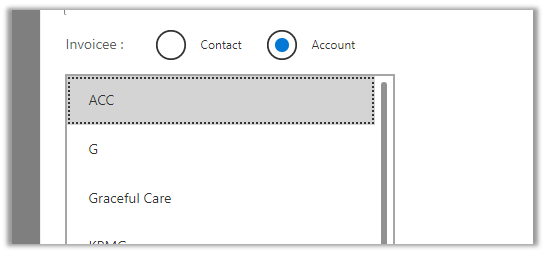
Below is our Combo Box bound to a lookup field of type Customer. If Contact is the option selected in the radio control, we want to show Contact’s Full Name sorted else Account’s Account Name field.

If( radioBtnCustomer.Selected.Value = "Contact",
    Sort(Distinct(Filter(Contacts,Status = 'Status (Contacts)'.Active),'Full Name'),
        Value,
        SortOrder.Ascending
    ),
    Sort(Distinct(Filter(Accounts,Status = 'Status (Accounts)'.Active),'Account Name'),
        Value,
        SortOrder.Ascending
    )
)

The result –

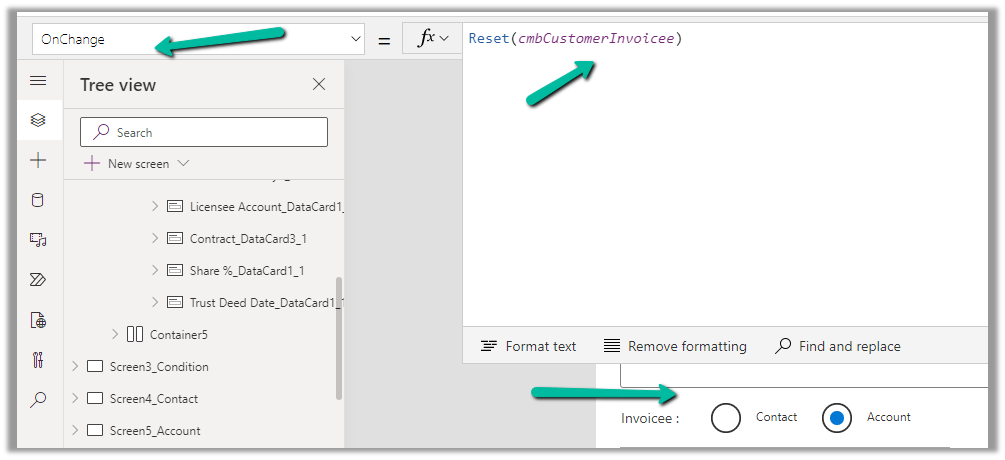
Also to clear the selection in the combo box when the user changes the option from contact to account and vice versa we can use the Reset function.

Check the below links to learn more about working with Customer lookup –

https://learn.microsoft.com/en-us/power-apps/maker/canvas-apps/working-with-references#show-the-columns-of-a-customer

Hope it helps..

Advertisements

Combo box showing blank values in case of multiple conditions – Canvas App (Dataverse)


Recently while trying to filter combo box Items we were getting the values but it was coming as blank instead of showing the name field.

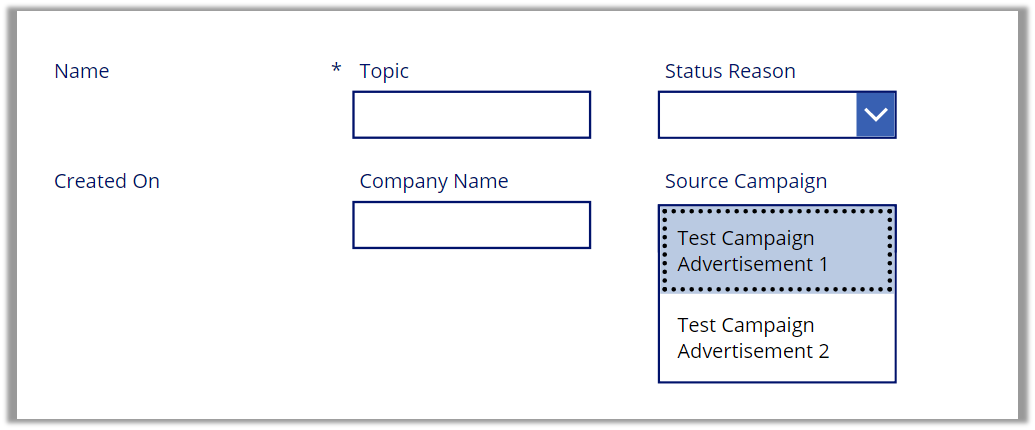
Below is a sample Form – connected to Leads and Source Campaign is the combo box field (lookup to Campaign)

As we can see without applying the filter we can see the name (Display fields) populated.

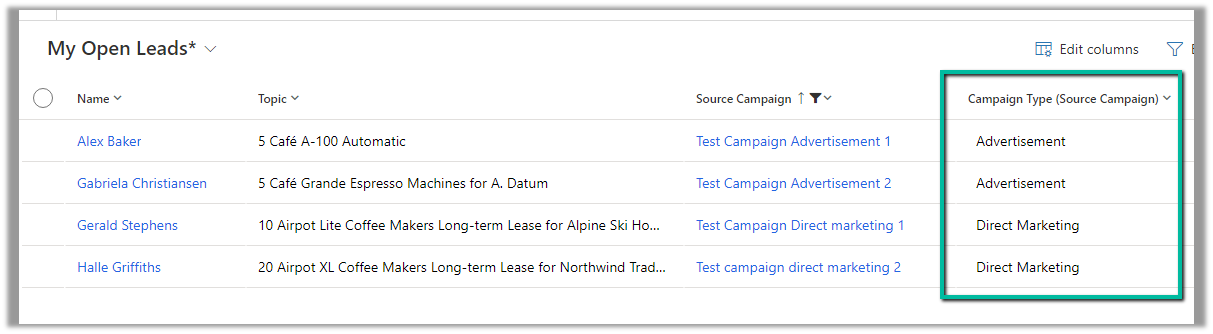
Now let us try to filter it based on the Campaign Type field.

Here we have applied a single filter condition.

We can see the combo box getting filtered correctly.

Now we are introducing a variable just to filter it based on condition.

Till now filtering works as expected.

Now let us introduce else condition here.

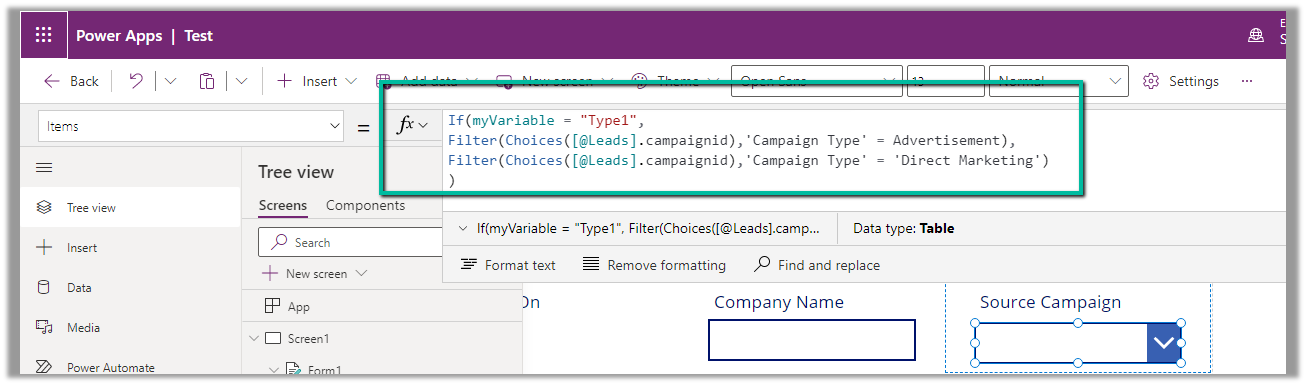
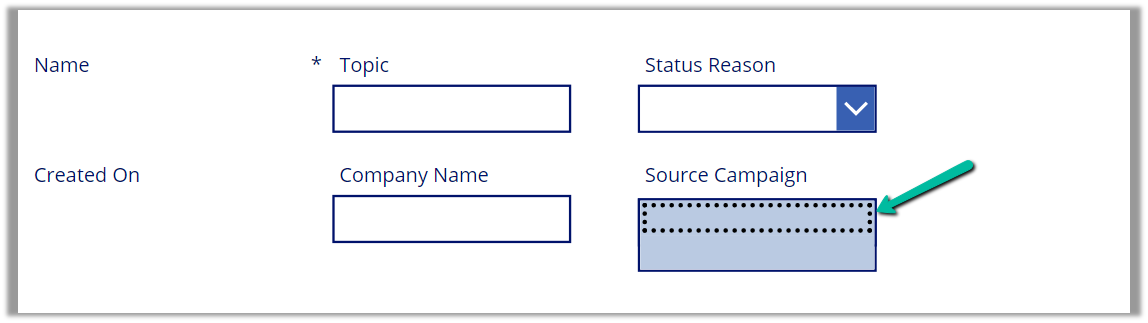
We can see the combo box getting filtered but not showing the name field of the Campaign set as a display field. Through developer tools also, we don’t see the name returned in this case. The same is the case if we use multiple If or Switch in the formula.

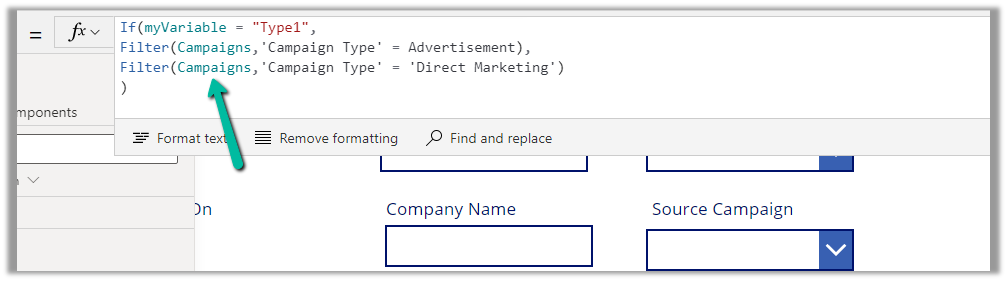
The solution is to filter on Campaigns data source directly, instead of the corresponding Choice field in the Lead.

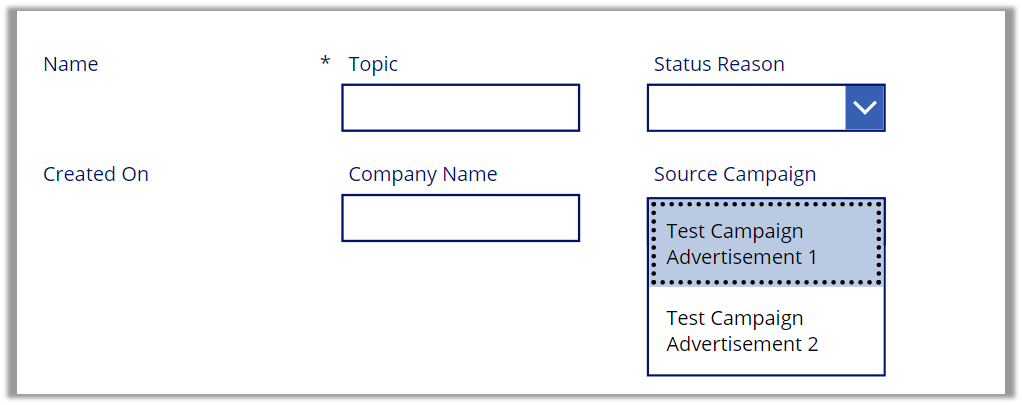
The result –

Hope it helps..
Advertisements