Set DefaultSelectedItems of Combobox on App OnStart – Custom Page -Power Apps (Dataverse)


Recently in one of our custom pages, we had to set the default value (DefaultSelectedItems) of the combo box based on one of the lookup fields on the record. We were opening the custom page from the ribbon button on the form.

Below is our function to pass the record’s GUID to the custom page from the button.


    openSearchCustomPage: function (primaryControl, firstPrimaryItemId) {
        var pageInputCustom = {
            pageType: 'custom',
            name: 'custom_searchproduct_570ed',
            entityName: 'lead',
            recordId: firstPrimaryItemId
        };

        var navigationOptions = {
            target: 2,
            position: 1,
            width: 1350
        };

        Xrm.Navigation.navigateTo(pageInputCustom, navigationOptions).then(
            function success(result) {
                console.log(result);
            },
            function error(error) {
                console.log(error);
            }
        );
    }

Next in App’s OnStart, we are setting the GUID of the record to a variable first, and than setting another variable to store the GUID of the Region lookup field on that record.

// text variable passed by the form / webresource/ ribbon
Set(varEnquiryIdWithoutCurlyBraces,GUID(Substitute(Substitute(Param("recordId"),"{",""),"}","")));

// get the Region Of Interest from the Lead / Enquiry ID
// If value present use it for prefiltering the Gallery Items
Set(varRegionOfInterest,LookUp(Enquiries,Lead=varEnquiryIdWithoutCurlyBraces, 'Region of Interest'));

And lastly, for the combo box (Items = Region (custom table)), we are setting the DefaultSelectedItems as follows
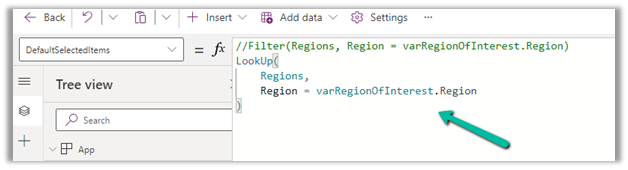
LookUp(Regions,Region=varRegionOfInterest.Region)

We also tried using the Filter option, but it was giving incorrect values.

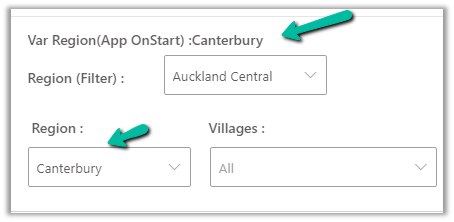
The value on the form –

The value in the Custom Page –

Correct value populated for combo box Region, and incorrect for the one using Filter formula
Hope it helps..


Advertisements

Fixed – View Name as Blank in Dynamics 365 / Model-driven app


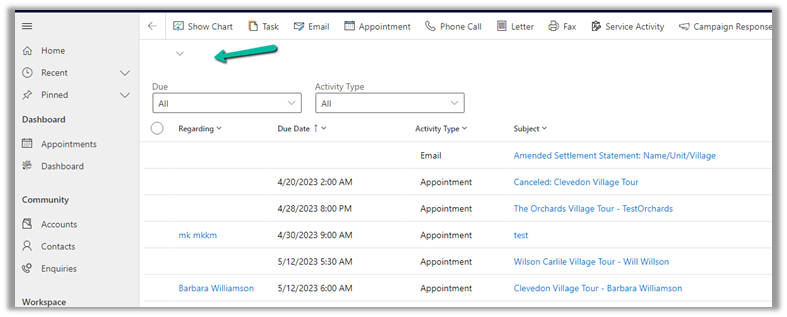
Recently we faced an issue where one of the views was not showing its Name in the app.

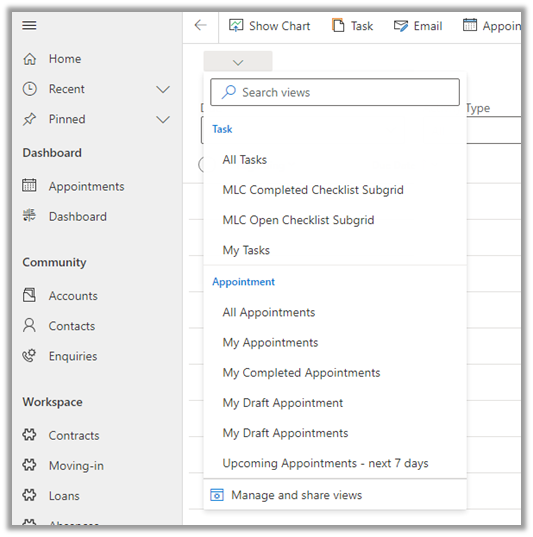
On selecting the View Selector, we were not getting the option to select that view.

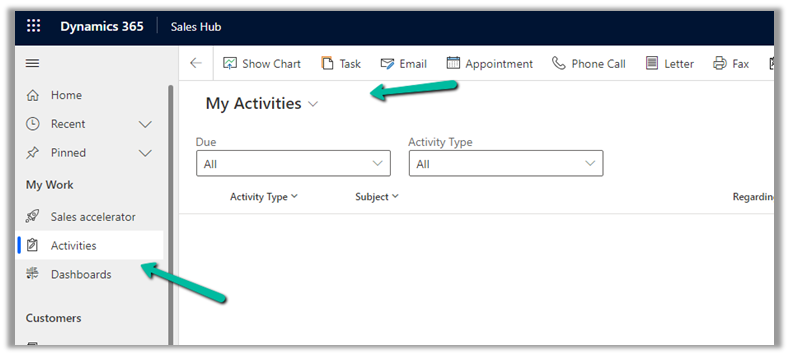
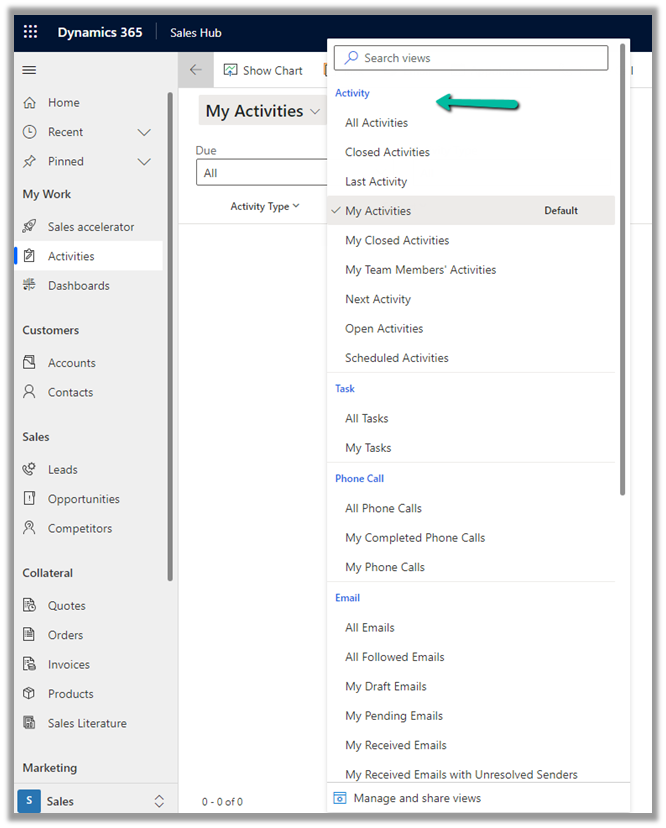
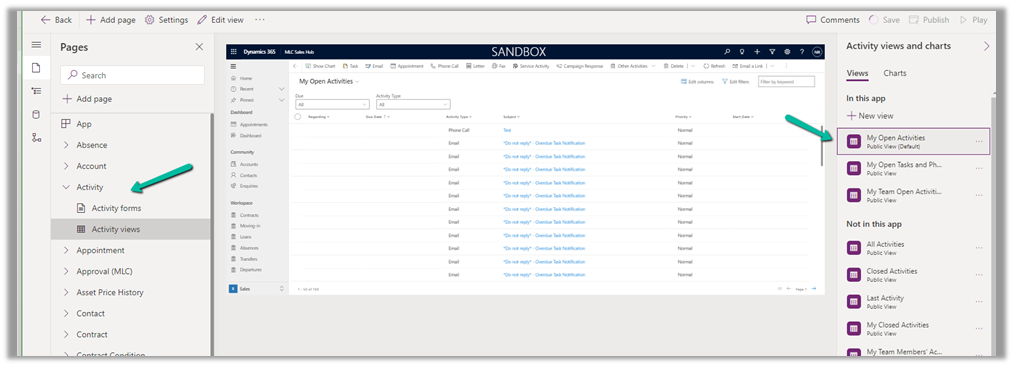
Checking in a Vanilla CRM instance, we can see it is OOB My Activities view.

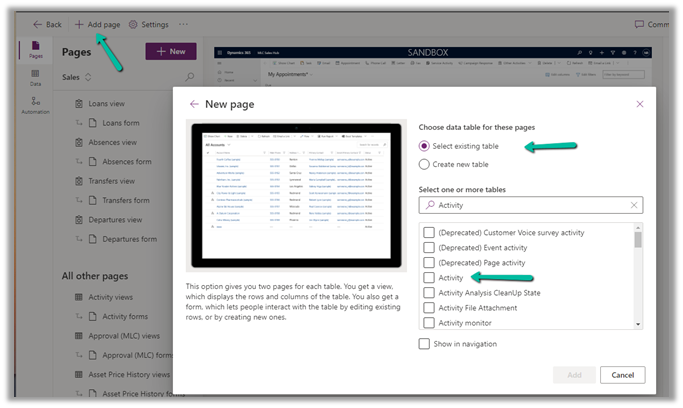
To fix it, we had to edit the App, Add Page >> Dataverse Table >> Select exiting table >> Activity


And add that view to that app and publish the changes.

The result –

Hope it helps..
Advertisements

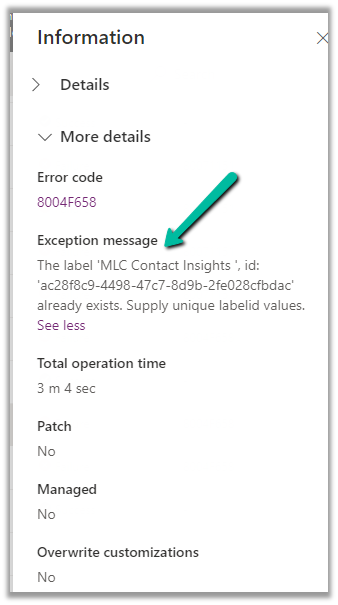
Fix – The label ‘ ‘, id: ” already exists. Supply unique labelid values while importing solution – Dynamics 365


Recently while trying to import the solution, we got the below error –

The tab tag was missing the labelid property. Adding it back to the FormXml using FormXml
Manager XrmToolBox plugin fixed it.

Also check – https://nishantrana.me/2022/11/11/adding-contact-insights-account-insights-to-the-form-dynamics-365-marketing/

Hope it helps..

Advertisements

Fixed – Canvas App / Custom Page not showing data (Dataverse / PowerApps)


Recently we faced an issue wherein the custom page was not loading any data, however, it was working for users with the System Administrator role.

The gallery control shows the Product details.

There were no errors in the Developer Tools, we tried by giving all Organization level rights to the users on the tables involved etc. but that didn’t help.

Eventually, it all came down to this particular line in the formula used for the Items property of the Gallery Control i.e. Asset Status field (custom field).

We had a field security profile created which had Read set as No and the users were part of that security profile, which explained why it was only working for System Admin users.

Changing the Read access to Yes for that column fixed the issue for us.

Hope it helps..

Advertisements

Enhanced Case experience – Full case form – Dynamics 365 Customer Service


Enhance Case Experience is currently available only for the Customer Service Workspace app which targets to increase the productivity of the agent.

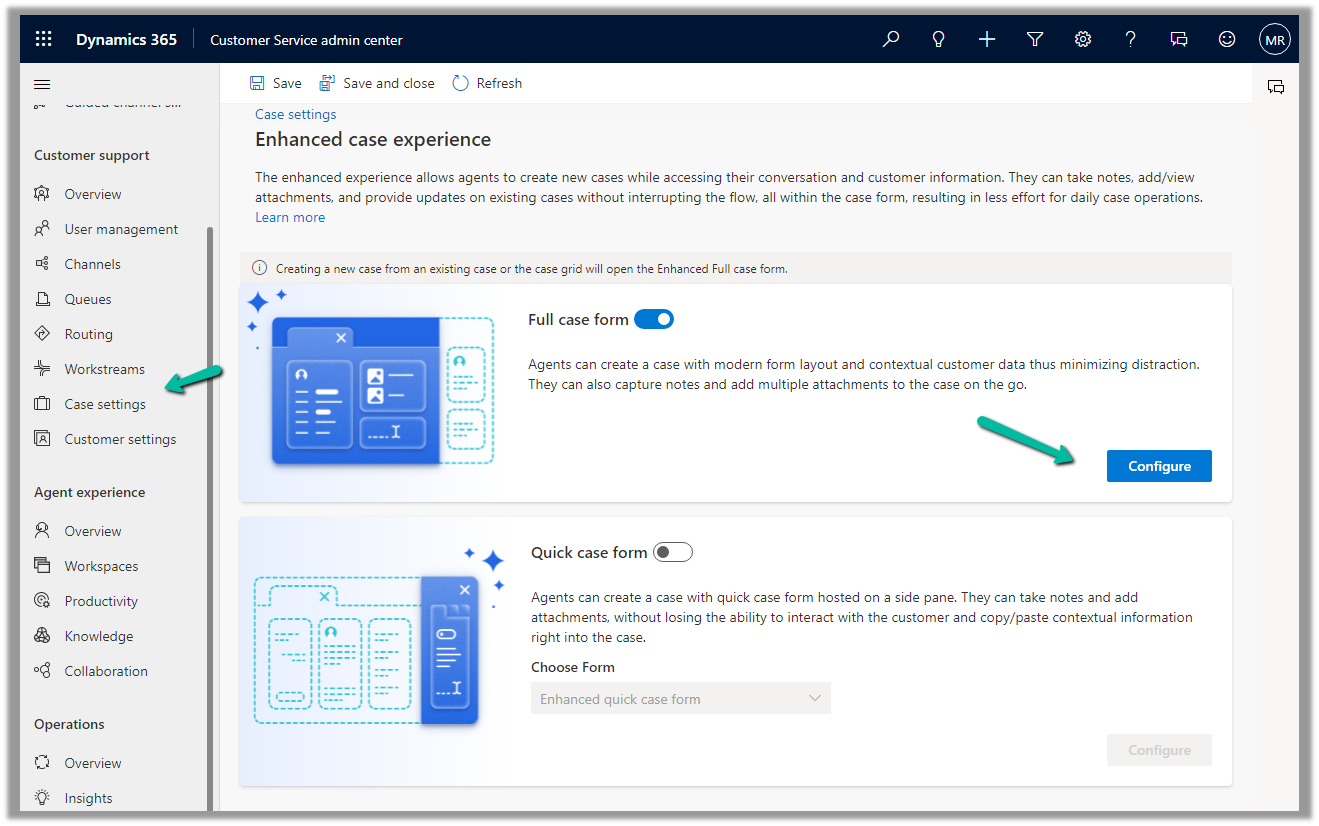
To enable it, navigate to Customer Service Admin Center >> Customer Support >> Case Settings >> Enhanced case experience (Manage)

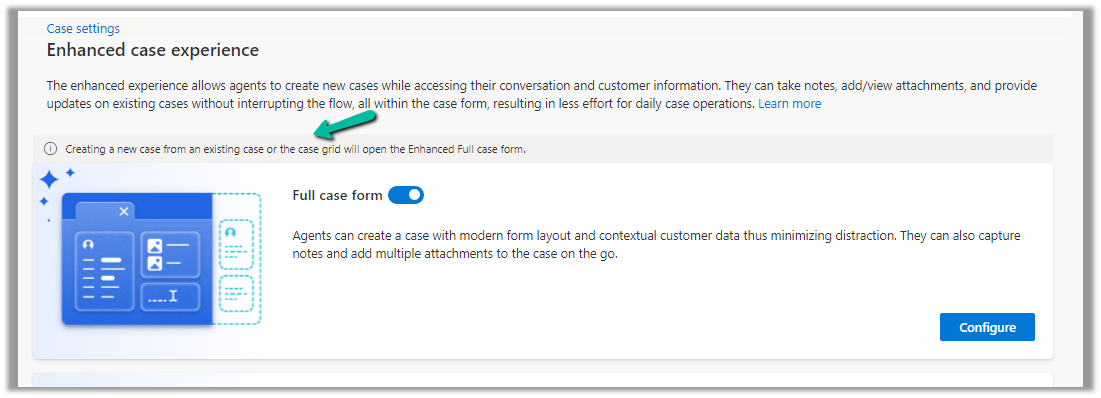
Enable the options – Here we have enabled the Full case form experience.

The new case form will show up while creating a new record from an existing case or the case grid.

Clicking on Configure opens the form in the Maker Portal.

The new Full Case form has the following new components added to it –

Grid Control – Case Associations (showing associated knowledge articles, similar cases, merged cases, and child cases)

  • Attachment Control – For the Case table, the new attachment control gives the option to directly upload the attachment as well as shows all the attachments either uploaded directly or associated with the notes or emails of the case record.

More on Attachment control:https://nishantrana.me/2023/05/08/new-attachment-control-dynamics-365/

  • Shows Priority and Case Status as color-coded options.

Due Activities Control – shows activities due today or overdue

More on Due Open Activities Control - https://nishantrana.me/2023/05/09/due-open-activities-control-dynamics-365/

It shows the activities overdue

  • Queue control shows the details of the Queue the record belongs to along with Worked By field.
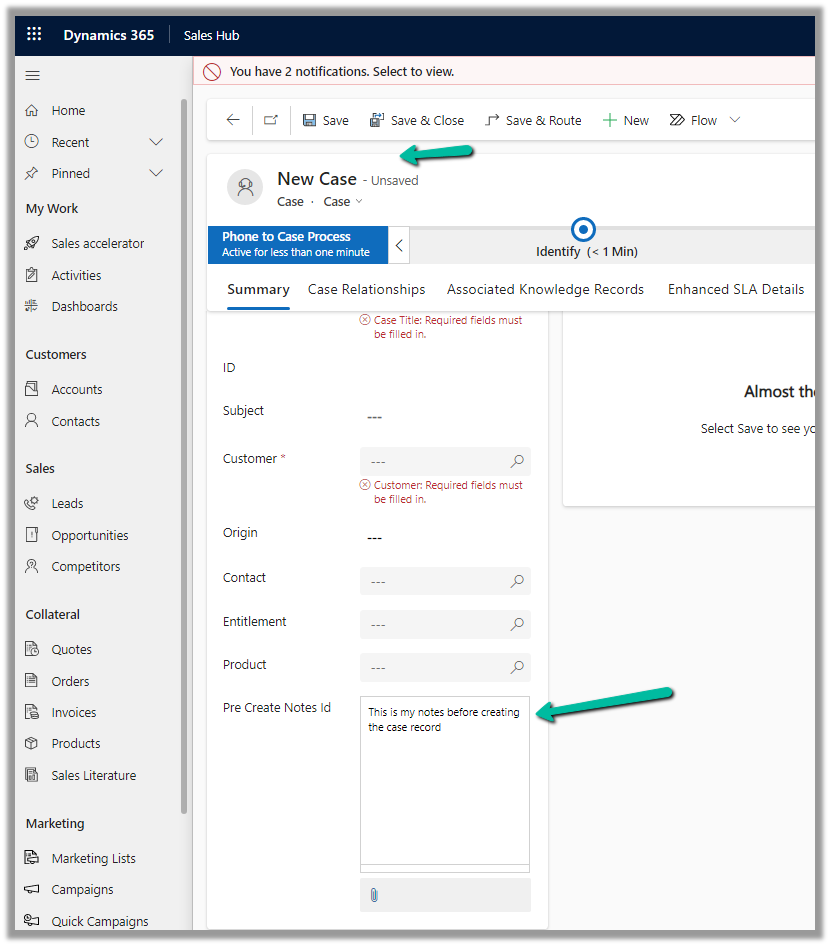
  • Notes control that allows taking notes before saving i.e. in a new record.

More on Notes control - https://nishantrana.me/2023/05/10/notes-control-dynamics-365/

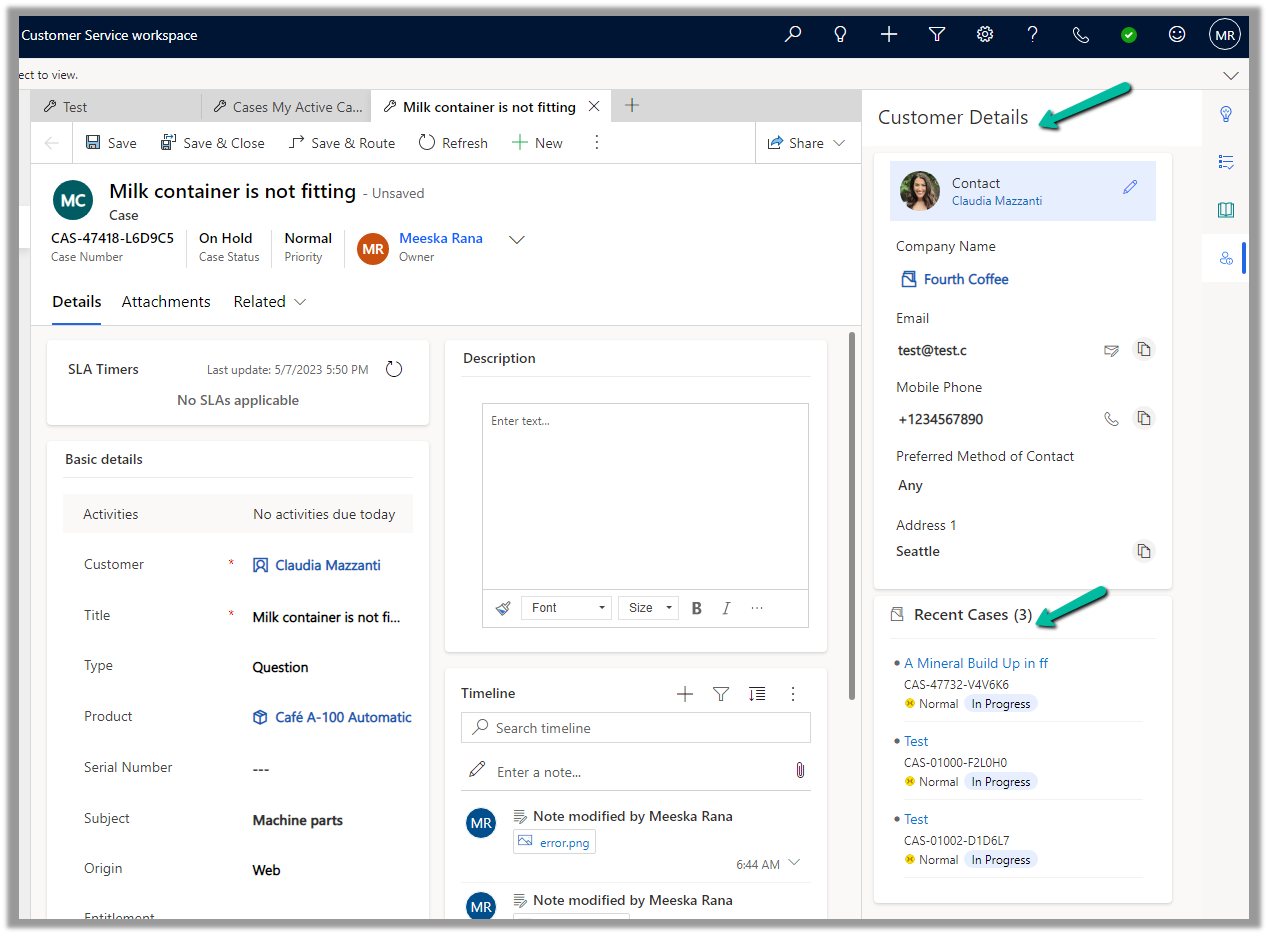
  • It also displays the Customer Details section based on the Customer selected in the case, as well as recent cases created.

Get more details on Enhanced Case Form

Hope it helps..

Advertisements

Notes Control – Dynamics 365


We now have new Notes control for the Case table.

The new notes control allows us to associate/create note without the need to create the case record first.

Here we are adding the Notes control in our Case form.

Specify Pre Create Notes Id (Text) as Table Column for Bound Attribute.

Save and publish the changes.

On creating the record we can see notes added to the timelines.

Also, we can observe that the control now shows – “No Data Available”.

In the case of the Enhanced Case Form, we have a script that hides that section after creation.

Due Open Activities Control – https://nishantrana.me/2023/05/09/due-open-activities-control-dynamics-365/

Attachment Control  – https://nishantrana.me/2023/05/08/new-attachment-control-dynamics-365/

Hope it helps..

Advertisements