Collaborate using Comments (preview) in Modern App Designer – Power Apps / Dynamics 365


A new comments (preview) feature has been added recently in the Modern App Designer

Modern App Designerhttps://nishantrana.me/2021/06/09/modern-model-app-designer-preview-dataverse-dynamics-365/

To see it in action, open an existing app or create a new app using the Modern App Designer.
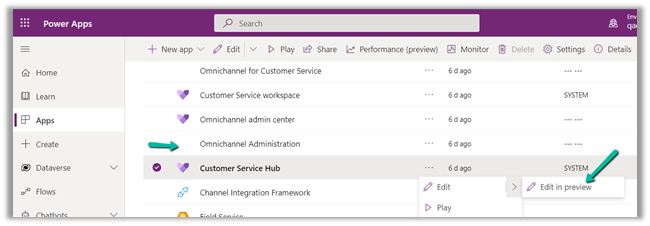
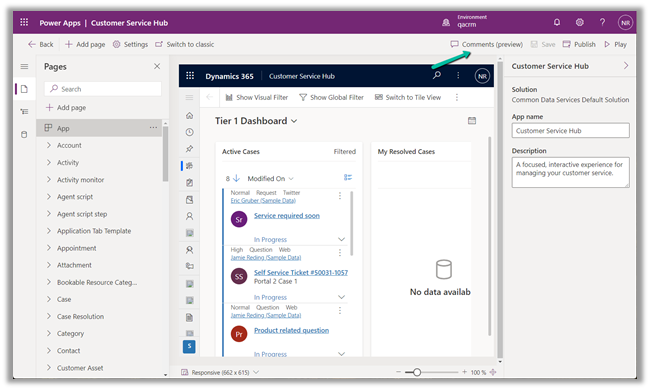
We can see the Comments (preview) options in the toolbar.
Comments allow us to add notes, discuss with colleagues using mention etc.
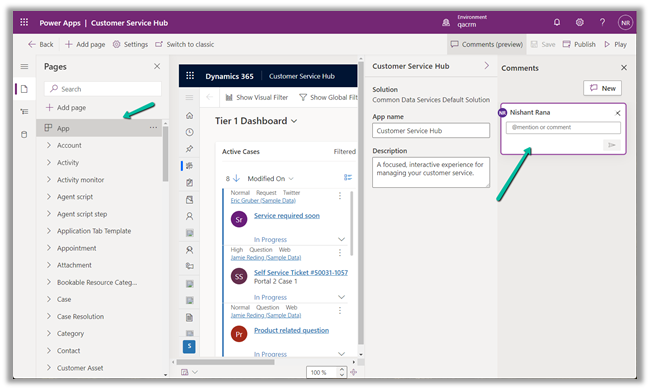
We can add multiple comments and it shows the count.
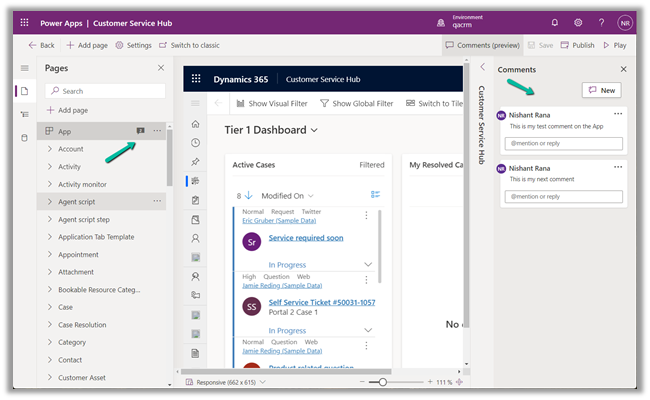
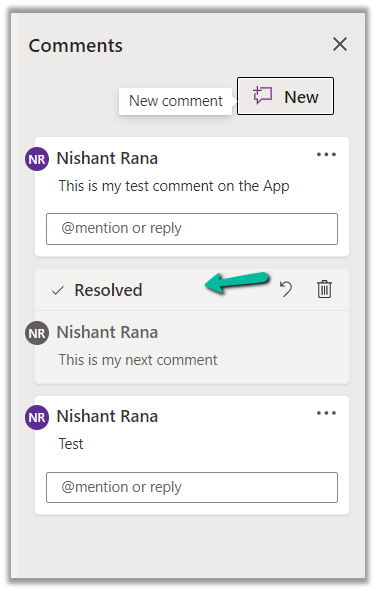
The comments can be edited, deleted, and resolved.

This is how the resolved comment look like – disabled 
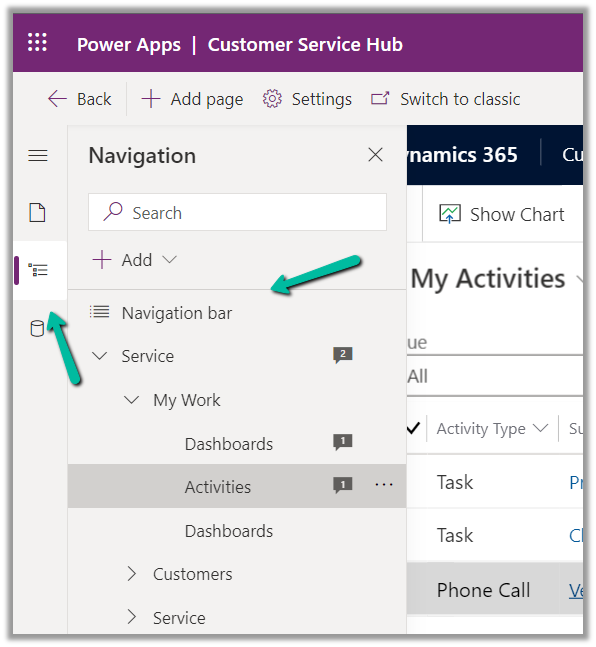
We can add comments to the page of type  – view, form, dashboard, and custom page.

We can add comment also within the Navigation bar.
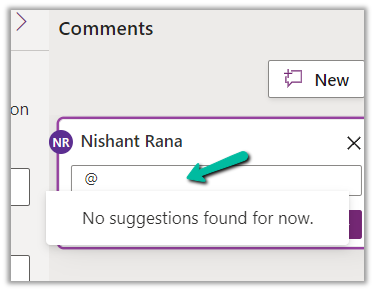
Currently, mention is not listing any suggestions –
Check here for more such features added – https://powerapps.microsoft.com/en-au/blog/round-up-of-the-ignite-announcements-for-power-apps/

Hope it helps..

Advertisements

The trick to force / trigger user sync – Power Platform / Dynamics 365


Sometimes it takes a long time for the users to appear in Dynamics 365, even though users have the appropriate licenses.

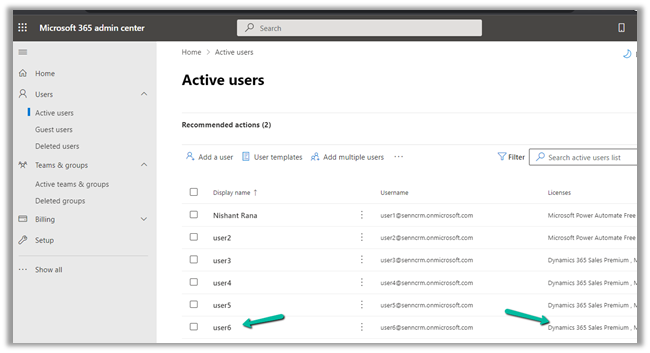
E.g. here we have added user6 in Microsoft 365 Admin Center.

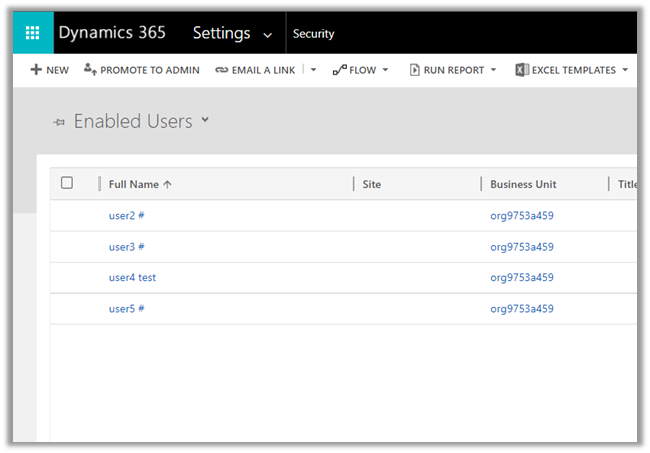
Back in CRM, we do not see user 6 added.

One way to add the user is through Force Sync User action of Power Platform Management connector.

https://nishantrana.me/2021/12/13/using-force-sync-user-to-sync-powerapp-crm-users-power-platform-dynamics-365/

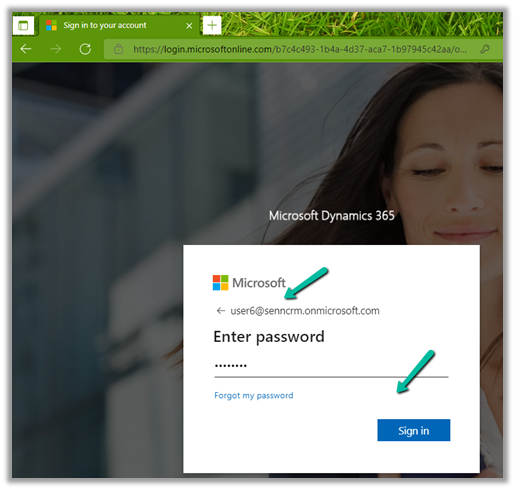
or the other option is to ask the user to log in to the Power Apps.

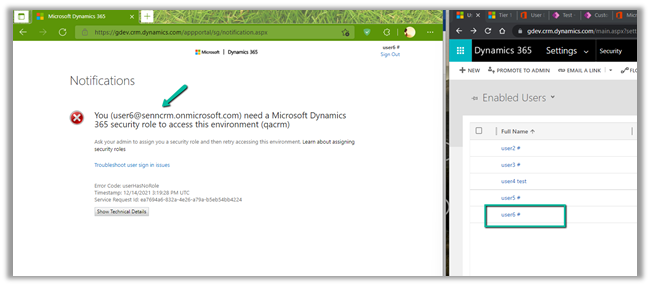
As soon as the user logs in we can see his account added/synced to the enabled users in CRM.

Thanks to Emre Gulcan for this trick

Hope it helps..
Advertisements

Using Force Sync User to sync PowerApp / CRM users – Power Platform / Dynamics 365


Recently in one of our trial environments, some of the users were not showing up in the Enabled Users view in Dynamics 365, although the users were having appropriate licenses assigned to them. (was more than 24 hours)

In such a scenario we can use Force Sync user action of Power Platform Management Connector.

https://docs.microsoft.com/en-us/connectors/powerplatformforadmins/

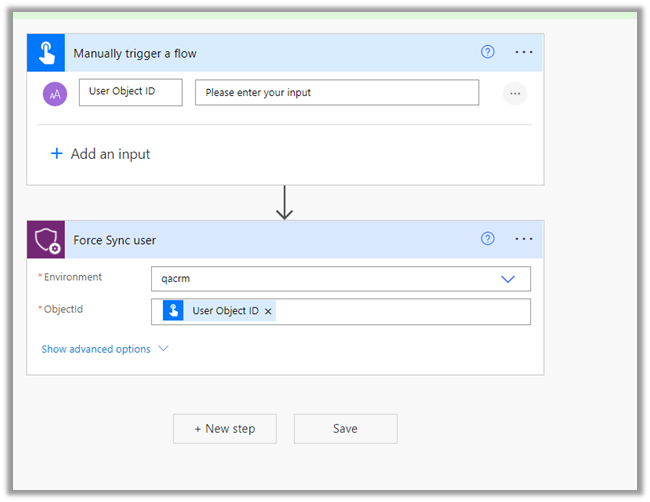
For Force Sync users, we will be passing the object id of the user and selecting the appropriate environment.

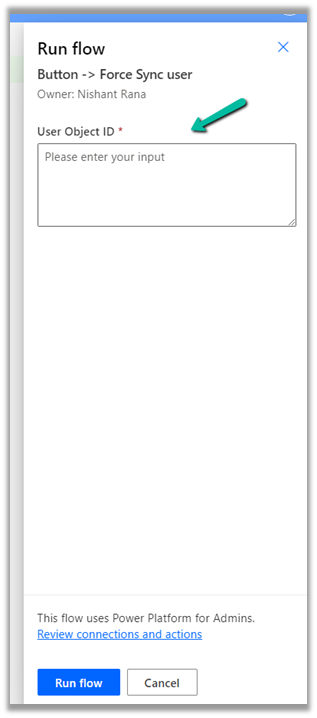
Run the flow manually.

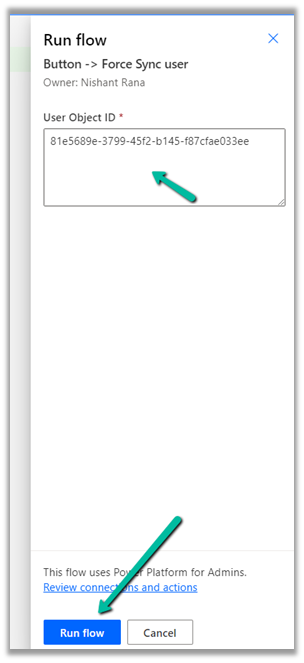
It asks for the Object Id of user.

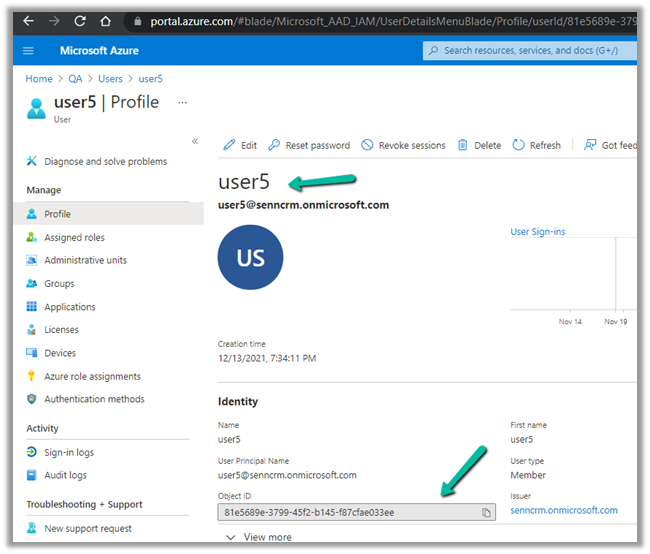
Inside Azure Portal >> Azure Active Directory >> Users, get the Object Id of the user

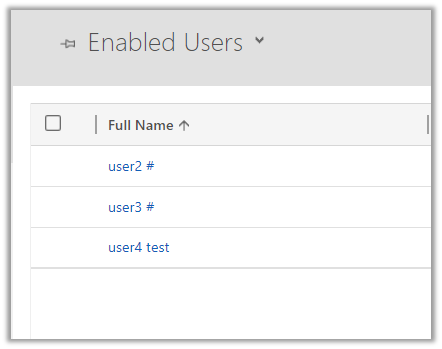
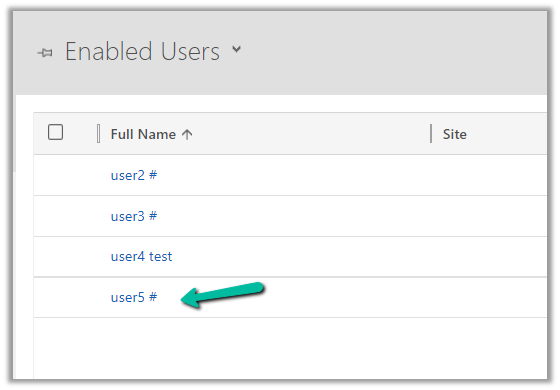
Currently, we have below 3 users in CRM

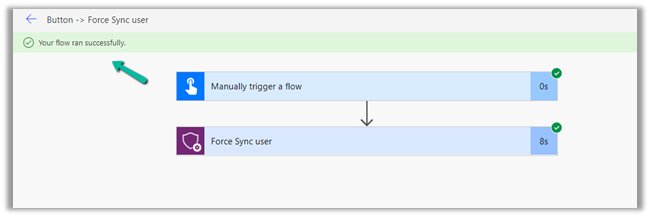
Let us run the flow.

Wait for the flow to complete.

After successful execution of the flow, back in CRM, we can see user 5 added to the list of enabled users.

In case we are using a security group for the environment we can make use of the below Power Automate Template, it takes the security group’s object id as input and loops through each of the members and applies Force Sync user action.

We can also make use of PowerShell cmdlets to achieve the same

https://nishantrana.me/2021/01/20/force-sync-users-from-azure-ad-to-dynamics-crm/

Force Sync Azure Active Directory Group members to specified CDS instance

Hope it helps..
Advertisements

Fixed: Action not appearing in Plugin Registration tool (Dynamics 365 / CE)


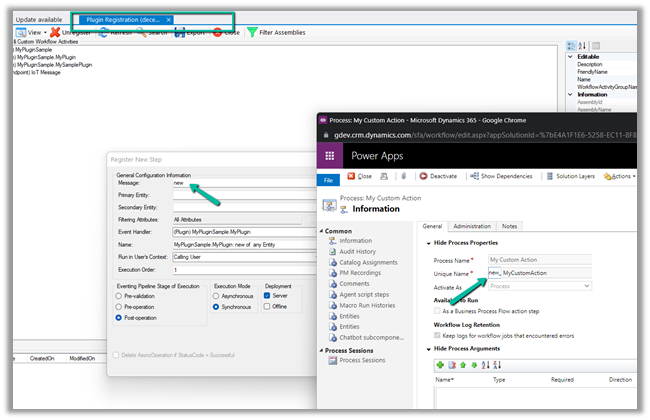
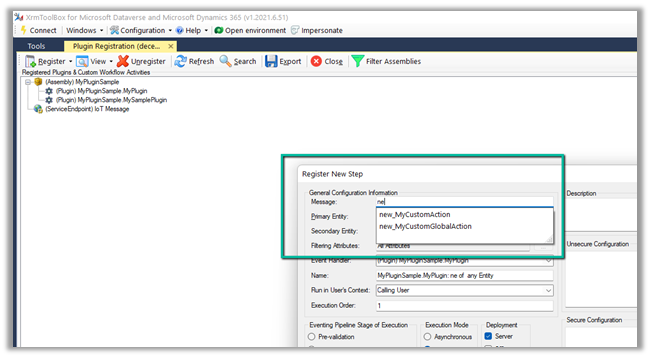
We had couple of actions created, but they were not appearing in the Plugin Registration Tool Plugin of XrmToolBox as shown below.

Refreshing the plugin, re-connecting to the organization, republishing the action, etc. didn’t work.

Eventually, we restarted the XrmToolBox and our messages started appearing.

Could be something related to Metadata cache.

Hope it helps..
Advertisements

Fixed – We couldn’t load your user roles from the selected Dynamics 365 Organization error while trying to set up Microsoft Dynamics 365 Marketing


Recently while trying to set up Microsoft Dynamics 365 Marketing on an existing Dataverse environment, we got the below error.

“We couldn’t load you user roles from the selected Dynamics 365 Organization. Please try again”

The user had the system administrator role, which is good enough to set up marketing.

We tried replicating the same in other trial environments but were not able to replicate the above error.

Eventually, we tried the setup with the same user but in a different VDI (Virtual Desktop Infrastructure), and the setup worked properly without any error. One probable reason could be, that the appropriate URLs being accessed during setup were already whitelisted in the other VDI, which wasn’t the case in the first VDI where we were trying earlier.

Hope it helps..
Advertisements

How to – Use the new command designer to customize the command bar – Dynamics 365 / Power Apps


Using the modern app designer either open an existing model-driven app or create a new model-driven app in https://make.powerapps.com/

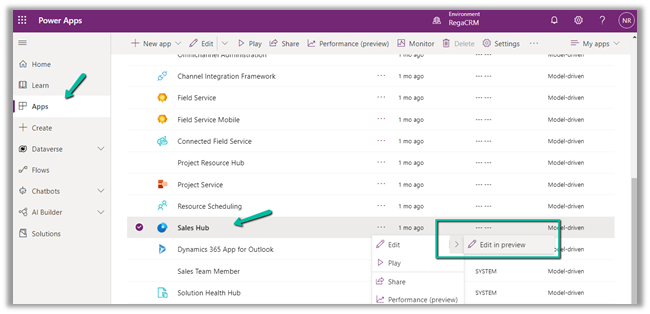
Select Edit >> Edit in preview

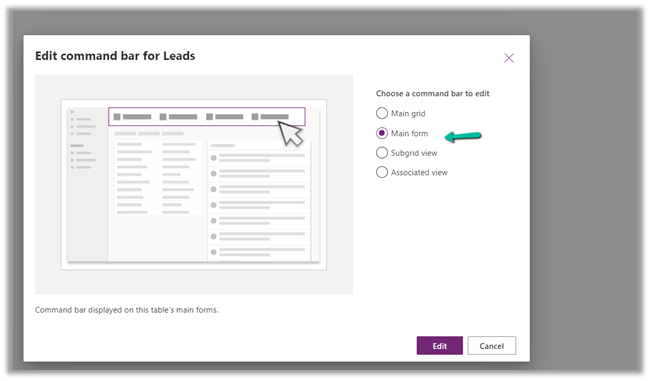
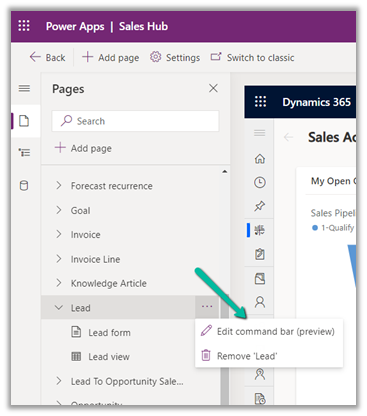
Select any entity/table and select the Edit command bar (preview)

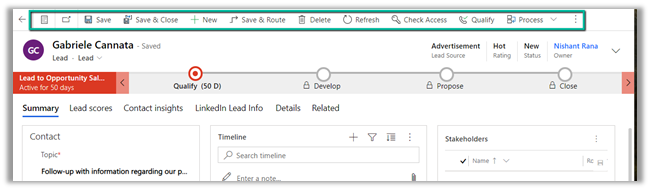
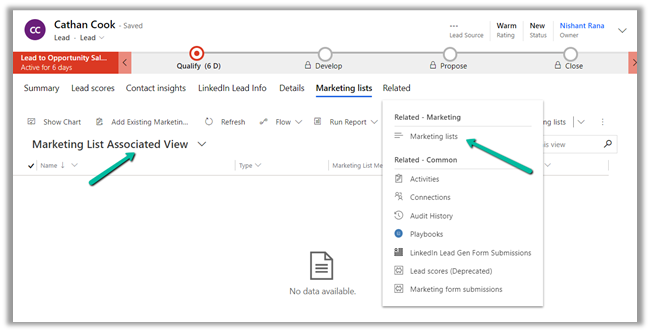
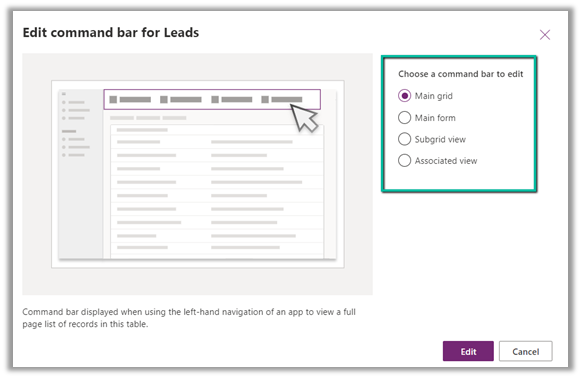
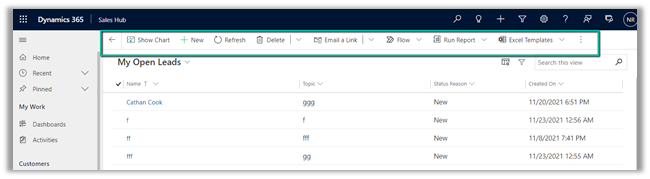
The different command bars that can be edited are the Main grid, main form, subgrid view, and the associated view.

  • Main Grid view

  • Main Form view –

  • Subgrid view–

  • Associated view –

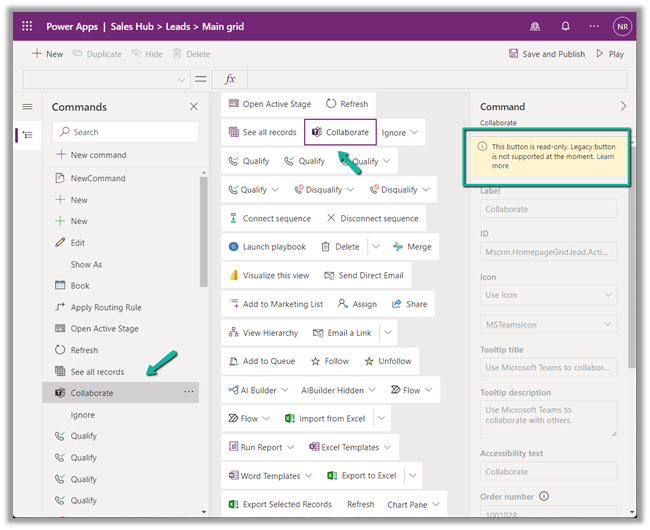
The legacy / classic button is not supported currently.

Check out all the known limitations

https://docs.microsoft.com/en-gb/powerapps/maker/model-driven-apps/command-designer-limitations

limi

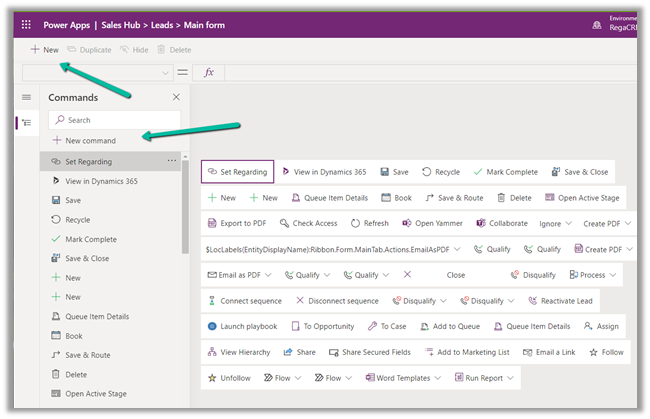
Let us try adding a new command/button in the Main Form, and see what options do we get there.

Select + New command or the + New option

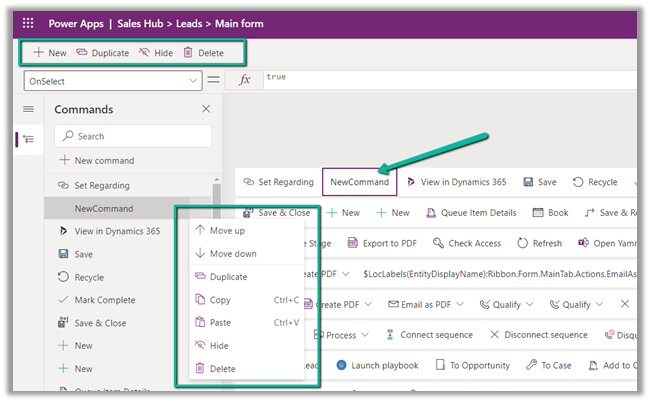
It adds a new button with the label NewCommand with options to duplicate, hide, move up and down, etc.

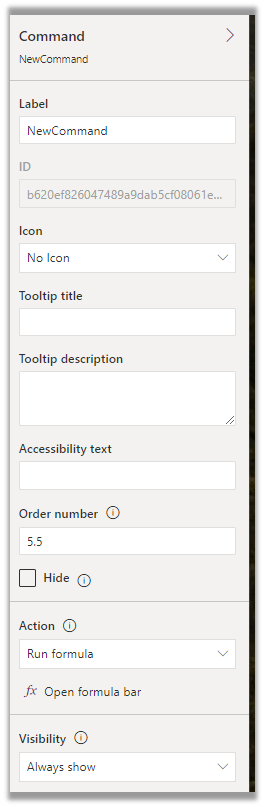
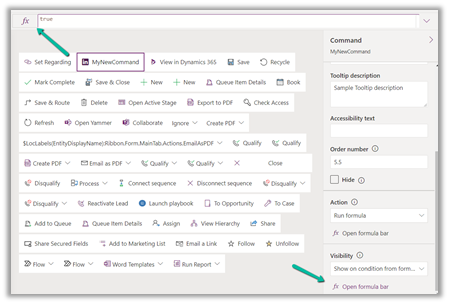
The different properties that can be configured for the new command –

Property

Description


Label

To set the label

Icon

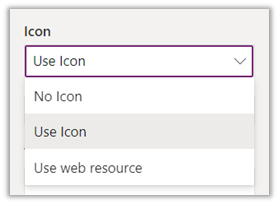
To set the icon either using icon or web resource

Tooltip

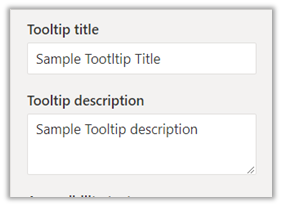
Set tooltip title and its description.

Order Number

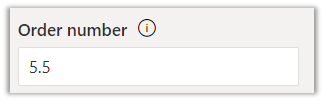
Customize the Order of the command

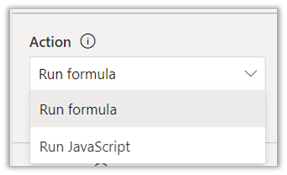
Action

Either run formula or run javascript


Open Formula Bar


Library for Run JavaScript

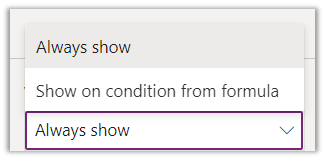
Visibility


Open Formula Bar for Show on Condition

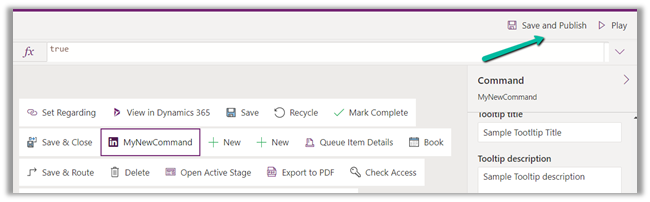
Let us Save and Publish

Click on Play and open a lead form.

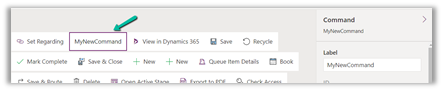
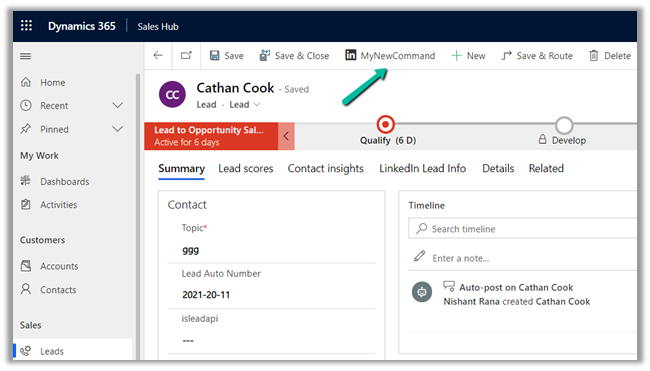
We can see the new command added.

Get all the details here –

https://docs.microsoft.com/en-gb/powerapps/maker/model-driven-apps/command-designer-overview

Hope it helps..
Advertisements