Use Copilot to create a journey – Dynamics 365 Marketing


We can make use of Copilot to create a journey for us, using everyday conversational language.

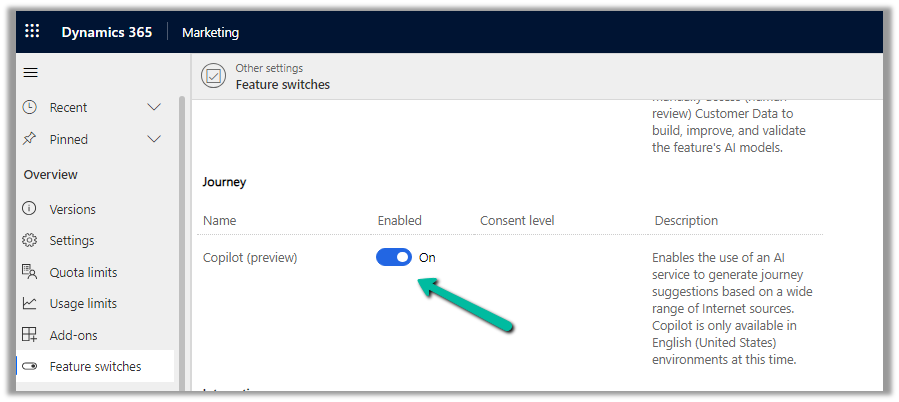
To enable it, navigate to

Settings >> Overview >> Feature Switches >> Journey (Copilot)
Let us see it in action, by creating a new journey record.

We get the option to select predefined
examples to start with.

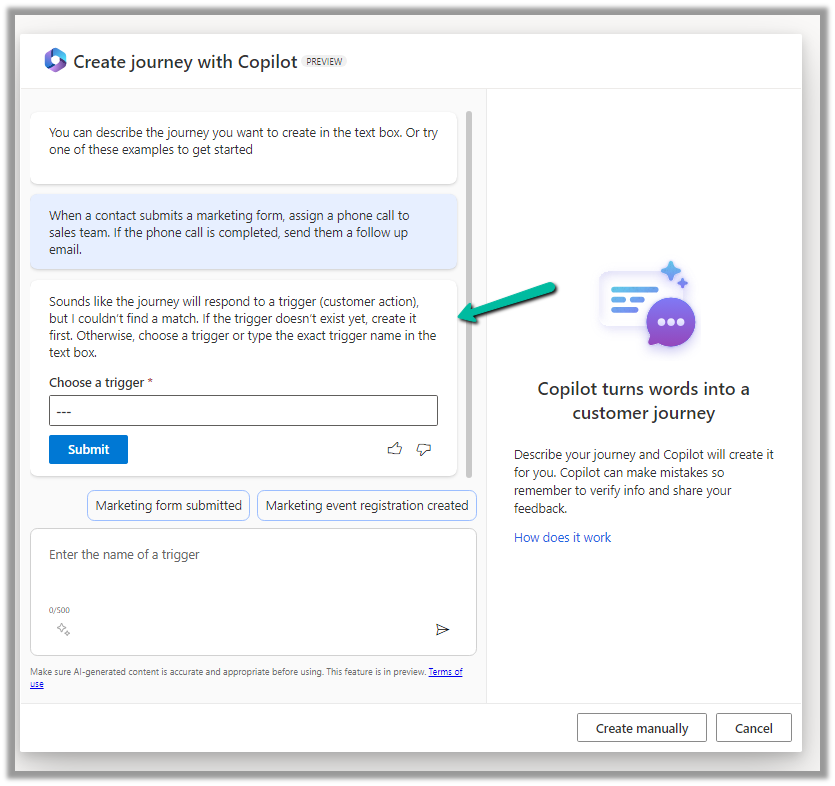
Here we have selected the last example “When a contact submits a marketing form, assign a phone call….”

On selecting it, we are presented with the option to specify the Trigger.

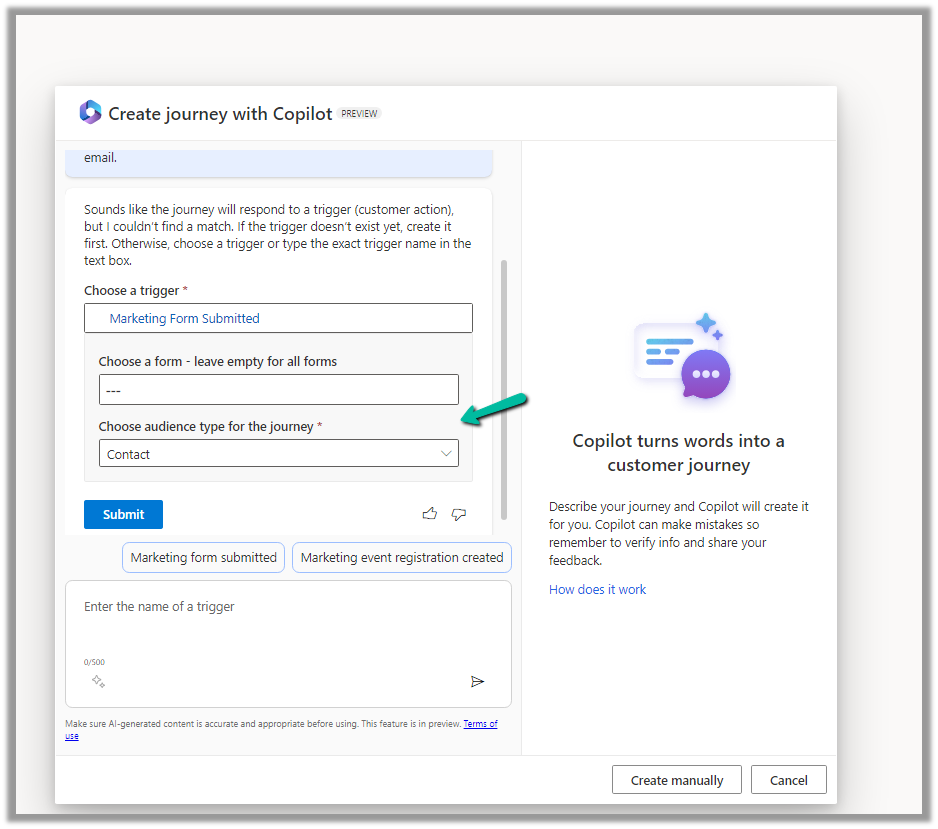
We have selected the existing Marketing Form Submitted trigger record here.

After specifying the trigger, we get the option to specify the marketing form or to leave it empty to run it for all the form submissions and also the audience type, which could be either Contact or Lead.
Clicking on Submit gives the option to review and then eventually Create Journey.

Clicking on Create Journey generates the journey for us.

We can review the journey, add any further content required, modify it, etc.

For example, we need to specify the follow-up email to be sent, before we can save and publish it.

Once we are done with defining the journey, we can publish it.

Get more details here.

Hope it helps..

Advertisements

Filtering Attributes for Create message – Plugin (Dataverse / Dynamics 365)


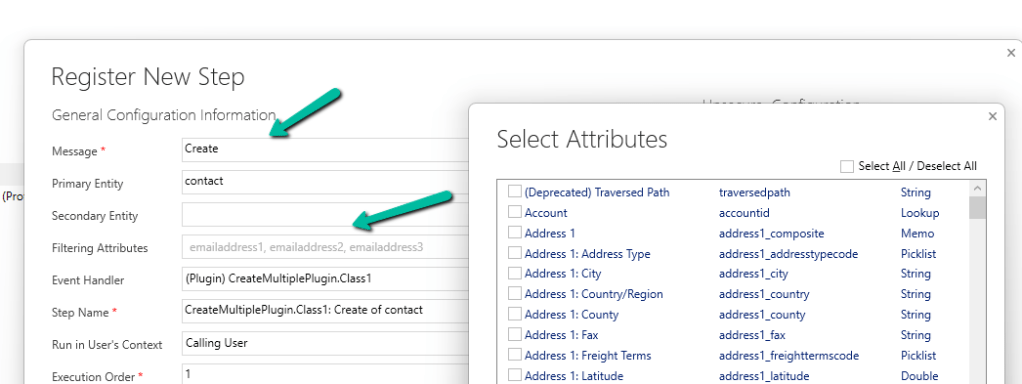
While registering a plugin step, found that we can now specify Filtering Attributes for Create message.

Check the below post for more details –

Advertisements

Use Sales Copilot to get the latest news for customers/accounts through Bing (Dynamics 365)


Sales Copilot can be used to get the latest news for the company or account associated to the Lead, Opportunity, Contact, or Account form. We can also use the prompt “Get latest news for account” and either specify and account record or choose one of the account record listed.

Allow data movement across regions in the Power Platform Admin Center using Enable copilots and generative AI features outside United States and Switzerland – Power Platform | Microsoft Learn

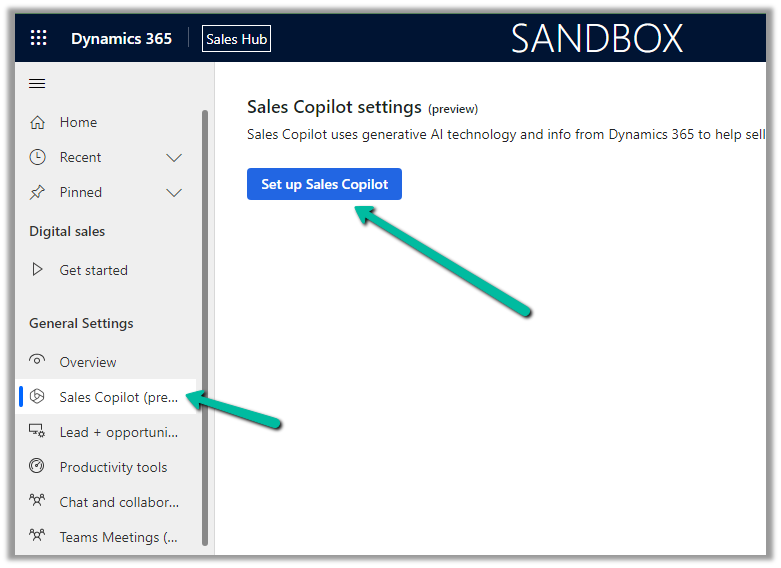
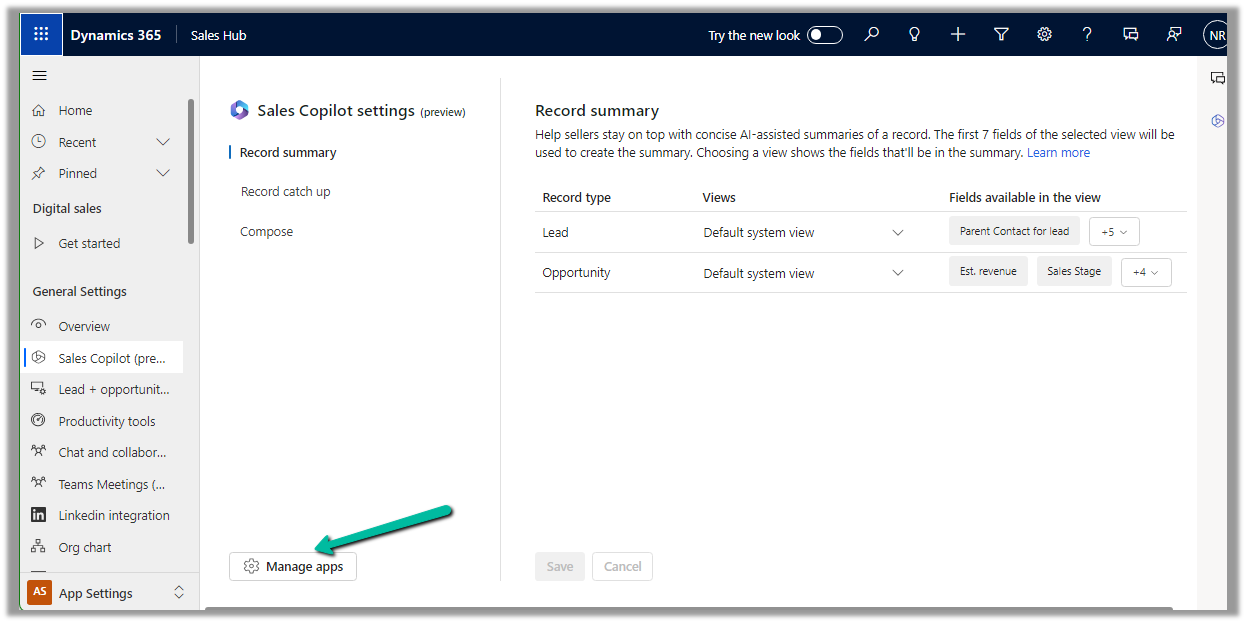
To enable Sales Copilot, navigate to

Sales Hub >> App Settings >> Sales Copilot (preview) >> Set up Sales Copilot

Or if we have already enabled it, we can manage the features provided along with the different apps we want to apply the Sales Copilot using the Manage apps option.

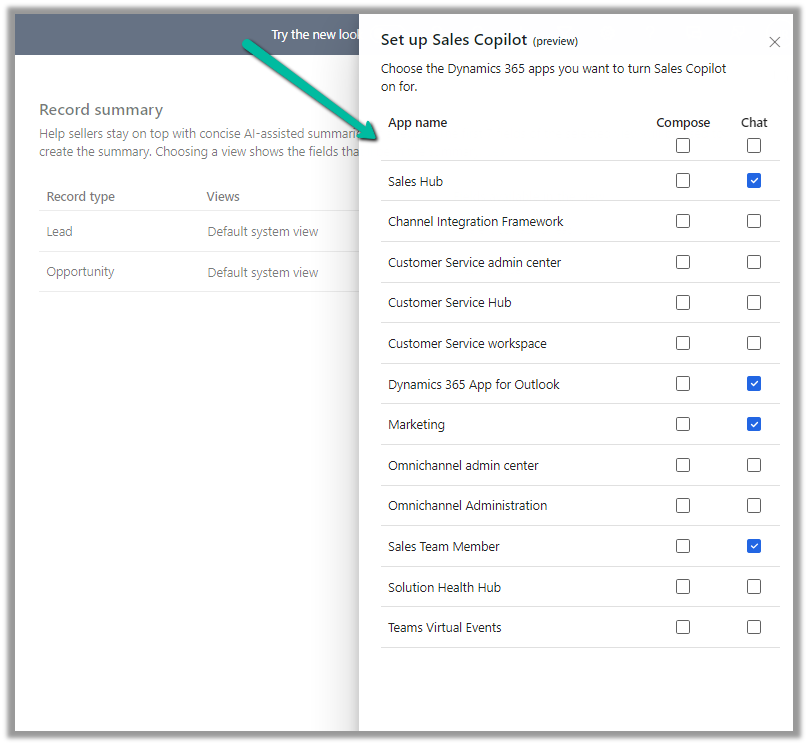
Here we can specify to which apps we want to enable the feature.

Once enabled we can see the “Get latest news related to account” command in the Sales Copilot chat.

Below is the result we get on triggering that command.

We get the same command for the Opportunity, Contact, and Account form.

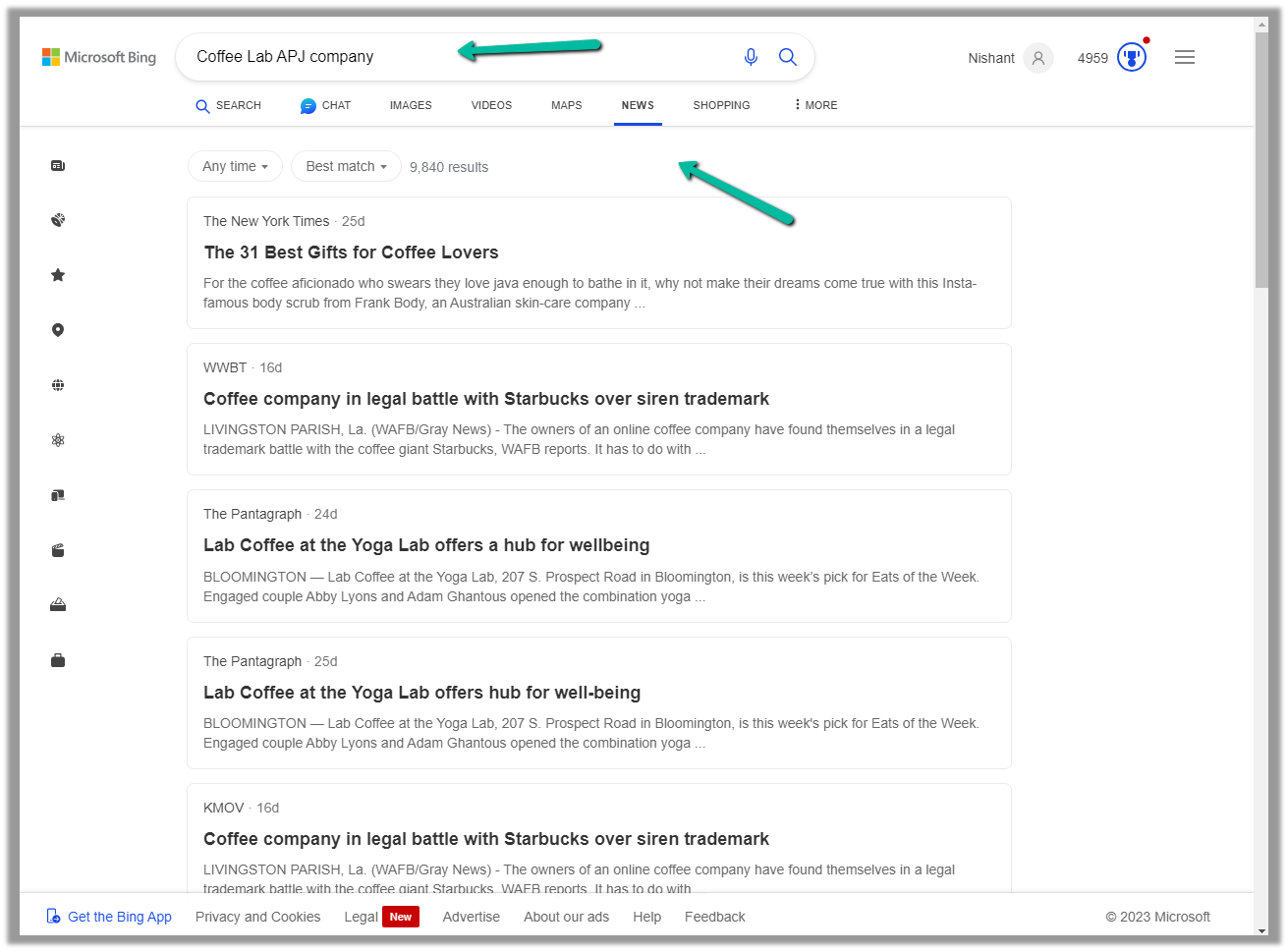
We can use the command “Show more in Bing” to open the Bing Search Results.

Below we can see the results in Bing

Get all the details here

Hope it helps..

Advertisements

Use Sales Copilot to get the summary of a lead and opportunity (Dynamics 365)


Sales Copilot can generate a quick summary of a lead and opportunity record, based on the fields defined in a view.

Allow data movement across regions in the Power Platform Admin Center using Enable copilots and generative AI features outside United States and Switzerland – Power Platform | Microsoft Learn

To enable Sales Copilot, navigate to

Sales Hub >> App Settings >> Sales Copilot (preview) >> Set up Sales Copilot

Or if we have already enabled it, we can manage the features provided along with the different apps we want to apply the Sales Copilot using the Manage apps option.

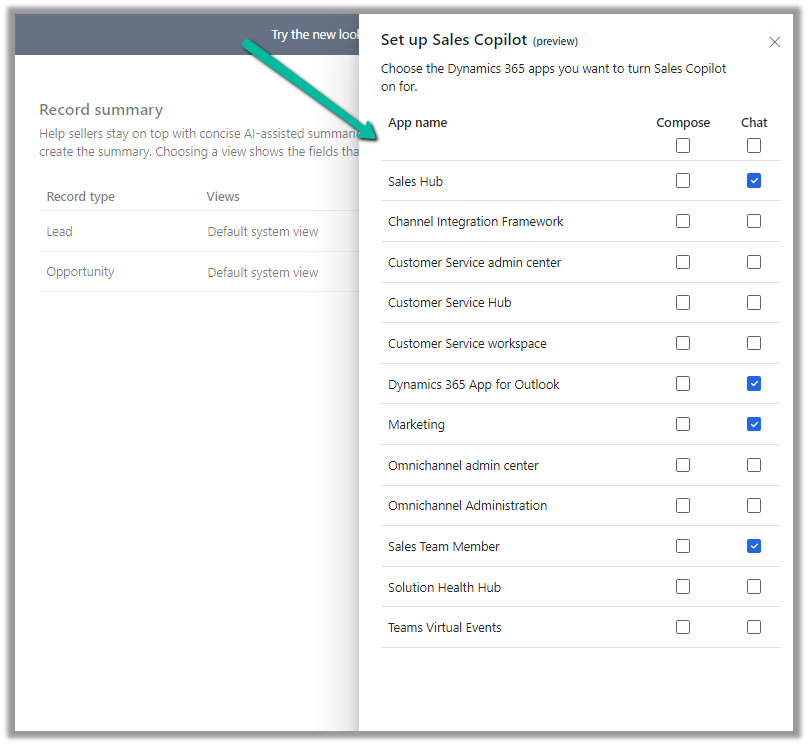
Here we can specify to which apps we want to enable the Compose and Chat feature

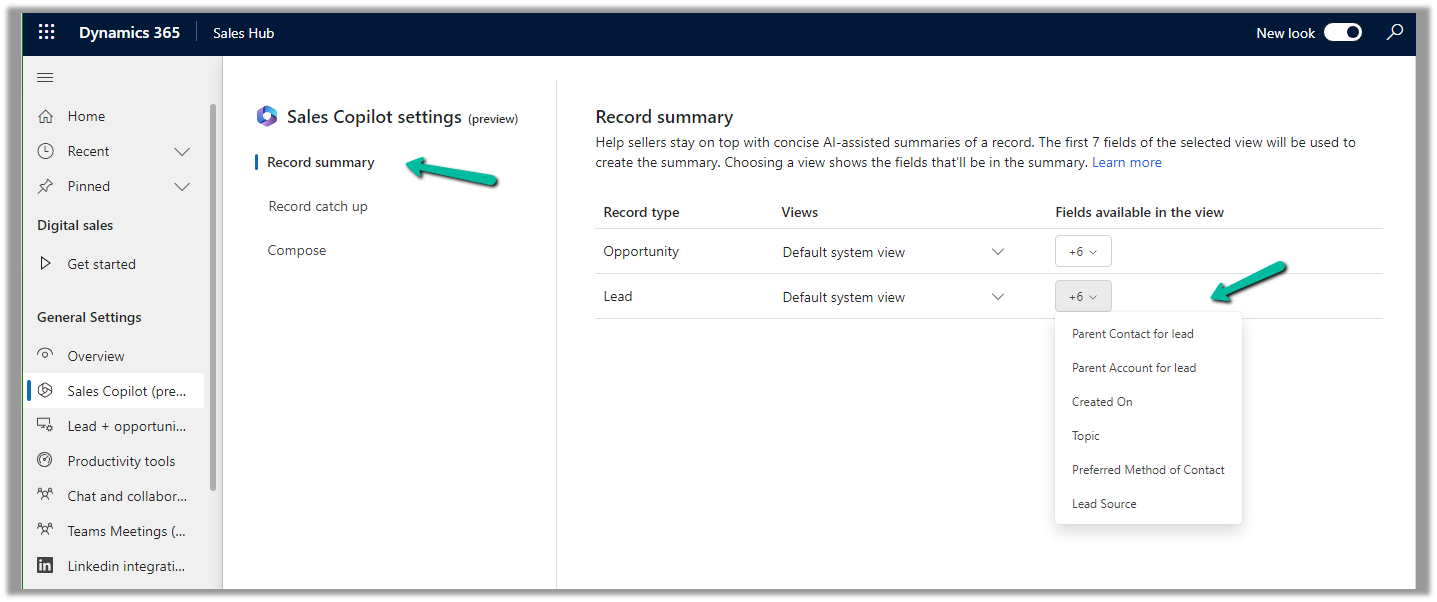
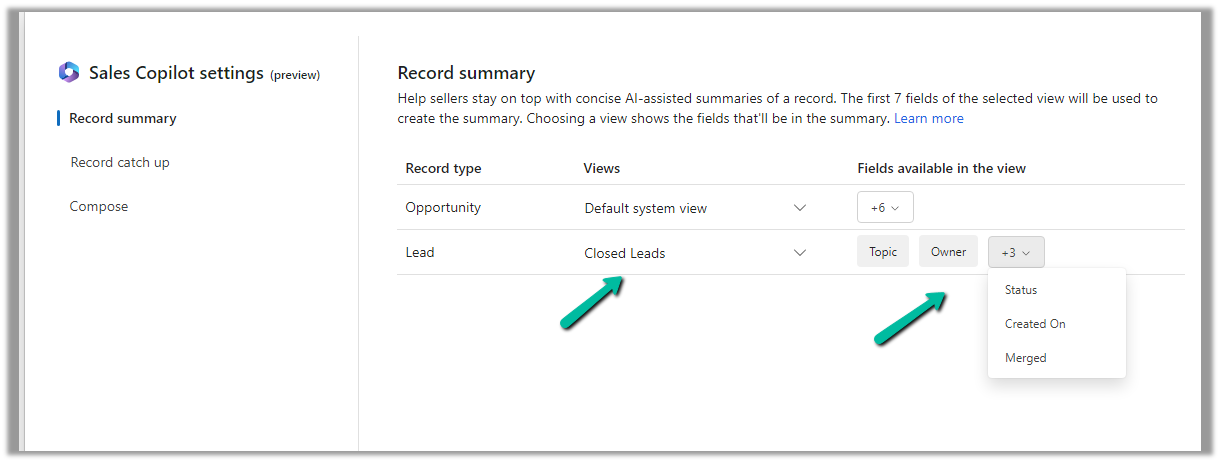
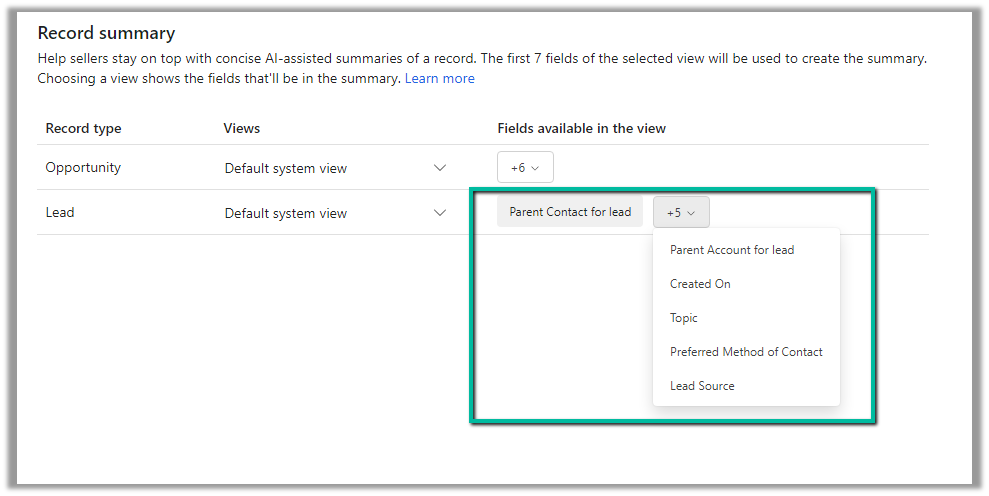
For the Record summary feature, the first 7 fields of the view are considered. We can see “Default System View” selected by default.

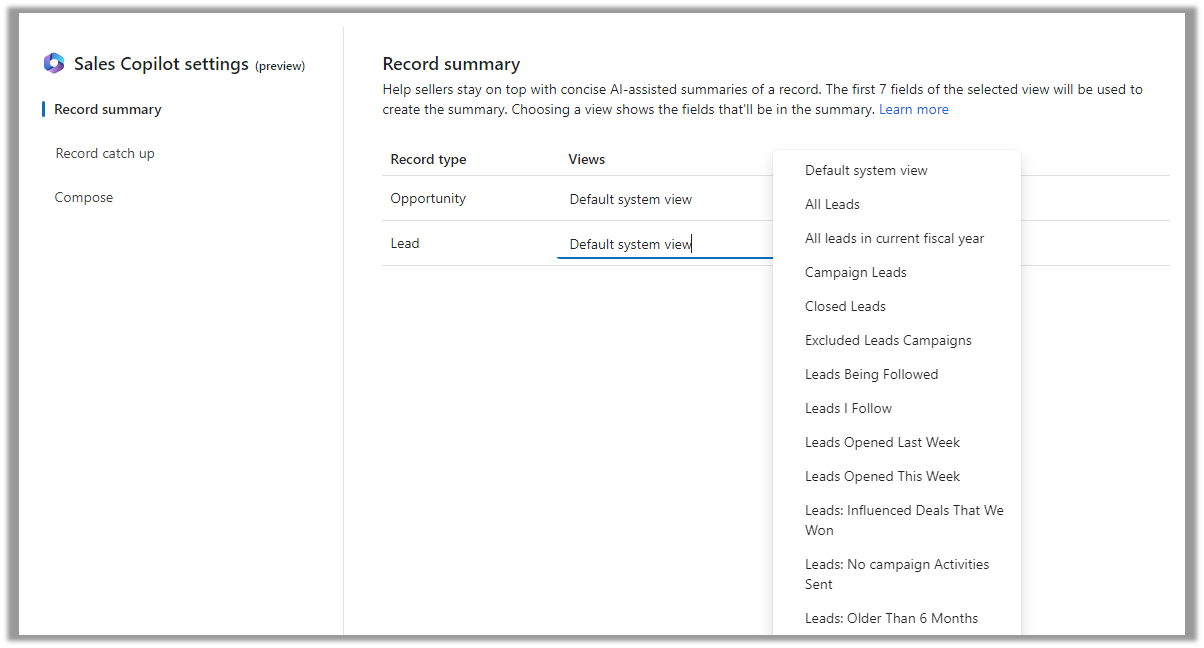
However, we have the option to select a different view, and then the fields of the selected view will be used for the summaries.

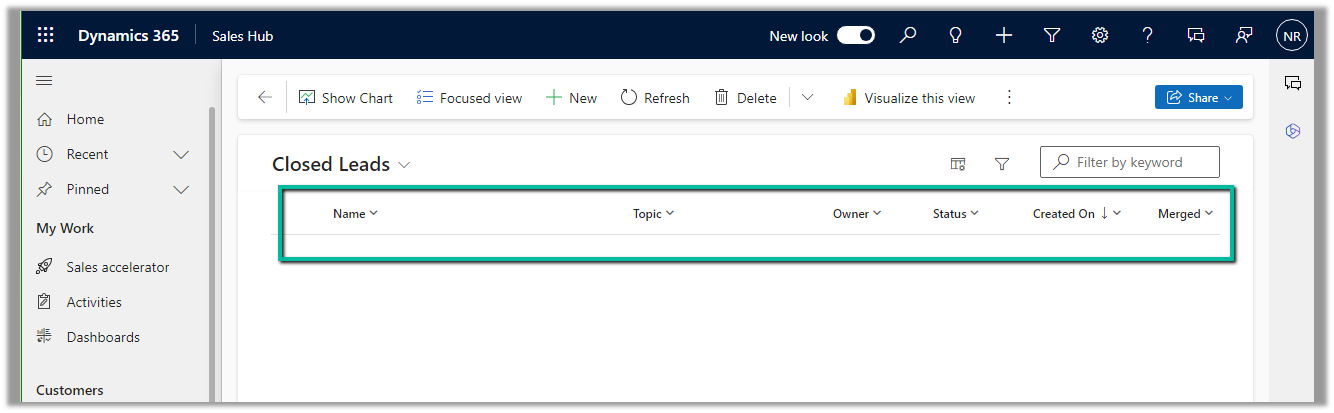
Below if we select the Closed Leads view and we can see it corresponding fields that will be considered for the summaries.

The Closed Leads view

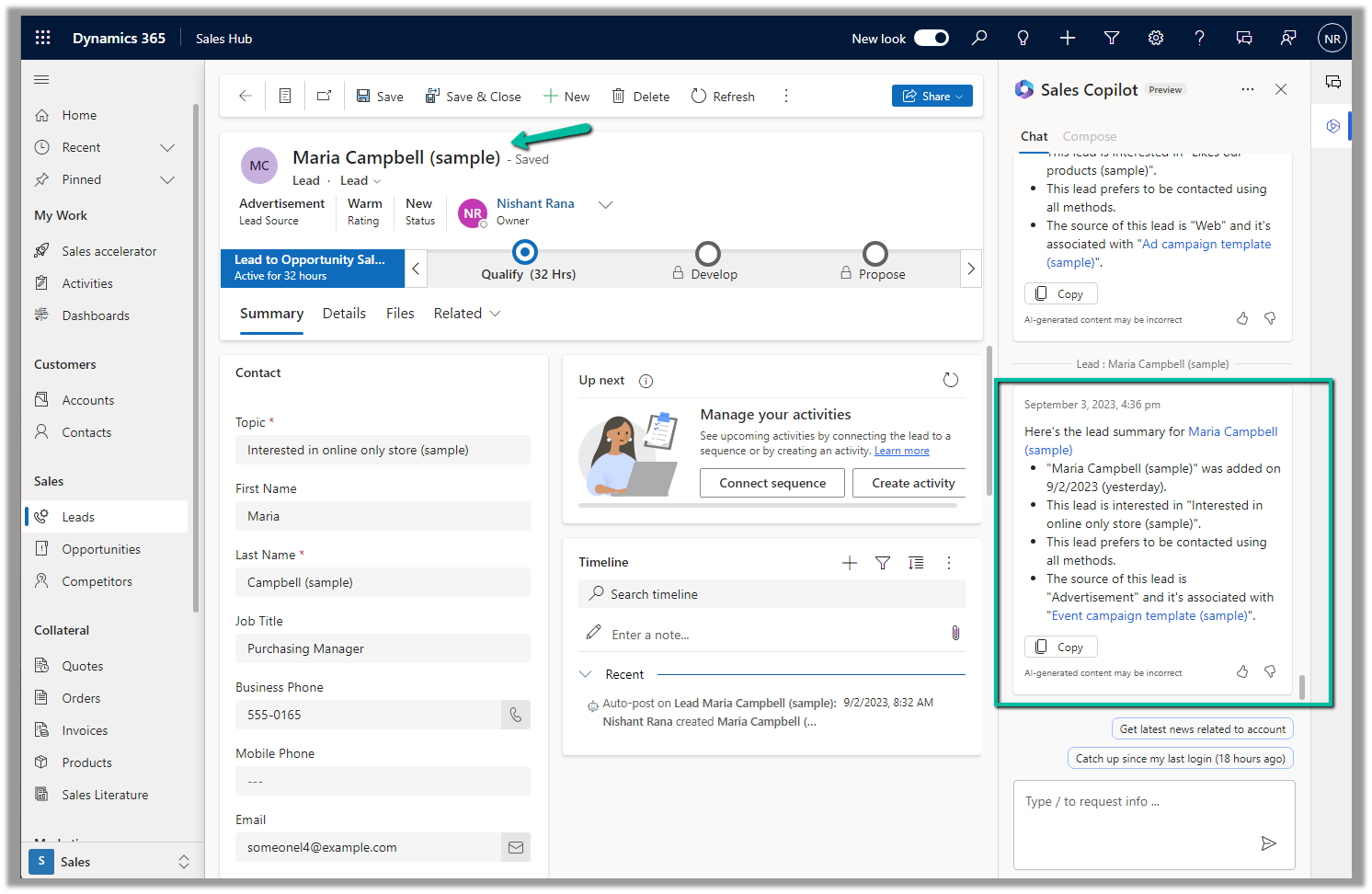
We can open an existing lead or opportunity record, and the Sales Copilot automatically generates the summary for that record.

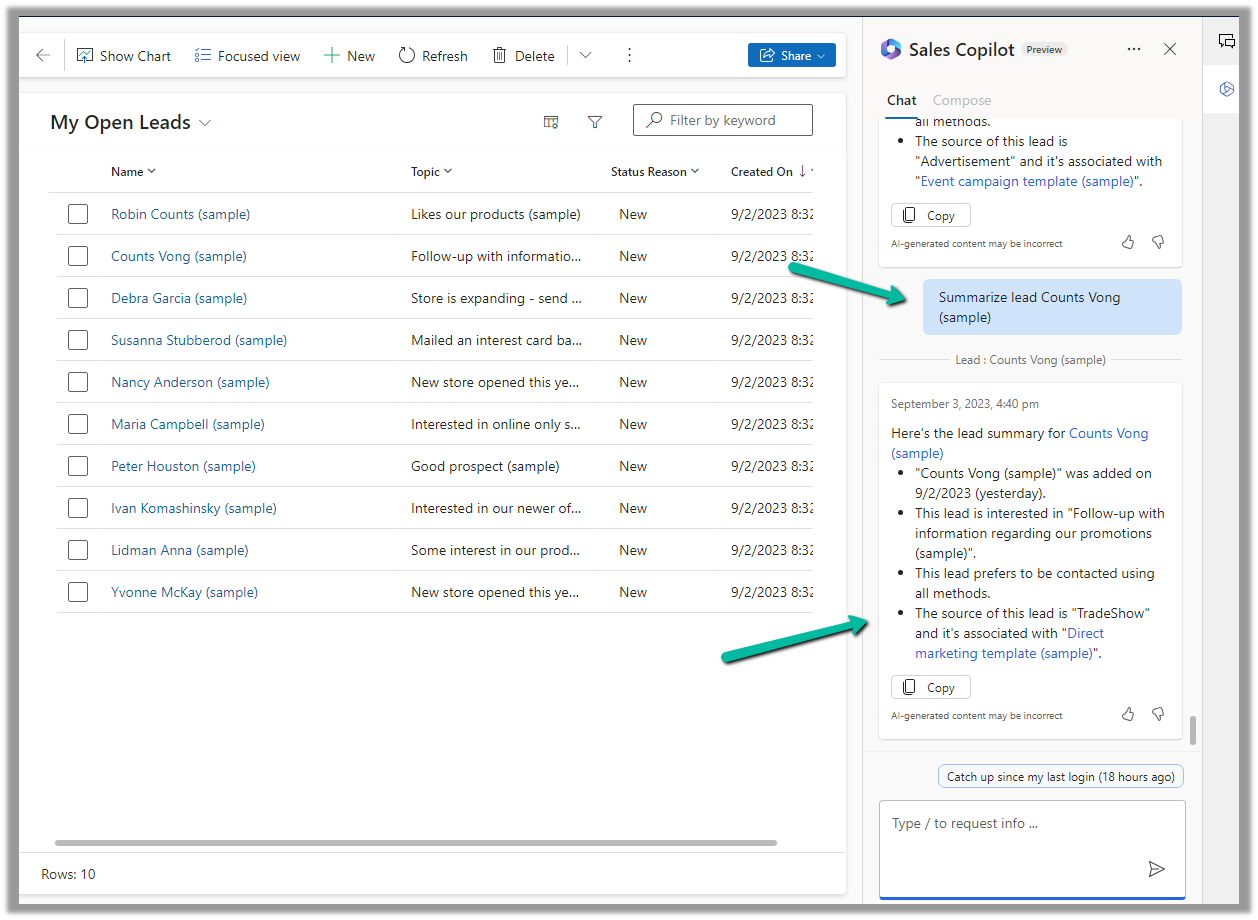
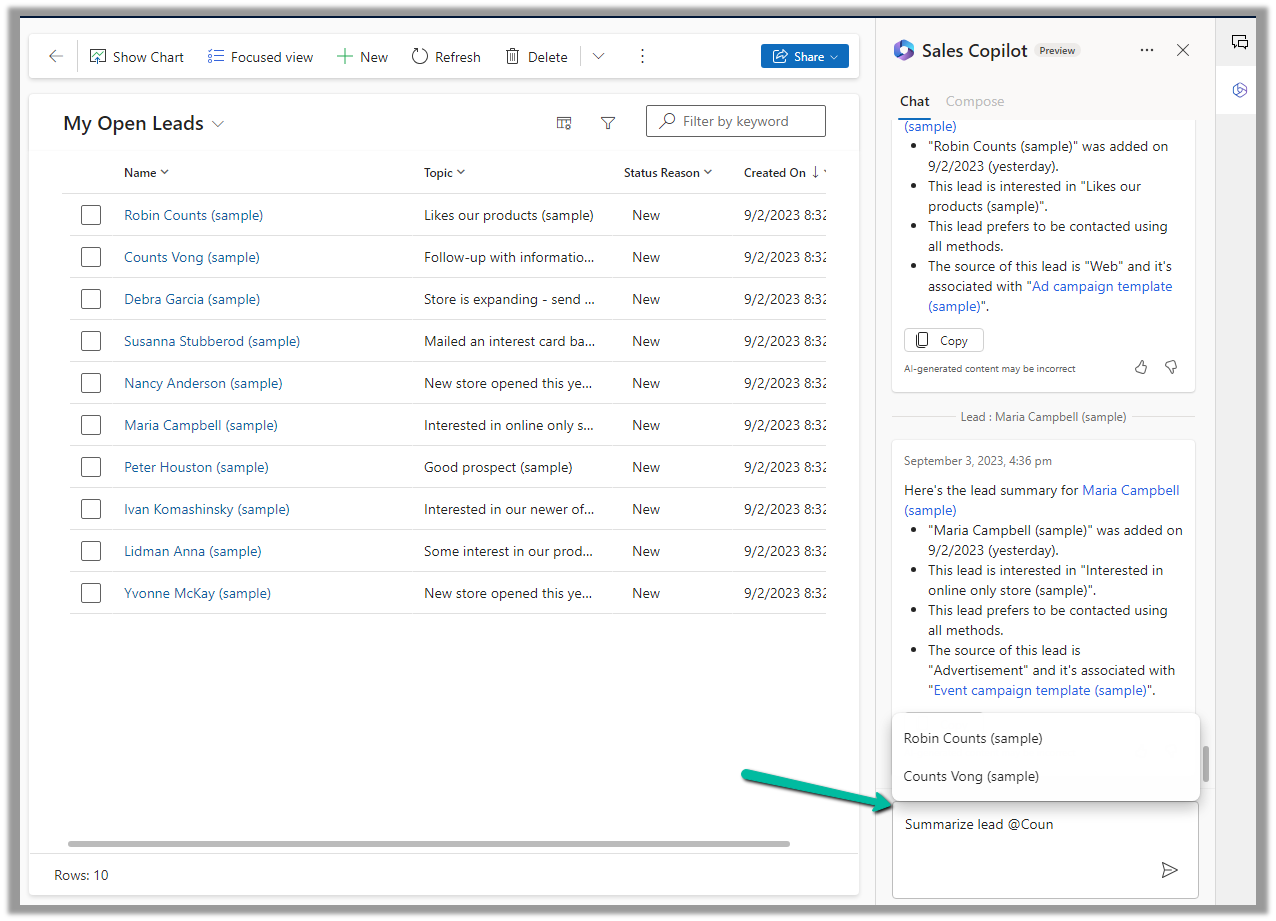
Or if we want to generate summary for a specific lead or opportunity we can use the below prompt.

Summarize lead or Summarize opportunity followed by @ and the record’s name.

Below is the summary for Counts Vong (sample) lead record.

Here we can see the AI-generated summary making use of Created On, Topic, Preferred Method of contacct, Lead source field etc of Default system view.

Get more details here.

Hope it helps..

Advertisements

Reparent relationship cascading behavior in Dynamics 365 / Dataverse


Check out the below articles explaining in detail the Reparent behavior.

About the reparent action

Advertisements

Try the new modern look for the Model-driven app (Preview)


The new modern refreshed look for the Model-driven app can be enabled from Maker Portal >> Model-driven App (Edit) >> Settings >> Upcoming – Try the new look and feel (preview)

The new look makes use of the latest Fluent UI React Components

Or now we see the option to Try the new look in the app itself in the command bar.

Let us look at the changes

  • Grids now have the checkboxes added to it

(open the image in new tab to view it clearly)

  • Infinite scrolling
  • The same grid is applied to Sub Grid and Associated Grids
  • Forms now have a new Command Bar, refreshed BPF, Sections, etc.
  • Form fields now have a background, icon placement, stying changes, etc.

Get all the details here

Hope it helps..
Advertisements