Use JavaScript to enable / disable a field only if the Stage is Active in Business Process Flow – Dynamics 365 / Dataverse


Recently we had a requirement to set some of the fields in our business process flow to be enabled only if that stage is active.

E.g. We want to Identify Sales Team field to be Enabled only if the Propose stage is active, else we want to set it as read-only.

A screenshot of a computer

Description automatically generated

We can use the below JScript to achieve the same.

A screen shot of a computer program

Description automatically generated

Because the Propose stage is Inactive we have Identify Sales Team as read only.

A screenshot of a computer

Description automatically generated

On moving to the Propose stage, we can see the field being enabled back.

A screenshot of a computer

Description automatically generated

The key steps are –

In the onload of the form associate your function/logic to the OnStage change method of the Process object.

formContext.data.process.addOnStageChange(CheckStageAndToggleFieldBPF);

Next, check for the active stage ID.

Here to get the active stage ID, open the business process flow and get its Guid.

A computer screen with a green arrow pointing to a black box

Description automatically generated

Then using the awesome SQL4CDS XrmToolBox plugin get the Guid of the particular stage.

A screenshot of a computer

Description automatically generated
function OnLoad(executionContext)
{
	 var formContext = executionContext.getFormContext();
	 formContext.data.process.addOnStageChange(CheckStageAndToggleFieldBPF);
	 CheckStageAndToggleFieldBPF(executionContext);
}

 function CheckStageAndToggleFieldBPF(executionContext) {

        var formContext = executionContext.getFormContext();     
        var activeStage = formContext.data.process.getActiveStage();
        var activeStageId = activeStage.getId();		
        var stagePropose = "3a275c22-fc45-4e89-97fc-41e5ec578743";
     
        if (activeStageId.toLowerCase() === stagePropose) {          
                formContext.getControl("header_process_identifypursuitteam").setDisabled(false);                 
        }
        else {
            formContext.getControl("header_process_identifypursuitteam").setDisabled(true);
        }       
  }
select processidname,stagename, processstageid  from processstage 
where processid = '919E14D1-6489-4852-ABD0-A63A6ECAAC5D'

Also if we have the same fields used in multiple places / stages in the Business Process Flow, we will have the suffix added to the fields, so we need to refer the field appropriately in our script.

  • header_process_identifypursuitteam
  • header_process_identifypursuitteam_1
  • header_process_identifypursuitteam_2

Also check – https://www.c-sharpcorner.com/blogs/options-for-locking-field-on-business-process-flow

Hope it helps..

Advertisements

Bypass Power Automate Flows using SuppressCallbackRegistrationExpanderJob optional parameter – Dataverse / Dynamics 365


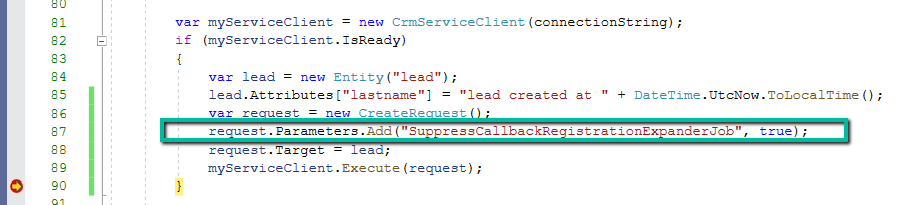
Using the SuppressCallbackRegistrationExpanderJob optional parameter in our Request object, we can bypass the execution of the flows registered against that particular event/trigger.

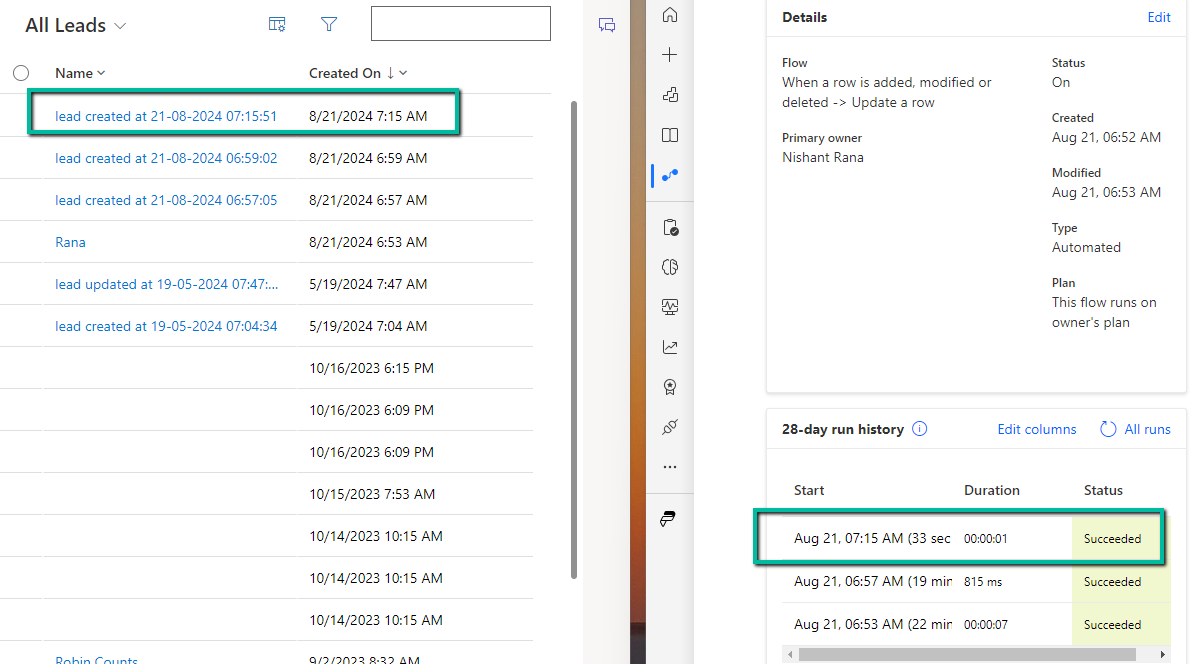
We have a flow registered on the update event of the lead record.

Now let us create a lead record through SDK.

A screen shot of a computer code

Description automatically generated

We can see our flow triggered.

A screenshot of a computer

Description automatically generated

Now let us add the optional parameter SuppressCallbackRegistrationExpanderJob and check

A screen shot of a computer code

Description automatically generated

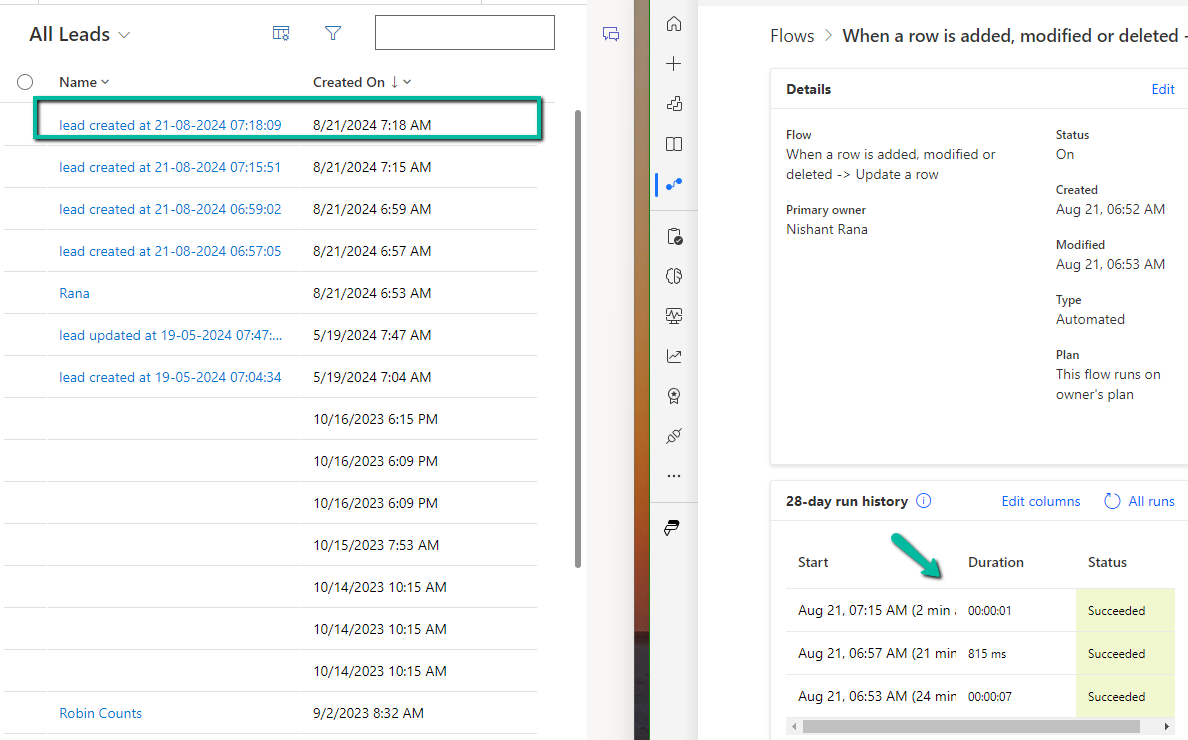
This time as expected our lead record was created but the flow was not triggered.

A screenshot of a computer

Description automatically generated

Also check –

Using BypassBusinessLogicExecution Parameter (Preview) to bypass Custom Sync and Async Logic (Plugin and Workflow)

Bypass execution of specific plugin (step) using BypassBusinessLogicExecutionStepIds parameter

Hope it helps..
Advertisements

Select record quickly inside Lookup control – Model-driven app /Dynamics 365


There is a small enhancement added to the Lookup Control as part of Release Wave 2.

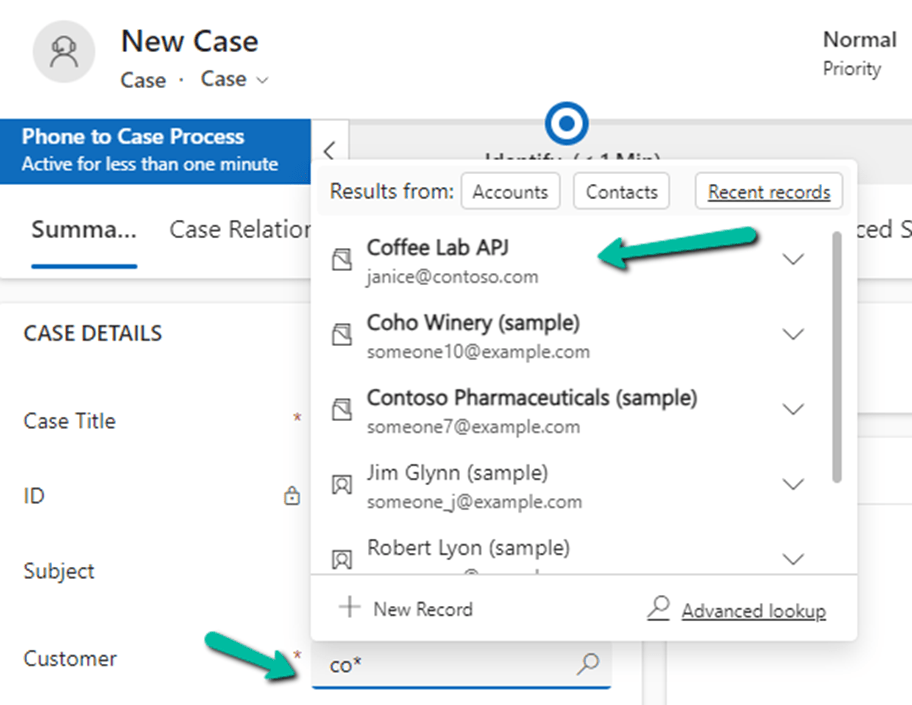
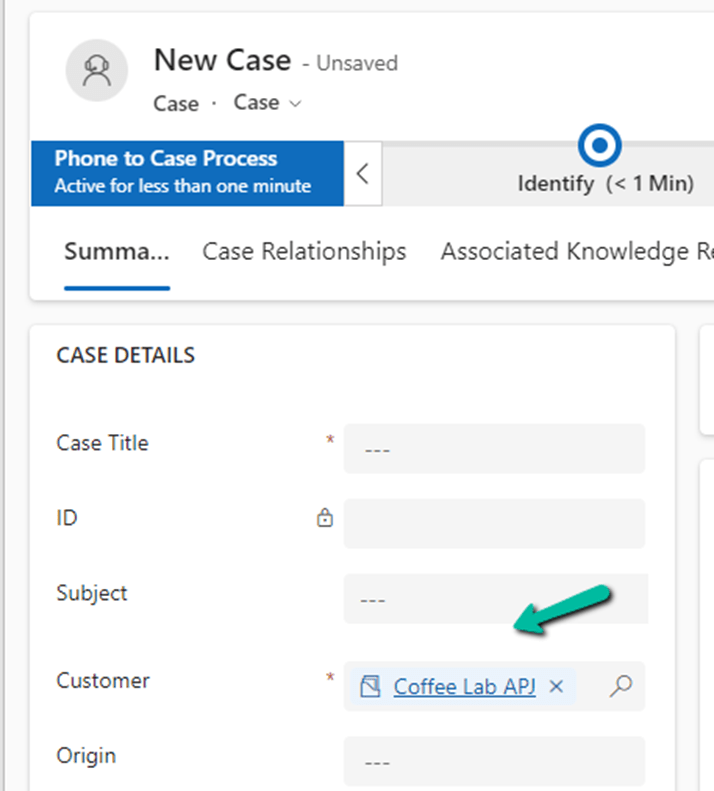
After performing a search for a specific record inside the Lookup Control dropdown menu, e.g. we have performed a search on “co*” on the Customer Lookup for Case.

We can press Enter to have the first item in the list selected.

Get more details

Hope it helps..
Advertisements

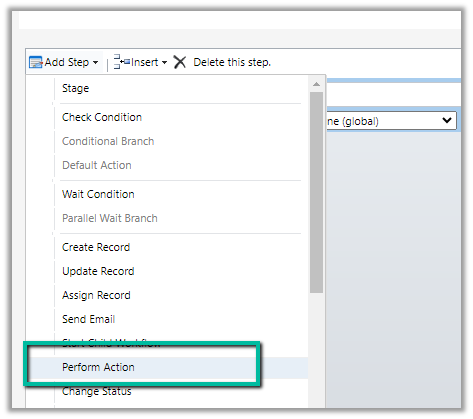
Custom Actions missing in the “Perform Action” step of the workflow (Dataverse / Dynamics 365)


We might see some of the custom actions not appearing in the Actions list inside the Perform Action step of the workflow.

This is because the Custom Action would be using one of the following parameter types, which is not supported for Perform Action like

  • Picklist (Optionset)
  • Entity
  • Entity Collection

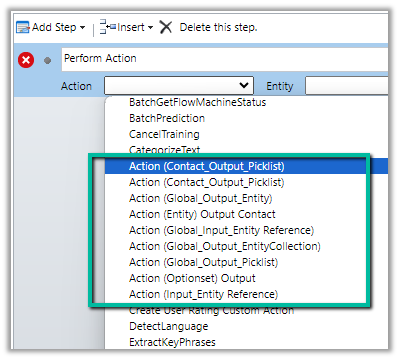
E.g. we have the following actions defined few are bound to the Contact table, some are Global, and have different types specified as either Input or output parameter.

Out of the above actions defined, we can see only the following actions listed inside the perform actions step of the workflow.

The action which has input as Entity Reference are the ones listed, as it is one of the supported types. For the unsupported types, if used as an output parameter, the actions are listed.

https://learn.microsoft.com/en-us/dynamics365/customerengagement/on-premises/developer/create-own-actions?view=op-9-1#execute-an-action-using-a-process

Hope it helps..

Advertisements

Enable Copilot in Customer Service and Custom Apps (Dynamics 365)


Copilot (preview) for Dynamics 365 Customer Service provides the following features –

  • Case Summary
  • Conversation Summary
  • Ask a question
  • Write an email
  • Draft a chat response.

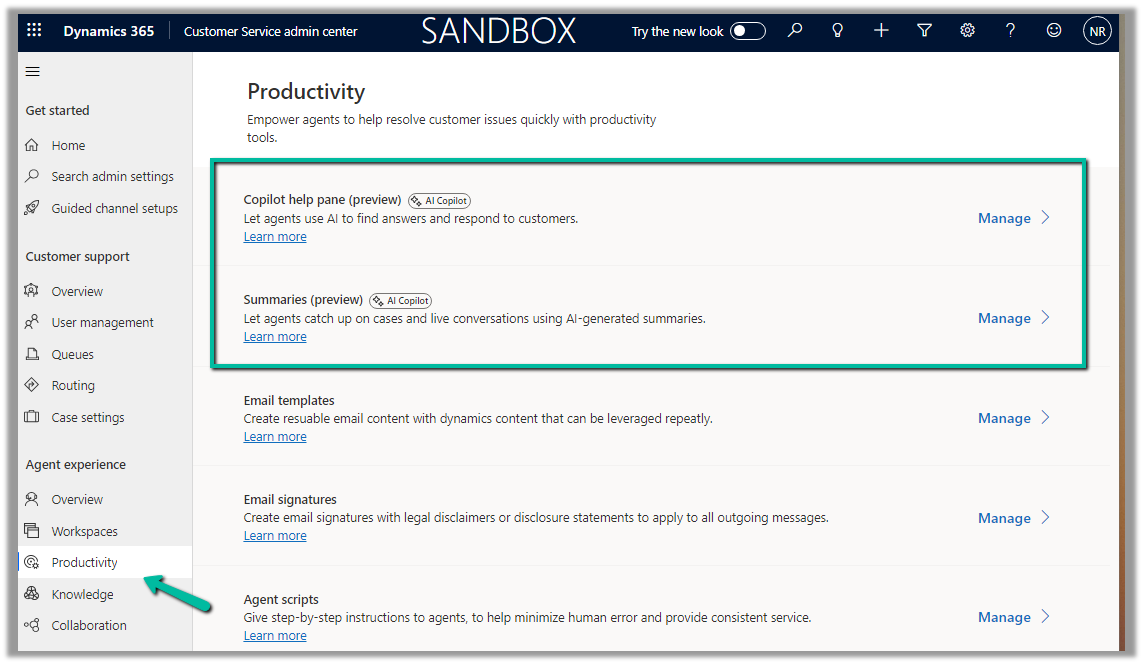
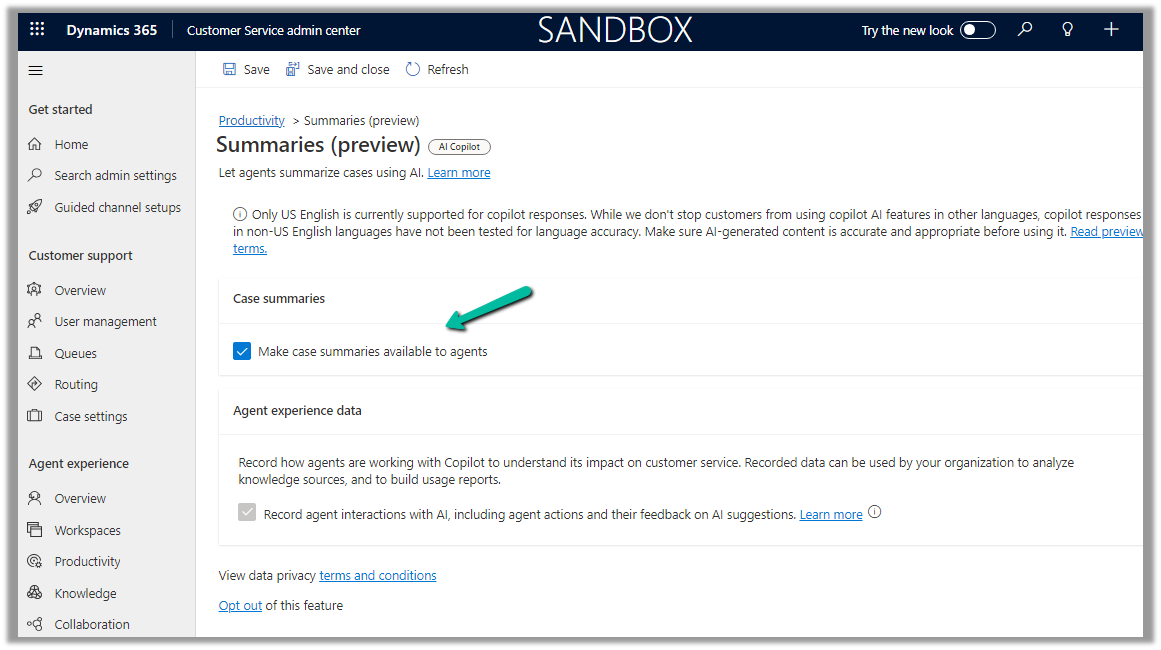
To enable it, navgiate to Customer Service Admin Center >> Agent Experience >> Productivity >> Manage (Copilot help pane and Summaries)

Check the required Copilot help pane settings and save.

Similarly for Summaries

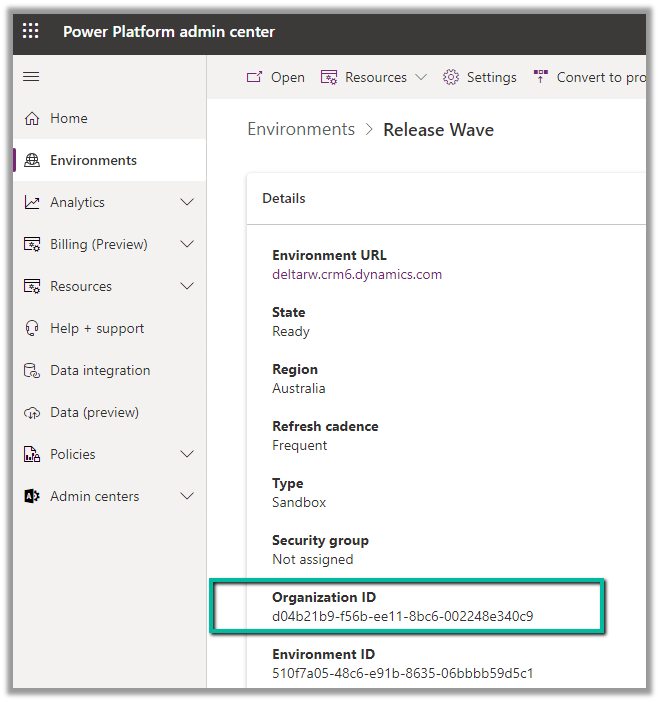
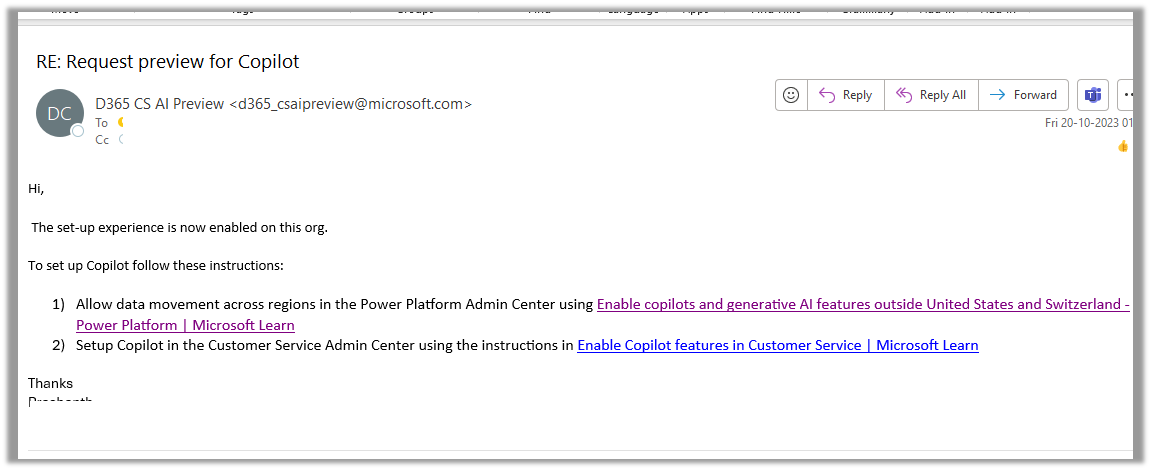
For geographies outside the United States, to enable the Copilot features for Customer Service, we need to send an email to d365_csaipreview@microsoft.com with the Organization ID to enable the preview.

We can get the Organization ID from the Power Platform admin center for the environment.

As our environment was in the Australia region, we followed the same and within the next day, we got a response from Microsoft that it had been enabled in our Environment.

https://learn.microsoft.com/en-us/dynamics365/customer-service/administer/configure-copilot-features?WT.mc_id=DX-MVP-5002876#enable-public-preview-for-geographies-outside-of-united-states

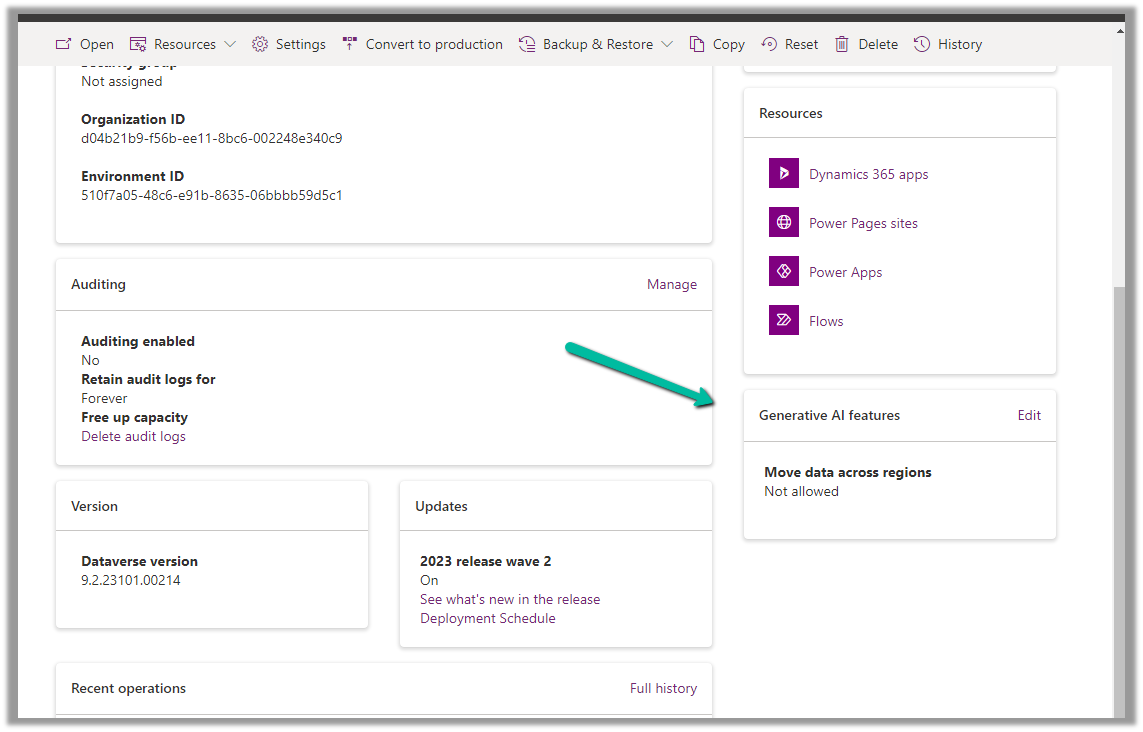
As per the email, the next step is to Enable copilots and generative AI features outside the US and Switzerland, for this again open the environment in the Power Platform admin center, and select Edit for Generative AI Features.

Check the Move data across regions option and enable it. (We need Global Admin or Power Platform admin role to enable it)

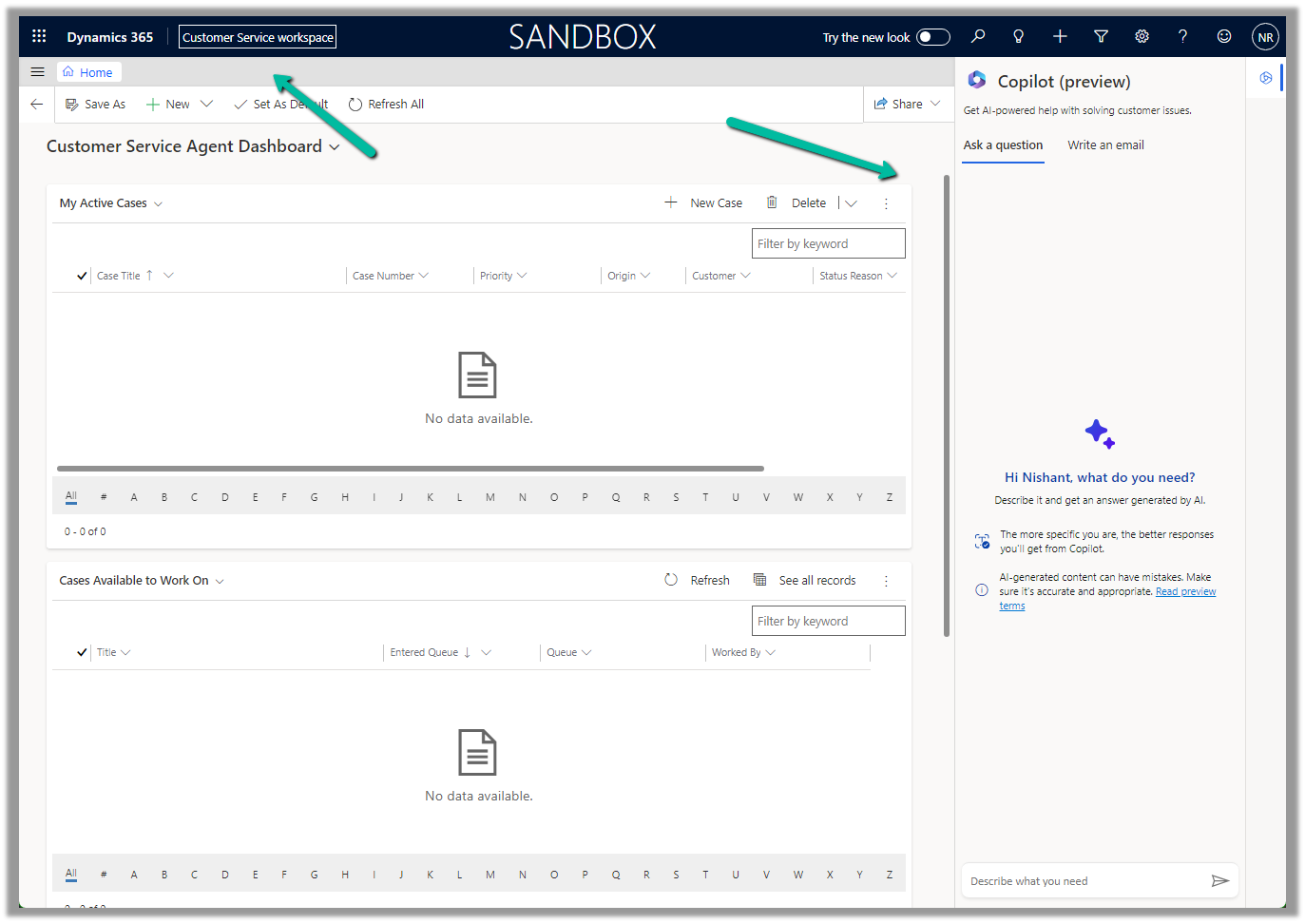
Once we have followed the above steps it adds the Copilot help pane in the Customer Service Hub app.

Similarly, for the Customer Service Workspace app, we can manage it in the corresponding Agent Experience profile.

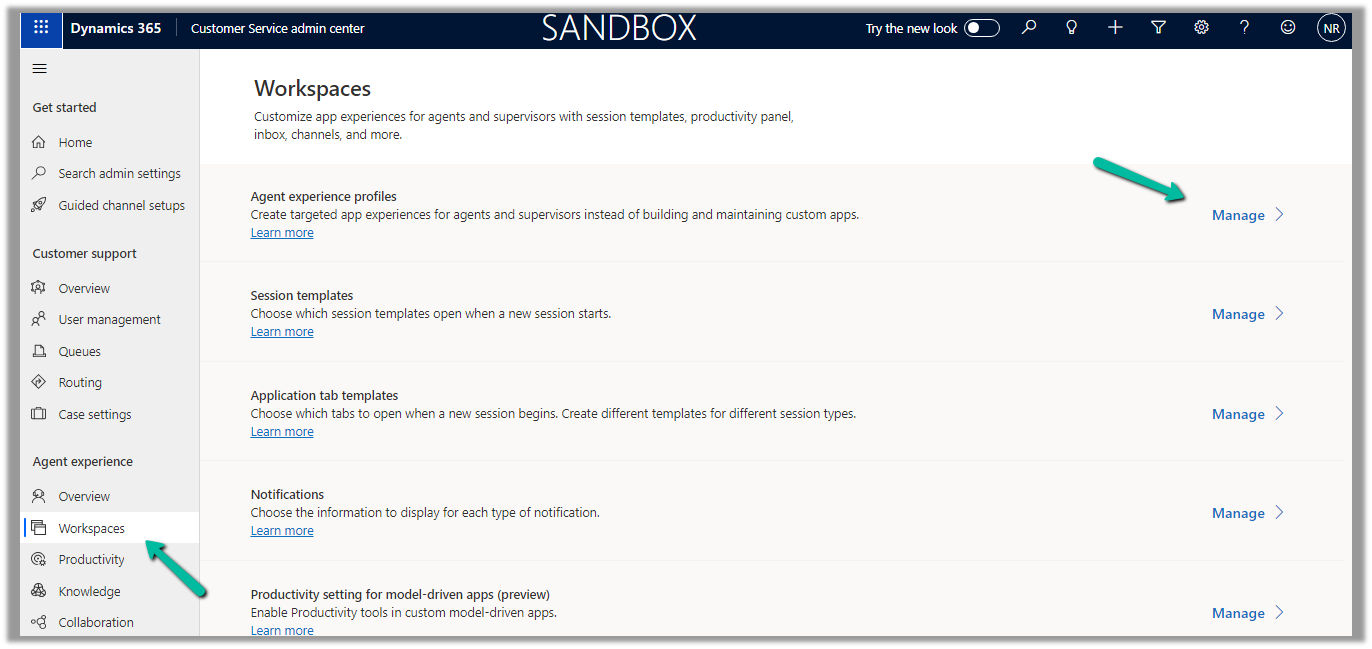
Navigate to the Agent Experience >> Workspaces >> Manage (Agent Experience profiles)

We can see the Copilot AI features section (below is the out-the-box Customer Service workspace – default profile), we can accordingly update the corresponding agent experience profile(s) records configured/used for the agents.

Below we can see the Copilot help pane in the Customer Service workspace app.

Similarly to enable Copliot for custom model-driven app.

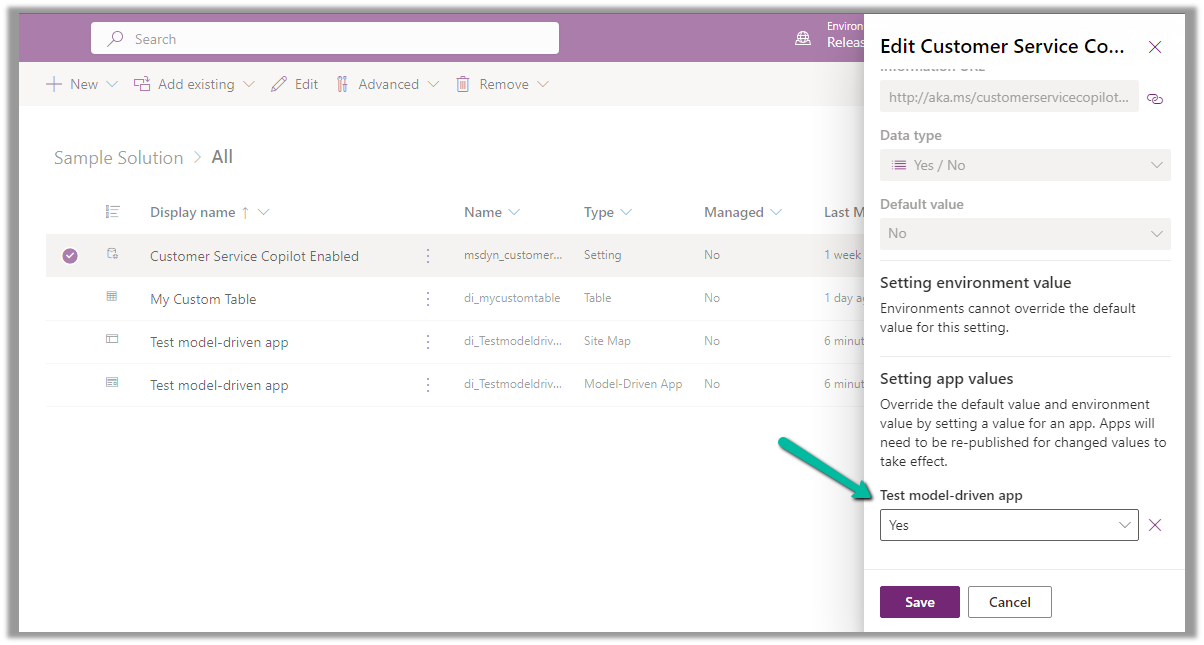
Add the Settings >> Customer Service Copilot Enabled

Set the value as Yes for the corresponding App and save the changes.

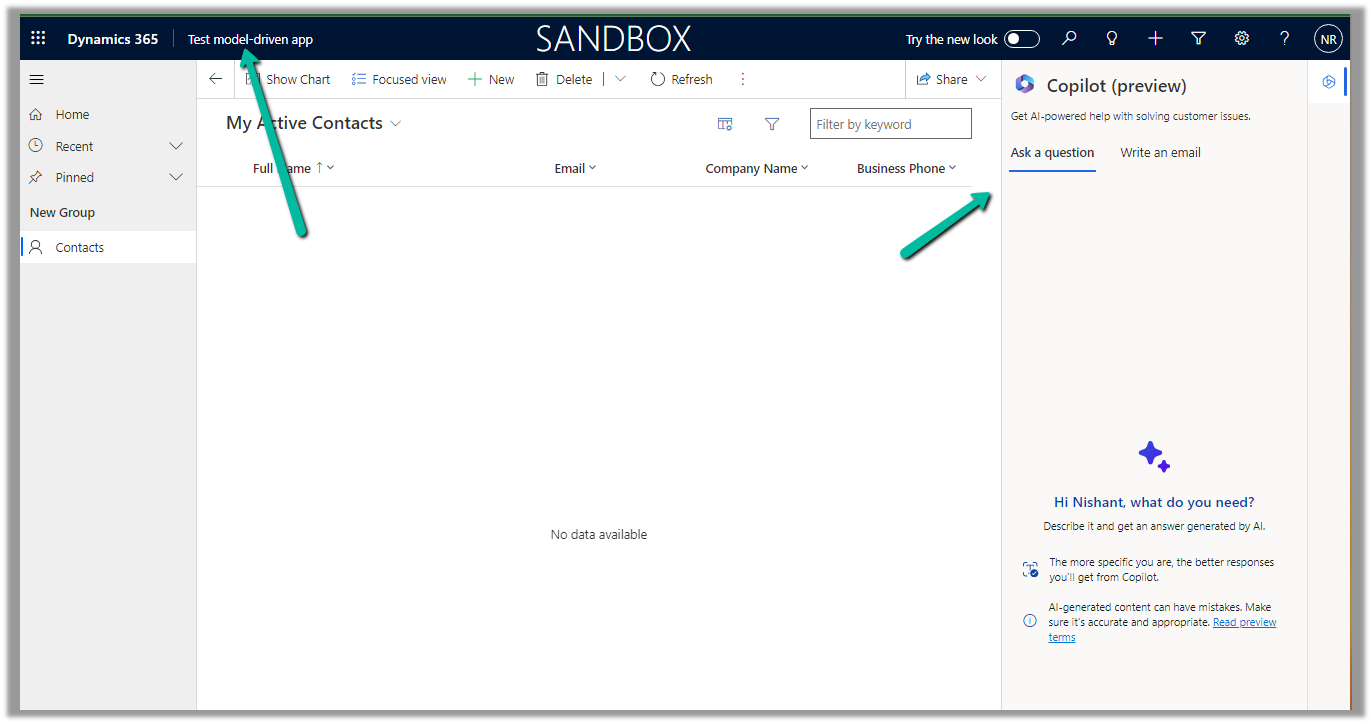
Below we can see copilot enabled for our custom Test model-driven app app

Get all the details here

Hope it helps.

Advertisements

Fixed – Plug-in assembly fullnames must be unique (ignoring the version build and revision number) – Dynamics 365 / Dataverse


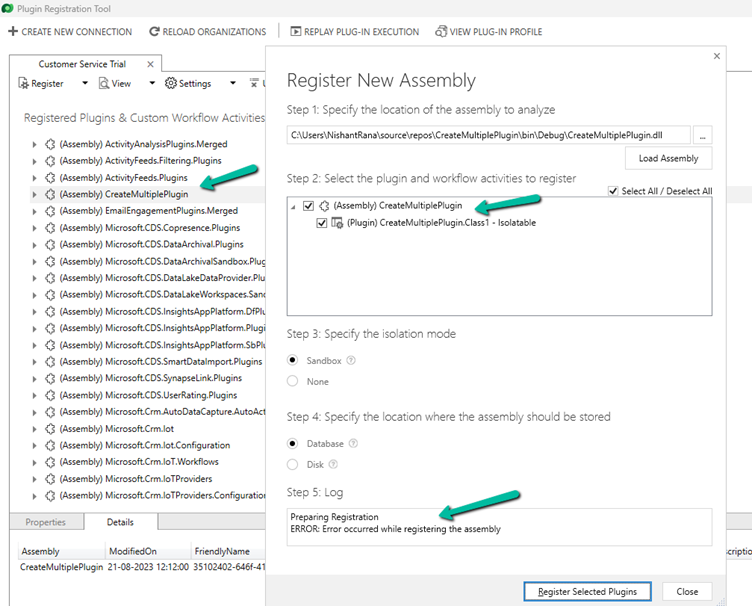
Recently while trying to register the plugin, we got the below error

Microsoft.Crm.CrmException: Plug-in assembly fullnames must be unique (ignoring the version build and revision number). —> Microsoft.Crm.CrmException: Plug-in assembly fullnames must be unique (ignoring the version build and revision number).

It was because we were trying to register the assembly which was already registered in that environment, instead of updating it.


Also, refer – https://helpfulbit.com/plugin-assemby-fullnames-must-be-unique/

Hope it helps.

Advertisements