How to – configure website tracking in Dynamics 365 Marketing


We can create a website record in Dynamics 365 Marketing to trace visitors to the website.

To setup Dynamics 365 Marketing (trial) – https://nishantrana.me/2021/11/13/step-by-step-configure-dynamics-365-marketing-in-a-dataverse-environment

Navigate to Outbound marketing >> Internet Marketing >> Marketing websites and create a new marketing website record.

Marketing will record closely grouped visits from a single browser as a single session. A new session will start after the timeout specified period of inactivity – 20 min is the default.

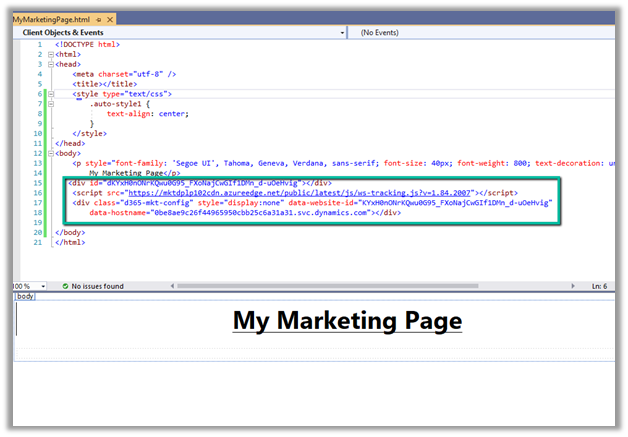
On saving the record, JavaScript Code and Form capture code is generated. The URL field and Description are for entering details for the website record for our use, it doesn’t affect the codes generated.

JavaScript code can be added to any page that we want to track. We can reuse the same code across multiple pages or can have different website records (code) for each page as per our requirements. JavaScript uses cookies for tracking, the users will remain anonymous till they register themselves through the landing page.

Form capture code is used when we want to integrate with a form created externally. We will look at it in later posts when we discuss marketing forms.

Below we have added the JavaScript code to one of the HTML pages inside Visual Studio.

Let us open the page in the browser.

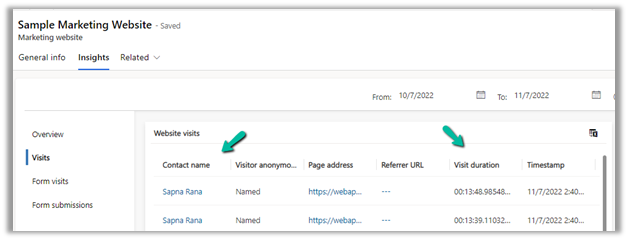
Go to Insights >> Visits in the marketing website record, we can see the visits being tracked.

Now we have published the page in the Azure App Service, just to see what details are captured this time.

This time we can see it tracking the Page Address, unlike last time when we were running it locally.

If the user has registered through the landing page (through marketing form submission, which we’d cover in the next post), we will get more details about the visitor as shown below.

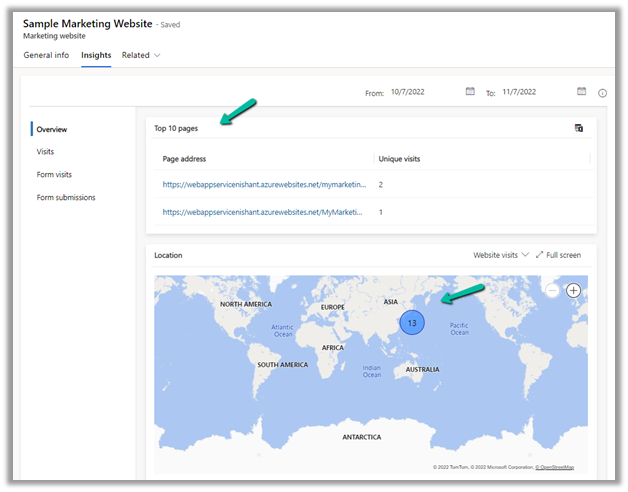
Within the overview section, we can get a few more details as shown below.

Hope it helps..

Advertisements

How to – configure Outbound Calling – Dynamics 365 Omnichannel for Customer Service


For setting up Outbound calling we need to first set up a phone number that will be used for outbound calling.

This would help – https://nishantrana.me/2022/10/17/how-to-set-up-omnichannel-voice-using-azure-communication-service-acs/

In a nutshell below are the steps we are going to perform –

  1. Configure Phone Number for outbound calling.
  2. Define a queue of type voice for outbound calling or use an existing queue.
  3. Configure outbound capacity profile and add users.
  4. Create an outbound profile using the phone number, queue, and outbound capacity profile.

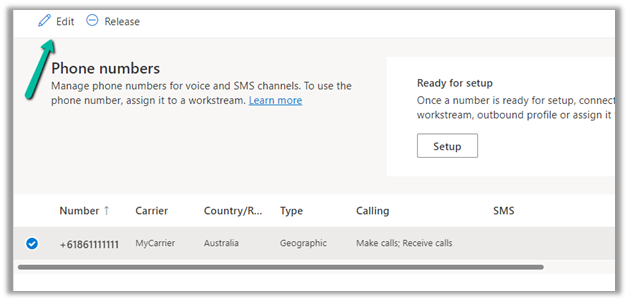
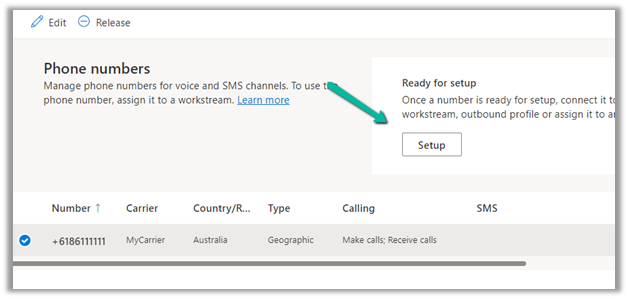
Next click on Edit for the phone number added.

Select Make calls for the phone number and save the changes (if not already done) for enabling outbound calling.

Next select Setup for the phone number.

Select Create a profile to create an outbound profile. For agents to make an outbound call they must be assigned or added to an outbound capacity profile.

https://learn.microsoft.com/en-gb/dynamics365/customer-service/configure-outbound-inbound-profiles

For each phone number, we need to define an outbound profile.

Clicking on Create profile will take us to the page for creating the new outbound profile. We can also navigate there directly through – Advanced Settings >> Agent Experience >> Outbound and Inbound Profile >> Manage


Before we can create a
new outbound profile, we need to have Queue and Capacity Profile in place.

Here we have a Queue named Default Voice Queue of type Voice created and a user added to it.


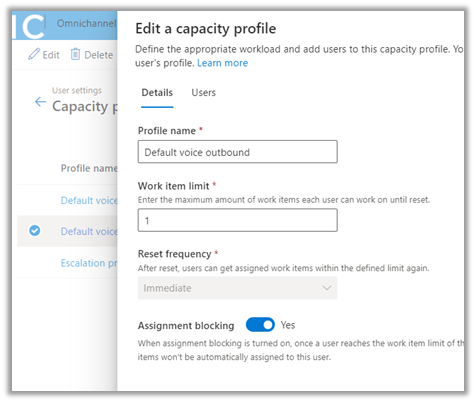
For creating a Capacity profile, navigate to User Attributes >> Capacity Profile >> Manage


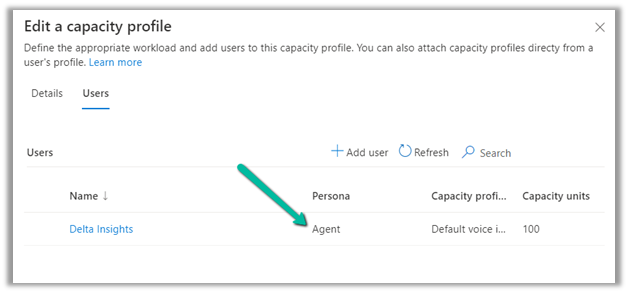
Here we have a capacity profile named – Default voice outbound with the users added to it.


With the Phone Number, Voice Type – Queue, and Capacity Profile defined, let us now create the new outbound profile.

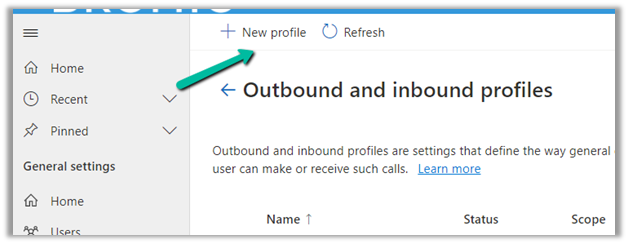
Navigate to – Advanced Settings >> Agent Experience >> Outbound and Inbound Profile >> Manage

Select + New profile

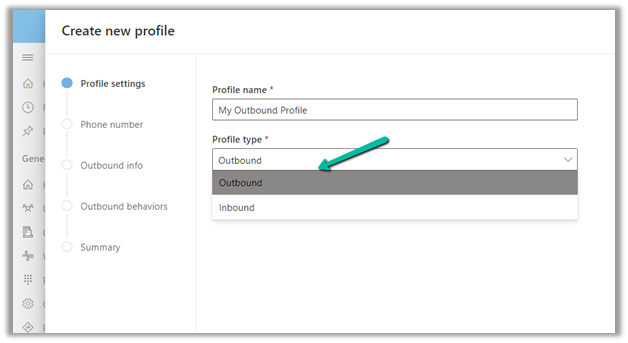
Specify the Profile name and Profile type as Outbound.

Add the phone number and specify the Outbound
info required.

Specify Outbound behaviours

Click on Next and check the details in the summary and Save and close to create the outbound profile record.

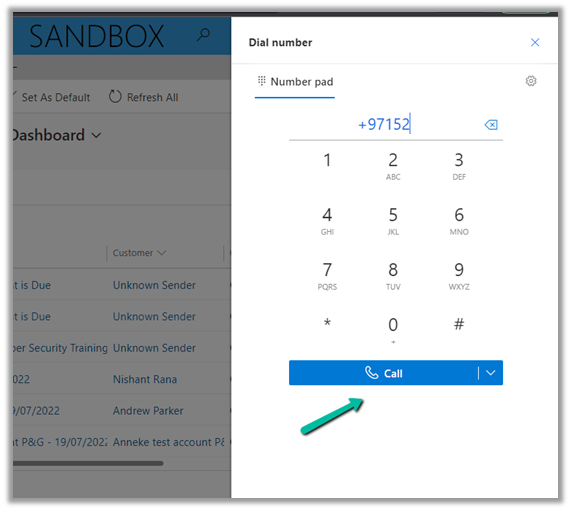
Now with the configuration done, agents can make calls by clicking the Launch
Dialer.

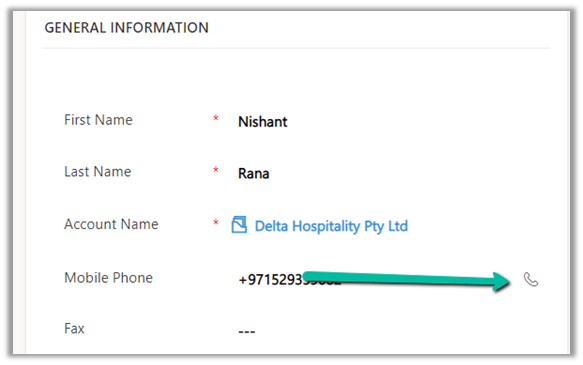
Or from the Mobile Phone field, they can click on the Phone icon.

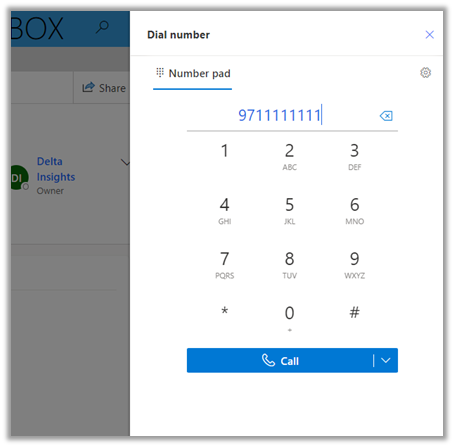
It launches the Dialer, with the phone number populated.

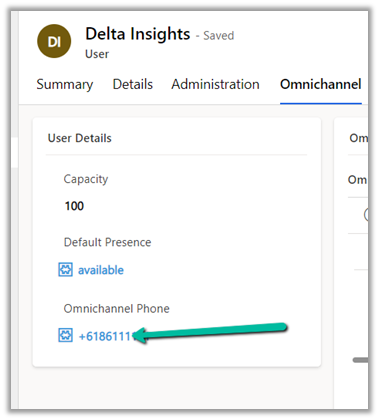
Lastly, we can also assign a Phone Number to a user, which allows him to make calls using that number. (toll-free numbers cannot be assigned)

https://learn.microsoft.com/en-us/dynamics365/customer-service/voice-channel-outbound-calling?tabs=omnichanneladmincenter#assign-personal-phone-numbers-to-agents

https://learn.microsoft.com/en-us/dynamics365/customer-service/voice-channel-outbound-calling?tabs=omnichanneladmincenter

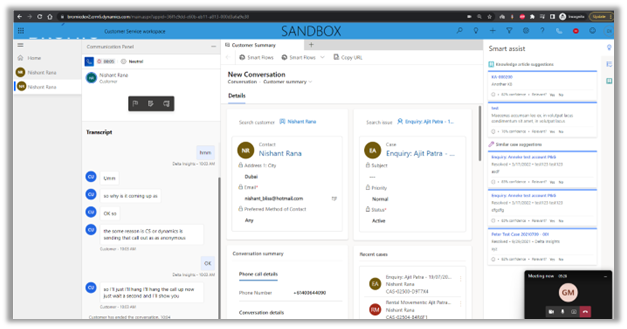
With all the proper configurations in place, we were able to make an outbound call using the phone number configured as shown below.

Please check – https://neilparkhurst.com/2022/04/05/omnichannel-for-customer-service-outbound-voice-calling/

https://learn.microsoft.com/en-us/dynamics365/customer-service/voice-channel-outbound-calling?tabs=customerserviceadmincenter

Hope it helps..

Advertisements

How to – quickly find Tenant Id https://www.whatismytenantid.com/


Recently we had to find the tenant id, usually, we will log in to Azure Portal and within Azure Active Directory we will get the tenant id.

However, in this case, we only had the user’s email address.

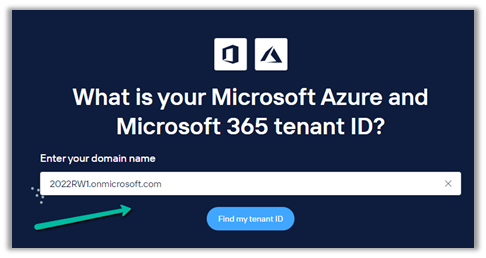
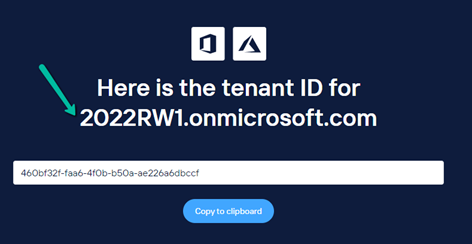
So we had https://www.whatismytenantid.com/ to help us here.

Just enter the domain name, and click on Find my tenant ID.

The result –

The corresponding PowerShell script – https://craigporteous.com/azure-tenant-id-powershell/

Hope it helps..

Advertisements

Fixed – The reference assemblies for. NETFramework,Version=v4.6.2 were not found. To resolve this, install the Developer Pack (SDK/Targeting Pack) for this framework version or retarget your application


Recently while trying to use the Power Platform Toolshttps://learn.microsoft.com/en-us/power-apps/developer/data-platform/tools/devtools-install , got the below error in Visual Studio 2019. (not supported for VS 2022)


To fix it either you can, open Visual Studio Installer and select Modify and select the appropriate developer pack.


Or as specified in the error message, open https://aka.ms/msbuild/developerpacks, and download the appropriate Developer pack from there.


This fixed the issue –


Hope it helps..

Advertisements

Workstreams Overview – part 1 – Dynamics 365 Customer Service / Omnichannel


Workstreams can be defined as records or settings, where we can set up the channel, and define routing rules, work distribution, and bots to route work items to the appropriate queue/agents.

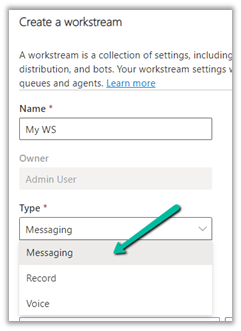
Workstream can be of 3 different types – Messaging, Record, and Voice.

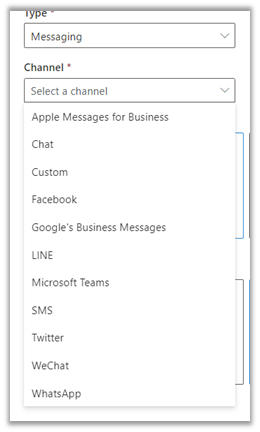
For Messaging we can specify the below channels – Apple messages for business, Chat, Custom, Facebook, Google’s Business Messages, LINE, SMS, Twitter, WeChat, and WhatsApp.

  • For Messaging Type as Channel, we can specify Work Distribution Mode as either Push or Pick.

We also need to specify a Fallback Queue, this Queue will be used if no matching queues are found based on the routing rules.

In the case of the Chat channel, we have the option of making chats persistent, so any new messages from the customer will be routed to the same queue and same agent if available or the next best agent.

For all other channel types, we have the same Work Distribution mode and Fallback queue option.

  • For the workstream type as Record, we can select the entities with queues enabled. The remaining option of work distribution mode and fallback queue remains the same.

For the record routing to work, we need to make sure Unified Routing is switched on in the environment.

And the entity is enabled for record routing.

  • For the workstream type as Voice, we have the voice channel selected as default and disabled.

The only difference is in the distribution mode, where we do not have the option of Pick.

In a nutshell –

Workstream Type 

Channel 

Additional Information 

Messaging 

Apple Message for Business, Chat, Custom, Facebook, Google’s Business Messages, LINE, Microsoft Teams, SMS, Twitter, WeChat, WhatsApp 

For Chat, we have an additional option to make chats persistent.

https://learn.microsoft.com/en-us/dynamics365/customer-service/persistent-chat

Push and Pick – Work distribution mode. 

Record 

Entities With Queue and Record Routing enabled

Push and Pick – Work distribution mode 

Voice 

Voice Call (default / disabled) 

Only Push distribution mode. 

In coming blog posts we’d delve deep into the workstreams configuration.

Hope it helps..

Advertisements

How to – Provision / Setup Omnichannel for Customer Service trial – Dynamics 365


In this post, we’d start by creating a trial of Dynamics 365 Customer
Service.

Navigate to – https://dynamics.microsoft.com/en-us/customer-service/overview/

And select Try for free

Enter your email details and follow the steps.

In a few mins, the trial will be ready.

Clicking on Launch Trial opens the Customer Service Workspace app.

Below are the other apps we can see installed as part of the Customer Service Trial, including the Omnichannel Admin Center and Omnichannel for Customer Service along with the Customer Service admin center app.


Opening the Omnichannel Admin Center app allows us to configure the Chat Demo.
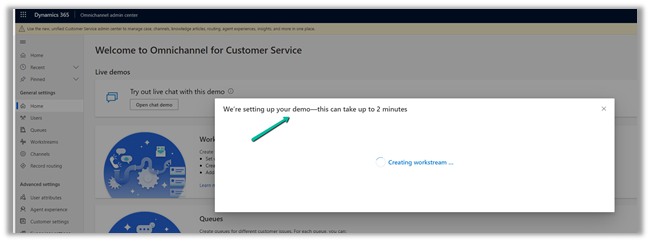
In a few seconds, the demo will be configured.

Clicking on the Open agent app opens the Omnichannel  for Customer Service App.

Click on Let’s Chat! widget to start the chat.

Opening the Let’s Chat widget sends the notification to the agent as shown below.
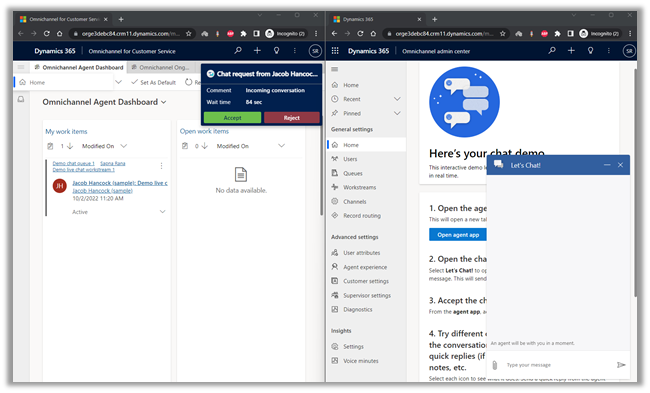
Clicking on Accept in the notification starts a new session.
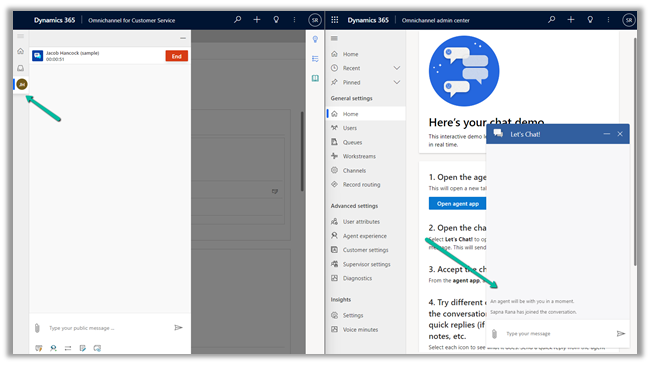
It also starts the conversation.
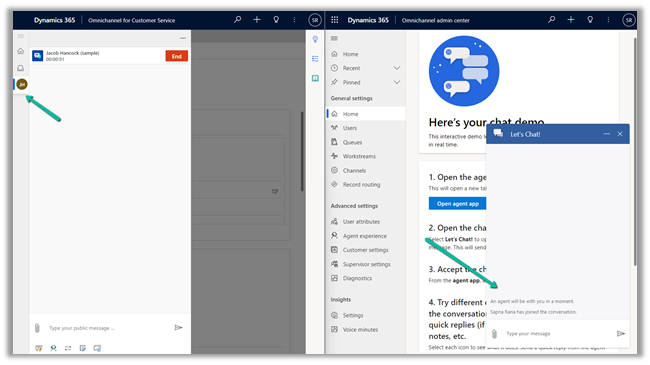
The agent can click on End or the customer can close the Chat Widget to end the conversation

The End button is grayed out and the customer gets the message as Agent has ended the conversation.

As we can see, we have the working Omnichannel trial environment ready for us to try out different channels/features, etc.

In Power Platform Admin Center, if we check inside Resources >> Dynamics 365 Apps for the Customer Service Trial we can see the Omnichannel Apps installed.

Interestingly if we navigate to Resources >> Dynamics 365 apps and check the Omnichannel for Customer Service app we see the status Not configured.

Clicking on the Manage option, opens the dialog box, informing us that it will navigate us to Dynamics 365 apps admin page.
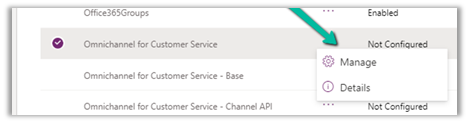
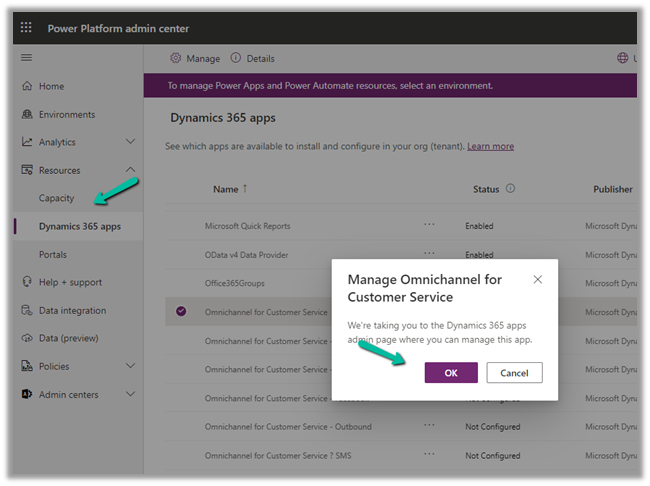
In our case it kept us asking to sign in, instead of taking us to the admin page.

So next we tried Providing the data access consent as mentioned in the MS Docs.

https://learn.microsoft.com/en-us/dynamics365/customer-service/omnichannel-provision-license#provide-data-access-consent
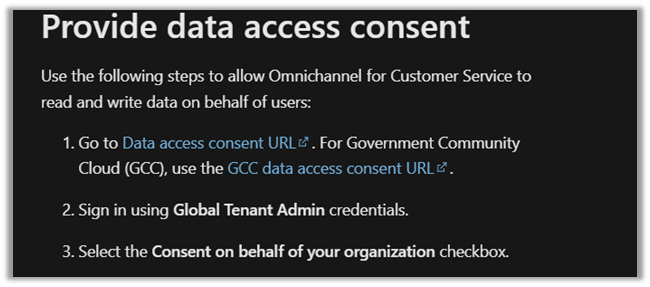
For which we got the below error.

As it failed, we tried the same after assigning the Power BI (free) license to the admin user. (The user should also have Microsoft 365 Global Admin roles along with System Administrator in the env.)

https://learn.microsoft.com/en-us/dynamics365/customer-service/try-channels

https://learn.microsoft.com/en-us/dynamics365/customer-service/omnichannel-provision-license#prerequisites
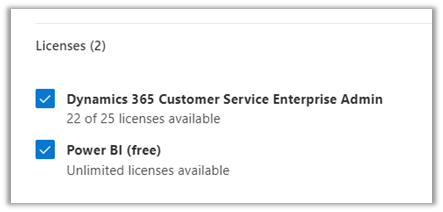
And it worked this time.
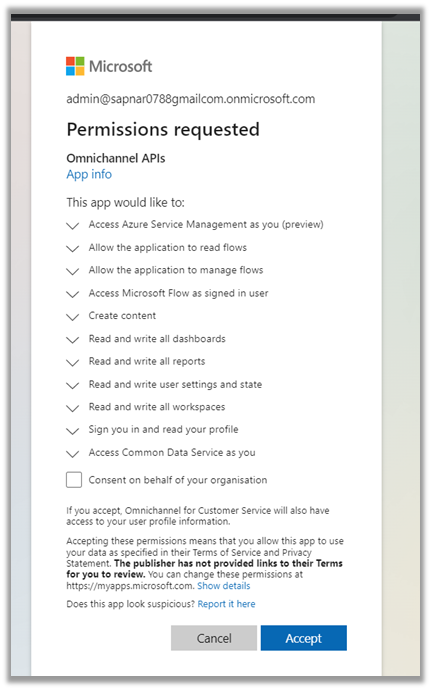
This time clicking on Manage for the Omnichannel for Customer Service, took us to the Dynamics 365 Admin page.

Inside Dynamics 365 Administration Center we can manage the environments in which we want to install or remove the Omnichannel as well as different channels inside it.

From the Admin Center, we managed to upgrade the Omnichannel in the Customer Service Trial environment and also configure it in another sandbox environment.
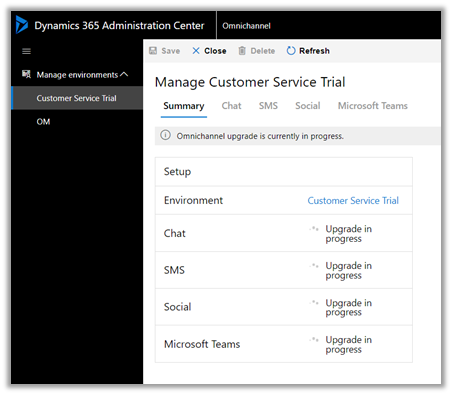
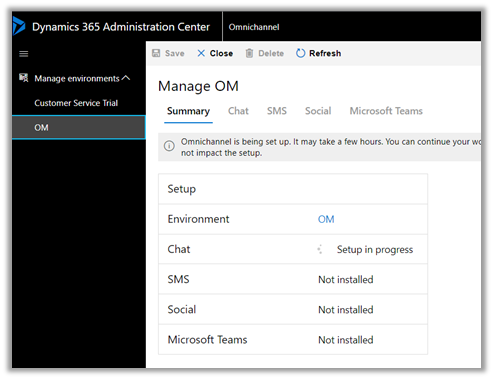
Interestingly even after the update/setup was completed
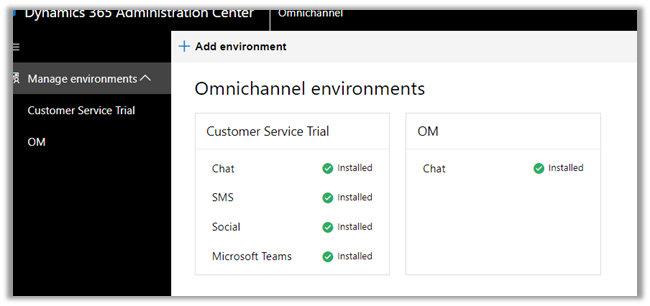
the status of Omnichannel for Customer Service on the Dynamics 365 Page was “Not configured”, which could be some bug or something as mentioned in the MS Docs.

https://learn.microsoft.com/en-us/dynamics365/customer-service/omnichannel-provision-license#set-up-omnichannel-for-customer-service-

“You can safely ignore the status”

So in our case, when we had configured the Customer Service Trial, the Omnichannel was already configured in that environment as we saw earlier. We were mainly facing issues to access the Dynamics 365 Administration Center, which got resolved after assigning the Power BI License to the admin user followed by giving the required consent.

Kindly refer to the below links to learn about Omnichannel in in-depth

https://neilparkhurst.com/2022/08/11/omnichannel-for-customer-service-collection-2/

https://thecrm.ninja/omnichannel-for-dynamics-365/

https://www.youtube.com/watch?v=WM2JLGNPzT8

Hope this helps..

Advertisements