Get RequiredAttendee (Required) from the Meeting (appointment) table – Power Automate / Dataverse


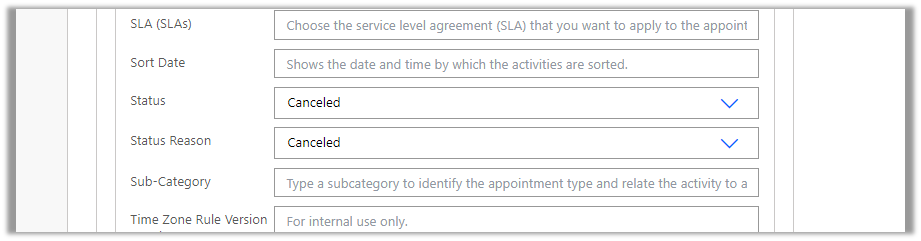
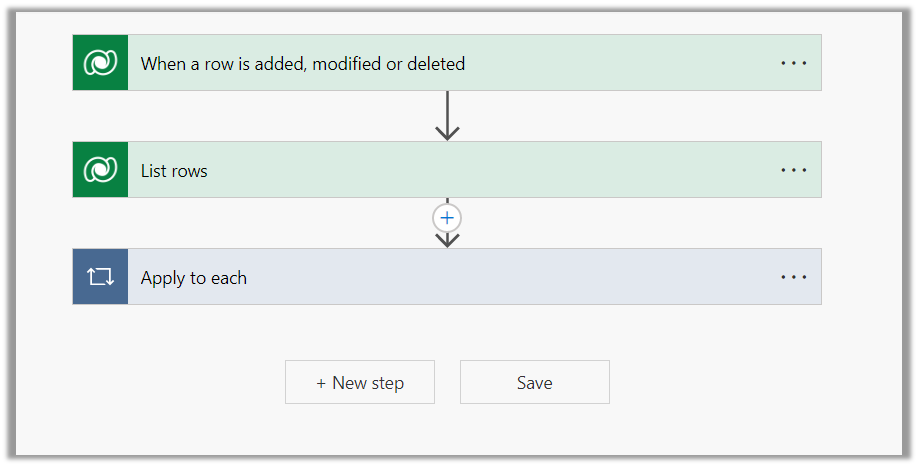
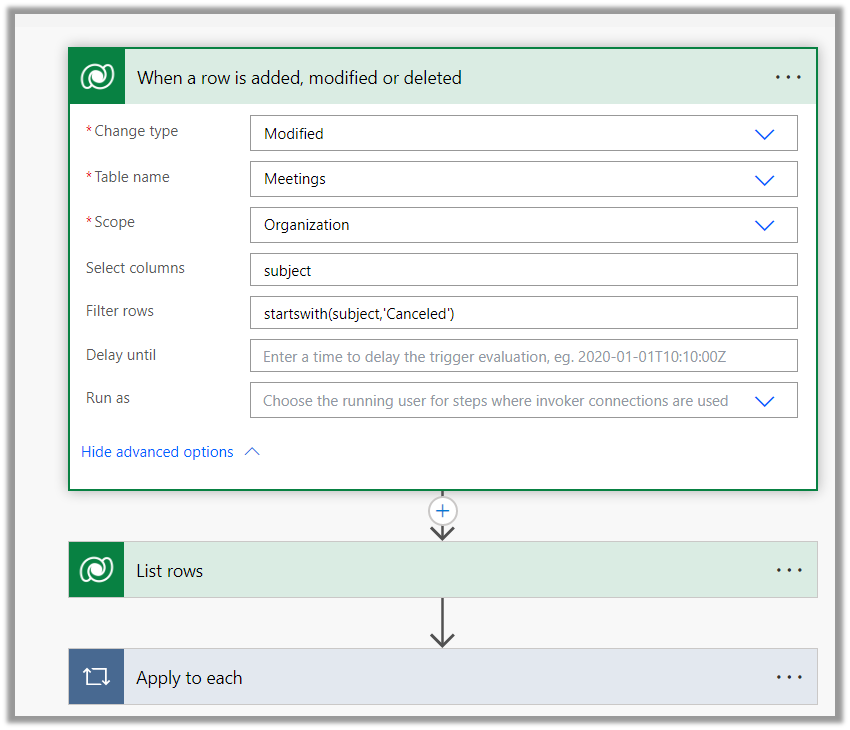
Below is the sample flow we can use to retrieve the Required (requiredattendees) field’s value from the Meeting table (on the update of the record).

Here we are triggering the flow, if there is an update in the subject field of the meeting record.

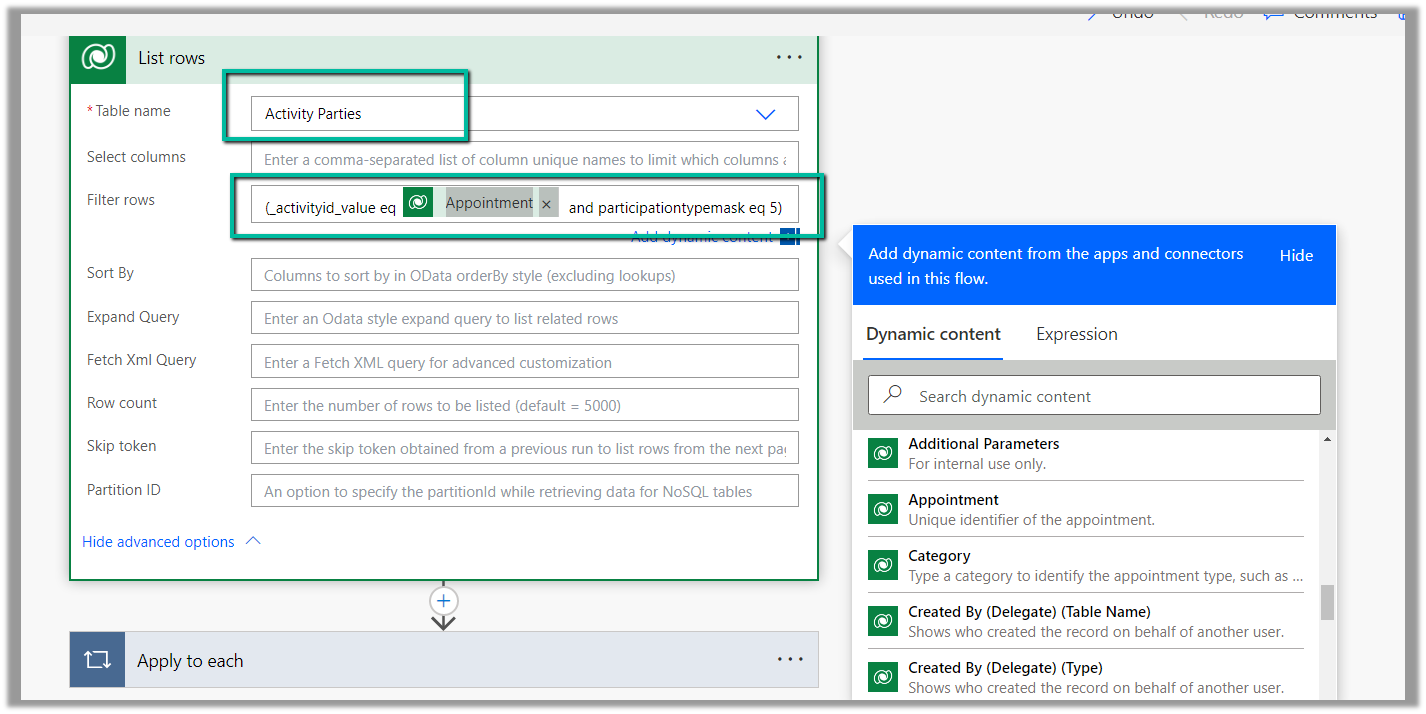
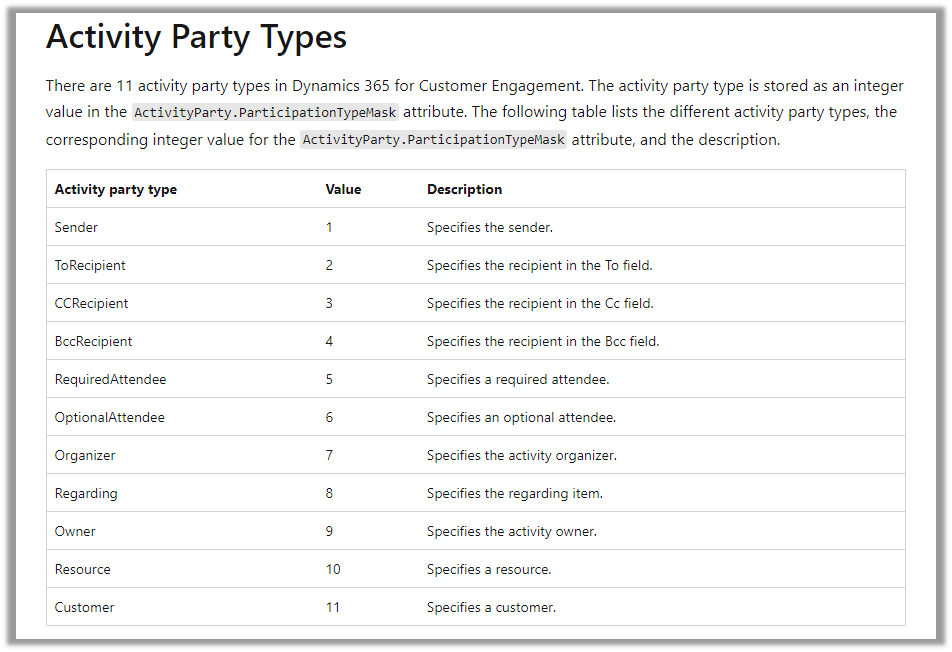
Then using the List rows action we are fetching the Activity Parties record associated using the Appointment’s unique identifier and participation mask as 5.

More on participation type mask

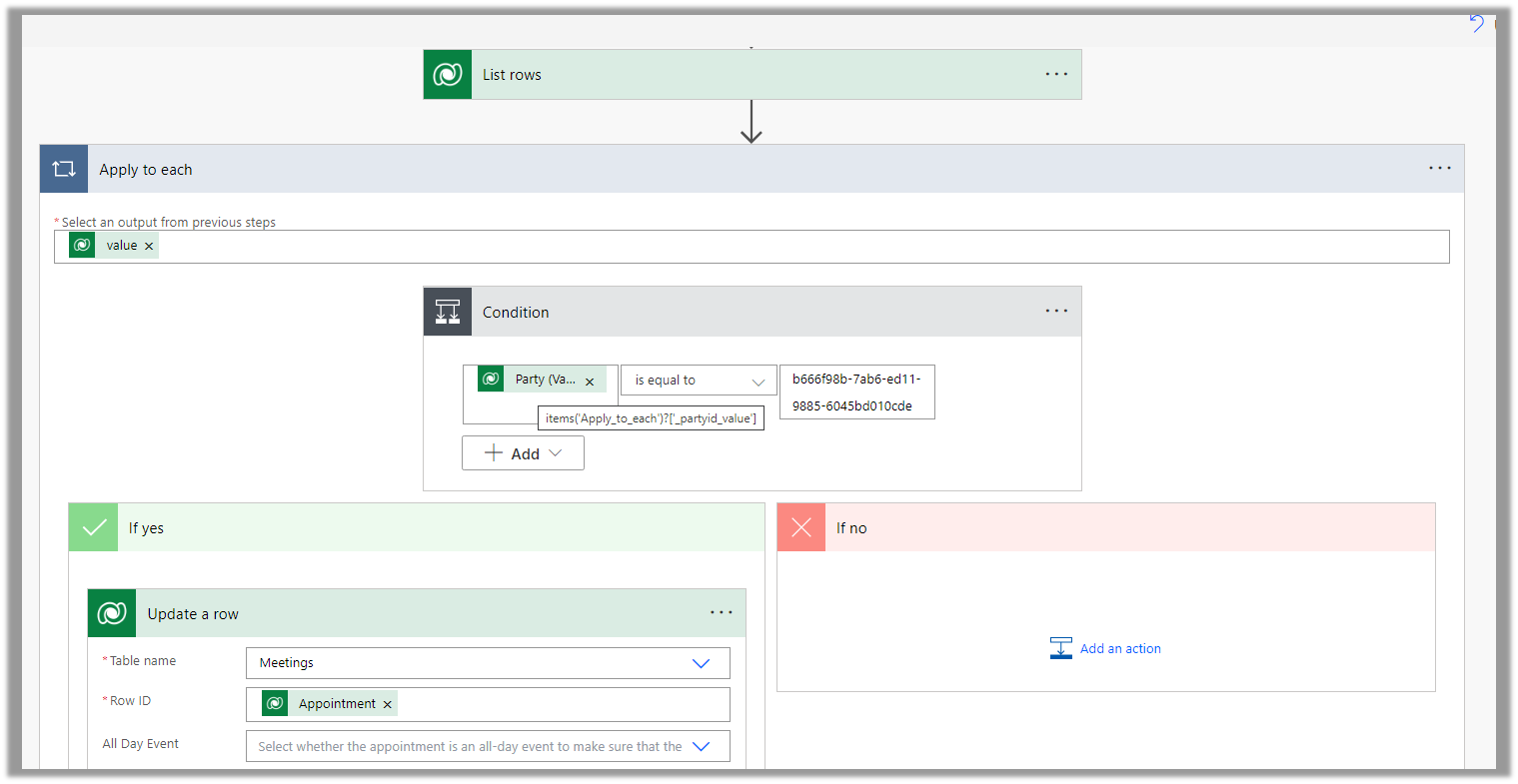
And in the last step, we are checking for all the associated Activity Party GUIDs for a specific GUID and then update the record or cancel the record.

Hope it helps..

Advertisements

Agents not receiving calls in Omnichannel Voice – Dynamics 365 Customer Service


Recently we saw a few of our agents were not receiving the calls/notification for incoming conversations.

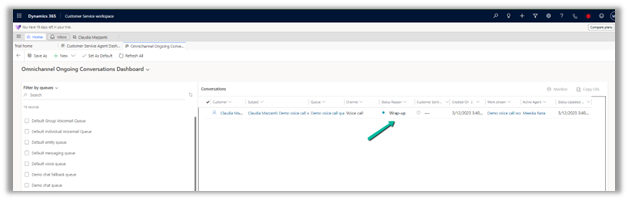
Apart from checking the Routing Diagnostics, we can refer to the Omnichannel Ongoing Conversation Dashboard (available for the Omnichannel Supervisor role)

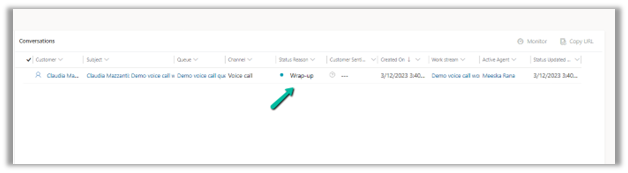
In our case, we realized that the ongoing conversation was in Wrap-up status for the agent.

And also as we had a work item limit of 1 along with assignment blocking defined through the capacity profile for that agent, the agent wasn’t receiving the incoming notifications.

So here we can ask the agent to close the session correctly.

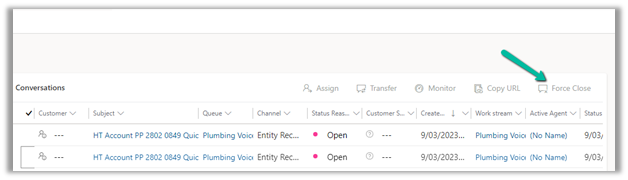
Or as a supervisor, we can force close the conversation from the Omnichannel Ongoing Conversation Dashboard.

Force Close-

Hope it helps..

Advertisements

How to – Configure Voicemail Workstream and Queue – Dynamics 365 Customer Service


When we configure the Voice demo, we can see 2 workstreams and queues created for Voicemail one for individuals other for voicemail of type group.
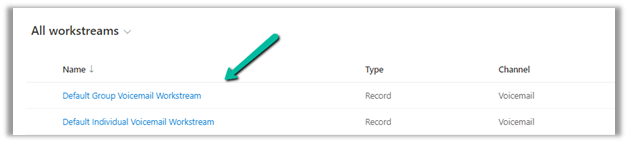
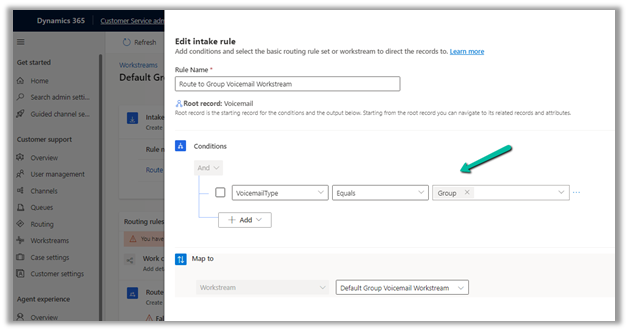
The Default Group Voicemail Workstream has the following intake rule defined.
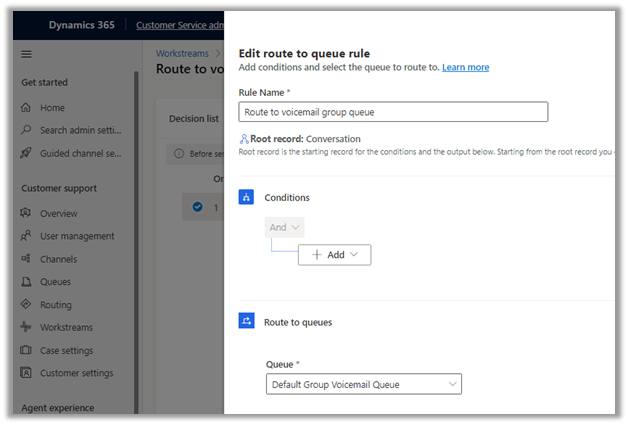
And following Route to Queue Rule
Configuring Voicemail – https://nishantrana.me/2023/02/23/how-to-configure-voicemail-in-omnichannel-voice-channel-dynamics-365-customer-service/

Similarly, Default Individual Voicemail Workstream has the following intake rule
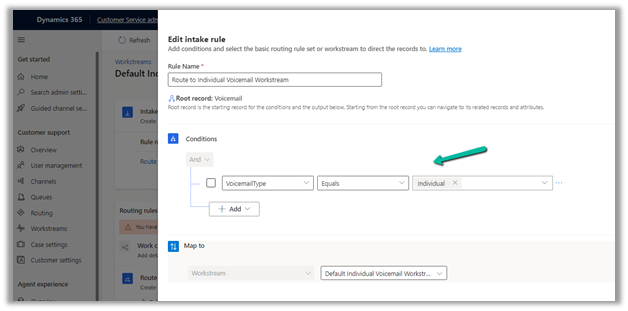
And Route to Queue rule
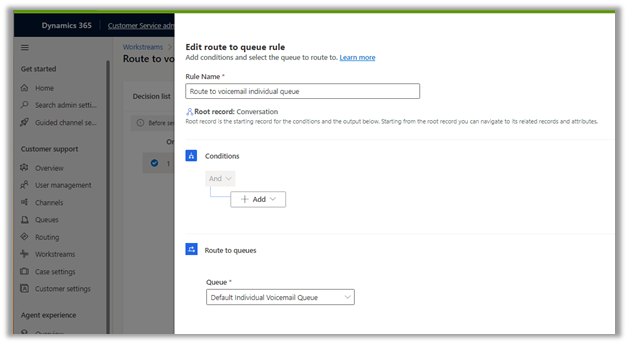
Now say we want the voicemail of an advanced queue (type – voice) to be routed to its corresponding advanced queue (type – record) instead of the Default Group Voicemail Queue.

Say we have the below Advanced Queue of type Voice used in the Voice Workstream– 


And the below Advanced Queue – My Sample Voice Mail Queue
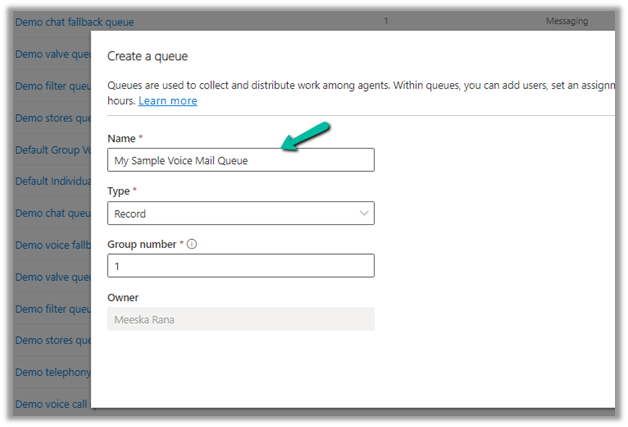
Now let us define the Workstream that will route the voicemail to that queue.

Select Type as Record and Record Type as Voicemail.
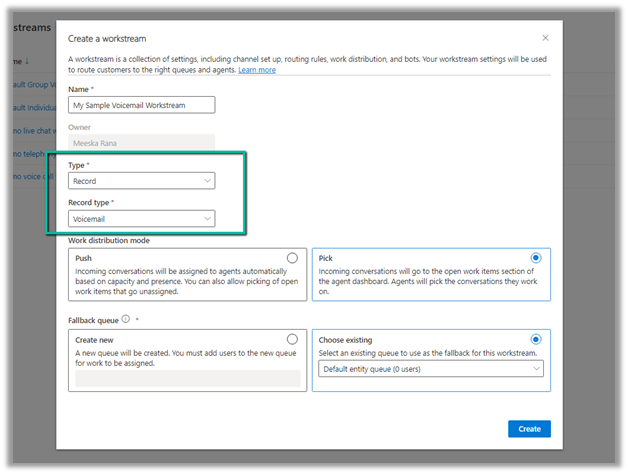
The intake rule checks for the Queue record in the related entity of voice mail – Missed Conversation (Conversation)

So basically any conversation or voicemail generated because of a call to My Sample Voice Queue / Workstream will be routed to its corresponding Voice Mail Queue.

Overflow handlinghttps://nishantrana.me/2023/03/07/understanding-overflow-handling-work-item-limit-exceeds-in-voice-channel-omnichannel-dynamics-365-customer-service/
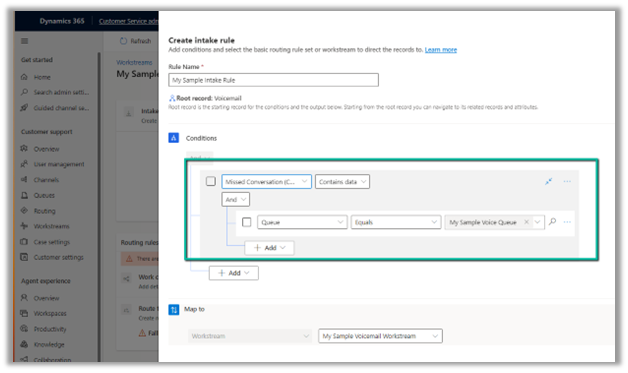
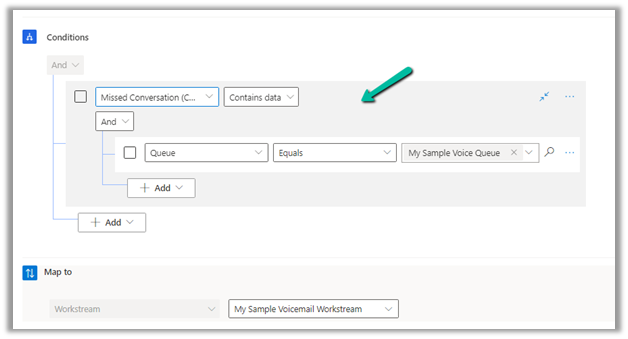
And the intake rule of that workstream to route to the Voicemail Queue created earlier.
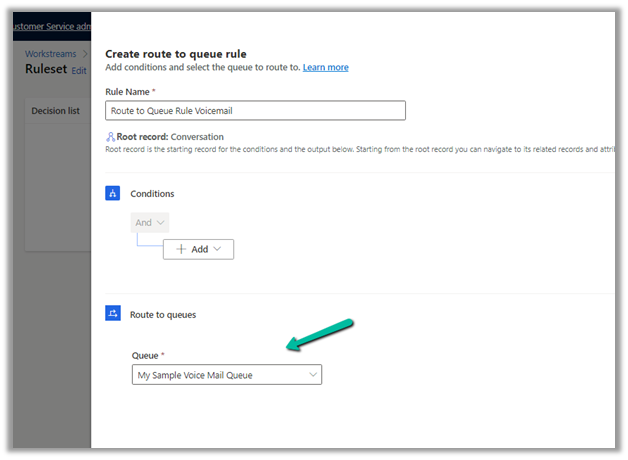
Hope it helps..

Advertisements

Fixed – Automated messages not working in Voice Channel – Dynamics 365 Customer Service


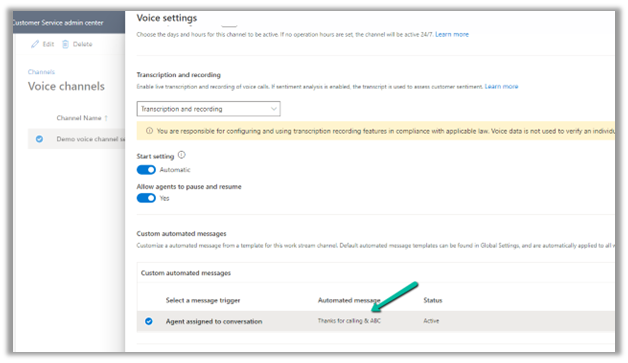
Recently we were facing an issue with a customized automated message that we had configured for one of our voice channels. The message was not getting played and in fact, the default message was also not getting played for our customer.

After some testing, we realized it was because the message had a “&” character in it.

Removing the “&” resolved the issue for us.

Hope it helps..

Advertisements

How to – Set Default value for the combo box in Canvas Apps (Dataverse)


Suppose we have the following Combo Box named Status bind to one of the choice fields of Dataverse.

Items = Asset Status option set field of table Product.

Now if we want Available to be the default selected value for it, we can use the DefaultSelectedItems property of the combo box.

DefaultSelectedItems = Filter(Choices(Products[@’Asset Status’]), Value = ‘Asset Status’.Available)

Also if we want to set the value of the Villages combo box based on the value selected in the Region combo box. The region is a lookup field in the Villages table.

We can update the Items property of the Villages combo box from

Villages (Data Source)

to

If(IsBlank(comboRegion.Selected),Villages, Filter(Villages, Region.Region = comboRegion.Selected.Region))

Hope it helps..
Advertisements

Enable Sound Notifications in Omnichannel (Voice and other channels) – Dynamics 365 for Customer Service


By default, this is how the notification appears for the agent when he is logged in to the app and is available.

There is no sound notification.

However, we enable sound notification here. This can be helpful in case the app is in the background and/or the agents are working on something else.

Navigate to Agent Experience >> Workspaces >> Notification Templates (Manage) in Customer Service Admin Center.

Let us enable sound notifications.

We can specify the following – Play sound, Sound to be played, whether the notification should keep on playing till the agent responds and the volume of the notification as shown below.

Here we also need to enable the Sound settings in the browser.

For the app, select Site Settings

Specify Allow for Notifications and Sound


Let us now call again, this time the agent hears the sound notifications, until he Accepts the call and that works even if the app/ the browser is minimized.

Hope it helps..
Advertisements