How to – assign a personal phone number to agents in Voice Channel (Omnichannel)– Dynamics 365 Customer Service


The reason we would assign a personal phone number to the agents is that they can use that number to make an outbound call to the customers or in some scenarios, the customer wants to directly call the specific agent for direct follow-up on a particular case.

Let us first add a new phone number.

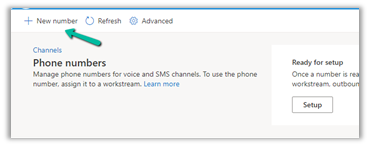
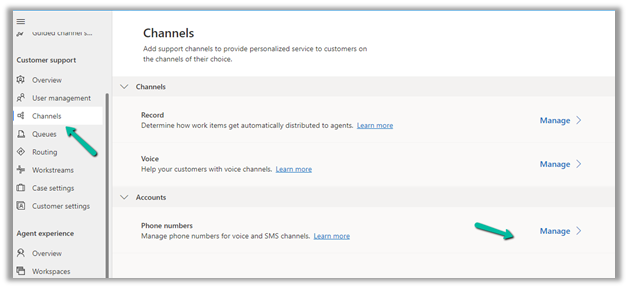
Navigate to Customer Service Admin Center >> Customer Support (Channels) >> Phone numbers (Manage)

Select + New number (in case we have purchased a number from Microsoft)

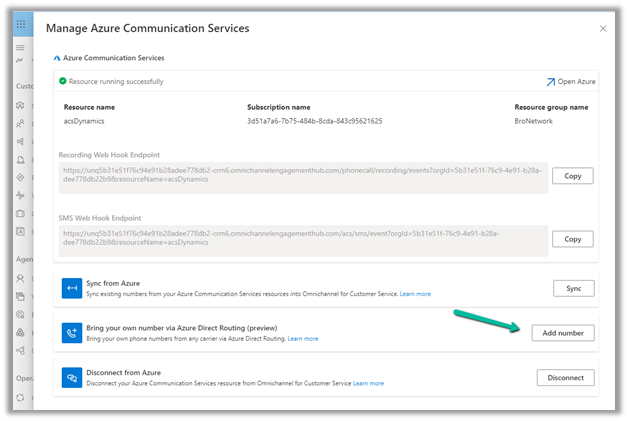
In case of Direct Routing, click on Advanced
>> Bring your own number via Azure Direct Routing

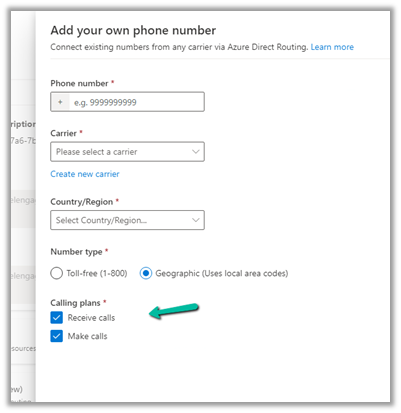
Specify the Phone Number, Carrier, Country / Region, and Number type, and select Receive calls and Make calls.

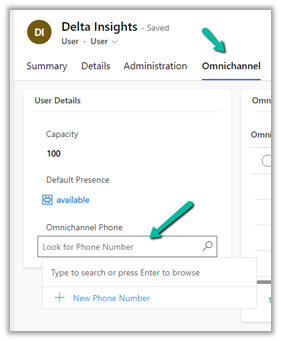
Open the system user’s record, and specify the phone number added in the Omnichannel Phone field in the Omnichannel tab.

Now login to Customer Service Workspace with the agent’s account.

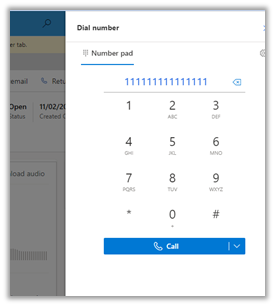
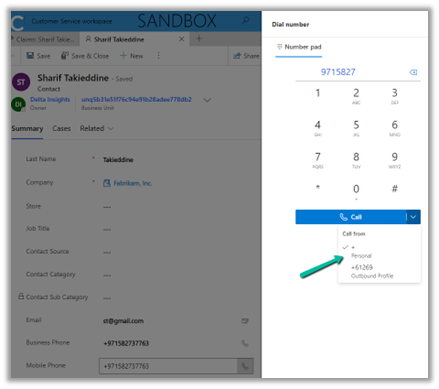
The agent will now have the option to make an outbound call using the personal number assigned.

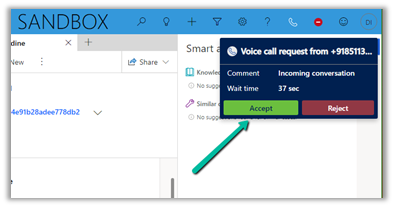
Also, we can see the agent receiving a call on that number directly.

Get more details – https://learn.microsoft.com/en-us/dynamics365/customer-service/voice-channel-outbound-calling?tabs=customerserviceadmincenter#assign-personal-phone-numbers-to-agents

Hope it helps..
Advertisements

Connect Voice Channel to using an existing Azure Communication Services (ACS) Resource – Dynamics 365 Customer Service


We had earlier configured Voice Channel in our Dev environment using ACS Direct Routing.

Please refer to this blog post on how to set up a voice channel using a new ACS. https://nishantrana.me/2022/10/17/how-to-set-up-omnichannel-voice-using-azure-communication-service-acs/

Recently while configuring the UAT environment, we thought of reusing the same ACS resource configured earlier.

Highlighting the key steps required for it –

The first step is to install the Voice Channel in the new environment

https://nishantrana.me/2023/02/08/install-voice-channel-in-omnichannel-dynamics-365-customer-service/

Followed by registering a new App in Azure Active Directory.

This will be required while connecting to the Azure Communication Services.

Enter the details of existing ACS, like name, ID, and Connection String.

And the App ID and App Tenant Id while connecting to ACS in the new environment.

Now if we want to use the feature of Call recording, we can reuse the existing Event Grid System Topics created for the Dev environment, by simply creating a new Event Subscription for it.

Copy and specify the webhook endpoint from the UAT / New environment

Select Manage for Channels >> Phone numbers

Select Advanced

Copy the Webhook endpoint for the new event subscription from the UAT / New env.

For the exact steps refer – https://nishantrana.me/2022/12/20/configure-azure-event-grid-system-topic-and-subscription-to-enable-call-recording-and-sms-in-dynamics-365-omnichannel-voice/

The next step would be to configure a new phone number, voice channel, workstream, etc.

So basically we can have multiple environments using the same ACS Resource using different numbers and with call recording for this we need to

  • Create / Register a new Azure AD app for each environment.
  • New Event Subscription for the existing Event Grid System Topics.

Get all the details here – Connect to ACS

Hope it helps..


Advertisements

Use Command checker (ribbondebug=true) to identify the Ribbon Customizations Issue – Dataverse / Dynamics 365


Appending ribbondebug=true to the record’s URL adds the new Command checker button in the command bar, which could help us in troubleshooting any unexpected behavior with ribbon.

More on this – https://powerapps.microsoft.com/en-us/blog/introducing-command-checker-for-model-app-ribbons/

Recently we added one enable rule to an existing button (Go Live) in the Customer Journey table. The rule was calling a JavaScript web resource based on the security role assigned to the user hiding or showing the button on the form.

Click on the Command checker to open the window on the side pane, where we can then select our button.

In the command properties tab, we can see our custom enable rule showing an error.

Also here clicking in View rule definition solution layers provides us the detail that this rule has been added as part of an unmanaged layer.

Clicking on the Unmanaged layer further provides us with the definition of the enable rule.

Going back to the error, we figured out that the function was missing from the web resource, and adding the function fixed the issue for us.

Back in the Command checker, we can see the custom Enable Rule getting evaluated correctly.

Check the Troubleshooting Guide

Hope it helps..

Advertisements

Contact’s Originating Lead – originatingleadid is not valid for update – Dynamics 365 / Dataverse


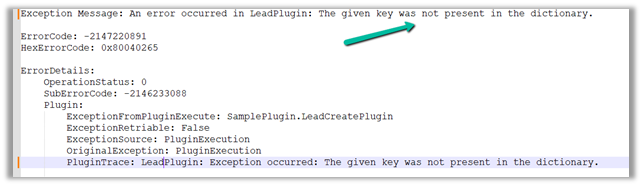
Recently we were writing a plugin that on the creation of a lead updates the originating lead of a contact record. The value was neither getting updated nor we were getting any errors.It was after we spent a good amount of time debugging, realized that this field cannot be updated.So basically, we can specify a value for it during create of contact but cannot update it.

Hope it helps..

Advertisements

How to – Identify Dynamics 365 Marketing Application App and its corresponding environment


We can easily identify the Marketing App and the environment in which it has been provisioned.

Login to Power Platform Admin Center >> Resources >> Dynamics 365 Apps

https://admin.powerplatform.microsoft.com/

We can find the unique name of the environment/organization suffixed with the name of the app i.e. Dynamics 365 Marketing Application for the configured app.

Navigate to the environment’s Advanced Settings >> Customizations >> Developer Resources 

We can find the Unique Name of our organization there


Hope it helps..

 

Advertisements

How to – Generate Long-Lived Page Access Token – Facebook


Login to Meta for Developers and note down the App ID and App Secret of the app.

Access Tokens – https://developers.facebook.com/docs/pages/access-tokens/

https://developers.facebook.com/apps/

To get the long-lived page access token, first, we need to generate a short-lived Access Token.

In Graph API Explorer – https://developers.facebook.com/tools/explorer, select the App and the page (provide appropriate permissions) and click on Generate Access Token to generate the token.

Navigate to Access Token Debuggerhttps://developers.facebook.com/tools/debug/accesstoken/, paste the token and click on Debug.

We can see the token expiry in 1 hour.

To generate a Permanent or Long-lived token we can make use of the below application.

https://bnjis.github.io/Facebook-permanent-token-generator/

Specify App ID, App Secret, and User Access Token and click on Submit.

We will get the permanent token generated for us.

On pasting this token in the Access Token Debugger, we can see the expiry set to Never.

The other option is to use the Extend Access Token option when we generate a short lived token

EFBT

GT

Check the below link for more details –

https://developers.facebook.com/docs/marketing-apis/overview/authentication/

https://developers.facebook.com/docs/facebook-login/guides/access-tokens/get-long-lived/

https://medium.com/@blienart/get-a-permanent-facebook-page-access-token-a96470dc03ca

https://developers.facebook.com/docs/facebook-login/access-tokens/expiration-and-extension

Hope it helps..
Advertisements