

To add Voice Calling (PSTN – Public Switched Telephone Network) connectivity to an app or service, we can buy a number from Microsoft, which acts as a PSTN carrier (based on availability in the region).
This is the easiest way to connect ACS (Azure Communication Services) to PSTN, managed by Microsoft. Here Microsoft will provide the numbers, and there is no deployment or maintenance of the on-premises deployment required for PSTN (Voice Calling).

If Voice Calling (PSTN) is not available in the region or if we want to use a different PSTN carrier we can opt for Azure direct routing. The advantage of Azure direct routing is that we can use a telephony carrier of our choice, by connecting Azure Communication Services to the supported SBC – Session Border Controller.
A session border controller (SBC) is a dedicated hardware device or software application that governs how phone calls are initiated, conducted, and terminated on a voice-over-Internet Protocol (VoIP) network. 
For Direct Routing to work, we could configure products from the certified SBC Vendors, one such example is AudioCodes – Mediant VE Session Border Controller (SBC) from Azure Marketplace.
List of certified SBC Vendors –
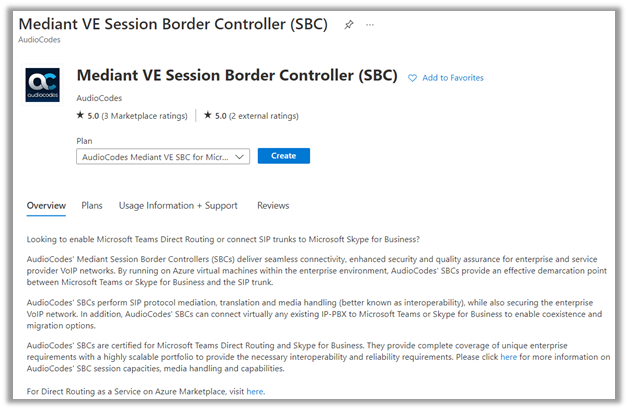
SIP stands for Session Initiation Protocol, and is essentially a way to make end connections for data and voice transfers over the internet, similar to HTTP functions for pages on the internet, provides a way to convert voice signals into data that can be decoded by devices used by the caller. The trunk is used to refer to a bundle of phone lines shared between users.
To configure the Omnichannel’s voice configuration using the ACS, navigate to Phone Numbers in the Omnichannel admin center and click on Get started.
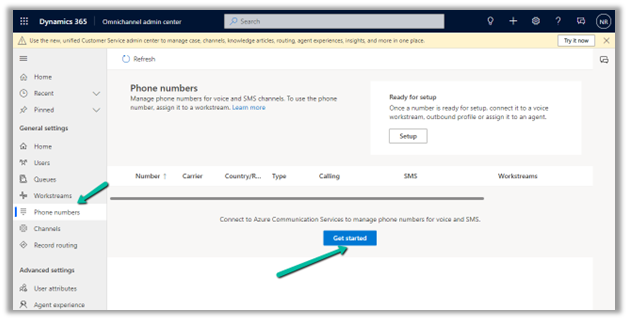
The Get started option gives us the option to create and deploy a new ACS resource or select an existing ACS resource.
Get started option will only appear if we have trial has ended, or we have ended it manually or disconnected any existing ACS connection.
https://learn.microsoft.com/en-us/dynamics365/customer-service/voice-channel-acs-resource
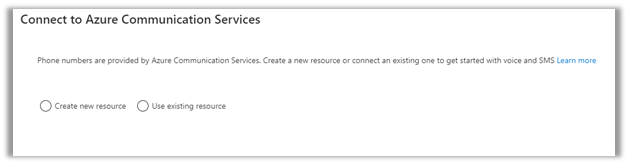
With Create new resource option, we can create a new Azure
Subscription, Azure
Resource Group, provide a Resource Name, and can select Deploy to create and deploy the required resource.


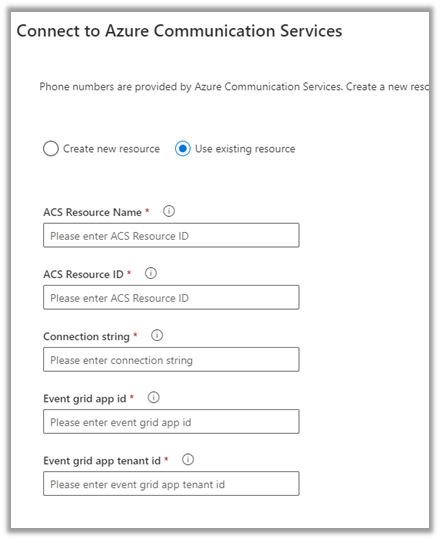
For the Use existing resource option, we need to specify the following details.
Note – To enable call recording and SMS service using Azure Event Grid – https://learn.microsoft.com/en-us/dynamics365/customer-service/voice-channel-connect-existing-resource?tabs=customerserviceadmincenter#enable-call-recording-and-sms-services
To create ACS Resource, login to Azure Portal and search for Communication Services.

Once the ACS resource is created, we have the option to configure the Phone Numbers (if we are using the numbers provided by Microsoft) or Direct Routing (for other carriers) as specified earlier.
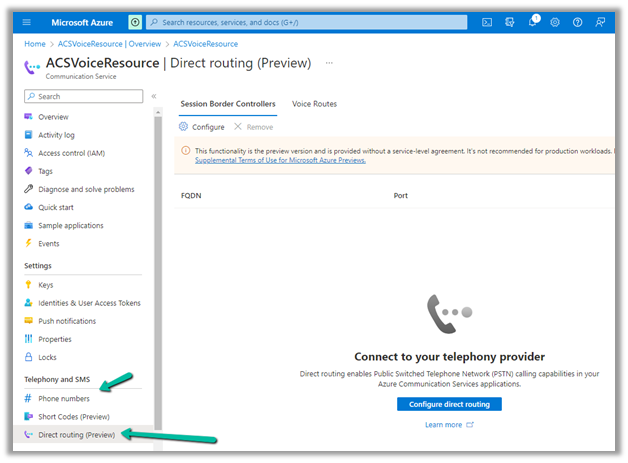
We’d get the following options while adding Phone numbers –
- Country or Region
- Use Case – application or person.
- Number Type – local or toll free.
- Calling and SMS.

In the Numbers tab, we can find and purchase the number.

For Direct Routing –
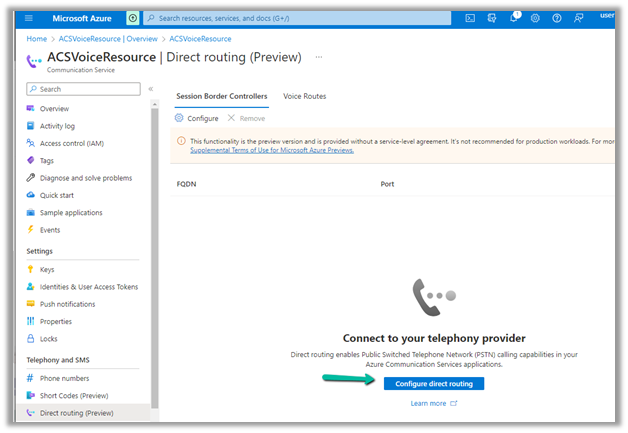
In the Session Border Controllers tab, will be specifying the FQDN
Fully Qualified Domain Name of the SBC along with the signal port number.

In the Voice Routes tab, we’d specify the number pattern and the corresponding session border controller that allows a call to be sent to a specific SBC based on the called or dialed number pattern.

On saving the details, it will validate the information entered.

Once we have set up the ACS, next we’d register an application in Azure, these are required details inside Omnichannel Administration App while configuring the ACS in the Event grid app id and Event grid app tenant id.


The remaining ACS details required, we’d get from the ACS resource created earlier.


Enter the details and click on Connect.

Once the connection is successful, select Advanced.
For Direct Routing, select Add number for Bring your own number via Azure Direct Routing (preview)
Note – SMS is not supported with Azure direct routing

Specify details of the required details –
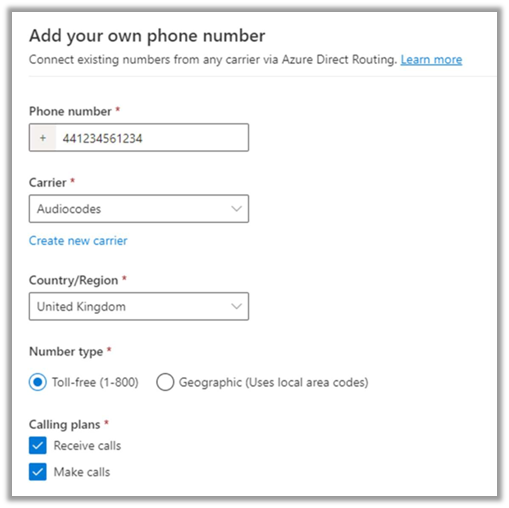
This adds the number to the phone number list and is ready for setup.

Next click on Setup
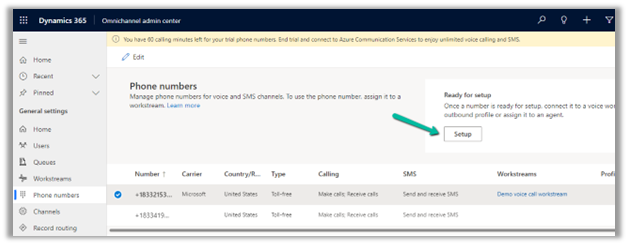
Select the Setup workstream option there.


Specify other required details like phone number, language, behaviors, etc.
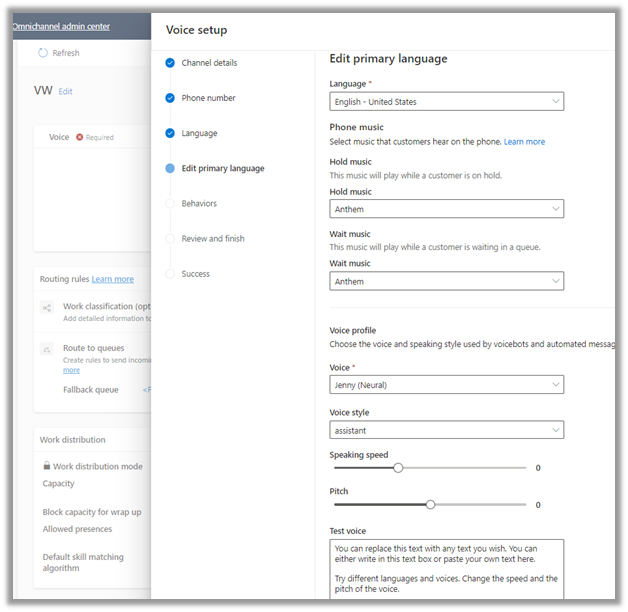

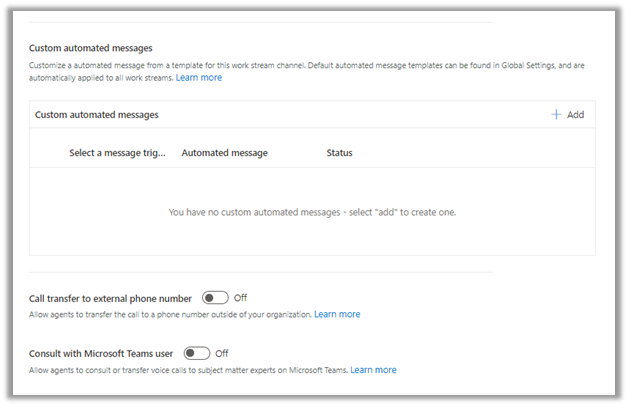
After we have configured the workstream successfully, we can call the number configured to see the Voice Channel in action.
So, for Omnichannel voice to work, we can either use Voice Calling (PSTN) provided by Microsoft or if it is not available or we want a different carrier, we can do it via Azure Direct Routing, which requires appropriate infrastructure in place along with certified Session Border Controller (SBC) and a working connection between SBC to Azure Communication Services.
Helpful links –
https://neilparkhurst.com/2022/02/09/omnichannel-for-customer-service-voice-channel/
Hope it helps..

































 Nishant Rana's Weblog