Using existing Web Resources (image) and Icons for button/ command – Dynamics 365 / Model-driven apps


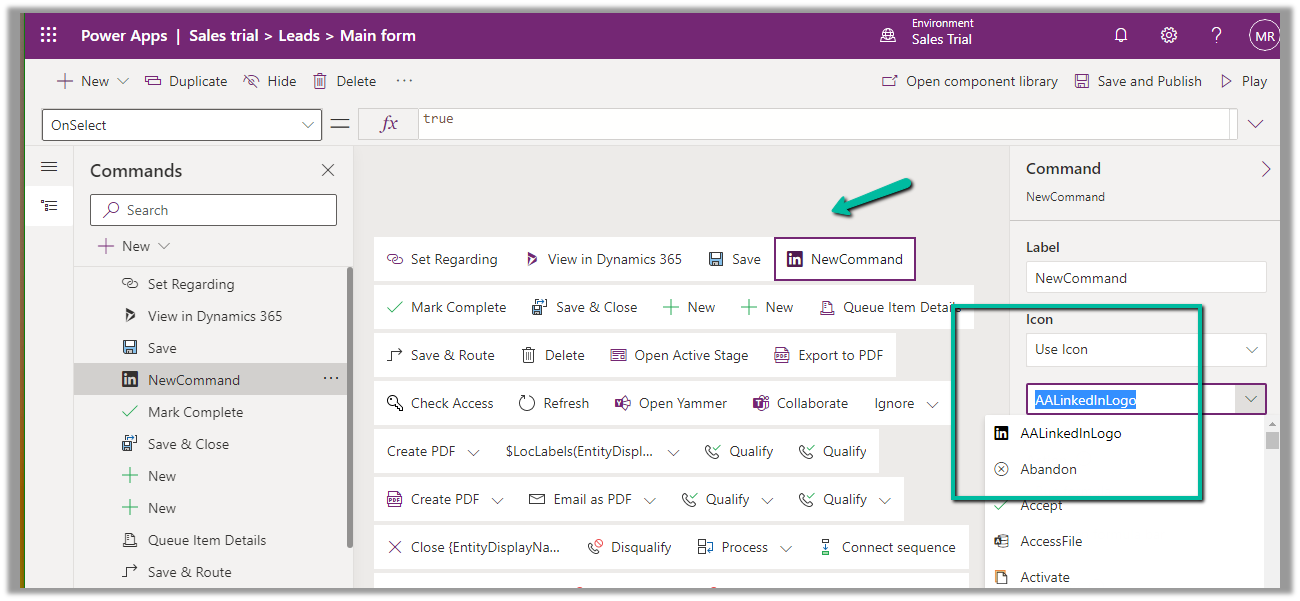
In case of a new command that is added through Command Designer, we can specify an existing Icon using the Use Icon option.

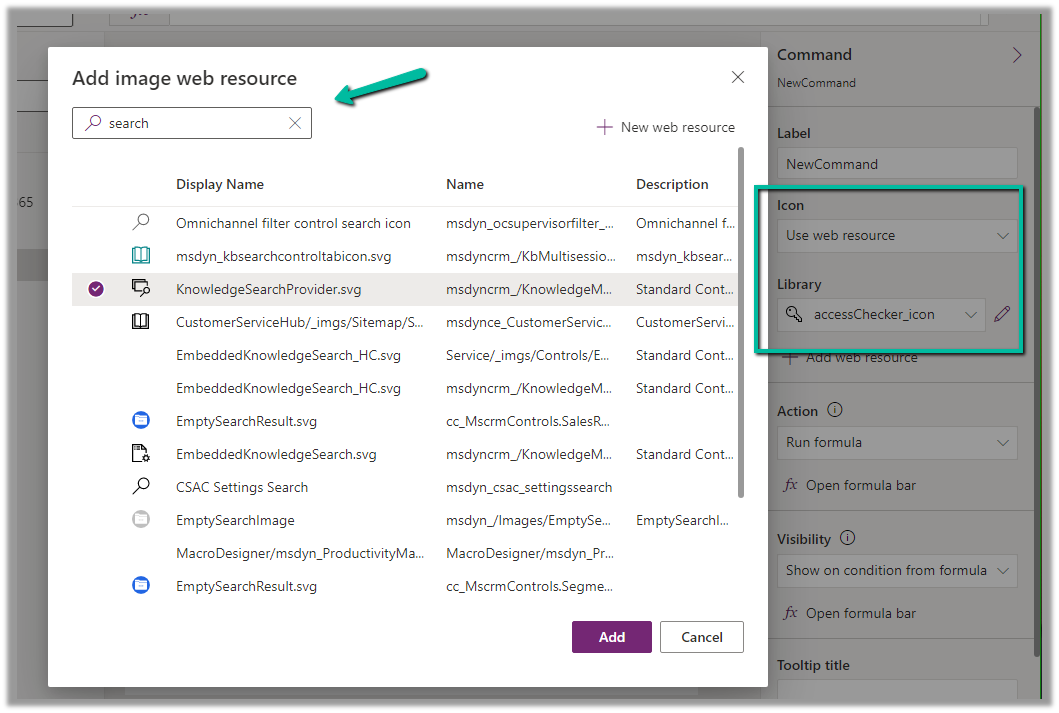
We can also search and specify an existing Web Resource

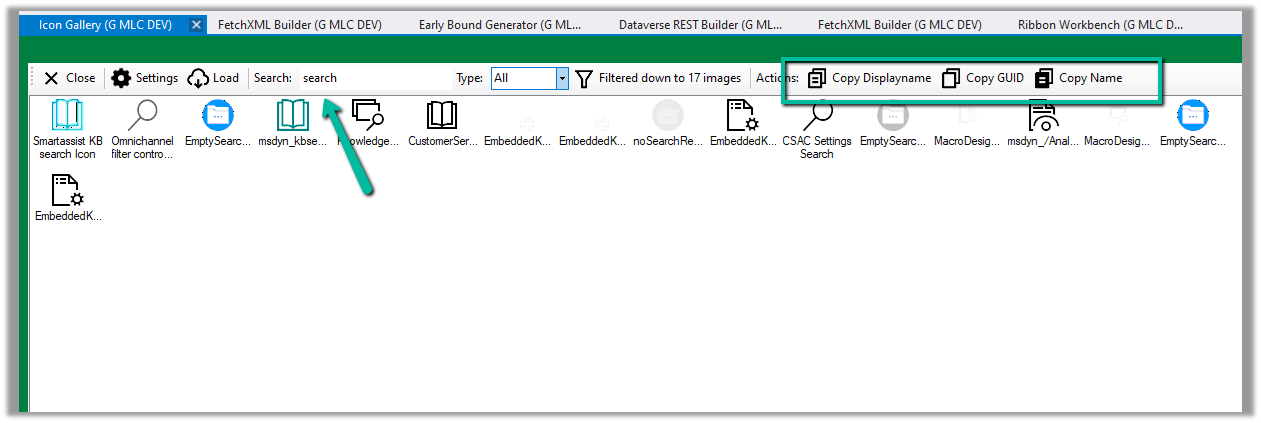
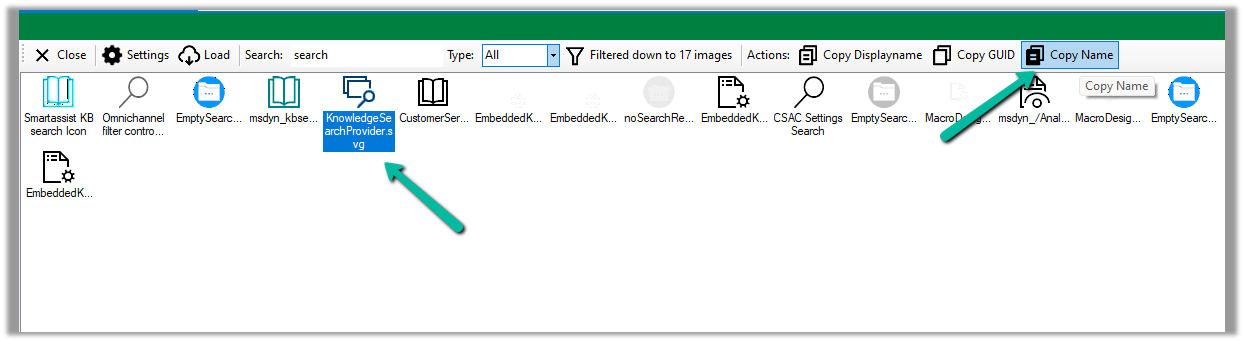
Similarly, we can use Icon Gallery (XrmToolBox Plugin) to search for the existing web resource image and icons.

We can then use Copy Name option to get the full path of the web resource

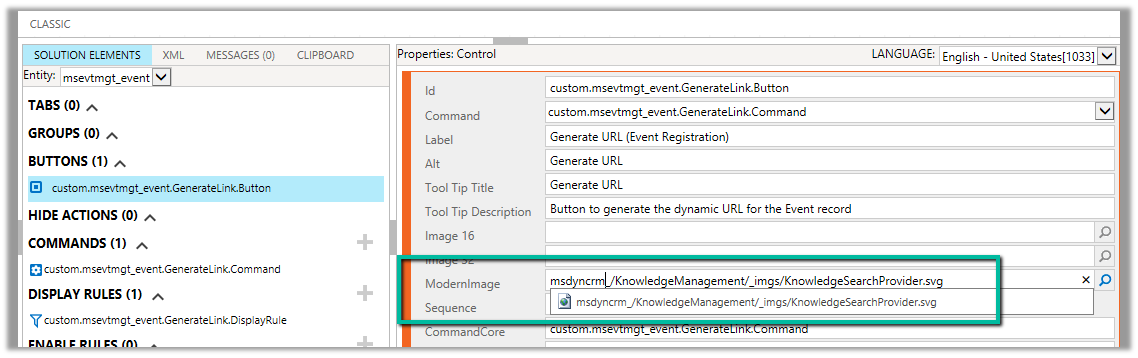
msdyncrm_/KnowledgeManagement/_imgs/KnowledgeSearchProvider.svg

use it to specify Modern Image for our buttons

Hope it helps..
Advertisements

Hide Show Button in Command Bar / Ribbon in Dynamics 365 / Model-Driven App (For Quick Reference)


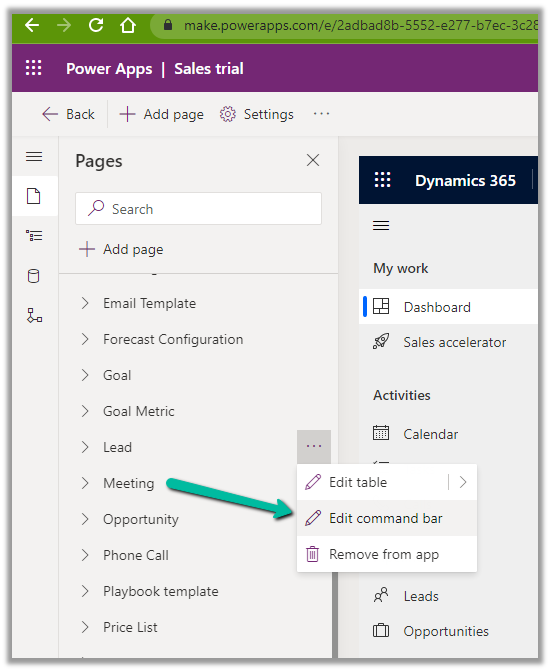
Open the App in the App Designer, select the Edit Command Bar for the table

Also, check the limitations of the Command designer, the important one being that the pre-existing classic commands cannot be customized with the new command designer.

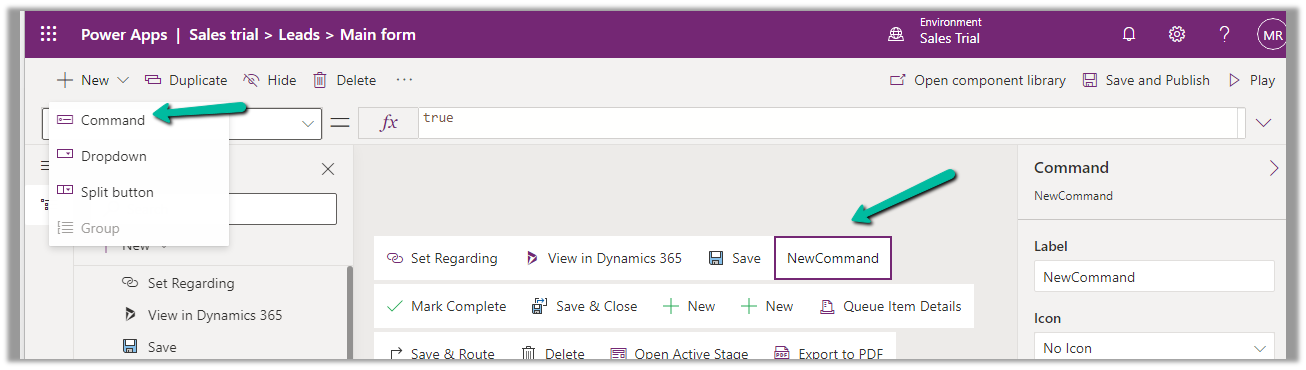
For the new Command added, set its Visible property based on the status of the current selected item/record.

More on Power Fx

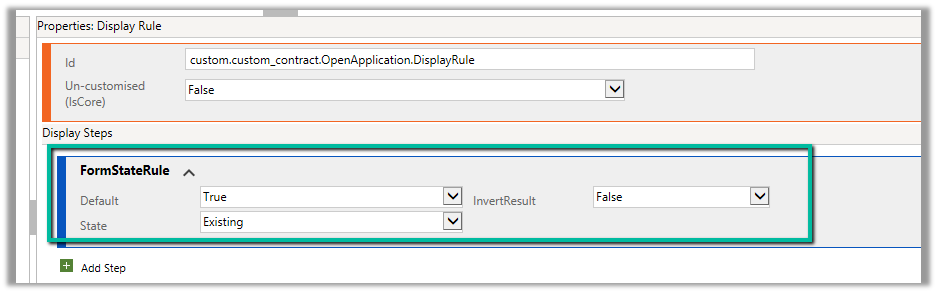
Now similarly if we want to show the button only for an existing record by updating the RibbonDiffXML, we can write the following DisplayRule based on FormStateRule


Hope it helps..


Advertisements

Error when trying to retrieve data from the network – Power Apps/ Dataverse


Recently in one of the custom pages (canvas app), we started getting the below error “Error when trying to retrieve data from the network” and no data was being retrieved.

Decreasing the data row limit to 500 from 2000 seemed to fix this issue for us.

I assume it could be because of the number of records increasing in the environment over time causing this issue.

Interestingly after a few days when we tried to check the root cause of the issue, by increasing the row limit back to 2000, we weren’t getting that error anymore.

Articles to refer –

https://thepoweraddict.com/how-to-fix-error-when-trying-to-retrieve-data-from-the-network/

https://powerusers.microsoft.com/t5/Building-Power-Apps/quot-Error-when-trying-to-retrieve-data-from-the-network-quot-on/td-p/1452970#:~:text=This%20may%20be%20a%20temporary,connection%20to%20test%20it%20again.

https://sharepains.com/2022/07/04/error-when-trying-to-retrieve-data-from-the-network/

Hope it helps..

 

Advertisements

Error with Global Choice / Optionset with the same display name and In operator – Power Apps / Dataverse


Recently while trying to filter the Combo box Items using the value of the Global Multi-choice field, we were getting issues in the formula.

It was because the optionset / choice field in the table and the global optionset / choice, it was referring to, both were having the same display name.

Issue –

To get it working we renamed the display name of the Global Choice column.

After which we were able to get our formula working.

Same is the case for the single choice field which is referring to global choice.

Gender is the display name of the field in Lead and Global Gender is the display name of the global choice field.

LocalOptionset

Hope it helps..
 

Advertisements

Applying filter on Multi Choices / Multi-Select OptionSet – Power Apps / Dataverse


Say for e.g. we have 2 multi-select choice columns in our leads table, one is local (My Local Multi Choice Field) and the other field ((My Local Global Multi Choice Field) refers to the global option set field

In our Canvas App, to filter on ‘My Local Multi Choice Field’ by value Local Choice 2 and Local Choice 3, we can apply the below formula.

Similarly, for the Global option set to apply a filter on the Global Choice 2 value, we can compare the field in the lead with the values in the Global Option set.

As we are using “in” operator, we’d get the delegation warning. And for it to work in the case of combo box we would have to set “Allow Searching” to “Off

Hope it helps..
Advertisements

Fixed – Invalid data from the network error in the custom page – Power Apps / Dataverse


Recently in one of our custom pages, we were getting the below error

“Invalid data from the network”

We had this setting “Formula-level error management” as On, switching it off was hiding this error on the page.

To fix it we tried removing the fields one by one to figure out the issue. Eventually, we saw the error was going away if we remove one of the option set fields from the gallery or comment it’s formula. Later when we removed and added the field back in the gallery and the error got fixed for us.

The page loading properly without the error –

Hope it helps..


Advertisements

Nishant Rana's Weblog

Everything related to Microsoft .NET Technology

Skip to content ↓