Reset / Restore the standard (OOTB) button in Dynamics 365 / Dataverse


We recently worked on a requirement where we customized an out-of-the-box ribbon button in Dynamics 365 — specifically, the Reactivate Lead button. We had renamed it to ‘Reactivate’ as part of an earlier customization.
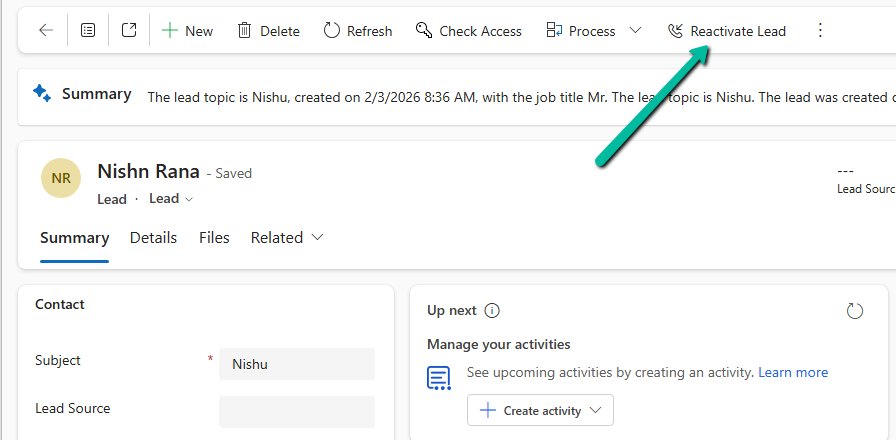
Below is how the button appeared on the form after customization:
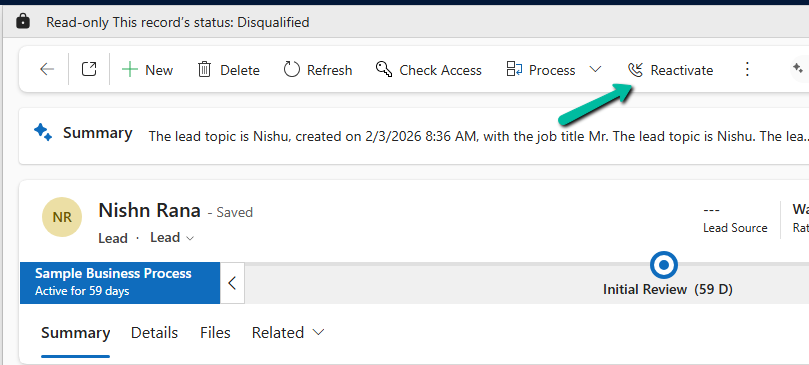
Later, we had a new requirement to hide this button completely and replace it with a custom ribbon button that implemented our own reactivation logic. However, when we tried to hide the button using Ribbon Workbench, we noticed that the Hide option was not available.

When we opened Ribbon Workbench and inspected the button, we observed that since the button was already customized, the standard options like Hide were no longer available.

While working within the same Ribbon Workbench session, we could see the ‘Uncustomize Button’ option.
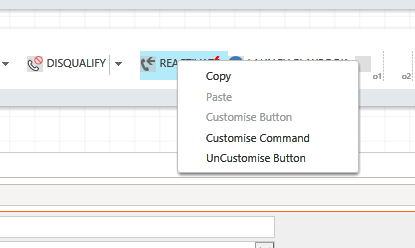
However, an interesting behavior we observed is that once we closed or reopened the solution inside the Ribbon Workbench, the ‘Uncustomise Button’ option was no longer available. In that case, only the Delete option was visible.
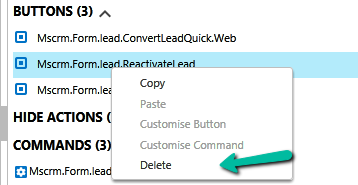
This is expected behavior. Once an OOTB button is customized, it becomes part of the solution layer, and certain default actions like Hide are no longer directly available.

To fix this and restore the original behavior, we followed a simple approach.

We selected the customized button in Ribbon Workbench and chose the Uncustomize Button or Delete option. We then published the solution and reloaded it. Once the solution was reloaded, the button was restored to its original out-of-the-box state. And now, the Hide option was available again as expected.
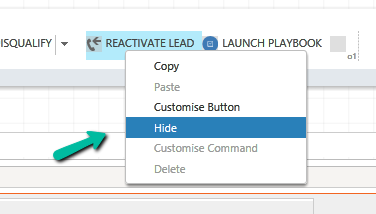
This allowed us to properly hide the OOTB button and proceed with implementing our custom ribbon button.

We referred to the blog below, which helped confirm the approach: https://innovativeaj.wordpress.com/2020/09/29/bring-me-back-to-life-restoring-the-d365-ootb-button-to-default-version/

Hope it helps..

Advertisements

Using gridContext.refreshRibbon() to Dynamically Show/Hide a Subgrid Ribbon Button – Dynamics 365 / Dataverse


In Dynamics 365 / Dataverse, sometimes we want to show or hide a ribbon button based on a form field value. But when the button is on a subgrid, it does not refresh automatically when a field changes on the form. We can handle this requirement using gridContext.refreshRibbon(). It is a small but very useful method that helps to refresh the subgrid ribbon without saving or reloading the form.

Here we are taking a simple scenario to understand the usage.

We will only show the New Case button on the Case Subgrid if the Preferred Method of Contact = Any else we will hide it.

A screenshot of a computer

AI-generated content may be incorrect.

Below is our JavaScript function to check the field value and return true or false. This function will be used as CustomRule for our Add New button command’s EnableRule on the subgrid. This function checks if the Preferred Method of Contact is ‘Any’. If yes, it returns true. Otherwise, it returns false.

A screen shot of a computer code

AI-generated content may be incorrect.

We are passing CRM Parameter = PrimaryControl here.

Depending on where the button lives (Form ribbon or Subgrid ribbon), the correct context is passed.

  • On a form: PrimaryControl is the formContext.
  • On a Subgrid: PrimaryControl gives the context of the parent form hosting the subgrid.

Below we have customized the Add New Subgrid button for Case and added a new Enable Rule for its command.

A screenshot of a computer

AI-generated content may be incorrect.

Now on the form load, the Add New button on the subgrid will be hidden on the form load event.

But when we change the value for the Preferred Method of Contact we will not see any effect on the Add New button. For it to work we need to use the refershRibbon method of the grid’s context as shown below.

We added it on the onChange event for the Preferred Method of Contact field so that when a user changes it, the subgrid ribbon refreshes.

A screen shot of a computer code

AI-generated content may be incorrect.

Now, when a user changes the Preferred Method of Contact, the subgrid ribbon will refresh and check again if the button should be visible.

As a result, now the Add New button appears on the Case subgrid when the Preferred Method of Contact is ‘Any’.

A screenshot of a computer

AI-generated content may be incorrect.

The ribbon refreshes immediately when the field changes to Email or any other value except Any.No need to save or reload the form.

A screenshot of a computer

AI-generated content may be incorrect.

JavaScript –

function showAddNewButtonOnCaseSubgrid(primaryControl) {
    var formContext = primaryControl;
    var preferredMethod = formContext.getAttribute("preferredcontactmethodcode");    
    var preferredMethodValue = preferredMethod.getValue();
    // Check if Preferred Method is 'Any' 
    if (preferredMethodValue === 1) {
        return true;
    }
    else {
        return false;
    }
}
function refreshCaseSubgridRibbon(executionContext) {
    var formContext = executionContext.getFormContext();
    var gridContext = formContext.getControl("Subgrid_Cases");  
    if (gridContext) {
        gridContext.refreshRibbon();  
    }
}

The helpful post – https://butenko.pro/2019/04/16/refreshing-the-ribbon-form-vs-grid/

Hope it helps..

Advertisements

Using existing Web Resources (image) and Icons for button/ command – Dynamics 365 / Model-driven apps


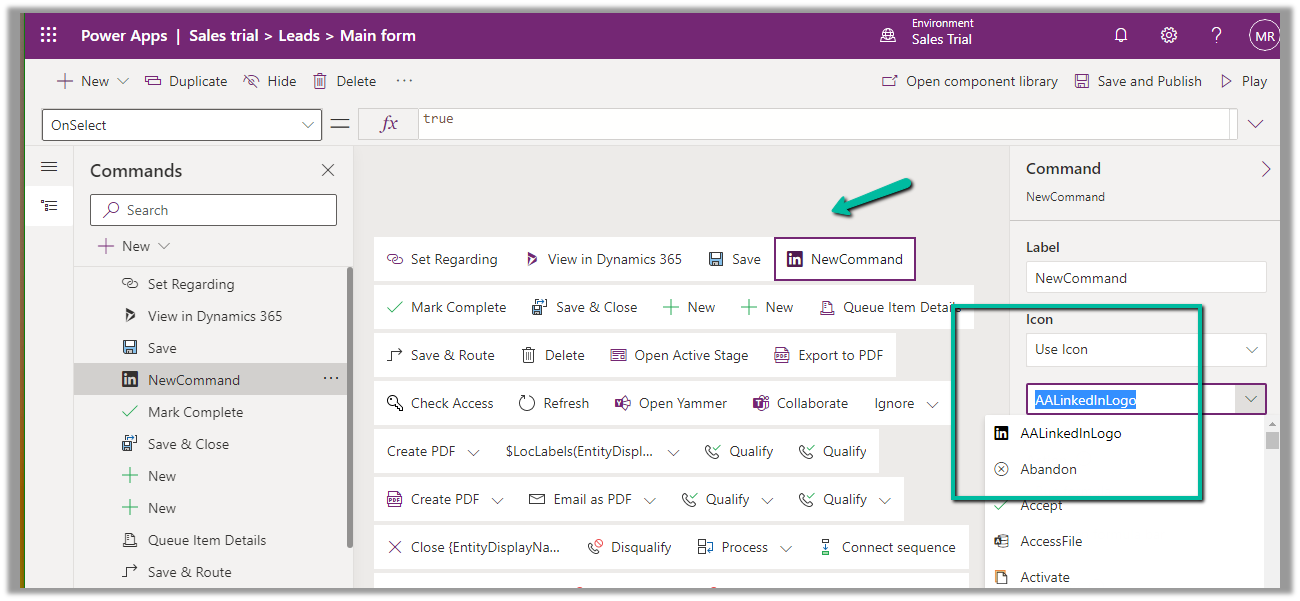
In case of a new command that is added through Command Designer, we can specify an existing Icon using the Use Icon option.

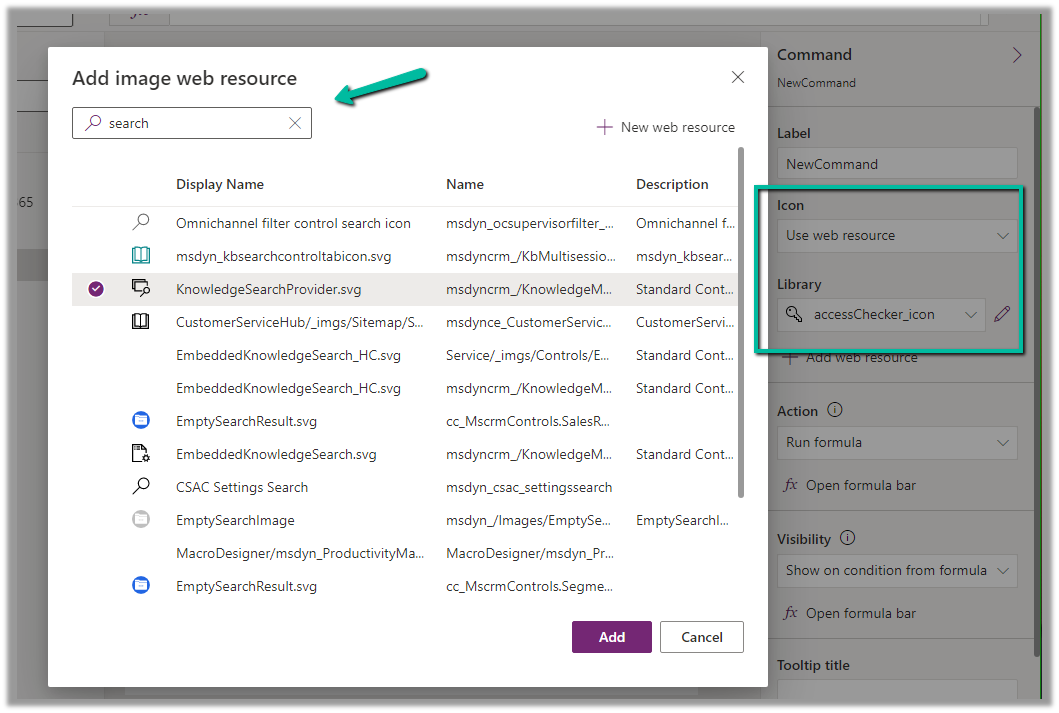
We can also search and specify an existing Web Resource

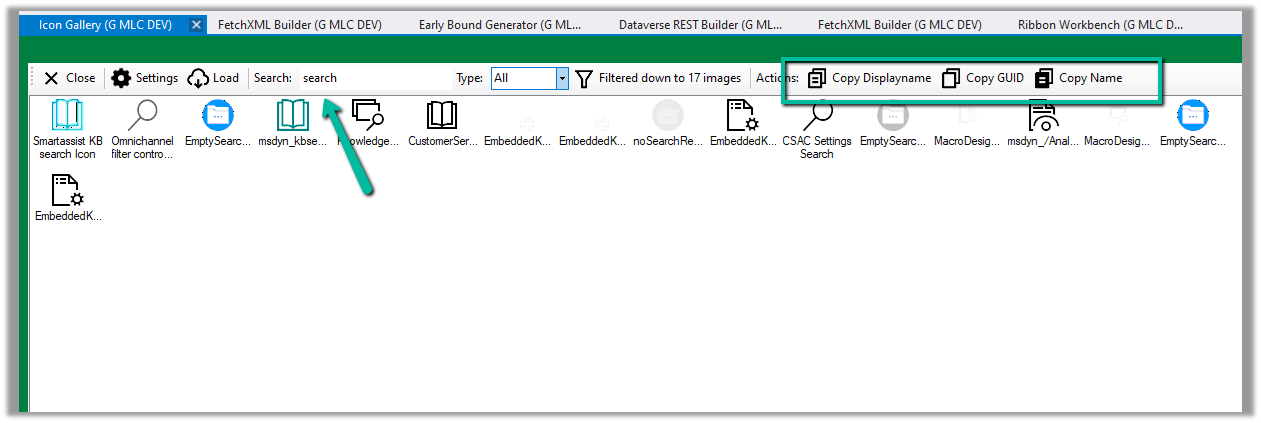
Similarly, we can use Icon Gallery (XrmToolBox Plugin) to search for the existing web resource image and icons.

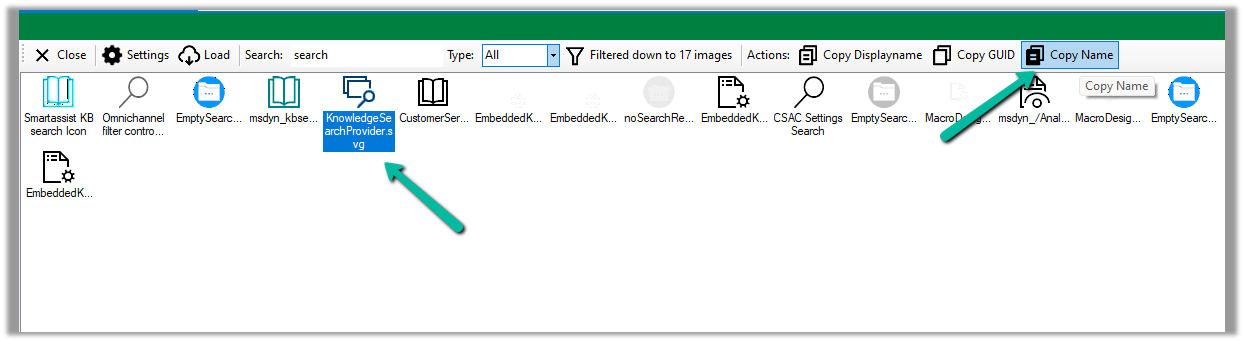
We can then use Copy Name option to get the full path of the web resource

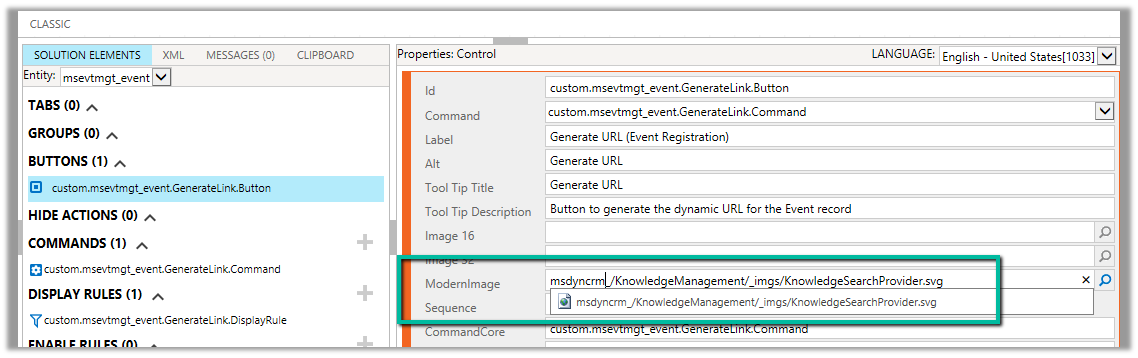
msdyncrm_/KnowledgeManagement/_imgs/KnowledgeSearchProvider.svg

use it to specify Modern Image for our buttons

Hope it helps..

Advertisements