Fixed – AADSTS7000218: The request body must contain the following parameter: ‘client_assertion’ or ‘client_secret


While trying to access Azure resources using UsernamePasswordCredential credential we were getting the below error

https://docs.microsoft.com/en-us/dotnet/api/azure.identity.usernamepasswordcredential?view=azure-dotnet

Azure.Identity.AuthenticationFailedException: ‘UsernamePasswordCredential authentication failed: A configuration issue is preventing authentication – check the error message from the server for details.You can modify the configuration in the application registration portal. See https://aka.ms/msal-net-invalid-client for details. Original exception: AADSTS7000218: The request body must contain the following parameter: ‘client_assertion’ or ‘client_secret’.

Trace ID: ef6c9e2b-862a-4a8b-9519-9a9072d23301

Correlation ID: 5f9bae95-e45a-4da5-b27c-ad9704e7334e

Timestamp: 2020-11-28 05:58:05Z’

This was because Allow public client flows was disabled for the application registered in Azure AD.

Enabling it fixed the issues for us.

https://docs.microsoft.com/en-gb/azure/active-directory/develop/scenario-desktop-acquire-token?tabs=dotnet#username-and-password

More on ROPC

https://nishantrana.me/2019/08/23/connect-to-dynamics-365-web-api-using-oauth-2-0-resource-owner-password-credential-ropc/

Hope it helps..

Advertisements

Working with large CDS datasets in Power Automate Flows and Logic Apps


Thanura Wijesiriwardena's avatarEVOLVED365

During the last 12 months I have been busy working on projects and lost my way a little bit on writing and sharing my experiences with the community. However on a positive note I learned a lot of new things during that period and now I’ve got some great content planned and waiting to be shared with you all.

Some of those learnings were around working with large CDS datasets in Microsoft Power Automate Flows and Azure Logic Apps. Here are some of those easy to learn tips, tricks, guidelines and limitations that will help you for sure.

Connecting to a Common Data Service (CDS) environment

There are two main connectors you can use. “Common Data Service” connector and “Common Data Service (current environment)” connector. Let’s look at few points to consider when selecting a connector for your workflow.

Common Data Service connectorCommon Data Service (current…

View original post 1,303 more words

Fixed – AADSTS65001: The user or administrator has not consented to use the application with ID


The below error occurs for the application registered with Azure AD (Delegated Permissions), which requires either user or an administrator’s consent for the permissions it needs.

“Azure.Identity.AuthenticationFailedException: ‘UsernamePasswordCredential authentication failed: AADSTS65001: The user or administrator has not consented to use the application with ID ‘9ea6c0e6-5ab5-4816-b787-5391cd41fd7b’ named ‘MyKVApp’. Send an interactive authorization request for this user and resource.”

The below setting specifies that all users can allow applications to access the organization’s data on their behalf.


Here the admin can grant the consent through the portal as shown below from Home > App > API Permissions


or can also use Consent URL

https://docs.microsoft.com/en-us/azure/active-directory/manage-apps/grant-admin-consent#construct-the-url-for-granting-tenant-wide-admin-consent

https://login.microsoftonline.com/{tenant-id}/adminconsent?client_id={client-id}


When trying to access the consent URL using another non-admin user, we might get the below message, which means that only the admin can provide the required consent.


Signing in with the Admin account presents the below message for granting the app the required permissions.


Admin can also revoke the admin consent (along with the permission as shown below) from the portal as shown below through Remove admin consent option.


Get all the details here –

https://docs.microsoft.com/en-us/azure/active-directory/develop/application-consent-experience#consent-and-permissions

Hope it helps..


Advertisements

User multiplexing- SSIS (KingswaySoft) + Dynamics 365 CE / CDS / Dataverse


Must read article on managing API limits

Thanks – Gustaf Westerlund

How to – Read Secret from Azure Key Vault using SecretClient (UsernamePasswordCredential)– C#


In the previous post, we used ClientSecretCredential Token Credential to read the secret from the Key Vault. In this post, we’d use UsernamePasswordCredential class instead.

Login to Azure Portal –

https://portal.azure.com/

Here we have generated a Secret named secret1 inside MyKeyVaultCRM

We have also provided GetSecret permission to the below User account

Also, we have registered an app

And enabled All public client flows for generating the token using username and password.

Let us create a console app to read the secret.

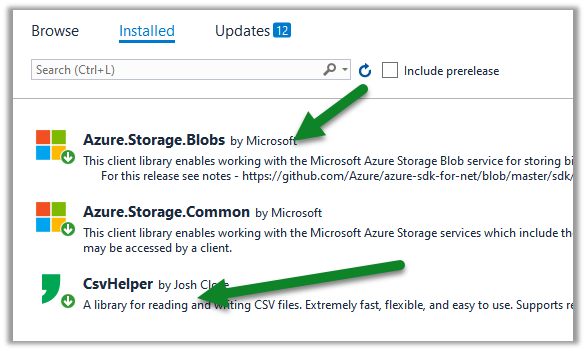
Add the following NuGet packages to the project.

Get the Vault URI and Directory ID (tenant id)

And the Client Id of the App registered

Sample source code:

We are using SecretClient class here.

Get all the details here

https://azuresdkdocs.blob.core.windows.net/$web/dotnet/Azure.Identity/1.4.0-beta.1/api/index.html

Hope it helps..

Advertisements

How to – Read Secret from Azure Key Vault using SecretClient class – Console App C#


Azure Key Vault can save 3 different types of information.

  • Keys – Encryption keys (asymmetric – public/private), can be created in Key Vault or imported, stored in software or HSD
  • Secrets – unstructured text, can be created or imported, stored in the software.
  • Certificates – can be created or imported, contains 3 part – cert metadata, key and secret

Key Vault provides data protection – at rest, in transit, and use.

Key Vault provides Application Security i.e. instead of saving secrets hardcoded in the application, or the configuration files, the secrets can be stored in Key Vault.

Login to Azure Portal

https://portal.azure.com/

Here we have generated a Secret named MyCRMKey inside MyDynamics365KeyVault

We have also provided GetSecret permission to the MyApp application registered in the Azure AD.

Let us create a console app to read the secret.

Add the following NuGet packages to the project.

Get the Vault URI and Directory ID (tenant id)

And the Client Id of the App registered

Sample source code:

We are using SecretClient class here.

Get all the details here

https://azuresdkdocs.blob.core.windows.net/$web/dotnet/Azure.Identity/1.4.0-beta.1/api/index.html

Hope it helps..

Advertisements

Nishant Rana's Weblog

Everything related to Microsoft .NET Technology

Skip to content ↓