Fixed – Canvas App / Custom Page not showing data (Dataverse / PowerApps)


Recently we faced an issue wherein the custom page was not loading any data, however, it was working for users with the System Administrator role.

The gallery control shows the Product details.

There were no errors in the Developer Tools, we tried by giving all Organization level rights to the users on the tables involved etc. but that didn’t help.

Eventually, it all came down to this particular line in the formula used for the Items property of the Gallery Control i.e. Asset Status field (custom field).

We had a field security profile created which had Read set as No and the users were part of that security profile, which explained why it was only working for System Admin users.

Changing the Read access to Yes for that column fixed the issue for us.

Hope it helps..

Advertisements

How to set Date Picker as Blank (Null)- Canvas Apps / Dataverse


If no dates are selected the Date Picker control will display a default date.

This comes from the InputTextPlaceholder property

We can update the formula to set the field as blank.

If(IsBlank(Self.SelectedDate), Text(Blank()))

Hope it helps..

Advertisements

Manage Security Roles using the new modern UI (preview) – Power Platform Admin Center


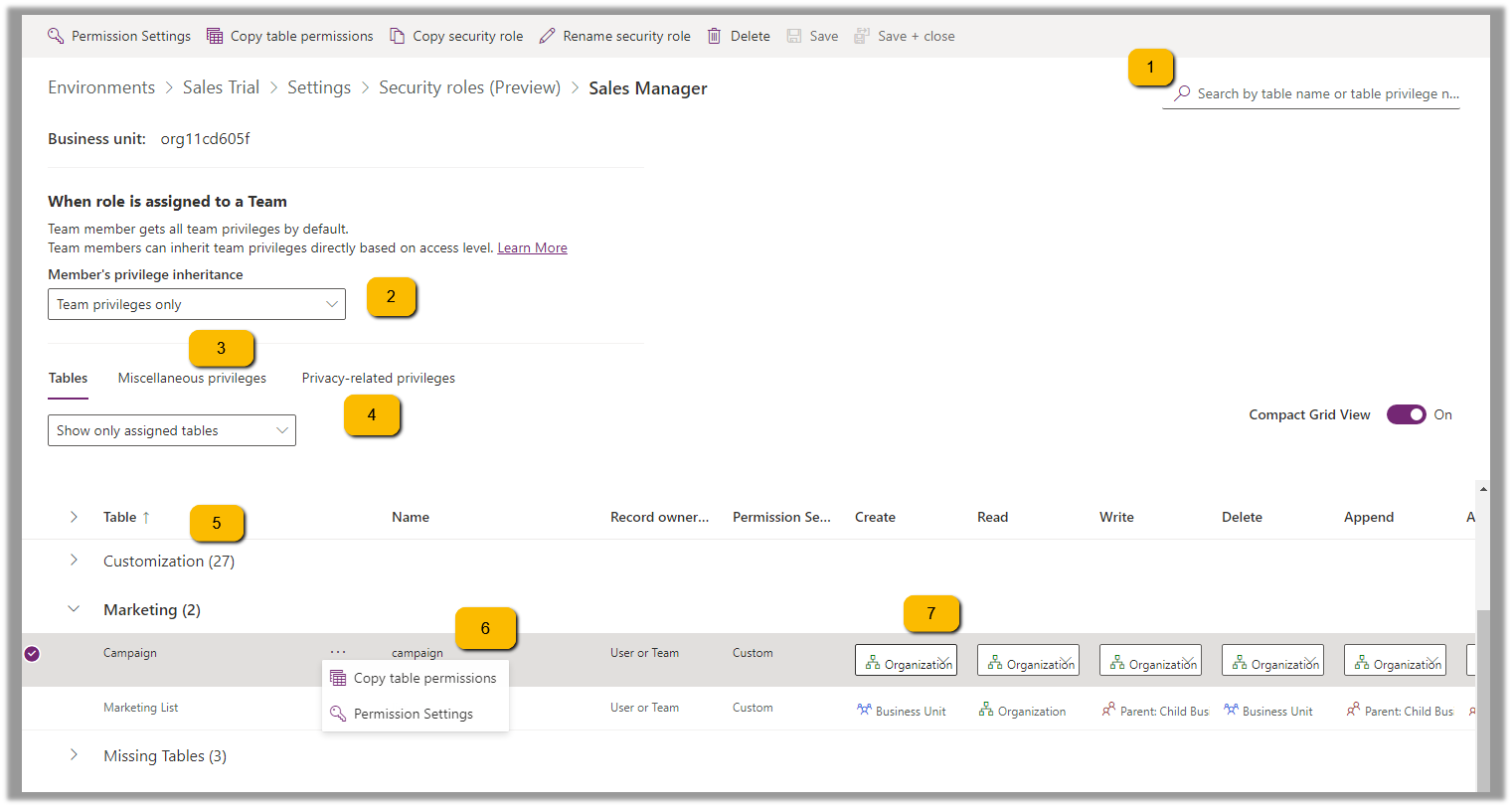
Security roles can be now managed using the new modern UI (preview).

Select Security Roles (See all) for an environment, within Power Platform Admin Center.

Select Edit for a security role.

We can see here Display only parent security roles option is On by default.

We can see the different options.

  1. Filter based on table or privileges

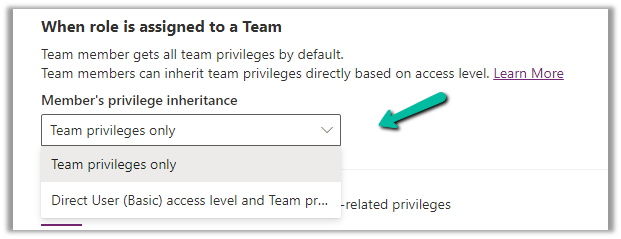
2. Specify Member’s privilege inheritance option

https://learn.microsoft.com/en-us/power-platform/admin/security-roles-privileges#define-the-privileges-and-properties-of-a-security-role

Nicely explained here –

https://debajmecrm.com/team-members-privilege-inheritance-what-is-this-doing-in-security-role-screen-of-dynamics-365/

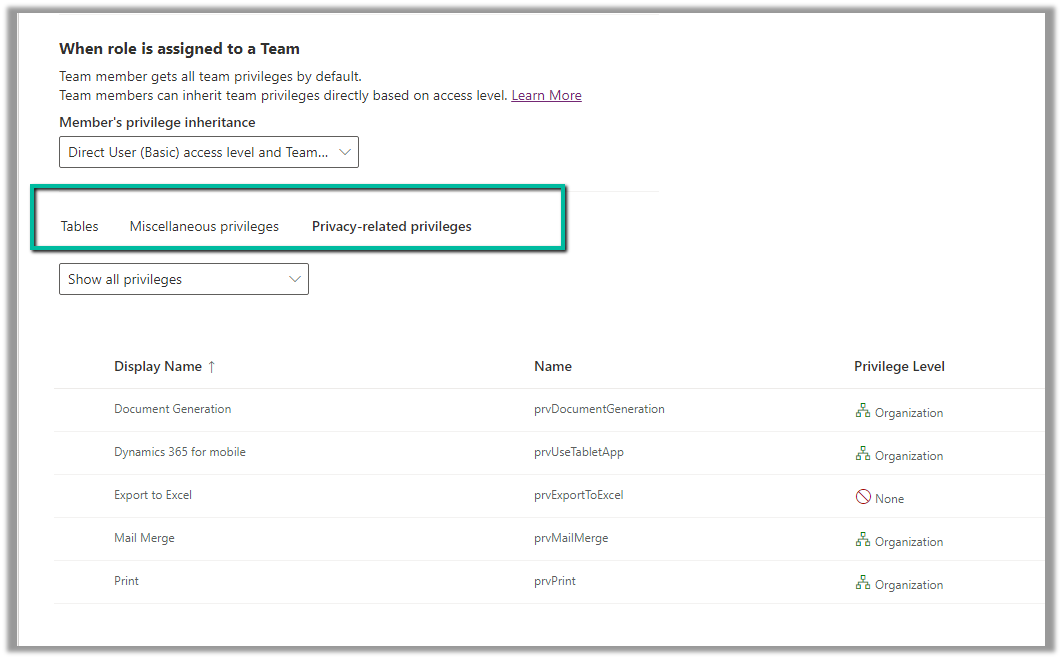
3. Tabs for Table specific, Miscellaneous, and Privacy-related privileges

4. Filter privileges further by all, assigned or unassigned.

5. Collapsible

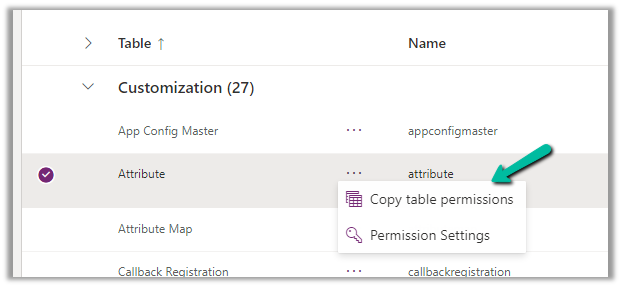
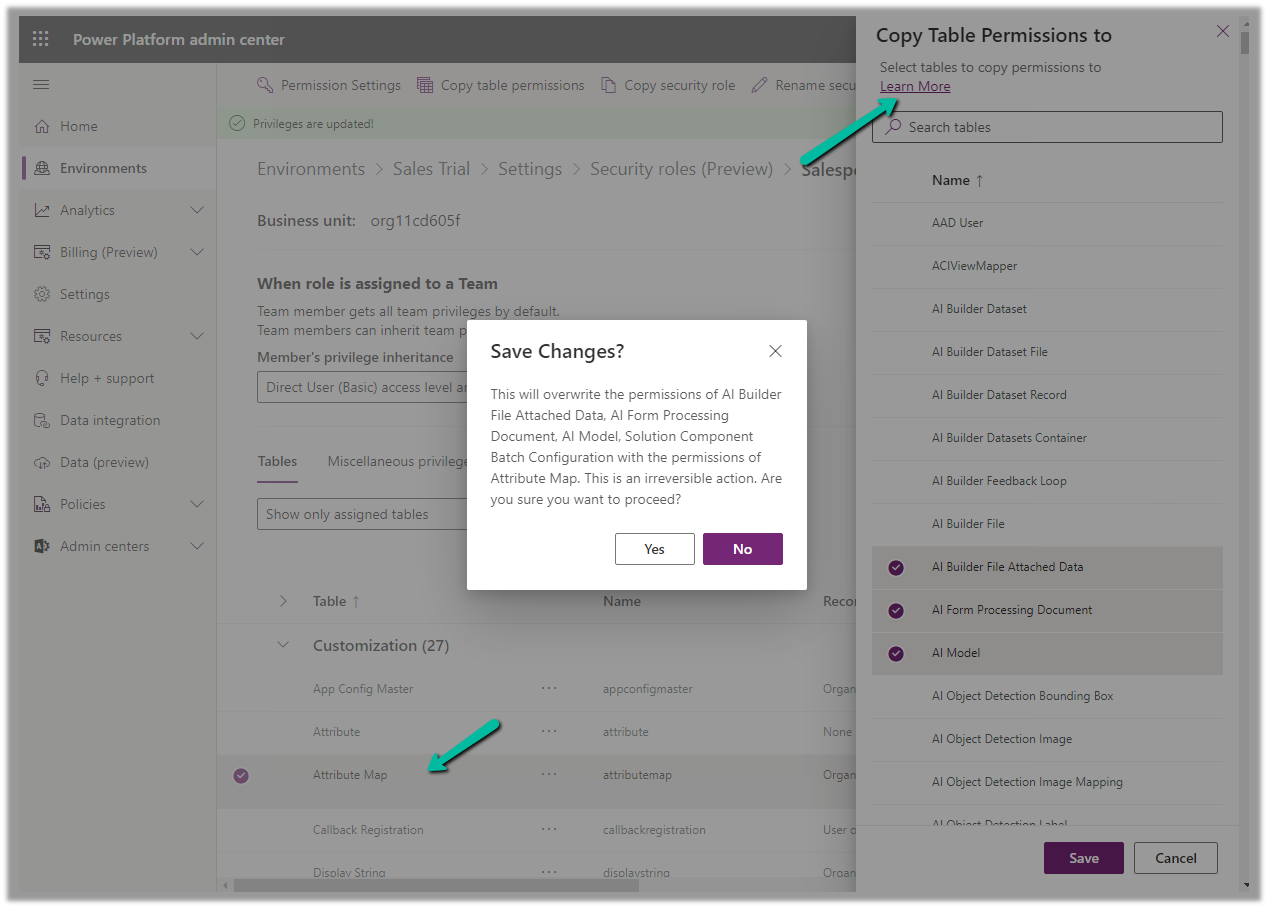
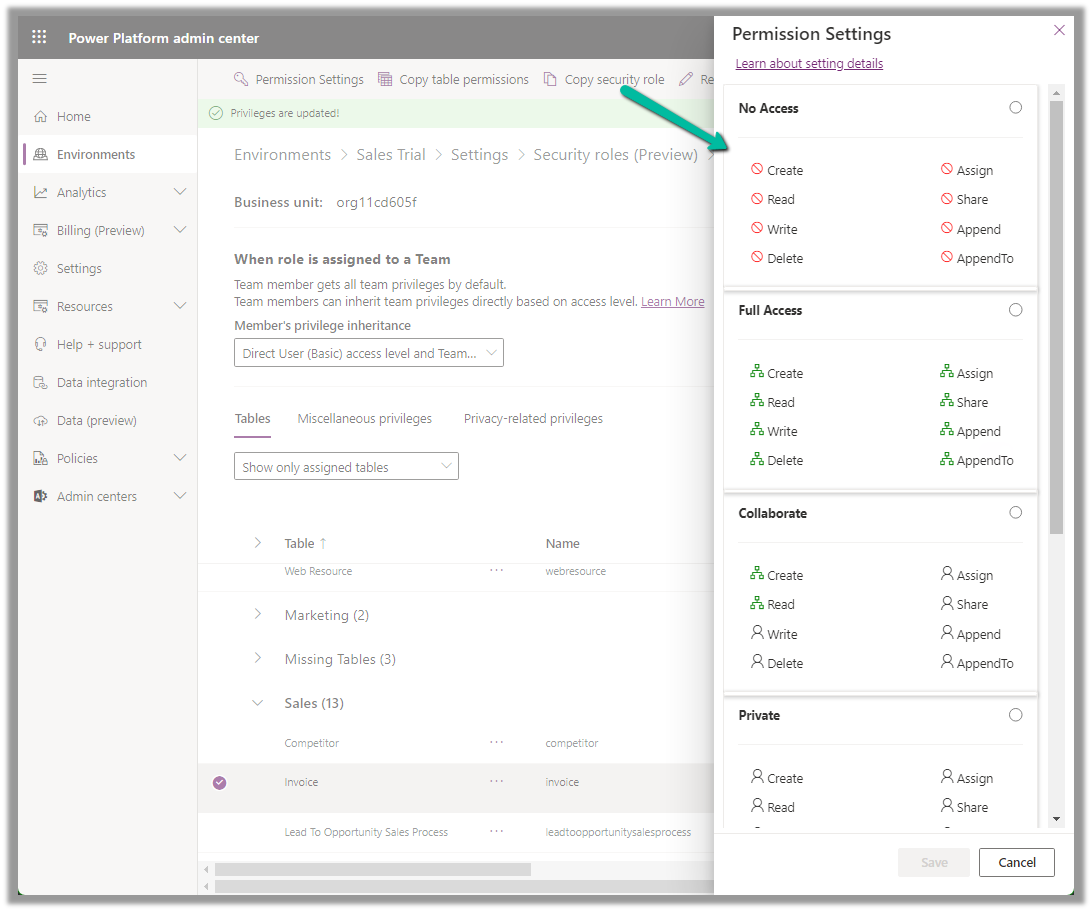
6. Option to Copy Table Permission to another table(s) and apply predefined Permission Settings i.e. Access Levels.

Copy table permissions to multiple tables

Permission Settings (Access Levels)

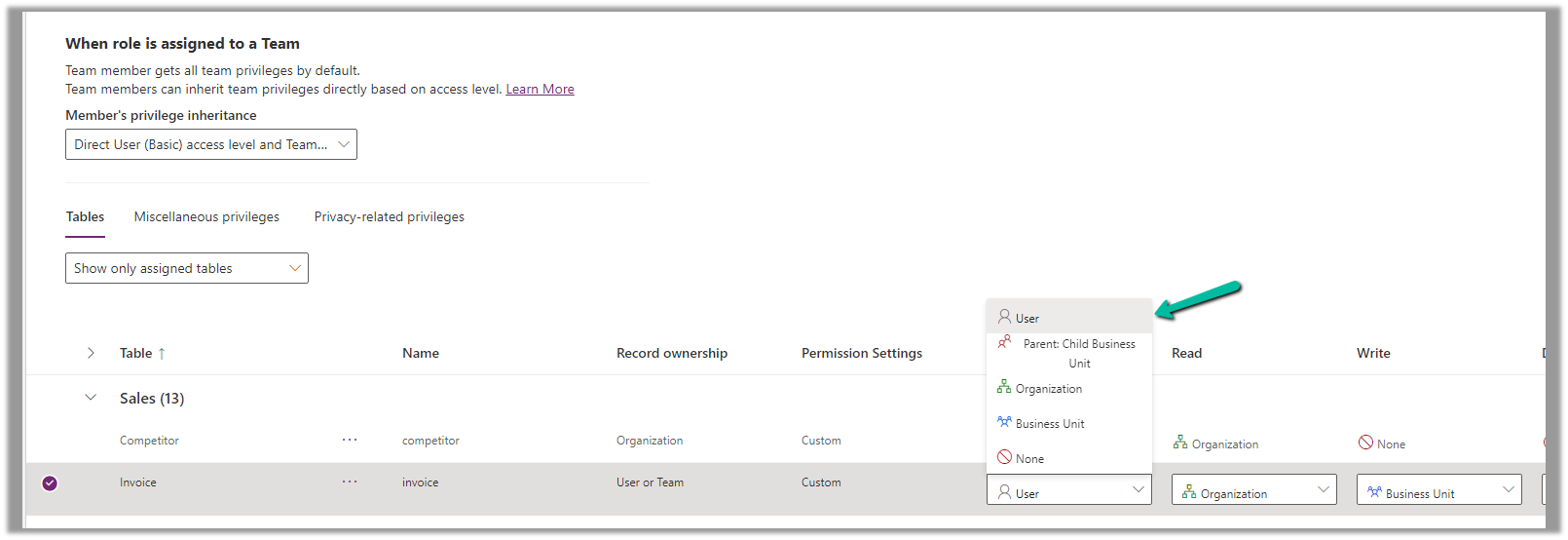
7. Specify Access Level for Privileges

Get all the details here – Security Roles and new modern UI

Hope it helps..

Advertisements

Get RequiredAttendee (Required) from the Meeting (appointment) table – Power Automate / Dataverse


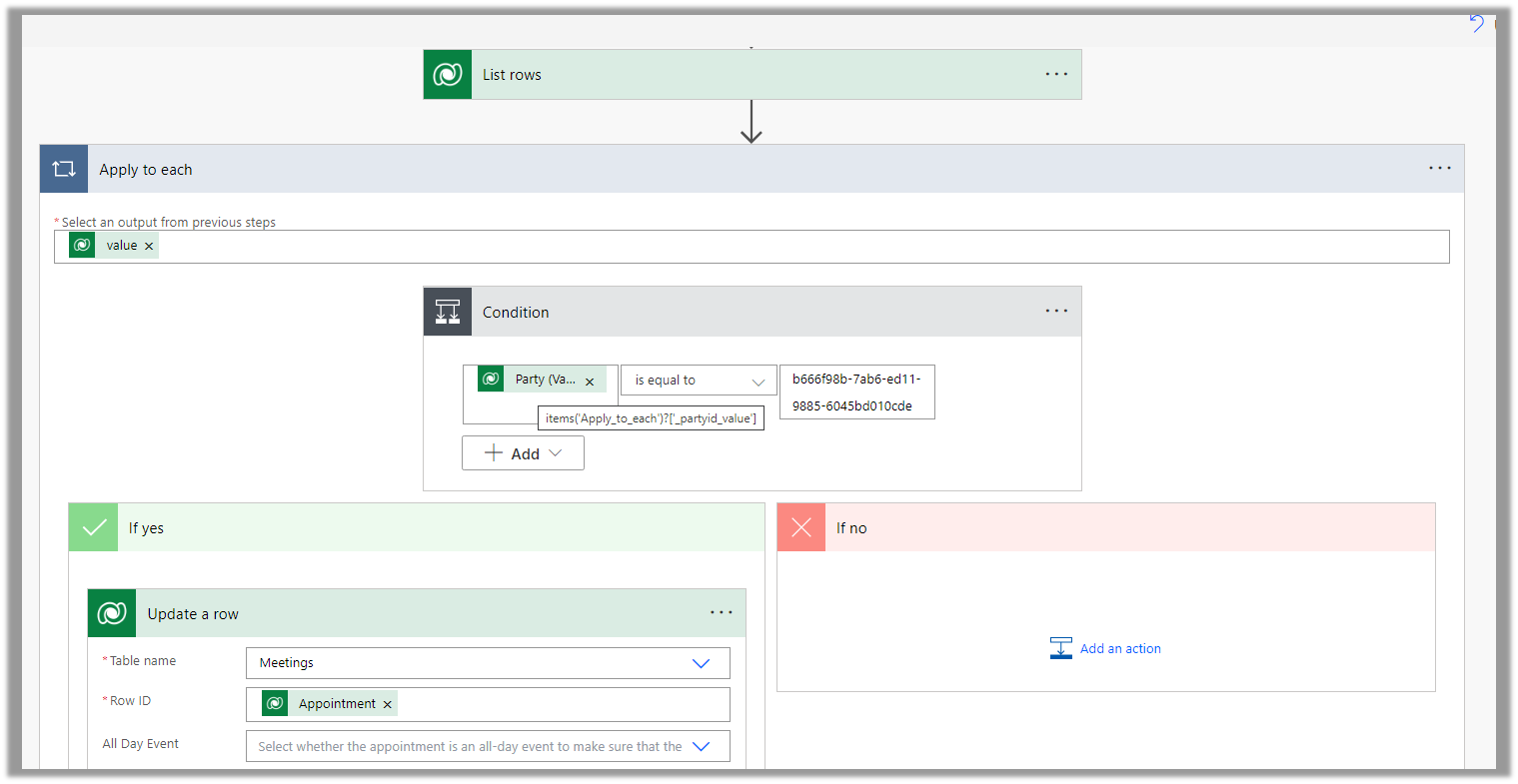
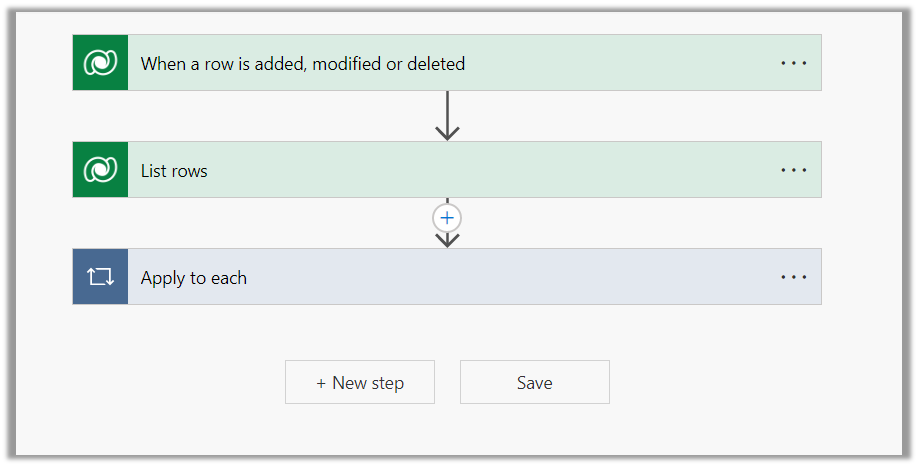
Below is the sample flow we can use to retrieve the Required (requiredattendees) field’s value from the Meeting table (on the update of the record).

Here we are triggering the flow, if there is an update in the subject field of the meeting record.

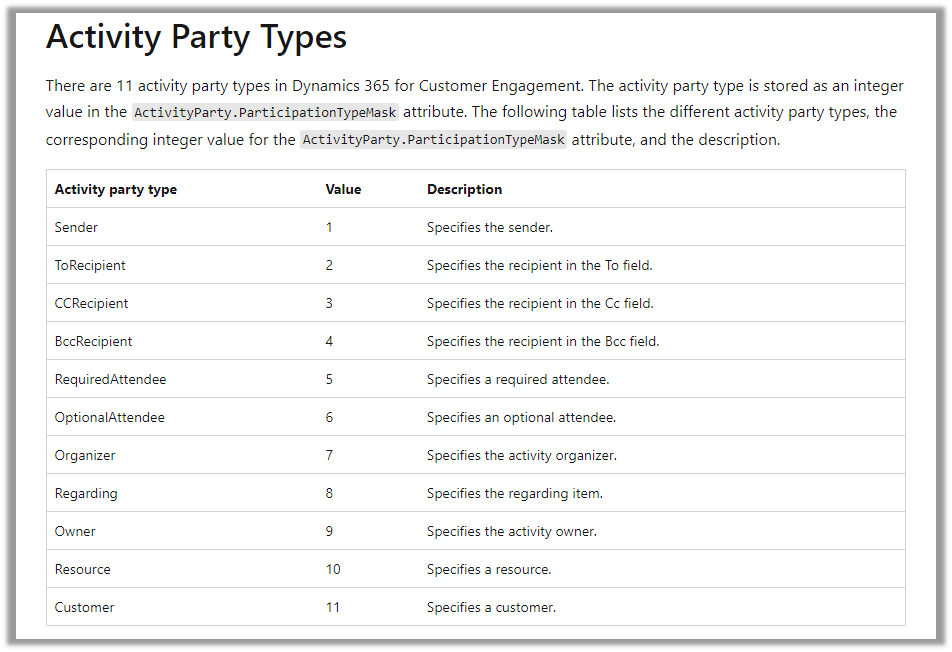
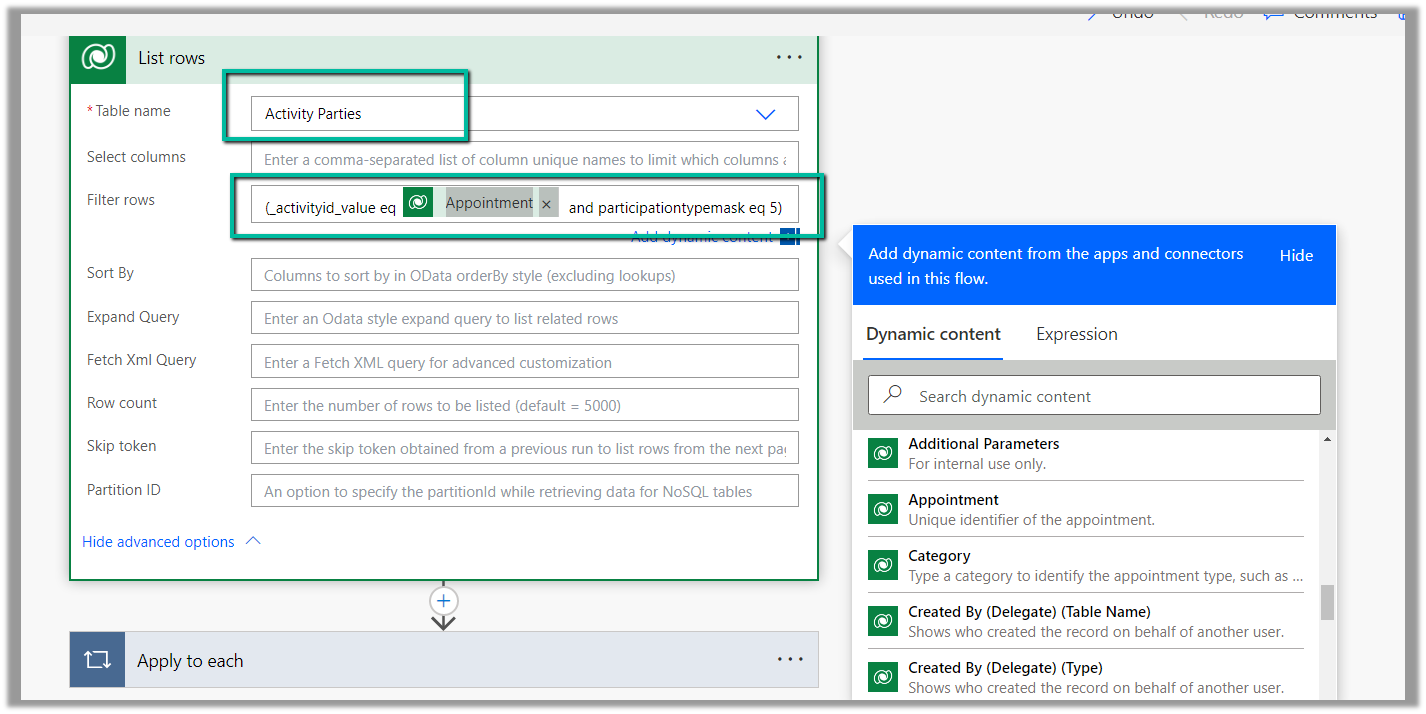
Then using the List rows action we are fetching the Activity Parties record associated using the Appointment’s unique identifier and participation mask as 5.

More on participation type mask

And in the last step, we are checking for all the associated Activity Party GUIDs for a specific GUID and then update the record or cancel the record.

Hope it helps..
Advertisements

Filter rows using contains, startswith and endwith Power Automate – Dataverse


Recently in one of our projects, we were using the Microsoft Bookings App for the users to book an appointment(outlook) and then were syncing this appointment back to Dynamics 365 through the category “Tracked to Dynamics 365” (Server Side Synchronization)

Get more details on it here – https://nishantrana.me/2022/03/22/how-to-synchronize-appointments-between-dynamics-365-and-outlook-using-server-side-synchronization/

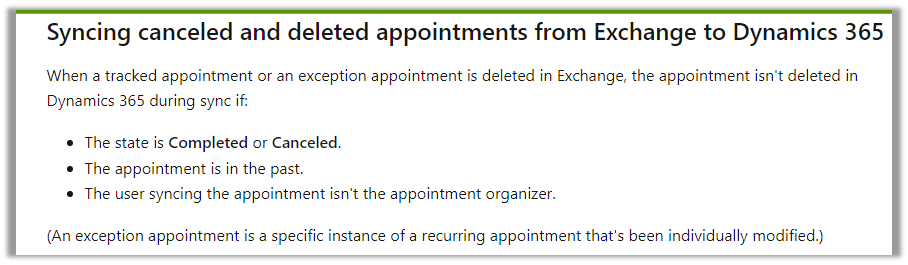
Here if the users were canceling the tracked appointment in Outlook, it will update the subject of the appointment record with the prefix – Canceled but will not cancel the record i.e. update the status of the record.

This would happen if the user canceling the appointment is not the organizer.

https://learn.microsoft.com/en-us/power-platform/admin/sync-logic#syncing-canceled-and-deleted-appointments-from-exchange-to-dynamics-365

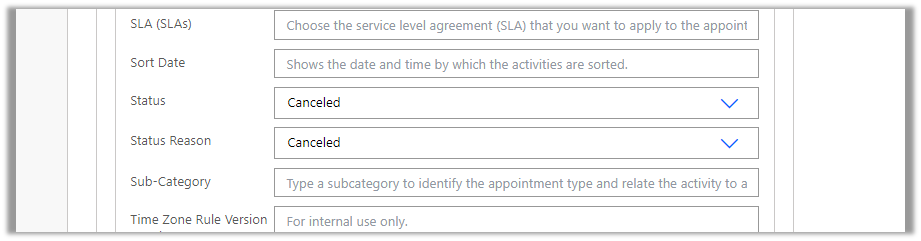
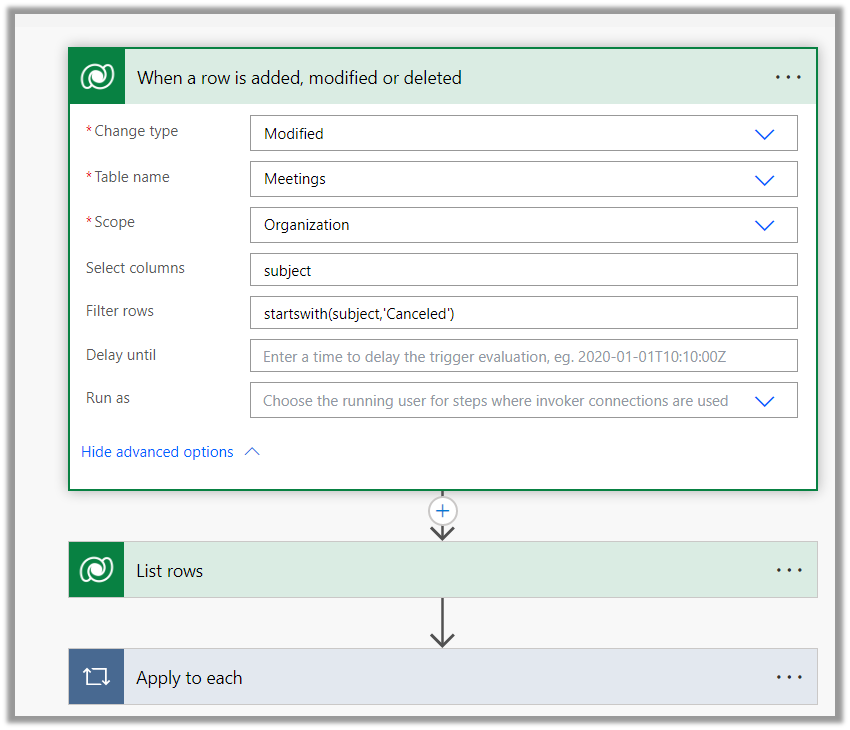
So here we were implementing a flow to check for updates in the Subject column with the word canceled and then updating the status of the appointment as canceled.

Here we can specify our select columns and filter conditions as follows – contains

Or startswith

https://learn.microsoft.com/en-us/power-apps/developer/data-platform/webapi/query-data-web-api#standard-query-functions

Hope it helps..
Advertisements

Using existing Web Resources (image) and Icons for button/ command – Dynamics 365 / Model-driven apps


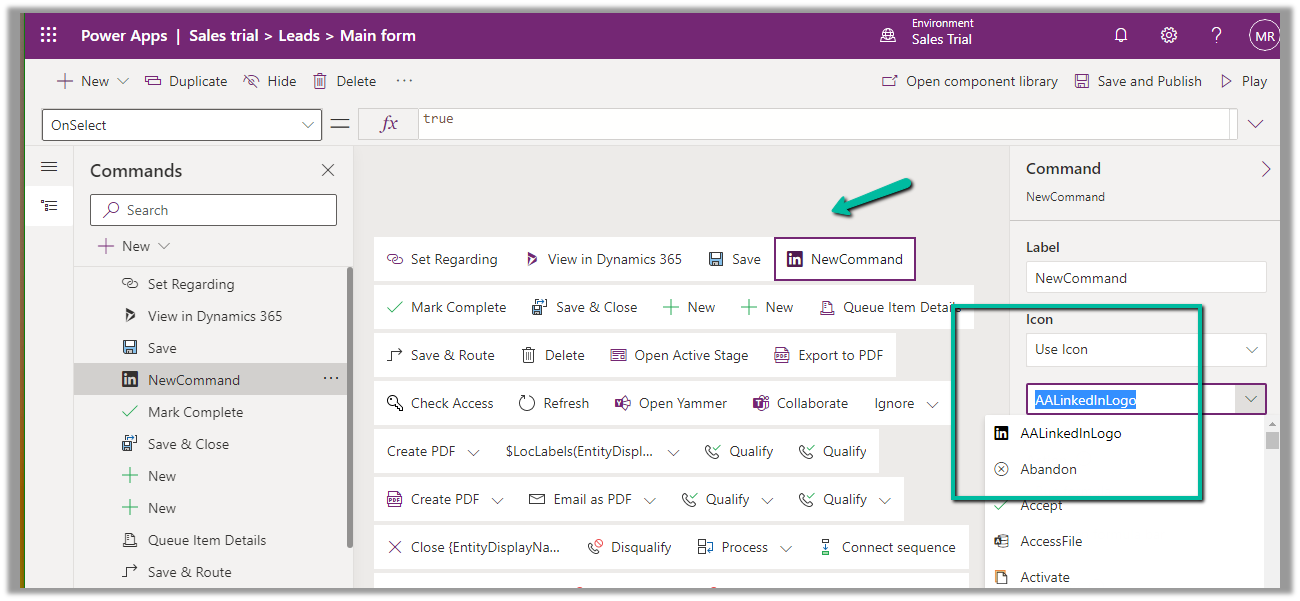
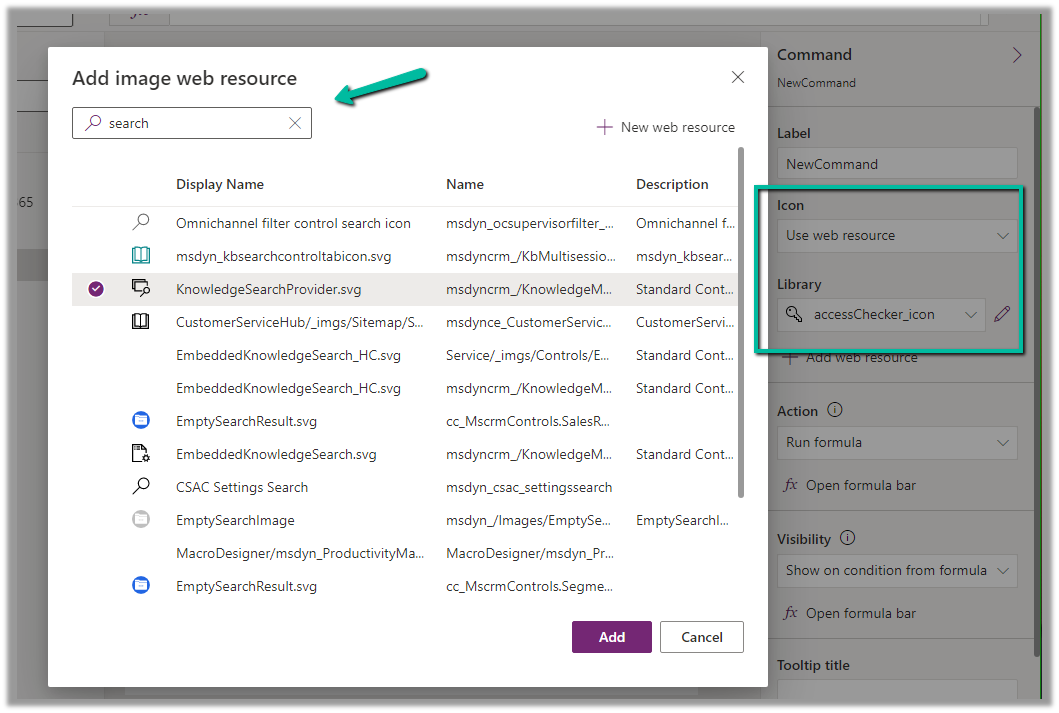
In case of a new command that is added through Command Designer, we can specify an existing Icon using the Use Icon option.

We can also search and specify an existing Web Resource

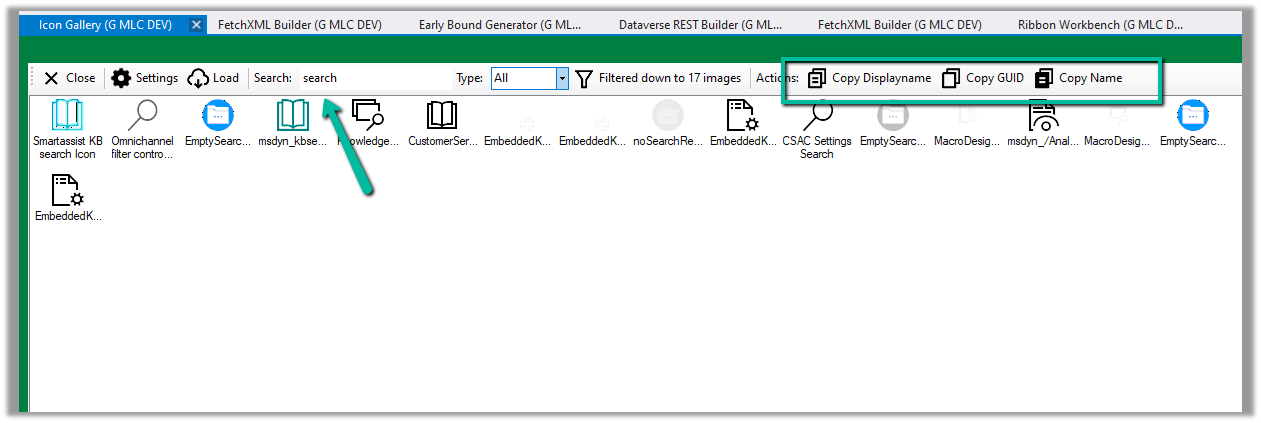
Similarly, we can use Icon Gallery (XrmToolBox Plugin) to search for the existing web resource image and icons.

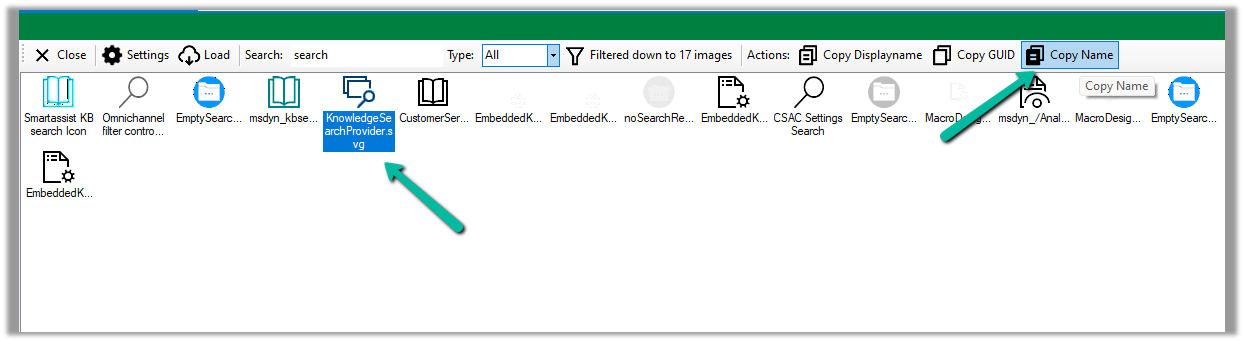
We can then use Copy Name option to get the full path of the web resource

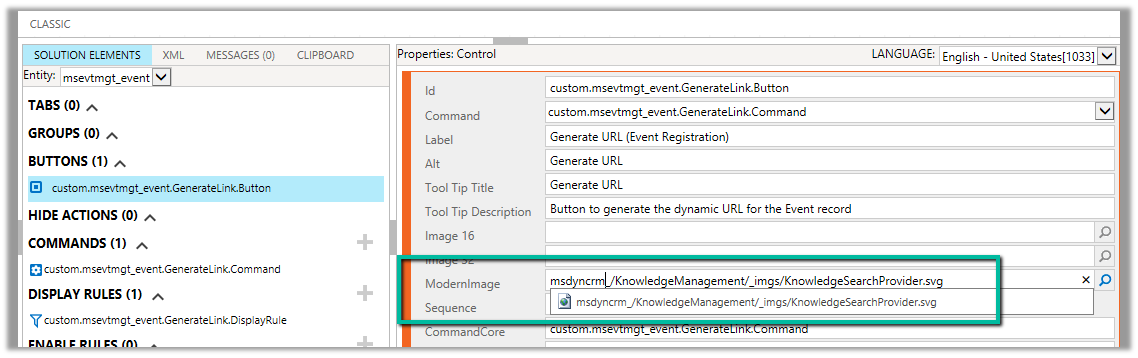
msdyncrm_/KnowledgeManagement/_imgs/KnowledgeSearchProvider.svg

use it to specify Modern Image for our buttons

Hope it helps..
Advertisements