Using Force Sync User to sync PowerApp / CRM users – Power Platform / Dynamics 365


Recently in one of our trial environments, some of the users were not showing up in the Enabled Users view in Dynamics 365, although the users were having appropriate licenses assigned to them. (was more than 24 hours)

In such a scenario we can use Force Sync user action of Power Platform Management Connector.

https://docs.microsoft.com/en-us/connectors/powerplatformforadmins/

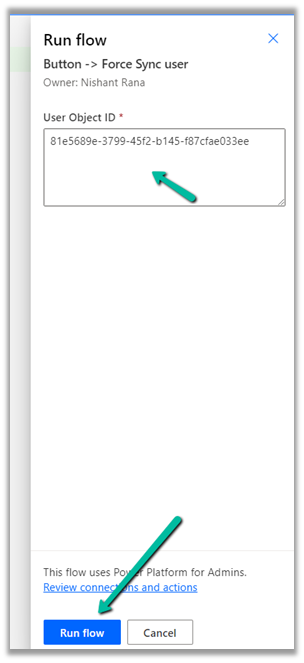
For Force Sync users, we will be passing the object id of the user and selecting the appropriate environment.
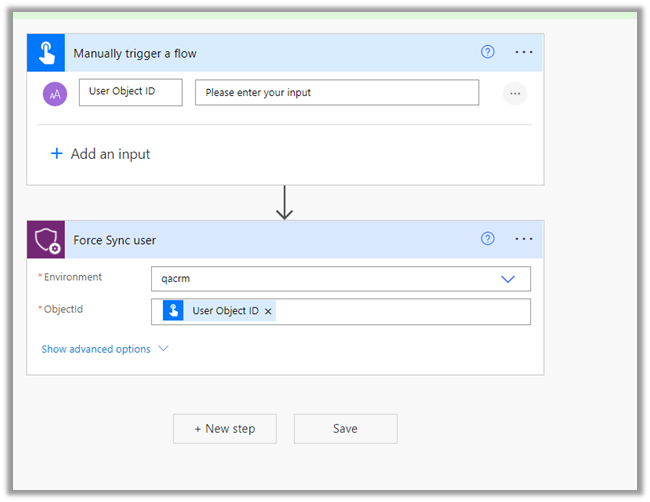
Run the flow manually.

It asks for the Object Id of user.
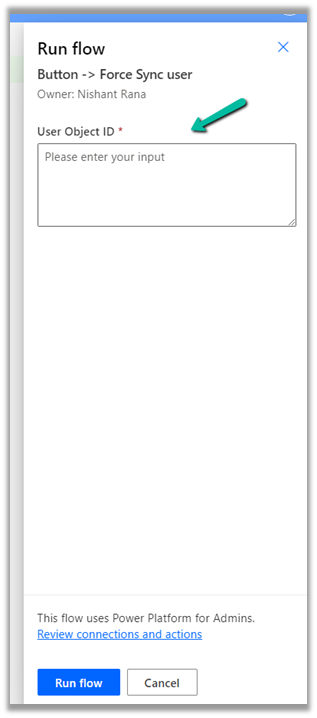
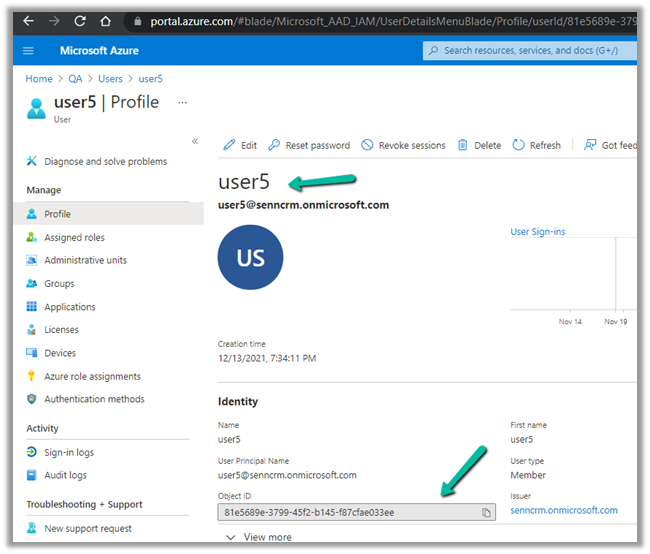
Inside Azure Portal >> Azure Active Directory >> Users, get the Object Id of the user
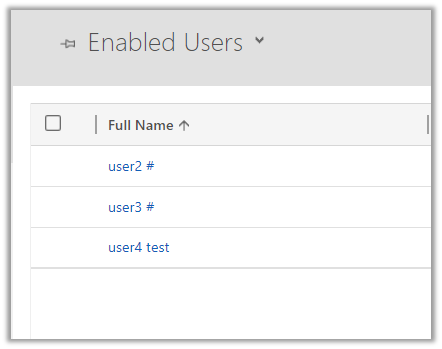
Currently, we have below 3 users in CRM
Let us run the flow.
Wait for the flow to complete.
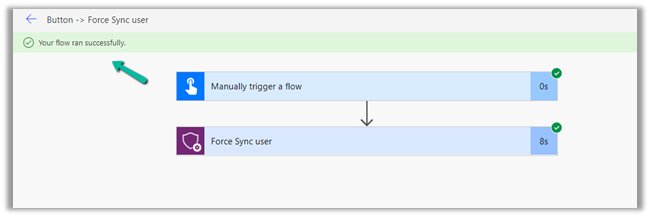
After successful execution of the flow, back in CRM, we can see user 5 added to the list of enabled users.
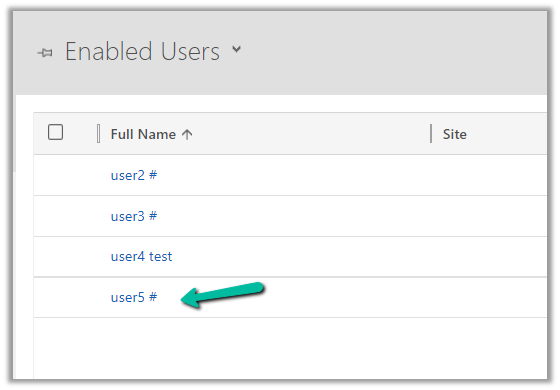
In case we are using a security group for the environment we can make use of the below Power Automate Template, it takes the security group’s object id as input and loops through each of the members and applies Force Sync user action.

We can also make use of PowerShell cmdlets to achieve the same

https://nishantrana.me/2021/01/20/force-sync-users-from-azure-ad-to-dynamics-crm/

Force Sync Azure Active Directory Group members to specified CDS instance

Hope it helps..

Advertisements

Fixed – We couldn’t load your user roles from the selected Dynamics 365 Organization error while trying to set up Microsoft Dynamics 365 Marketing


Recently while trying to set up Microsoft Dynamics 365 Marketing on an existing Dataverse environment, we got the below error.

“We couldn’t load you user roles from the selected Dynamics 365 Organization. Please try again”

The user had the system administrator role, which is good enough to set up marketing.

We tried replicating the same in other trial environments but were not able to replicate the above error.

Eventually, we tried the setup with the same user but in a different VDI (Virtual Desktop Infrastructure), and the setup worked properly without any error. One probable reason could be, that the appropriate URLs being accessed during setup were already whitelisted in the other VDI, which wasn’t the case in the first VDI where we were trying earlier.

Hope it helps..

Advertisements

How to – Use the new command designer to customize the command bar – Dynamics 365 / Power Apps


Using the modern app designer either open an existing model-driven app or create a new model-driven app in https://make.powerapps.com/

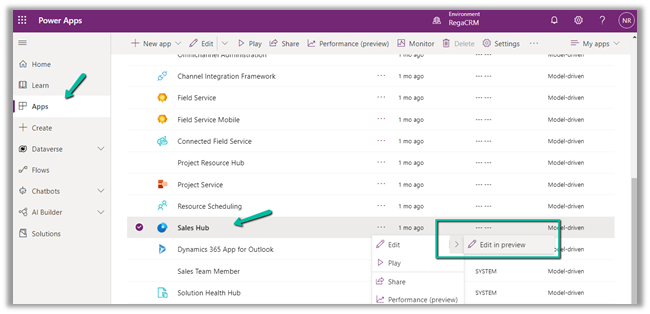
Select Edit >> Edit in preview

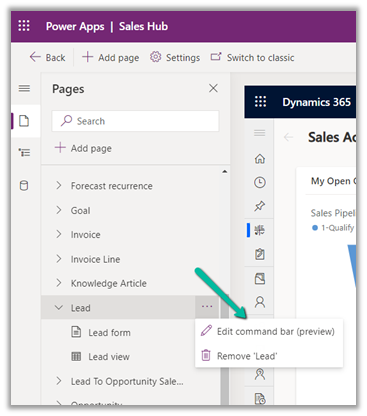
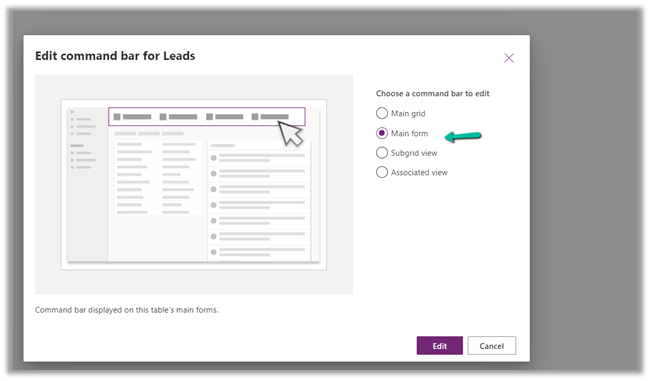
Select any entity/table and select the Edit command bar (preview)

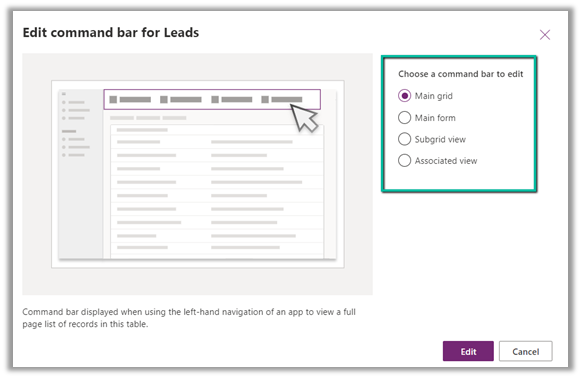
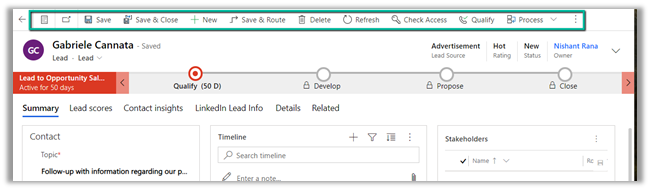
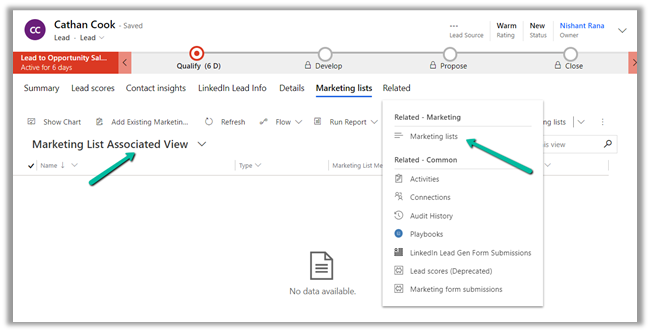
The different command bars that can be edited are the Main grid, main form, subgrid view, and the associated view.

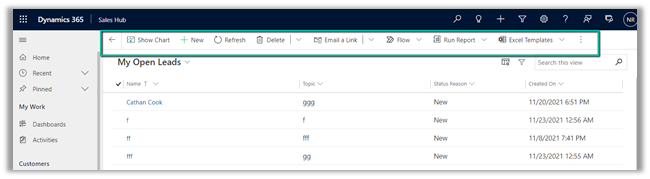
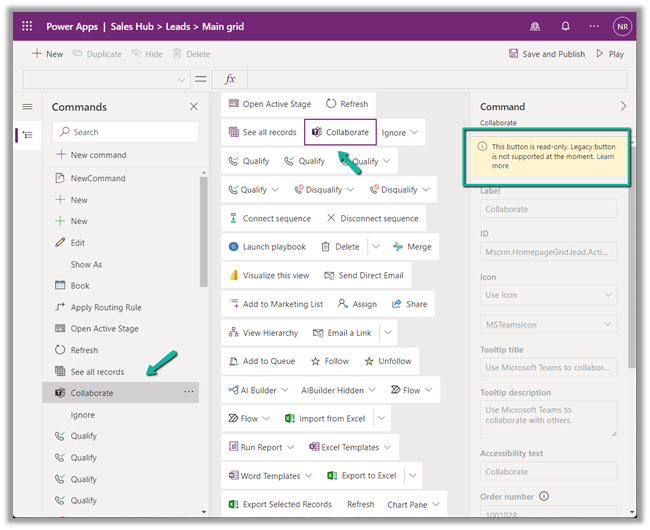
  • Main Grid view

  • Main Form view –

  • Subgrid view–

  • Associated view –

The legacy / classic button is not supported currently.

Check out all the known limitations

https://docs.microsoft.com/en-gb/powerapps/maker/model-driven-apps/command-designer-limitations

limi

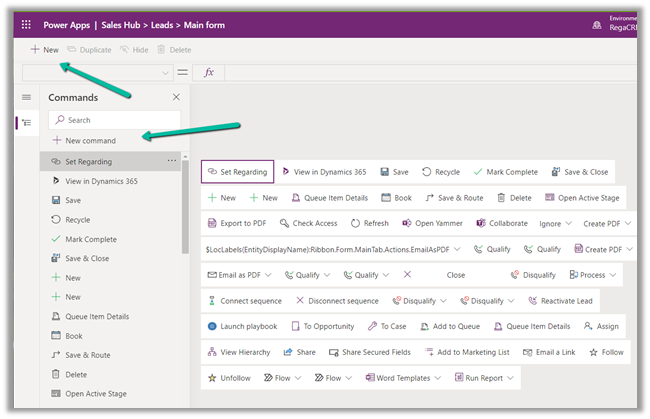
Let us try adding a new command/button in the Main Form, and see what options do we get there.

Select + New command or the + New option

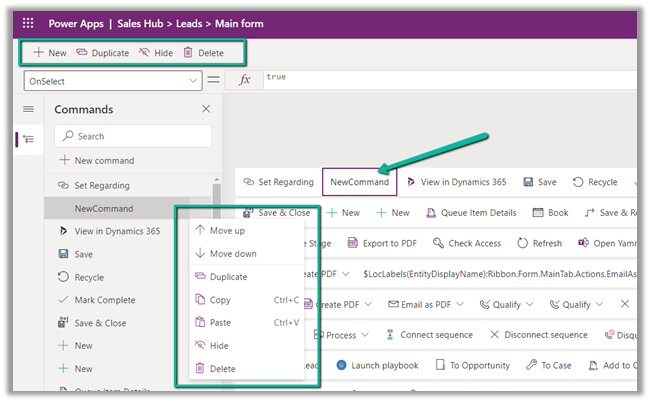
It adds a new button with the label NewCommand with options to duplicate, hide, move up and down, etc.

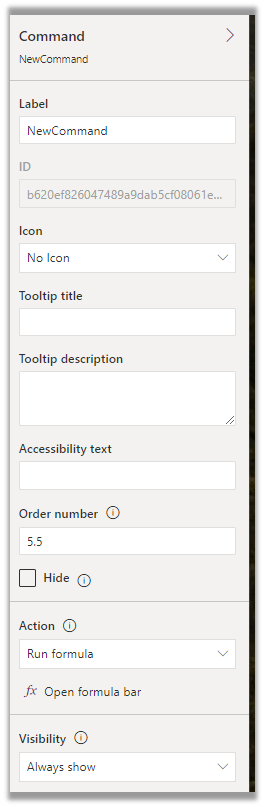
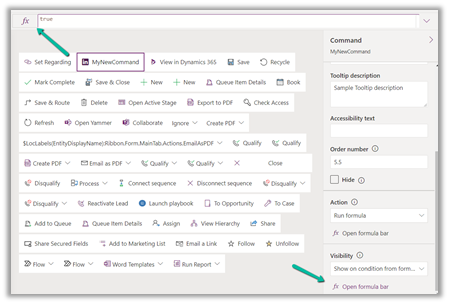
The different properties that can be configured for the new command –

Property

Description


Label

To set the label

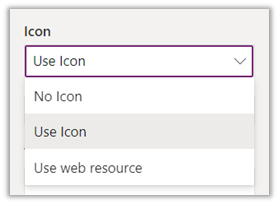
Icon

To set the icon either using icon or web resource

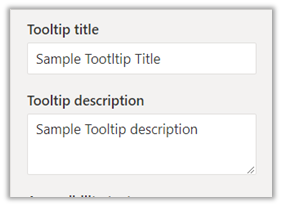
Tooltip

Set tooltip title and its description.

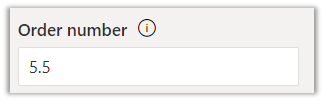
Order Number

Customize the Order of the command

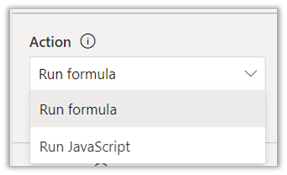
Action

Either run formula or run javascript


Open Formula Bar


Library for Run JavaScript

Visibility


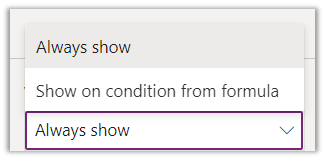
Open Formula Bar for Show on Condition

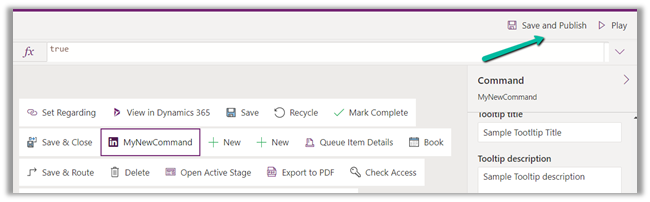
Let us Save and Publish

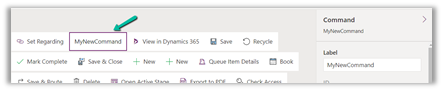
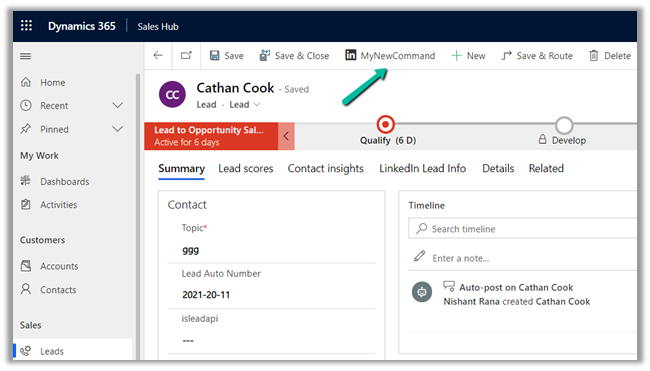
Click on Play and open a lead form.

We can see the new command added.

Get all the details here –

https://docs.microsoft.com/en-gb/powerapps/maker/model-driven-apps/command-designer-overview

Hope it helps..

Advertisements

Use ExecuteWorkflowAction to call Action and Workflow in CDS Destination KingswaySoft – Dynamics 365 / Dataverse


We can use ExecuteWorkflowAction in the CDS/CRM Destination Component of KingswaySoft’s SSIS Integration Toolkit for Dynamics 365 to execute workflow and custom action.

If there is no Destination Entity defined (left blank), Workflow/Action options will list down all the global action available


On selecting a specific entity/table e.g. lead entity, it is listing down the actions tied to the lead entity and the on-demand workflows created for the lead.

Here new_TestLeadAction is a custom action and Test Lead Workflow On-Demand is an On-Demand Workflow.


Suppose we have the following input and output parameters defined in the custom action.


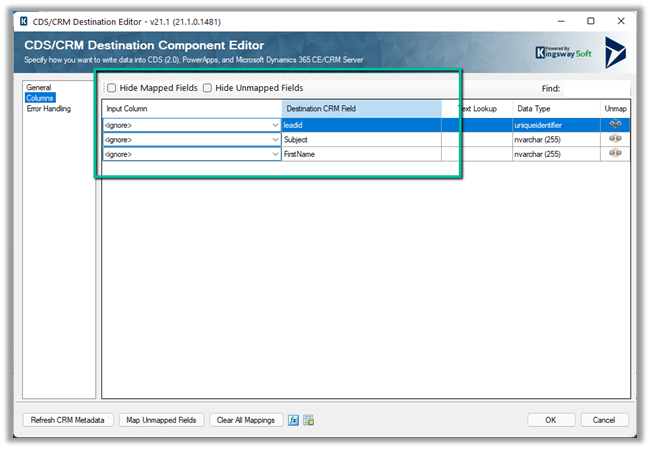
Within the CRM Destination Component, we can see the input fields listed for mapping along with the LeadId field where it expects the GUID of the lead record to be passed, against which action has to be executed.


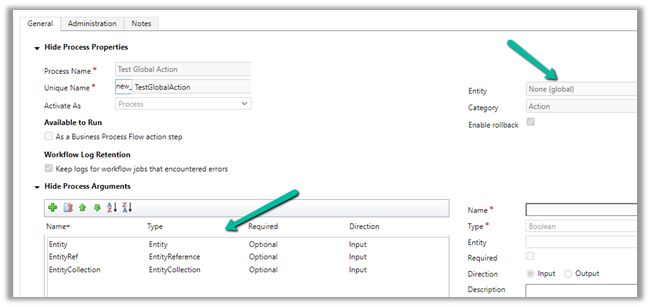
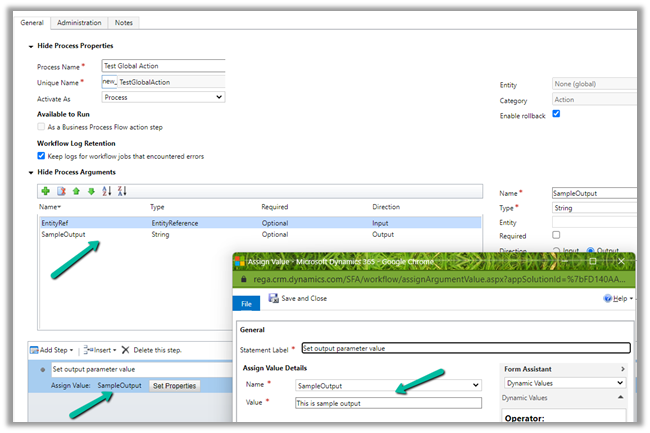
Let us create a custom Global Action – Test Global Action and see if it is listed there or not.


We can see the custom global action listed when there is no destination entity selected as we saw earlier.

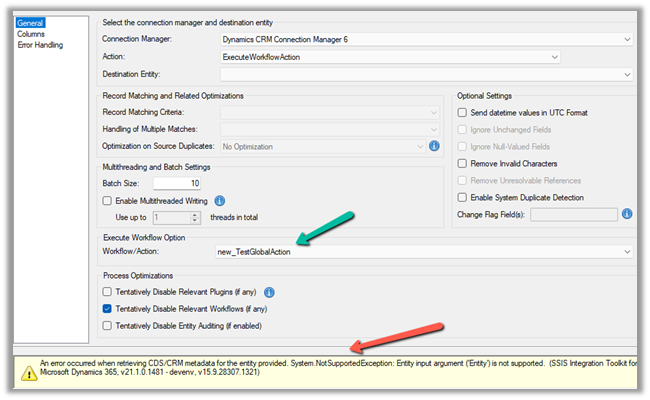
However, we also get the error that the Entity as input argument is not supported.


We get the same error for the input parameter of type Entity Collection.


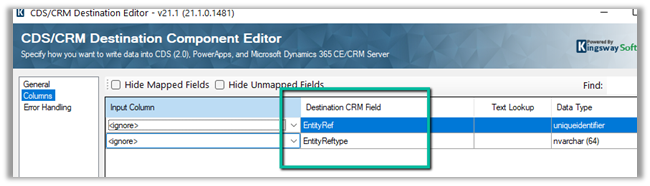
For Entity Reference input it works properly and expects Entity Ref and Entity Ref Type to be passed.

We have removed the input parameter of type Entity and Entity Collection and added an output parameter named SampleOutput.

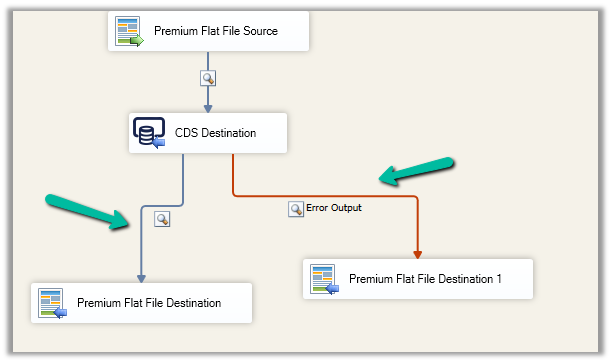
Surprisingly within our SSIS package, we could not figure out to get the output parameter’s value back from the Action.


We asked KingswaySoft Technical Support (support@kingswaysoft.com), and as usual, within a couple of hours the experts there were able to confirm our understanding that output parameters are not supported in the CDS Destination component for now.

Check other posts on KingswaySoft and Dynamics 365 / CRM https://nishantrana.me/2020/10/16/ssis-kingswaysoft-and-dynamics-365/

Hope it helps.

Advertisements

Set Auto Number field value conditionally in Dynamics 365 / Dataverse


Recently we had a requirement to use auto numbers for lead records.

However, based on where the lead records are being created from, we wanted to specify a different prefix to it.

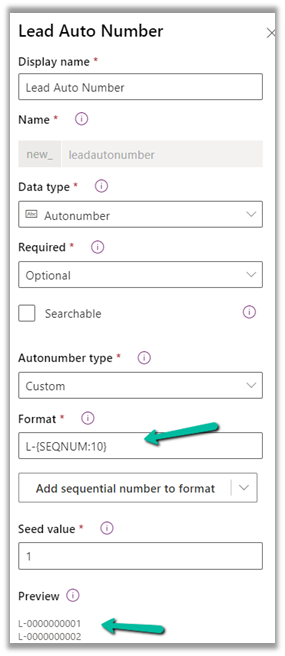
For leads created manually, the format should be prefixed “L” followed by “– “and then 10 digit sequence number.

L-{SEQNUM:10}

And if created through API the prefix should be B.

B-{SEQNUM:10}

To achieve this, we can define an auto-number field with the following format.


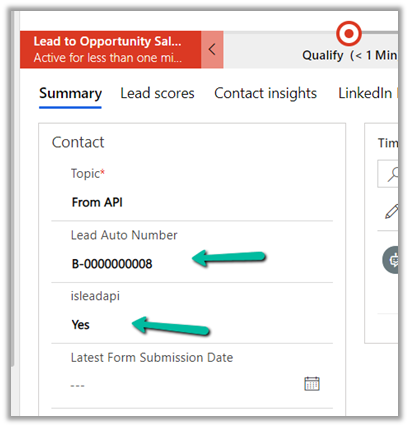
Next, we can have a bool field (default – false) in the lead table, to identify if it is being created from the API, which we can set while creating the lead record through API.

And a Pre Create Plugin on Lead to check the value of that field.

If it is set (true), that we can replace the Prefix from L to B in the auto-number field within the context.

In the Pre Create plugin, we get the next sequence in the auto-number field, so simply replacing/setting the value of the auto numbering field did the trick.

Lead created through Web Application –

Lead created through API –

Here uniqueness was more important than the next sequence of the lead record so this solution worked.

Also check –

https://jonasr.app/2020/03/anm-unique-seq/

https://nishantrana.me/2021/11/09/few-key-points-auto-number-field-in-dataverse-dynamics-365-ce-crm/

Hope it helps..
Advertisements

Fixed – BadGateway. The request failed. Error code: ‘502’. Error Message: ‘BadGateway’ in PowerAutomate – Start and wait for an approval


Recently we were getting the below error for one of our Flows.

BadGateway. The request failed. Error code: ‘502’. Error Message: ‘BadGateway’.

Everything seemed right.

Finally, found (thanks to the forum) that the fix was to update the Approvals Administrator security role.

Provide – Read Access to System Job inside Customization tab.

Before

After

This time our flow worked smoothly.

Hope it helps..
Advertisements