Fixed – Bad Request – Error in query syntax while using Xrm.WebAPI


We might get the below error while using Xrm.WebAPI.

‘Bad Request – Error in query syntax.’

One of the reasons could be that while setting up the Lookup field, we haven’t removed the curly brackets.

Use the below function to replace/remove them.

  • let result = myGuid.replace(/[{}]/g, ”);
  • let result = myGuid.replace(“{“, “”).replace(“}”, “”);

Hope it helps..

Advertisements

How to – use Dynamics 365 Marketing JavaScript API to set hidden field’s value


Dynamics Marketing JavaScript API is only available for the marketing form hosted as Script. It is not available for forms hosted as Iframe.

More on embedding form on external page – https://nishantrana.me/2022/11/10/how-to-embed-marketing-form-on-an-external-page/

Add a reference to form-loader.js or load.js to access the API.

Below is our form with a hidden field in it.

Based on the current living situation (drop down), we want to set the value of the Financially Capable field (bool) – the hidden field’s value as either True or False.

For this, we have added the below script, in the formSubmit event.

formSubmit triggers on form submit before the form submission is sent to the server.

Check all the events here – https://learn.microsoft.com/en-us/dynamics365/marketing/developer/marketing-form-client-side-extensibility#form-events

The script – Get the id of the element through browser’s developer tools.

Hope it helps..

  // Extending Marketing form with code 
        // formSubmit - Triggers on form submit before the form submission is sent to the server.
        MsCrmMkt.MsCrmFormLoader.on('formSubmit', function (event) {
          
            // get the id of the elements through developer tools of the browser
            // based on selected current living situation (optionset)
            if (document.getElementById('deb110aa-e266-ed11-9561-000d3ae090c0') != null) {
                var selectedCurrentLivingValue = document.getElementById('deb110aa-e266-ed11-9561-000d3ae090c0').value;
                if (selectedCurrentLivingValue == 881990000) {
                    // set the value of Financially Capable field (boolean)- true / false
                    document.getElementById('dcc46e64-2867-ed11-9561-000d3ae090c0').value = "1";
                }
                else {
                    document.getElementById('dcc46e64-2867-ed11-9561-000d3ae090c0').value = "0";
                }
            }
        });
Advertisements

Fixed – Hide field option missing for dropdown (OptionSet) field in Marketing Form – Dynamics 365 Marketing


Recently while designing the marketing form, we realized the Hide field option missing for our dropdown fields.

There are 2 ways to solve this –

In the HTML designer mode for the Marketing form –

  • Add the attribute hidden=”hidden” for the field

The field will be hidden but the Hide field toggle won’t be available in the designer.

  • Change the data-editorblocktype from “Field-dropdown” to “Field-checkbox“.

This adds the Hide field toggle option in the designer.

The result –

The helpful thread – https://community.dynamics.com/365/marketing/f/dynamics-365-for-marketing-forum/391470/how-do-i-populate-lead-source-from-a-hidden-field-on-marketing-form

Hope it helps..
Advertisements

How to – add Contact Insights / Account Insights to the form – Dynamics 365 Marketing


We can see the Account Insights / Contact Insights tab added along with LinkedIn Lead Info on the default lead form (as well as contact/account) after we install Dynamics 365 Marketing.

These tabs will be added if you try creating a new form (Main).

But if we have other existing forms (Main), these tabs won’t be added and won’t be available for us to add.

In that case, we need to edit the Form XML to add these sections.

Here we will be adding the Contact Insights tab to one of the existing forms to the Lead.

Using the Form XML Manager (XrmToolBox plugin – developed by my friend Rasheed), get the Form XML of the form where we have the contact insights tab added.

Copy the below details –

Tab – Contact Insights

And the below controlDescription

Going back to Form XML Manager, select the form where we want to add the contact insight tab, get its Form XML and add the above details and publish.

We can see the Contact Insights tab added

Similarly, we can Account Insights, and the LinkedIn Lead Info tab as well.

Hope it helps..

	<tab name="contactInsights" id="{AC28F8C9-4498-47C7-8D9B-2FE028CFBDAC}" IsUserDefined="0" locklevel="0" showlabel="true" expanded="true" labelid="{6905336d-985b-4137-a106-31b1dd4e1560}">
			<labels>
				<label description="Contact insights" languagecode="1033" />
			</labels>
			<columns>
				<column width="100%">
					<sections>
						<section name="insights_section" showlabel="false" showbar="false" locklevel="0" id="{2328D81F-CA70-4A20-8B62-DA36756DA7D8}" IsUserDefined="0" layout="varwidth" columns="1" labelwidth="115" celllabelalignment="Left" celllabelposition="Left" labelid="{29474d06-89ea-41ad-a999-9d96dd95c938}">
							<labels>
								<label description="Insights" languagecode="1033" />
							</labels>
							<rows>
								<row>
									<cell rowspan="1" id="{37367a00-f45e-4ae4-a4a4-5ba1023fdc11}" colspan="1" labelid="{e971ab6b-ea22-4543-bbd5-06e50f11f9f1}">
										<labels>
											<label description="" languagecode="1033" />
										</labels>
										<control id="msdynmkt-lead-insights-banner-control" classid="{F9A8A302-114E-466A-B582-6771B2AE0D92}" disabled="false" uniqueid="{B93040CC-F97E-48D8-8166-5179C8C942CE}" isunbound="true">
											<parameters />
										</control>
									</cell>
								</row>
								<row>
									<cell id="{58B703D6-BBA5-4078-9499-1D5A1FB35932}" showlabel="false" locklevel="0" labelid="{db0b8895-c098-45e5-b95f-f85df882f96d}">
										<labels>
											<label description="Insights" languagecode="1033" />
										</labels>
										<control id="LeadContactInsightsCtrl" classid="{F9A8A302-114E-466A-B582-6771B2AE0D92}" datafieldname="msdyncrm_insights_placeholder" disabled="false" uniqueid="{ADB58B3F-E8A8-432B-BF8C-08196D8F87ED}" />
									</cell>
								</row>
							</rows>
						</section>
					</sections>
				</column>
			</columns>
		</tab>
	<controlDescription forControl="{ADB58B3F-E8A8-432B-BF8C-08196D8F87ED}">
			<customControl formFactor="0" name="MscrmControls.InsightsControl.InsightsControl">
				<parameters>
					<configuration static="true" type="SingleLine.Text">LeadContactInsights</configuration>
				</parameters>
			</customControl>
			<customControl formFactor="1" name="MscrmControls.InsightsControl.InsightsControl">
				<parameters>
					<configuration static="true" type="SingleLine.Text">LeadContactInsights</configuration>
				</parameters>
			</customControl>
			<customControl formFactor="2" name="MscrmControls.InsightsControl.InsightsControl">
				<parameters>
					<configuration static="true" type="SingleLine.Text">LeadContactInsights</configuration>
				</parameters>
			</customControl>
		</controlDescription>
		<controlDescription forControl="{48D797ED-2F85-4D89-A329-69C2A1A0E1DD}">
			<customControl formFactor="0" name="MscrmControls.InsightsControl.InsightsControl">
				<parameters>
					<configuration static="true" type="SingleLine.Text">LeadAccountInsights</configuration>
				</parameters>
			</customControl>
			<customControl formFactor="1" name="MscrmControls.InsightsControl.InsightsControl">
				<parameters>
					<configuration static="true" type="SingleLine.Text">LeadAccountInsights</configuration>
				</parameters>
			</customControl>
			<customControl formFactor="2" name="MscrmControls.InsightsControl.InsightsControl">
				<parameters>
					<configuration static="true" type="SingleLine.Text">LeadAccountInsights</configuration>
				</parameters>
			</customControl>
		</controlDescription>
		<controlDescription forControl="{B93040CC-F97E-48D8-8166-5179C8C942CE}">
			<customControl formFactor="0" name="CxpOrchestrationAnalytics.InsightsBannerControl.InsightsBannerControl">
				<parameters />
			</customControl>
			<customControl formFactor="1" name="CxpOrchestrationAnalytics.InsightsBannerControl.InsightsBannerControl">
				<parameters />
			</customControl>
			<customControl formFactor="2" name="CxpOrchestrationAnalytics.InsightsBannerControl.InsightsBannerControl">
				<parameters />
			</customControl>
		</controlDescription>
	</controlDescriptions>
Advertisements

How to – Access Dataverse environment storage using SAS Token


We can access our environment’s storage using a SAS token. 

Download – Azure Storage Explorerhttps://azure.microsoft.com/features/storage-explorer/#overview

Select Connect to Azure resources option

Select ADLS Gen2 container or directory for the Azure storage type.

Select the Shared access signature URL for the connection

To get the SAS URLhttps://[ContainerURL]/CDS?[SASToken],

we need ContainerURL and SASToken.

To get Container URL use the below link –

ContainerURL = <a href="https:///api/data/v9.1/datalakefolders”>https://&lt;EnvironmentURL>/api/data/v9.1/datalakefolders

In our case – https://mycrm2022.crm.dynamics.com/api/data/v9.1/datalakefolders

The containerendpoint = https://aeth2b4c5907361d483c9641.dfs.core.windows.net/aeth-b986098f-1315-45cc-b8e6-61c5a1a1631a

Copy the value of containerendpoint (ContainerURL)


Navigate to the below URL by replacing the value of the Environment URL and Container URL

<a href="https:///api/data/v9.1/RetrieveAnalyticsStoreAccess(Url=@a,ResourceType=’Folder&#8217;,Permissions=’Read,List’)?@a=’/CDS”>https://&lt;EnvironmentURL>/api/data/v9.1/RetrieveAnalyticsStoreAccess(Url=@a,ResourceType=’Folder’,Permissions=’Read,List’)?@a='<ContainerURL>/CDS’

i.e.

https://mycrm2022.crm.dynamics.com/api/data/v9.1/RetrieveAnalyticsStoreAccess(Url=@a,ResourceType=’Folder’,Permissions=’Read,List’)?@a=%27https://aeth2b4c5907361d483c9641.dfs.core.windows.net/aeth-b986098f-1315-45cc-b8e6-61c5a1a1631a/CDS%27

to get the SAS token (the SAS Token will expire after 1 hour)


Construct the SAS URL which we will use in the Azure Explorer’s connection info  <a href="https:///CDS?https://<ContainerURL>/CDS?<SASToken&gt;

https://aeth2b4c5907361d483c9641.dfs.core.windows.net/aeth-b986098f-1315-45cc-b8e6-61c5a1a1631a/CDS?skoid=3c1e8701-292f-478f-8f42-df7e9cc692c9&sktid=975f013f-7f24-47e8-a7d3-abc4752bf346&skt=2022-11-04T19%3A02%3A44Z&ske=2022-11-04T20%3A18%3A44Z&sks=b&skv=2020-08-04&sv=2020-08-04&se=2022-11-04T20%3A08%3A44Z&sr=d&sp=rl&sdd=1&sig=kKHHJLbb4gjAtTiQCbiuwQ8QrInY33zGEY1FvpxCLK%03D0

Now we have access to the storage

Here we have opened the contact folder just as an example


We only have read-only access, any other access like delete, rename, upload, etc. will fail


Get all the details here – https://learn.microsoft.com/en-us/power-platform/admin/storage-sas-token

Hope it helps..
Advertisements

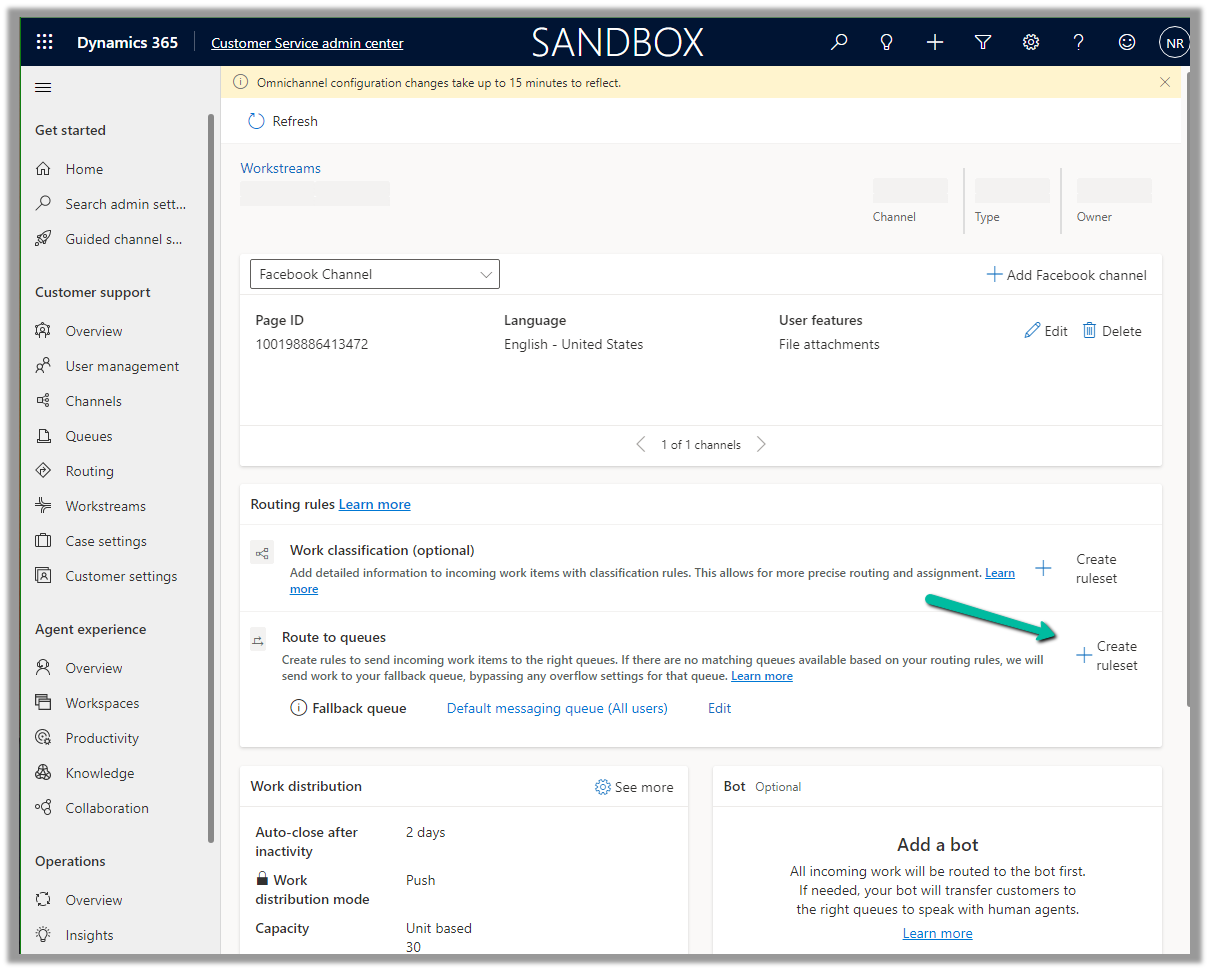
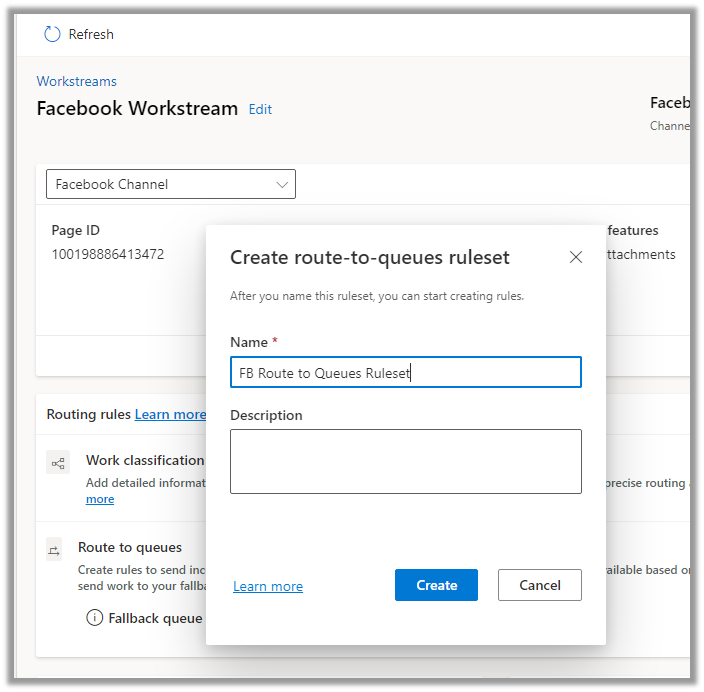
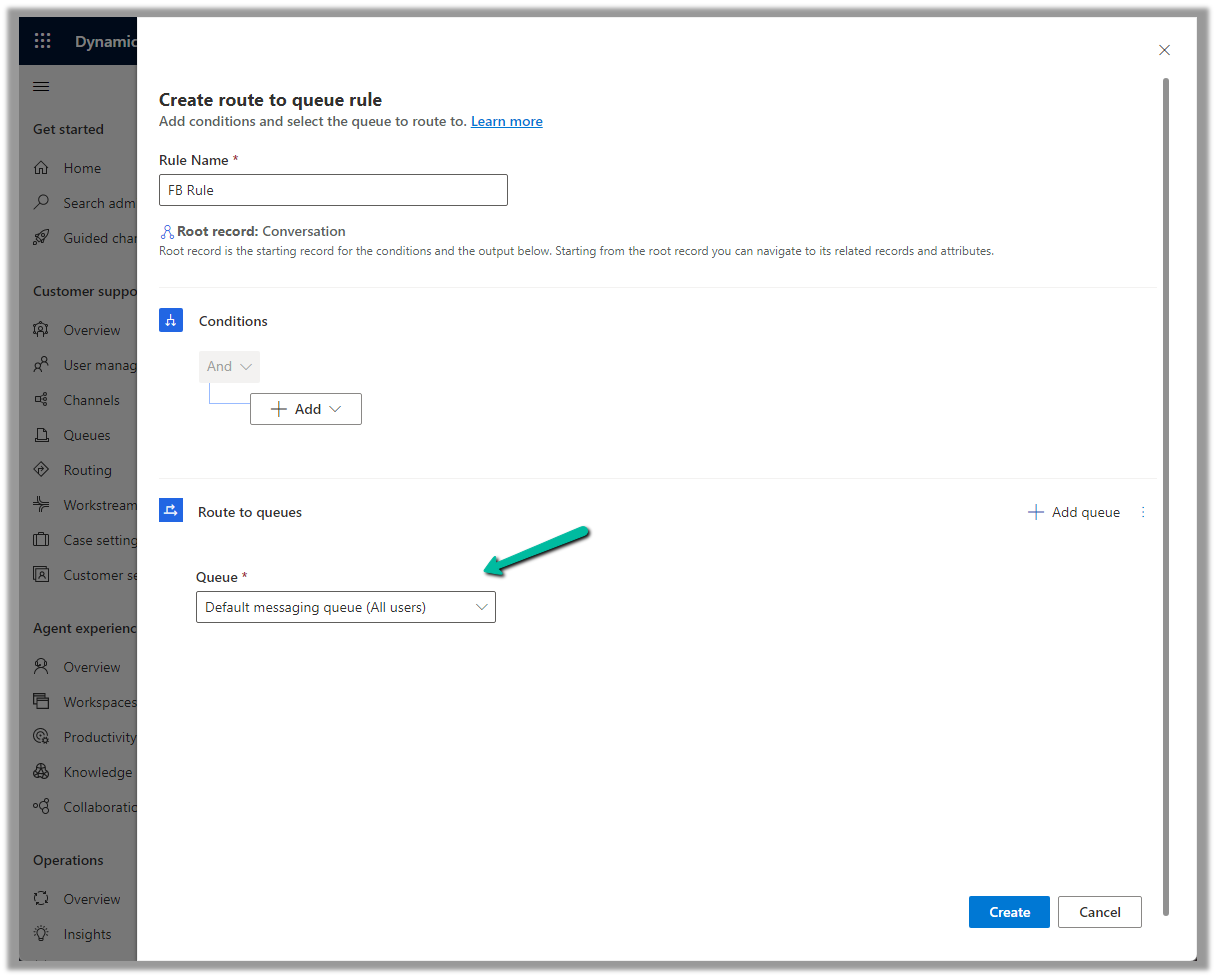
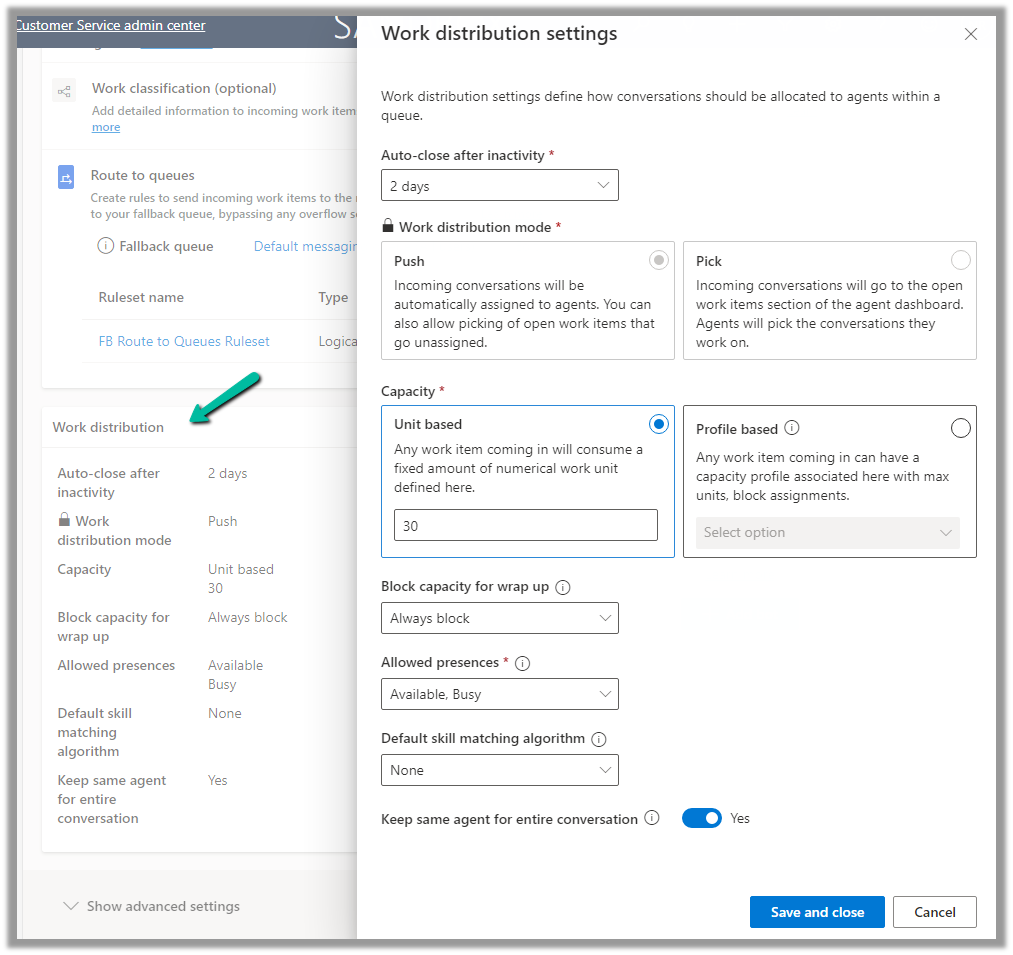
Workstreams Overview – part 1 – Dynamics 365 Customer Service / Omnichannel


Workstreams can be defined as records or settings, where we can set up the channel, and define routing rules, work distribution, and bots to route work items to the appropriate queue/agents.

Workstream can be of 3 different types – Messaging, Record, and Voice.

For Messaging we can specify the below channels – Apple messages for business, Chat, Custom, Facebook, Google’s Business Messages, LINE, SMS, Twitter, WeChat, and WhatsApp.

  • For Messaging Type as Channel, we can specify Work Distribution Mode as either Push or Pick.

We also need to specify a Fallback Queue, this Queue will be used if no matching queues are found based on the routing rules.

In the case of the Chat channel, we have the option of making chats persistent, so any new messages from the customer will be routed to the same queue and same agent if available or the next best agent.

For all other channel types, we have the same Work Distribution mode and Fallback queue option.

  • For the workstream type as Record, we can select the entities with queues enabled. The remaining option of work distribution mode and fallback queue remains the same.

For the record routing to work, we need to make sure Unified Routing is switched on in the environment.

And the entity is enabled for record routing.

  • For the workstream type as Voice, we have the voice channel selected as default and disabled.

The only difference is in the distribution mode, where we do not have the option of Pick.

In a nutshell –

Workstream Type 

Channel 

Additional Information 

Messaging 

Apple Message for Business, Chat, Custom, Facebook, Google’s Business Messages, LINE, Microsoft Teams, SMS, Twitter, WeChat, WhatsApp 

For Chat, we have an additional option to make chats persistent.

https://learn.microsoft.com/en-us/dynamics365/customer-service/persistent-chat

Push and Pick – Work distribution mode. 

Record 

Entities With Queue and Record Routing enabled

Push and Pick – Work distribution mode 

Voice 

Voice Call (default / disabled) 

Only Push distribution mode. 

In coming blog posts we’d delve deep into the workstreams configuration.

Hope it helps..
Advertisements