DSF Error: CRM Organization cannot be found while configuring Azure Synapse Link / Export to Data Lake service in Power Platform


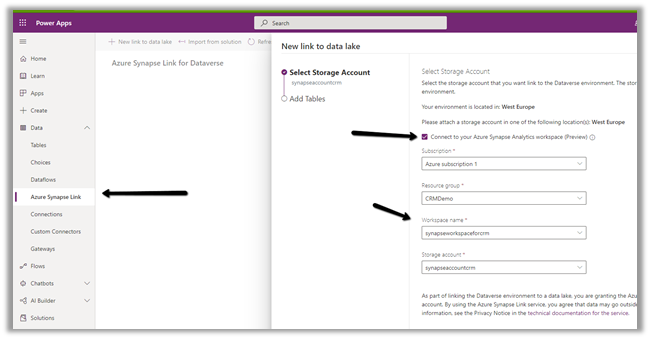
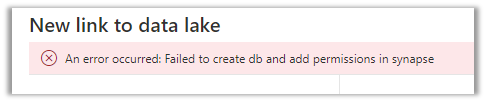
Recently while trying to configure the Export to Data Lake service from the Power Apps maker portal, we got the below error.

DSF Error: CRM Organization <Instance ID> cannot be found.

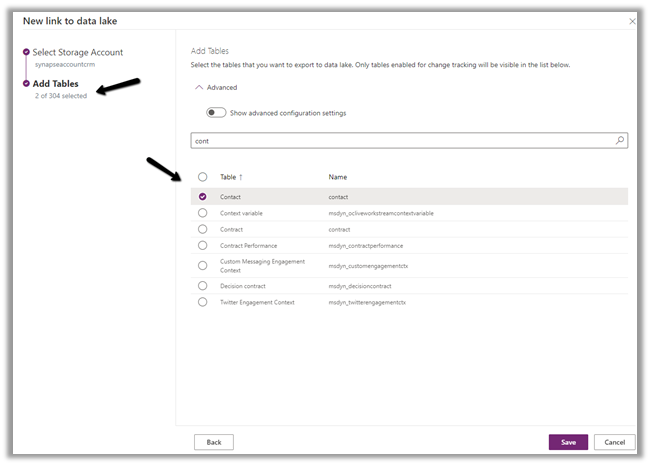
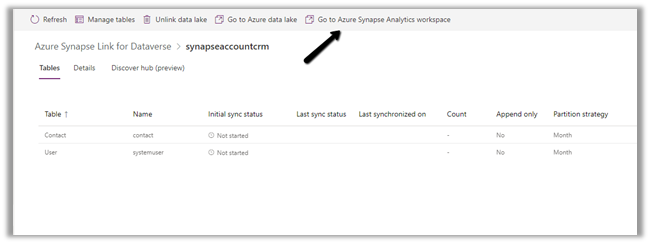
More on configuring Export to Data Lake service –

https://nishantrana.me/2020/12/10/posts-on-azure-data-lake/

The user through which we were configuring had all the appropriate rights.

https://docs.microsoft.com/en-us/powerapps/maker/data-platform/export-to-data-lake#prerequisites

  • The user had System Administrator Security Role in the CRM Organization/ Dataverse Environment.
  • The user also had the Owner Role on the Storage Account.

Eventually, we raised a Microsoft Support Ticket.

We had recently moved our sandbox CRM Environment from UAE Central to UAE North.

Migrate Dataverse environment to a different location within the same Datacentre region – Power Platform

However, as a part of the migration, few steps were still pointing to the old region, which was causing that error. The Microsoft Support / Operation Team quickly corrected it and we were able to configure the Export to Data Lake service without any further issues.

We didn’t face this issue in our Production environment, which was also moved to UAE North.

Posts on Azure Data Lake

Hope it helps..

Advertisements

How to – Migrate Dataverse environment to a different location within the same Datacentre region – Power Platform


When we create an environment in the Power Platform admin center, we get the option of specifying the datacenter region, but not the location within it.

Find the Data Center Region / Location of your Dataverse Environment- https://nishantrana.me/2021/04/27/finding-the-datacenter-region-location-of-the-microsoft-dataverse-environment/

E.g. we have specified Region as the United Arab Emirates.

Now within the UAE region, we had our environment created in the UAE Central location. However as per the data residency guide, UAE North should be the main location, and UAE Central is reserved for in-country disaster recovery.

https://azure.microsoft.com/en-in/global-infrastructure/data-residency/

Considering this we had our other Azure Resources / Subscriptions including Storage Accounts, created in UAE North.

However, while configuring the Export to Data Lake service, we got the below message in the Power Apps maker portal.

The storage account must be in the same region as your Dataverse Environment.

Your environment is located in UAE Central

Please attach a storage account in one of the following location(s): UAE Central

Considering our storage accounts were created in UAE North, we either had the option to create a storage account in UAE Central or to move the Dataverse Environment to UAE North from UAE Central.

Based on the recommendation from Microsoft Fast Track Architect and Azure Architects, we opted for the second option of moving the Dataverse Environment to UAE North from UAE Central.

For this, we raised a Microsoft Support Ticket from the admin portal and scheduled the movement for the non-prod environment first.

The movement took around 30 minutes (around 6 GB storage size), however, it was not reflecting in the Power Apps Maker Portal. The Microsoft team had to perform few steps manually in the background which took around 2 more days for the change to reflect in the portal.

Then we scheduled the same for Production (around 15 GB Storage Size), this time it took around the same 30 minutes and after the confirmation from the Microsoft team after 1 hour or so we were able to see the location updated in the Portal (there were no manual configuration steps needed this time) and were able to configure Export to Data Lake service with the storage account located in UAE North.

Posts on Azure Data Lake and Dynamics 365 – https://nishantrana.me/2020/12/10/posts-on-azure-data-lake/

Hope it helps..

Advertisements

How to – Find the Datacenter region / location of the Microsoft Dataverse environment


The other day we had to figure out the Datacenter region of our Dataverse environment. As we are aware within a particular geography there can be different Datacentre region at different location.

https://azure.microsoft.com/en-in/global-infrastructure/data-residency/

For e.g. within United States geography, we have following Datacenter region at corresponding Location.

Central US, East US, East US 2, East US 3, North Central US etc.

One of the ways is by checking the product availability by geography report.

https://dynamics.microsoft.com/en-cy/report/getgeoreport/

Check Dynamics 365 App and Power Platform features availability at different geography

GA

The other way is through Export to data lake service within Power Apps Maker portal.

Login to https://make.powerapps.com/ and

select Data > Export to data lake and click on New link to data lake


It will list down where the environment is located at as shown below.


Similarly, for an environment created in India having following locations

Pune, Chennai and Mumbai.

we can see the location of the environment  – South India

More on – Azure Architecture and Management –

https://nishantrana.me/2020/09/29/azure-architecture-and-management-introduction/

and Azure Data Lake https://nishantrana.me/2020/12/10/posts-on-azure-data-lake/

Hope it helps..
Advertisements

Case update after resolution settings in Dynamics 365 Customer Service Hub


With the 2021 Release Wave 1 Update, now we can update resolved and canceled cases through API / Power Automate .

https://nishantrana.me/2021/04/20/update-resolved-and-cancelled-cases-incident-without-reopening-reactivating-2021-release-wave-1-dynamics-365/

To set it, we can navigate to

Customer Service Hub > Service Management > Service Terms > Service Configuration Settings > Case Update after resolution


The different options available are

  • Don’t allow updates
  • Resolved cases
  • Canceled cases
  • Resolved and canceled cases


Blog posts on 2021 Release Wave 1 – Dynamics 365

Hope it helps..


Advertisements

How to – Update resolved and cancelled cases (incident) without reopening/reactivating – 2021 Release Wave 1 – Dynamics 365


To update resolved or cancelled cases we had to reopen the case record, update it and then close it back.

If we try updating case record through web service / Web API, we would get the below error

Since case is resolved and read-only, only these attributes are updatable : “ownerid”, “owneridyominame”, “owneridtype”, “owninguser”, “statecode”, “statuscode”, “modifiedon”, “modifiedby”, “modifiedonbehalfby”, “owningbusinessunit” , “processid”. If you need to edit other fields, please reactivate the case

However now with the recent update, we can now update the case information for closed and cancelled cases.

https://docs.microsoft.com/en-us/dynamics365-release-plan/2021wave1/service/dynamics365-customer-service/configuration-allow-updates-cases-resolved-canceled-status

Case update after resolution settings in Dynamics 365 Customer Service Hub

Here for the below cancelled case, we will update the title, description, and origin field.

On running the below code, instead of getting an exception

we can see the record updated.

The case form would still be in read only mode for the users.

Blog posts on 2021 Release Wave 1 – Dynamics 365

Hope it helps..
Advertisements

A failure occurred in CrmSecurity while configuration Mailbox in Dynamics 365


As we know, before we can use a mailbox it has to be approved by either Office 365 Global Administrator or by an Exchange Administrator.

When Server Side Synchronization was released only the Dynamics 365 System Administrator with the Global Administrator role was able to approve the mailboxes.

Later with the service update, the Dynamics 365 System Administrator having an Exchange admin role could also approve the mailboxes.

This requirement for mailbox approval can also be removed.

Navigate to the Administration > System Settings > Email tab and uncheck the Process emails option there.

For applying this change also, the Dynamics 365 Administrator needs to have either a Global Administrator or Exchange Admin role, else we will get the below error.

A failure occurred in CrmSecurity.

User should be a global administrator or exchange administrator to modify approval setting

We can reach the above setting from Settings > Email Configuration > Email Configuration Settings

We can also enable Verbose Logging, to get more details about the mailbox.

Download mailbox details can be used to download details about the mailbox

The Alerts section of the mailbox lists down any errors, warning, or information specific to that mailbox as shown below.

To monitor Server-Side Synchronization, we can also refer the below dashboards within the application.

Server-Side Synchronization Failures –

Server-Side Synchronization Monitoring –

Or Mailbox Usage Dashboard within Dataverse Analytics inside Power Platform Admin Center

https://docs.microsoft.com/en-us/power-platform/admin/analytics-common-data-service#mailbox-usage

organization-insights-mailbox-usage-section

More on troubleshooting and monitoring Server-side synchronization

Hope it helps..