How to – Extract attachments from Notes in Dynamics 365 / Dataverse


There are different ways we can extract attachments from notes.

  • We can write an SSIS Package using the Premium Derived Column component of KingswaySoft

https://nishantrana.me/2020/11/09/extract-attachment-from-notes-in-dynamics-365-ce-cds-ssis-kingswaysoft/

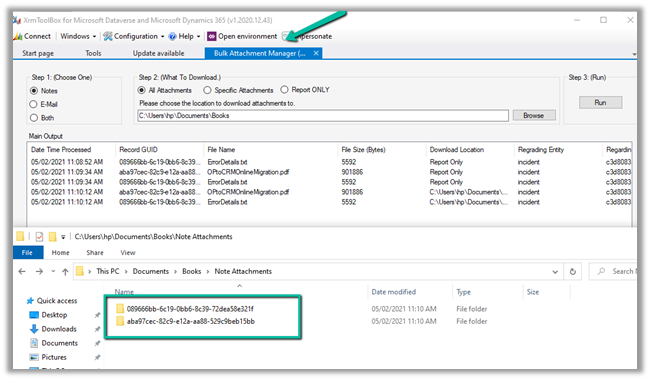
  • XrmToolBox has a wonderful plugin – Bulk Attachment Manager

https://www.livingintech.com/2018/02/xrmtoolbox-bulk-attachment-manager.html

The tool can download attachments from both Note and Email, using note’s GUID as the folder name.

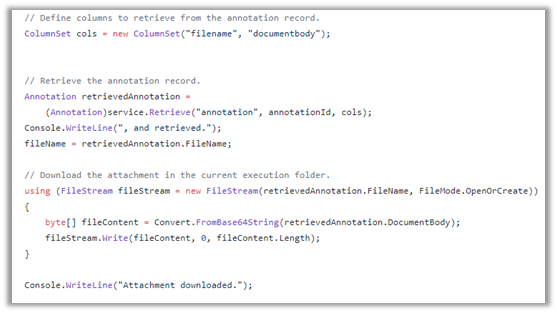
  • We can use SDK and write console app or tool.

https://github.com/microsoft/PowerApps-Samples/blob/master/cds/orgsvc/C%23/URDAttachment/URDAttachment/SampleProgram.cs

https://www.c-sharpcorner.com/article/downloading-notes-attachments-using-paginghis-artcile/

Or use the CRM SDK within the script component of SSIS if we are not using KingswaySoft’s CDS Component.

https://nishantrana.me/2020/10/19/connect-to-dynamics-365-through-script-component-ssis/

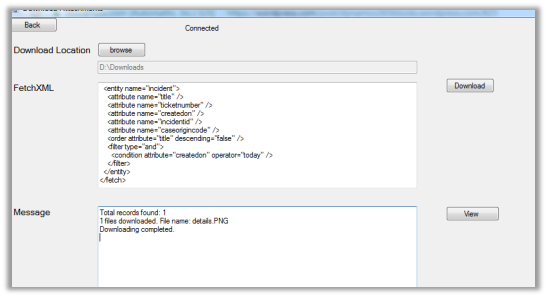
  • Attachment Downloader Tool

https://vishalgrade.com/2018/01/22/ms-crm-attachment-downloader/

https://github.com/vgrade/MSCRMAttachmentDownloader

We can update the tool as per our requirement.

  • Use LINQPad for extracting attachment

https://dreamingincrm.com/2018/01/18/export-all-attachments-using-linqpad/

Hope it helps..

Advertisements

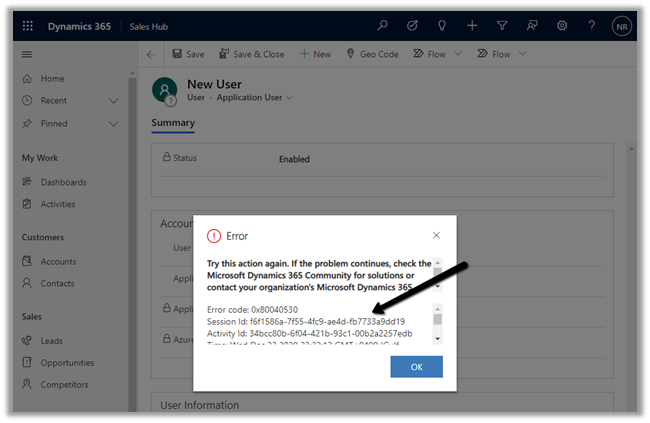
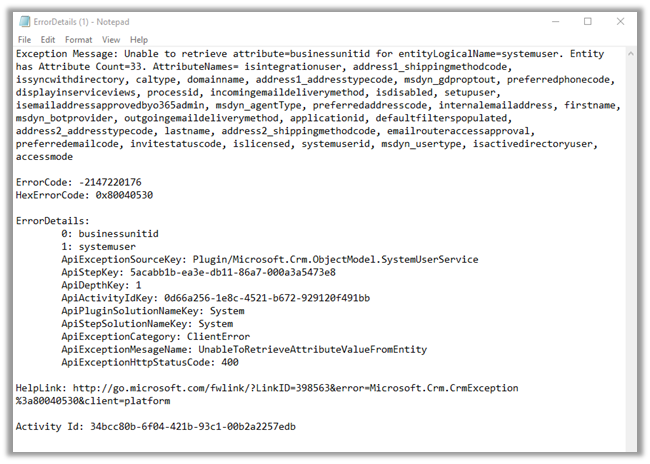
Unable to retrieve attribute=businessunitid for entityLogicalName=systemuser exception while creating Application User in Dynamics 365


Recently while trying to add a new application user we got the below error message

More on Application User

https://nishantrana.me/2020/12/24/application-user-form-missing-in-dynamics-365/

https://nishantrana.me/2020/12/23/d365-the-user-is-not-a-member-of-the-organization-error-while-connecting-to-ce/

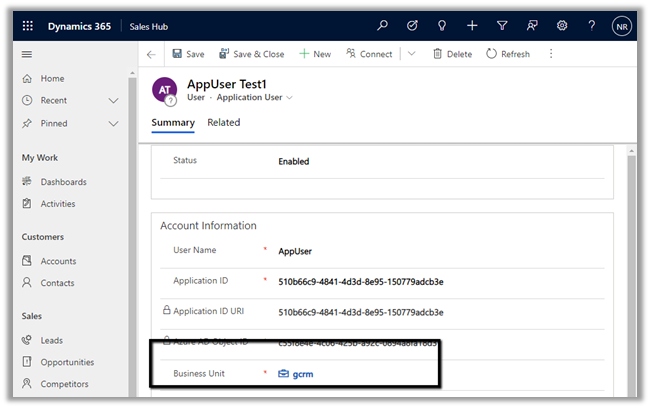
Adding the missing Business Unit field in the form fixed it.

Hope it helps..

Dynamics 365 Sales mobile app (preview)


The new Dynamics 365 Sales mobile app (preview), has been introduced specifically for the field sellers who need quick access and intuitive management of the customer information on the go while travelling / meeting the customers.

Check other posts on 2020 Release Wave 2

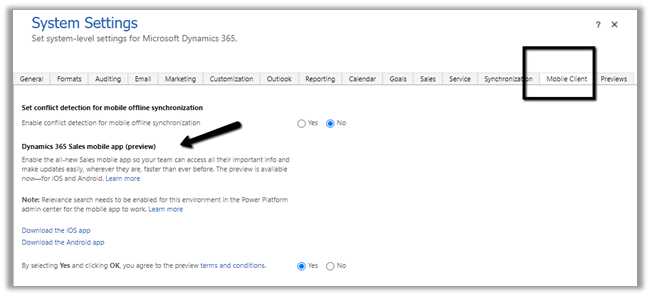
To enable the App, navigate to Advanced Settings from the Sales Hub and then to Administration > System Settings > Mobile Client tab
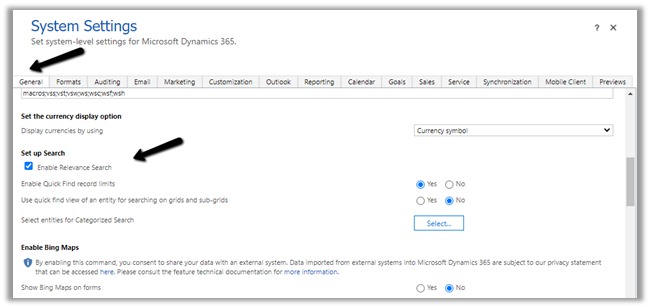
We also need to enable Relevance search on the environment for the mobile app’s search to work.

For iOS

https://go.microsoft.com/fwlink/p/?linkid=2151689

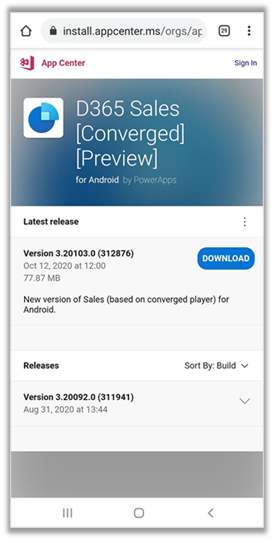
For Android

https://go.microsoft.com/fwlink/p/?linkid=2152008

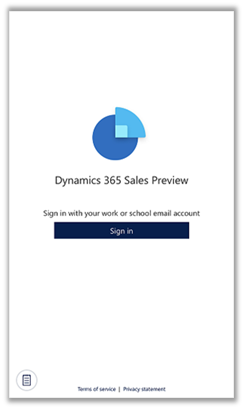
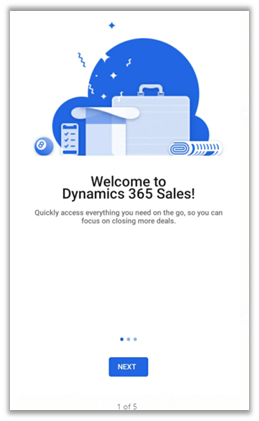
After installation open the app and sign in

From the list of apps, select the App to be used. Here we clicked on the Sales Hub app.

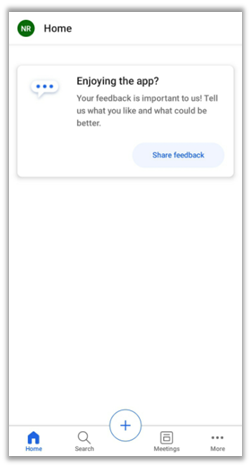
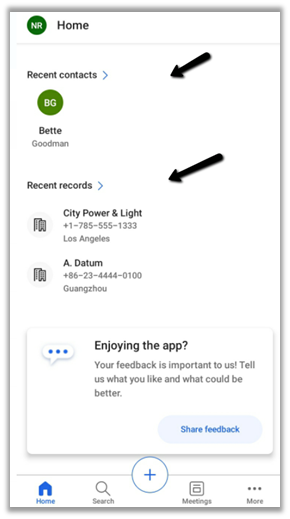
Below is the home page of the app.

The home page provides quick access to recent contacts and recent records along with reminders and insights.

More on Assistant –

https://docs.microsoft.com/en-us/dynamics365/ai/sales/assistant

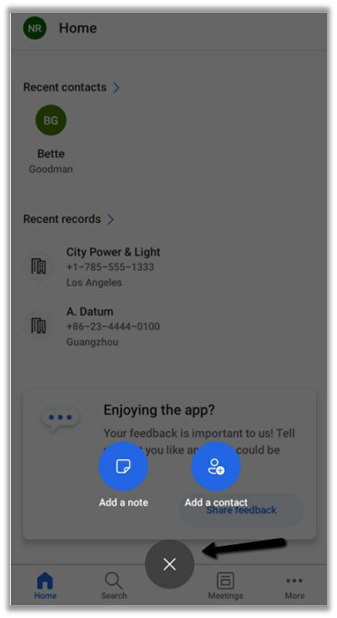
The + option allows for the quick creation of Note and Contact records.

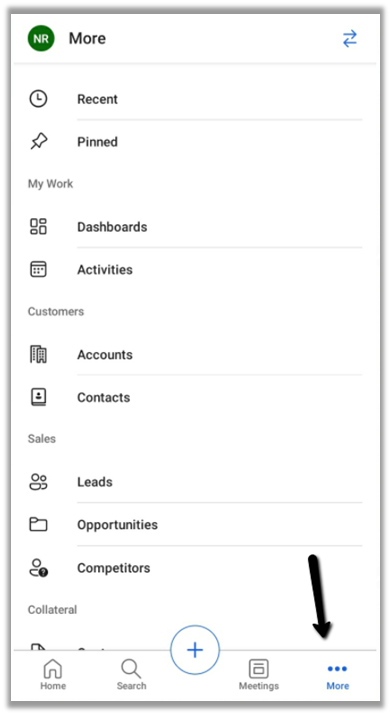
The more options allow access to the navigate to other part of the apps – dashboard and the other entities.

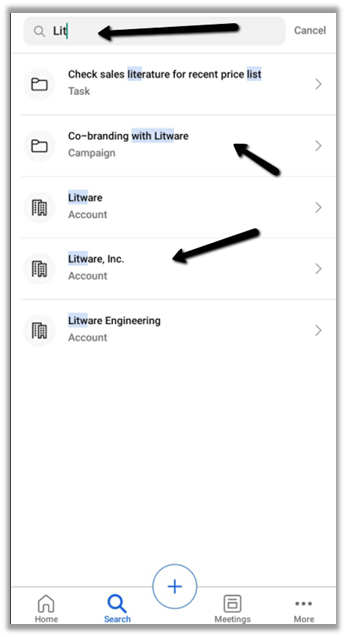
Search suggestions provide results while we are typing and grouping of search results to quickly find the information needed.

Other sub grid and form tab improvements in the app –

https://nishantrana.me/2020/09/28/sub-grid-and-form-tabs-improvements-in-power-apps-mobile-app/

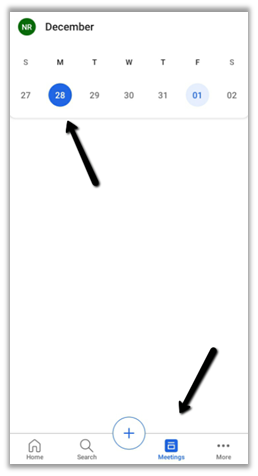
The meetings option shows the calendar view and the meetings that are scheduled in the outlook.

We cannot create meetings from the Sales Mobile app.

Get all the details here –

Overview of the Dynamics 365 Sales mobile app

Blog posts on 2021 Release Wave 1 – Dynamics 365

Hope it helps..


Recent Posts – 

Something went wrong. Please refresh the page and/or try again.

Application User Form missing in Dynamics 365


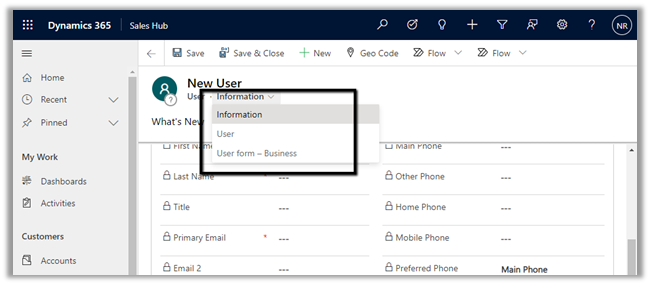
Recently while trying to create a new application user, we could not find the application user form for the system user entity in the web application.

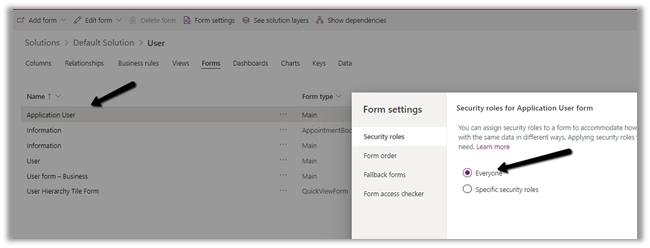
Within the maker portal, we can see the form available and enabled for everyone.

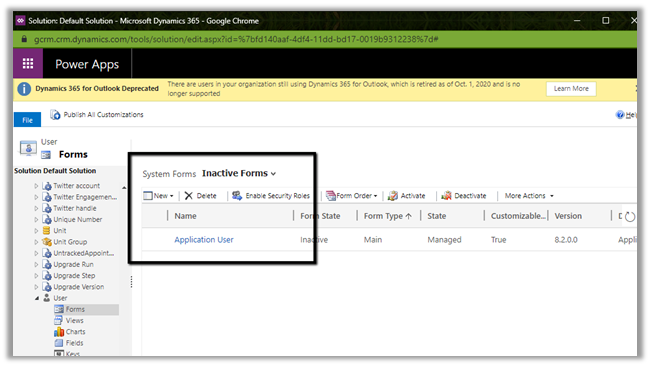
It was inside our classic administration settings; we saw it listed as Inactive Forms

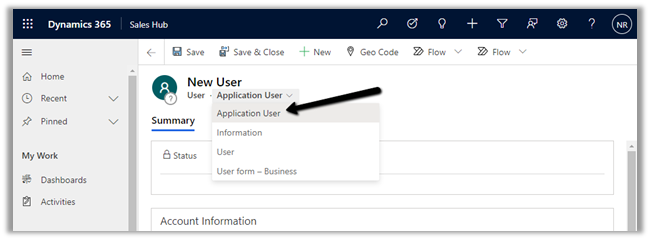
Activating and publishing the solution fixed the issue.

Hope it helps..

How to – Consume Dynamics 365 Web API using MSAL.NET


Sharing a sample code to consume Dynamics 365 Web API using MSAL.NET

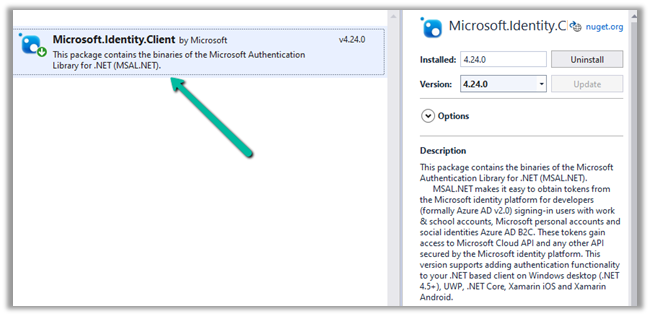
Create a console application and add the following NuGet Package

  • Microsoft.Identity.Client

More on Microsoft identity platform

https://docs.microsoft.com/en-us/azure/active-directory/develop/

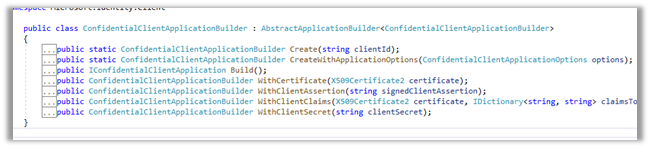
We are using ConfidentialClientApplicationBuilder create method.

https://docs.microsoft.com/en-gb/azure/active-directory/develop/msal-net-initializing-client-applications

The sample code –

using Microsoft.Identity.Client;
using System;
using System.Net.Http;
using System.Net.Http.Headers;
using System.Threading.Tasks;

namespace CrmAppMSAL
{
class Program
{
static async Task Main(string[] args)
{

string clientId = "fc34502a-74db-4977-8c83-***********";
string secret = "5~mByJeQ8dDO2LZP_H_J2**********";
string[] scope = new string[] { "https://orgname.crm15.dynamics.com/.default" };
string webAPI = "https://[org].crm15.dynamics.com//api/data/v9.0/leads";
string authority = "https://login.microsoftonline.com/7bc93881-0733-48ab-baa1-ee3ed7717633";

var clientApp = ConfidentialClientApplicationBuilder.Create(clientId: clientId)
.WithClientSecret(clientSecret: secret)
.WithAuthority(new Uri(authority))
.Build();

try
{
AuthenticationResult authResult = await clientApp.AcquireTokenForClient(scope).ExecuteAsync();

var httpClient = new HttpClient();
httpClient.DefaultRequestHeaders.Add("OData-MaxVersion", "4.0");
httpClient.DefaultRequestHeaders.Add("OData-Version", "4.0");
httpClient.DefaultRequestHeaders.Accept.Add(new MediaTypeWithQualityHeaderValue("application/json"));
httpClient.DefaultRequestHeaders.Authorization = new AuthenticationHeaderValue("Bearer", authResult.AccessToken);

httpClient.BaseAddress = new Uri(webAPI);

var response = httpClient.GetAsync("WhoAmI").Result;

if (response.IsSuccessStatusCode)
{
var userDetails = response.Content.ReadAsStringAsync().Result;
Console.WriteLine(userDetails);
Console.WriteLine(authResult.AccessToken);
Console.WriteLine(authResult.ExpiresOn);
Console.ReadLine();
}

}
catch (Exception ex)
{
string errorMessage = ex.Message;
}
}
}
}

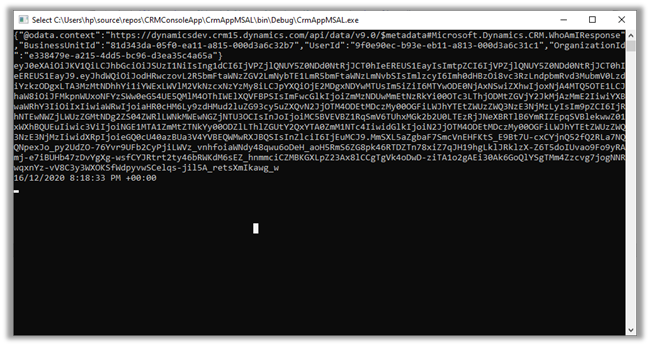
Result –

Reference –

https://medium.com/capgemini-microsoft-team/access-tokens-for-dynamics-365-using-microsoft-authentication-library-2b16c9f794b

Sample Code – Dynamics 365 Web API / Organization Service

Hope it helps..

Advertisements

Power Platform for Admins connector (preview) in Power Automate


The Power Platform for Admins connector (preview)

let’s us perform following Actions


The connector allows us to access the Business Applications Platform (BAP) API.

Below is the example of the Create Environment action, followed by Create CDS Database.

Here we are creating a trial environment in Asia region followed by a CDS database in it with base language – Hindi and currency code as INR

Let us run the flow and see the results

In Power Platform admin center can see the environment created along with the database specified.

All the key URL(s) for Power Platform Admin

Get all the details below –

Power Platform for Admins (Preview)

Power Apps and Power Automate Administration and Governance – Tools and Labs

Hope it helps..