How duplicate phone numbers for customers (contact/account) are handled in Voice Channel (Dynamics 365 Omnichannel for Customer Service)


Before we delve into different scenarios, few key points, we need to be aware of about Phone Numbers in Voice Channels.

  • Voice Channel considers Contact’s Mobile Phone (mobilephone) and Account’s Phone (telephone1) fields.

https://learn.microsoft.com/en-us/dynamics365/customer-service/record-identification-rule

  • The phone number should be in E.164 format inside Dynamics 365.

https://learn.microsoft.com/en-us/dynamics365/customer-service/voice-channel-bring-your-own-number?tabs=customerserviceadmincenter#prerequisites

https://developers.omnisend.com/guides/e164-phone-number-formatting

  • If no matching customer (contact or account) is found, the conversation record will not have any customer prepopulated.

  • If 2 contacts are having the same Phone Number (E.164) format, i.e. multiple matches found

In that case, also, no customer is tagged in the conversation record, the agent would have to search for the customer.

  • If 2 contacts and 1 account have the same Phone Number

The Conversation records get associated with the Account record.

  • If 1 contact and 1 account have the same Phone Number

The conversation record gets tagged against the Contact

  • If there is only 1 account record with that phone number and no contact records

The conversation record has an Account tagged to it.

  • In case multiple accounts are found with the same phone number and no matching contact

No customer is tagged in the conversation record

  • If there are multiple contacts and multiple accounts with the same phone number

No customer is tagged in the conversation record.

In short –

Matching Contact

Matching Account

Result

0

0

NA

1

0

Contact

1

1

Contact

2

0

NA

0

1

Account

0

2

NA

2

2

1

2

Account

NA

Hope it helps..


Advertisements

How to – configure Facebook Webhook Validation with Power Automate Flow (Dataverse / Dynamics 365)


Recently we were working on Facebook Leads integration with Dynamics 365. Webhook for Leads can be configured to send real-time notifications of the Leads ads changes.

The first step of setting up Webhook requires creating an HTTPS endpoint that can process 2 types of HTTP Requests – Verification and Event notifications.

Here we will see how to configure the Power Automate flow for verification.

Login to Meta for Developers – Facebook and create an app.

https://developers.facebook.com/

Select Business for the app type.

After the App is created, select Webhooks to be added to the app. Click on Set up.

Next click Subscribe to this object. Here we have User selected.

For getting leads notification we need to select Page 

FBPagePreview in new tab

And subscribe to leadgen object

leadgen

It asks us to specify the Callback URL and Verify token.

Back in Power Automate create a Flow with Request type Trigger, followed by Parse JSON and Response actions.

For HTTP Request, select GET as the method, as FB will send a GET request to the endpoint URL, with the verification requests included in the endpoint of the URL.

Next, Parse the JSON and specify the Content and Schema

Content – 

 triggerOutputs()['queries']

Schemajson


Lastly in Response, set Status Code as 200 and Body as hub.challenge.

Here FB expects the Endpoint to verify the hub.verify_token (which we haven’t set up yet) and respond with hub.challenge value after verification.

Save the Flow, and copy the URL generated for the HTTP Request trigger.

Back in Meta for Developers, in edit user subscription paste the Callback URL and for now in place of token specify any value and click on Verify and Save.

We should now have a Webhook endpoint (Flow) successfully configured

We can also see our Flow ran successfully.

Here in the example we configured the webhook validation for User events, for Facebook Lead we need to configure it for Page, the other options available are Permissions, Application, Instagram etc.

Please check – 

https://powerautomate.microsoft.com/nl-nl/blog/connect-facebook-workplace-to-sharepoint/


Hope it helps..

{
    "type": "object",
    "properties": {
        "hub.mode": {
            "type": "string"
        },
        "hub.challenge": {
            "type": "string"
        },
        "hub.verify_token": {
            "type": "string"
        }
    }
}
Advertisements

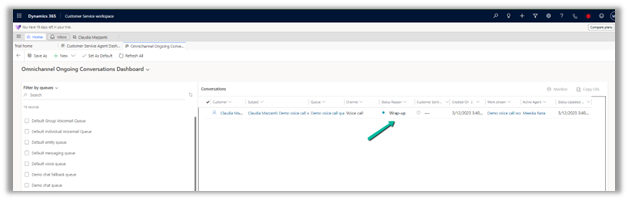
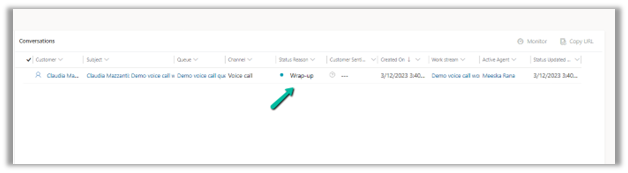
Fixed – Omnichannel authentication failed. Contact your administrator in Omnichannel Ongoing Conversations Dashboard


Recently we were getting the below error on the Omnichannel Ongoing Conversations Dashboard.

As the user was having an Omnichannel Administrator role, we expected it to work for the user. We raised a support ticket for the same and got to know that we need to assign the Omnichannel supervisor role for it to work for the user.

After assigning the Omnichannel supervisor role, the report started working for the user. Try it in incognito mode or clear the cache after assigning the role.

Get more details –  Omnichannel Ongoing Conversations dashboard

Hope it helps..


Advertisements
Dynamics 365 AI code with ChatGPT


Example – “Can you write a canvas app formula with ForAll and Patch for Create” – https://www.screencast.com/t/x5TPWw89tFw

Thomas Sandsør's avatarCRM Keeper

By now I am sure most of you have heard about ChatGPT. The AI product is pouring out surprisingly intelligent responses to all sorts of questions that people all around the world have given it lately.

There have been examples of the tool writing papers for school, creating blog posts for people, and helping formulate fairly complex text for webpages and marketers. One thing that someone tipped me off about was the ability to write code, and I was a bit curious as to what that would mean.

So one of the many gaps in my knowledge is specifically regarding Plugins. A plugin is a piece of backend code that runs in real time when triggers occur in Dataverse. I tried doing a little plugin with some help a few years ago and wrote about it on the Company Blog – Plugin in 1 hour.

I was curious…

View original post 373 more words

Fixed – The product cannot be added because it is not active while creating Quote Product – Dynamics 365 / Dataverse


We got the below error while trying to create a quote product programmatically.

As the error message specifies, this is because we are trying to add/associate a DRAFT product to the Quote Product.

We will get a similar error from the application as well if we try adding a draft product as an existing product to either a quote product or an opportunity product.

Below is the product in the Draft status.

Publish the product to make it Active.

Hope it helps..


Advertisements
How to – Filter data source to get the active records Dataverse / PowerApps


Just sharing the syntax, that we can use to filter the data source based on the status field.

Below is our gallery bound to Cases (Data Source) and showing only the Active cases.

Items

Filter(Cases, Status = ‘Status (Cases)’.Active) 

Filter(Datasource, Status = ‘Status (Datasource)’.[value])

Hope it helps..


Advertisements