I recently came across a small but useful addition to the Dynamics 365 / Power Apps lookup experience: the Drawer Lookup Control.
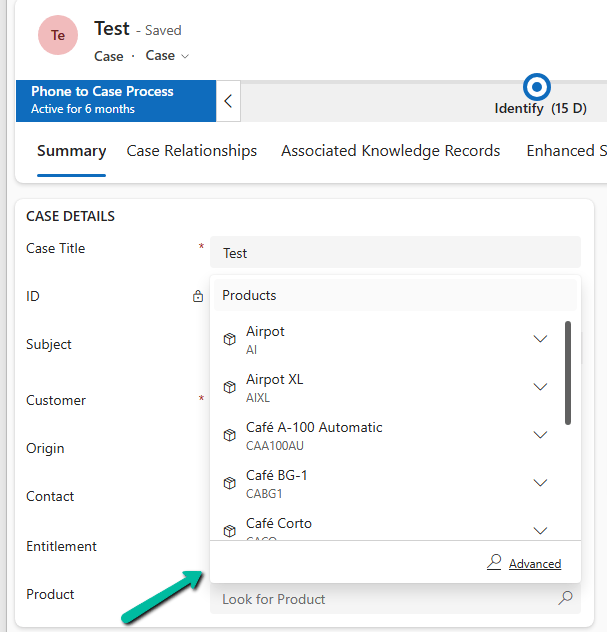
With the standard lookup, selecting a value typically opens the familiar lookup experience.
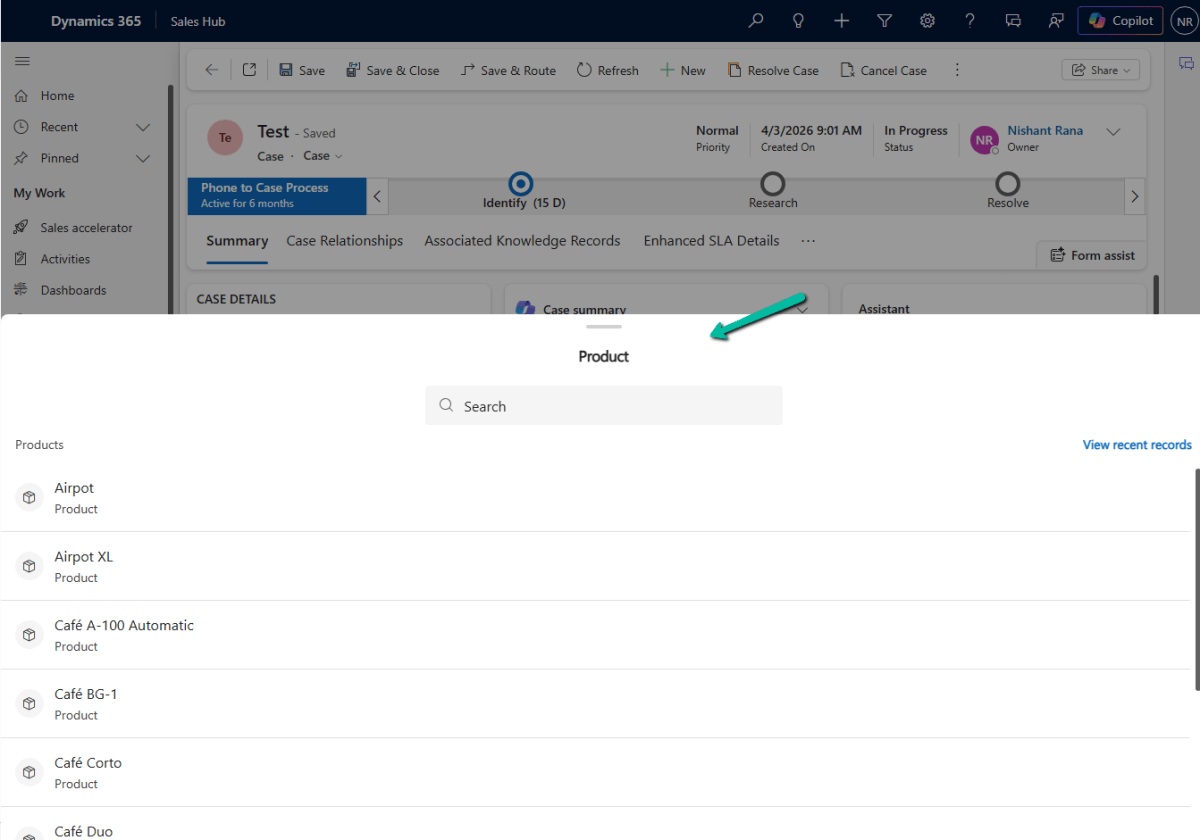
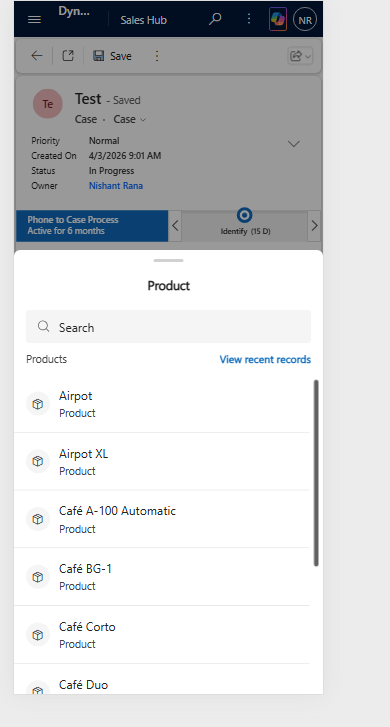
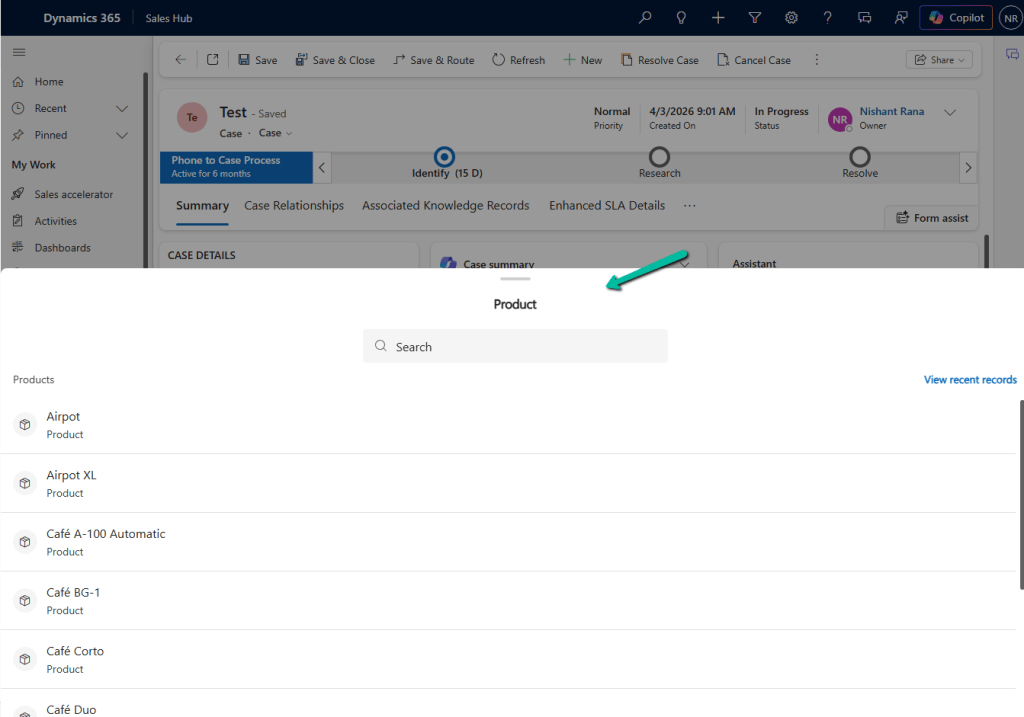
With Drawer Lookup, the records are displayed in a bottom-sheet style drawer, making it easier to search and select a record on a phone or tablet.
This is how it would look on Web –
How to Configure It
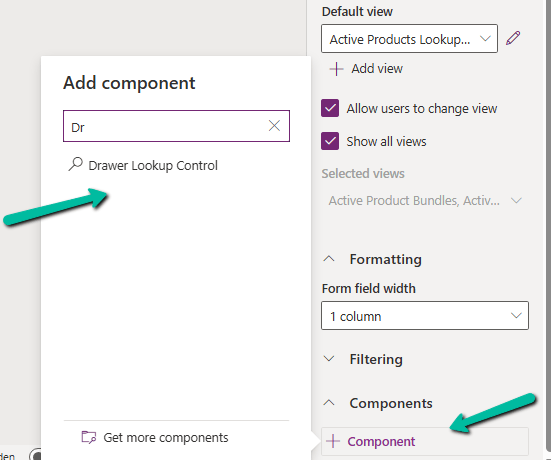
The configuration is quite simple. Open the form in Power Apps, select the lookup field, and go to Components.
Select:
+ Component → Drawer Lookup Control
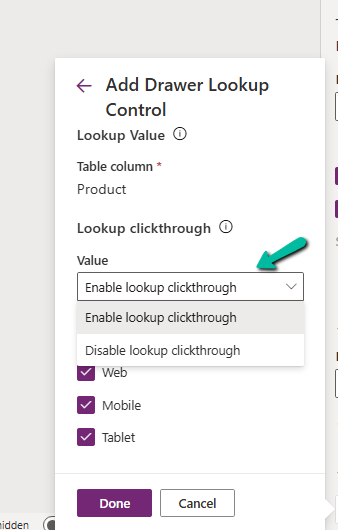
We can then configure the lookup click-through behavior:
Enable lookup clickthrough
Disable lookup clickthrough
The control can also be enabled for the Web, Mobile, and Tablet experiences.
This is especially useful when we have forms that are frequently used from mobile devices, and users need to select records from lookup lists like leads, contacts, accounts, work orders etc.
The Disable lookup clickthrough option can also help prevent users from accidentally navigating away from the current form when interacting with a lookup value.
It is a relatively small UI enhancement, but for mobile-heavy Dynamics 365 implementations, these small improvements can make the experience noticeably cleaner. If we have forms that are heavily used on phones or tablets, Drawer Lookup Control is definitely worth trying.
Recently we had a requirement to export the working hours of Bookable Resources from Dynamics 365 for a specified date range and make that information available to a third-party system.
Rather than reading the underlying calendar rules and building our own logic to calculate the working hours, we looked at using the platform capabilities provided by Dynamics 365 and used the Dataverse ExpandCalendar function
How it works
We first retrieve the Bookable Resources from Dynamics 365 and identify the calendar associated with each resource.
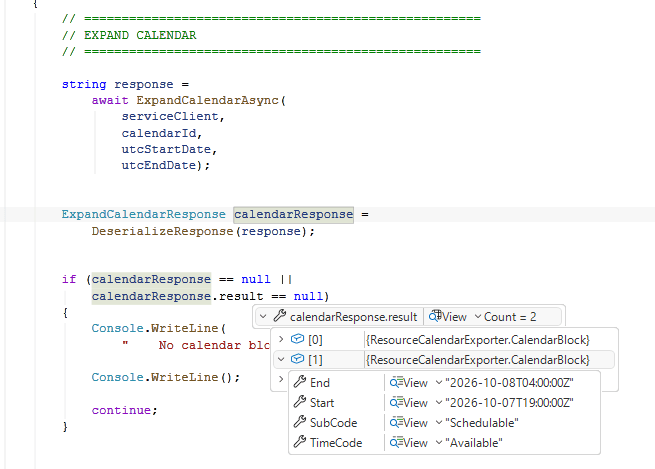
For each calendar, we call the Dataverse ExpandCalendar function for the required date range. Dynamics 365 expands the calendar rules and returns the resulting calendar blocks, including the start and end times along with information such as TimeCode and SubCode.
We then process these results and export the required information to a CSV file.
This approach means we do not need to recreate the calendar rules and recurrence logic ourselves. Dynamics 365 does the calendar expansion for us, and we simply consume the resulting calendar blocks.
Why use ExpandCalendar?
A Bookable Resource calendar is not simply a list of start and end times. Calendar rules can repeat over time and can include changes or exceptions. Building a separate calendar engine to interpret those rules would duplicate logic that Dynamics 365 already understands.
With ExpandCalendar, we provide the calendar and the date range, and Dynamics 365 returns the expanded calendar information for that period.
This makes the solution smaller and easier to maintain, particularly when the calendar configuration changes in Dynamics 365.
Getting the Bookable Resources
The first step is to retrieve the Bookable Resources that we want to process. The important fields for this example are the resource ID, resource name, and calendar ID.
The calendar ID is important because it is the calendar that we pass to ExpandCalendar.
Calling ExpandCalendar
The ExpandCalendar function is exposed through the Dataverse Web API. In a .NET console application using Microsoft.PowerPlatform.Dataverse.Client, we can execute the Web API request through the ServiceClient.
The exact request shape can vary depending on the Dataverse API version and implementation, so the ExpandCalendar Web API documentation should be used as the authoritative reference for the request parameters.
Working with the response
The response contains the expanded calendar blocks for the requested period. A simplified response can look like this:
For each block, we can capture the start and end time together with TimeCode and SubCode. The application can then transform these results into the format required by the consuming system.
Working hours vs actual availability
One important distinction is that expanded calendar information should not automatically be treated as the complete scheduling availability of a resource.
ExpandCalendar gives us the expanded calendar information for the requested period. Actual scheduling availability can also be affected by existing bookings, requirements, constraints, and other scheduling factors.
If the requirement is to determine when a resource can actually be booked, the Field Service resource availability APIs should be considered instead. For a requirement focused on exporting configured calendar or working-hour information, ExpandCalendar is a good fit.
A common requirement with Business Process Flows is this: the user must capture all the required details on the form before they are allowed to move to the next stage of the BPF.
The BPF can make individual fields required, but it has no idea about all the other fields sitting on the main form. So how do we make the BPF block the Next Stage button until everything is filled in?
One way is to use JavaScript: register a handler using addOnPreStageChange and call preventDefault() on the event arguments to stop the stage change whenever our conditions are not met. We have covered this approach in an earlier post here.
However, there is one more method to achieve this, where we don’t have to intercept the stage change ourselves and let the BPF do the blocking for us.
In this post we will see how we did it using a Boolean field, kept it read-only in the BPF, and set it through JavaScript.
Scenario
Let us look at it by taking an example of the Opportunity BPF. At the Qualify stage the user has to capture a set of details on the main form (contact, account, budget, and so on) before moving on to Develop.
We want:
The user cannot move to the next stage until all the details are captured.
The user should not be able to simply tick a box and bypass the check.
The Approach
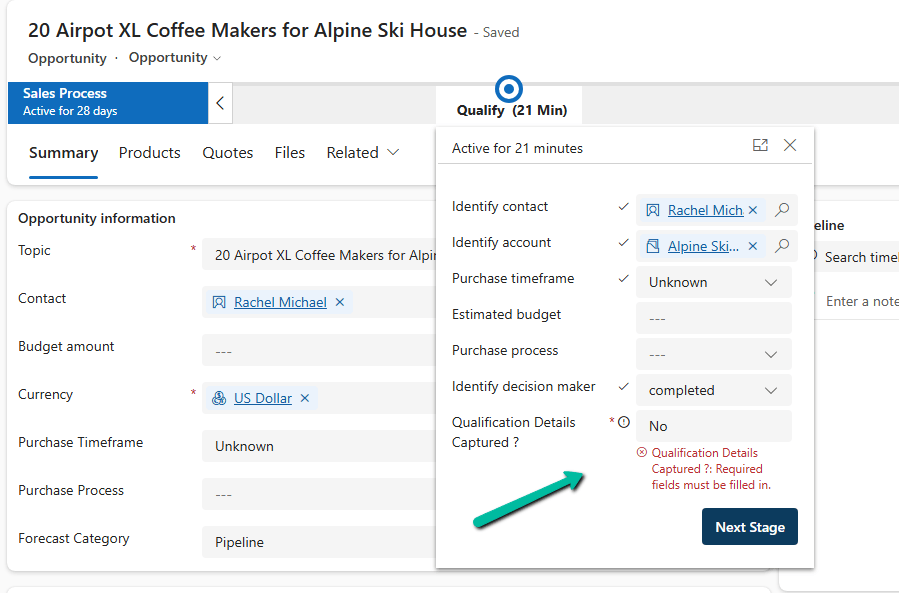
We created a Boolean (Two-Option) field, Qualification Details Captured, with a default value of No, and added it to the Qualify stage of the BPF as a required step.
While the value is No, the BPF blocks the stage change and shows “Required fields must be filled in.”
Once all the required data is filled in on the form, we can write JavaScript, as per our specific requirement, to set the field to Yes.
With the value at Yes, the user can click Next Stage.
This works because, as we saw in an earlier post, a required Boolean field in a BPF treats only Yes as a valid value, and No is treated as not filled in. Here we are using that behavior to our advantage.
If the field is editable, the user can just change No to Yes in the BPF flyout and move ahead without filling in anything. That defeats the whole purpose.
The field should be driven by the data, not by the user. So we made it read-only in the BPF, and only the script is allowed to flip the value.
How to Make a Field Read-Only in BPF
The easiest way is through configuration, without any script.
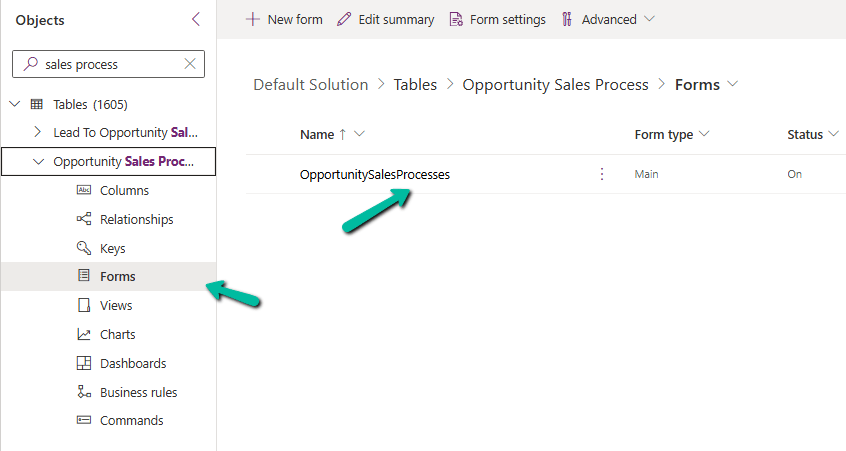
When we create a BPF, Dataverse creates a table for that BPF (named after the BPF). The fields we add to the stages are rendered from the form of this BPF table, so we can control them there like we do for any other column.
Go to Tables, select All (or show all tables), and search for the table with the same name as your BPF.
Open its Forms and select the main form.
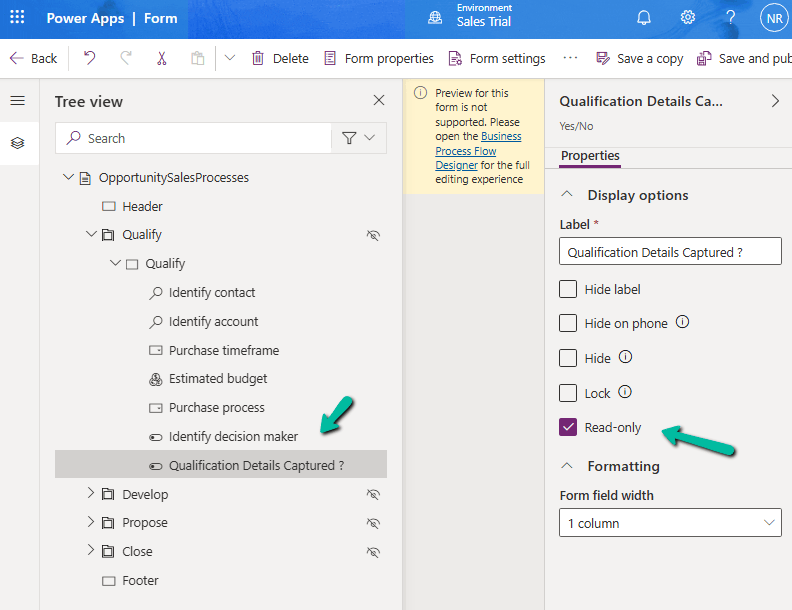
Open the Tree view, expand the stage section, and select the field.
Under Display options, check Read-only.
Save and publish.
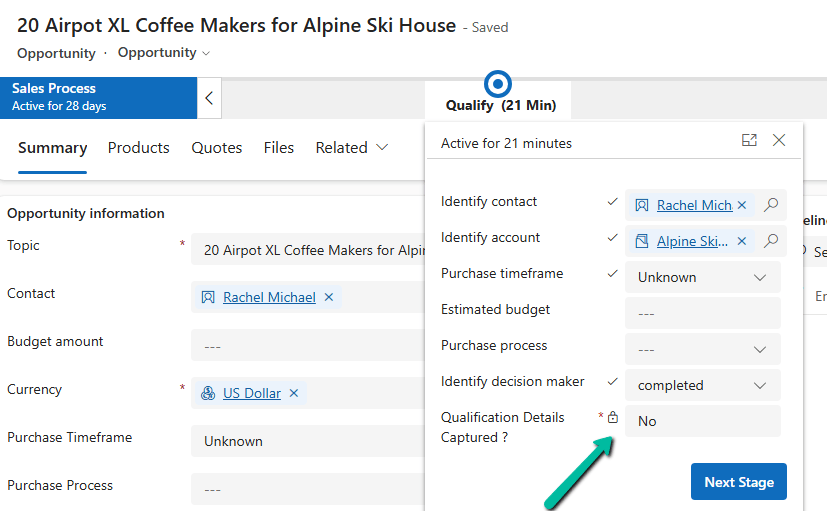
Now in the BPF flyout the field is greyed out, and the user cannot change it.
Setting the Value Using JavaScript
Now the field needs to be set to Yes at the right time. For this, we can write JavaScript on the main form as per our specific requirement, which checks that all the required details are captured and then sets the field to Yes.
Until that happens, the field stays at No, and the user will not be able to move to the next stage by clicking Next Stage.
Result
Fields are incomplete: flag is No, read-only, and Next Stage is blocked.
User fills in all the required details: our JavaScript sets the flag to Yes, and the user can move to the next stage.
The user cannot bypass the check by changing the flag manually.
Key Takeaway
To make a field read-only in a BPF, open the form of the BPF table and check Read-only on the field. Combined with a required Boolean field and a little JavaScript, it gives us a simple way to make the BPF wait until all the required data on the form is captured.
Microsoft 365 Copilot brings conversational AI directly into Model-Driven Apps, allowing users to ask natural language questions about Dataverse data, quickly locate records, and improve productivity without leaving the application.
In this post, we walk through the steps we follow to enable Microsoft 365 Copilot in a Model-Driven App, covering the tenant, environment, and application-level configuration required before the feature becomes available.
What We Need Before We Start
Microsoft 365 Administrator permissions for tenant-level Copilot settings.
Power Platform Administrator access to the target environment.
Dataverse Search enabled for the environment (Default or On).
Sufficient Dataverse database capacity — Microsoft 365 Copilot for Model-Driven Apps relies on Dataverse Search indexing, and turning it on can increase capacity consumption.
Appropriate licensing (covered in Step 4 below).
Step 1: Enable Dataverse Data in Microsoft 365 Copilot (Tenant Level)
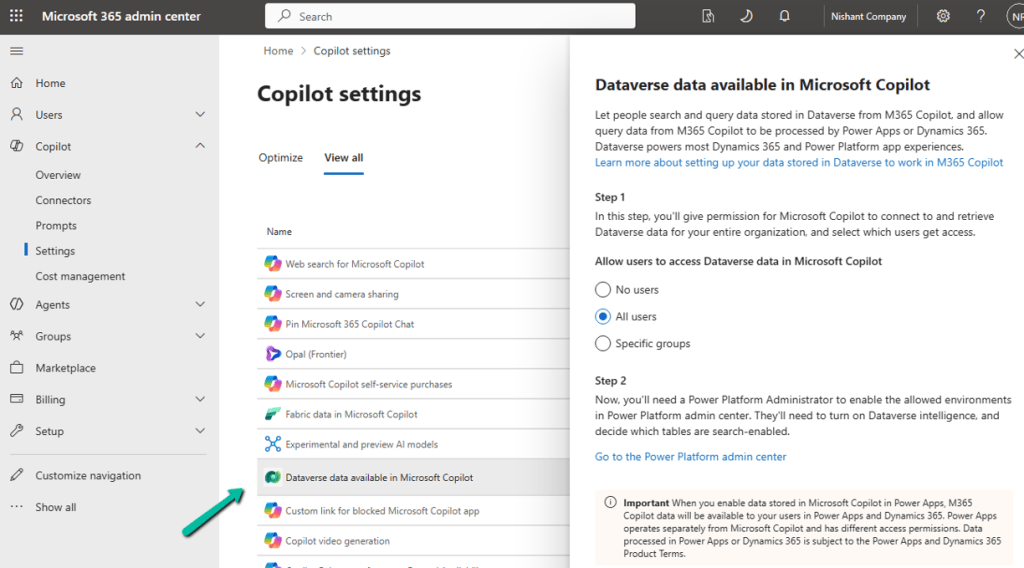
Sign in to the Microsoft 365 Admin Center → Copilot → Settings, and locate Dataverse data available in Microsoft 365 Copilot.
Turn it on and choose either All Users or Specific Groups, then Save.
This is a tenant-level setting; it must be enabled before users can access Dataverse data through Microsoft 365 Copilot.
Step 2: Enable Dataverse Search for the Environment
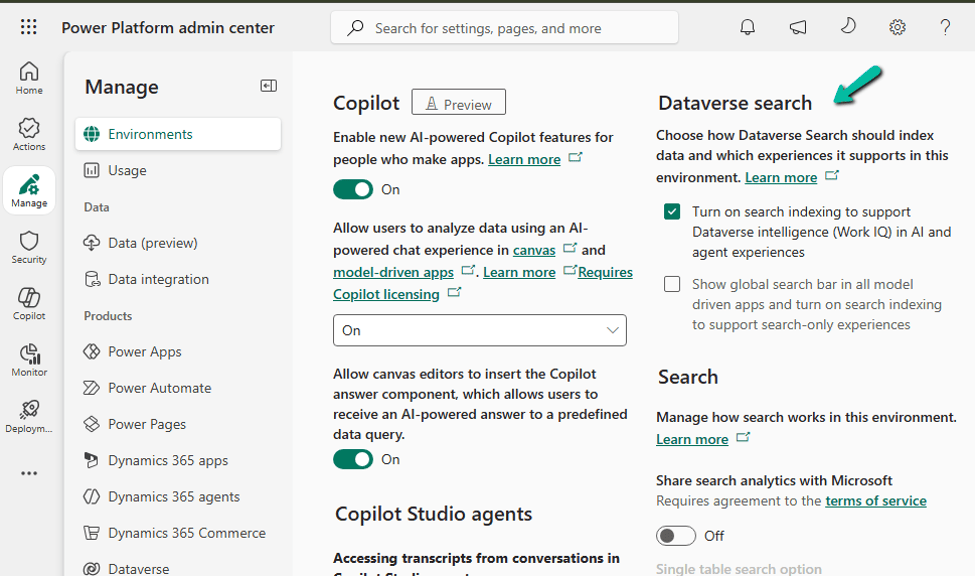
Go to Power Platform Admin Center → Environments → select the environment → Settings → Product → Features, and set Dataverse Search to On, then save.
Dataverse Search is what powers the indexing behind Copilot’s answers, so this has to be on before Copilot can ground its responses in your table data.
Step 3: Verify Dataverse Capacity
Since Microsoft 365 Copilot for Model-Driven Apps relies on Dataverse Search indexing, make sure the environment has enough Dataverse database capacity to support indexing, semantic search, and the Copilot queries themselves. Check this under Power Platform Admin Center → Licensing → Capacity add-on for the environment before rolling this out to a production environment with a large dataset.
Step 4: Verify Licensing
Licensing depends on where the app lives:
Power Apps (Custom Model-Driven Apps) — users need a Power Apps Premium license together with a Microsoft 365 Copilot license.
Dynamics 365 apps — users need a qualifying Dynamics 365 Enterprise or Premium license. A Microsoft 365 Copilot license is also required to unlock advanced Work IQ capabilities beyond standard Dataverse grounding.
Worth confirming this with your licensing/procurement team before you promise the feature to end users — a missing Microsoft 365 Copilot license is one of the most common reasons Copilot doesn’t show up for a user even after everything else is configured correctly.
Step 5: Enable Microsoft 365 Copilot for the Environment
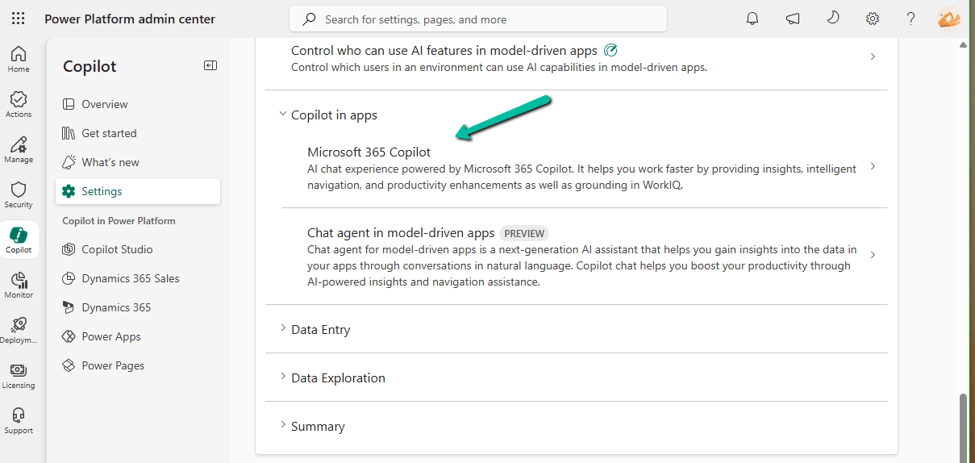
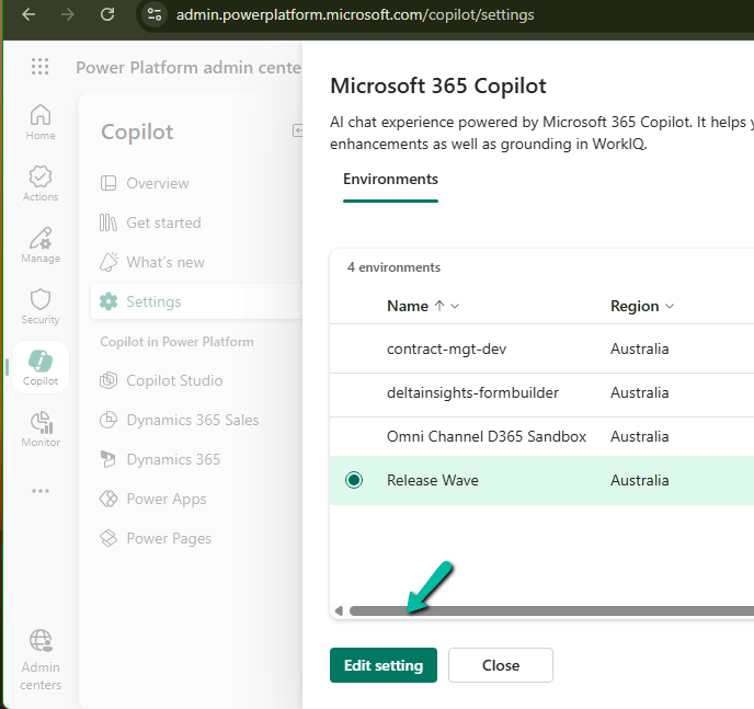
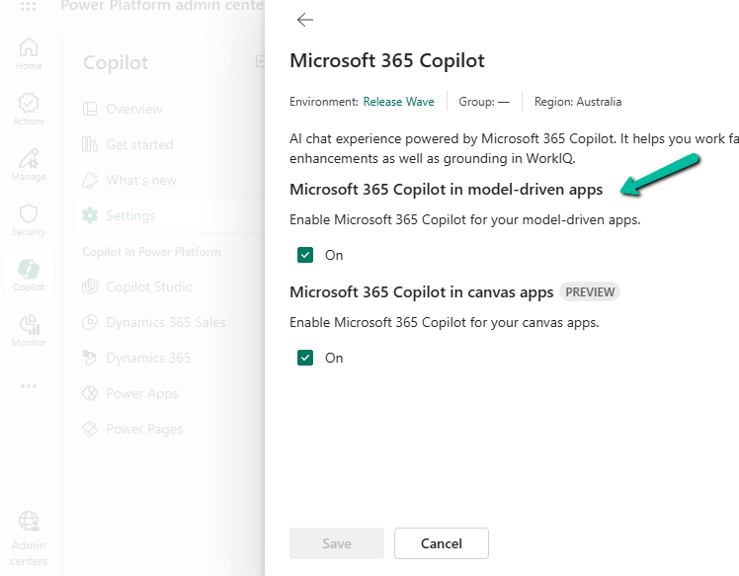
Go to Power Platform Admin Center → Copilot → Settings. Under Power Apps, expand Copilot in Apps, choose Microsoft 365 Copilot, select the environment (or environment group), select Edit Setting, turn it On, and Save.
Step 6: Enable It for the Model-Driven App
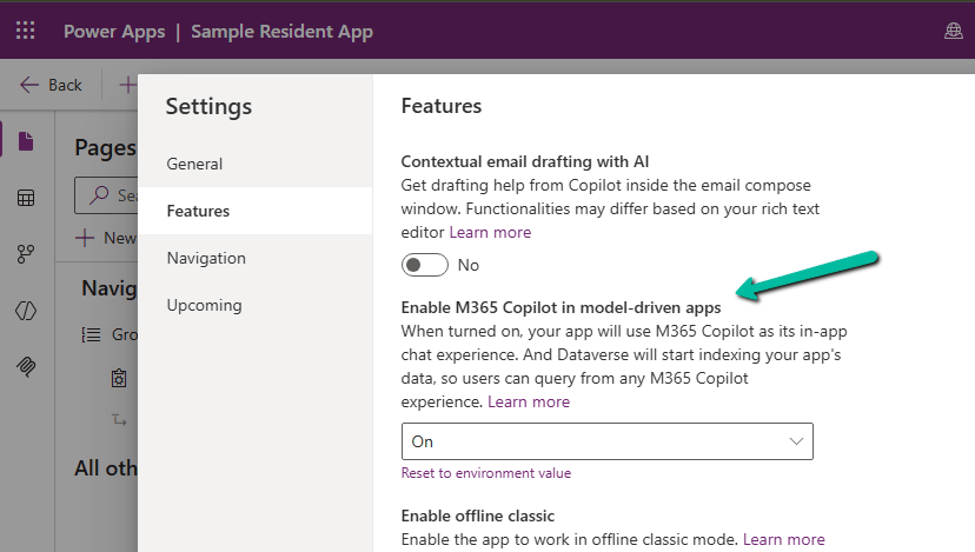
Open the app in the Power Apps Maker Portal → Settings → Features, set M365 Copilot in model-driven apps to On, then Save and Publish the app.
Enable It for All Model-Driven Apps in an Environment
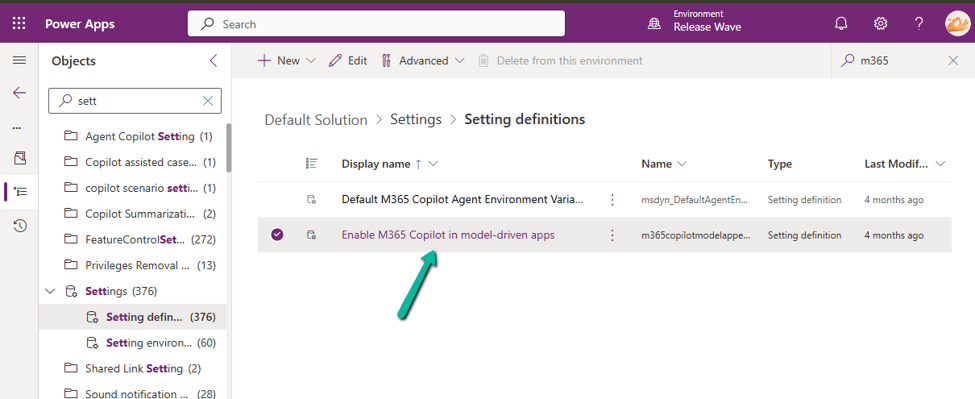
If you’d rather turn this on once instead of app by app, open the Default Solution → Objects → Settings, locate Enable M365 Copilot in model-driven apps, add the value if it doesn’t already exist, set it to 2, Save, and Publish the change.
What Users Will See
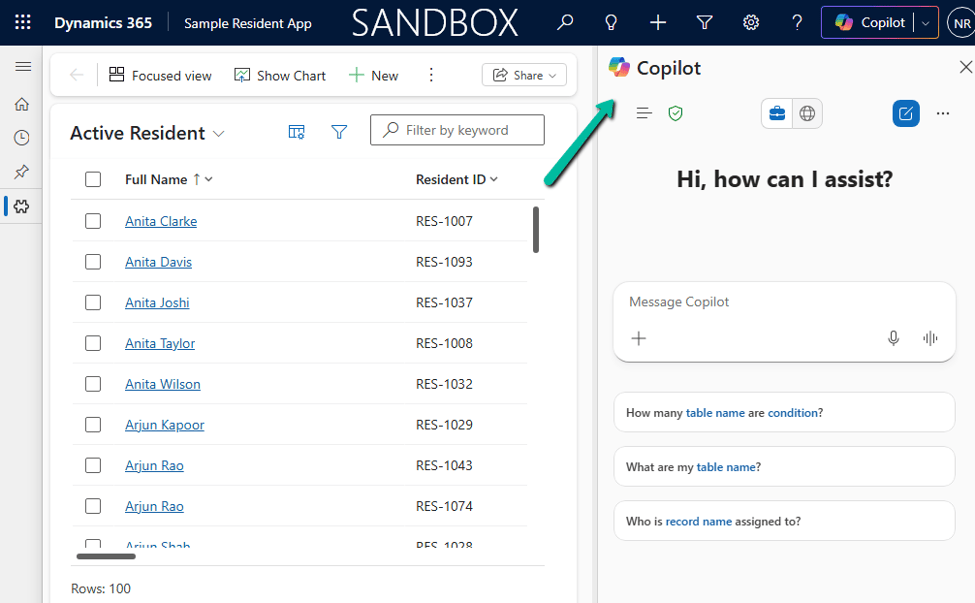
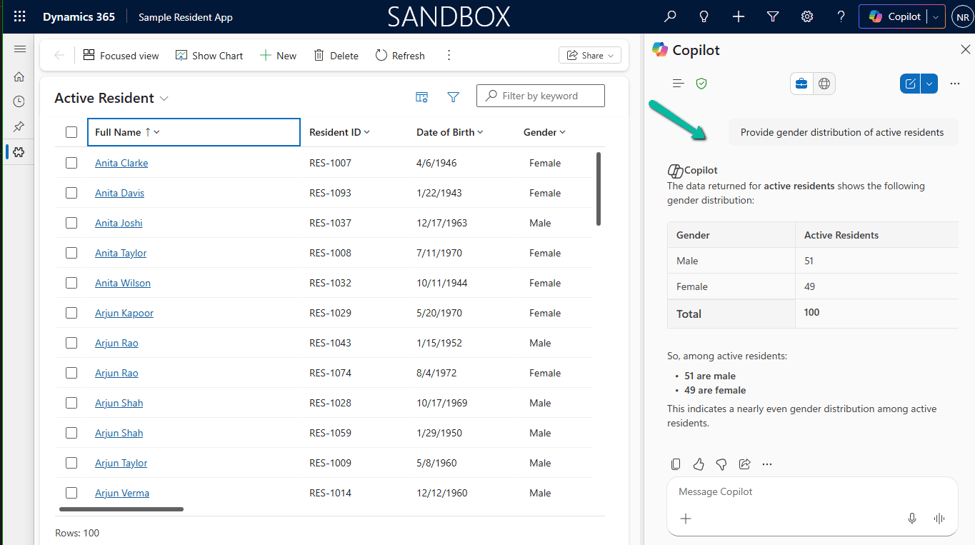
Once everything is configured, users can open Copilot → Chat from the top-right corner of the Model-Driven App and start asking natural language questions about Dataverse records.
The current experience is read-only by default: Copilot can find and summarize data, but it can’t make changes on the user’s behalf unless you’ve customized it with an agent. It’s also worth knowing that Microsoft 365 Copilot for Model-Driven Apps isn’t available in the Power Apps mobile app yet.
Microsoft 365 Copilot vs. Copilot Chat: What’s Changing?
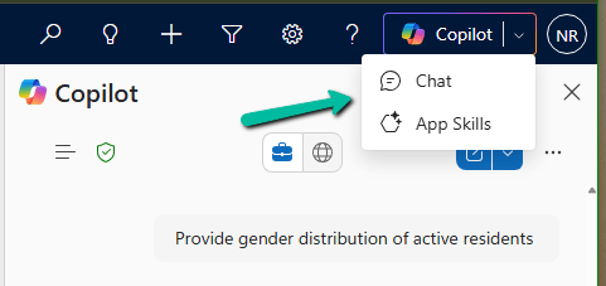
If you’ve previously enabled Copilot Chat in Model-Driven Apps, you’ll now see two options in the Copilot menu: Chat and App Skills. This is part of Microsoft’s transition to Microsoft 365 Copilot, which is becoming the standard AI experience across Power Apps and Dynamics 365.
Area
Microsoft 365 Copilot (Chat)
Copilot Chat (App Skills)
Status
Recommended, actively evolving
Being deprecated
Availability
Power Apps and Dynamics 365
Preview in Power Apps
Dataverse queries
Yes
Yes
Navigation
Yes
Yes
Future direction
Microsoft’s strategic platform
Transitioning out
Deprecation Timeline
Microsoft has announced that Copilot Chat in Model-Driven Apps, for Power Apps environments not enabled for Dynamics 365 apps, began its deprecation starting in January 2026. During the transition period, organizations can enable either one or both experiences while users migrate.
What Users Will See During the Transition
Chat opens Microsoft 365 Copilot.
App Skills opens the legacy Copilot Chat experience.
Both experiences can coexist during the transition.
Recommendation
For new implementations, enable Microsoft 365 Copilot rather than investing further in the legacy Copilot Chat experience. Since Microsoft is standardizing AI experiences across Power Apps and Dynamics 365 around Microsoft 365 Copilot, adopting it now saves you a migration later and gives users access to the latest Dataverse-grounded capabilities, including Work IQ where licensed.
Recently, I cleared the Microsoft Certified: Architecting Agentic AI Business Solutions (AB-100) exam.
While preparing, I ended up creating this one-page Architect’s Compass for my last-minute revision. Instead of memorizing every Microsoft service, I grouped similar services so I could quickly decide which one fits a business scenario.
I’m sharing it here in case it helps someone preparing for AB-100.
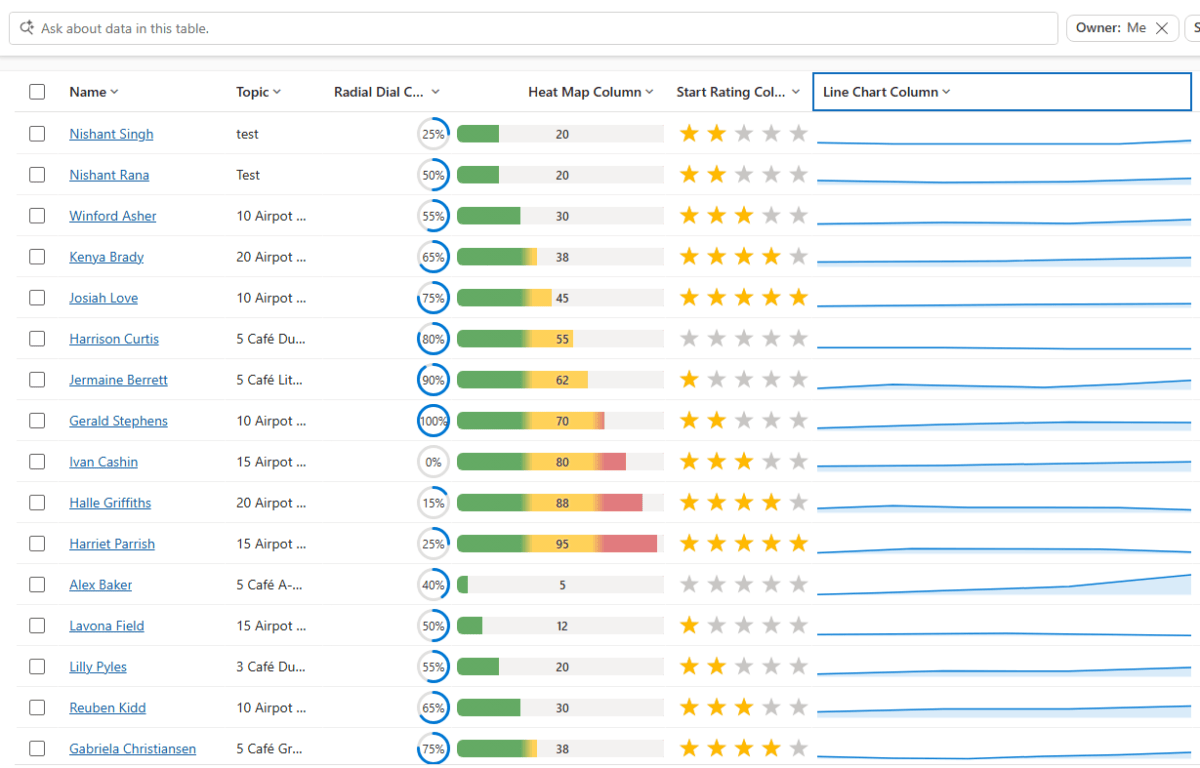
Power Apps now lets us render a column’s data as a small graphic in the grid – a gauge, a sparkline, a colored bar, or stars – instead of plain text. We tried it out on a couple of our own columns, and here’s a quick step-by-step on how to set it up, along with the data format each visualization expects.
This is a preview feature, so it’s best tried out in Dev/Sandbox for now rather than rolled out to production grids.
Pick a Visualization for the Column
Sign in to Power Apps (make.powerapps.com) → Solutions → open the table.
Open the column to edit (or create a new one).
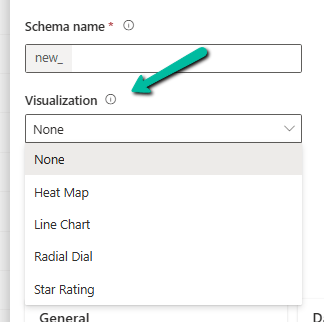
Expand Advanced options → “Visualization”.
Select one of: Heat Map, Line Chart, Radial Dial, Star Rating.
Save. Every grid or view showing that column now shows the graphic automatically.
That’s it – it’s a one-time setting on the column, not something you configure per view.
Know What Data Each One Expects
This is the part that actually matters – each visualization is strict about the shape of the data behind it.
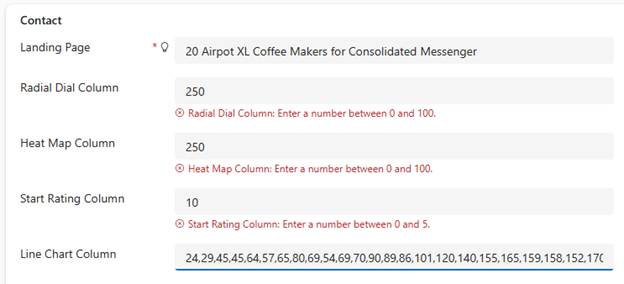
Radial Dial: expects a single value, 0–100. Example: 60 → ring 60% full.
Heat Map: expects a single value, 0–100 by default. Example: 90 → bar colored red (high).
Star Rating: expects a value from 0 to the star count, 5 by default. Example: 3 → three stars filled.
Line Chart: expects comma-separated numbers, 100 characters maximum length. Example: 10,20,30,45 → a trend line.
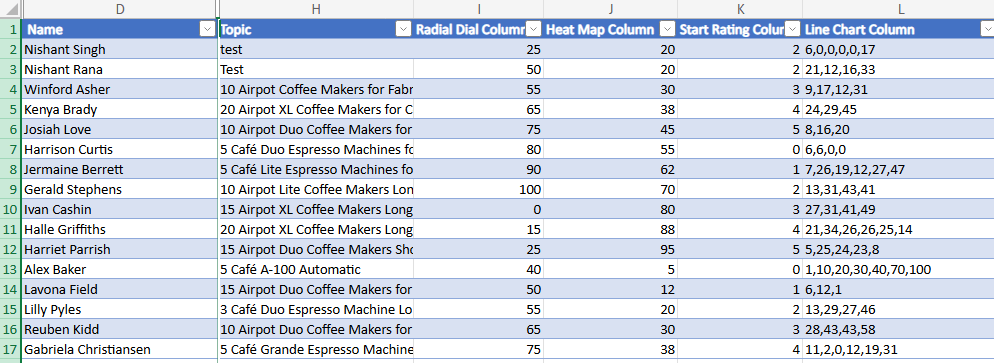
For .e.g the data for these columns –
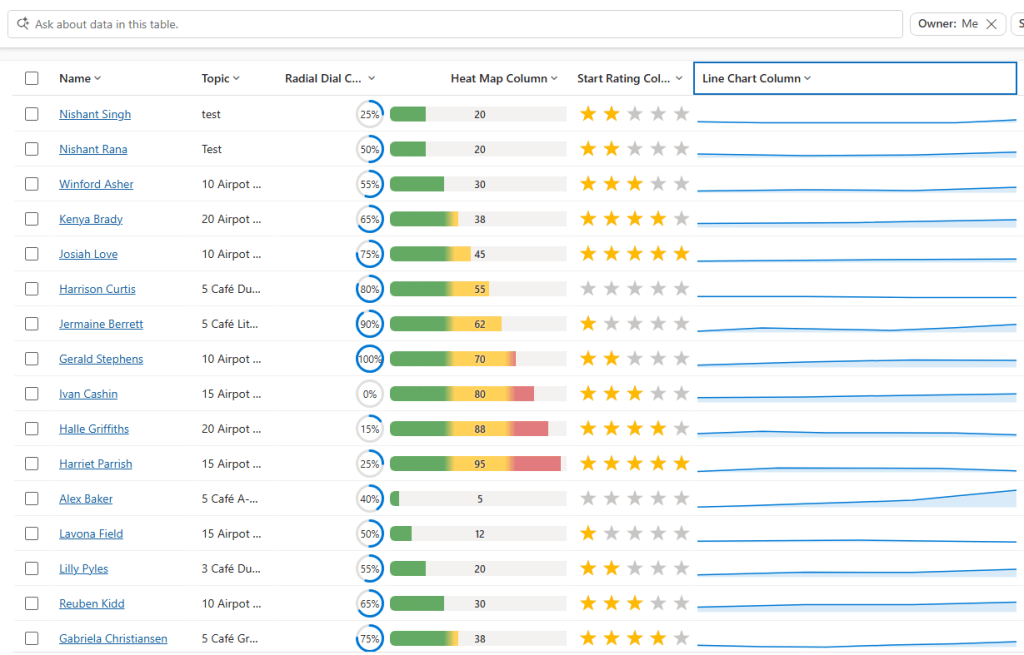
Below is how they are rendered in a view.
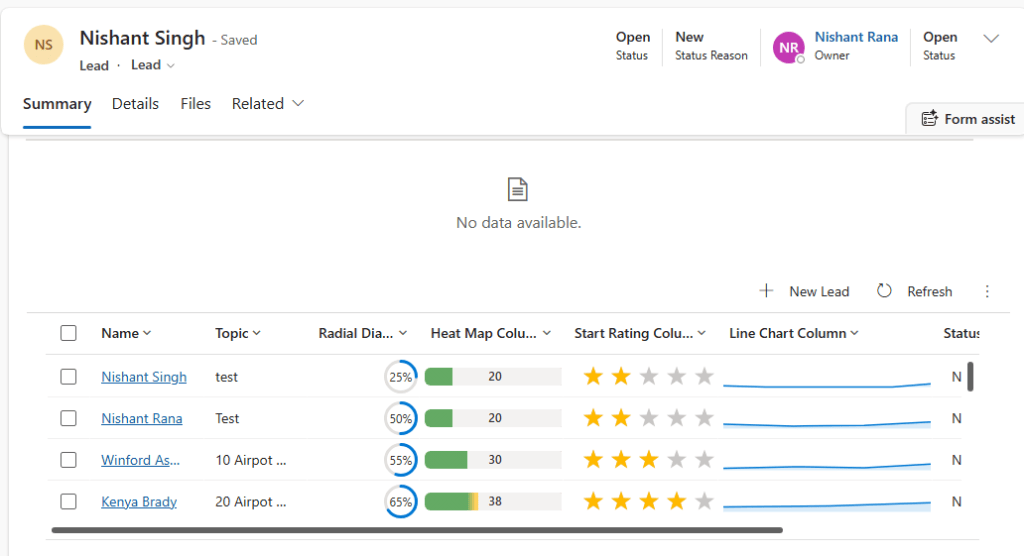
And this is as a subgrid.
Key Takeaway
Set the visualization once on the column, keep the underlying data clean (0–100 for Radial Dial/Heat Map, comma-separated numbers for Line Chart, 0 to 5 for Star Rating), and every grid using that column just works. Most issues we ran into came down to one thing – the value wasn’t stored the way the visualization expected.