Tap into the interaction data generated by Dynamics 365 Marketing


Jesper Osgaard's avatarMicrosoft Lystavlen

One of the many strong points of Dynamics 365 Marketing is the separation of the Dynamics 365 environment and the Marketing services (see “Elements in a Marketing environment“)

This separation has a lot of advantages – including performance. However, the data in the Marketing services aren’t directly accessible to users

So what if you will want to tap into those interaction data? What if you are looking for a way to fire up an action card (or an email) to sellers if one of the contacts they own does something interesting, e.g. clicks a “learn more” link in a marketing email, or something similar?

Sure you can handle this in a customer journey, but what if you need logic for all emails in all customer journeys? Then you’ll need to tap into the interaction data in the Marketing Service.

Scenario

Julian receives an email via a Customer…

View original post 594 more words

Fixed – sdkmessageprocessingstep With Id = {GUID} Does Not Exist – Plug-in Profiler – Dynamics 365 / Dataverse


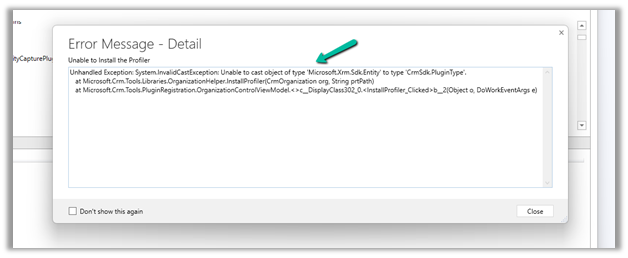
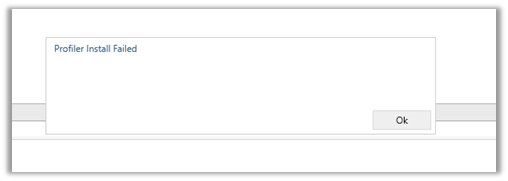
Recently we got the below issue while saving the contact record. It was throwing this for one of our plugin steps registered on the update, for which we had already removed the profiling.

The profiling was already removed from the step.

It was the same error while trying to uninstall the profiler.

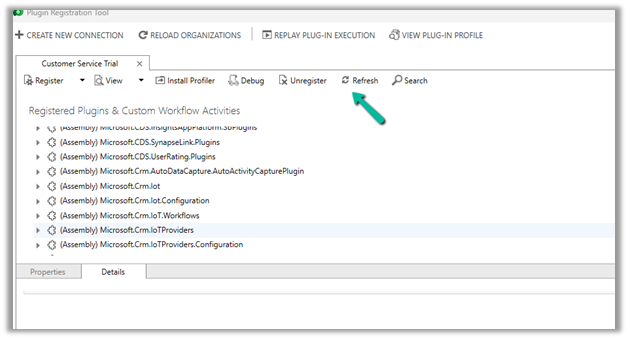
As mentioned in the error message we checked the Plug-in Profiler assembly in the Plugin Registration tool and could find the reference to the step there.

We unregistered the step there

This fixed the issue for us.

Hope it helps..
 

Advertisements

Sample Code – Capture / Record lead qualification date – Dynamics 365 / Dataverse


Recently we had a requirement to capture the date when a lead is qualified. Here we can create a new date time attribute to capture the lead qualification date and update this field either through workflow, flow, or plugin on lead qualification.

Status Code = 3 (Qualified)

We implemented a plugin on PreOperationUpdate of lead, with filtering attributes as the state code.

Below is the sample code for the plugin  –

 public void Execute(IServiceProvider serviceProvider)
        {
            ITracingService tracingService = (ITracingService)serviceProvider.GetService(typeof(ITracingService));
            IPluginExecutionContext context = (IPluginExecutionContext)serviceProvider.GetService(typeof(IPluginExecutionContext));
         
            try
            {
                tracingService.Trace("start plugin execution: {0}", this.GetType().FullName);
                // plugin is in pre update stage of lead
                if (context.InputParameters.Contains("Target") && context.InputParameters["Target"] is Entity &&
                    context.MessageName.Equals("update", StringComparison.OrdinalIgnoreCase) &&
                   context.Stage == 20)   
                {
                    var leadEntity = (Entity)context.InputParameters["Target"];
                    if(leadEntity.LogicalName == "lead")
                    {
                        if(leadEntity.Attributes.Contains("statuscode") && 
                            ((OptionSetValue)leadEntity.Attributes["statuscode"]).Value == 3
                            )
                        {
                            tracingService.Trace("Lead with Id {0} is getting qualified at {1}", 
                                leadEntity.Id.ToString(), DateTime.UtcNow);
								
							// the custom date time field to capture the qualification date 
                            leadEntity["custom_qualificationdate"] = DateTime.UtcNow;                         
                        }
                    }                 

                }

                tracingService.Trace("end plugin execution: {0}", this.GetType().FullName);
            }
            catch (System.ServiceModel.FaultException<OrganizationServiceFault> ex)
            {
                tracingService.Trace(ex.Detail.Message);
                throw;
            }
            catch (Exception ex)
            {
                tracingService.Trace(ex.ToString());
                throw;
            }
        }

Hope it helps..

Advertisements

Retrieve primary entities along with related entities with one QueryExpression


Retrieve related records for a parent record

It’s possible to get related records of  a relationship when we retrieve a parent record using RelatedEntitiesQuery property in the RetrieveRequest. That means you have to construct the RetrieveRequest not using the Retrieve method from the OrganizationServiceProxy class.

https://dyncrmexp.com/2017/10/24/retrieve-primary-entities-along-with-related-entities-with-one-queryexpression/comment-page-1/

by Khoa Nguyen
Advertisements

Approval / When a file is created (properties only) – when a file is added to the folder in the SharePoint library


Recently we had a requirement to implement an approval workflow when a document is added to a SharePoint library.

Below is how we can implement it.

Details –

Trigger – When a file is created (properties only)

Specify the Site Address, Library Name, and the Folder on which the flow should run.

Initialize Variable

Initialize a variable VarComments to save all the responses.

Start and wait for an approval

Here we have used the Approval type as Custom Response – Wait for one response, we could also Approve / Reject – First to respond or any approval type based on the requirements.

The Assigned to field contains the name of the user who needs to review it.

The item link contains the link to the item.

Enable reassignment as Yes will allow the approver to reassign the approval to another user from the Approval Center.

Apply to each

Append the approval response to the variable VarComments.

Condition

If Outcome is Approved

If Yes – Update File Properties

Update the properties of the file using the ID.

Update the Approval Comments property with the variable.

Update the status value as Approved.

Repeat the same step for any other Outcome.

Check other blog posts on Approvals – https://nishantrana.me/2020/08/31/approvals-power-automate-dynamics-365/

Also check –https://manueltgomes.com/reference/power-automate-trigger-reference/when-a-file-is-created-properties-only-trigger/

Hope it helps..

Advertisements

How to – Filter using related table(lookup)’s Multi Choices or MultiSelect Option Set column– PowerApps / Dataverse / Dynamics 365


Continuing our previous example, here we have added a new choice field in Table B.

Here Table A has a lookup of Table B which has the new multichoice column added to it. (Also Table B has a lookup of Table C in it)

Based on the values selected in the multiple-choice field’s combo box we will filter the gallery.

The syntax to bind the multichoice column to the combo box.

Choices(Table[@choicecolumn])

First, for the Items property of the Main Gallery, we have added the new column ColorChoices to Table A using the AddColumns and the Lookup function.

Then filtered based on selected items of the combo color choices, using the new ColorChoices column added.

ChoiceColumn[@Value] in comboBox.SelectedItems

We have also used the newly added ColorChoices column to bind it to the gallery inside the main gallery as it would have multiple values.

The result –

Thanks to –

Hope it helps..

Advertisements