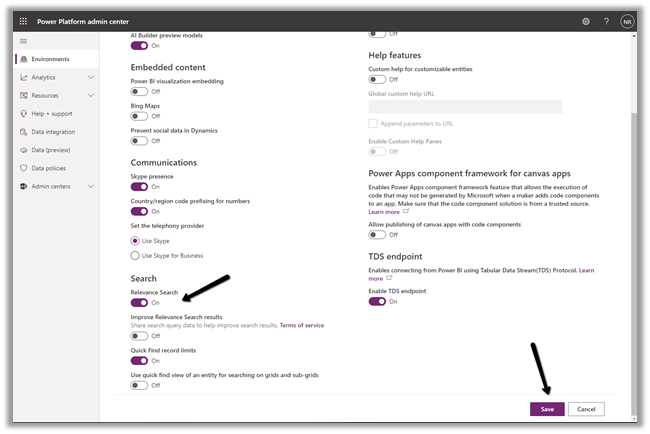
To enable the new search experience, we need to turn on the relevance search on that environment.
Login to the admin portal and environments section
https://admin.powerplatform.microsoft.com/environments
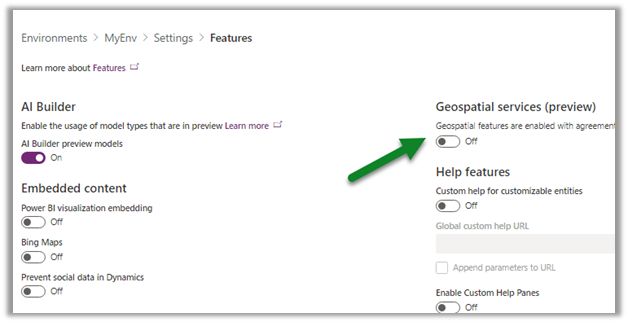
Navigate to Settings -> Features and turn on the Relevance Search
This places the search bar in the header, making it easy to access while navigating across different pages.
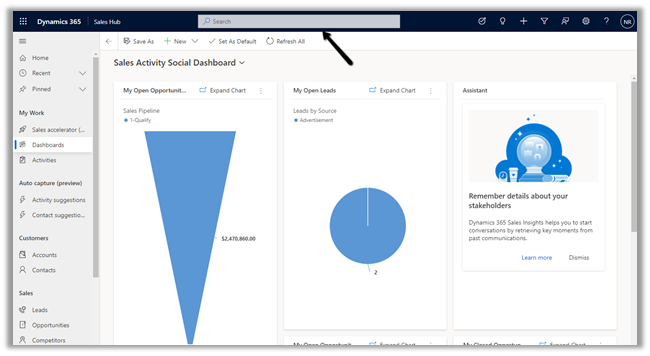
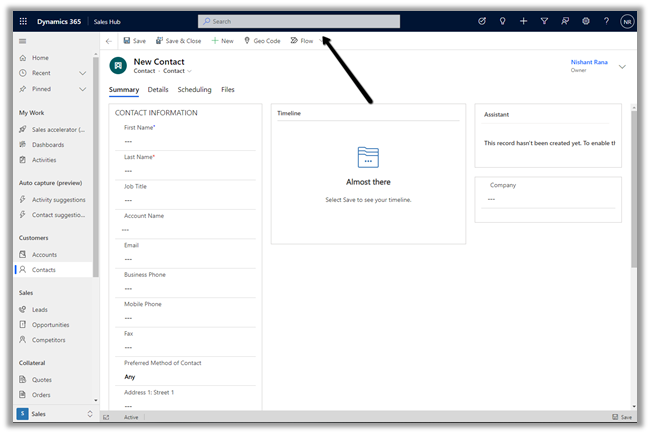
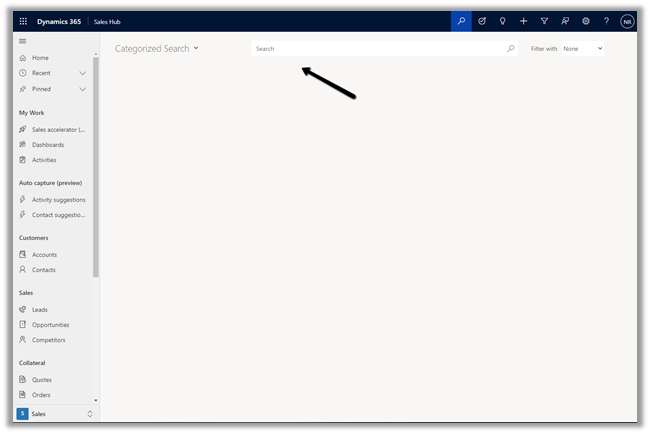
With Relevance search turned off à
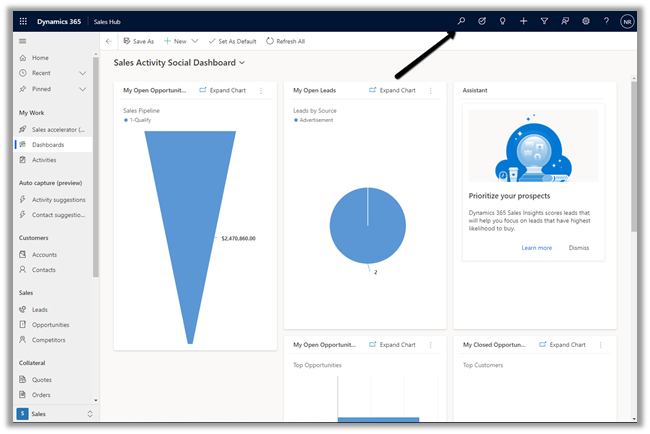
On clicking the search icon à we are navigated to the categorized search page.
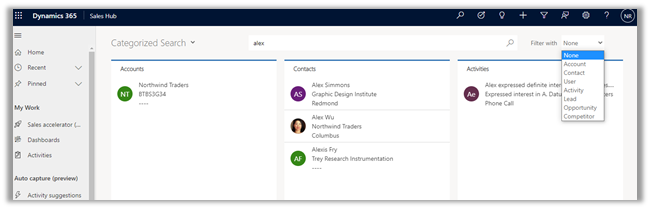
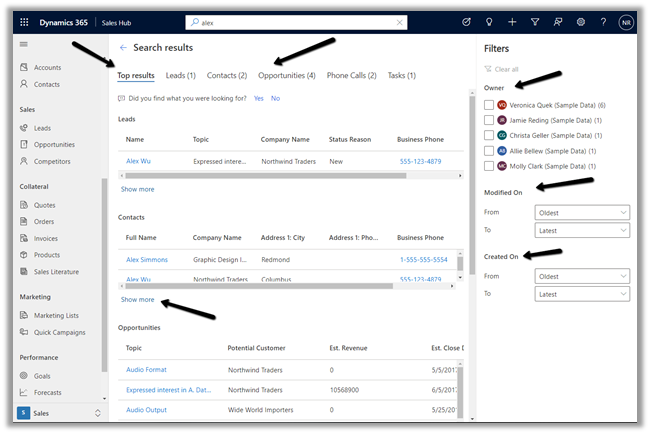
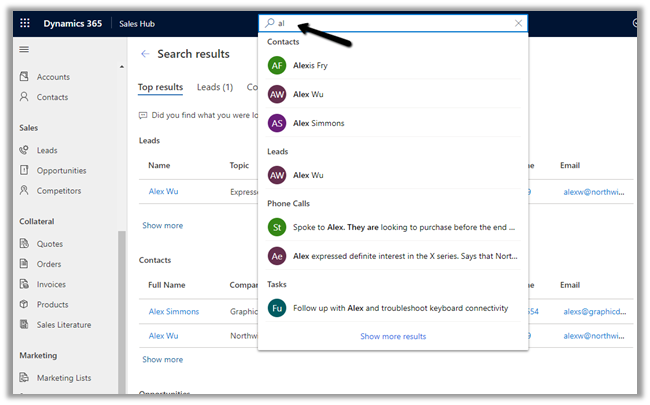
The search result for the term “alex” with Relevance Search on–
Even before we can enter our query in the search box, the search box displays the recent terms (seems like max 3) used for search along with recent records (seems like max 6) accessed.
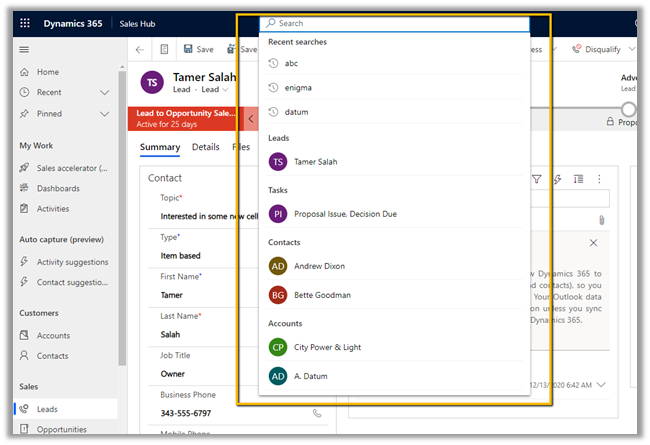
Provides increment search or real-time suggestions while we are tying the search term
Get all the details here
And must-read article on the new search experience à
https://jukkaniiranen.com/2020/11/make-your-power-apps-search-experience-more-relevant/
Blog posts on 2021 Release Wave 1 – Dynamics 365
Hope it helps..
- Making a Field Read-Only in Business Process Flow (BPF) – Dataverse / Dynamics 365
 A common requirement with Business Process Flows is this: the user must capture all the required details on the form before they are allowed to move to the next stage of the … Continue reading “Making a Field Read-Only in Business Process Flow (BPF) – Dataverse / Dynamics 365”
 - How to Enable Microsoft 365 Copilot in Model-Driven Apps
 Microsoft 365 Copilot brings conversational AI directly into Model-Driven Apps, allowing users to ask natural language questions about Dataverse data, quickly locate records, and improve productivity without leaving the application. In this … Continue reading “How to Enable Microsoft 365 Copilot in Model-Driven Apps”
 - AB-100 Last-Minute Revision Cheat Sheet (Microsoft Agentic AI Business Solutions Architect)
 Recently, I cleared the Microsoft Certified: Architecting Agentic AI Business Solutions (AB-100) exam. While preparing, I ended up creating this one-page Architect’s Compass for my last-minute revision. Instead of memorizing every Microsoft … Continue reading “AB-100 Last-Minute Revision Cheat Sheet (Microsoft Agentic AI Business Solutions Architect)”
 - Column Visualizations for Grids / Views (Preview) –Dataverse / Dynamics 365
 Power Apps now lets us render a column’s data as a small graphic in the grid – a gauge, a sparkline, a colored bar, or stars – instead of plain text. We … Continue reading “Column Visualizations for Grids / Views (Preview) –Dataverse / Dynamics 365”
 - Business Process Flow Error: “Participating entity record of stage: X is not valid” (0x80040216) (Dynamics 365 / Dataverse)
 Scenario Working on a custom multi-entity Business Process Flow (Opportunity → Quote) recently, we ran into this error while trying to reactivate the process: The BPF (custom_salesprocess) had already traversed several stages … Continue reading “Business Process Flow Error: “Participating entity record of stage: X is not valid” (0x80040216) (Dynamics 365 / Dataverse)”
 - Comparing Web Resources (JavaScript) Across Multiple Dataverse Environments Using a Console App
 We recently refactored a large JavaScript solution — replacing a number of deprecated methods with their supported equivalents, along with some performance improvements — the kind of change that touches a lot … Continue reading “Comparing Web Resources (JavaScript) Across Multiple Dataverse Environments Using a Console App”
 - Power Platform Environment Not Showing Up in Maker Portal & Power Platform Admin Center (Dataverse / Dynamics 365)
 Recently, we ran into an interesting issue while working with a Dynamics 365 / Dataverse environment. Even though the user was assigned the System Administrator security role, the environment did not appear … Continue reading “Power Platform Environment Not Showing Up in Maker Portal & Power Platform Admin Center (Dataverse / Dynamics 365)”
 - SQL4CDS UTC Mode: Converting Advanced Find Date Filters to UTC Boundaries– A Quick Reference (Dataverse / Dynamics 365)
 While validating record counts for a Work Orders view in Dynamics 365 Field Service, we ran into the same underlying issue covered in an earlier post – Why SQL4CDS Record Counts May … Continue reading “SQL4CDS UTC Mode: Converting Advanced Find Date Filters to UTC Boundaries– A Quick Reference (Dataverse / Dynamics 365)”
 - Hide Expired Sessions in Event Registration Form using JavaScript (Dynamics 365 Customer Insights – Journeys)
 One of our recent requirements was to ensure that users could no longer register for event sessions once the session had already ended. The goal was to improve the user experience by … Continue reading “Hide Expired Sessions in Event Registration Form using JavaScript (Dynamics 365 Customer Insights – Journeys)”
 - When Entity.Id Is Guid.Empty with QueryExpression.Distinct = True (Dataverse)
 While optimising the performance of a Dataverse plugin, we noticed a QueryExpression using ColumnSet(true). The business logic only required a few attributes, so replacing ColumnSet(true) with a minimal ColumnSet looked like an … Continue reading “When Entity.Id Is Guid.Empty with QueryExpression.Distinct = True (Dataverse)”
 - Implementing Cloudflare Turnstile for Dynamics 365 Customer Insights – Journeys Real-Time Marketing Forms
 Check the previous posts for more details – https://nishantrana.me/2026/07/22/custom-form-submission-validation-in-dynamics-365-customer-insights-journeys-inside-the-validation-pipeline-and-the-ms_captcha_solution-error/ https://nishantrana.me/2026/07/21/implementing-server-side-honeypot-validation-for-dynamics-365-customer-insights-journeys-forms/ In one of our recent projects, we implemented Cloudflare Turnstile (Invisible) for a Dynamics 365 Customer Insights – Journeys Real-Time Marketing form. … Continue reading “Implementing Cloudflare Turnstile for Dynamics 365 Customer Insights – Journeys Real-Time Marketing Forms”
 - Custom Form Submission Validation in Dynamics 365 Customer Insights – Journeys: Inside the Validation Pipeline and the “ms_captcha_solution” Error
 While implementing custom form submission validation (server side validation) for Dynamics 365 Customer Insights – Journeys Real-Time Marketing forms, we came across the following error, “Required params cannot be null or empty … Continue reading “Custom Form Submission Validation in Dynamics 365 Customer Insights – Journeys: Inside the Validation Pipeline and the “ms_captcha_solution” Error”