How to – Stop synchronization of Task / Appointment between Dynamics 365 and Outlook


In the earlier posts we saw how synchronization works for different activities type and how to work with user as well as system filters.

In this post, we will how to use the wonderful Sync Filter Manager (XrmToolBox Plugin) for managing the outlook filters.

Suppose we don’t want Tasks to be synced for some of the users.

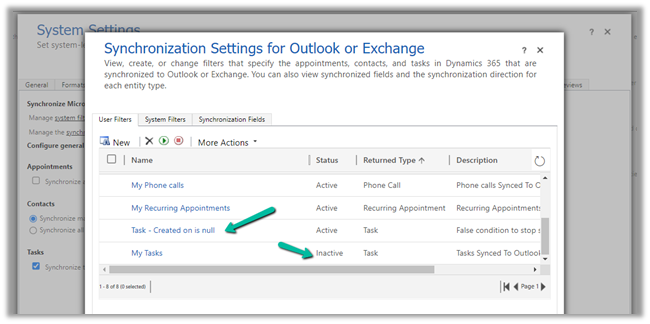
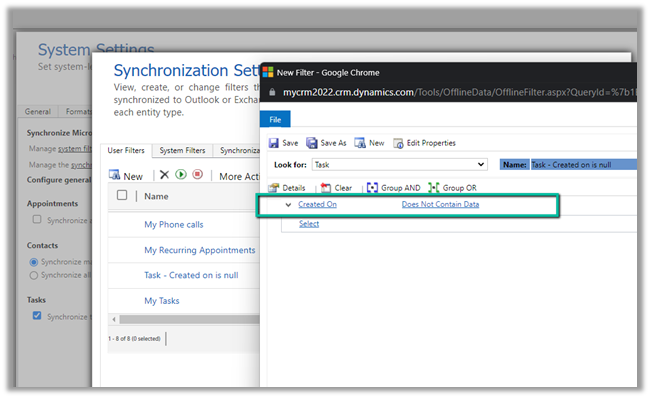
Here we already have a custom user filter (Task- Created on is null) defined for one of the users, specifying the condition which will always be false.

We have also disabled the default filter on tasks – My Tasks for that user.

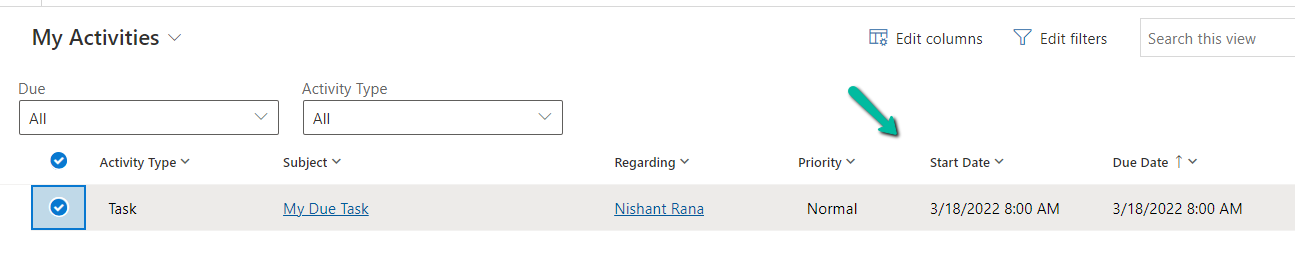
For that particular user, now we do not see any tasks getting synced.

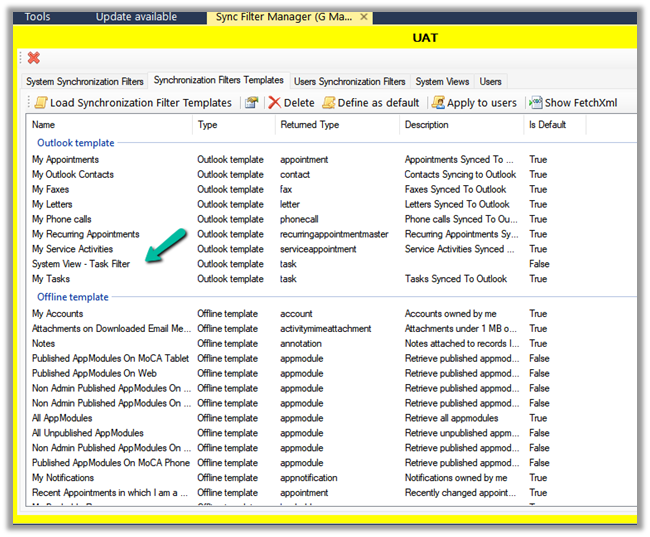
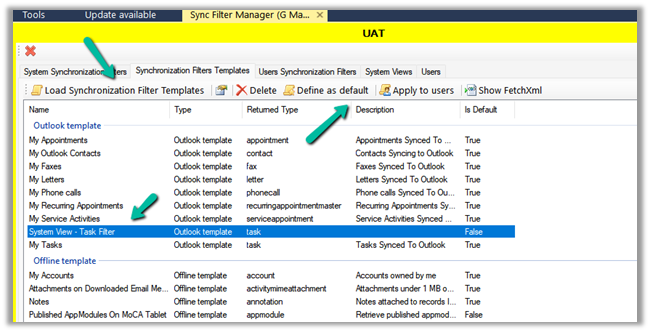
Now to apply the same setting to the others users, we can use the wonderful Sync Filter Manager – XrmToolBox plugin.

To know more about the tool –

http://mscrmtools.blogspot.com/2013/12/introducing-new-tool-sync-filter-manager.html

https://www.slideshare.net/jukkan/control-outlook-synchronization-settings-for-dynamics-crm-users

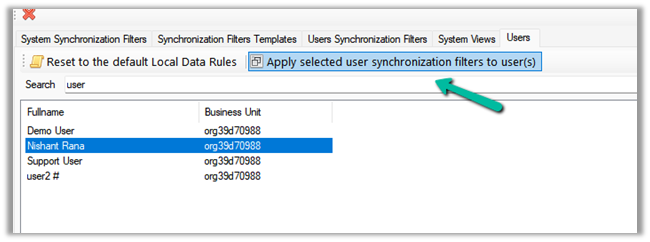
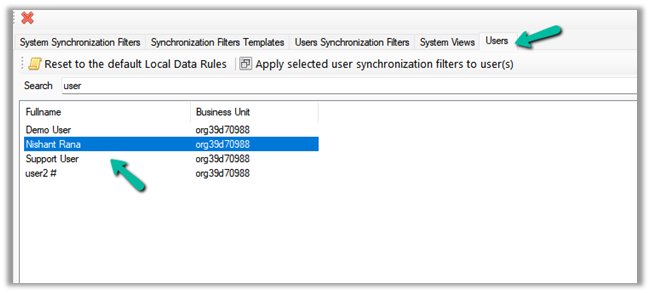
Navigate to the Users tab, search for the user whose setting we want to apply to other users, and select it.

Here we have selected the source user record

Click on Apply selected user synchronization filer to user(s) button.

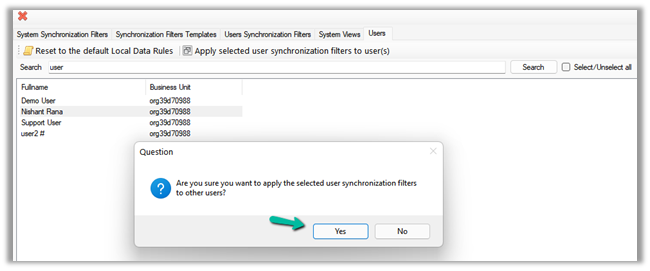
For Question Dialog Box – “Are you sure want to apply the selected user synchronization filters to other users ?” – select Yes

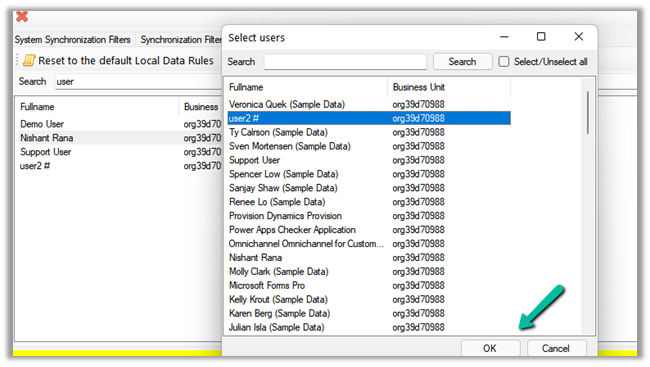
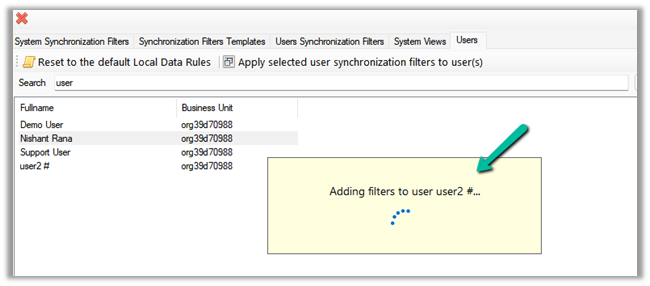
For now, we have selected only User 2. We can select multiple users or select / unselect all the users.

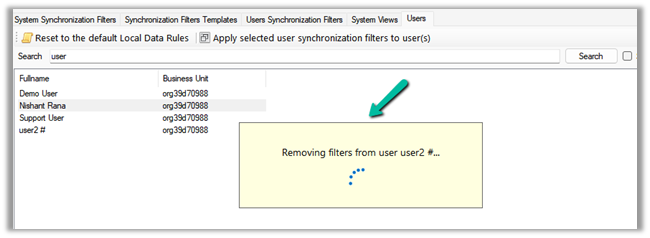
It will remove the default / or existing filters from users. User 2 in our case.

And will add the filters from the selected user to it.

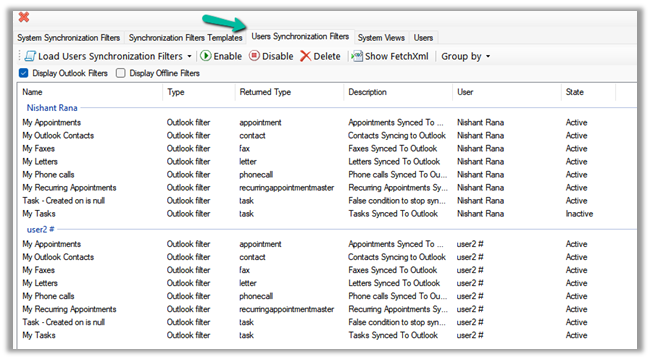
After some time, we can see the filters updated for User 2, with the Task – Created on is null filter added.

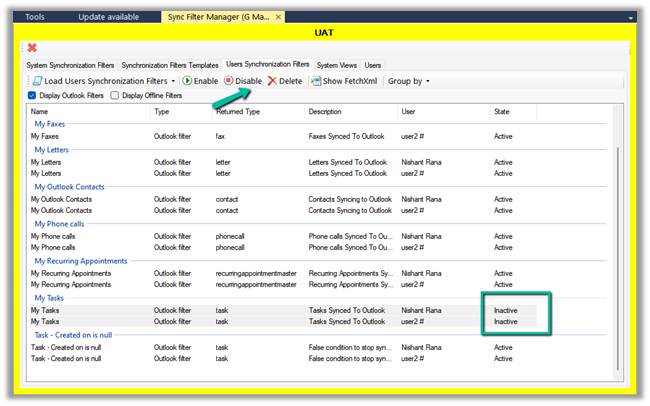
We can also verify it from the User Synchronization Filters tab, where we can load the synchronization filters for all the users.

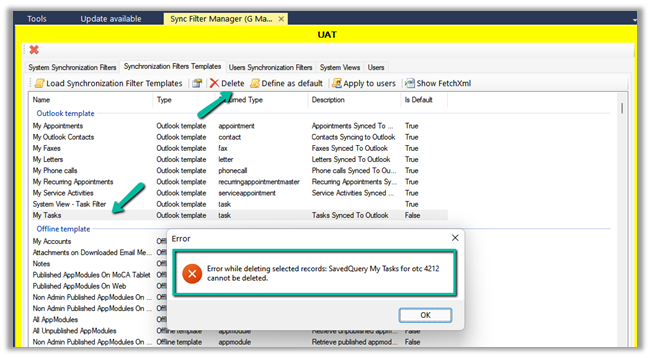
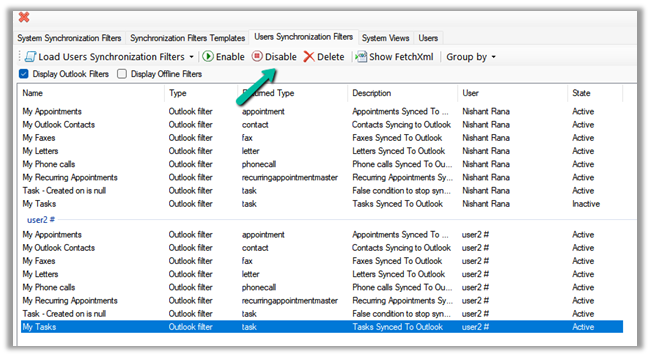
As a last step we just need to deactivate/delete the default My Tasks filter for User 2 also(or all the other users for who we want to disable task sync) and we are done.

Hope it helps..

Advertisements

How are tasks, letters, fax, phone call synchronized between Dynamics 365 and Outlook


In the previous post, we saw how Appointment Synchronization works, for other activity entities the  is more or less similar.

How to – Synchronize Appointments between Dynamics 365 and Outlook using Server-Side Synchronization

Below is the list of activity entities that are synced by default (we cannot configure custom entities for sync)

Let us start by creating a sample record for fax, letter, phone call, and task in Dynamics 365.

After some time we can see all of these activities synced to Outlook as Tasks.

Let us mark the task record as complete in Dynamics 365.

Similarly, let us mark the phone call as completed in Outlook.

After a few mins, we can see the task marked as completed in Dynamics 365 marked completed in outlook after the sync.

And phone call marked as completed in outlook, marked completed in Dynamics 365 and moved to closed activities view in Dynamics 365.

Now let us delete the Letter record from Dynamics 365.

And delete the Fax record from outlook.

After successful sync, we can see the corresponding records deleted from both Outlook and Dynamics 365.

Also if we create a task with due date more than a day, a reminder is also set in Outlook, when synced.

tasks

In Outlook after sync- 

reminder

Get all the details here –

https://docs.microsoft.com/en-us/power-platform/admin/sync-logic#syncing-tasks

Hope it helps..

Advertisements

How to – Download files from File Column / Attribute using SSIS – KingswaySoft (Dynamics 365/ CRM)


Let us take a simple example to understand how we can download files from the file column using SSIS Package + KingswaySoft’s Integration Toolkit.

Here we have a File Column defined for Contact Entity.

Our SSIS package will run on all the contact records and will extract the file from the records to one of the folders in the local machine.

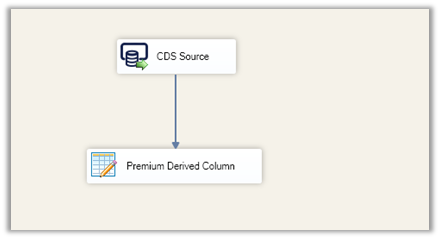
This is what our package’s data flow looks like.

It has just 2 components CDS Source and Premium Derived Column.

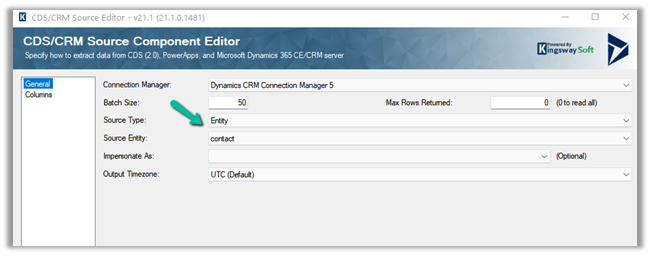
CDS Source is connected to the Contact entity.

For Columns, we have selected our file column fields.

Next, we have next added a Primary Derived Column component.

We have used the WriteBinaryComponent function to write the binary content (new_myfile_binarycontent field) to a file.

WriteBinaryContent(“D:\\MyDownloadedFile\\”+[new_myfile_name], new_myfile_binarycontent])

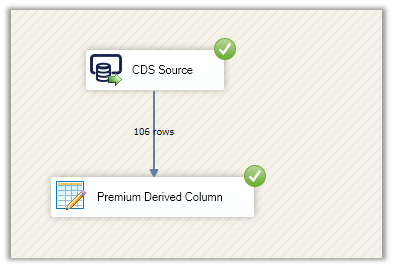
On running the package successfully, we can see the files downloaded at the folder specified.

The result – as we just had 2 contact records out of 106 having file uploaded to it we can see those 2 filed downloaded.

Hope it helps..
Advertisements

How to – Download File from File Column using InitializeFileBlocksDownload and DownloadBlock Request (Dynamics 365/ CRM / Dataverse)


Sharing a sample code which we can use to download the file from the File Column

Also read –

https://nishantrana.me/2021/10/01/using-file-and-image-data-type-in-dataverse-dynamics-365/

File Attribute

Here we would download the below file uploaded to one of the contact records.

The sample code –

On calling the method –

We can see the file downloaded at the location specified

Here the file transfers are limited to a maximum of 16 MB in a single call. In case of more than 16 MB, we need to divide the data into 4 MB or smaller chunks, combine or join the downloaded data to form the complete file.

https://docs.microsoft.com/en-us/powerapps/developer/data-platform/file-attributes#example-net-c-code-for-download-with-chunking

Get more details – Retrieve File Data

*interestingly enough we didn't get any error while trying to download files with size more than 16 GB by using the DownloadBlockRequest

Hope it helps..
private static void DownloadFile(CrmServiceClient svc, string *interestingly enough we didn't get any error while trying to download files with size entityName, Guid recordGuid, 
            string fileAttributeName, string filePath)
        {
            var initializeFileBlocksDownloadRequest = new InitializeFileBlocksDownloadRequest
            {
                Target = new EntityReference(entityName, recordGuid),
                FileAttributeName = fileAttributeName
            };

            var initializeFileBlocksDownloadResponse = (InitializeFileBlocksDownloadResponse)
                svc.Execute(initializeFileBlocksDownloadRequest);

            DownloadBlockRequest downloadBlockRequest = new DownloadBlockRequest
            {
                FileContinuationToken = initializeFileBlocksDownloadResponse.FileContinuationToken
            };

            var downloadBlockResponse = (DownloadBlockResponse)svc.Execute(downloadBlockRequest);

            // Creates a new file, writes the specified byte array to the file,
            // and then closes the file. If the target file already exists, it is overwritten.

            File.WriteAllBytes(filePath + 
                initializeFileBlocksDownloadResponse.FileName, 
                downloadBlockResponse.Data);

        }
Advertisements

Mind Map – Power Platform 2022 Release Wave 1 Overview


Check out the Mind Map for the 2022 Release Wave 1 Power Platform by Khoa Nguyen

https://dyncrmexp.com/2022/03/05/power-platform-2022-release-wave-1-overview/

Advertisements

How to – Use Business Rules to Disable / Read-only fields in Editable Grid (Dynamics 365 / CRM)


In the previous post, we saw how to use Field Level Security and JavaScript to disable field/column in the Editable Grid Control.

How to – Disable / Read Only fields in Editable Grid control (Dynamics 365 / CRM) – Nishant Rana’s Weblog

We can also use Business Rules to achieve the same.

Here we will be disabling the email field.

Below is our sample business rule to lock the email field.

The result – we have the field locked/disabled in the editable grid control.

Couple of things we need to take care of

1st the field that we are using in the condition inside business rule, last name in our case, should be there in the view.

And the Scope of the Business Rule should be either – Entity or All Forms.

Also check  – https://nishantrana.me/2022/02/15/power-apps-grid-control-in-model-driven-apps-dynamics-365-crm/

Hope it helps..
Advertisements