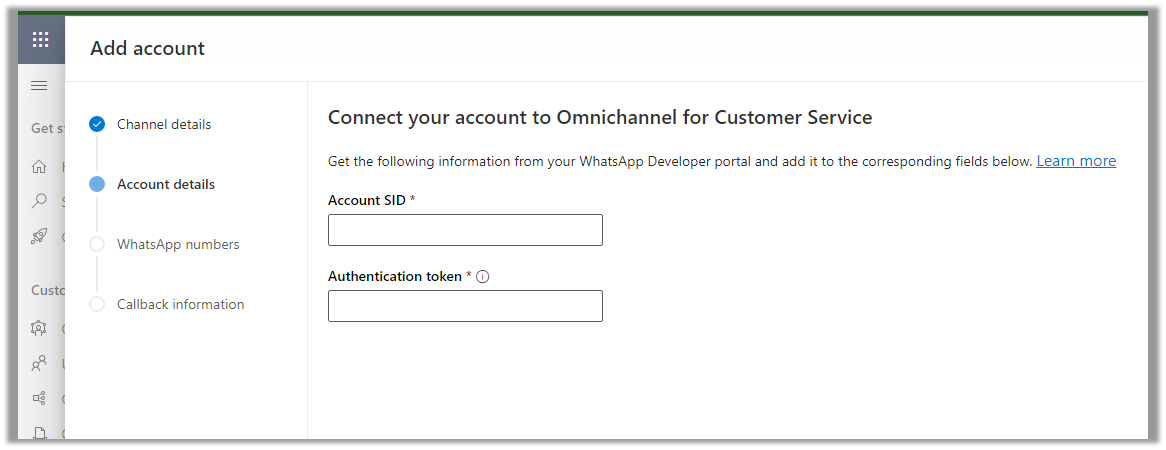
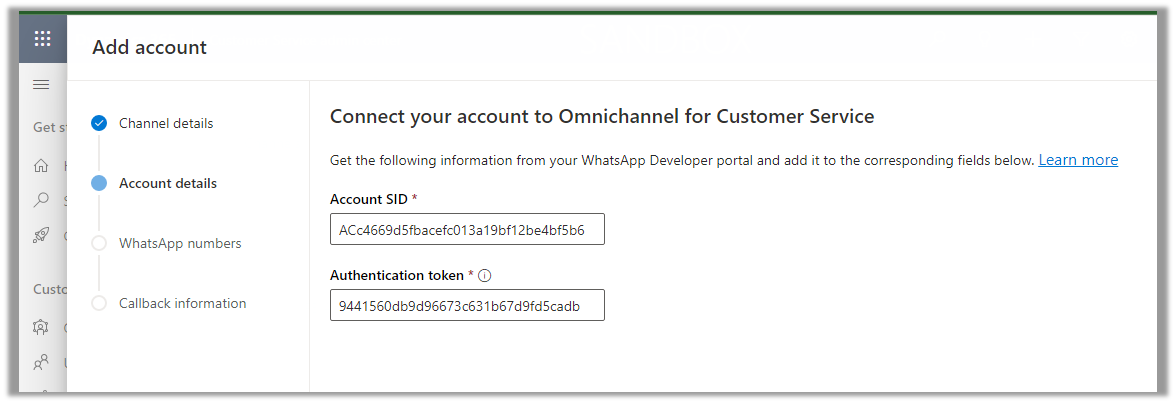
Enter Account SID and Authentication token click on Next
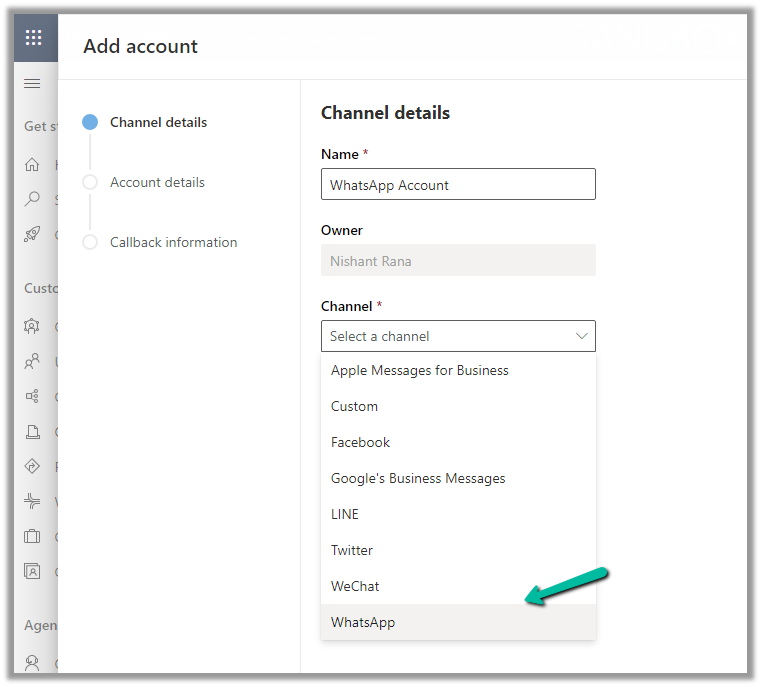
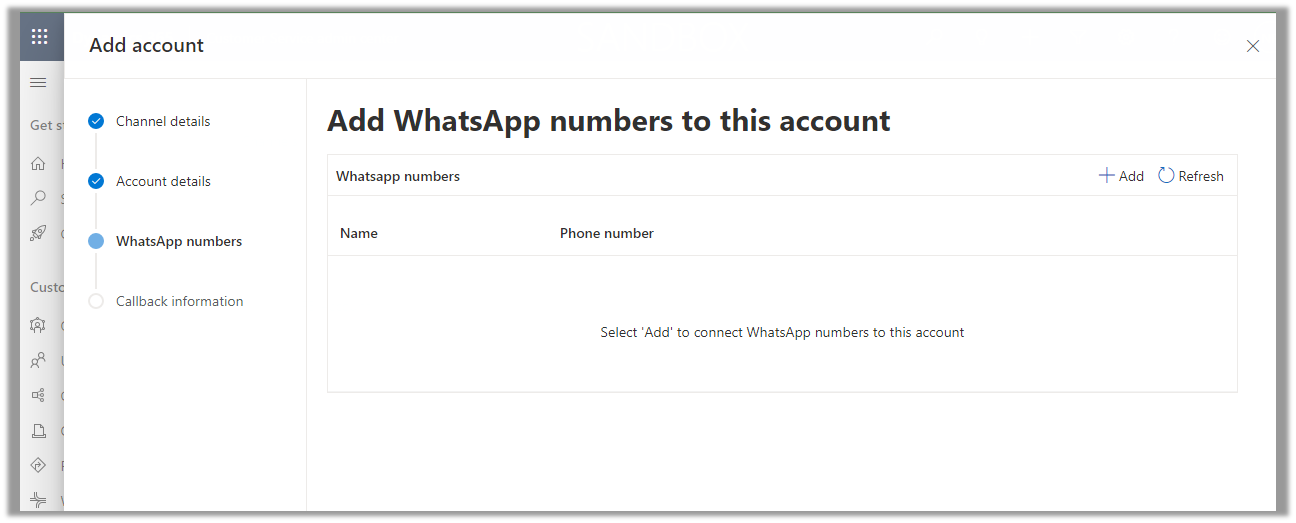
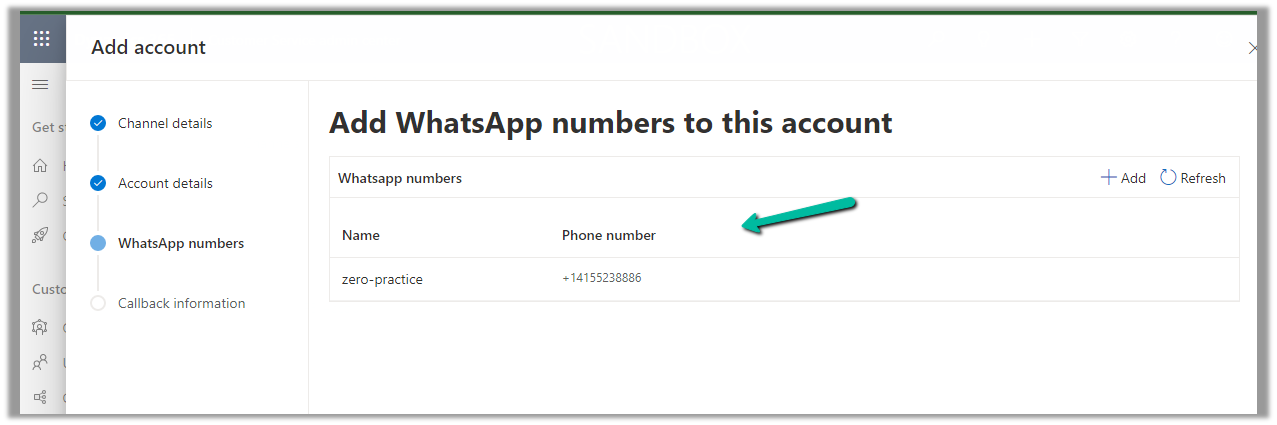
Next, we need to add the WhatsApp Name and Phone number
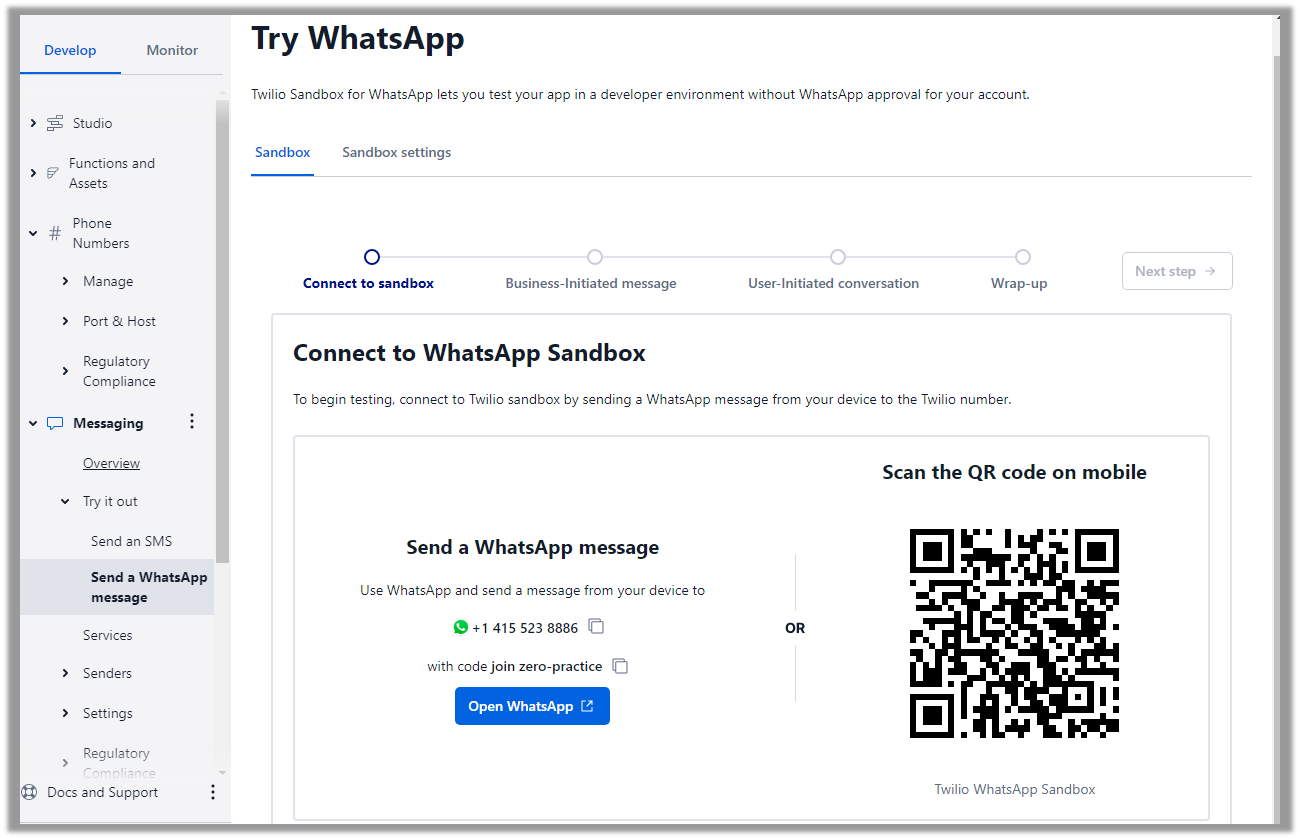
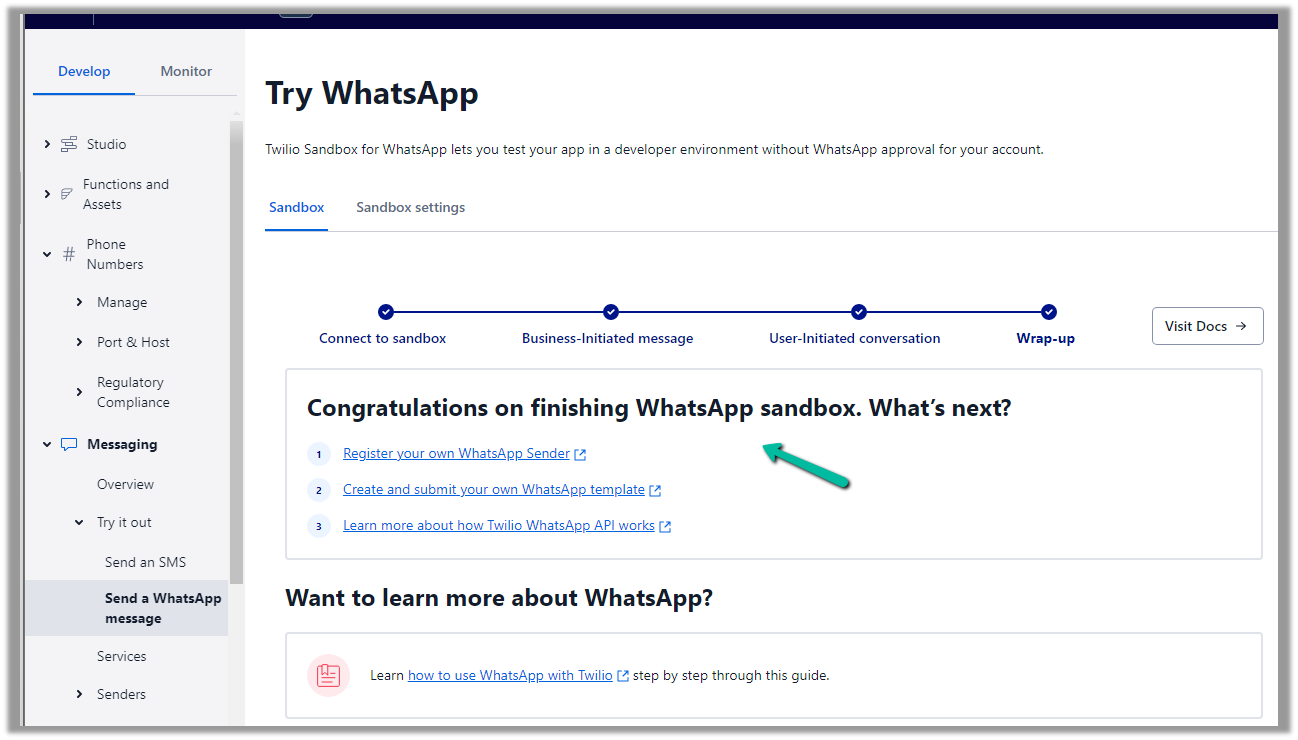
Navigate to Messaging >> Try it out >> Send a WhatsApp message to activate the WhatsApp Sandbox.
Follow the steps there to configure the Sandbox account. (scan the QR code send the Message, and test the Business and User-Initiated message/conversation).
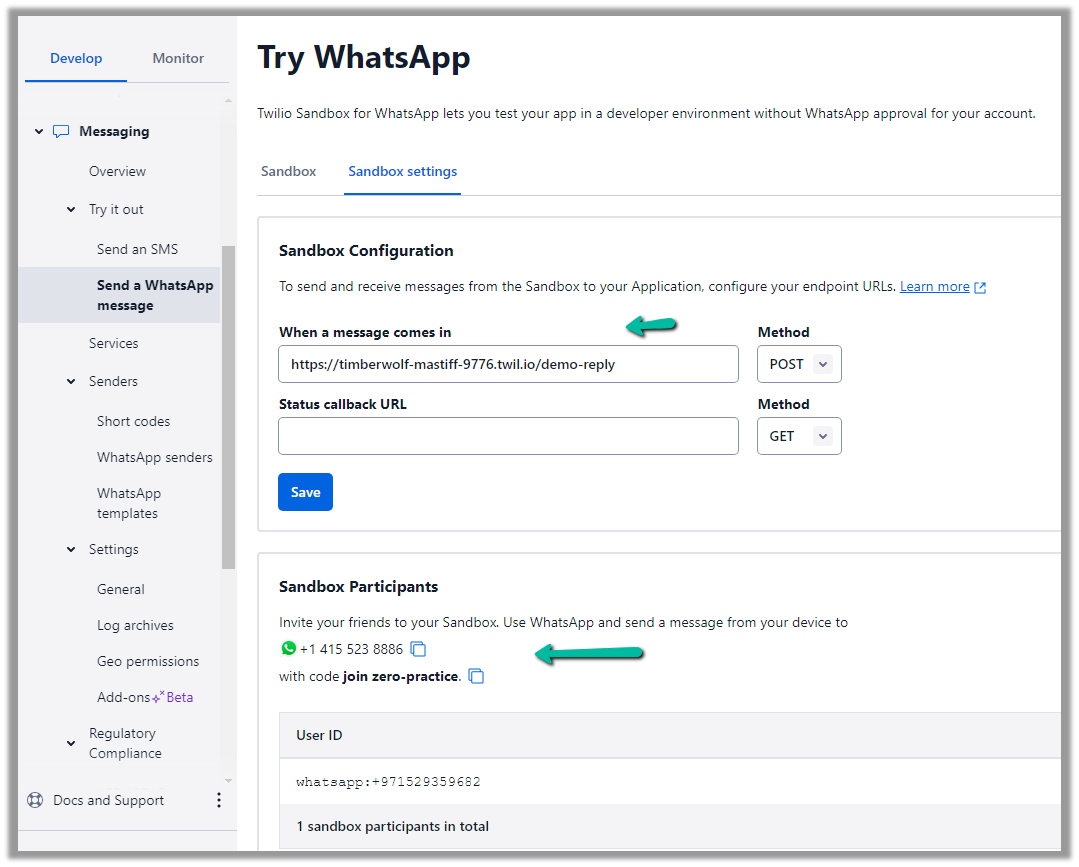
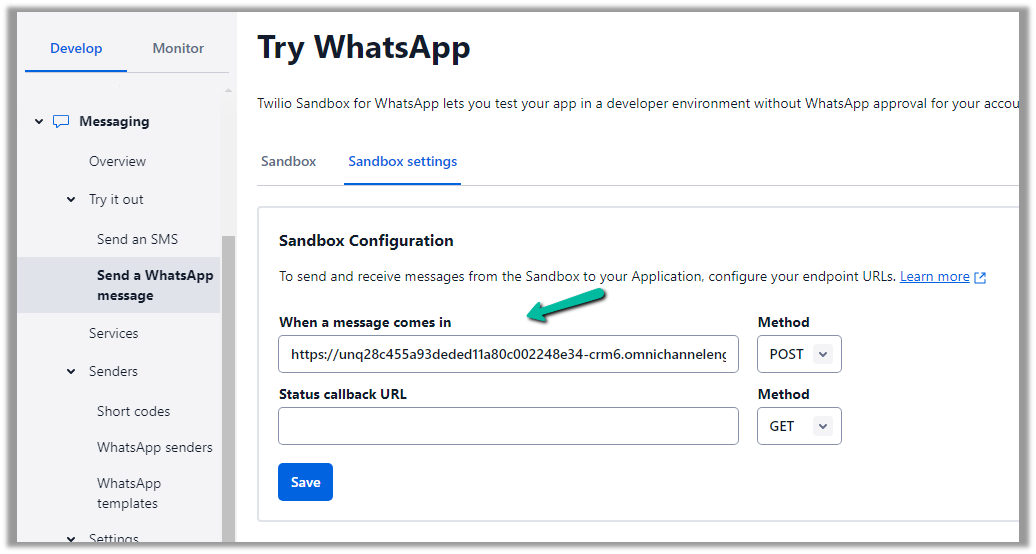
Click on Sandbox setting tab to get more information
Copy the number.
Add the number and click on Next
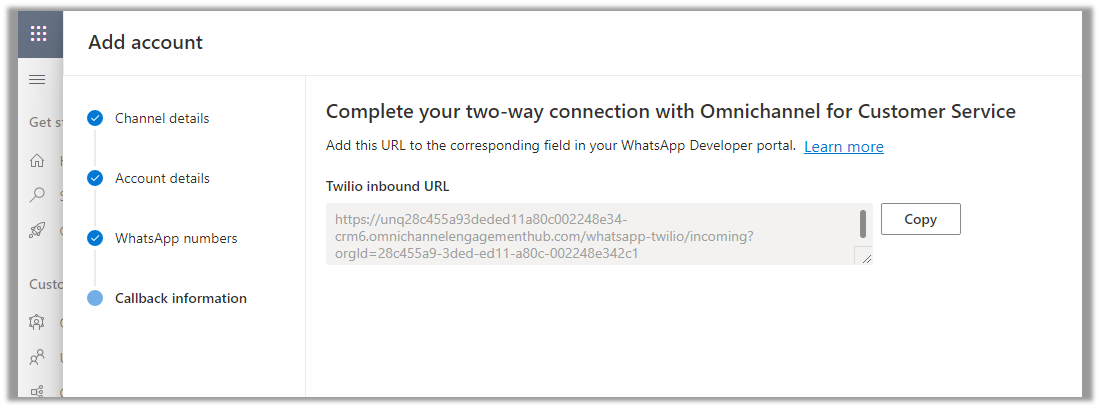
Copy the URL
Paste that URL in the When a message comes in and save.
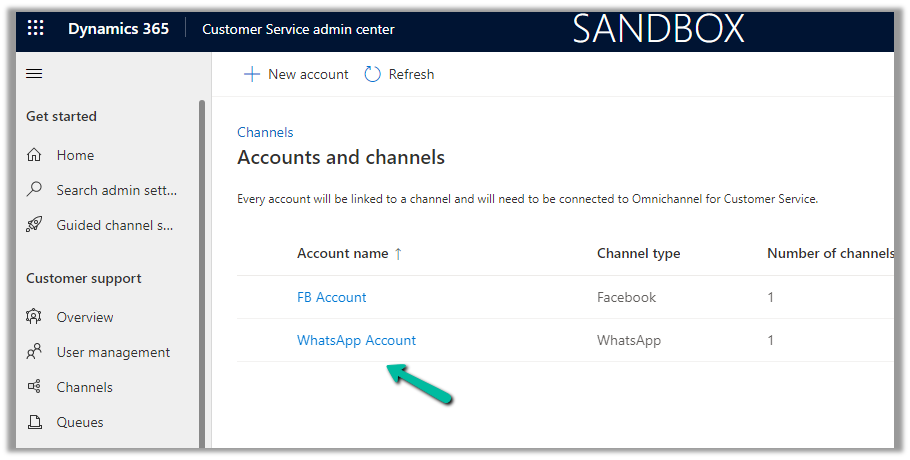
We can see our WhatsApp account created, open the record.
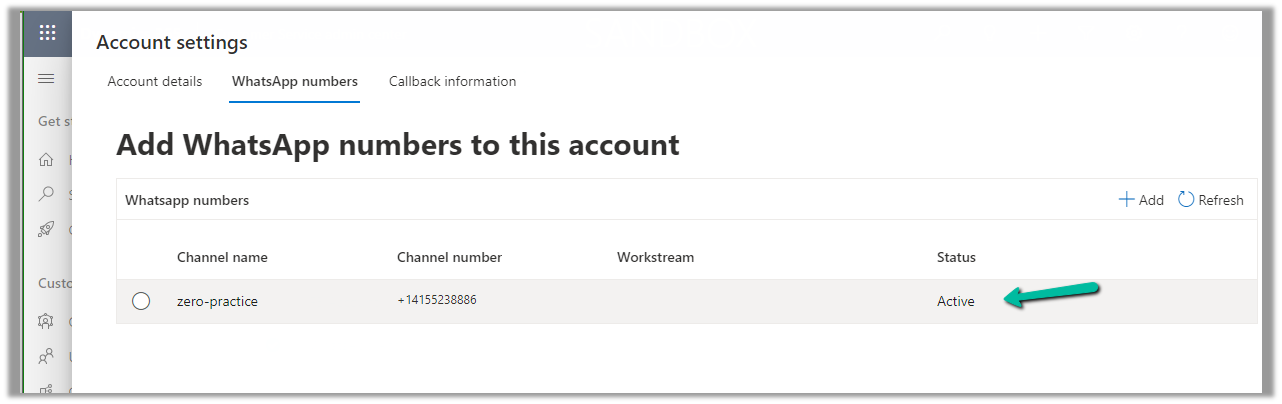
We can see our number being shown as Active
With the account active time to now it is time to set up the channel/workstream / queue.
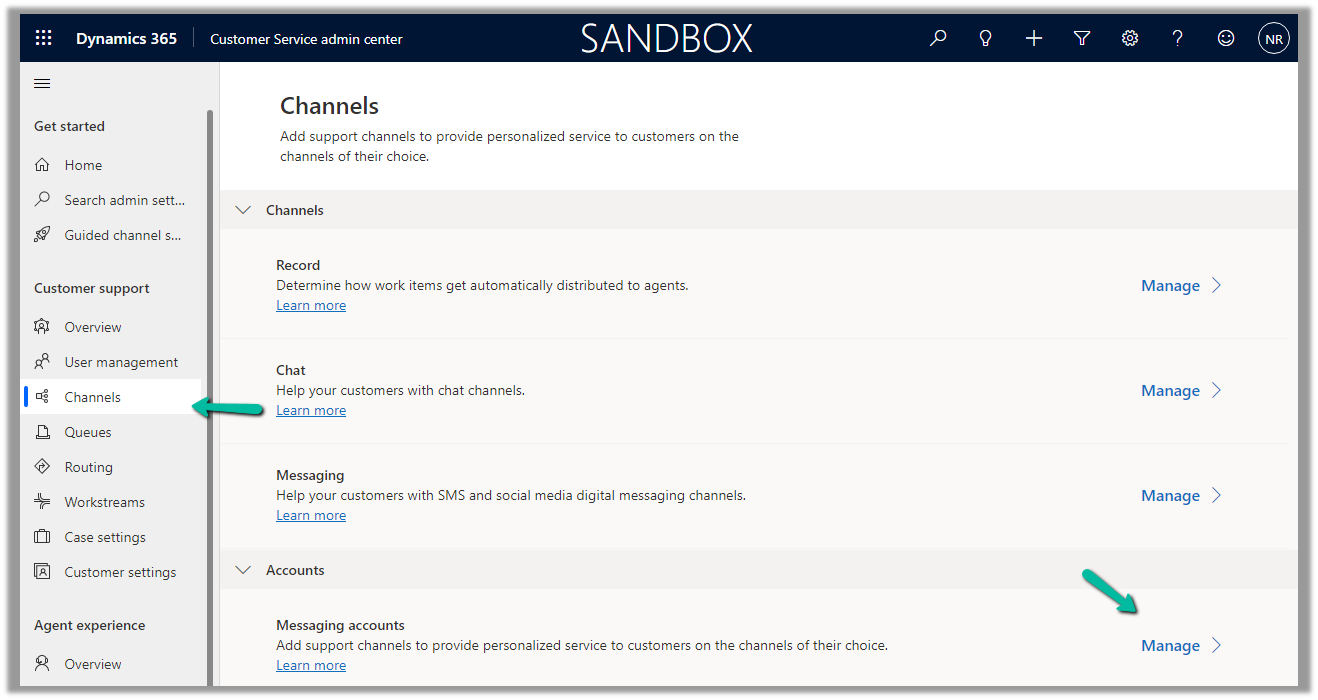
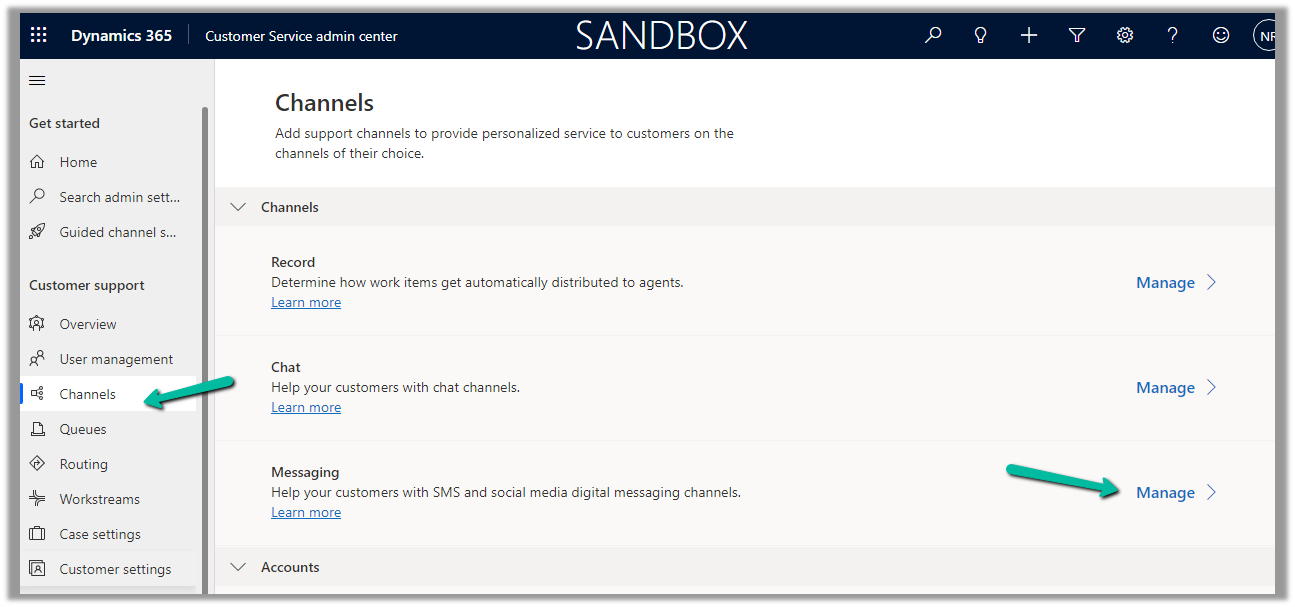
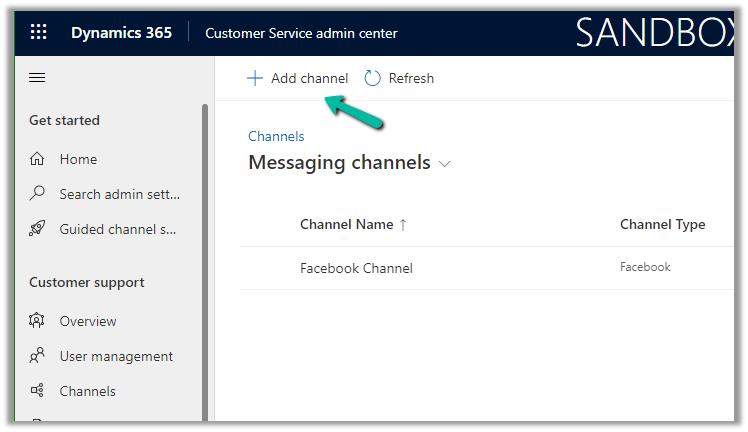
Navigate to Customer Support >> Channels >> Messaging (Manage)
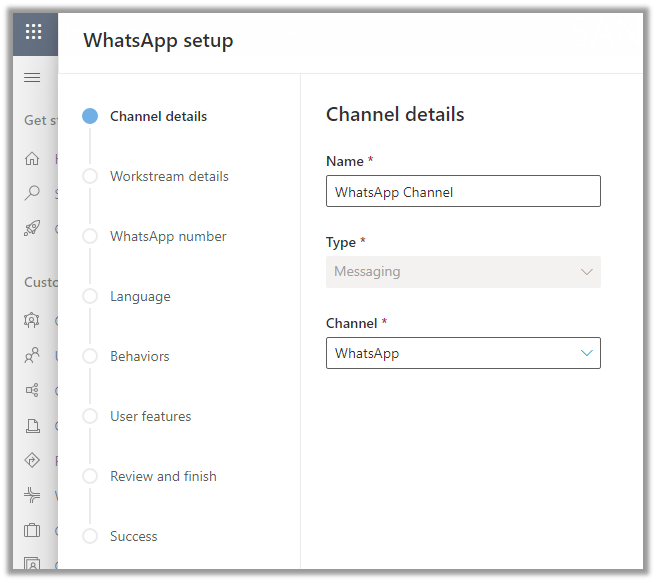
Click on Add Channel and add the details
Enter channel details
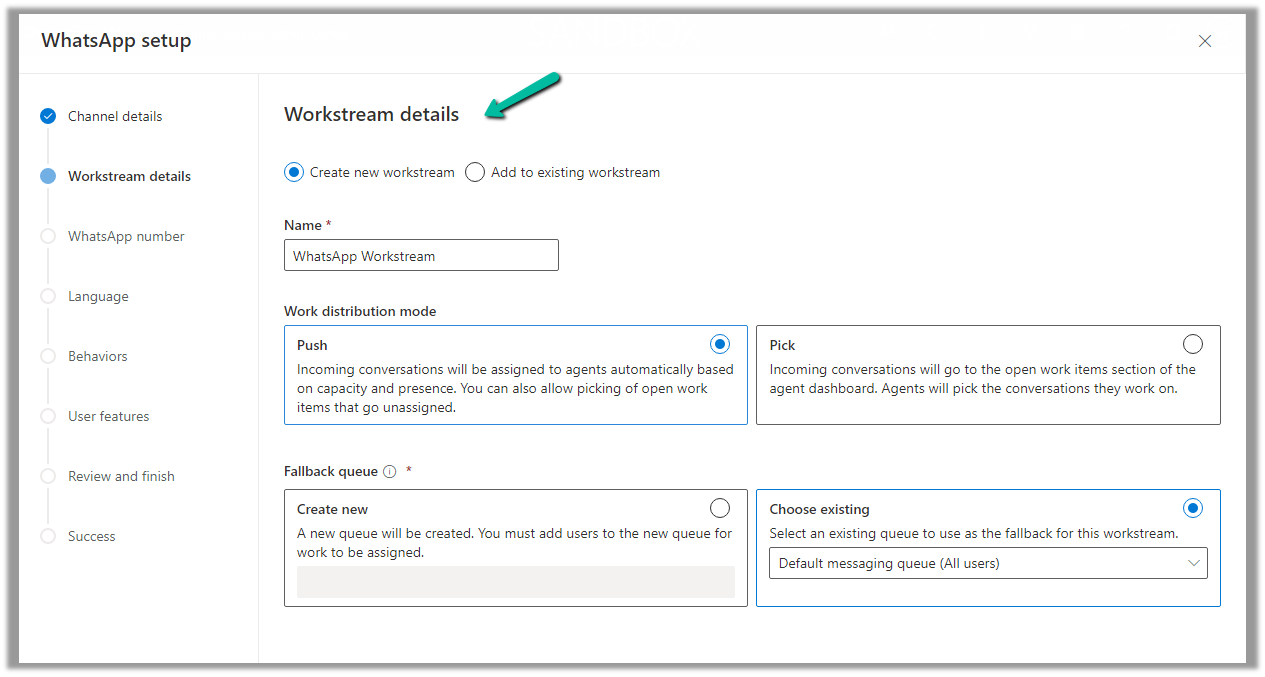
We are creating a new workstream
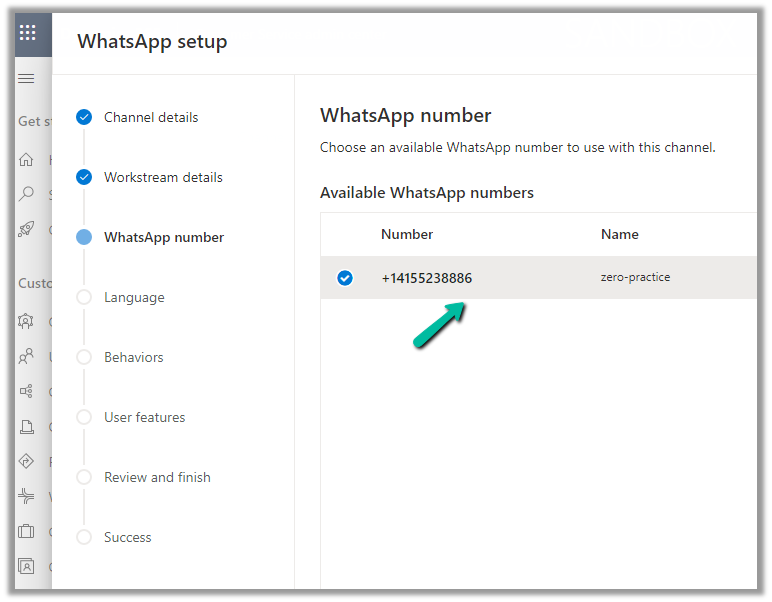
Add the WhatsApp number added
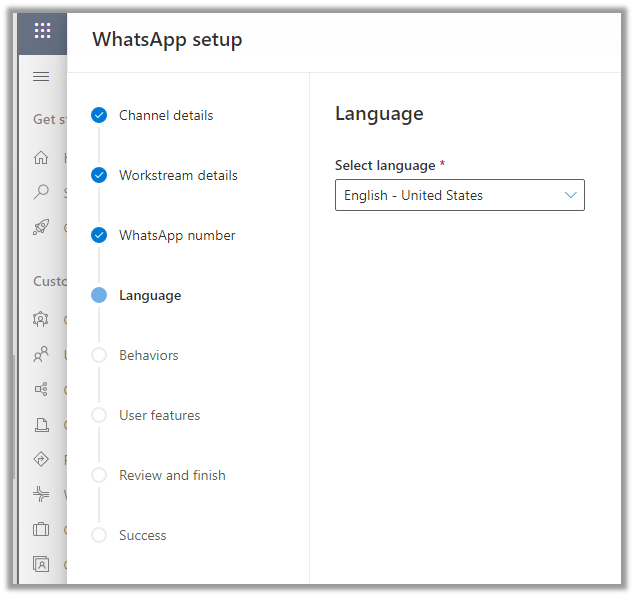
Select the language
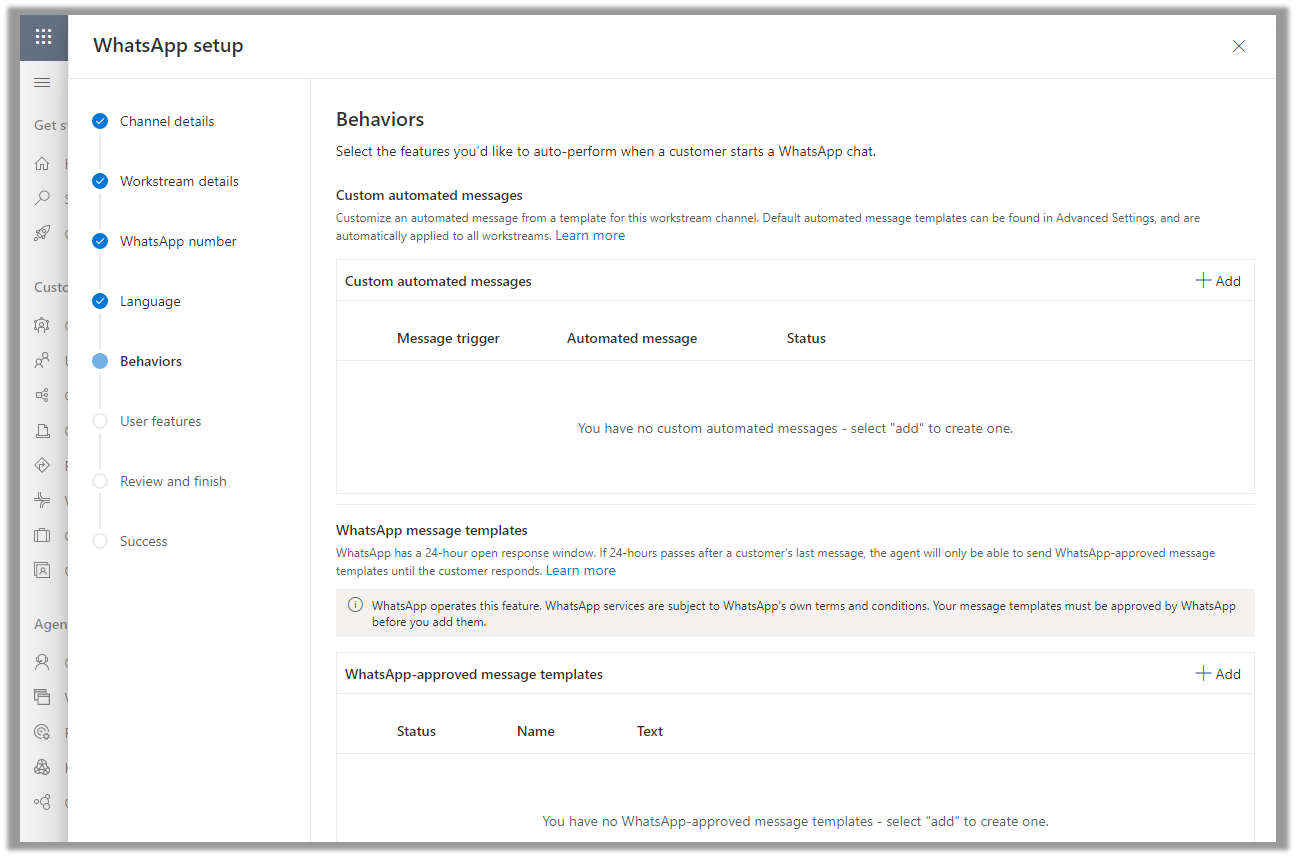
Specify the Behaviour (automated messages and approved templates)
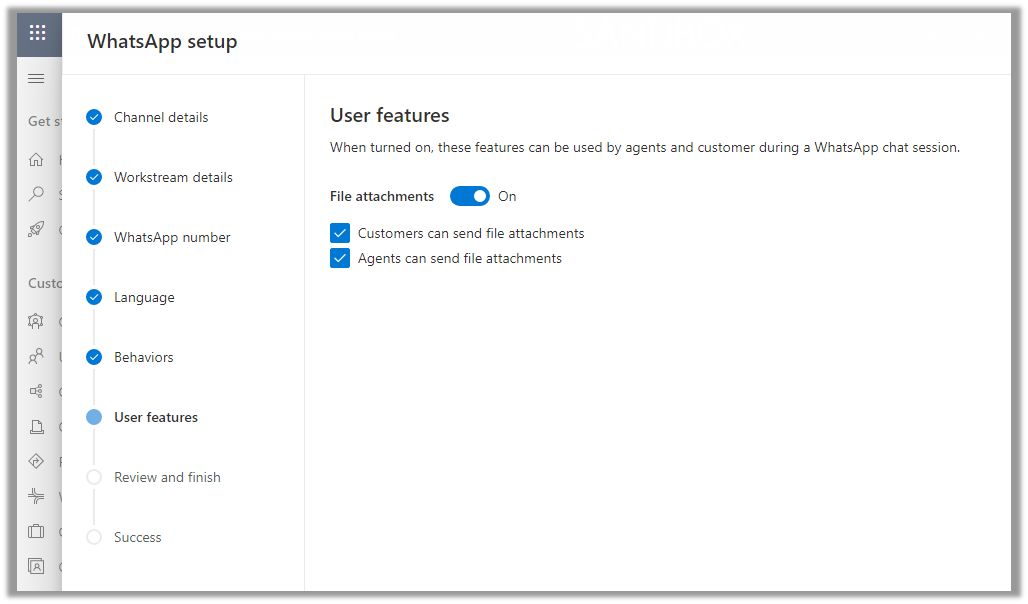
Specify the user features (attachments)
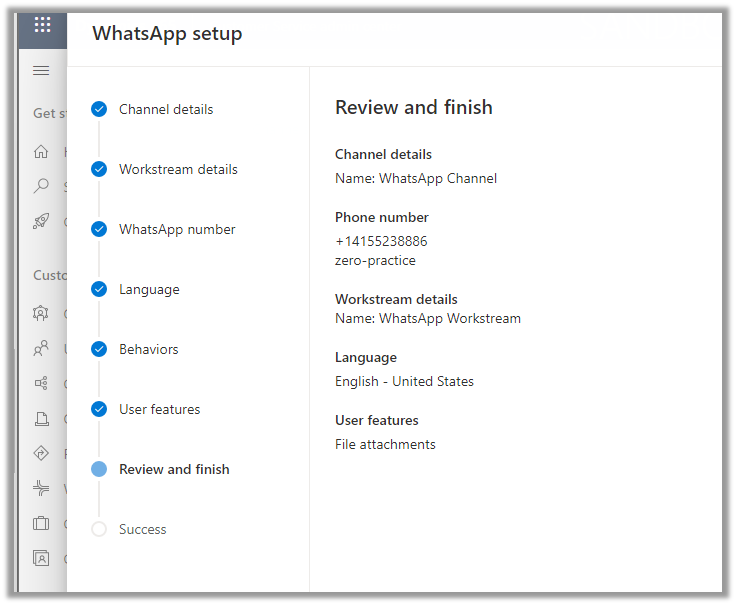
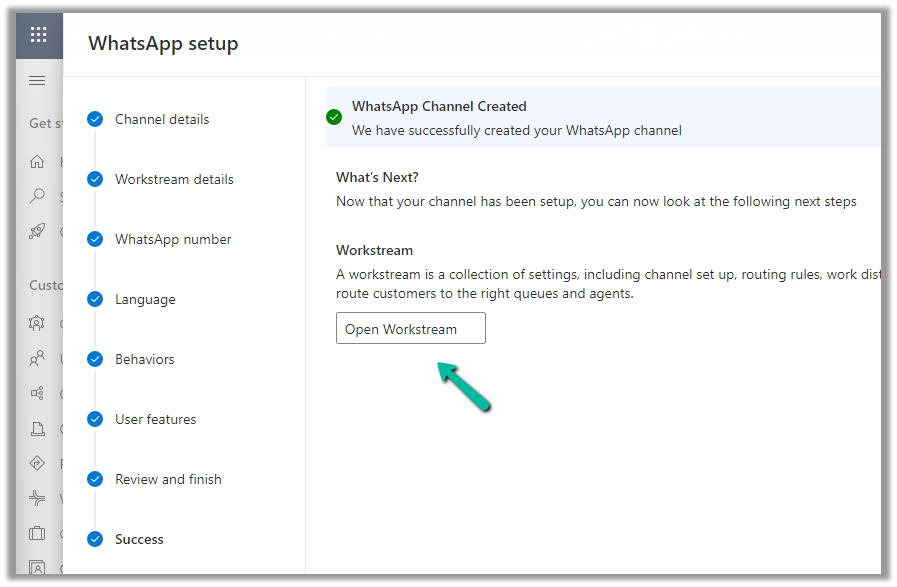
Review and Finish and Create the channel.
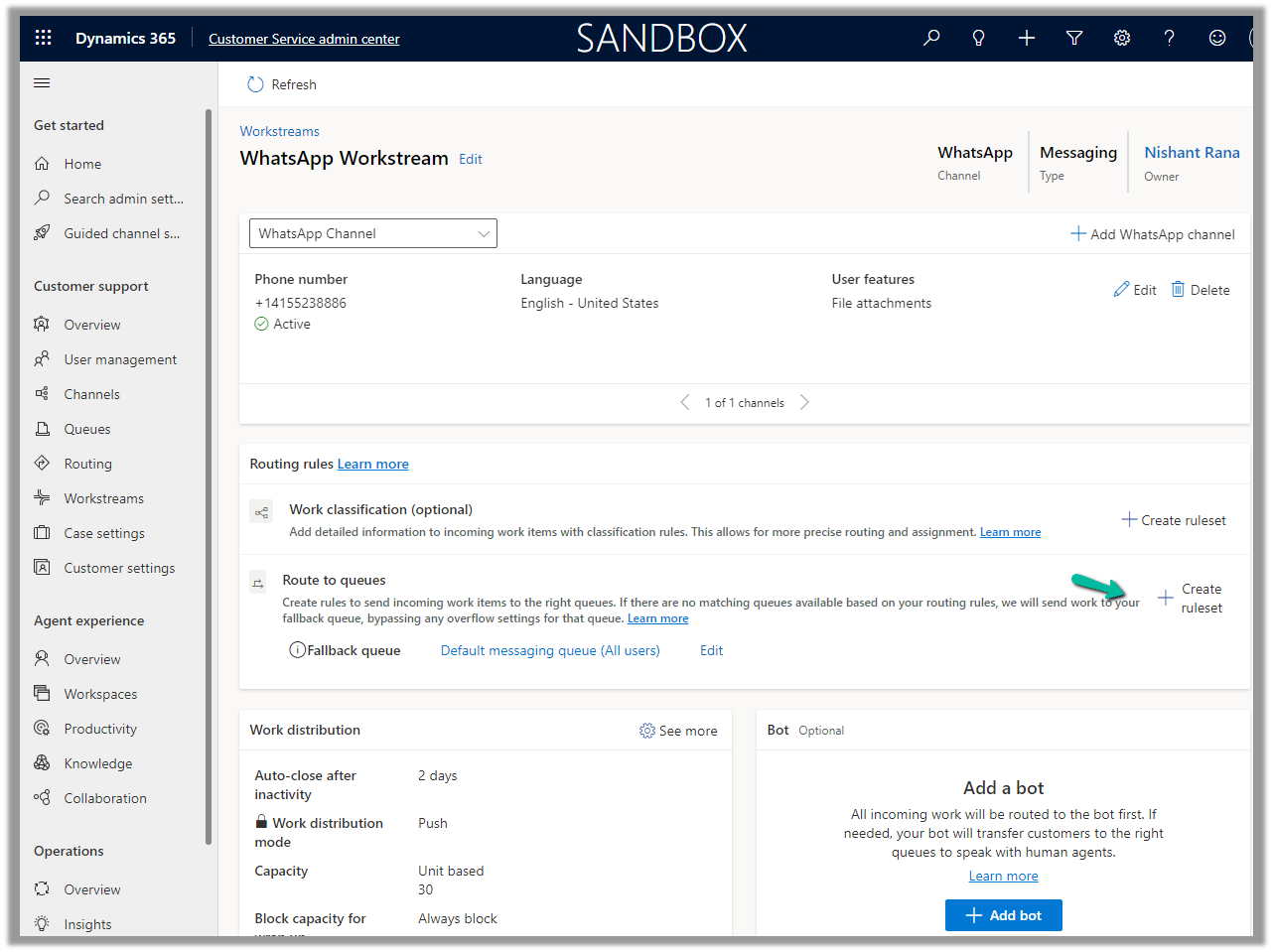
Open the workstream and specify routing rule/fallback queue/work distribution/associate bots etc details
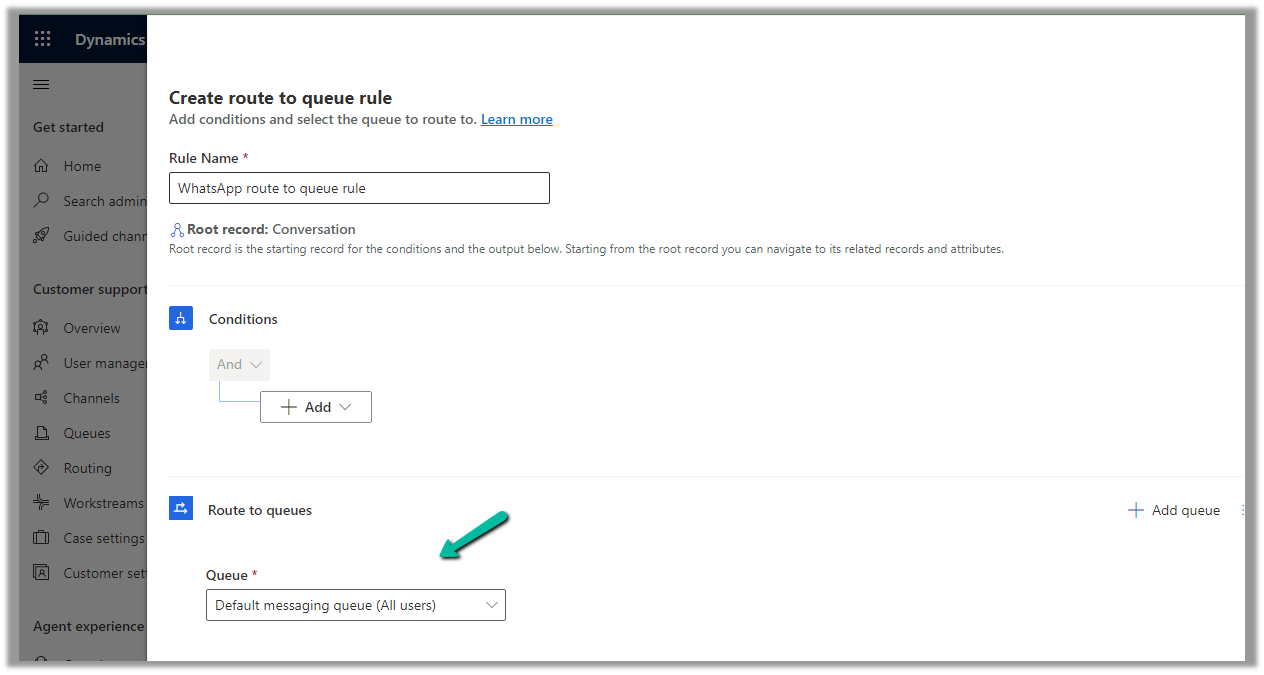
We will create a ruleset to route the message to the queue
We have the below route-to-queue rule created to route to the default queue which has all the omnichannel agents added to it. (In an actual scenario, we would add the conditions and create a specific Advanced Queue).
We are leaving the rest of the settings/configuration as default.
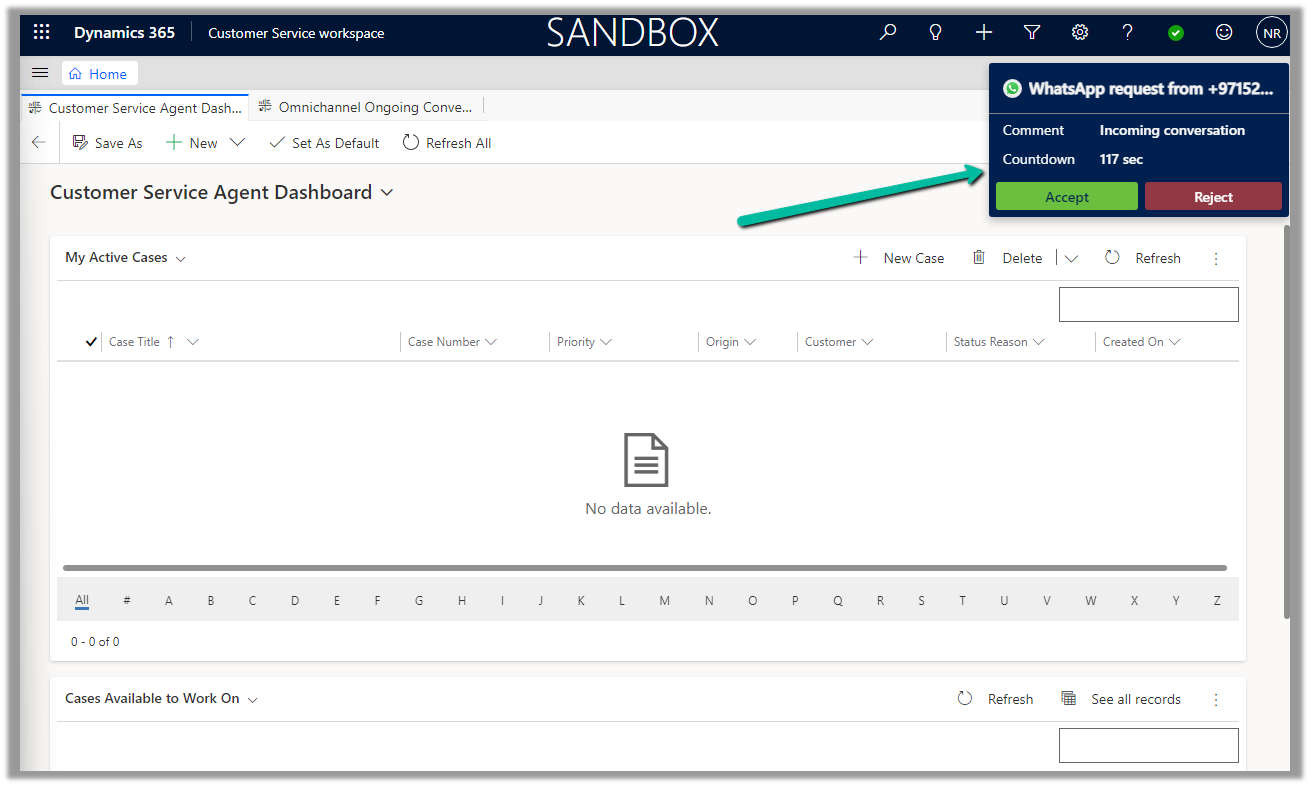
Now is the time to test.
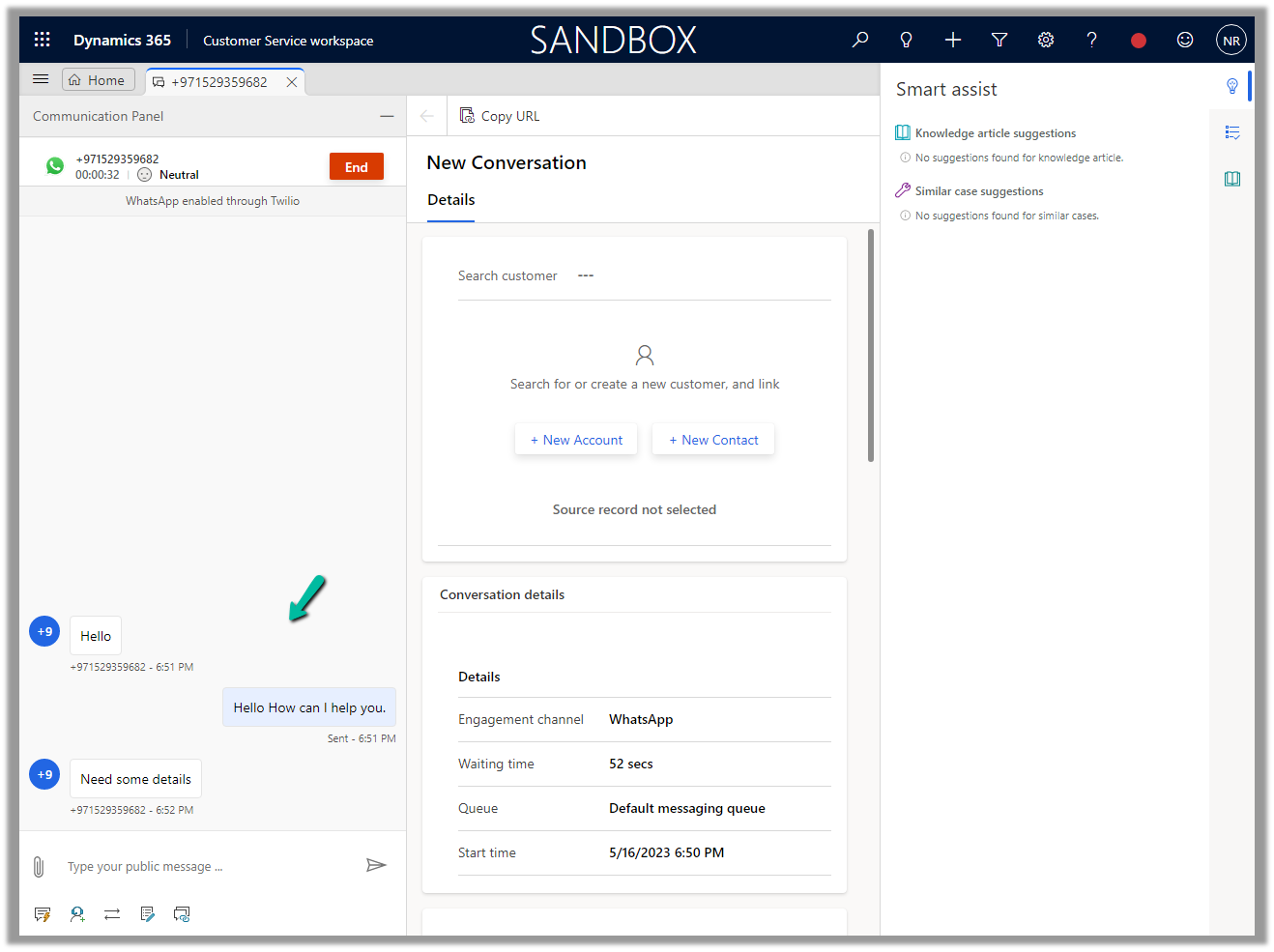
Let us log in to the Customer Service Workspace as an agent and from the registered sandbox participant number added send a message.
To enable the new email address validation feature (preview), log in to Power Platform Admin Center >> Settings >> Features >> Data Validation
Switch On – Data Validation. (Interestingly in one of the environments enabling this setting was enough to get the smart email validation working however in another environment had to enable the below settings as well to get that working)
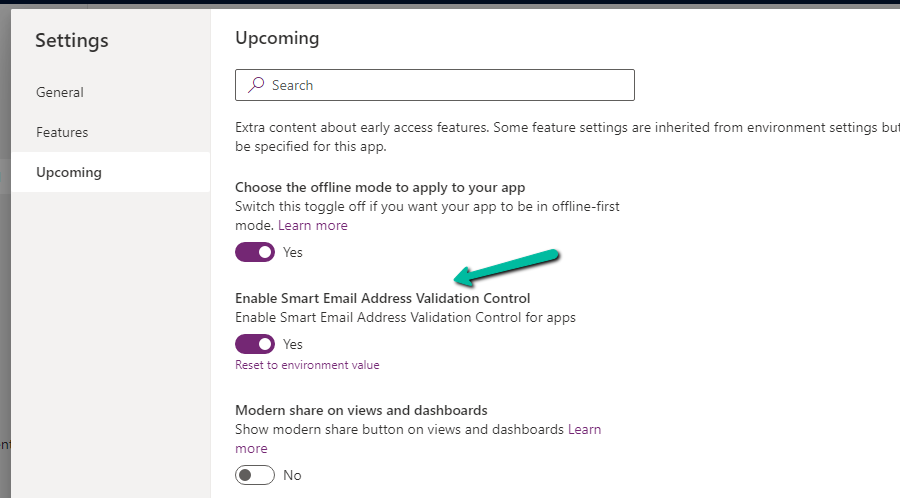
Next open the Model Driven App in Maker Portal – App Designer and switch on Enable Smart Email Address Validation Control
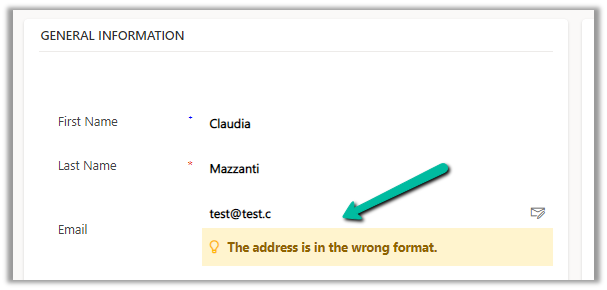
Below we can see it validating the email address while we enter its value
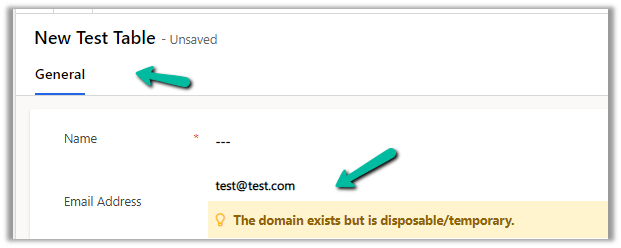
We get the below messages
And this works for the email field in a custom entity as well.
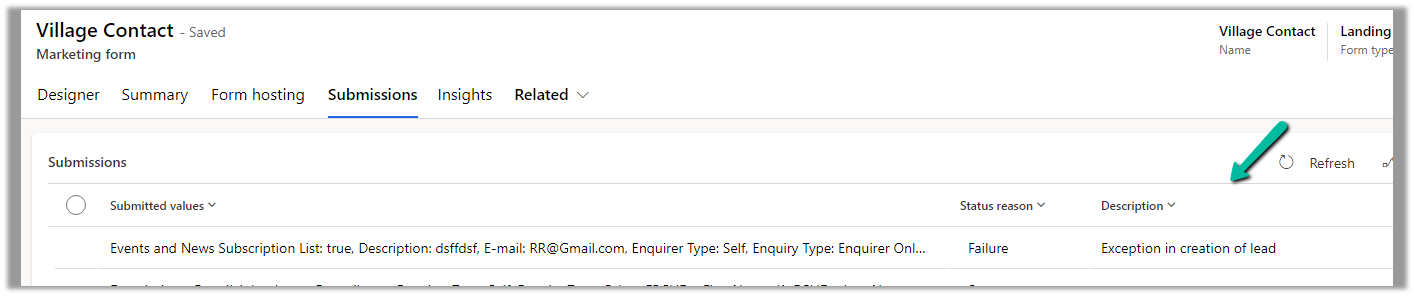
Recently we were getting the below error in one of our marketing forms for form submission record.
Exception in Creation of lead – Activity id: 40ff82fc-bb10-4d30-8671-12683392ccdf, Request id: AsChkx2zn5IKrjHVC4cTb6j-ZkB23D0PqgCdxwi8kEE_0, Exception: An item with the same key has already been added.
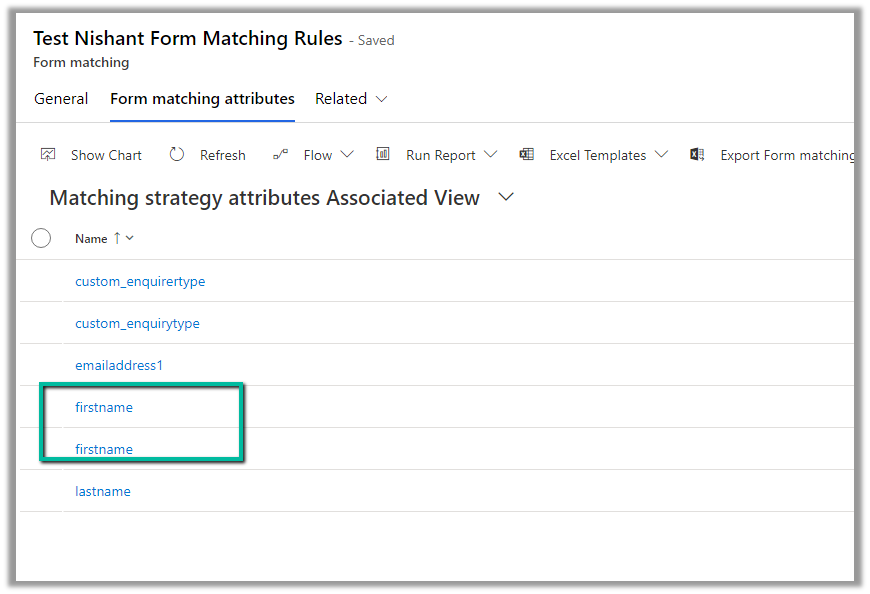
This was because we had mistakenly added first name fields twice as the form-matching attribute in the form-matching rule used for that form.
Deleting that extra field resolved the issue for us.





















 Nishant Rana's Weblog