Run as option in When a row is added, modified or deleted trigger – Power Automate


Let us see Run As option of When a row is added, modified or deleted trigger in action, to understand its behavior.

Below is our example flow – it triggers when a field on the case is updated and then it updates the lead record.
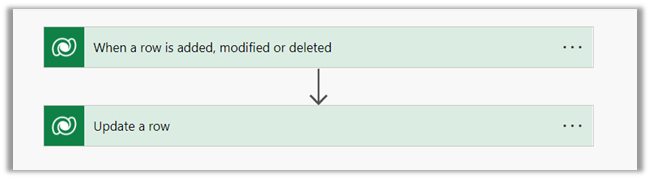
Here we have not specified any value for Run as for When a row is added, modified or deleted trigger step.
On updating a case record using the User 1 account who is also the Flow Owner, we can see the modified user as User 1 for the lead record.
Let us trigger the flow this time through User 2.
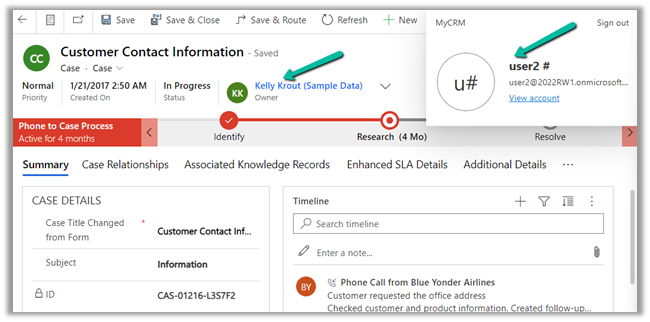
This time also modified by for the lead record is User 1, even though the Modifying User and Row Owner were different.
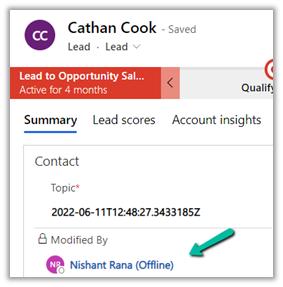
So if Runs as is not specified, the Microsoft Dataverse actions are performed using the context of the Flow Owner.

To test it further let us remove the update rights of User 1, who is the flow owner, and trigger the flow again using User 2.

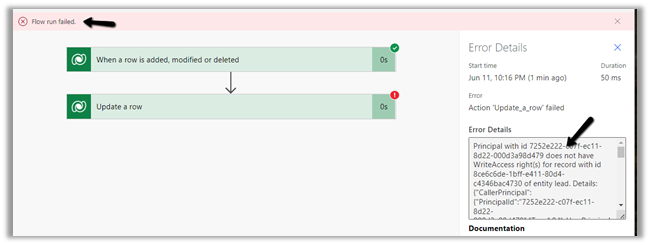
As expected the flow run fails this time.
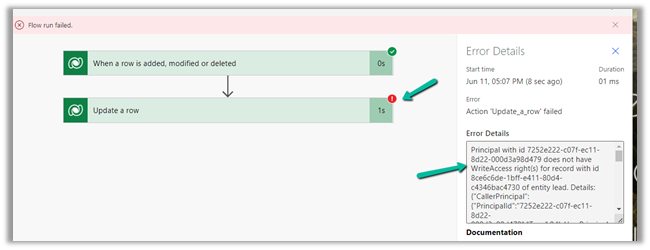
Principal with id 7252e222-c07f-ec11-8d22-000d3a98d479 does not have WriteAccess right(s) for record with id 8ce6c6de-1bff-e411-80d4-c4346bac4730 of entity lead

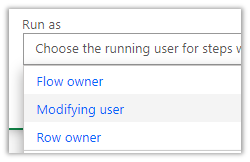
Not let us specify Run as = Modifying User this time, and trigger the flow using User 2 again. (we have restored the rights of User 1)
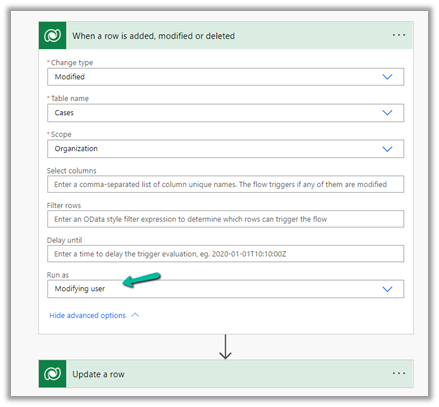
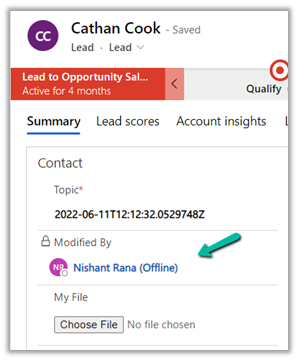
This time also we can see the modified by the user as User 1 (Nishant Rana) the flow owner.
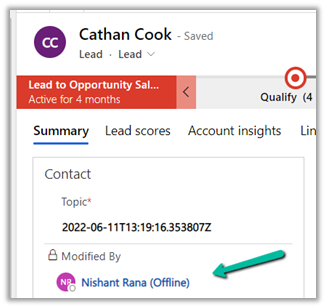
For it to run under the context of the user set as “Run As” in When a row is added, modified or deleted trigger, we need to select the Use invoker’s connection setting for the Update a row step.

Let us trigger the flow again through User 2, remember we have Run As set as modifying user.

Interestingly it still shows User 1 as the Modified By user.

Let us again remove the write rights of User 1 and trigger the flow using User 2.

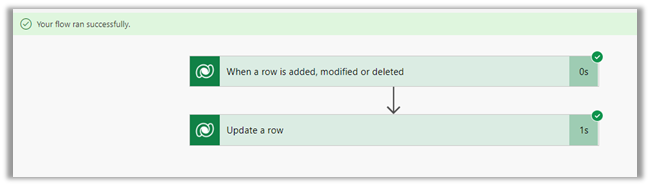
This time flow is successful. If you remember it failed last time when we removed the User 1 rights and the Run as was default Flow Owner.
And this time, it shows modified by as User 2. (as we can see for user 1, the record is read-only as we have the rights removed)
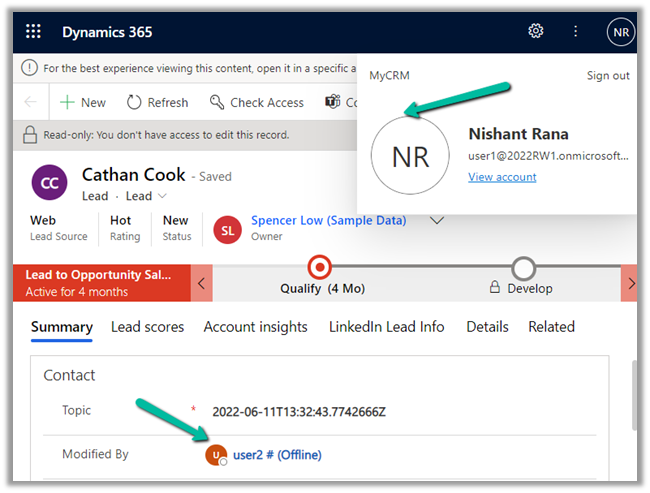
This time it worked because had set Run As as Modifying User and specified Use invoker’s connection for the subsequent step i.e. update a row in this case, so it used User 2’s context which modified the case record to trigger the flow, which in turn updated the lead record using user 2’s context.

Now it will fail if User 1 updates the case record and triggers the flow because it will try to update the lead record using its context i.e. Run as = modified by
We will observe a similar behavior with Run As = Row Owner.

In case the owner of the record is a team, instead of a user, then it falls back to the flow owner option.

Get all the details here – https://docs.microsoft.com/en-us/power-automate/dataverse/create-update-delete-trigger#user-impersonation-using-run-as

Also check – https://d365demystified.com/2020/10/30/run-as-context-in-cds-current-environment-flow-trigger-power-automate/

Hope it helps..

Advertisements

Fixed – Flow client error returned with status code “Forbidden” and details – MissingAdequateQuotaPolicy, the user does not have a service plan adequate for the non-Standard connection in Power Automate


Recently one of the users reported this error while trying to Test a flow.

Request to XRM API failed with error: ‘Message: Flow client error returned with status code “Forbidden” and details “{“error”:{“code”:”MissingAdequateQuotaPolicy”,”message”:”The user ‘8a47d139-662e-4b73-bca3-53a59e8bebeb’ does not have a service plan adequate for the non-Standard connection ‘Microsoft Dataverse’. https://go.microsoft.com/fwlink/?linkid=2123710″,”extendedData”:{}}}”. Code: 0x80060467 InnerError: ‘.

As here the Premium Dataverse connection was being used, the resolution was to either purchase a Per User plan or Per Flow plan or to enable the trial of Power-Automate per user plan.

After the trial was enabled for the user, the error got resolved.

Hope it helps..

Advertisements

Understanding Change limits option in Do until control – Power Automate


Within Do Until control in Power Automate we have the option of defining the limits i.e. how long the do until will run either based on count or timeout.

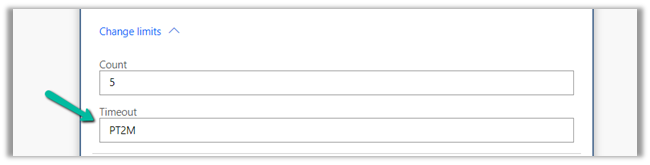
By default, the value for count is 60 and Timeout is PT1H which equates to 1 hour i.e. it will either run 60 times or will run for 1 hour which occurs first.

Let us set the count to 5 and test it.

We have also added the delay of 1 minute along with the condition for do until and triggering it on the update of a lead record.

As expected if the condition is not true, after running 5 times it stops successfully.

Now let us change the Timeout to 2 minute and we keep the count as 5.

As expected after 2 minutes (by that time it has looped 2 times with 1 min delay), the flow stops successfully.

The flow will also be successful when the Do until condition is met.

Here we can make use of Current Iteration Index property of Do until to find out the number of times it has looped.

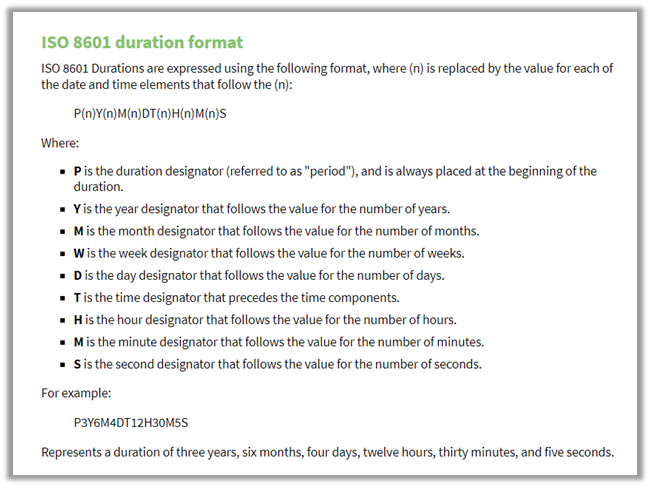
To set the time out format –

https://www.digi.com/resources/documentation/digidocs/90001437-13/reference/r_iso_8601_duration_format.htm

Lastly the Count value can be maximum 5000 – 

countlimit

Also check –

https://nishantrana.me/2022/05/17/fixed-invalid-template-unable-to-process-template-language-expressions-in-action-template-language-expression-cannot-be-evaluated-the-template-action-is-not-defined-in-the-current-scope/

https://nishantrana.me/2022/01/19/how-to-use-do-until-and-delay-in-power-automate/

https://nishantrana.me/2022/05/19/filter-rows-and-trigger-conditions-in-power-automate/

Hope it helps..

Advertisements

Fixed – Authorization failed. The client with object id does not have authorization to perform action ‘Microsoft.Authorization/roleAssignments/write’ over scope ‘/subcriptions’ while configuring Azure Synapse Link for Dataverse


Recently while configuring Azure Synapse Link for Dataverse, for exporting data to Azure Data Lake we got the below error –

{“code”:”AuthorizationFailed”,”message”:”The client ‘abc’ with object id ‘d56d5fbb-0d46-4814-afaa-e429e5f252c8’ does not have authorization to perform action ‘Microsoft.Authorization/roleAssignments/write’ over scope ‘/subscriptions/30ed4d5c-4377-4df1-a341-8f801a7943ad/resourceGroups/RG/providers/Microsoft.Storage/storageAccounts/saazuredatalakecrm/providers/Microsoft.Authorization/roleAssignments/2eb81813-3b38-4b2e-bc14-f649263b5fcf’ or the scope is invalid. If access was recently granted, please refresh your credentials.”}


As well as the below error –


As the error suggests the error was because the user account used was not having the appropriate role(s) assigned.

The user needs to have the Owner as well as Blob Storage Data Contributor role on the Azure Data Lake Storage Gen2 account.

Also check –

https://nishantrana.me/2020/09/07/error-access-to-the-resource-is-forbidden-while-trying-to-connect-to-azure-data-lake-storage-gen2-using-power-bi-desktop/

https://nishantrana.me/2021/06/24/fixed-authorizationfailed-the-client-with-object-id-does-not-have-authorization-to-perform-action-microsoft-authorization-roleassignments-write-over-scope-storageaccou/

https://docs.microsoft.com/en-us/power-apps/maker/data-platform/azure-synapse-link-synapse#prerequisites

Hope it helps..

Advertisements

Autonumber field values in case of exception in Dynamics 365 / CRM


Recently in one of our projects, where we were using the auto number attribute (with sequential numbers), we realized that it gets incremented even in case of an exception thrown during Pre Stage of the Plugin Execution. We were assuming the number gets incremented only after the record gets created i.e. on post-stage.

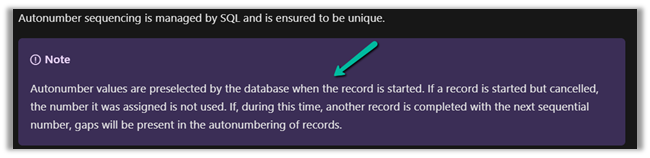
But as the documentation mentions, the number gets pre-selected as soon as the record is started.

https://docs.microsoft.com/en-us/power-apps/maker/data-platform/autonumber-fields

Let us see it in action also –

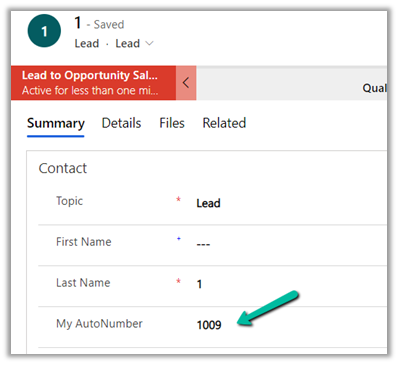
Here we have the lead record created with My Autonumber as the auto number column with seed as 1000

The auto number field has a value of 1009 currently.

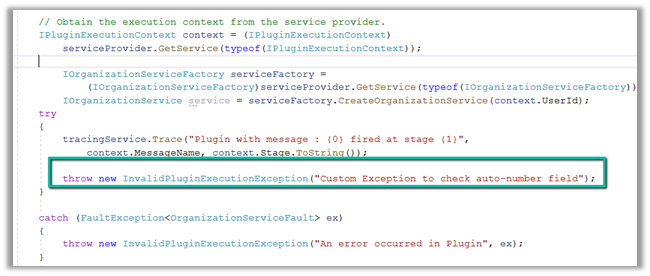
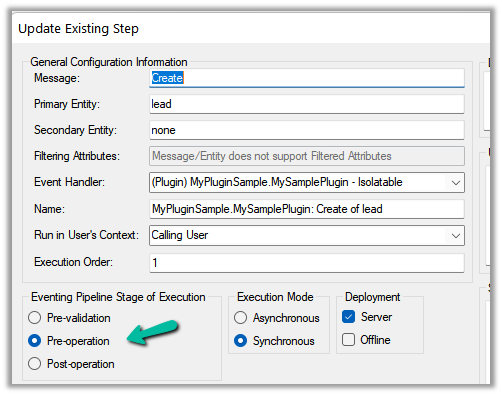
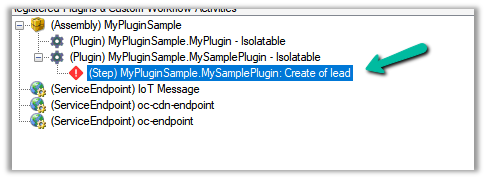
Now let us register a plugin on the Pre-Create stage that throws the exception.

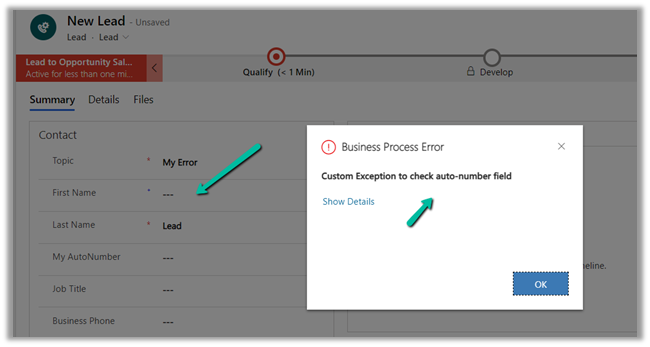
Let us try creating a new lead record, which as expected will throw the exception.

Let us try saving the record 3 times more, triggering the record creation as well as the plugin along with the exception.

Now let us disable the plugin step and save/create the record.

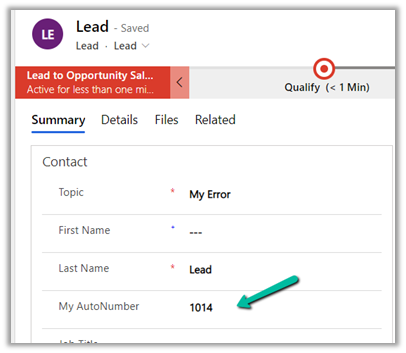
As expected the record gets created, and the auto number field has a value of 1014.

The same behavior was observed in case of Pre-Validation stage.

Hope it helps..


Advertisements

Fixed – Sorry, we need additional information to verify your identity. Please Contact Support error while creating Dynamics 365 Trial


Recently while creating a Dynamics 365 Trial, https://dynamics.microsoft.com/en-us/dynamics-365-free-trial/, we were getting the below error, during the verification step

“Sorry, we need additional information to verify your identity. Please Contact Support”


This error could be related to the same phone number being used multiple times to create the Dynamics 365 trial or could be related browser cache.

Before trying with a new phone number, we should first try creating a trial in the In-Private mode (or clear cache in the browser).

In our case, the In-Private mode worked as shown below, and we were able to create the trial.

Hope it helps..

Advertisements