Fixed – We can’t find the form page you’re trying to load – Dynamics 365 Marketing


Recently we saw the below error in one of our marketing forms hosted on the website –

We can’t find the form page you’re trying to load: <div data-editorblocktype=”FormBlock” data-form-block-id=”64d87bc7-279d-ed11-aad1-00224814fd52″></div>. Please check your page setup.


This occurs if the form is not Live.


Making the form “Go live” will fix the issue.


Hope it helps..

Advertisements

Fixed – The domain where this form is embedded might not be enlisted as a domain record for externally hosted forms in Dynamics 365 Marketing


Recently we were getting the below issue for our Marketing Forms hosted on an external website on a particular authenticated domain. The pages were working fine in other authenticated domains.

“The domain where this form is embedded might not be enlisted as a domain record for externally hosted forms. Otherwise, a browser extension or plugin may be blocking this form from loading. Review and reload form to continue.”

This particular domain was also shown as authenticated in our Dynamics 365 marketing.

Our website was e.g. https://www.domain.kiwi/ so we had domain.kiwi authenticated in Dynamics 365 Marketing.

Eventually, we had to raise a Microsoft Support Ticket and were instructed to add/ authenticate www.domain.kiwi   (with www.) also, doing so resolved the issue for us.

Also, there seemed like a UI bug in the Marketing which will cut out “www.” automatically when trying to authenticate the domains.

Hope it helps..

Advertisements

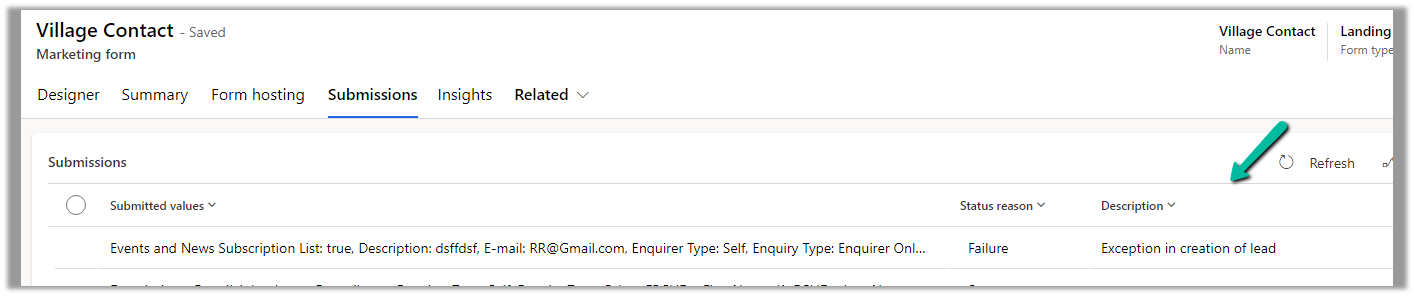
Fix – Exception in creation of lead (Dynamics 365 Marketing)


We were getting this error in the submission of one of our outbound Marketing forms.

Activity id: e1ede147-efb6-457d-bc19-826c6176a2e4, Request id: jH7xRiEzGFTdZQTbE2fkh9_Z_WtjumCqJERuYZbGSL0_0, Exception: Entity ‘Contact’ With Id = 896b960d-c5d7-4c4d-95c7-a9e226afbf8e Does Not Exist

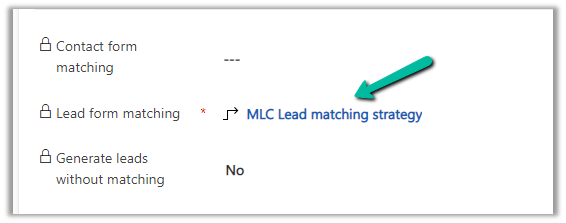
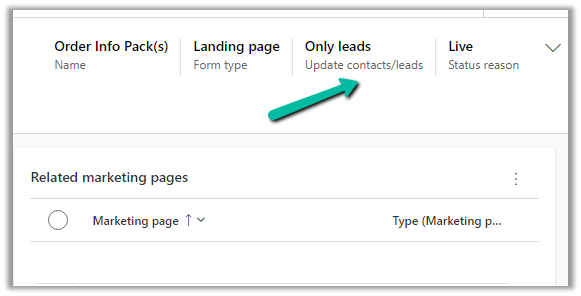
The form had only the Lead form matching defined and Only leads for Update contacts / leads.

So here because of some earlier multiple/different form submissions, a contact got created and stored in the browser’s cookie, which CRM was referring to, and trying to set a Parent Contact for the lead record even though we were having Only leads set for update contact/leads option.

This is the behavior of the product.

https://learn.microsoft.com/en-us/dynamics365/marketing/marketing-forms#createupdate-leads-only

The solution is to delete the cookie or try in incognito or in-private mode or a different browser, and it would work.

This would probably arise because while setting up marketing forms we would do multiple submissions with test data for testing.

Hope it helps..

Advertisements

Fixed – Exception in creation of lead (Dynamics 365 Marketing)


Recently we were getting the below error in one of our marketing forms for form submission record.

Exception in Creation of lead – Activity id: 40ff82fc-bb10-4d30-8671-12683392ccdf, Request id: AsChkx2zn5IKrjHVC4cTb6j-ZkB23D0PqgCdxwi8kEE_0, Exception: An item with the same key has already been added.

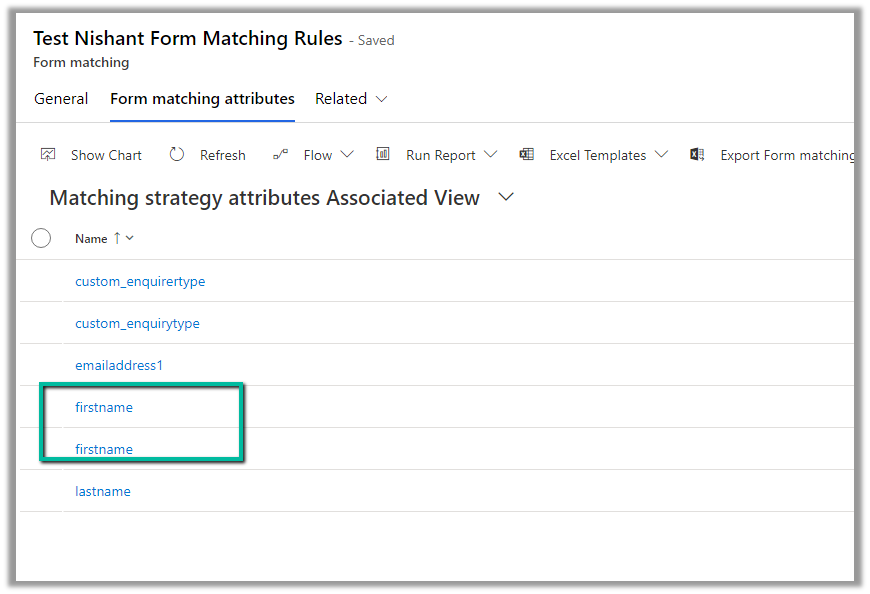
This was because we had mistakenly added first name fields twice as the form-matching attribute in the form-matching rule used for that form.

Deleting that extra field resolved the issue for us.

Hope it helps..

Advertisements

How to – enable marketing interactions in lead and contact timeline – Dynamics 365 Marketing


To view marketing interactions, we need to add a custom connector to the timeline of the lead and the contact form. This step is only required if we are using custom forms and not the out-the-box marketing forms for lead and contact.

The OOB Form already has this connector defined.

Open the form for customization, select the timeline control, scroll down to Advanced >> Additional Settings >> Custom connectors, and click on Add connector.

Specify Constructor and Resource Path and save the record.

  • Constructor: msdynmkt_DynamicsMktTimelineInteractionAnalytics.TimelineInteractionAnalyticsResource
  • Resource path: msdynmkt_DynamicsMktTimelineInteractionAnalytics

Save the form and publish it.

We can see the marketing interactions being displayed in the timeline.

Hope it helps..

Advertisements

Moving Marketing Email, Journey, Events, etc. between environments – Dynamics 365 Marketing


To move Marketing configurations/data from one environment to another we can make use of the Configuration Migration Tool.

Open the tool, and create the schema file. Connect to the source environment.

Select and add the real-time marketing email table – msdynmkt_email Soure email.

Next, we are going to select the real-time marketing Journey table – msdynmkt_journey

Source Journey.

Lastly events – msevtmgt_event
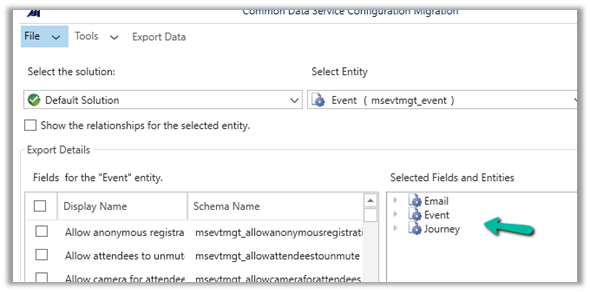
Source events.

Click on Save and Export –
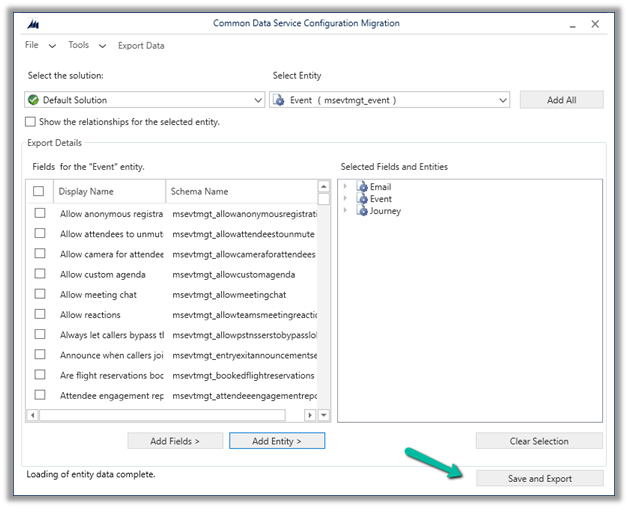
Save the schema file and click on yes.

Click on Export data to generate the data to be exported.
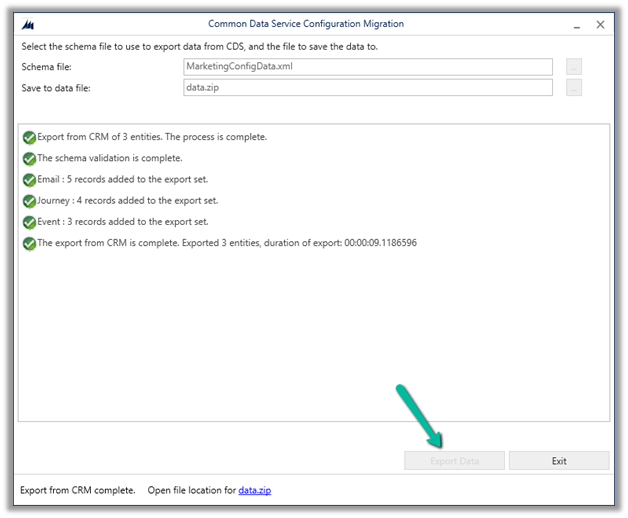
Next with the schema and data exported, select Import Data to start the import and select destination organization.

Select the data file exported earlier and start the import process.

The import process gets completed with a warning for the table Event for one of the records.
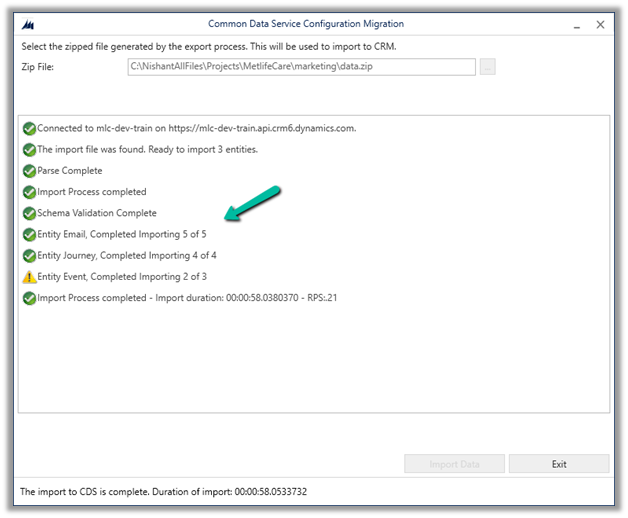
Let us now check the destination environment.

We can see 4 Email records created and 1 updated, all in Draft Status.

We can see all 4 journey records created.

And 2 event records were created.

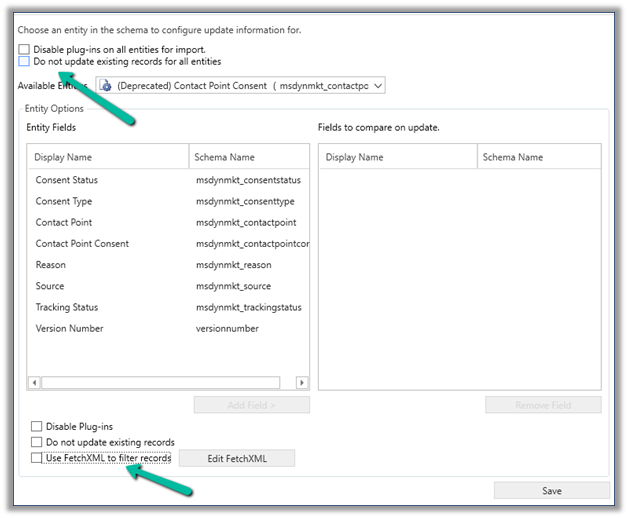
In case we want to filter the records or want to make sure records are not updated in the destination, we can select Tools >> Configure Import Settings

And use Do not update existing records for all entities and specify Fetch XML for it for filtering.
Also, check – Prerequisites for the export/import process

Hope it helps..

Advertisements