Marketing Form and required (mandatory) fields in Lead and Contact – Dynamics 365 Marketing


Let us take one of the out-of-the-box marketing forms available in Dynamics 365 Marketing.

It has only an Email field marked as required and creates / updates both contacts and leads.

If we click on Check for errors we will get the below notifications.

  • To create a Contact, the Last Name (lastname) field should be included in your form and marked as required.
  • To create a Lead, the Last Name (lastname) field should be included in your form and marked as required.

Now let us host this form and try submitting it.

Click on Go Live, and create a new related marketing form page for it. Make sure you have the domain already authenticated.

Authenticate Domain – https://nishantrana.me/2022/11/09/how-to-authenticate-domain-in-dynamics-365-marketing/

Embed Marketing Form on the external page – https://nishantrana.me/2022/11/10/how-to-embed-marketing-form-on-an-external-page/

Open the Form page and copy the script to host the form.

On the host page, let us submit the details.

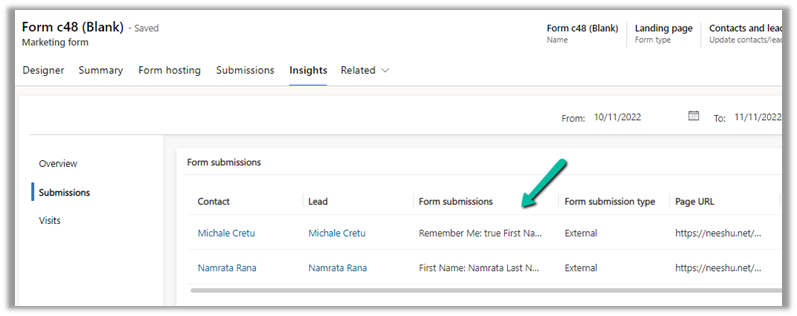
Back in our Marketing form, we can see the submission.

And also, both the lead and contact records created.
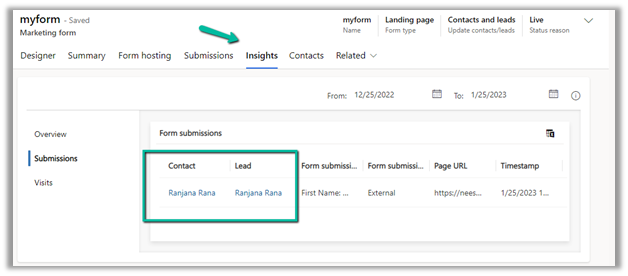
Now let us try one more submission without specifying a value for the lastname field (which it was showing in the notification, as a required field to be added on the form, for both the lead and contact table).

We can see the submissions in the Marketing Form.

And both the lead and contact records were created.

So although it shows the notification for all the mandatory fields which are not added in the form and marked as required, it still allows the record to be created.

Hope it helps..

Advertisements

How to – Hide, Submit and perform validation in Dynamics 365 Marketing Form


Continuing our previous post on setting hidden field’s value using JavaScript in Embedded Marketing Form,

https://nishantrana.me/2022/11/23/how-to-use-dynamics-365-marketing-javascript-api-to-set-hidden-fields-value/

below are a few more points that could help –

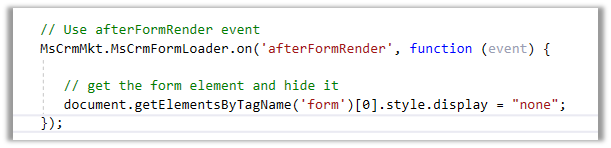
  • To hide the Marketing form on the host page – we can use afterFormRender
  • To submit the Marketing form on the host page –

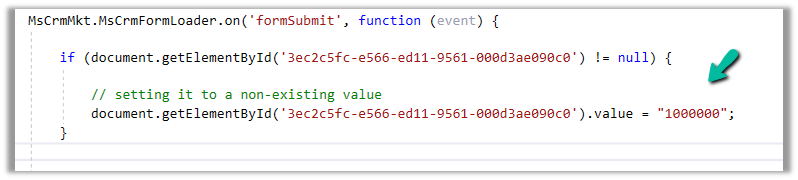
  • If we are setting a non-existing value for an option set field in the formSubmit event, it will be treated as blank before submission and the blank value will be passed. However if the field is Required then validation will kick in and the form will not get submitted.

Get more details – Extend marketing form using code

Also check – https://community.dynamics.com/365/marketing/f/dynamics-365-for-marketing-forum/384055/integrate-external-marketing-form


var xhttp = new XMLHttpRequest(); 

xhttp.open("POST", formUrl + "/formpage/” + formId + “/correlation/” + correlationId, true); 

xhttp.setRequestHeader("Content-Type", " application/x-www-form-urlencoded"); 

xhttp.send("7d58e055-d1c2-4bb3-a42f-faf6762e0acc=FirstName&3cdeebb-7c54-4cff-a1bc-772562d25c38=firstname.lastname%40sample.com&submit=");
Advertisements

Hope it helps..

How to – use Dynamics 365 Marketing JavaScript API to set hidden field’s value


Dynamics Marketing JavaScript API is only available for the marketing form hosted as Script. It is not available for forms hosted as Iframe.

More on embedding form on external page – https://nishantrana.me/2022/11/10/how-to-embed-marketing-form-on-an-external-page/

Add a reference to form-loader.js or load.js to access the API.

Below is our form with a hidden field in it.

Based on the current living situation (drop down), we want to set the value of the Financially Capable field (bool) – the hidden field’s value as either True or False.

For this, we have added the below script, in the formSubmit event.

formSubmit triggers on form submit before the form submission is sent to the server.

Check all the events here – https://learn.microsoft.com/en-us/dynamics365/marketing/developer/marketing-form-client-side-extensibility#form-events

The script – Get the id of the element through browser’s developer tools.

Hope it helps..

  // Extending Marketing form with code 
        // formSubmit - Triggers on form submit before the form submission is sent to the server.
        MsCrmMkt.MsCrmFormLoader.on('formSubmit', function (event) {
          
            // get the id of the elements through developer tools of the browser
            // based on selected current living situation (optionset)
            if (document.getElementById('deb110aa-e266-ed11-9561-000d3ae090c0') != null) {
                var selectedCurrentLivingValue = document.getElementById('deb110aa-e266-ed11-9561-000d3ae090c0').value;
                if (selectedCurrentLivingValue == 881990000) {
                    // set the value of Financially Capable field (boolean)- true / false
                    document.getElementById('dcc46e64-2867-ed11-9561-000d3ae090c0').value = "1";
                }
                else {
                    document.getElementById('dcc46e64-2867-ed11-9561-000d3ae090c0').value = "0";
                }
            }
        });
Advertisements

Fixed – Hide field option missing for dropdown (OptionSet) field in Marketing Form – Dynamics 365 Marketing


Recently while designing the marketing form, we realized the Hide field option missing for our dropdown fields.

There are 2 ways to solve this –

In the HTML designer mode for the Marketing form –

  • Add the attribute hidden=”hidden” for the field

The field will be hidden but the Hide field toggle won’t be available in the designer.

  • Change the data-editorblocktype from “Field-dropdown” to “Field-checkbox“.

This adds the Hide field toggle option in the designer.

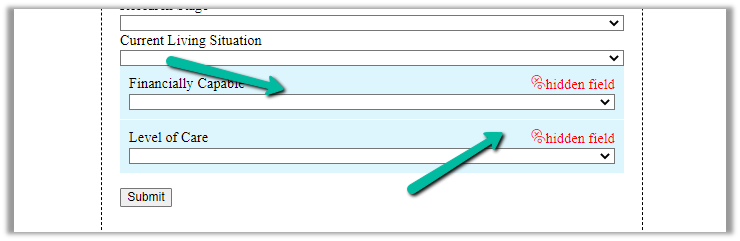
The result –

The helpful thread – https://community.dynamics.com/365/marketing/f/dynamics-365-for-marketing-forum/391470/how-do-i-populate-lead-source-from-a-hidden-field-on-marketing-form

Hope it helps..

Advertisements

How to – use Page Personalization in Dynamics 365 Marketing


Page personalization uses cookies stored in the user’s browser for identifying the contact, and then fetches values for the contact record using JavaScript.

For page personalization to work –

  • The domain should be authenticated
  • It must use HTTPS
  • Contact should have Prefilling enabled i.e. Prefill Marketing Form field in the Contact record should have the value Allow.
  • Specify the contact fields to be made available.

Below is the marketing form (landing page) that we’d be using.

The form has a Remember Me element in it required for Personalized Pages. It gets automatically added to the form if we enable PreFill for the form.

https://nishantrana.me/2022/11/16/how-to-enable-prefill-for-marketing-forms/

We have only kept Pre Fill enabled for the City field. The other fields in the form have prefilled disabled.

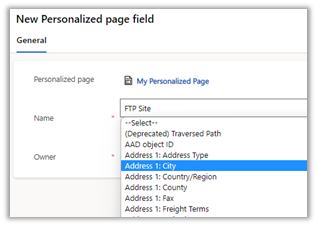
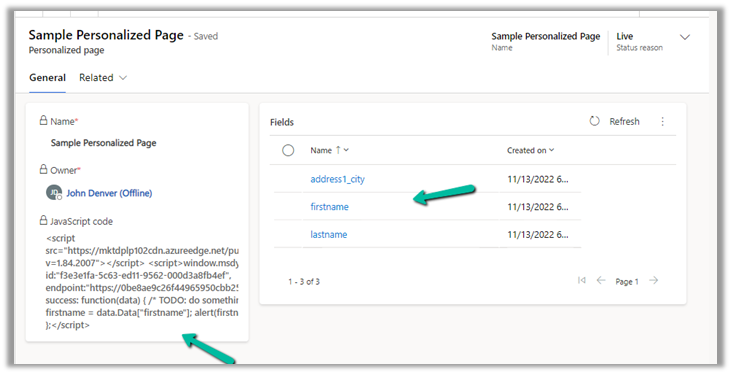
Create a new personalized page, navigate to Outbound marketing >> Marketing Content >> Personalized Pages and add

Personalized page fields to it

After adding the fields, Click on Go live.

Going live generates the JavaScript
code, that we’d paste into our page, in the <head> section of the HTML.

As we have added 3 Personalized page fields, we will have access to the value of only these 3 fields on the page where this script is used, even though our Marketing form can have multiple fields or even if the cookie has other values stored as part of another marketing form.

Below we have added the JavaScript code in the head section and modified it to fetch the value of 3 fields added and also we have the code for embedding the Marketing form.

Lastly, we have a Div element to show the personalized message to the user.

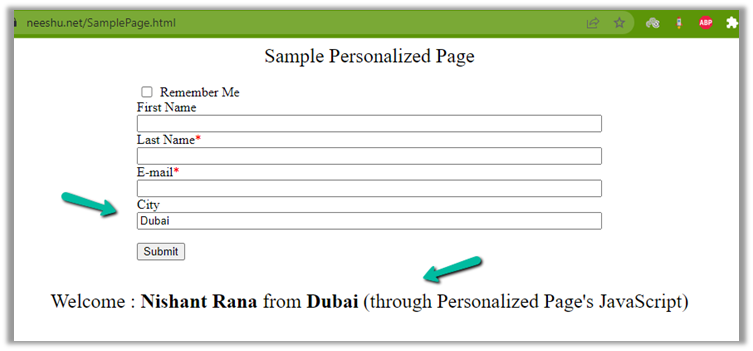
Below is our page

Let us populate the values and submit the details (with Remember me enabled)

Let us refresh the page after a few seconds. This is because in the background we will have the lead/contact record either created or updated based on what we have specified in the Marketing form.

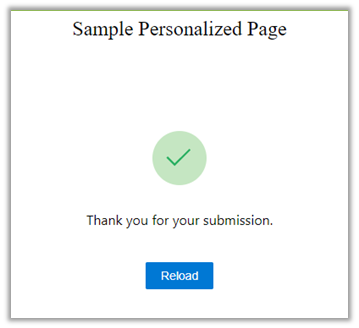
As expected, we have the div populated with First Name, Last Name, and City details using the Personalized Page’s JavaScript.

Also as we had Pre-fill enabled for only the City field, we can see the value automatically populated for it.

Please refer – https://meganvwalker.com/d365-marketing-personalised-pages-on-your-website/

Get more details – https://learn.microsoft.com/en-us/dynamics365/marketing/personalized-page-content

https://learn.microsoft.com/en-us/dynamics365/marketing/personalized-page-content#test-your-page-personalization

Hope it helps..

Advertisements

How to enable prefill for marketing forms


Check the previous posts on hosting marketing forms for more details

How to – embed marketing form on an external page

Here we will see Prefill in action.

https://learn.microsoft.com/en-us/dynamics365/marketing/form-prefill#create-a-landing-page-form-with-prefill-enabled

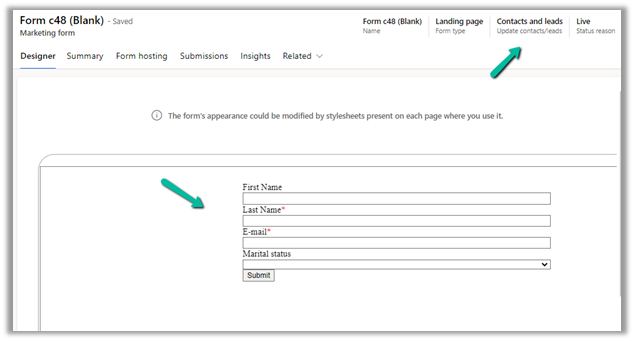
We have created the below marketing form (type – Landing Page) right now (currently Pre-fill is set as default false for the form/fields)

Submit the form –

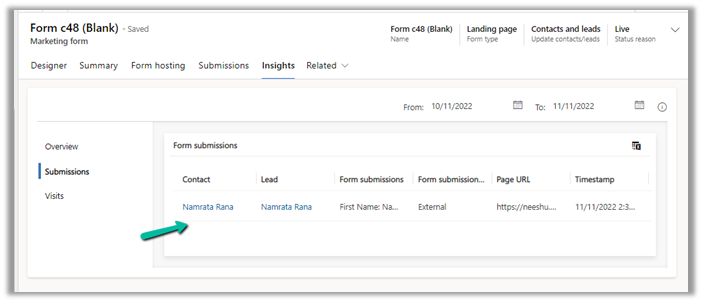
We can see the contact / lead records created as part of submission.

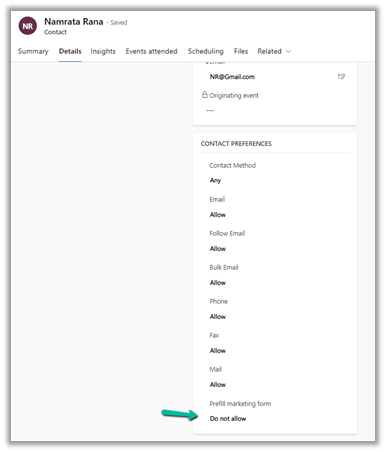
The contact has Do not allow for Prefill marketing form field

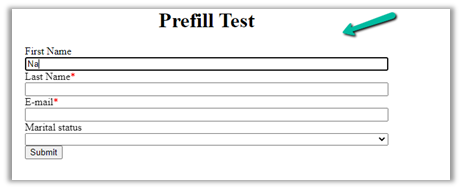
Opening the website we don’t see any pre-fill information as expected.

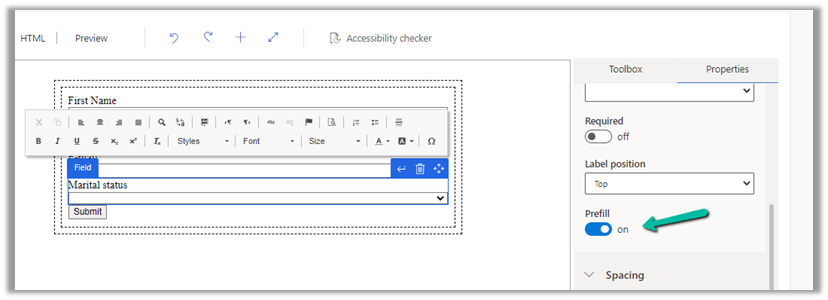
Now let us enable prefill for the fields and for the form.

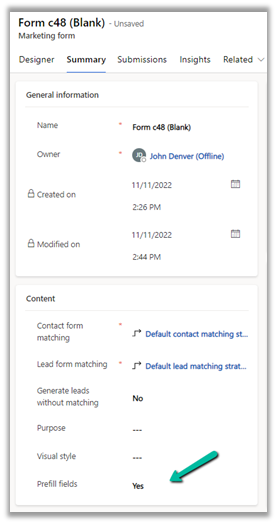
Enabling Prefill for form automatically adds the Remember me element to the form. It is tied to Prefill marketing form field on the contact record as we saw earlier and required for prefilling to work.

Let us submit the form, this time with Remember me as true.

We can see Prefill marketing form field set as Allow for the contact.

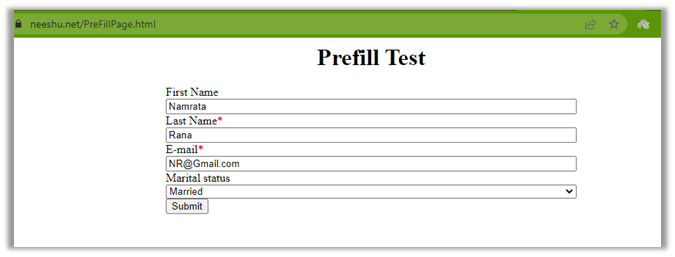
Load the marketing form page again and we can see the value already pre-filled or populated for the user.

We saw how we can enable prefilling for Landing Page type form, by enabling prefill as true at form and field level and adding the remember me element.

For form type – Subscription Center, pre-filling is already enabled for all the fields regardless of their prefill setting, and at the form level also it is set as true and the field is read-only.

Here we do not have to add a remember-me element.

Here we must include the Do not email element.

Prefill in the case of subscription form

Hope it helps..
Advertisements