Marketing forms comparison – Marketo and Dynamics 365 Marketing


Marketo

Dynamics 365 Marketing

We can create forms in Marketo to be used on the landing pages.

There are 4 types of Marketing forms – Landing page, Subscription Center, Forward to a friend, and Event Registration.

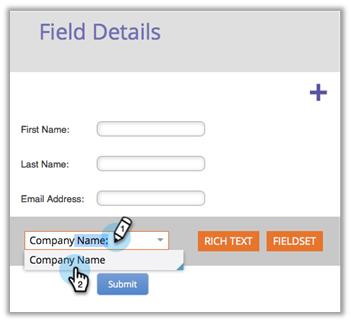
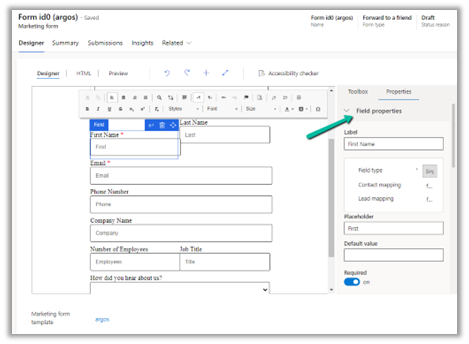
Add fields to form

Fields are mapped to the contact and/or the lead table in Dynamics 365 and can be added to the form.


We can define input fields that can be used in the form.

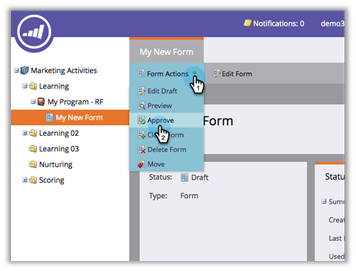
The form must be approved before being used on the landing pages.

A form must me made go live before it can be used on the marketing page or embedded on the external site.

Fields labels can be edited, fields can be made required.

Fields labels can be defined, along with default value, field requirement, error message, etc.

Forms can be previewed

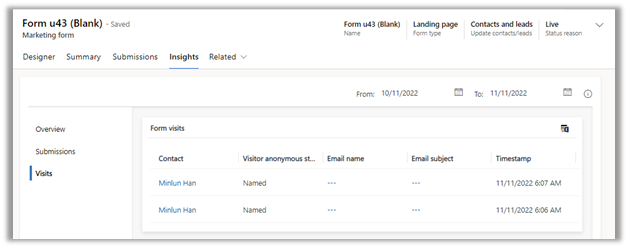
Forms can be previewed as shown below.

Select a form theme/edit CSS of the form theme

Inside HTML Designer we can specify the CSS and layout of the form.

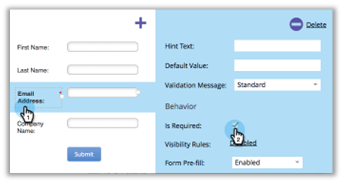
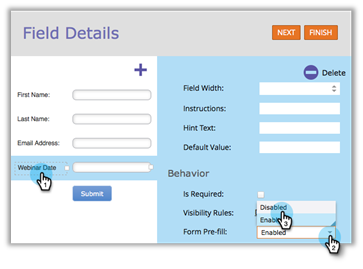
Pre-fill – Marketo forms will pre-fill fields with the web visitor information using the cookie.

Form Pre-fill doesn’t work when embedding a form on your page. It only works on the Marketo landing page.


Enable pre-filling for forms. Prefilling works when the form is a subscription center form or when the landing page form has a remember me option available when filling in the form.

At form level –

At field level –

Hidden form fields and auto populating the hidden form field

Hidden fields can be auto-populated with different parameter types – Default value, URL, Cookie Value and Referrer parameter

Form fields can be hidden and can provide a default value

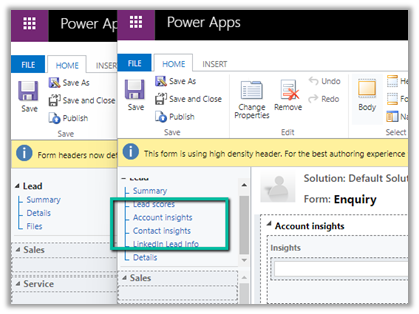
Pass hidden data or pre-populate marketing form fields

Setup lookup fields via API

Enable Captcha in Marketo forms.


Add a Captcha element to the form.

Embed form on an external website.

Embed code can be generated for the Approved form.


Form Prefill does not work when using the form embed code on your pages or a Marketo landing page. Form Prefill is only meant to work when the form is used in a Marketo landing page via the Insert Element option.

Once the code is embedded on your website, any changes to the form in Marketo will be pushed to your site upon the form approval. You do not need to make more changes to the code.

Embed the form on an external website.

We can

  • Embed a Dynamics 365 Marketing form on an external page.
  • Use form capture to integrate Dynamics 365 Marketing with a form created externally in your (CMS)

along with the option of publishing a native marketing form on a native marketing page on the Power Apps Portal configured.


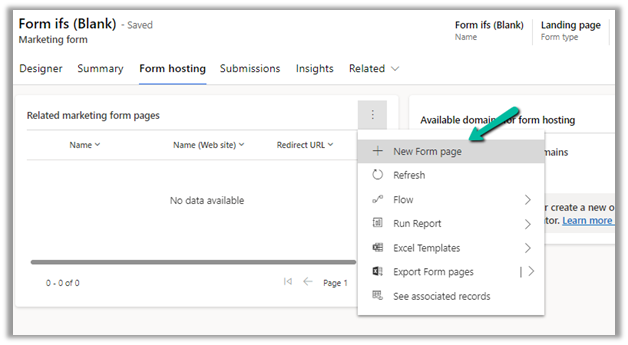
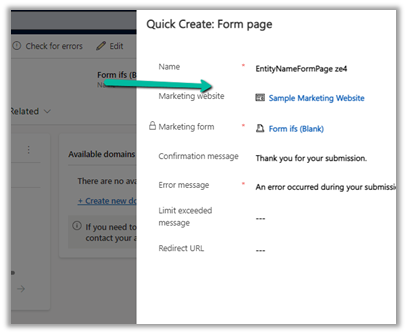
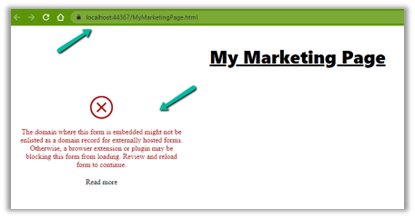
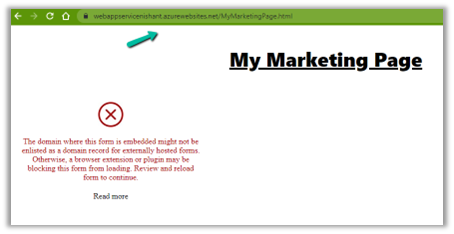
After designing the marketing form, save it and go live. Open the form hosting tab, and create a new Form page, where we can define additional configuration settings for the forms that will be embedded externally. We will also have to authenticate the domain where the form will be used.

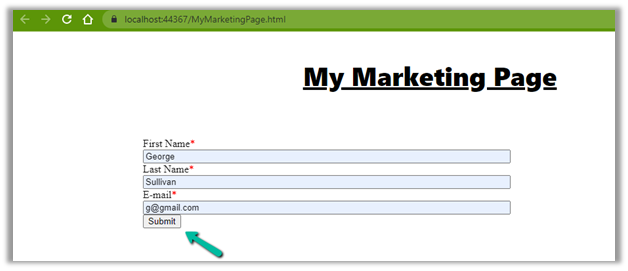
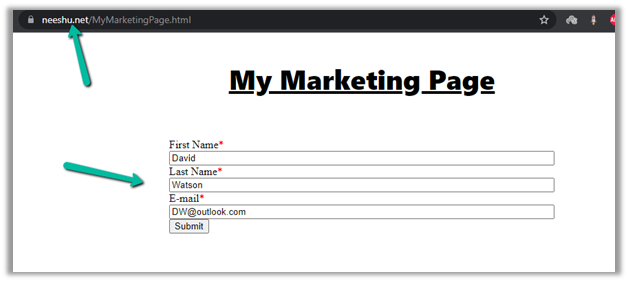
Copy the embed code and paste it on your website page.

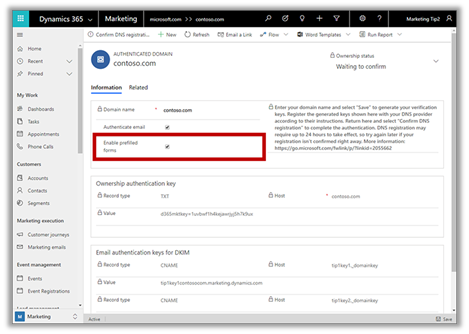
We can Enable prefilling on embedded marketing forms on an external website.

Prefilling allows fetching contact information from the dynamic’s database because of which additional security measures are in place for protecting user privacy.

For pre-filling to work below are the requirements –

  1. Domain authentication for the external domain of the website, where the form will be hosted.

  1. The contact record inside Dynamics should have an allow-prefill flag as allow.

The core functionality of the Marketo web form can be extended using Form 2.0 JavaScript API

We can extend marketing form capability using JavaScript API


We can also use Form capture to integrate a form created externally.

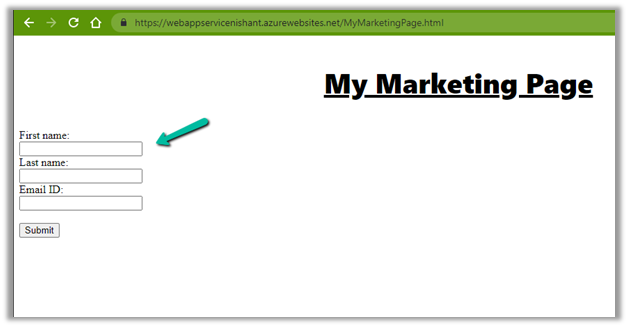
Select Capture form in Marketing forms, in the dialog specify the URL of the web page, where the tracking script is set up and the form is available for mapping.

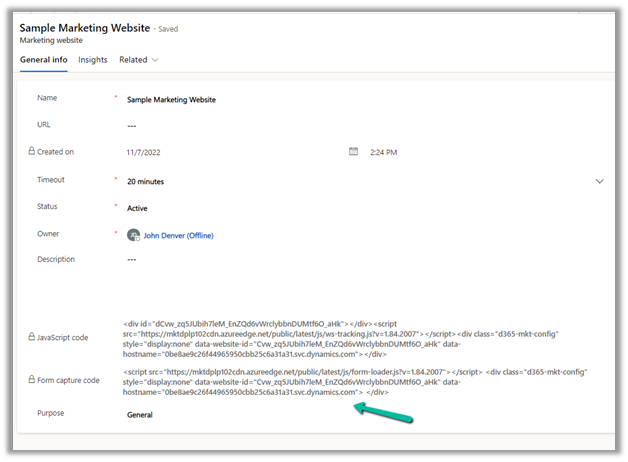
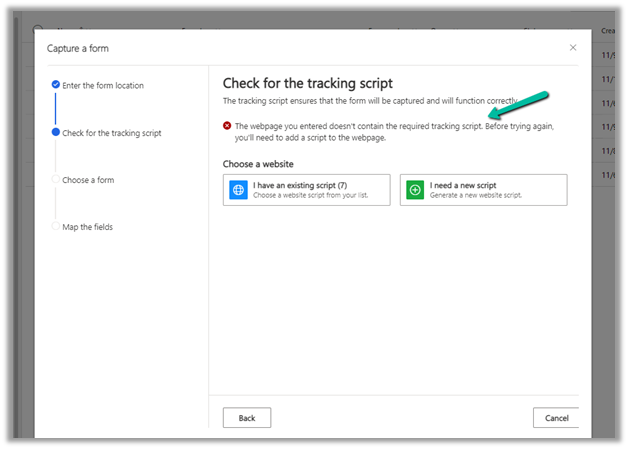
Next, it will check for the script / or script can be generated and can be copied to the external webpage.

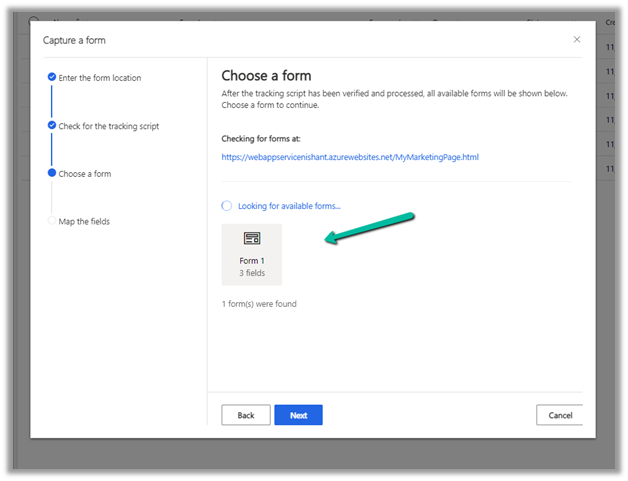
Followed by selecting the external form on the web page and providing mapping for each of the fields.

Select Go live for the marketing form and it can begin to accept data from the external form.

Prefilling doesn’t work in the case of the form capture option.


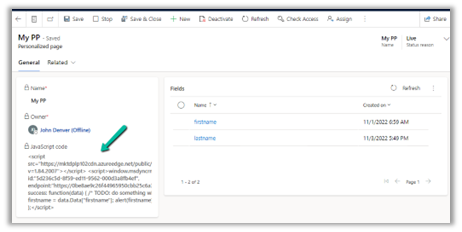
Additionally – Marketing provides Personalized Page Content

Specify the fields to be used for personalization and select Go Live to generate the JavaScript code.

Copy/Use the JavaScript code in the external web page to access the fields specified.


Prerequisite –

  1. The external domain (website) needs to be authenticated.
  2. The page should have the marketing form with a remember-me design element in it. This element is mapped to prefill marketing form field on the contact table.

Hope it helps..

Advertisements

Few key points – Dynamics 365 Marketing Licensing / Apps


Below are a few key points and links for quick reference –

Core Marketing License

Dynamics 365 Marketing – For organizations without any other Dynamics 365 Application.

Dynamics 365 Marketing Attach – For organizations with qualifying Dynamics 365 Applications (minimum 10 users of the following apps – Dynamics 365 Sales, Customer Service, Field Service, Supply Chain Management, Finance or Commerce)

Additional Marketing Licenses – that can be purchased apart from the core license –

Production License – Used for the production environment. Fully functional and includes both solutions and services. It is licensed per tenant and includes a default capacity allotment of 10K Marketing contacts (contact, lead, account, customer insights B2C profile, etc) and 100K marketing interactions (email, SMS, push notifications) per month.

Non-Production License – Used for the test environment to try out new features or customizations. Fully functional and includes both solutions and services but has strict quotas and cannot be used to run production campaigns.

Solution Only License – Used for development or test environment for customizations, importing or exporting solutions, non-functional testing, other development, etc. Only includes solutions and entities and doesn’t include any services. Included with Paid Licenses. To convert a solution-only environment to production or non-production, we will need to purchase either production or non-production license and do the configuration using the marketing setup wizard.


Another Tenant example –

Picture1

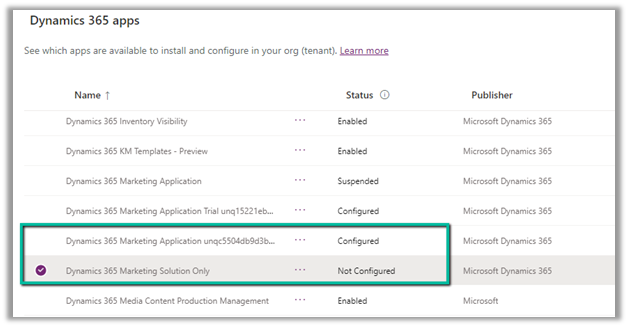
A configured Marketing Application app will have the unique id of the organization / env. appended to it, on which it has been configured as shown above.

Dynamics 365 Marketing Application App: This is a fully functional Dynamics 365 Marketing application, including both solutions and services. Mainly for production but can be used for another environment for testing the functionalities.

Dynamics 365 Marketing Solution Only App: This application includes all the marketing solutions/entities but doesn’t include any services. It can be installed on as many test or development environments as needed for no additional charge.

Other points –

We can only have one Dynamics 365 marketing app per environment i.e. each Dynamics 365 Marketing App can be tied to only one environment.

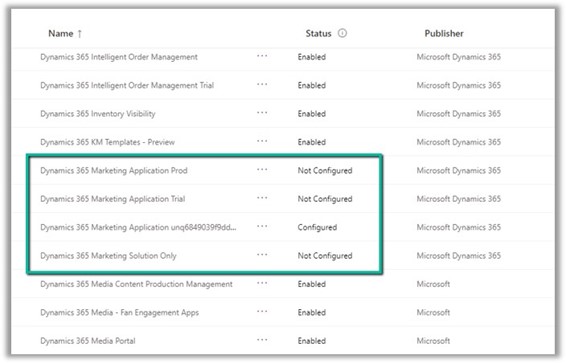
To add more marketing apps to the tenant, we need to purchase an additional license. On purchase of the license, we can see an unconfigured Dynamics 365 Marketing app added in the tenant.

We can have n number of marketing apps available in the tenant, which can be assigned to any of the Dynamics 365 environments not being used for marketing earlier.

We can also set up a marketing trial – https://learn.microsoft.com/en-us/dynamics365/marketing/trial-signup which can be later purchased – https://learn.microsoft.com/en-us/dynamics365/marketing/direct-purchase#purchase-a-license-within-a-trial

Adding Marketing capacities – We can buy additional marketing contacts and interactions as below

Dynamics 365 Marketing Pricinghttps://dynamics.microsoft.com/en-us/marketing/pricing/

Step by step – Configure Dynamics 365 Marketing in a Dataverse Environment

Hope it helps..
Advertisements

Notes on Adobe Campaign Classic V6 – Planning and Segmentation


I am going through the Getting Started with Adobe Campaign V6 Pluralsight course by Otto Warner (which I would highly recommend) to understand the basics of Adobe Campaign.

The course covers V6 of the Adobe Campaign Classic. (the latest version is V7).
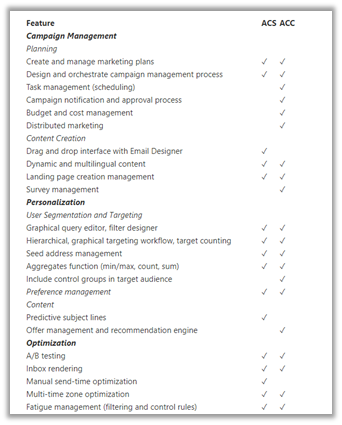
Adobe Campaign Classic is the original on-premise version of the product, the newer online-based is called Adobe Campaign Standard.

The below article list down all the differences between them

https://adobeexchangeec.zendesk.com/hc/en-us/articles/360020072212-Adobe-Campaign-Getting-started-with-your-integration

Below are some of the points that I have noted down from the course for quick reference

  • Adobe Campaign provides marketing automation and outbound communication capability.
  • Adobe Campaign Client Console which is a rich client needs to be installed in PC, which connects to the Adobe Instance.
  • Below is the screenshot of the client.

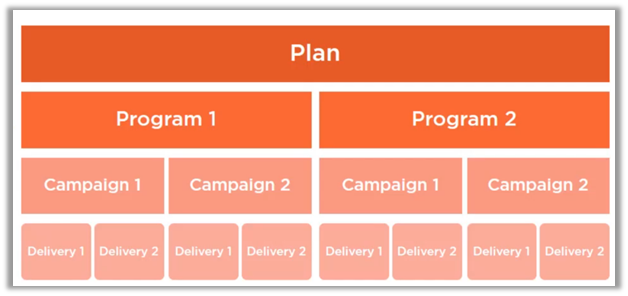
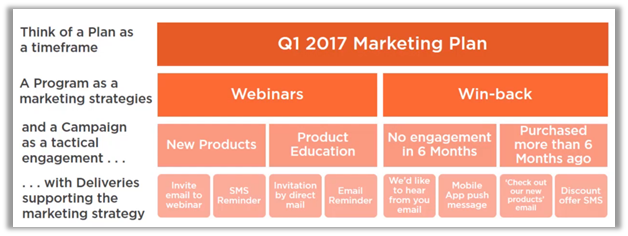
  • Below are how the campaigns are organized within Adobe Campaign. It starts with Plan, which can have multiple Programs, which in turn can have multiple campaigns in it.

  • Plan can be thought of as a calendar period, the program defines the actions to be taken with that calendar period and campaign centralizing all the aspects related to marketing campaign specifying target, delivery, etc.

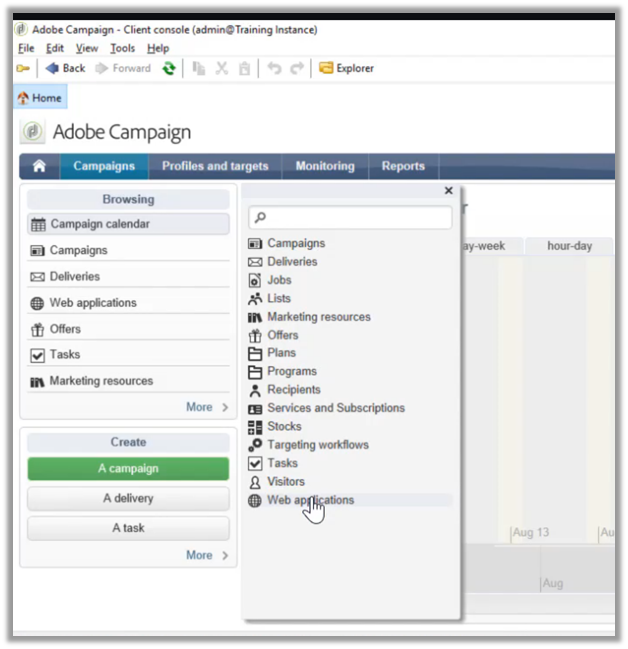
  • To create a plan, we can navigate to Campaigns tab in the client app, and select Create à Plans

  • Below is how the new Plan screen looks like

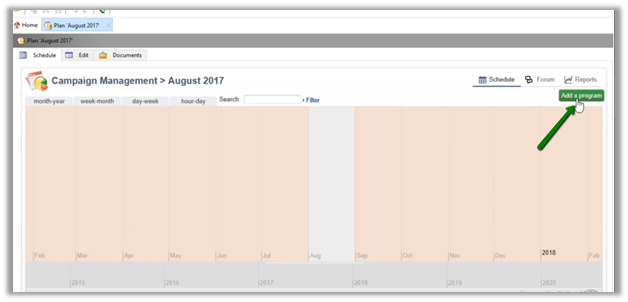
  • A new program can be added from within the Plan’s calendar.

  • Or can be created from Create option as shown below

  • The program screen looks similar to the plan.

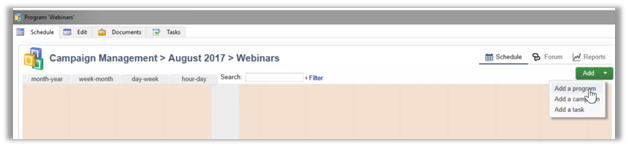
  • The below screen shows the Webinars program for the Plan – August 2017’s calendar view.

  • A new campaign can be added from within the Program or we can use the Create option.

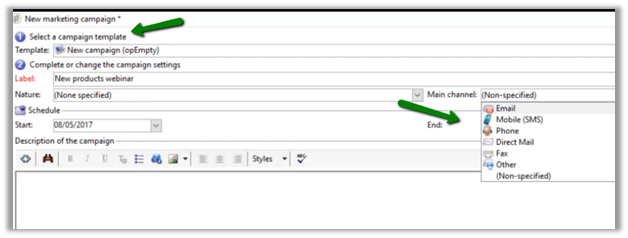
  • The campaign has additional details like campaign template and main channels as shown below.

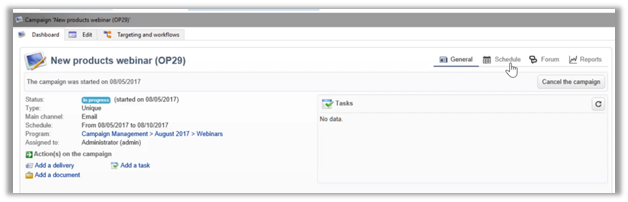
  • Below is how the dashboard of the saved campaign looks like.

  • The edit tab for the campaign allows assigning the campaign to a user.

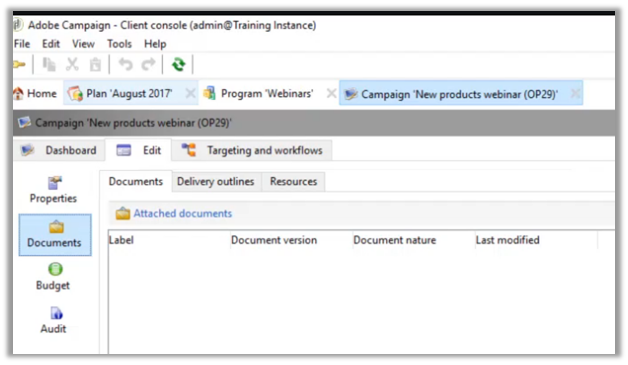
  • It allows provision for attaching the documents

  • We can also manage the budgetary aspect of the campaign, which could be used for reporting.

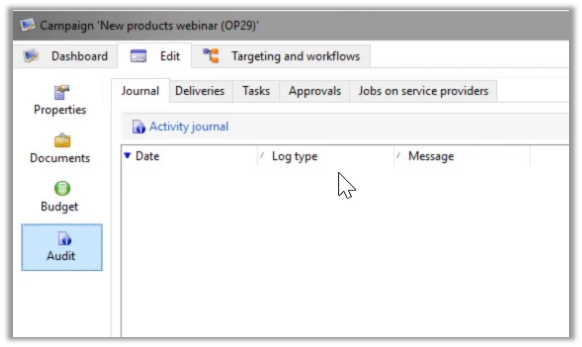
  • It also provides the Audit capabilities.

  • The targeting and workflows tab is where the actual orchestration happens

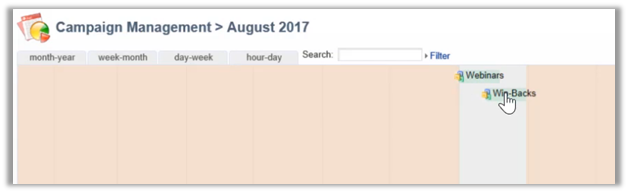
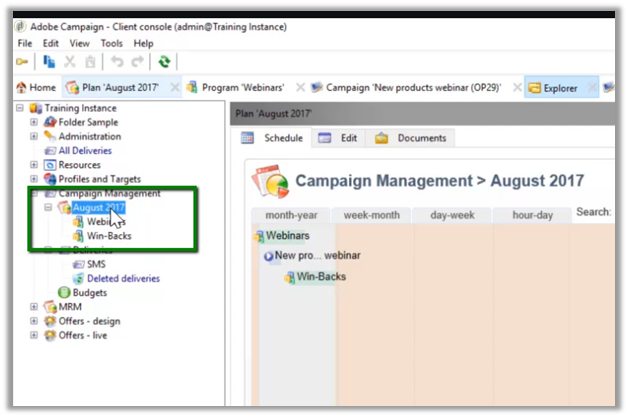
  • Below is the folder structure created for Plans (August 2017) and Programs (Webinar and Win-Backs) within the plan.

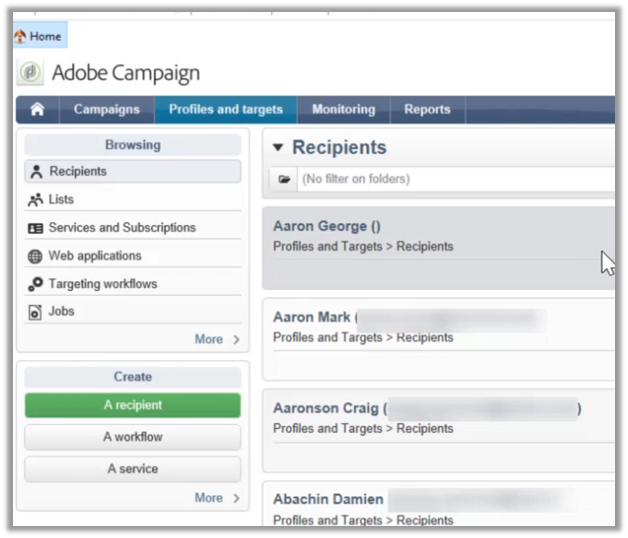
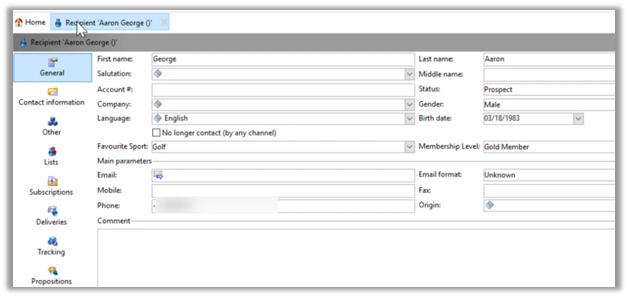
  • Recipients are the records against which campaign will be executed.

  • For recipients, custom fields can be added by admin.
  • New recipients can be created manually or can be imported from different sources.

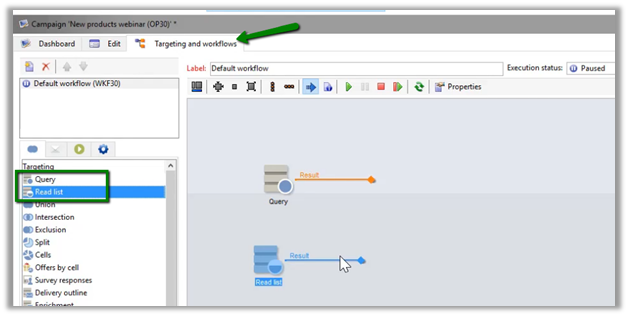
  • Coming back to Campaign’s Targeting and workflows tab, we can see different components in the Targeting section, that can be used to define the workflow.
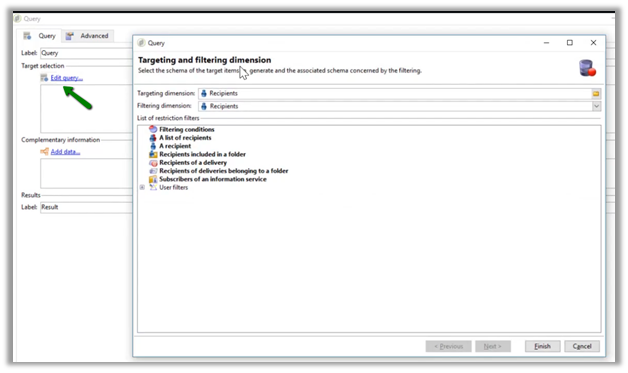
  • Query and Read list step are used for specifying the base target, this is where the workflow would usually start.

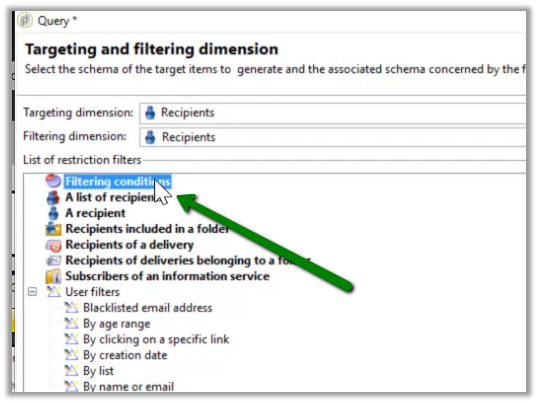
  • For Query step, below are the different filters that can be applied

  • Here user defined filters can also be applied.

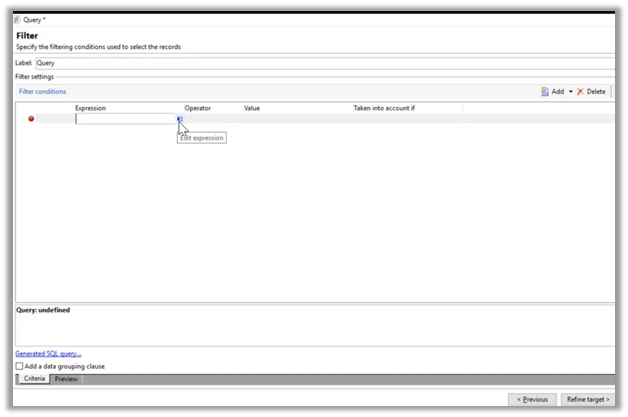
  • Filtering conditions restriction filter can be used to define filter conditions.

  • The expression editor allows selecting different fields either from the same target or from the related records.

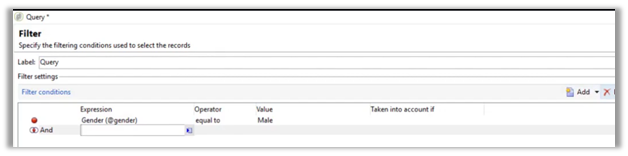
  • Below is the filter condition defined “Gender equal to male”, here multiple filter conditions can be defined and grouped.

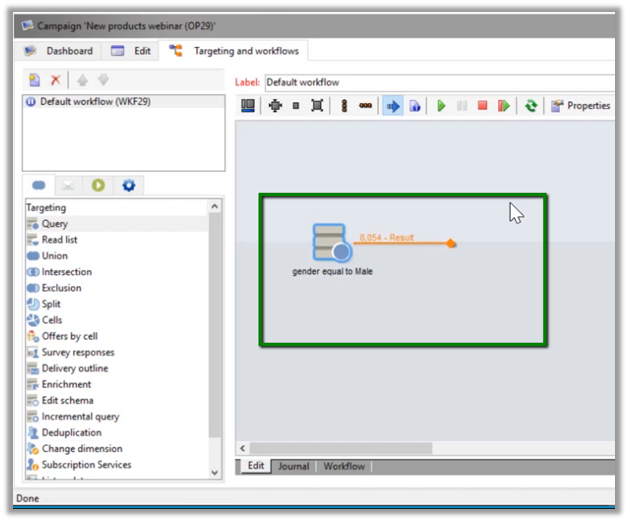
  • Below is how the query step looks within the workflow panel.

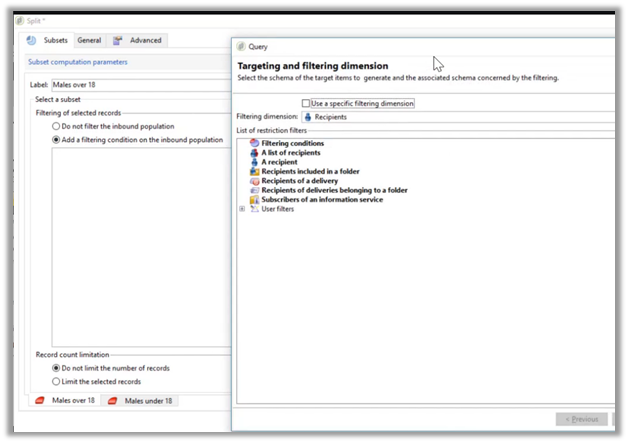
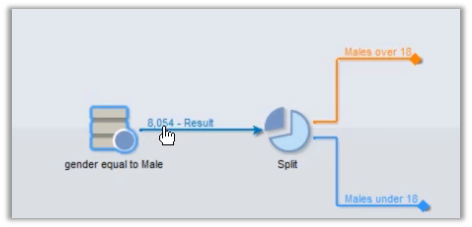
  • The split step can be used to further divide the list. Say e.g. we want to split males base list into above 18 and below 18 years of age.

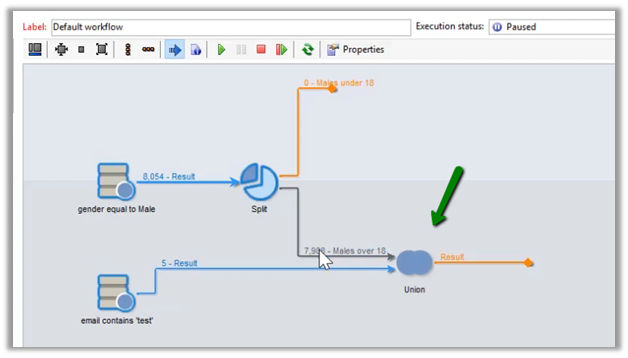
  • Union step can be used to combine the result of multiple queries.

  • With the intersection step, we can define reconciliation criteria either based on the key, shared columns, or specific columns.

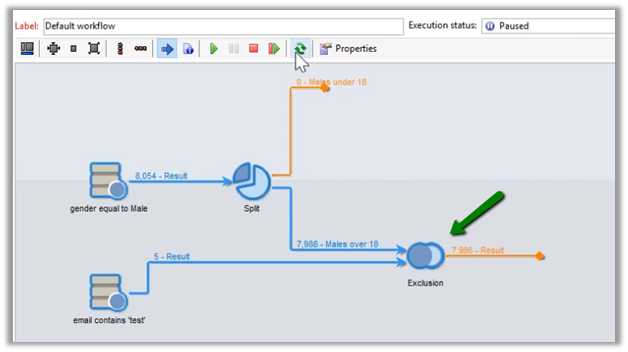
  • With the exclusion step, we can define what records to be removed from the primary set.

  • Deduplication step as the name suggests, can be used to remove duplicate records based on criteria defined.

Here we looked into some of the basics of Adobe Campaign with regards to Plan, Program, and Campaign and how the targeting works.

Next, I’d learn about the delivery aspect and how to run the campaign and share my notes on the same.

Hope it helps..