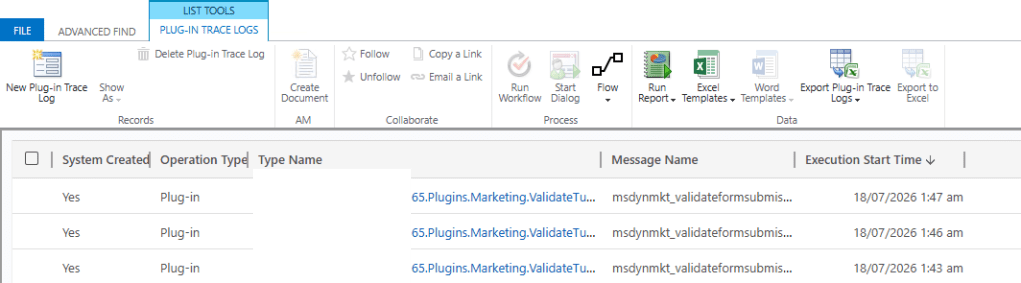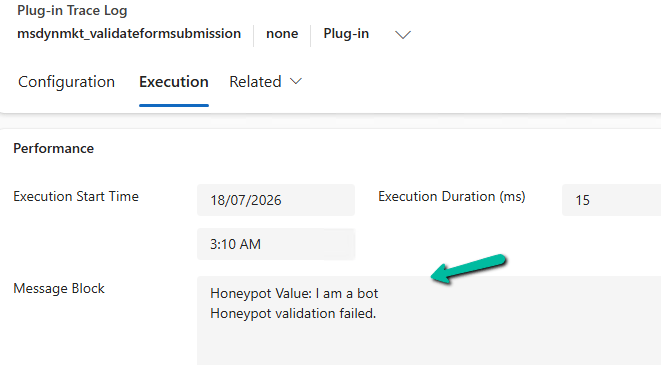
Check the previous posts for more details –
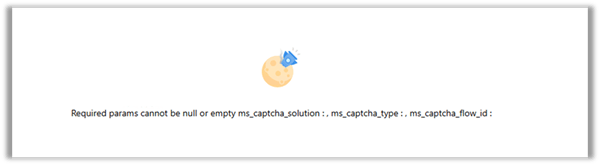
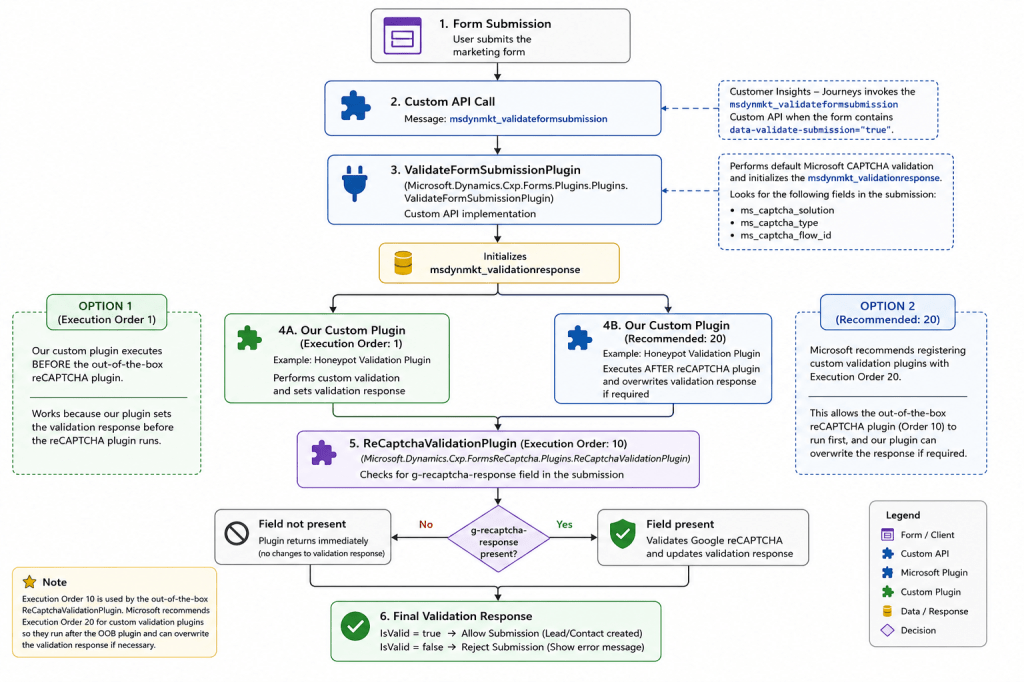
- https://nishantrana.me/2026/07/22/custom-form-submission-validation-in-dynamics-365-customer-insights-journeys-inside-the-validation-pipeline-and-the-ms_captcha_solution-error/
- https://nishantrana.me/2026/07/21/implementing-server-side-honeypot-validation-for-dynamics-365-customer-insights-journeys-forms/
In one of our recent projects, we implemented Cloudflare Turnstile (Invisible) for a Dynamics 365 Customer Insights – Journeys Real-Time Marketing form. In this post, we’ll look at how to configure Cloudflare Turnstile, integrate it with the marketing form using JavaScript, and validate submissions on the server using the msdynmkt_validateformsubmission plugin.
Check the following post for more details –
Cloudflare Turnstile provides an invisible verification mechanism that evaluates the request in the background and only requires additional verification when necessary.
For marketing forms, this means:
• Better user experience
• Reduced spam and bot submissions
• Server-side verification
Solution Overview
The implementation consists of two major components.
The first component is a JavaScript that runs inside the Marketing form. It loads the Cloudflare Turnstile library, renders an invisible widget, requests a token when the user submits the form, writes that token into a hidden form field, and then allows the submission to continue.
The second component is a Dataverse plugin registered on the msdynmkt_validateformsubmission message. The plugin retrieves the Turnstile token, reads the Cloudflare secret key from a Dataverse Environment Variable, validates the token against the Cloudflare SiteVerify API, and finally tells Customer Insights whether the submission should be accepted.
Solution Flow
Visitor
│
▼
Customer Insights – Journeys Form
│
▼
JavaScript
│
├── Loads Cloudflare Turnstile
├── Executes Invisible Challenge
└── Stores Token in Hidden Field
│
▼
Form Submission
│
▼
msdynmkt_validateformsubmission Plugin
│
├── Reads Token
├── Retrieves Secret Key from Environment Variable
├── Calls Cloudflare SiteVerify API
└── Returns Validation Result
│
▼
Lead / Contact Created
Step 1 – Create a Cloudflare Account
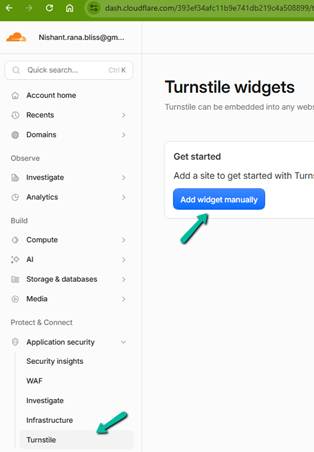
Create a free Cloudflare account and navigate to Application Security > Turnstile. Turnstile widgets are managed from this area.
Step 2 – Create an Invisible Turnstile Widget
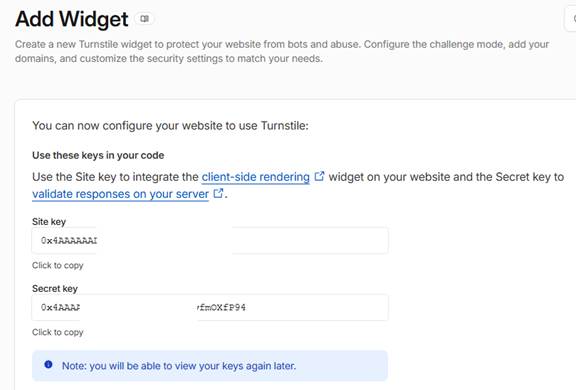
Create a new widget, select Invisible mode, and configure all hostnames that will serve the Customer Insights form.
e.g. hostname – assets-oce.mkt.dynamics.com
Cloudflare generates a Site Key and Secret Key. The Site Key is used by JavaScript while the Secret Key is kept securely on the server and used by the plugin.
Step 3 – Create a Dataverse Environment Variable
Create an environment variable to hold the Secret Key that will be used by the plugin for server-side validation of the token.
Step 4 – Configure the Marketing Form
Add an unmapped hidden Short Text field named cf_token to the form. This field temporarily stores the token generated by Cloudflare.
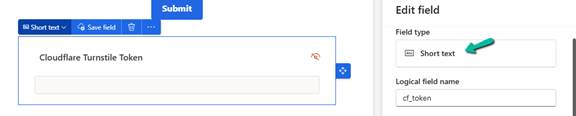
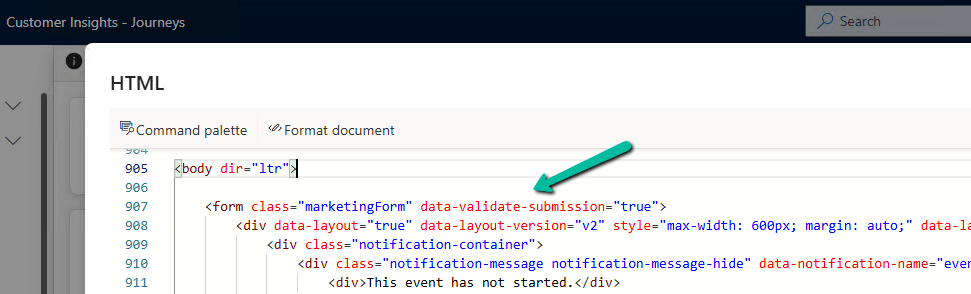
Enable data-validate-submission=”true” and add the JavaScript to the form between the closing form and body tag : </form> <Script>JavaScript </Script></body> (added in the next section)

JavaScript Implementation
The JavaScript is responsible for integrating the Customer Insights form with Cloudflare Turnstile.
At a high level, it performs the following tasks:
• Defines configuration such as the Site Key and token field name.
• Dynamically loads the Cloudflare Turnstile JavaScript library.
• Renders an invisible Turnstile widget inside the marketing form.
• Waits until the user clicks Submit.
• Executes Turnstile to obtain a fresh token.
• Stores the token in the hidden cf_token field.
• Resubmits the form after the token has been written.
The implementation also caches tokens for a short period and automatically refreshes expired tokens, ensuring that only valid tokens are submitted.
(function () {
   'use strict';

   // ---------------------------------------------------------------------
   // Configuration
   // ---------------------------------------------------------------------

   var TURNSTILE_SITE_KEY = 'SITEKEY';
   var TURNSTILE_SCRIPT_URL = 'https://challenges.cloudflare.com/turnstile/v0/api.js?render=explicit';

   var FORM_SELECTOR = 'form.marketingForm';
   var SUBMIT_EVENT = 'd365mkt-formsubmit';
   var AFTER_LOAD_EVENT = 'd365mkt-afterformload';

   // Refresh tokens after four minutes.
   // Cloudflare tokens expire after approximately five minutes.
   var TOKEN_STALE_MS = 4 * 60 * 1000;

   // Hidden unmapped field added through the Customer Insights – Journeys
   // form designer. The generated Turnstile token is copied into this field
   // before the form is submitted.
   var TOKEN_FIELD_NAME = 'cf_token';

   var scriptPromise = null;

   // Stores the Turnstile widget state for each form instance without
   // preventing the form from being garbage collected.
   var widgetState = new WeakMap();

   function loadTurnstileScript() {
      if (scriptPromise) return scriptPromise;

      scriptPromise = new Promise(function (resolve, reject) {

         if (window.turnstile) {
            resolve();
            return;
         }

         var script = document.createElement('script');
         script.src = TURNSTILE_SCRIPT_URL;
         script.async = true;
         script.defer = true;

         script.onload = function () {
            resolve();
         };

         script.onerror = function () {
            scriptPromise = null;
            reject(new Error('[CIJ Turnstile] Failed to load Turnstile script.'));
         };

         document.head.appendChild(script);
      });

      return scriptPromise;
   }

   function renderWidget(formEl) {

      if (widgetState.has(formEl)) {
         return widgetState.get(formEl);
      }

      // The widget container must exist inside the form so that Cloudflare's
      // internally managed hidden field is created within the form element.
      var container = document.createElement('div');
      container.style.display = 'none';
      formEl.appendChild(container);

      var entry = {
         widgetId: null,
         token: null,
         tokenAt: 0,
         resolve: null,
         reject: null
      };

      entry.widgetId = window.turnstile.render(container, {
         sitekey: TURNSTILE_SITE_KEY,

         // Execute Turnstile only when the user submits the form.
         execution: 'execute',

         // Keep the widget completely invisible.
         appearance: 'execute',

         callback: function (token) {
            entry.token = token;
            entry.tokenAt = Date.now();

            if (entry.resolve) {
               entry.resolve(token);
               entry.resolve = null;
               entry.reject = null;
            }
         },

         'error-callback': function (code) {
            console.error('[CIJ Turnstile] Widget error:', code);

            if (entry.reject) {
               entry.reject(new Error('Turnstile error: ' + code));
               entry.resolve = null;
               entry.reject = null;
            }
         },

         'expired-callback': function () {
            entry.token = null;
            entry.tokenAt = 0;
         }
      });

      widgetState.set(formEl, entry);

      return entry;
   }

   function getToken(formEl) {

      return loadTurnstileScript().then(function () {

         var entry = renderWidget(formEl);

         var isFresh =
            entry.token &&
            entry.tokenAt &&
            (Date.now() - entry.tokenAt) < TOKEN_STALE_MS;

         if (isFresh) {
            return Promise.resolve(entry.token);
         }

         return new Promise(function (resolve, reject) {

            entry.resolve = resolve;
            entry.reject = reject;

            window.turnstile.reset(entry.widgetId);
            window.turnstile.execute(entry.widgetId);
         });
      });
   }

   function getFormFromEvent(evt) {

      var target = evt && evt.target;

      if (!target) {
         return null;
      }

      if (target.tagName === 'FORM') {
         return target;
      }

      if (target.querySelector) {
         var nested = target.querySelector('form');

         if (nested) {
            return nested;
         }
      }

      return target.closest ? target.closest('form') : null;
   }

   function setTokenField(formEl, token) {

      var input = formEl.querySelector('[name="' + TOKEN_FIELD_NAME + '"]');

      if (!input) {
         console.error(
            '[CIJ Turnstile] Could not find field "' +
            TOKEN_FIELD_NAME +
            '". Add an unmapped field with this name in the Customer Insights – Journeys form designer.'
         );
         return false;
      }

      input.value = token;

      return true;
   }

   function getSubmitButton(formEl) {
      return formEl.querySelector('button[type="submit"], input[type="submit"]');
   }

   function showWaiting(formEl) {

      var btn = getSubmitButton(formEl);

      if (btn) {
         btn.disabled = true;
         btn.style.opacity = '0.6';
         btn.style.cursor = 'wait';
      }
   }

   function hideWaiting(formEl) {

      var btn = getSubmitButton(formEl);

      if (btn) {
         btn.disabled = false;
         btn.style.opacity = '';
         btn.style.cursor = '';
      }
   }

   function onFormSubmit(evt) {

      var formEl = getFormFromEvent(evt);

      if (!formEl || formEl._cijResubmitting) {
         return;
      }

      // Allow the re-submitted request to continue once a valid token
      // has already been written to the hidden field.
      if (formEl._cijTurnstileReady) {
         formEl._cijTurnstileReady = false;
         return;
      }

      evt.preventDefault();

      if (evt.stopImmediatePropagation) {
         evt.stopImmediatePropagation();
      }

      showWaiting(formEl);

      getToken(formEl)

         .then(function (token) {

            setTokenField(formEl, token);

            formEl._cijTurnstileReady = true;
            formEl._cijResubmitting = true;

            // Re-submit the form after a valid Turnstile token has been obtained.
            if (formEl.requestSubmit) {
               formEl.requestSubmit();
            } else {
               formEl.submit();
            }

            setTimeout(function () {
               formEl._cijResubmitting = false;
            }, 0);
         })

         .catch(function (err) {

            // Do not allow the form to continue without a valid token.
            // The server-side plugin will also reject missing or invalid tokens.
            console.error('[CIJ Turnstile] Could not obtain token. Submission blocked.', err);

            hideWaiting(formEl);
         });
   }

   function wireForm(formEl) {

      if (formEl._cijTurnstileWired) {
         return;
      }

      formEl._cijTurnstileWired = true;

      loadTurnstileScript().then(function () {
         renderWidget(formEl);
      });
   }

   function findAndWireForms(root) {
      (root || document)
      .querySelectorAll(FORM_SELECTOR)
         .forEach(wireForm);
   }

   document.addEventListener(AFTER_LOAD_EVENT, function (evt) {

      var formEl = getFormFromEvent(evt);

      if (formEl) {
         wireForm(formEl);
      } else {
         findAndWireForms(document);
      }
   });

   document.addEventListener(SUBMIT_EVENT, onFormSubmit);

   // Handle forms that were rendered before this script was loaded.
   if (document.readyState !== 'loading') {
      findAndWireForms(document);
   } else {
      document.addEventListener('DOMContentLoaded', function () {
         findAndWireForms(document);
      });
   }

})();
Plugin Implementation
The plugin performs the server-side verification. The Execute method first retrieves the form submission payload supplied by Customer Insights. From that payload, it reads the cf_token field. The plugin then retrieves the Cloudflare Secret Key from the Dataverse Environment Variable. If the Environment Variable has not been configured, the plugin throws an exception because verification cannot continue.
Once both values are available, the plugin calls the Cloudflare SiteVerify endpoint using HttpClient. Cloudflare returns a JSON payload indicating whether the token is valid. Only successful responses allow the submission to continue. Finally, the plugin creates a ValidateFormSubmissionResponse object and returns it to Customer Insights. The cf_token field is included in ValidationOnlyFields, so it is ignored during entity creation.
using Microsoft.Xrm.Sdk;
using System;
using System.Collections.Generic;
using System.IO;
using System.Linq;
using System.Net.Http;
using System.Runtime.Serialization;
using System.Runtime.Serialization.Json;
using System.Text;

namespace SamplePlugin
{
    /// <summary>
    /// Validates Customer Insights - Journeys form submissions by verifying
    /// the Cloudflare Turnstile token before allowing record creation.
    /// Registered on:
    /// Message: msdynmkt_validateformsubmission
    /// Stage: PostOperation
    /// Mode: Synchronous
    /// </summary>
    public class ValidateTurnstilePlugin : IPlugin
    {
        private const string TurnstileVerifyUrl =
            "https://challenges.cloudflare.com/turnstile/v0/siteverify";

        private const string TokenFieldName = "tokenfieldname";

        private const string FailureMessage =
            "Captcha validation failed. Please refresh the page and try again.";

        private const string SecretKeyEnvironmentVariableSchemaName =
            "environmentvariablename";

        public void Execute(IServiceProvider serviceProvider)
        {
            var tracing =
                (ITracingService)serviceProvider.GetService(typeof(ITracingService));

            var context =
                (IPluginExecutionContext)serviceProvider.GetService(typeof(IPluginExecutionContext));

            if (!context.InputParameters.Contains("msdynmkt_formsubmissionrequest"))
            {
                tracing.Trace(
                    "[Turnstile] Input parameter 'msdynmkt_formsubmissionrequest' not found.");
                return;
            }

            var serviceFactory =
                (IOrganizationServiceFactory)serviceProvider.GetService(
                    typeof(IOrganizationServiceFactory));

            var service = serviceFactory.CreateOrganizationService(null);

            string secretKey = GetEnvironmentVariableValue(
                service,
                tracing,
                SecretKeyEnvironmentVariableSchemaName);

            if (string.IsNullOrWhiteSpace(secretKey))
            {
                throw new InvalidPluginExecutionException(
                    $"Environment Variable '{SecretKeyEnvironmentVariableSchemaName}' does not contain a value.");
            }

            var request = Deserialize<FormSubmissionRequest>(
                (string)context.InputParameters["msdynmkt_formsubmissionrequest"]);

            var fields = request?.Fields ?? new List<FormField>();

            string token = fields
                .FirstOrDefault(f => f.Key == TokenFieldName)?
                .Value;

            if (string.IsNullOrWhiteSpace(token))
            {
                tracing.Trace(
                    $"[Turnstile] Token field '{TokenFieldName}' is empty.");

                SetValidationResponse(
                    context,
                    false,
                    FailureMessage);

                return;
            }

            bool isValid = VerifyTurnstile(
                secretKey,
                token,
                tracing);

            tracing.Trace(
                $"[Turnstile] Validation Result = {isValid}");

            SetValidationResponse(
                context,
                isValid,
                isValid ? null : FailureMessage);
        }

        private bool VerifyTurnstile(
            string secretKey,
            string token,
            ITracingService tracing)
        {
            var formContent =
                new FormUrlEncodedContent(
                    new Dictionary<string, string>
                    {
                        { "secret", secretKey },
                        { "response", token }
                    });

            using (var httpClient = new HttpClient())
            {
                string body;

                try
                {
                    var response =
                        httpClient.PostAsync(
                            TurnstileVerifyUrl,
                            formContent).Result;

                    body =
                        response.Content.ReadAsStringAsync().Result;

                    if (!response.IsSuccessStatusCode)
                    {
                        tracing.Trace(
                            $"[Turnstile] siteverify returned HTTP {(int)response.StatusCode}. " +
                            $"Body: {(string.IsNullOrWhiteSpace(body) ? "<empty>" : body)}");

                        return false;
                    }
                }
                catch (Exception ex)
                {
                    tracing.Trace(
                        "[Turnstile] Exception calling siteverify: " +
                        ex);

                    return false;
                }

                var verifyResponse =
                    Deserialize<TurnstileVerifyResponse>(body);

                tracing.Trace(
                    $"[Turnstile] success={verifyResponse.Success}, " +
                    $"hostname={verifyResponse.Hostname}, " +
                    $"errors={(verifyResponse.ErrorCodes == null ? "none" : string.Join(", ", verifyResponse.ErrorCodes))}");

                return verifyResponse.Success;
            }
        }

        private void SetValidationResponse(
    IPluginExecutionContext context,
    bool isValid,
    string error)
        {
            var response = new ValidateFormSubmissionResponse
            {
                IsValid = isValid,
                ValidationOnlyFields = new List<string>
                {
                    TokenFieldName
                },
                Error = error
            };

            context.OutputParameters["msdynmkt_validationresponse"] =
                Serialize(response);
        }

        private string GetEnvironmentVariableValue(
            IOrganizationService service,
            ITracingService tracing,
            string schemaName)
        {
            tracing.Trace(
                "[Turnstile] Retrieving Environment Variable: {0}",
                schemaName);

            var request = new OrganizationRequest(
                "RetrieveEnvironmentVariableValue")
            {
                Parameters =
                {
                    ["DefinitionSchemaName"] = schemaName
                }
            };

            var response = service.Execute(request);

            if (response.Results.Count == 0)
            {
                tracing.Trace(
                    "[Turnstile] Environment Variable '{0}' not found.",
                    schemaName);

                return null;
            }

            var value = response.Results
                .Values
                .FirstOrDefault()
                ?.ToString();

            tracing.Trace(
                "[Turnstile] Environment Variable '{0}' retrieved successfully.",
                schemaName);

            return value;
        }

        private static T Deserialize<T>(string json)
        {
            using (var stream =
                new MemoryStream(Encoding.UTF8.GetBytes(json)))
            {
                return (T)new DataContractJsonSerializer(typeof(T))
                    .ReadObject(stream);
            }
        }

        private static string Serialize<T>(T value)
        {
            using (var stream = new MemoryStream())
            {
                new DataContractJsonSerializer(typeof(T))
                    .WriteObject(stream, value);

                return Encoding.UTF8.GetString(stream.ToArray());
            }
        }

        #region Models

        [DataContract]
        private class FormField
        {
            [DataMember(Name = "Key")]
            public string Key { get; set; }

            [DataMember(Name = "Value")]
            public string Value { get; set; }
        }

        [DataContract]
        private class FormSubmissionRequest
        {
            [DataMember(Name = "Fields")]
            public List<FormField> Fields { get; set; }
        }

        [DataContract]
        private class ValidateFormSubmissionResponse
        {
            [DataMember(Name = "IsValid")]
            public bool IsValid { get; set; }

            [DataMember(Name = "ValidationOnlyFields")]
            public List<string> ValidationOnlyFields { get; set; }

            [DataMember(Name = "Error")]
            public string Error { get; set; }
        }

        [DataContract]
        private class TurnstileVerifyResponse
        {
            [DataMember(Name = "success")]
            public bool Success { get; set; }

            [DataMember(Name = "hostname")]
            public string Hostname { get; set; }

            [DataMember(Name = "error-codes")]
            public string[] ErrorCodes { get; set; }

            [DataMember(Name = "action")]
            public string Action { get; set; }

            [DataMember(Name = "challenge_ts")]
            public string ChallengeTimestamp { get; set; }
        }

        #endregion
    }
}
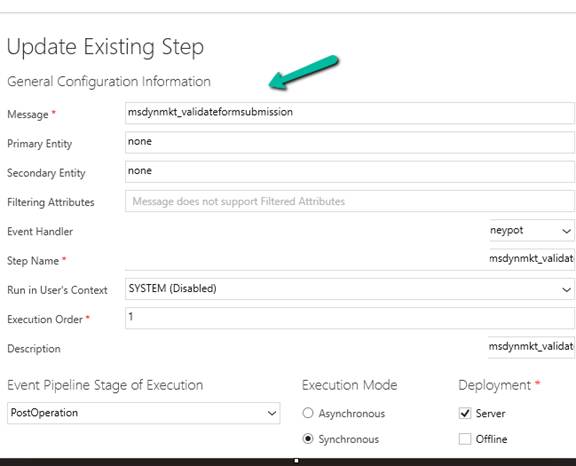
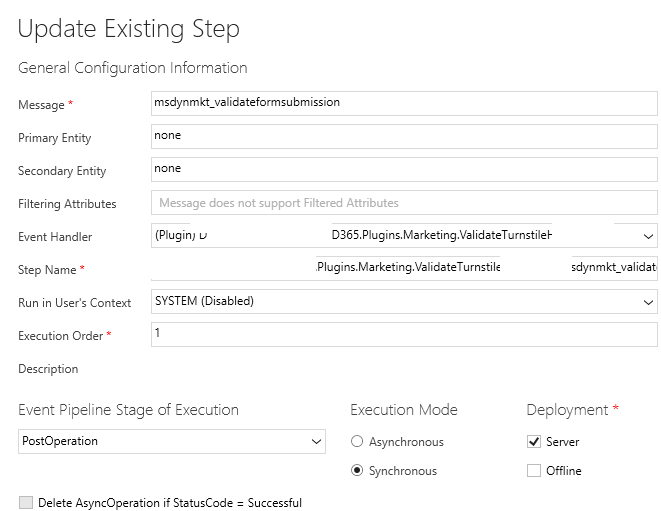
Register a synchronous plugin step on the msdynmkt_validateformsubmission message.
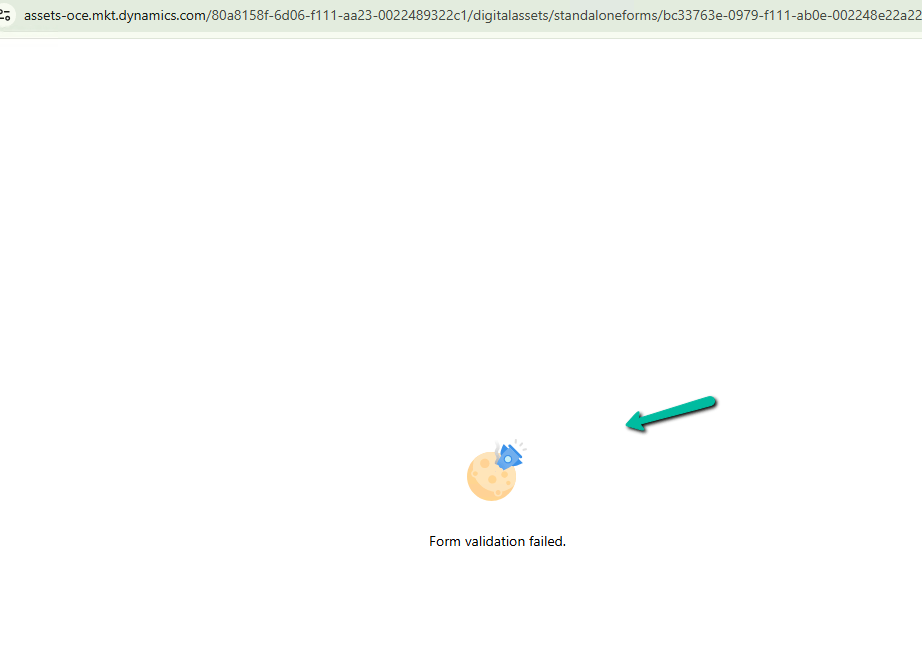
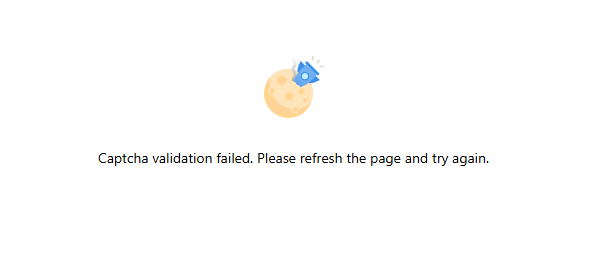
On failure – we get the message specified in the plugin
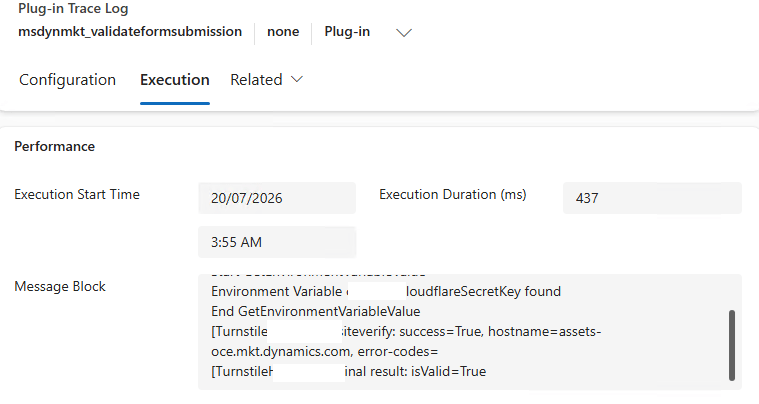
On the successful submission, we can see the marketing form submitted successfully and the details in our plugin trace log.
References
Amey Holden – https://www.ameyholden.com/articles/recaptcha-v3-cloudflare-turnstile-for-customer-insights-journeys-forms
MS Learn: Customer Insights – Journeys Customize form submission validation:
MS Learn: Customer Insights client-side extensibility
Cloudflare Turnstile: https://developers.cloudflare.com/turnstile/
Client-side rendering: https://developers.cloudflare.com/turnstile/get-started/client-side-rendering/
Server-side validation: https://developers.cloudflare.com/turnstile/get-started/server-side-validation/
Megan Walker – https://meganvwalker.com/setting-up-recaptcha-v2-for-realtime-forms/
Hope it helps..