While validating some Dynamics 365 Field Service data recently, we came across an interesting scenario where SQL4CDS and Advanced Find returned different record counts even though the date filters appeared to be identical.
At first glance it was surprising to see different record counts being returned despite using what appeared to be the same date range. After investigating further, we found that the difference was related to time zone handling and the behavior of User Local date fields.
In this post, we’ll walk through the issue, explain why it happens, and show how to get matching results between Advanced Find and SQL4CDS.
The Scenario
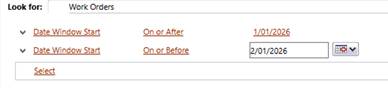
We had a user in Auckland, New Zealand running the following Advanced Find query against Work Orders.
Date Window Start
- On or After 01/01/2026
- On or Before 02/01/2026
Advanced Find returned:
5,755 records
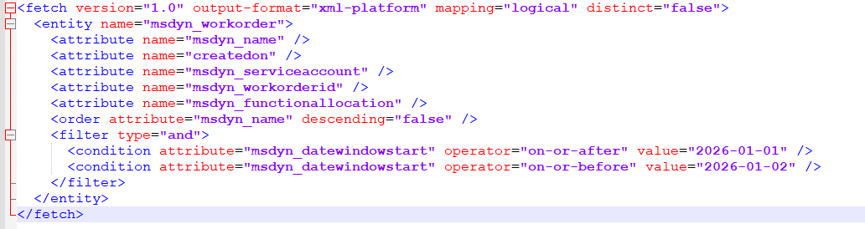
The generated FetchXML looked like this:
To validate the result, we ran the following query in SQL4CDS:
SELECT COUNT(*)
FROM msdyn_workorder
WHERE msdyn_datewindowstart >= ‘2026-01-01 00:00:00’
AND msdyn_datewindowstart <= ‘2026-01-02 00:00:00’;
The results were unexpected.
| Query Method | Time Zone Used | Result |
| Advanced Find (Auckland User) | Auckland (NZDT) | 5,755 |
| SQL4CDS | UTC Mode | 3,027 |
| SQL4CDS | Local Mode (India) | 3,026 |
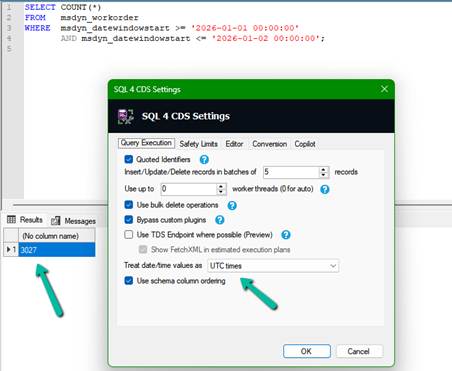
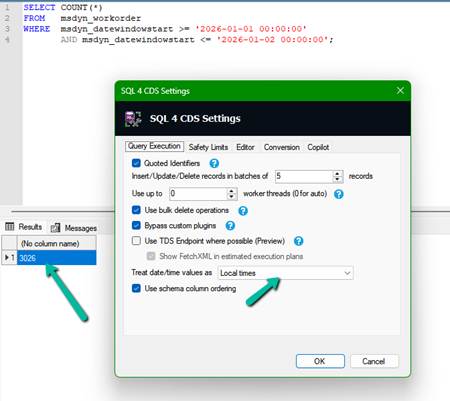
At this point, it was clear that Advanced Find and SQL4CDS were evaluating different date boundaries, even though the filters appeared very similar. The next step was to understand why.
Understanding the Date Window Start Field
The key detail was the configuration of the Date Window Start field.
The Date Window Start field is configured as a Date Only field with User Local behavior.
Although users only see a date value, Dataverse stores an underlying UTC datetime value and performs time zone conversion based on the user’s personal settings.
To better understand what was happening, we queried some of the underlying values directly.
SELECT msdyn_workorderid,
msdyn_datewindowstart
FROM msdyn_workorder
WHERE msdyn_datewindowstart >= ‘2026-01-01 00:00:00’
AND msdyn_datewindowstart <= ‘2026-01-02 00:00:00’;
When running SQL4CDS in UTC mode, many records had values such as:
2026-01-01 11:00:00
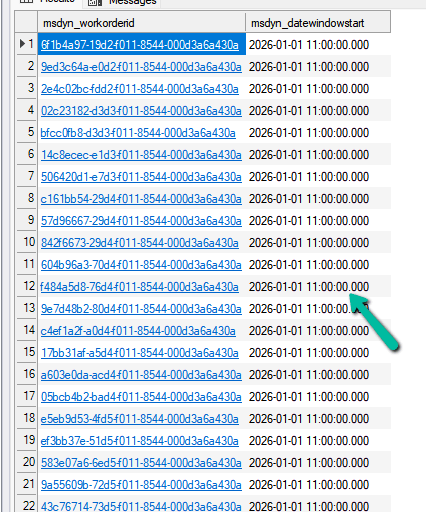
This initially looked unusual because users only see a date value in the application.
However, the explanation becomes clear when we consider the Auckland user’s time zone.
In January, Auckland operates on New Zealand Daylight Time (NZDT), which is UTC+13.
For a User Local Date Only field, Dataverse converts the user’s local date into UTC before storing it.
| Date Seen by Auckland User | Stored UTC Value |
| 01-Jan-2026 | 31-Dec-2025 11:00 UTC |
| 02-Jan-2026 | 01-Jan-2026 11:00 UTC |
| 03-Jan-2026 | 02-Jan-2026 11:00 UTC |
This explains why so many records appear with a value of 11:00 UTC when viewed in SQL4CDS running in UTC mode.
Why Advanced Find Returned More Records
When the Auckland user enters:
01/01/2026
to
02/01/2026
Advanced Find interprets those dates using the user’s personal time zone.
The actual UTC boundaries become:
>= 2025-12-31 11:00:00 UTC
< 2026-01-02 11:00:00 UTC
This represents two complete calendar days for the Auckland user.
Our original SQL4CDS query was searching a different range entirely:
>= 2026-01-01 00:00:00 UTC
<= 2026-01-02 00:00:00 UTC
Although the dates appear similar, the actual UTC boundaries are very different.
Finding the Correct SQL4CDS Query in UTC Mode
To reproduce the Advanced Find results, we converted the Auckland user’s date range into UTC and updated the SQL4CDS query accordingly.
SELECT COUNT(*)
FROM msdyn_workorder
WHERE msdyn_datewindowstart >= ‘2025-12-31 11:00:00’
AND msdyn_datewindowstart < ‘2026-01-02 11:00:00’;
This returned:
5,755 records
which matched Advanced Find exactly.
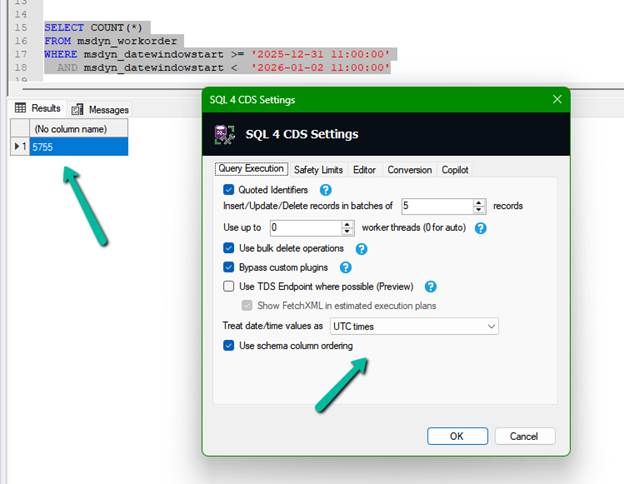
What If SQL4CDS Is Running in Local Mode?
The example above used SQL4CDS running in UTC mode. However, SQL4CDS can also be configured to use Local Time mode.
In our scenario, SQL4CDS was running on a machine configured for India Standard Time (IST), which is UTC+5:30.
To match the Advanced Find results in Local Mode, we need to convert the Auckland UTC boundaries into the local time zone used by SQL4CDS.
Earlier we determined that the Auckland user’s date range:
01-Jan-2026 to 02-Jan-2026
corresponds to the following UTC boundaries:
31-Dec-2025 11:00 UTC
to
02-Jan-2026 11:00 UTC
When SQL4CDS is running in Local Mode on an India machine, those UTC values need to be converted to IST.
| UTC Boundary | IST Boundary |
| 31-Dec-2025 11:00 UTC | 31-Dec-2025 16:30 IST |
| 02-Jan-2026 11:00 UTC | 02-Jan-2026 16:30 IST |
The equivalent SQL4CDS query becomes:
SELECT COUNT(*)
FROM msdyn_workorder
WHERE msdyn_datewindowstart >= ‘2025-12-31 16:30:00’
AND msdyn_datewindowstart < ‘2026-01-02 16:30:00’;
This query also returned:
5,755 records
matching Advanced Find exactly.
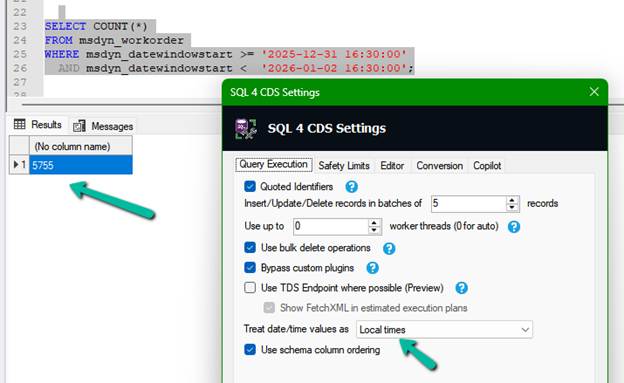
The results can now be summarized as follows:
| Validation Method | Query Boundary | Result |
| Advanced Find (Auckland User) | User Time Zone | 5,755 |
| SQL4CDS UTC Mode | 31-Dec-2025 11:00 UTC → 02-Jan-2026 11:00 UTC | 5,755 |
| SQL4CDS Local Mode (India) | 31-Dec-2025 16:30 IST → 02-Jan-2026 16:30 IST | 5,755 |
References
For a deeper understanding of how SQL4CDS handles date and time values, I highly recommend Mark Carrington’s article:
https://markcarrington.dev/2021/05/21/date-time-handling-in-sql-4-cds
This article explains how SQL4CDS interprets date and time values in both UTC and Local Time modes and was a useful reference while investigating this scenario.
Key Takeaways
The investigation highlighted that there may be three different time zones involved when validating results:
- The Dataverse user’s personal time zone used by Advanced Find.
- The SQL4CDS Local Time setting.
- UTC when SQL4CDS is configured to use UTC mode.
Even when the same date values are entered, the actual UTC range being queried may be different.
For the most reliable comparison:
- Identify the time zone of the user who ran Advanced Find.
- Convert the date boundaries to UTC.
- Run SQL4CDS in UTC mode.
- Use explicit UTC values in your query.
We also recommend using an exclusive upper boundary:
WHERE Field >= StartBoundaryUTC
AND Field < EndBoundaryUTC
instead of:
WHERE Field <= EndOfDay
This avoids potential issues with milliseconds and provides more predictable results.
SQL4CDS can match Advanced Find in either UTC Mode or Local Mode. The important requirement is that the date boundaries represent the same moment in time. We generally prefer UTC Mode because the query behaves consistently regardless of the machine or user executing it.
Hope it helps..