In-app or Push notification – Model-driven App – 2021 Release Wave 1 Power Apps / Dynamics 365


With 2021 Release Wave 1, the in-app notifications feature has been added to the Model-driven app, earlier it was only available for Canvas Apps.

To see it in action à

Login to Power Automate

https://us.flow.microsoft.com/en-us/

Create a new flow, select start from blank – Automated cloud flow, make sure the appropriate environment is selected.

Specify the flow name along with the trigger
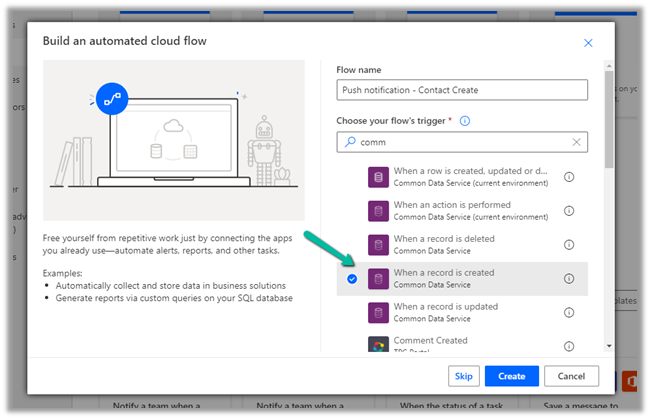
Here for the trigger, we have specified the condition as contact creation.

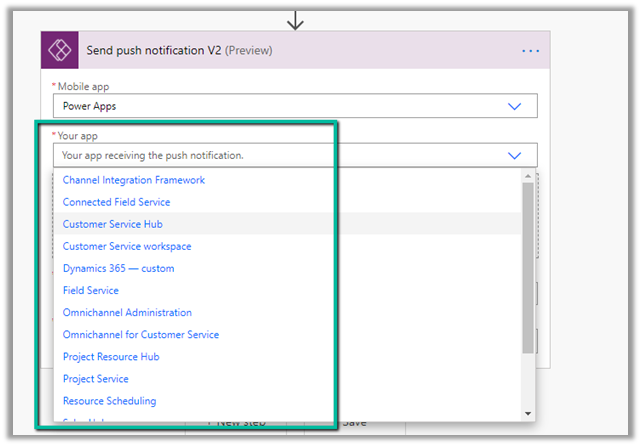
For the action, select Send Push Notification V2 (preview)

For Mobile App, we can select either Power Apps or Field Service app to send the notifications to.

Here we have selected Power Apps mobile app.

Your app field will list down all the Model-driven apps available for the environment.
In recipients specify the email address and define the message.

In the Open App option, we can specify whether to open the app or not, on tap of the notification.

Finally, we can specify the entity, form for that entity (or view) to be opened.

We are setting the record id (of the contact record created) that should be opened in the form.

Save the flow.

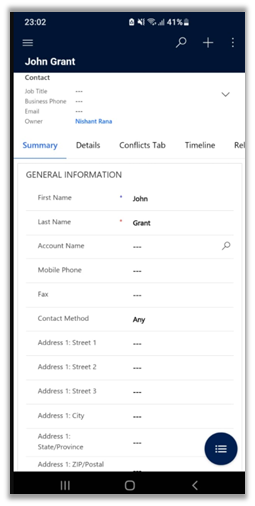
Creating a contact record will trigger the flow and will send the notification to the mobile as shown below.

We can click on the notification, which takes us to the record as shown below.
Get all details here

https://powerapps.microsoft.com/es-es/blog/now-available-model-driven-app-push-notifications/

Blog posts on 2021 Release Wave 1 – Dynamics 365

Hope it helps..

Advertisements

How to – Extract attachments from Notes in Dynamics 365 / Dataverse


There are different ways we can extract attachments from notes.

  • We can write an SSIS Package using the Premium Derived Column component of KingswaySoft

https://nishantrana.me/2020/11/09/extract-attachment-from-notes-in-dynamics-365-ce-cds-ssis-kingswaysoft/

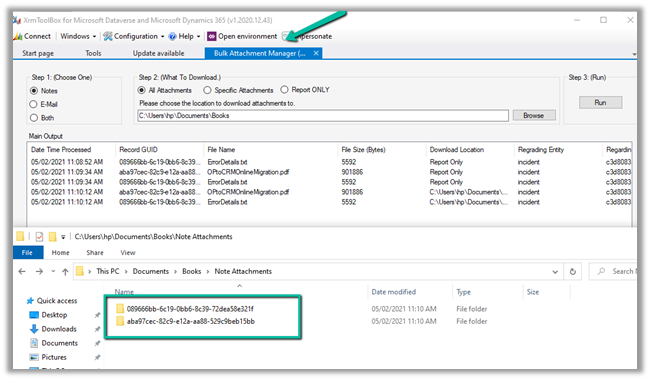
  • XrmToolBox has a wonderful plugin – Bulk Attachment Manager

https://www.livingintech.com/2018/02/xrmtoolbox-bulk-attachment-manager.html

The tool can download attachments from both Note and Email, using note’s GUID as the folder name.

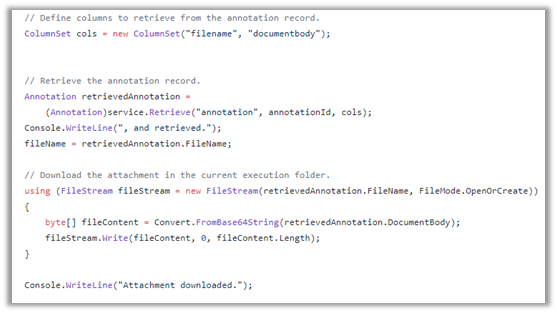
  • We can use SDK and write console app or tool.

https://github.com/microsoft/PowerApps-Samples/blob/master/cds/orgsvc/C%23/URDAttachment/URDAttachment/SampleProgram.cs

https://www.c-sharpcorner.com/article/downloading-notes-attachments-using-paginghis-artcile/

Or use the CRM SDK within the script component of SSIS if we are not using KingswaySoft’s CDS Component.

https://nishantrana.me/2020/10/19/connect-to-dynamics-365-through-script-component-ssis/

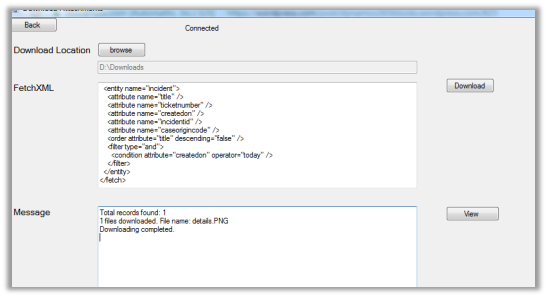
  • Attachment Downloader Tool

https://vishalgrade.com/2018/01/22/ms-crm-attachment-downloader/

https://github.com/vgrade/MSCRMAttachmentDownloader

We can update the tool as per our requirement.

  • Use LINQPad for extracting attachment

https://dreamingincrm.com/2018/01/18/export-all-attachments-using-linqpad/

Hope it helps..

Advertisements

Improved search experience now adds Quick Actions – 2021 Release Wave 1 – Dynamics 365


Improved search experience added features like easy access of search from within the header

https://nishantrana.me/2021/01/12/improved-search-experience-in-dynamics-365-powerapps/

More details and filters option

Incremental search or real time suggestions while performing the search

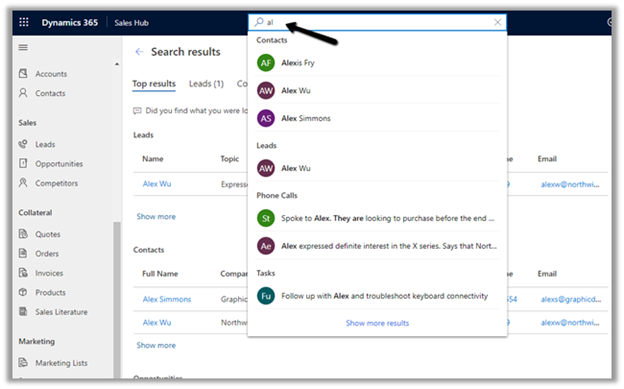
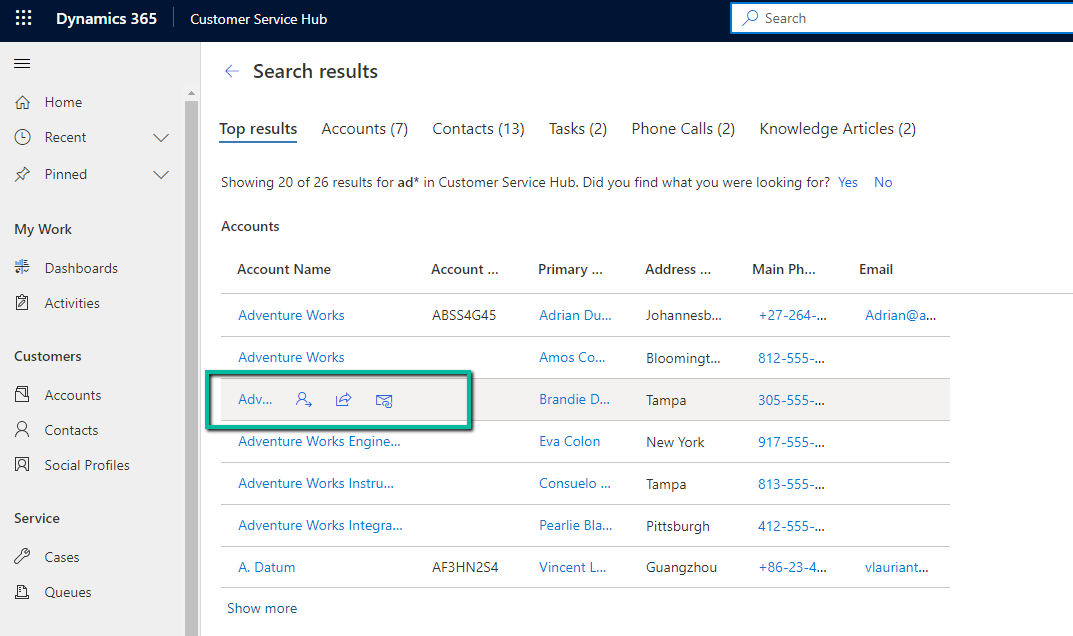
Now the 2021 Release Wave 1 adds Quick actions to the search results as shown below.

The quick actions available for accounts, contacts, etc. are

  • Assign
  • Share
  • Email

For the Phone call or activity entity, the options available are

  • Mark Complete
  • Cancel
  • Set Regarding
  • Assign
  • Email a Link.

The quick action are also available within the search results

Search

Read more about 2021 Release Wave 1

https://docs.microsoft.com/en-gb/power-platform-release-plan/2021wave1/

For Posts on

  • 2020 Release Wave 2

https://nishantrana.me/2020/08/14/posts-on-2020-release-wave-2-dynamics-365/

  • 2020 Release Wave 1

https://nishantrana.me/2020-release-wave-1/

Blog posts on 2021 Release Wave 1 – Dynamics 365

Hope it helps

Advertisements

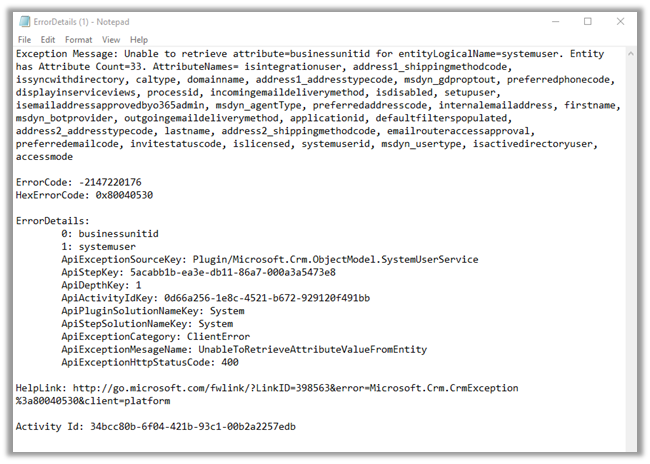
Unable to retrieve attribute=businessunitid for entityLogicalName=systemuser exception while creating Application User in Dynamics 365


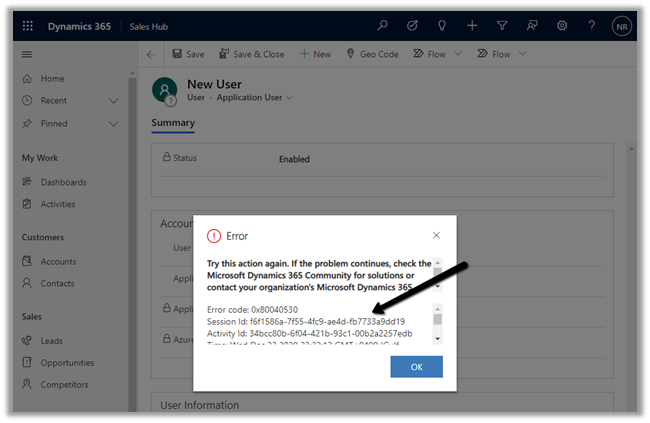
Recently while trying to add a new application user we got the below error message

More on Application User

https://nishantrana.me/2020/12/24/application-user-form-missing-in-dynamics-365/

https://nishantrana.me/2020/12/23/d365-the-user-is-not-a-member-of-the-organization-error-while-connecting-to-ce/

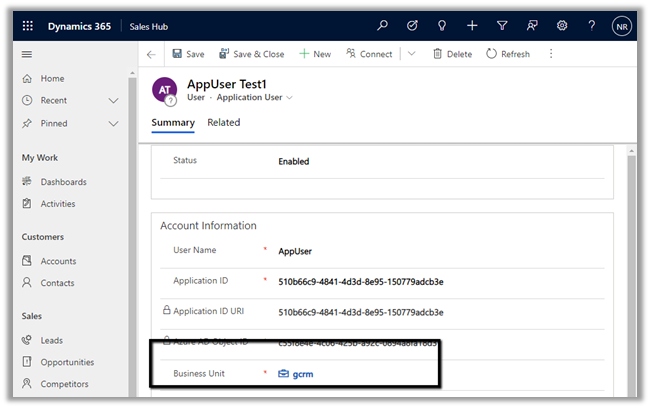
Adding the missing Business Unit field in the form fixed it.

Hope it helps..

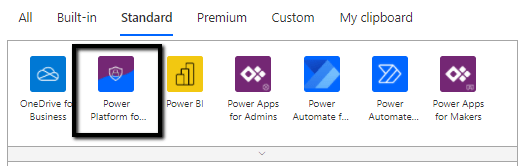
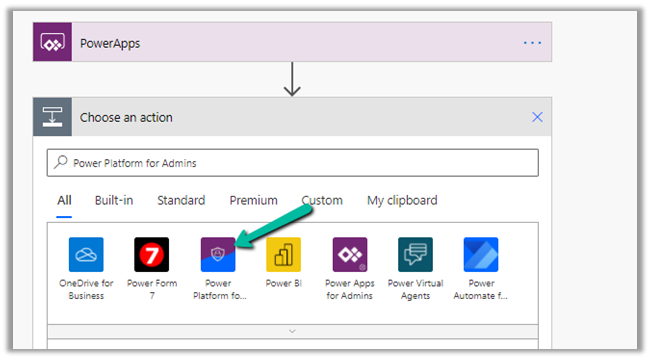
Power Platform for Admins connector (preview) in Power Automate


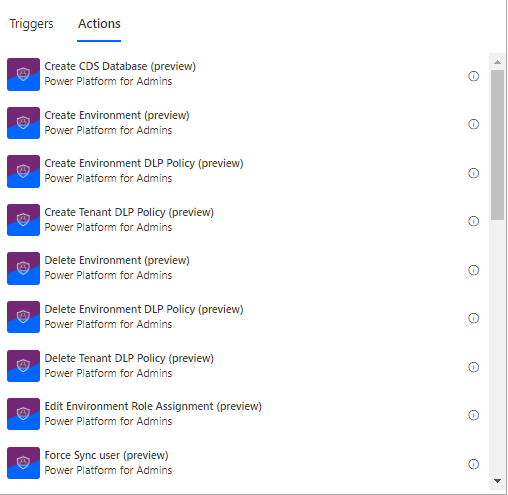
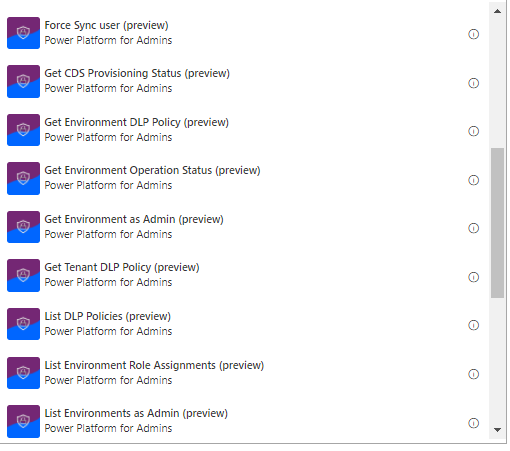
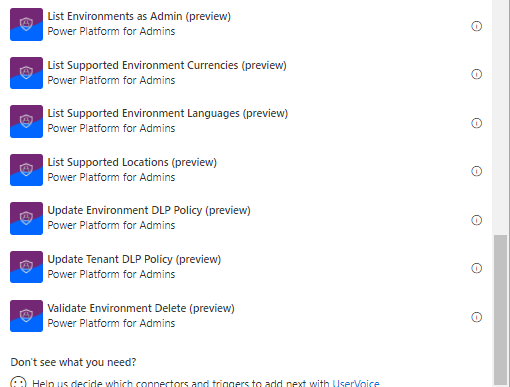
The Power Platform for Admins connector (preview)

let’s us perform following Actions


The connector allows us to access the Business Applications Platform (BAP) API.

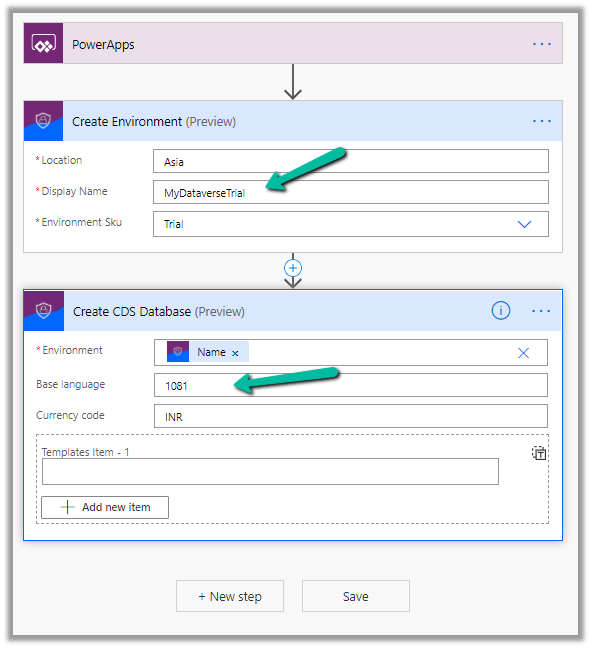
Below is the example of the Create Environment action, followed by Create CDS Database.

Here we are creating a trial environment in Asia region followed by a CDS database in it with base language – Hindi and currency code as INR

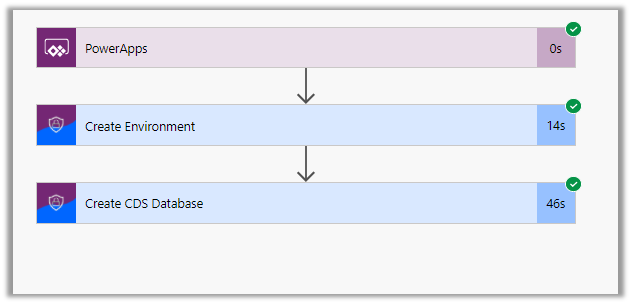
Let us run the flow and see the results

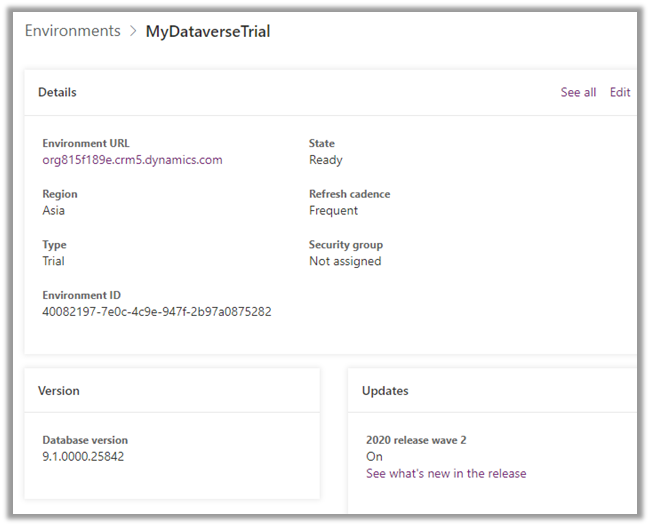
In Power Platform admin center can see the environment created along with the database specified.

All the key URL(s) for Power Platform Admin

Get all the details below –

Power Platform for Admins (Preview)

Power Apps and Power Automate Administration and Governance – Tools and Labs

Hope it helps..

Synchronize (Bi-Directional) Dynamics 365 CRM Cloud data with SQL Azure using Skyvia’s Synchronization Package


Continuing our previous post where we used the replication package

https://nishantrana.me/2019/11/13/easily-set-up-dynamics-365-ce-crm-replication-incremental-to-azure-sql-sql-on-premise-using-skyvias-data-integration-services/

here we will see how we can use the synchronization service for bi-directional sync.

Below of the prerequisites of synchronization package to perform bi-directional sync –

  • We need to use the created on and modified on fields of the Entity
  • The synchronized tables to have an auto-generated primary key.

So here we need to alter the SQL Azure’s Contact table that was auto-created earlier by the Replication package to have the auto-generated primary key.

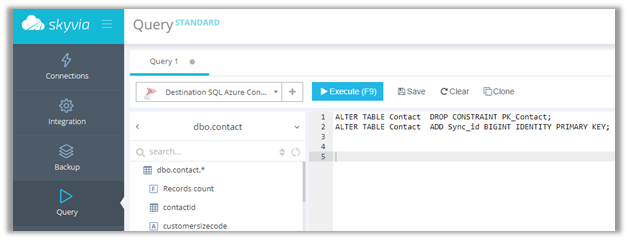
Connect to the SQL Azure database using Skyvia’s Query service and perform the alter operation

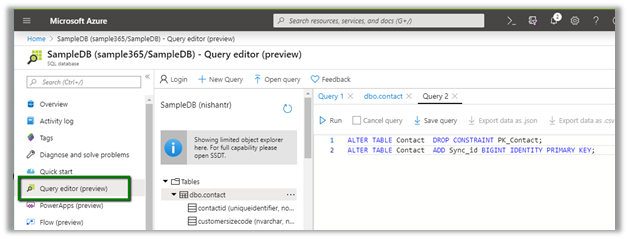
Or use the Query Editor (preview) of Azure

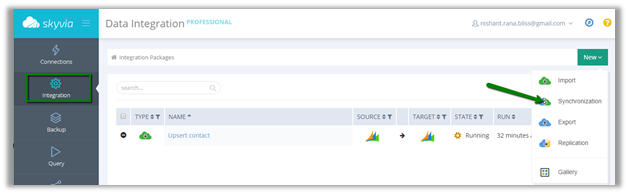
With necessary changes made, let us create a new Synchronization package

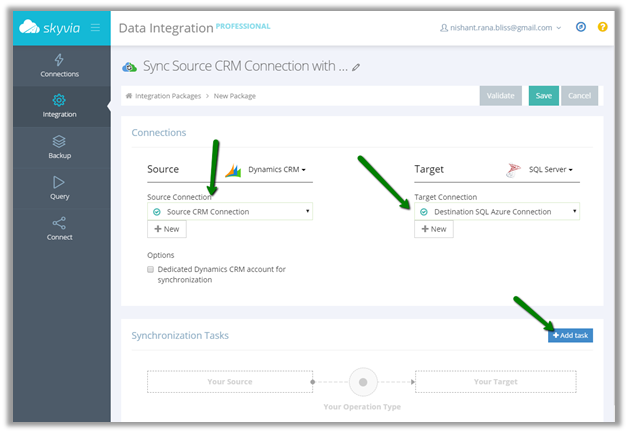
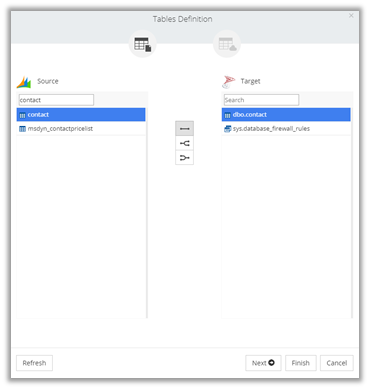
Specify the connection and click on Add Task to create the synchronization task.

We have specified contact entity from Dynamics CRM Source and contact table in SQL Azure which was earlier created for us by the replication package.

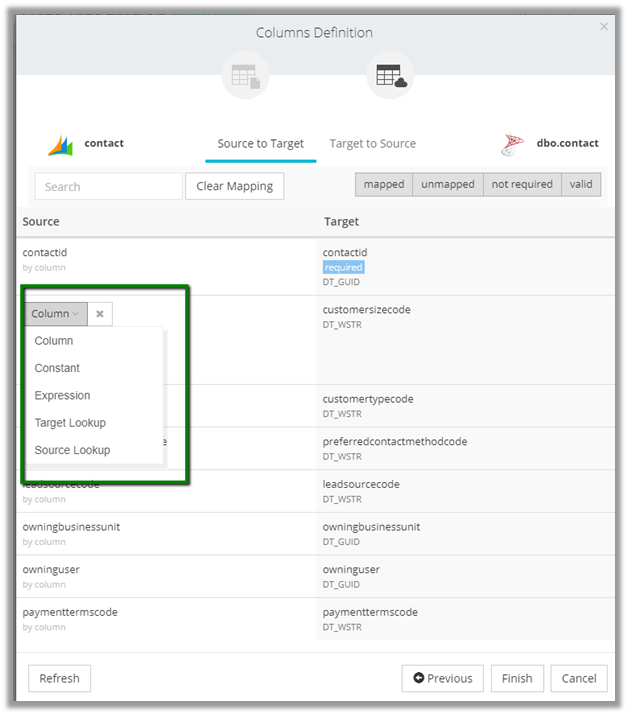
It automatically maps all the columns here based on the column name.

We can also manually specify mapping here for both Source To Target and Target to Source fields to be used for sync.

Click on Finish once done with the mapping.

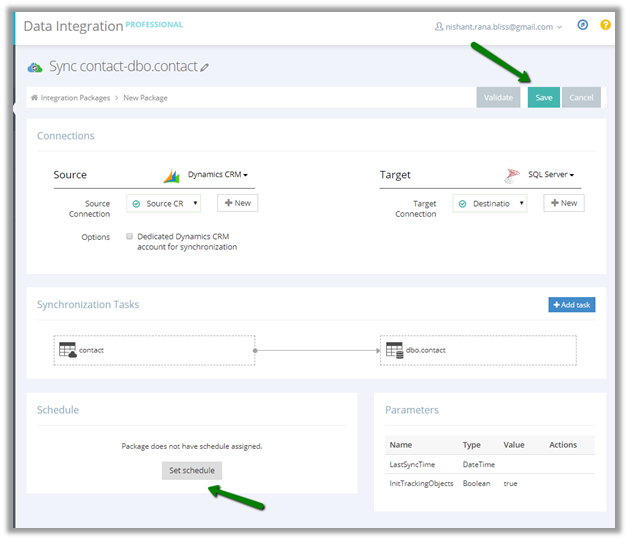
Similarly to replication packages, the synchronization packages can be scheduled.

Click on Save to create the Task.

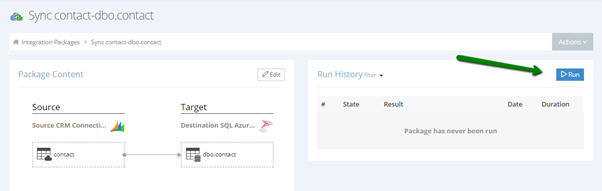
Click on Run

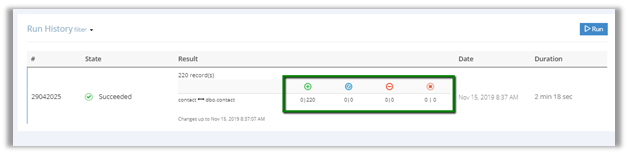
The run history shows the 220 records synced from Dynamics CRM to SQL Azure.

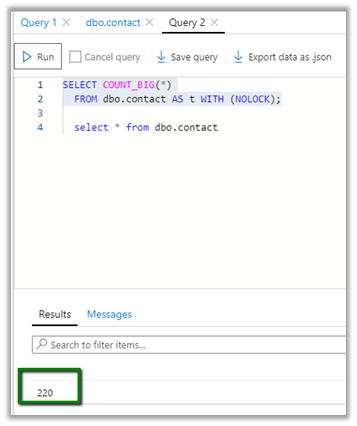
We can see the 220 records created in our SQL Azure DB

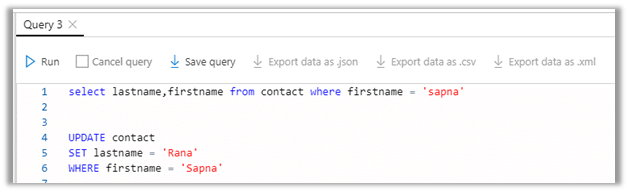
Now let us update a record in SQL Azure and run the package again.

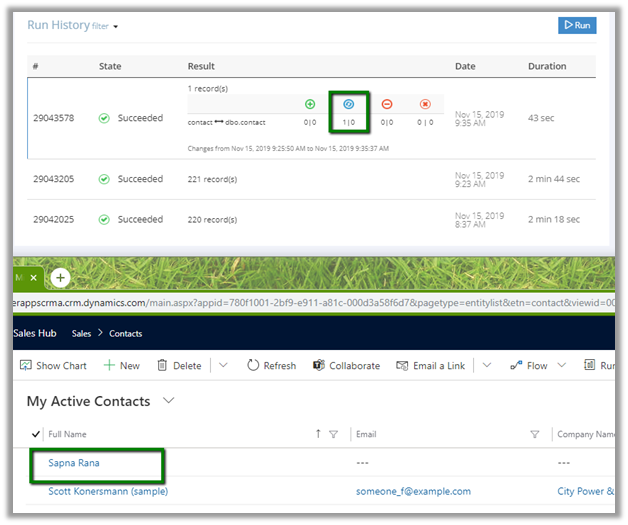
We can see the record updated in Dynamics CRM

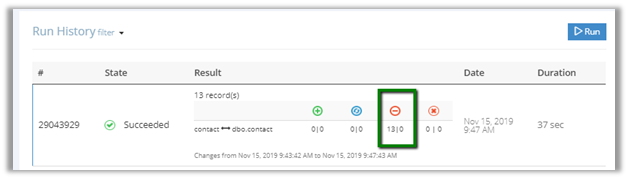
Now let us delete a few records from Azure SQL and run the package

We can see the records delete from Dynamics CRM

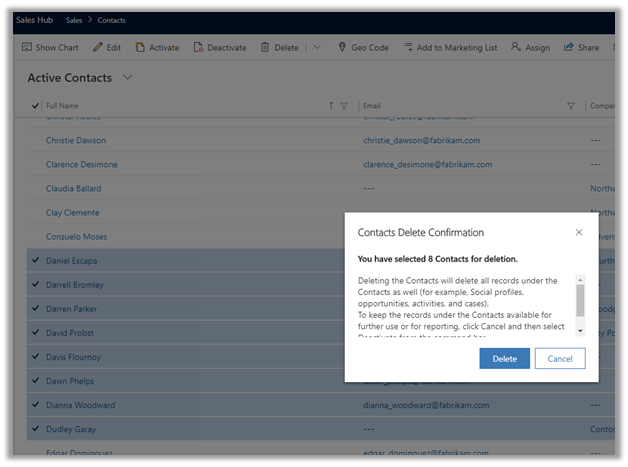
Similarly, let us delete a couple of records from Dynamics CRM and run the package

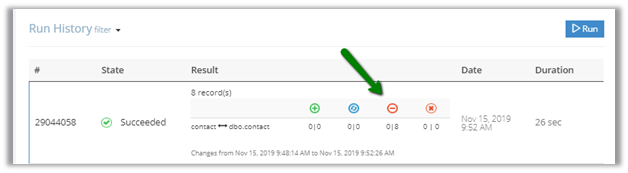
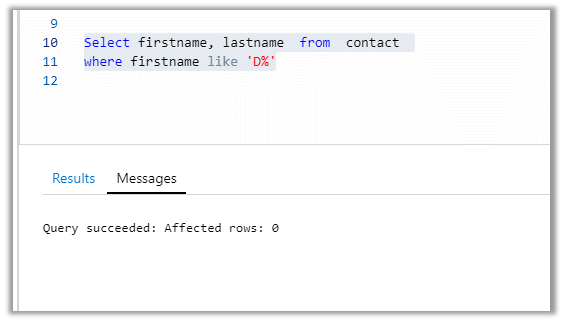
We can see the 8 records deleted in the destination SQL Azure

Thus, we saw how easy it is to do bi-directional sync using Skyvia’s Synchronization package.

Hope it helps..