Fixed – We are having trouble loading your form preview. Check to make sure you have access error in Power Apps


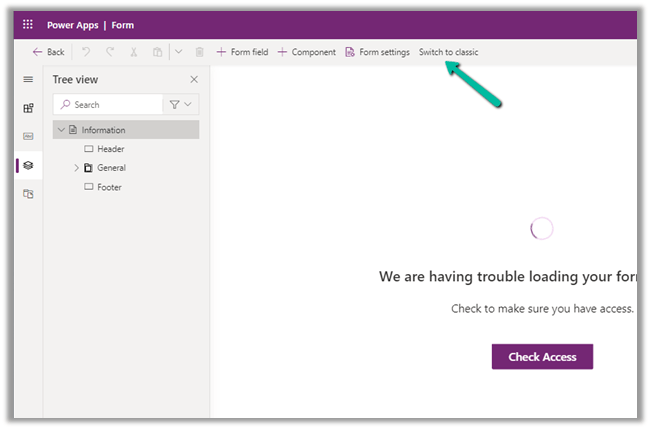
While trying to open a form for customization for a custom entity we were getting below error within the maker portal.

The user was an admin user.

The same was the case in both Chrome and Edge browsers.

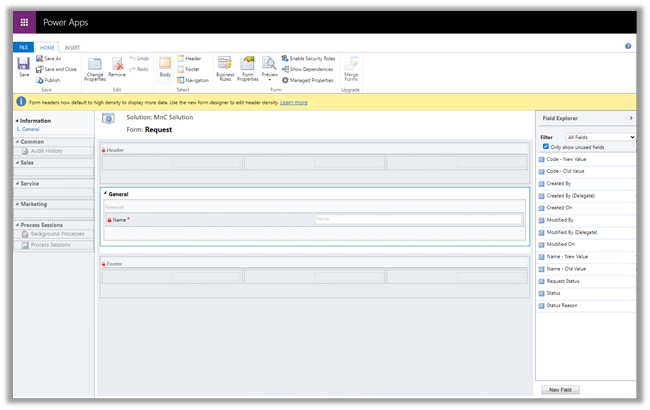
The only way we could proceed was by switching to classic experience.

Switching to Classic worked

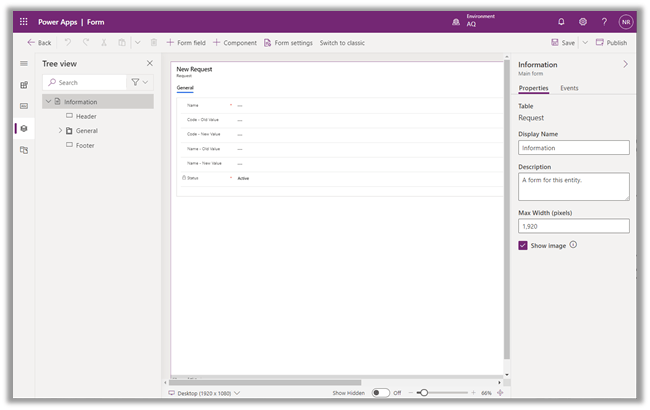
After updating the form in classic and publishing the changes, the form started working properly in the maker portal also.

We were able to customize the form in both Chrome and Edge.

Hope it helps..

How to – Use Advanced lookup in Model-driven Power Apps / Dynamics 365


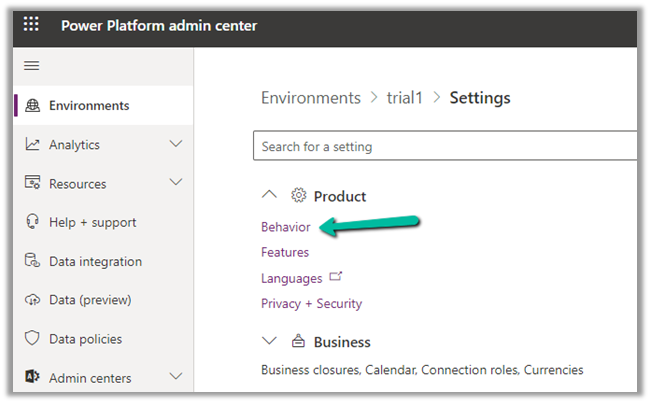
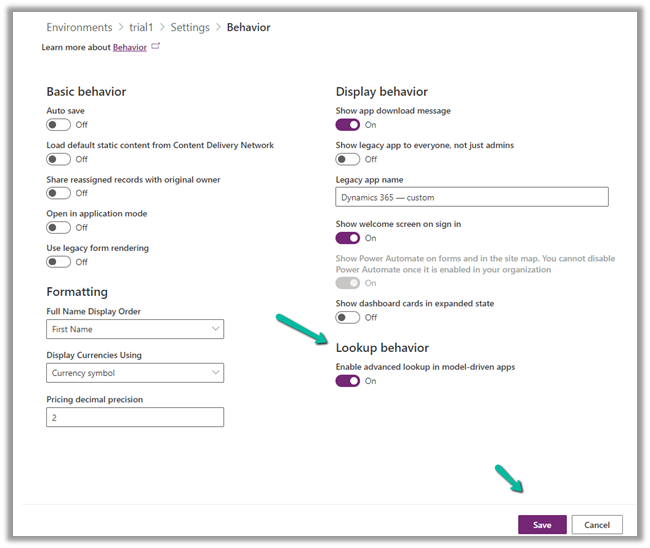
To enabled Advanced Lookup, log into to Power Platform Admin Center, navigate to

Environment >> [Select Environment] >> Settings >> Behavior

Enable the Lookup behavior and Save.

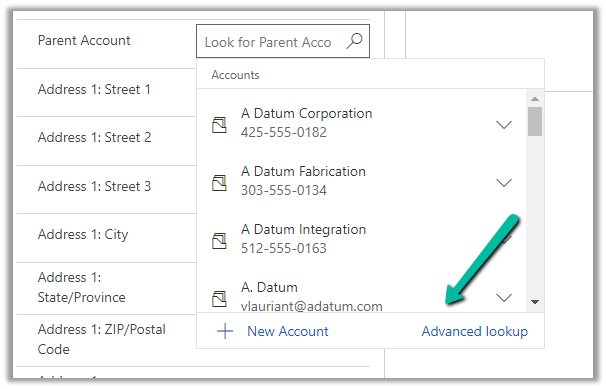
This adds the Advanced Lookup option in the Lookup dialog.


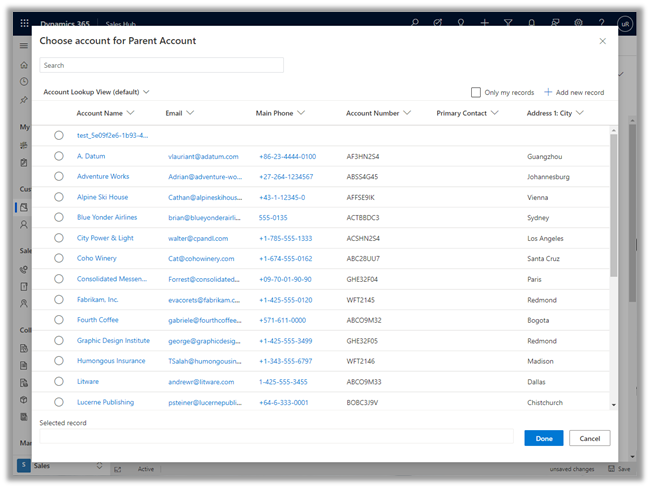
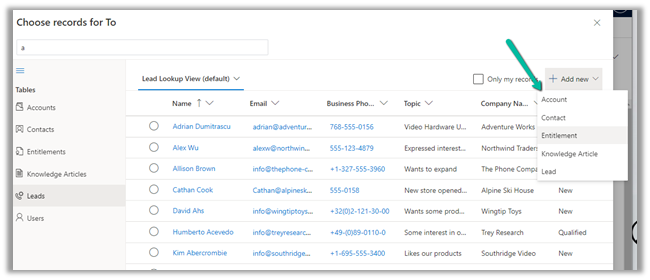
Clicking on it opens the Advanced Lookup Grid 


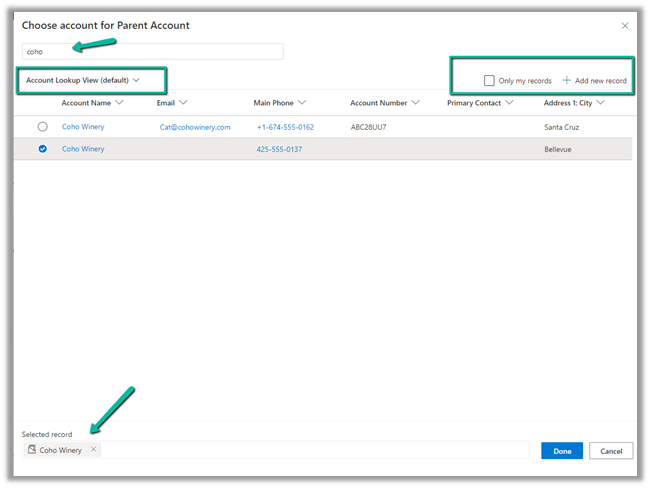
We can perform SEARCH within a selected View, CHANGE a view, can FILTER it the results further to show only records owned, ADD a new record, SORT the grid.


The best part is we can open/edit an existing record as well as add new ones without losing the existing context.

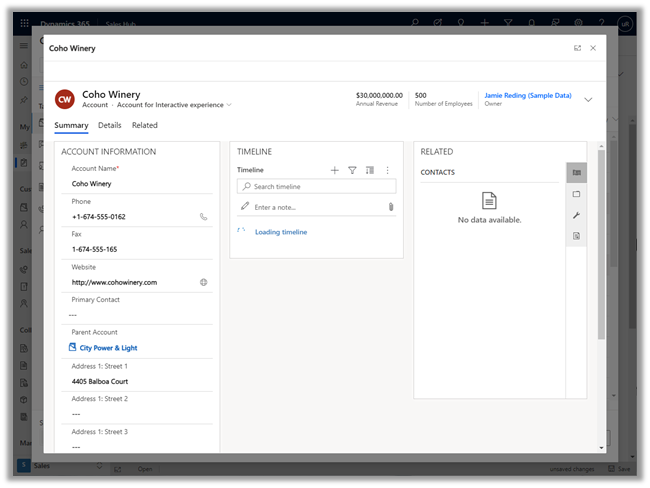
Opening an existing record from the result opens the record in the new pop-up window as shown below.

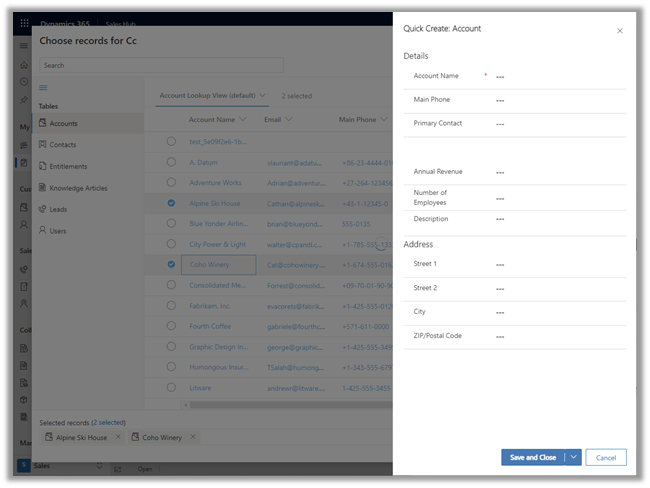
Similarly, the Add new option opens the Quick Create form.

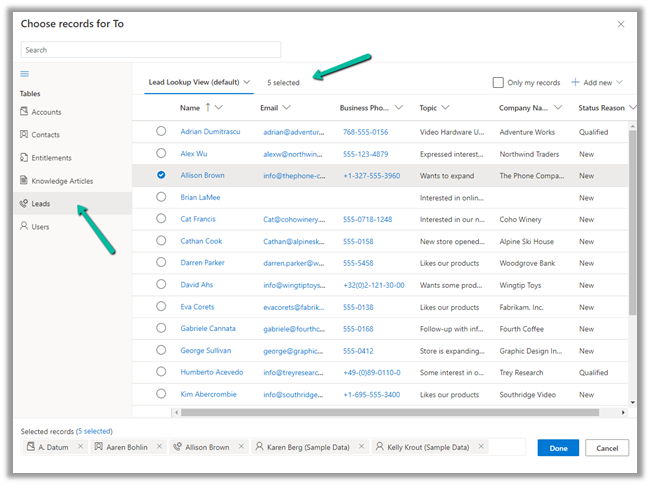
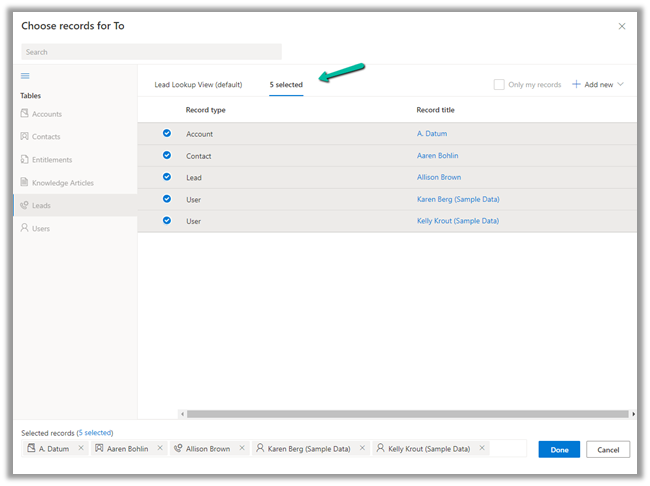
In case of special data type like Party List or Regarding, we can select multiple records of different entities we are presented with.

Similar the option to Add new records list all the tables/entities applicable to that lookup.

Thus the new advanced lookup makes working with Lookup much simpler and effective and we should start adapting / using it.

Blog posts on 2021 Release Wave 1 – Dynamics 365

Hope it helps..

Advertisements

How to – improve data migration performance – SSIS & Azure Data Factory (Dataverse / Dynamics 365)


In one of our projects, we were executing SSIS Packages (KingswaySoft’s Dynamics 365 SSIS Integration Toolkit) under Azure-SSIS Integration Runtime in Azure Data Factory.

Check out –

Deploy and run SSIS Package in Azure Data Factory

Deploy and run SSIS Packages that use KingswaySoft’s SSIS Integration Toolkit on Azure Data Factory.

After trying out different combinations, we eventually settled with batch size as 10 and thread as 15.

https://nishantrana.me/2021/06/08/data-migration-optimum-batch-size-and-threads-for-maximum-throughput-microsoft-dataverse-dynamics-365/

Also, we used multiplexing – running the CRM Destination Component under different application users.

To be precise, 4 in our case and we can increase it get further  improvement in the throughput.

And also based on the recommendation of our Microsoft’s Fast Track Architect we raised a Microsoft ticket to increase the number of web servers allocated from 2 to 3.

Below were our findings,

the earlier run was using batch size as 100 and thread as 20 with the number of servers as 2.

On updating the batch size to 10 and thread as 15 and with the number of servers allocated increased to 3, there was a huge performance gain.

Check the table below – 

The above table is sample run in the sandbox environment, during the final run in production we got the number of servers allocated, increased to 6, gaining further improvement.

Also, check out the below blog post to understand about the affinity cookie and its affect on performance, in case if we doing migration using custom code –

https://markcarrington.dev/2021/05/26/improving-bulk-dataverse-performance-with-enableaffinitycookie/

Hope it helps..

Advertisements

Write batch size, data integration unit, and degree of copy parallelism in Azure Data Factory for Dynamics CRM / 365 Dataset


Let us take a simple example where we are moving contact records (.CSV) stored in Azure File Share to Dataverse or Dynamics 365 (UPSERT).

CSV file has 50000 sample contact records (generated using https://extendsclass.com/csv-generator.html) stored in Azure File Storage.

Another option of generating sample data

https://nishantrana.me/2020/05/26/using-data-spawner-component-ssis-to-generate-sample-data-in-dynamics-365/

The Source in our Data Factory pipeline.

The Sink is our Dynamics 365 / Dataverse sandbox environment, here we are using the Upsert write behavior.

For the Sink, the default Write batch size is 10.

Max concurrent connections specify the upper limit of concurrent connections that can be specified.

Below is our Mapping configuration

The Settings tab for the pipeline, allows us to specify,

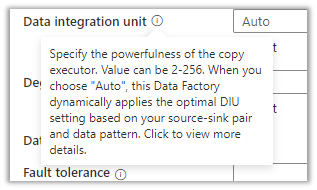
Data Integration Unit specifies is the powerfulness of the copy execution.
Degree of copy parallelism specifies the parallel thread to be used.

Let us run the pipeline with the default values.

  • Write Batch Size (Sink) – 10
  • Degree of copy parallelism – 10
  • Data integration unit – Auto (4)

The results à It took around 58 minutes to create 50K contact records.

We then ran the pipeline few more times by specifying the different batch sizes and degree of copy parallelism.

We kept Max concurrent connections as blank and Data Integration Unit as Auto. (during our testing even if we are setting it to higher values, the used DIUs value as always 4)

Below are the results we got à

Write Batch Size Degree of copy parallelism Data Integration Unit (Auto) Total Time (Minutes)
100 8 4 35
100 16 4 29
1000 32 4 35
       
250 8 4 35
250 16 4 25
250 32 4 55
       
500 8 4 38
500 16 4 29
500 32 4 28
       
750 8 4 37
750 16 4 25
750 32 4 17
       
999 8 4 36
999 16 4 30
999 32 4 20

The results show that increasing the batch size and degree of copy parallelism improves the performance in our scenario.

Ideally, we should run a few tests with different combinations before settling for a specific configuration as it could vary.

On trying to set the batch size to more than 1000,

We would get the below error à
ExecuteMultiple Request batch size exeeds the maximum batch size allowed.

Also refer –

Optimizing Data Migrationhttps://community.dynamics.com/crm/b/crminthefield/posts/optimizing-data-migration-integration-with-power-platform

Using Data Factory with Dynamics 365https://nishantrana.me/2020/10/21/posts-on-azure-data-factory/

Optimum batch size with SSIShttps://nishantrana.me/2018/06/04/optimum-batch-size-while-using-ssis-integration-toolkit-for-microsoft-dynamics-365/

Hope it helps..

Advertisements

Now Maximum of 10 alternate keys can be defined for an entity/table – 2021 Release Wave 1 – Dynamics 365


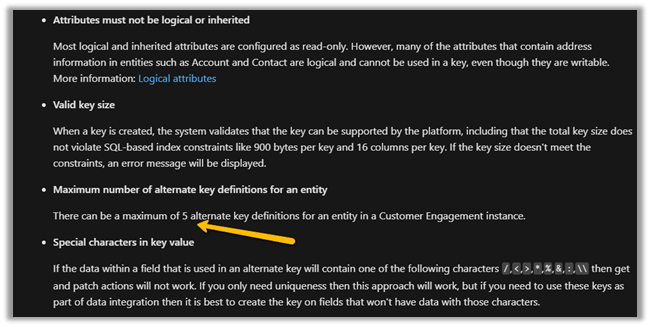
Previously, a maximum of 5 alternate keys could be defined for an entity.

https://docs.microsoft.com/en-us/dynamics365/customerengagement/on-premises/developer/define-alternate-keys-entity#create-alternate-keys

With 2021 Release Wave 1, the limit has been increased to 10.

https://docs.microsoft.com/en-us/power-platform-release-plan/2021wave1/data-platform/increased-alternate-key-limits

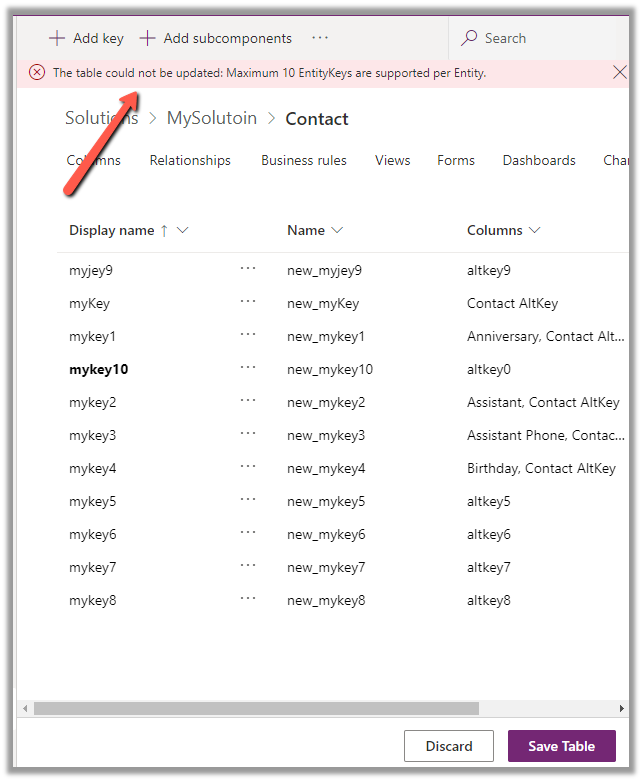
While trying to create the 11th key we will get the below error message as shown below

The table could not be updated: Maximum 10 EntityKeys are supported per Entity.

Check other posts on 2021 Release Wave 1  –

Blog posts on 2021 Release Wave 1 – Dynamics 365

Hope it helps..
Advertisements
Advertisements

How to – Show/ Hide header and ribbon menu dynamically on Dynamics 365/ Model Driven App forms


by Debajit Dutta (MVP – Business Solutions) https://debajmecrm.com/

Advertisements