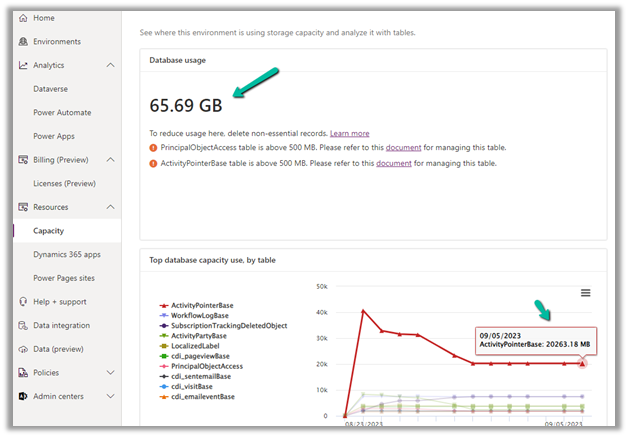
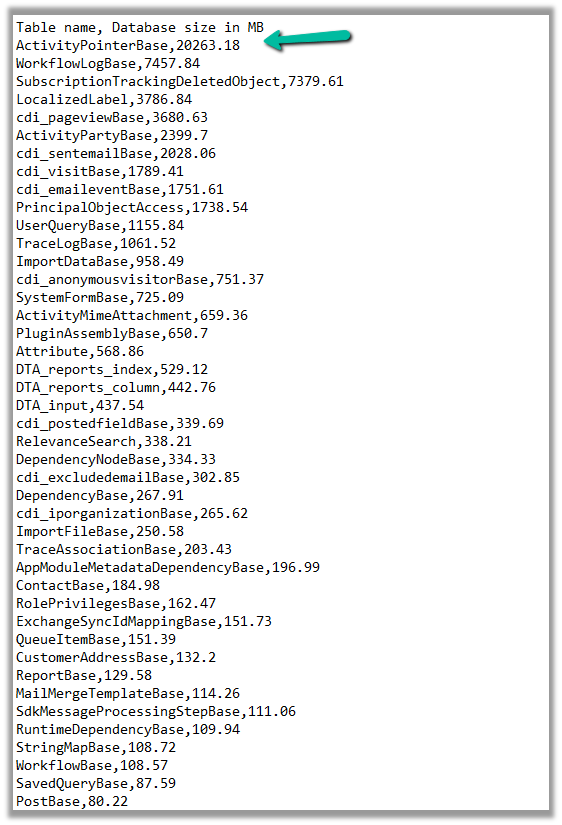
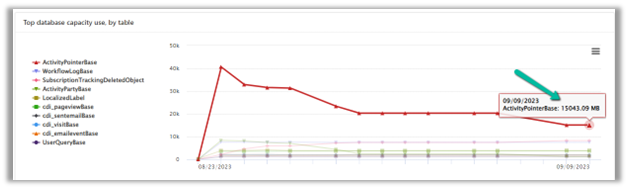
In one of our environments, the ActivityPointBase table was occupying nearly 20 GB. It was earlier 40 GB, and we then deleted email records to bring it down to 20 GB.
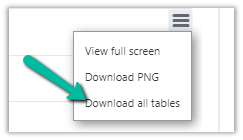
On downloading the table details, we did not get a clear idea of what activity-type table was occupying that much space.
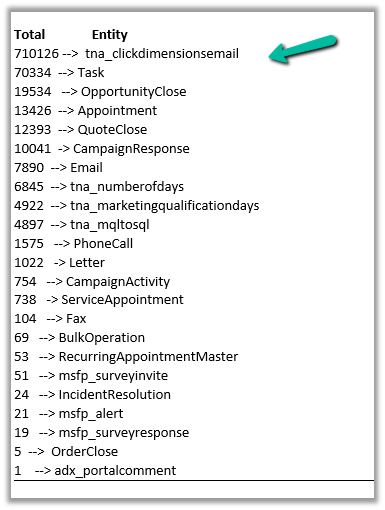
So we raised the Microsoft Support ticket, and they shared with us the breakdown of records occupied by different activity type tables.
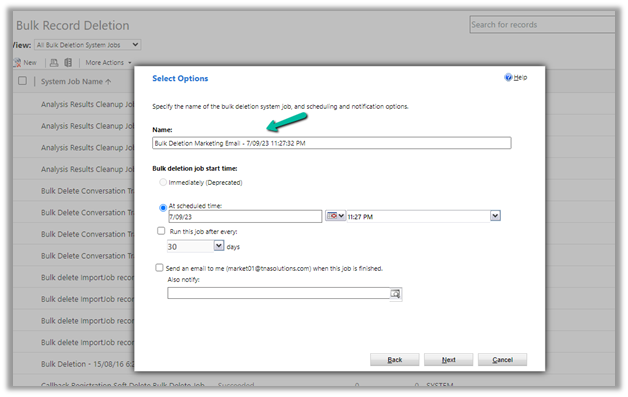
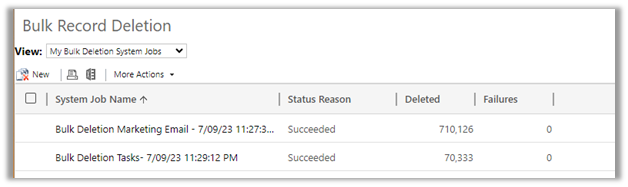
Then we configured our Bulk Deletion Job to delete the corresponding activity type records.
This helped us to bring down the ActivityPointerBase from 20 GB to 15 GB.
Low-code plug-in is a new experimental feature released by Microsoft, for early adopters, not meant to be used in production. As per Microsoft, “the experimental features can change radically or completely disappear at any time“.
There are 2 types of low-code plug-ins we can write – Instant and Automated.
Instant plug-ins are triggered manually and support parameters, whereas automated plug-in as the name suggests, runs when a particular event (create, update, or delete) occurs on a table and they do not support parameters.
As a prerequisite, we need to first install the Dataverse Accelerator
We can install it from Admin Center >> Resources >> Dynamics 365 Apps
Or from the App Source, look for Dataverse Accelerator and click Get in now.
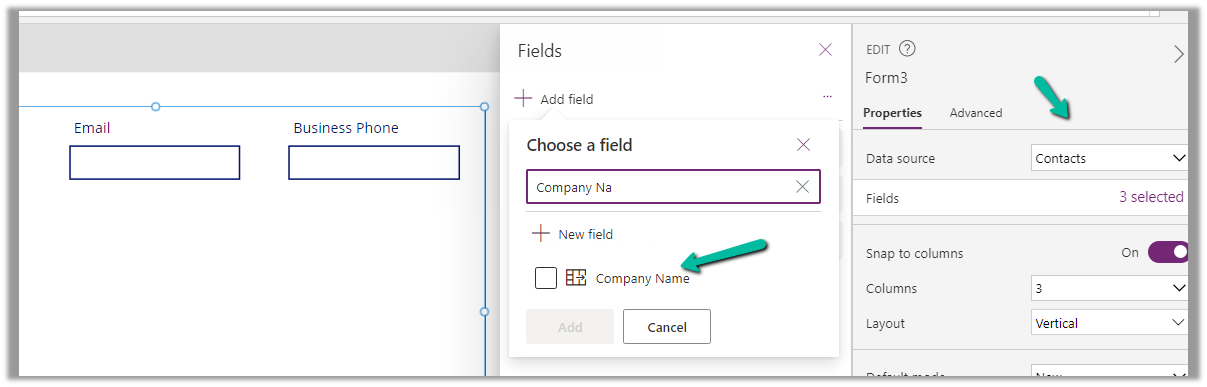
For this example, we are taking the Company Name customer lookup column of the contact table.
We start by adding the Customer Name field to the form.
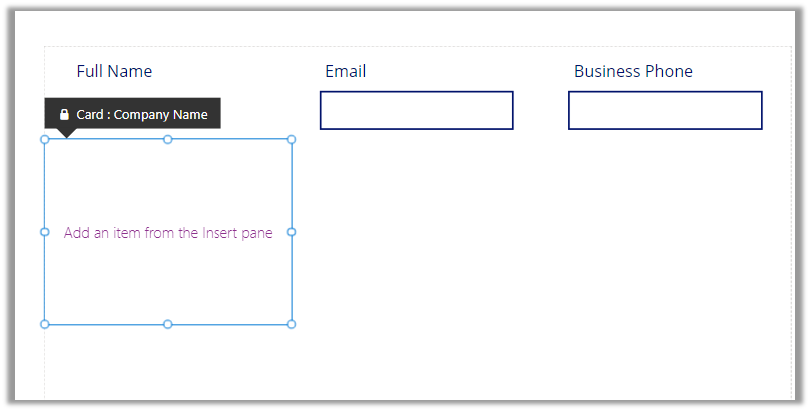
That adds a card to the form, let us add the required controls to get it working
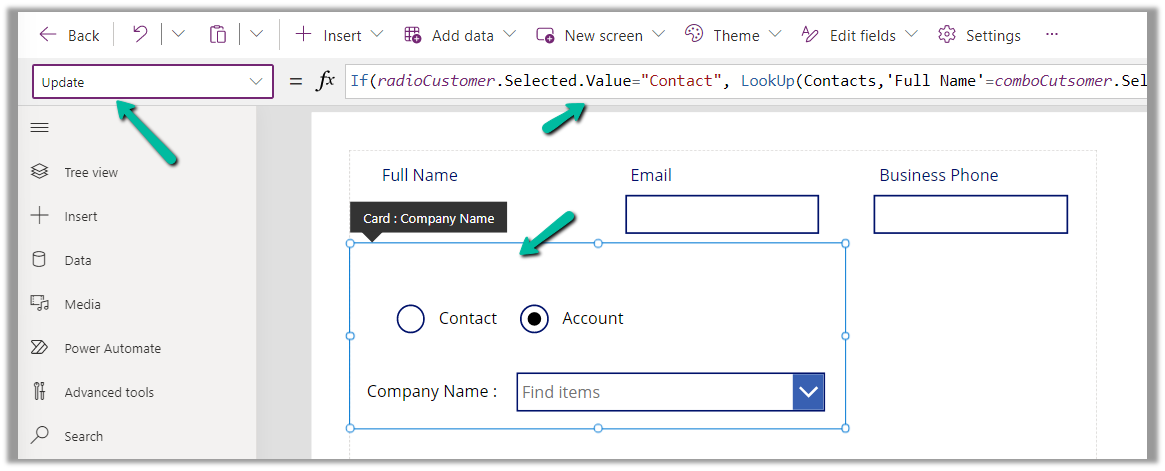
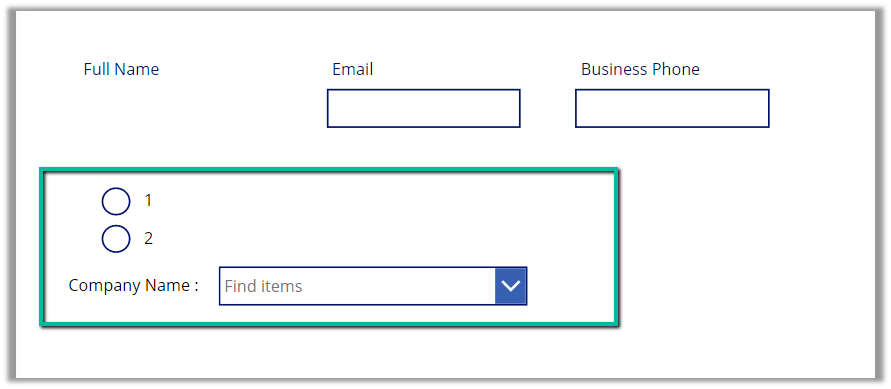
Radio Button, Combo box, and Text Label for the combo box.
Change the Items property of the radio button to show the contact and account option.
Also, change the Layout to Horizontal and Default as Contact.
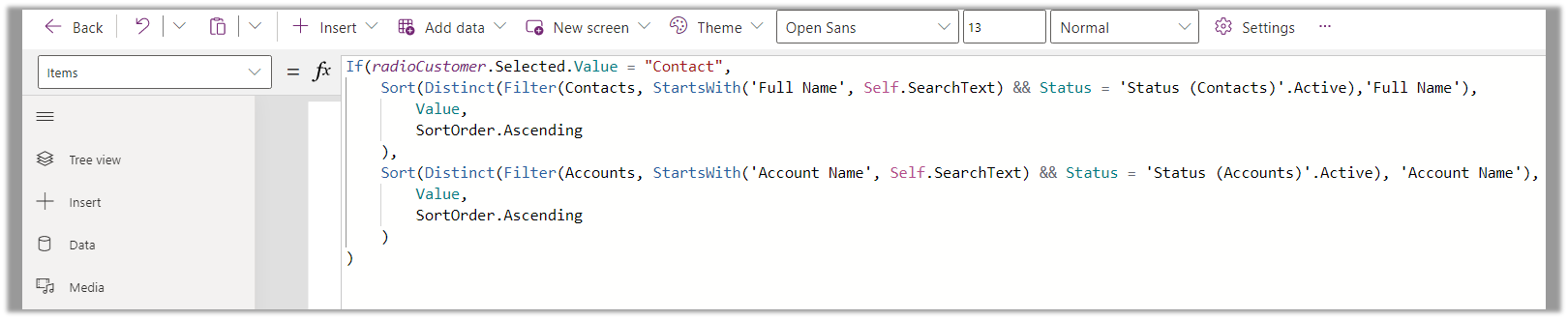
And set the Items property of the Combo box as below –
Based on the value selected in the radio button, we are setting the Data Source and also applying the Sort and Distinct function to it, along with StartsWith for delegation.
We have also set Allow searching as On for the combo box.
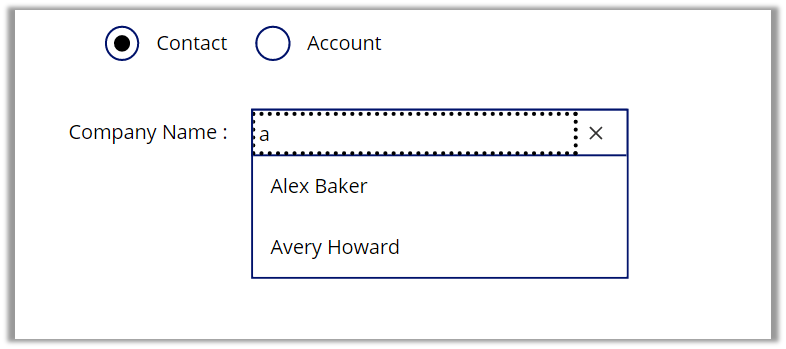
For the Contact option selected –
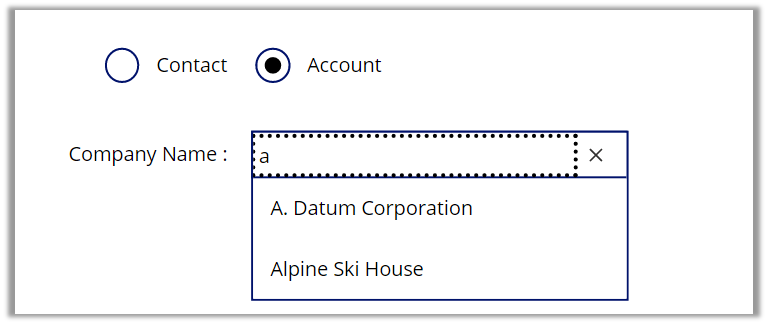
For the Account option selected –
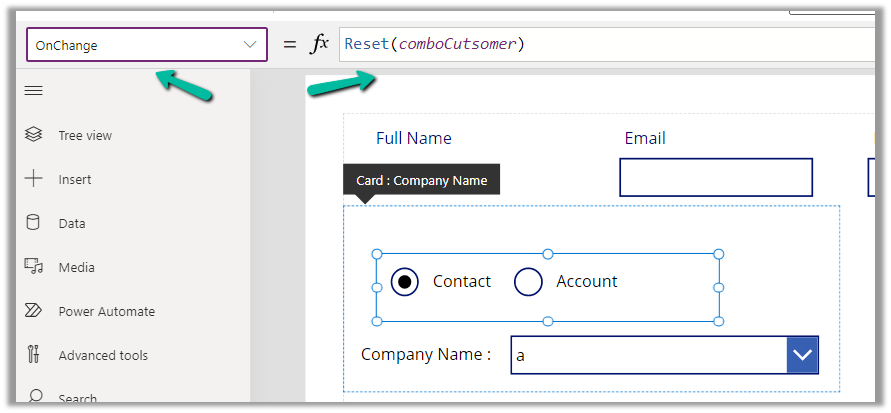
Also, we can set the OnChange property of the radio button to Reset(comboControl) to clear the selection when the user switches between Contact and Account options.
Now to have this value saved back we can specify the Update property of the custom data card in which we have placed these controls.








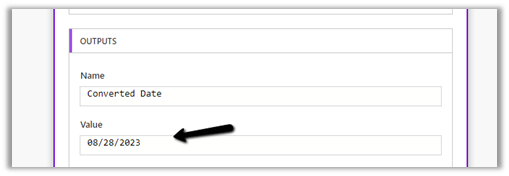

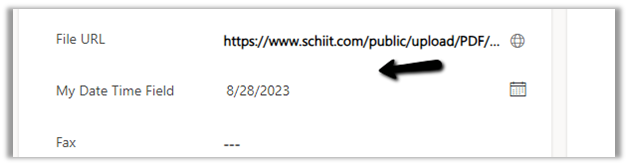

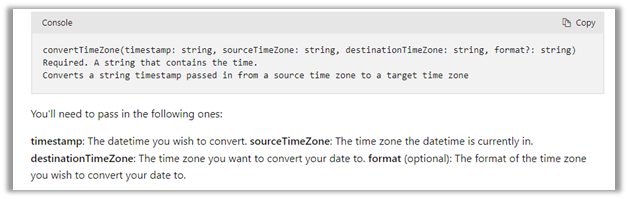
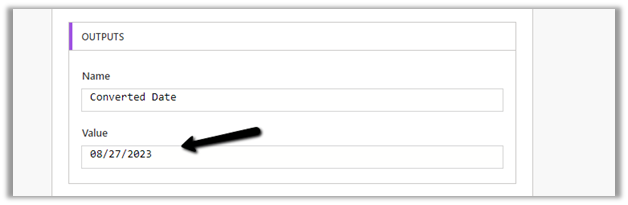 Check this thread that talks about it –






 And set the Items property of the Combo box as below –