Using existing Web Resources (image) and Icons for button/ command – Dynamics 365 / Model-driven apps


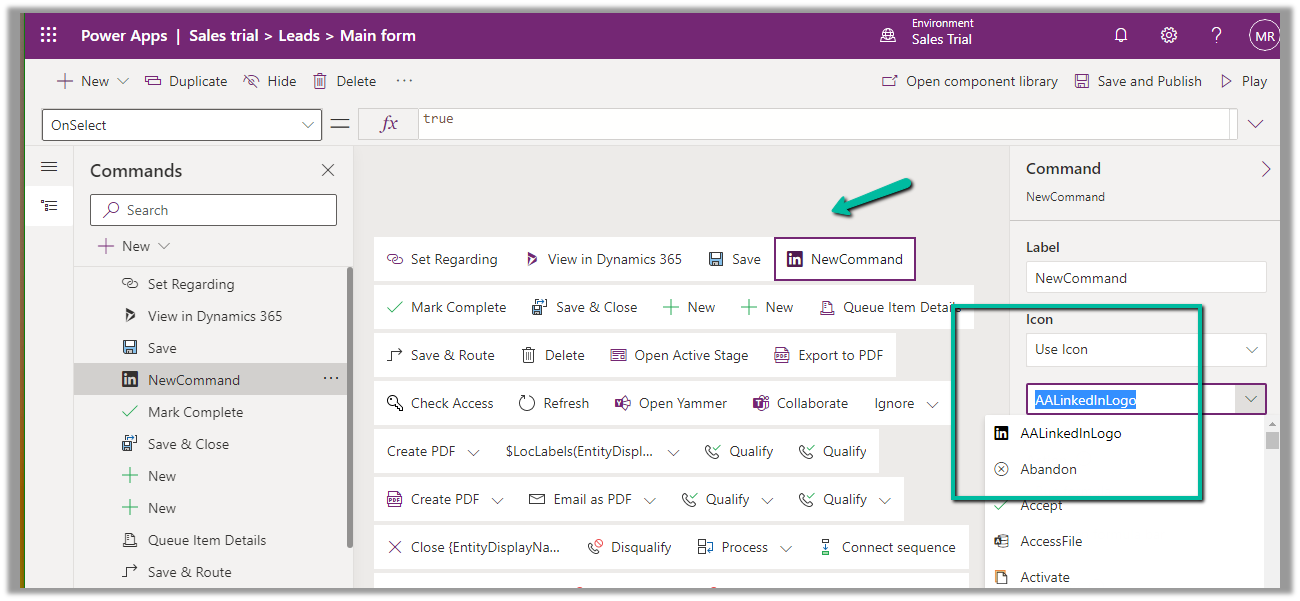
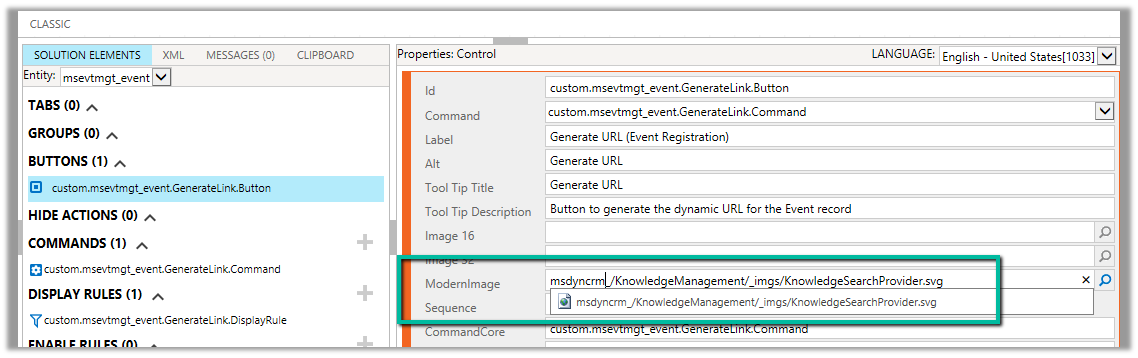
In case of a new command that is added through Command Designer, we can specify an existing Icon using the Use Icon option.

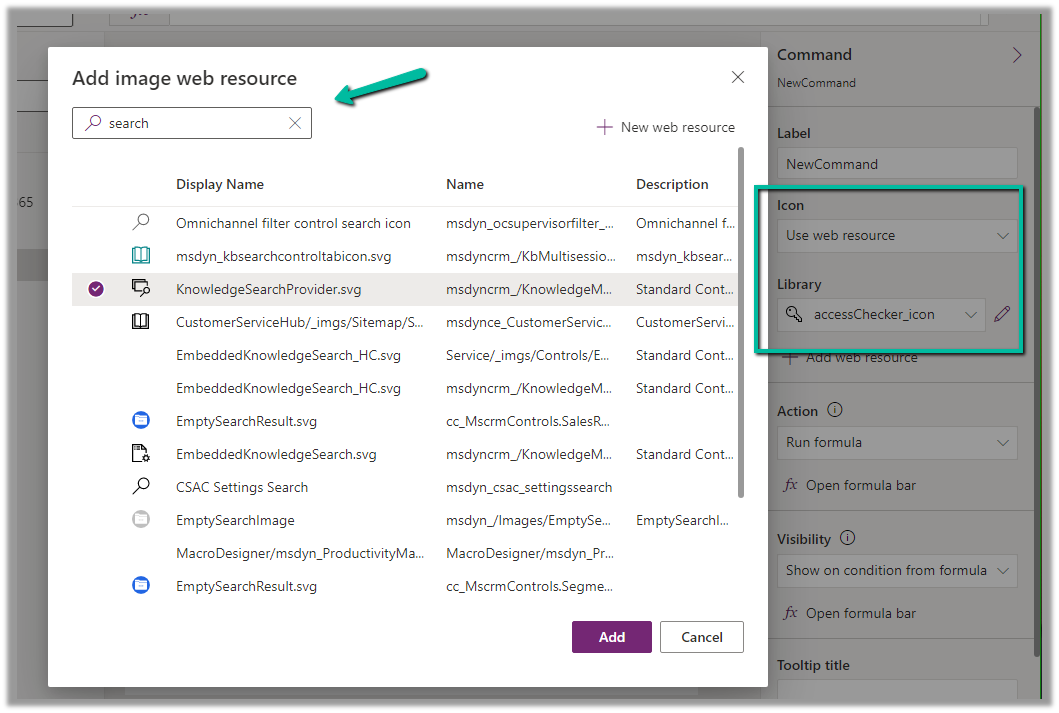
We can also search and specify an existing Web Resource

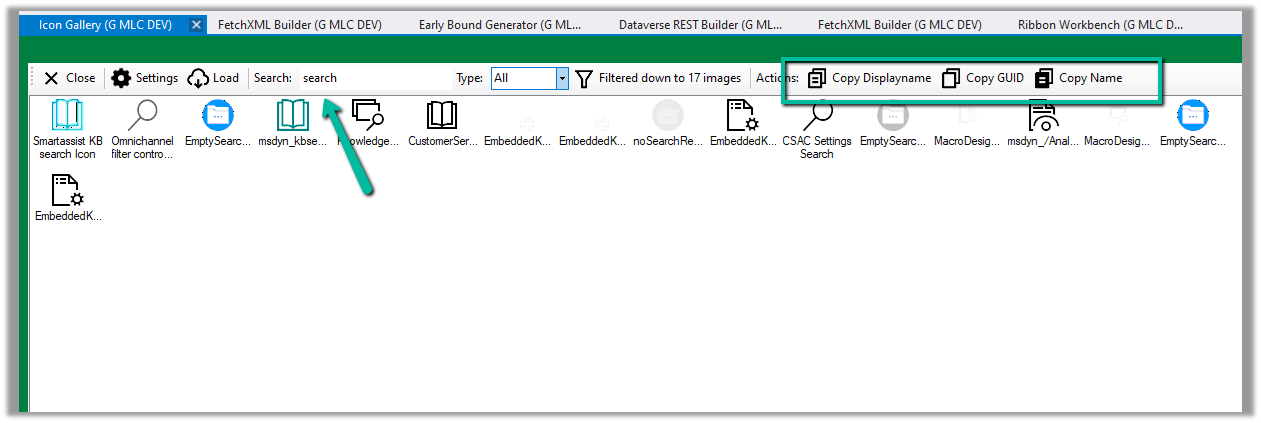
Similarly, we can use Icon Gallery (XrmToolBox Plugin) to search for the existing web resource image and icons.

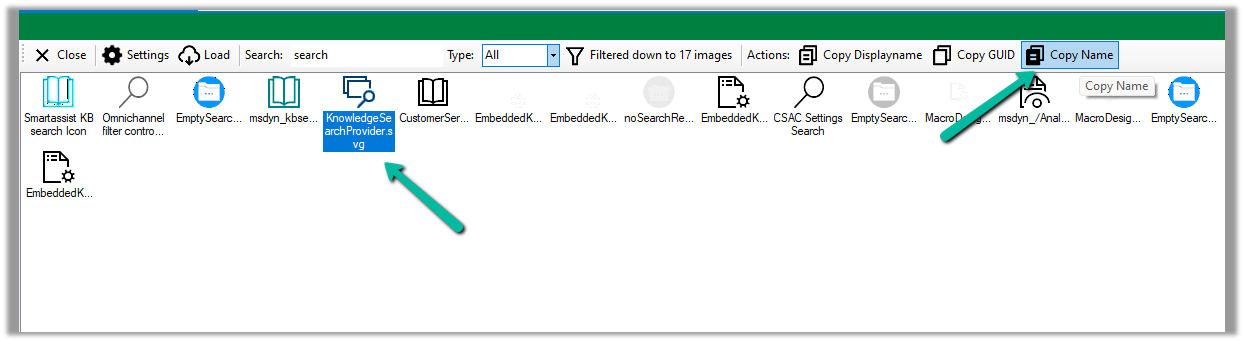
We can then use Copy Name option to get the full path of the web resource

msdyncrm_/KnowledgeManagement/_imgs/KnowledgeSearchProvider.svg

use it to specify Modern Image for our buttons

Hope it helps..

Advertisements

Using Coalesce Function to handle null value in Power Automate – Dataverse


Recently in one of our flows, we were getting the below error –

InvalidTemplate. Unable to process template language expressions in action ‘List_rows_:_Region’ inputs at line ‘0’ and column ‘0’: ‘The template language function ‘replace’ expects its first parameter ‘string’ to be a string. The provided value is of type ‘Null’. Please see https://aka.ms/logicexpressions#replace for usage details.’.

One or more fields provided is of type ‘Null’, a different type is expected.

This was because the replace function that we were using for the Filter rows property of List Rows (Dataverse) had the variable value as null.

Below was our dynamics expression where we replaced apostrophe with 2 single quotes – https://nishantrana.me/2023/02/27/how-to-handle-single-quote-apostrophe-in-filter-rows-in-power-automate-dataverse/

replace(replace(variables(‘varFieldData’)?[‘myVariable’],‘_’,’ ‘),””,”””)

The solution was to use coalesce function, to replace null with a blank string as shown below.

replace(replace(coalesce(variables(‘varFieldData’)?[‘myVariable’],”),‘_’,’ ‘),””,”””)

Similarly, we can use coalesce function to provide a default value.

The coalesce function will evaluate its arguments in order and will return the first non-blank or non-empty value. If all the arguments are blank or empty strings, the function will return blank.

After using the coalesce function, our flow was successful.

More on COALESCE

A similar example in SQL –

Hope it helps..

Advertisements

How to – Handle single quote/apostrophe in Filter Rows in Power Automate (Dataverse)


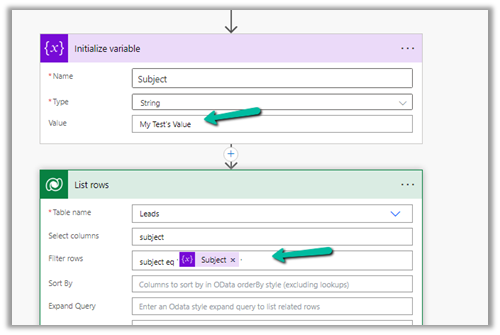
Say for e.g. we have the below flow, which finds the lead having subject as “My Test’s Value”

On running it we get the below error

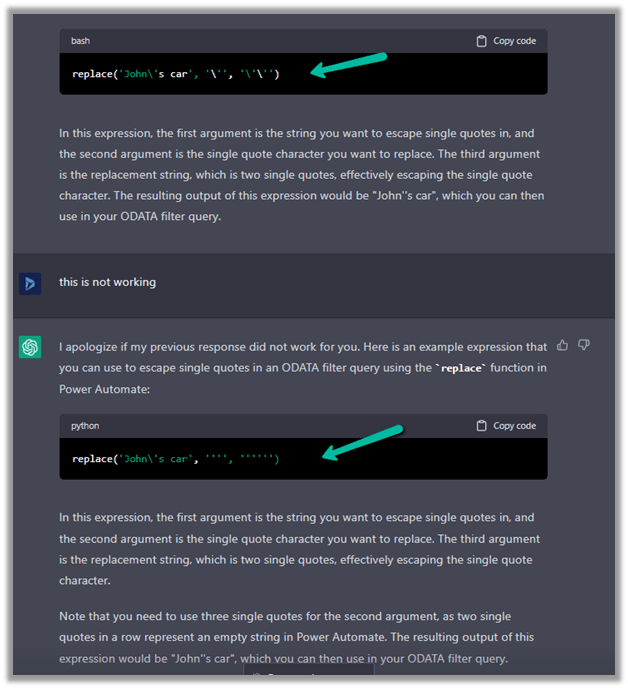
To make it work we can make use of replace function here.

replace(variables('Subject'),'''','''''')

= to espace

= special character

replace(variables(‘Subject’),,)

Please refer to the helpful post- https://techcommunity.microsoft.com/t5/power-apps-power-automate/how-to-handle-single-quotes-in-the-filter-property-with-get/m-p/2617747

This time it works successfully.

ChatGPT – quick to correct and give the right answer.

Hope it helps..
 

Advertisements

Format property missing in Date Picker in custom page – Dataverse / PowerApps


Recently while designing the custom page, we realized that the format property is missing for the Date Picker control. This is because Date Picker control is based on Fluent UI Library.

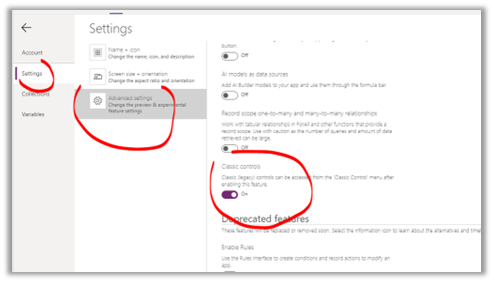
One option earlier was to enable the Classic Controls from Settings

And replace the existing control with the classic control

Also, check – https://debajmecrm.com/get-todays-date-format-dates-in-power-apps-canvas-app/

https://powerusers.microsoft.com/t5/Building-Power-Apps/Date-picker-missing-format-property/td-p/903794

https://powerusers.microsoft.com/t5/Building-Power-Apps/Custom-Page-Date-Picket-Format-Date/td-p/1349351

Hope it helps..

Advertisements

Fixed – Value must be a data entity record error in Power Apps


We got the below error while trying to use the Relate function – “Value must be a data entity record”


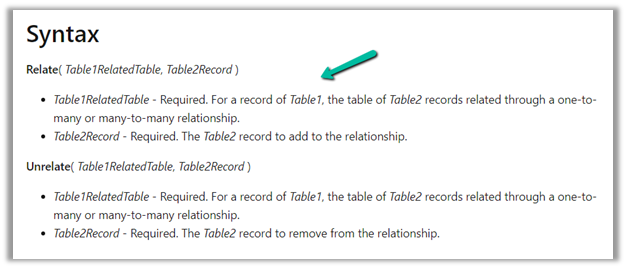
As the error message clearly states and also if we see the syntax, the Relate function expects a record

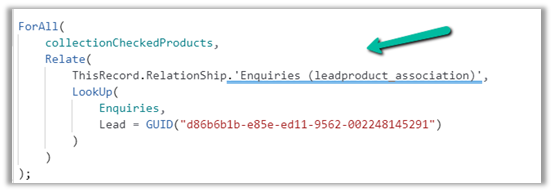
Below was our formula for OnSelect, which was throwing the error

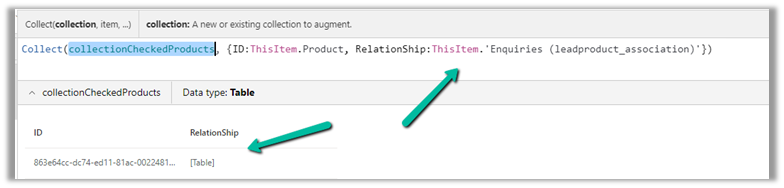
Here instead of passing the record, we were passing the table in the Relationship which was the reason for the error.

We changed it to store the ThisItem

And also updated the OnSelect

This fixed the issue for us.

Hope this helps..

Advertisements

Fixed – Custom Page not opening or Page doesn’t exist in this app error in the model-driven app (PowerApps)


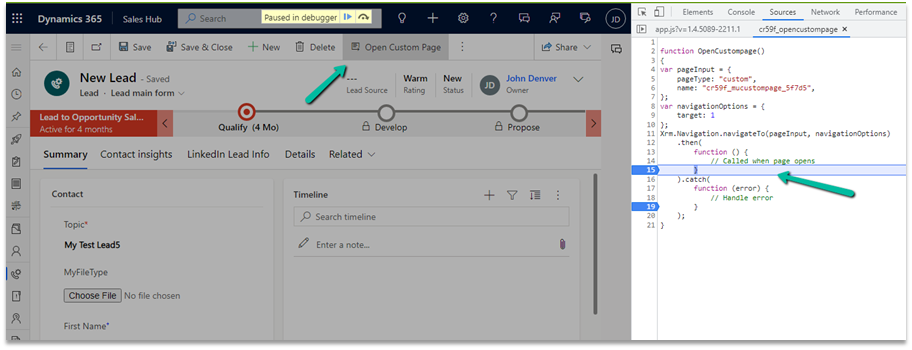
Recently we created a custom page to be opened from the Ribbon / Command bar, however, the page was not opening for us, even though the function was running properly.

https://learn.microsoft.com/en-us/power-apps/developer/model-driven-apps/clientapi/navigate-to-custom-page-examples

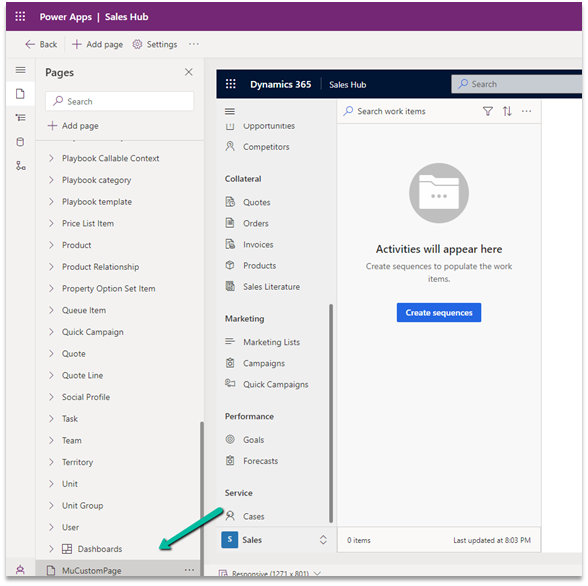
Here we had created the custom page from within the solution area, so we need to add this custom page to our model-driven app. (The other option is to create the page from the Modern App Designer.)

https://learn.microsoft.com/en-us/power-apps/maker/model-driven-apps/add-page-to-model-app#create-or-edit-a-custom-page

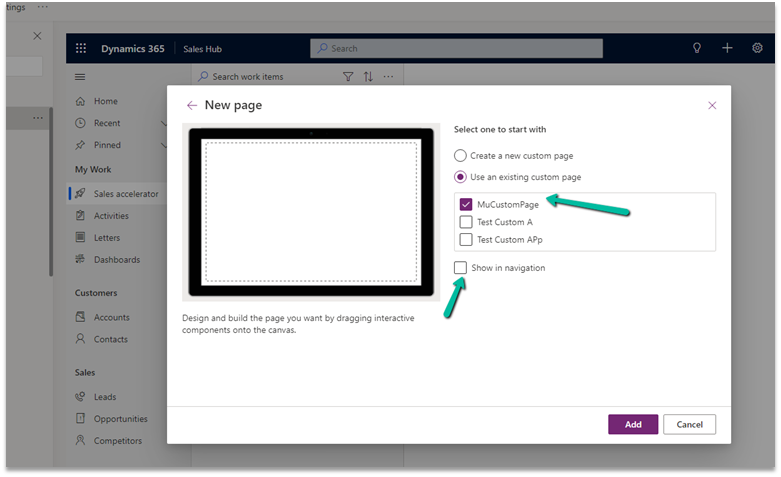
Open the app in the Modern App Designer and click on Add Page

Select Use an exiting custom page, select the page and uncheck the Show in navigation option as we are opening this page from the form.

Publish the app.

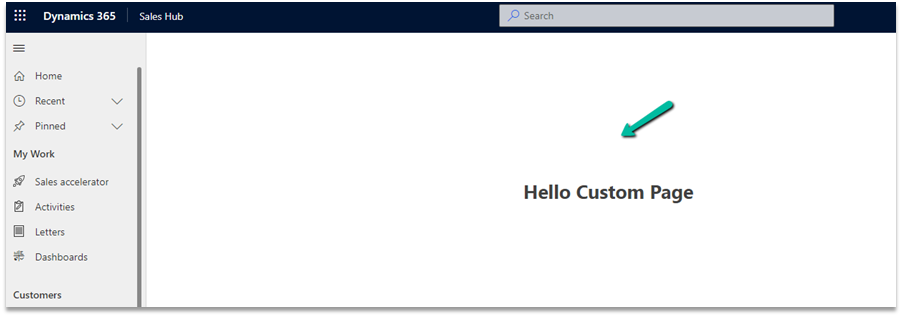
This time clicking on Open Custom page command/button on the form successfully opened the custom page for us.

Thanks to Andrew (https://butenko.pro/) for the solution.

Hope it helps..
 

Advertisements